



Running an email marketing campaign isn’t just about clicking “send”—it’s a sequence of strategic steps, coordinated collaboration, and detailed follow-through. From planning subject lines to checking responsive design, missing even one task can derail your entire effort.
That’s why we’ve created the Email Campaign Checklist in Google Sheets—a ready-to-use, fully editable, and visually guided tool that simplifies your campaign management process. Whether you’re a solo marketer or part of a large digital team, this checklist helps you stay organized, delegate responsibilities, and deliver emails that hit the mark every time.

✨ Key Features of the Template
✅ 1. Email Campaign Checklist Sheet
This is the main action sheet, divided into:
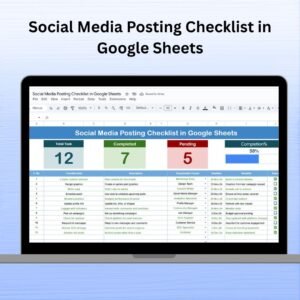
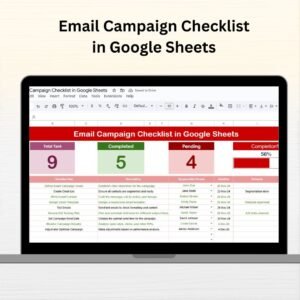
🔹 Top Summary Section
Total Count of checklist items
Completed Count (✔)
Pending Count (✘)
Progress Bar to visualize overall task completion
The top section updates automatically based on the Status column—offering a real-time progress snapshot for your campaign.
🔹 Main Checklist Table
Track and manage all campaign tasks with columns for:
Serial No.
Checklist Item
Description
Responsible Person (with dropdown)
Deadline
Remarks
Status (✔/✘)
The intuitive design ensures you don’t miss a single step—from drafting the copy to post-launch analytics review.
✅ 2. List Sheet Tab
🎯 This sheet supports the “Responsible Person” dropdown in the main checklist table.
✔️ Helps maintain data consistency
✔️ Reduces manual entry errors
✔️ Easy to add or remove names as your team evolves
🎯 Why Use This Google Sheets Email Checklist?
📌 Streamline Your Email Campaign Workflow
Plan, execute, and track every step from one organized location.
👥 Collaborate in Real-Time
Share with your team, assign tasks, and monitor status—even remotely.
📊 Automatic Progress Tracking
No manual calculations. Status updates trigger real-time progress visualization.
♻️ Reusable & Customizable
Duplicate for each campaign or create templates based on campaign type.
🔧 Editable for Any Use Case
Add columns for campaign type, link to creative assets, or highlight critical tasks.
💡 Best Practices for Using This Checklist
✔️ Define all tasks in advance before launch week
✔️ Assign responsibilities via dropdown for transparency
✔️ Update status (✔ or ✘) in real time to track progress
✔️ Review summary section 2–3 days before sending
✔️ Make a new copy per campaign to maintain organized records
🚀 Opportunities to Improve the Template
🔺 Add Priority Labels (High, Medium, Low)
🔺 Insert Campaign Type or Audience Segment columns
🔺 Link assets directly from Google Drive
🔺 Highlight overdue tasks with conditional formatting
🔺 Use Google Calendar or Apps Script to automate deadline reminders
🔺 Add post-campaign metrics: open rate, CTR, unsubscribe rate
👥 Who Can Use This Email Campaign Checklist?
📈 Digital Marketing Teams managing multiple campaigns
🧑💻 Freelancers handling multiple clients
🏢 Startups & SMBs launching new offers or newsletters
📣 Agencies executing multi-platform strategies
🛍️ E-commerce brands promoting seasonal or product emails
Whether it’s a product launch, event invite, or monthly newsletter, this tool ensures your campaign runs like clockwork.
Click here read detailed blog post
Watch the step-by-step video Demo:
🎥 Learn How It Works
🔗 Visit our YouTube Channel for Step-by-Step Tutorials
Compatibility and Requirements
- Works in Google Sheets. You need a free Google account and a web browser.
- The Responsible Person column uses a dropdown fed by the List sheet. Google explains dropdowns in Create an in-cell dropdown list.
Frequently Asked Questions
What does the checklist table track?
Each task has a serial number, checklist item, description, responsible person, deadline, remarks and a status of ✔ or ✘.
How does the progress bar work?
The top of the Email Campaign Checklist sheet counts total, completed and pending items from the Status column. The progress bar updates when you change a status.
How do I change the names in the Responsible Person dropdown?
Open the List sheet and add or remove names. The dropdown in the main table reads from that list.
Can I reuse it for each campaign?
Yes. Make a new copy of the sheet for every campaign so each one keeps its own record.
Is there an Excel version?
Yes. See the Email Campaign Checklist in Excel.
Related Marketing and Checklist Templates
- Email Campaign Checklist in Excel: the same checklist for Excel
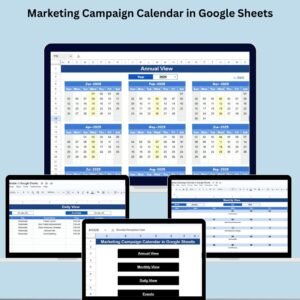
- Marketing Campaign Calendar in Google Sheets: schedule your campaigns by date
- Email Marketing Campaign Calendar in Excel: an email calendar for Excel users
- Project Management Checklist in Google Sheets: another task checklist in Google Sheets
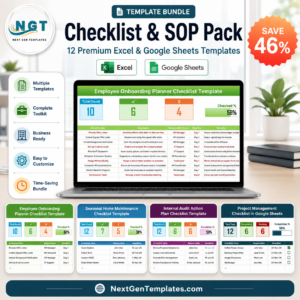
- Checklist & SOP Pack: 12 checklist templates in one download
Browse all Google Sheets checklists.







Reviews
There are no reviews yet.