

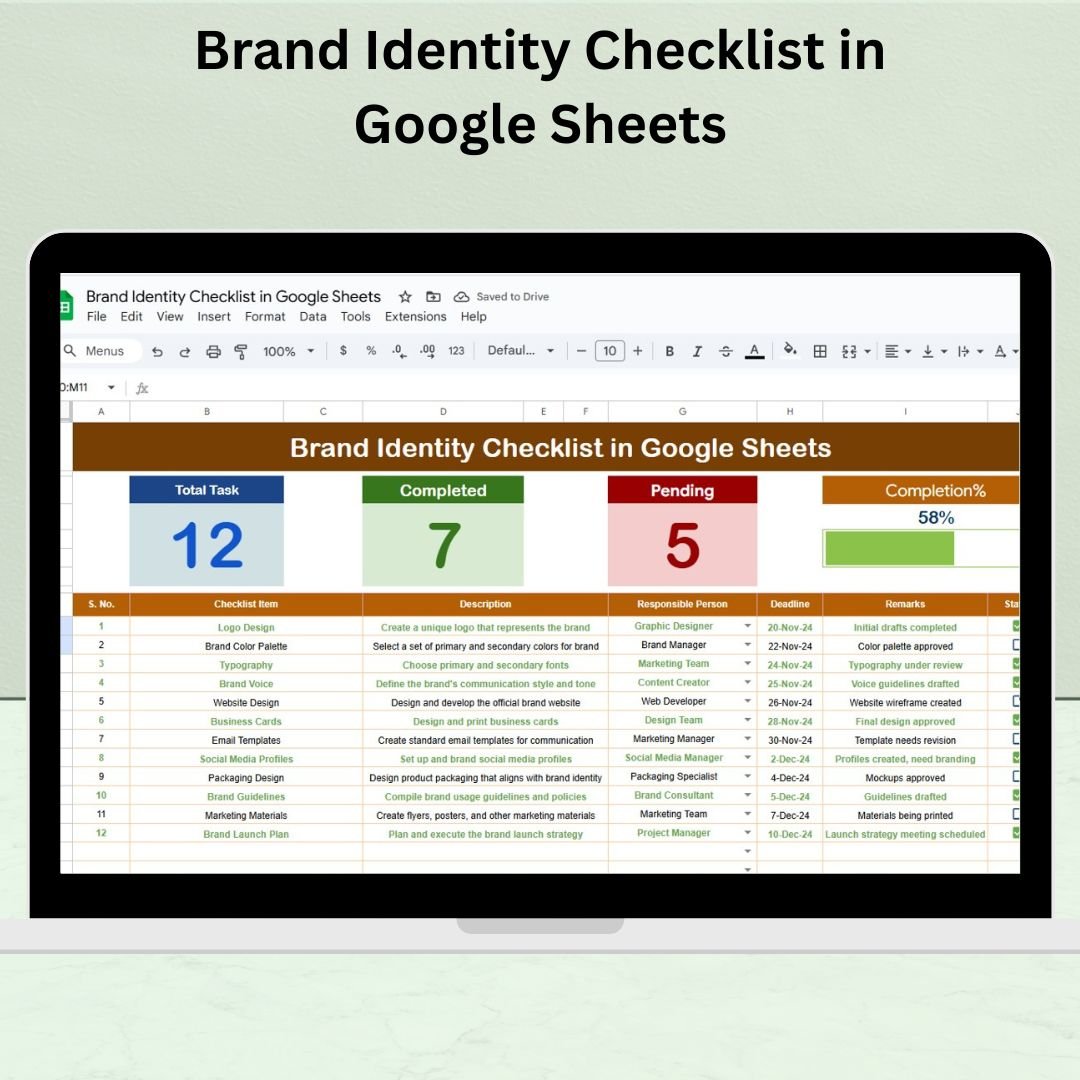

In today’s fast-paced digital landscape, brand identity goes far beyond a logo or color scheme. It embodies your company’s values, voice, visuals, and personality. That’s why managing it with structure is essential—and that’s where the Brand Identity Checklist in Google Sheets comes in!Brand Identity Checklist in Google Sheets
Whether you’re launching a new brand or refreshing an existing one, this easy-to-use checklist template helps ensure every detail is accounted for—from logo finalization to employee training.
✨ Key Features of the Brand Identity Checklist Template
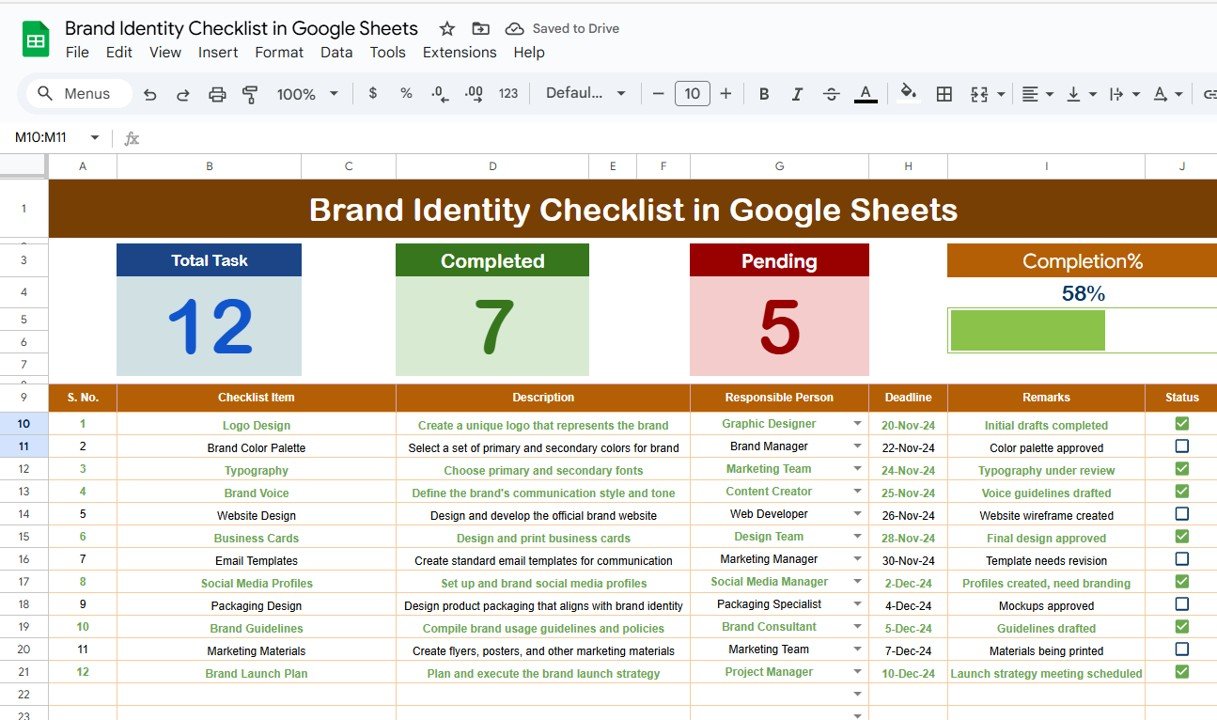
📋 1. Brand Identity Checklist Tab (Main Sheet)
This is your central workspace for managing all branding tasks.
Top Section Highlights:
📌 Total Items – See the total checklist items instantly
✅ Completed Tasks – Count of ✔ marked items
⏳ Pending Tasks – Items marked with ✘
📊 Auto Progress Bar – Visual display of overall completion
Main Table Includes:
🔢 Serial No. – Auto-incremented
📝 Checklist Item – The branding task (e.g., “Brand Voice Documented”)
✏️ Description – Brief explanation of the task
👤 Responsible Person – Assignable from a dropdown list
📅 Deadline – Task due date
🗒️ Remarks – Notes or references
✅ Status – Mark as ✔ or ✘ to track progress
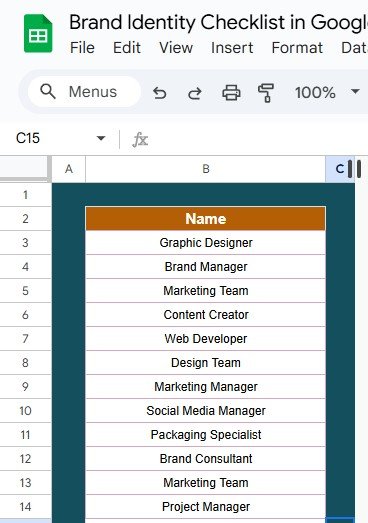
👥 2. Responsible Person List Tab
A clean and editable list of team members
Used to populate dropdowns for consistent and accurate assignments
Great for ensuring data integrity and quick task distribution
🔍 Why Use a Brand Identity Checklist?
A checklist ensures your branding remains:
🎯 Consistent across channels (digital, print, packaging)
🤝 Trusted by customers due to uniform messaging and visuals
🧠 Recognizable and memorable in a crowded market
🚀 Strategic by allowing you to audit, assign, and improve continuously
🎯 Advantages of Using This Template
☁️ Cloud-Based Access – Collaborate in real time via Google Sheets
🔧 Easy to Customize – Add or rename items as per your workflow
📊 Visual Progress Tracking – Keep momentum with a dynamic bar
🧍 Team Accountability – Assign and track ownership effortlessly
📆 Deadline Monitoring – Avoid project delays
🔄 Reusable Format – Perfect for routine checks or major rebranding
💼 Professional Touch – Present brand audits in an organized format
💡 Creative Use Cases
You can use this checklist in a variety of ways:
✅ Quarterly Brand Consistency Reviews
🎓 Marketing Intern Training Resource
🤝 Client Onboarding and Brand Alignment
🧩 Full-scale Rebranding Project Tracker
📈 Pre-launch Brand Health Assessment
💡 Best Practices for Maximum Results
✔️ Conduct a brand audit before filling in tasks
👤 Assign responsibilities clearly using the dropdown feature
📅 Set realistic, achievable deadlines
🔄 Update regularly during rebranding or quarterly reviews
🔐 Back up final assets in well-organized cloud folders
🧠 Share with your team for aligned collaboration
🚀 Opportunities for Improvement
Want to elevate this tool even more? Consider:
🔔 Setting email reminders via Google Apps Script
📥 Integrating with Google Forms for stakeholder feedback
🖼️ Adding image links to branding assets for quick access
📊 Creating summary charts for visual project reporting
🗂️ Archiving completed branding cycles in separate tabs
👥 Who Should Use This?
This template is perfect for:
🧑💼 Marketing Teams
🎨 Designers & Creative Agencies
🧑🏫 Startups & Small Business Owners
📈 Brand Managers
🧾 Consultants conducting brand audits
🧾 What You’ll Get:
✅ 2 Easy-to-Navigate Sheets (Checklist + Team List)
✅ Auto Calculated Progress Bar
✅ Built-in Drop-down Assignments
✅ Visual Summary Cards
✅ 100% Editable & Cloud Accessible Format
✅ Beginner-friendly Setup – No training required
Click here read the detailed blog post
Visit our YouTube channel for a step-by-step walkthrough tutorial!
🔗 Youtube.com/@NeotechNavigators
Watch the step-by-step video Demo:
Compatibility and Requirements
- Needs a free Google account and a web browser. No software to install.
- The Responsible Person column uses a standard Google Sheets dropdown. Google explains dropdowns in Create an in-cell dropdown list.
Frequently Asked Questions
What do the top cards show?
Total items, completed tasks, pending tasks and an automatic progress bar for overall completion.
How do I mark a task as done?
Set the Status column to the tick mark for done or the cross mark for pending. The cards and progress bar update.
How do I assign tasks?
Pick a team member from the Responsible Person dropdown. The names come from the Responsible Person List tab, which you can edit.
Which columns does the checklist have?
Serial number, checklist item, description, responsible person, deadline, remarks and status.
Can I add my own branding tasks?
Yes. You can add or rename checklist items to match your workflow.
Related Branding and Marketing Templates
- Brand Identity Checklist Template in Excel: the same checklist for Excel users
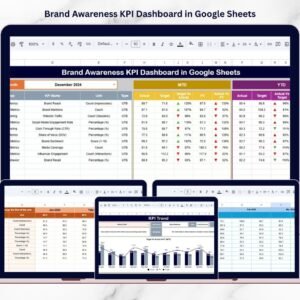
- Brand Awareness KPI Dashboard in Google Sheets: tracks brand awareness KPIs
- Corporate Brand Usage Request Tracker in Google Sheets: logs requests to use brand assets
- Event Marketing Checklist in Google Sheets: a checklist for marketing events
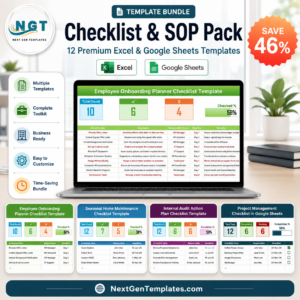
- Checklist & SOP Pack: 12 premium Excel and Google Sheets checklists in one bundle
Browse all Google Sheets checklists or the Google Sheets sales and marketing templates.















Reviews
There are no reviews yet.