In today’s fast-paced business world, managing client relationships is more than just good etiquette—it’s a growth strategy. But with multiple clients, deadlines, and follow-ups to juggle, even the best teams can drop the ball.
That’s why we created the Client Follow-Up Checklist in Google Sheets —a powerful, easy-to-use template that keeps your follow-up tasks organized, your team aligned, and your clients impressed.
Built for professionals who want to streamline client communication without investing in expensive CRM tools, this checklist brings clarity, consistency, and control to your workflow—all within the familiar, flexible environment of Google Sheets.
⚙️ Key Features of the Client Follow-Up Checklist
✅ Visual Dashboard Cards
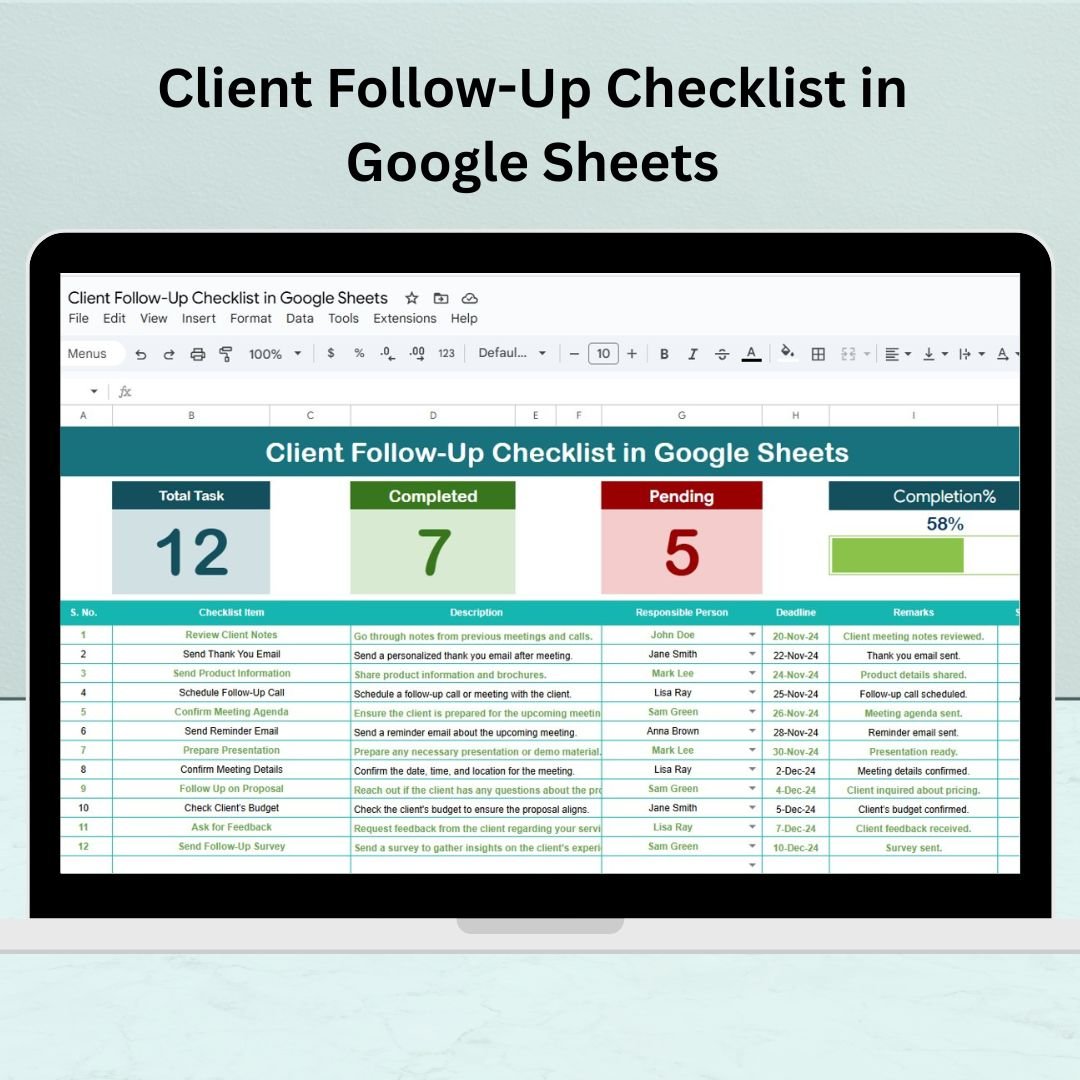
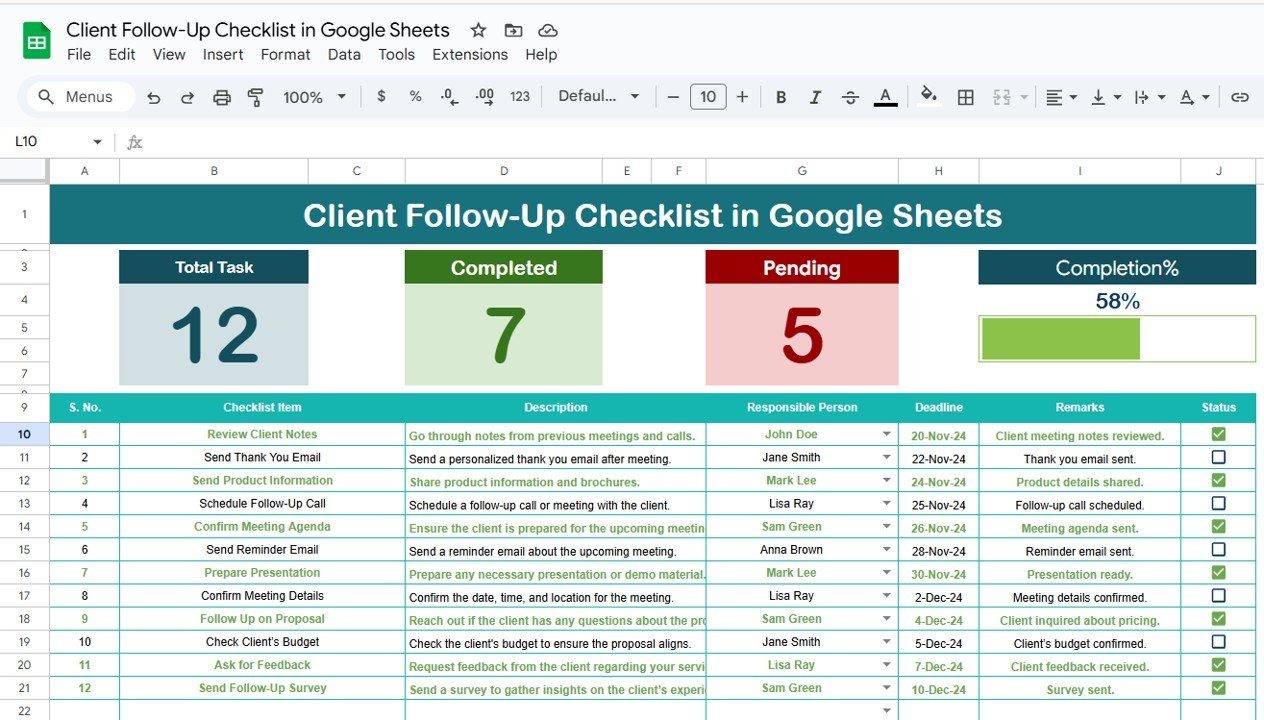
Total Count – See how many follow-up items you’ve logged.
Completed Count – Track tasks you’ve already handled.
Pending Count – Know what still needs your attention.
Progress Bar – Watch your follow-up completion rate increase visually.
📋 Smart Checklist Table
Task Details – Log every follow-up task clearly.
Assigned Person Dropdown – Automatically populate team names using the list tab.
Status Column – Mark tasks as ✔ (Done) or ✘ (Pending).
Deadline Field – Keep timelines sharp and accountability clear.
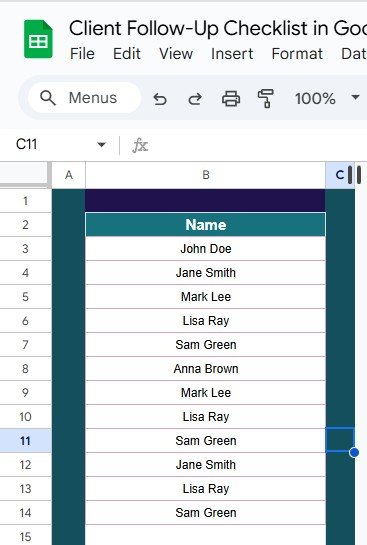
👥 List Sheet Tab for Assigned Persons
Supports dropdowns in the main sheet
Keeps data clean and avoids typos
Easy to update with new team members
📦 What’s Inside the Checklist?
1️⃣ Main Follow-Up Checklist Sheet – Your core working space with data and summary
2️⃣ List Sheet Tab – Back-end data validation for assigned team members
✅ ✔ / ✘ System – Simple and effective status markers
📊 Progress Bar – Automatically updates as tasks are checked off
🧩 Custom Columns – Add Client Name, Call Notes, Follow-Up Method, etc.
🚀 How to Use the Product
Add Team Members – Populate the List tab with your team’s names.
Start Logging Tasks – Use the main sheet to enter follow-ups by client.
Assign Responsibility – Choose team members from the dropdown.
Set Deadlines – Assign dates to stay on track.
Update Status – Mark tasks as ✔ or ✘ based on completion.
Track Progress – Use the dashboard cards and bar to monitor progress.
👥 Who Can Benefit from This Checklist?
💼 Sales Teams – Manage prospects and post-call actions.
📞 Customer Support Agents – Track resolution and callback deadlines.
🧠 Consultants – Stay on top of client deliverables and updates.
🏢 Small Agencies – Run lean with smart client management tools.
🧑💻 Freelancers & Solopreneurs – Keep follow-ups organized without extra software.
🔗 Click here to read the Detailed blog post
Watch the step-by-step video Demo:
🎥 Visit our YouTube channel to learn step-by-step video tutorials
👉 Youtube.com/@NeotechNavigators
Frequently asked questions
How do I get my own copy?
After purchase you get a link to the Google Sheet. Open it while signed in to your Google account and use File > Make a copy - the copy in your Google Drive is fully yours and editable.
Do I need a paid Google account? Will it expire?
No. A free Google account is enough, and your copy lives in your own Google Drive - it never expires and there is nothing to renew.
Does it work on Mac, phone or tablet?
Yes - in any browser on Windows, Mac or Chromebook, and in the Google Sheets mobile app for viewing and quick entries.
Can I share it with my team?
Yes. Share your copy with colleagues using Google's normal sharing, with view or edit rights as you choose.
Can I change the design and formulas?
Yes, your copy is fully editable - colours, labels, logo, formulas and charts. If a range is protected, use Data > Protect sheets and ranges to remove it in your copy.
Are there macros or add-ons?
No macros or add-ons - it uses normal Google Sheets formulas and charts.
Is it a one-time payment or a subscription?
One-time payment. No subscription, no per-user fees and nothing to renew - the file is yours to keep.
How do I get the file after payment?
Instantly. The download link appears on screen after checkout, is emailed to you, and stays under My Account > Downloads on our website. If the email does not arrive within a few minutes, check your spam or promotions folder.
Is a user manual included?
Most of our newer products include a PDF user manual in the download. If yours does not have one, message us with your order number and we will send it.
Do I get free updates?
Bug fixes are always free - if something does not work as described, we fix it and send you the corrected file. New versions with new features are not included in the price, unless this product's description says otherwise.
Can you customise it for me?
Yes. Small changes to this template (your columns, categories, logo, colours, minor layout) cost the template price plus $40-80 (Rs 3,000-6,000 + GST), quoted once you send your list. A fully custom build is usually $100-200 (Rs 8,000-18,000 + GST) with two revision rounds. Email your requirements to
[email protected] or message us on WhatsApp.
Can I use it for my business or my clients?
Yes, for your own personal or internal business use, for as long as you like. Reselling or redistributing the template is not allowed.
What is your refund policy?
Because these are digital downloads, they are non-refundable once delivered - except when the product does not match its description (report it within 48 hours of purchase) or there is a technical problem our team cannot fix within 72 hours. Email
[email protected] with your order number.
How do I get help?
Email
[email protected] (Mon-Fri, 10 AM-7 PM IST) or message us on WhatsApp +91 80770 90260 (chat only, no calls). Please include your order number.
Still have a question? Click Need help? at the bottom-left to ask our assistant, or message us on WhatsApp.
Only logged in customers who have purchased this product may leave a review.













Reviews
There are no reviews yet.