


Tired of messy workflows and missed follow-ups in your lead generation process? Say hello to the Lead Generation Checklist in Google Sheets—a powerful, easy-to-use, and customizable template that brings clarity, accountability, and automation to your marketing and sales campaigns. 🌟
Whether you’re a marketer planning a cold outreach, a freelancer managing multiple clients, or a sales rep following up with leads, this checklist helps you execute every campaign with consistency.
Designed for real-time collaboration, task tracking, and deadline management, this tool helps you turn chaos into conversion. 💼📈
⚙️ Key Features of the Lead Generation Checklist
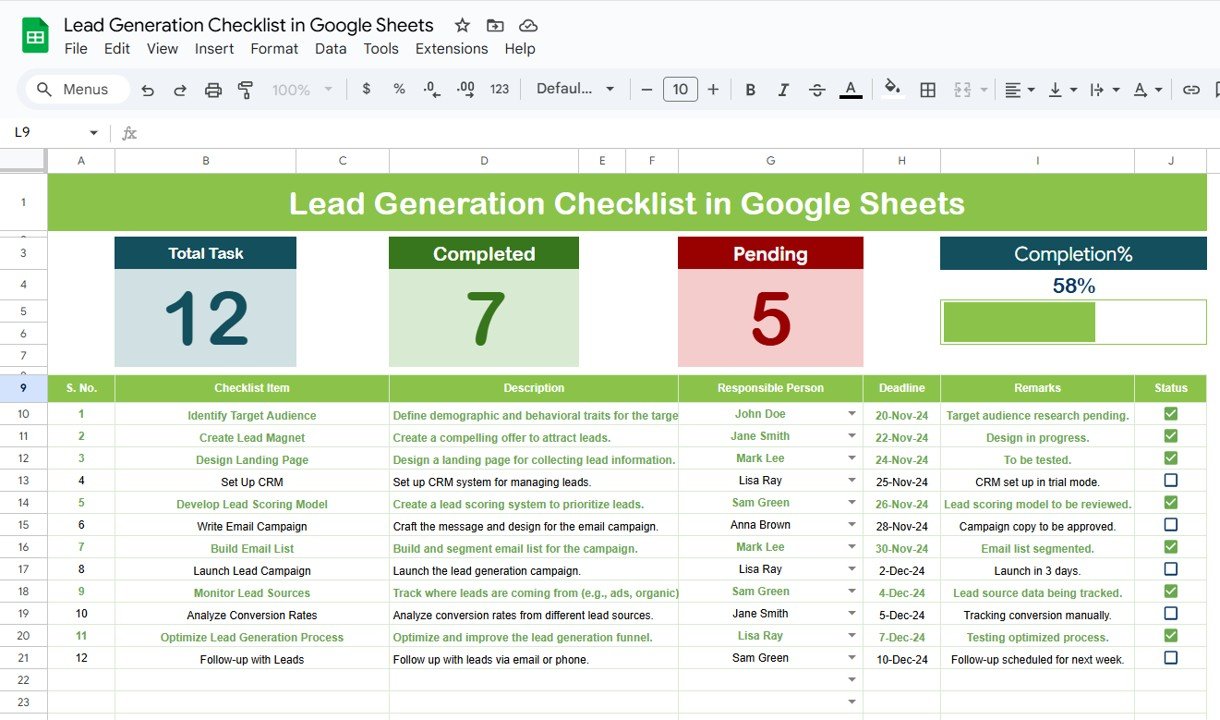
✅ Real-Time Progress Overview
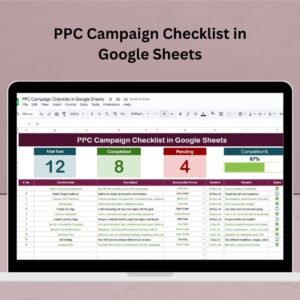
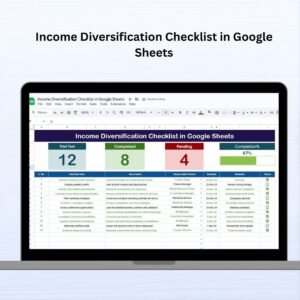
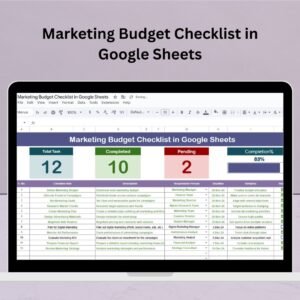
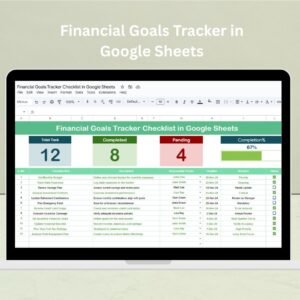
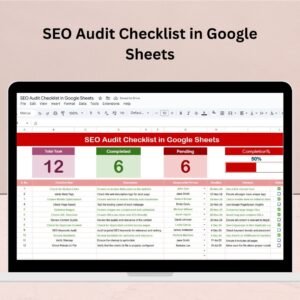
📊 Total Count, Completed, Pending and dynamic Progress Bar
🔁 Auto-updates as you change checklist status (✔ or ✘)
📝 Organized Checklist Table
🗂️ Capture each task with: Checklist Item, Description, Deadline, Responsible Person, Status
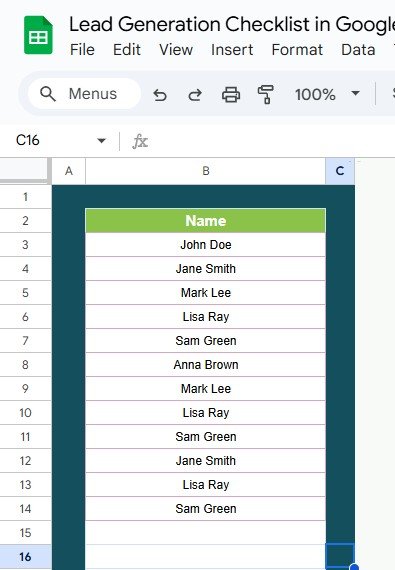
👤 Assign tasks using dropdown from a dynamic list
🔧 100% Customizable
🎯 Add columns like Priority, Campaign Type, or Channel
🎨 Modify structure to match your workflow
💡 Smart Collaboration
📤 Share with your team and collaborate from anywhere in real-time
🔒 Keep task assignment structured and secure using dropdown validations
📥 What’s Inside the Checklist Template?
✅ Lead Generation Checklist Sheet – Your main workspace with task progress summary and table
✅ List Sheet Tab – Manage team member names to feed the Responsible Person dropdown
✅ Built-in formulas and visuals – No manual calculations required
✅ Status tracking – ✔ and ✘ update the overview automatically
✅ Ready-to-duplicate – Use it for each new campaign in seconds
🛠️ How to Use the Lead Generation Checklist
💡 Define your lead generation tasks in the checklist table
👥 Assign tasks using the Responsible Person dropdown
📆 Set deadlines and keep notes in the Remarks column
✔ Update task status (✔ for done, ✘ for pending) to reflect real-time progress
📈 Monitor completion percentage with the auto-updating progress bar
🔁 Duplicate the checklist for each campaign and modify as needed
👥 Who Can Benefit from This Checklist?
🎯 Marketing Teams running outreach, content, or ad-based campaigns
👨💼 Sales Reps & SDRs managing multi-step lead qualification workflows
📢 Freelancers & Agencies coordinating with multiple clients
🏢 Startups & Small Businesses creating consistent acquisition systems
🔧 B2B & B2C Operators using email, LinkedIn, referrals, and more
🔍 Click here to read the Detailed blog post
Watch the step-by-step video Demo:
🎥 Visit our YouTube channel to learn step-by-step video tutorials
🔗 Youtube.com/@NeotechNavigators
Compatibility and Requirements
- Works in Google Sheets with a free Google account and a web browser. Nothing to install.
- The Responsible Person list is a standard Google Sheets dropdown. Google explains dropdowns in Create an in-cell dropdown list.
Frequently Asked Questions
What does the progress overview show?
Total count, completed and pending tasks, plus a progress bar that updates as you change each status.
Which columns does the checklist table have?
Checklist Item, Description, Deadline, Responsible Person and Status.
How do I add team members to the dropdown?
Add their names on the List sheet and they appear in the Responsible Person dropdown.
How do I mark a task as done?
Set its status to ✔ for done or ✘ for pending, and the overview updates.
Can I reuse it for each campaign?
Yes. Duplicate the checklist for each new campaign and change the tasks as needed.
Related Lead Generation Templates
- Lead Generation Checklist in Excel: the same checklist for Excel users
- Client Follow-Up Checklist in Google Sheets: keeps follow-ups on schedule
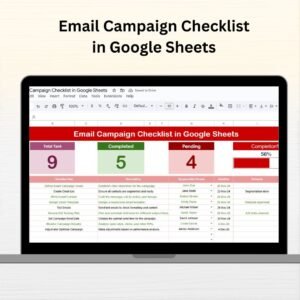
- Email Campaign Checklist in Google Sheets: a checklist for email campaigns
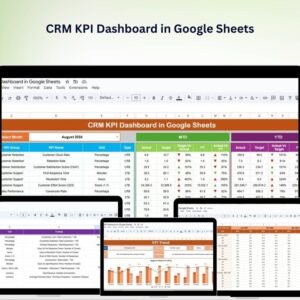
- CRM KPI Dashboard in Google Sheets: KPIs for customer relationships
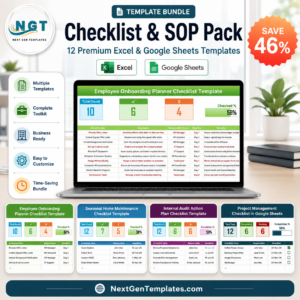
- Checklist & SOP Pack: 12 premium Excel and Google Sheets checklists in one bundle
Browse all Google Sheets checklists or the Google Sheets sales and marketing templates.














Reviews
There are no reviews yet.