



Managing tasks can often feel overwhelming—juggling deadlines, team responsibilities, and progress tracking without the right system leads to chaos. That’s why we’ve designed the Task Management To-Do List Checklist in Excel 📝—a ready-to-use template that simplifies your workflow, boosts productivity, and helps you stay on top of every task with ease.
Unlike complicated software tools, this Excel-based checklist is cost-effective, flexible, and familiar to almost everyone. Whether you’re a freelancer, a student, or managing a large team, this template ensures clarity, accountability, and control over your to-dos.
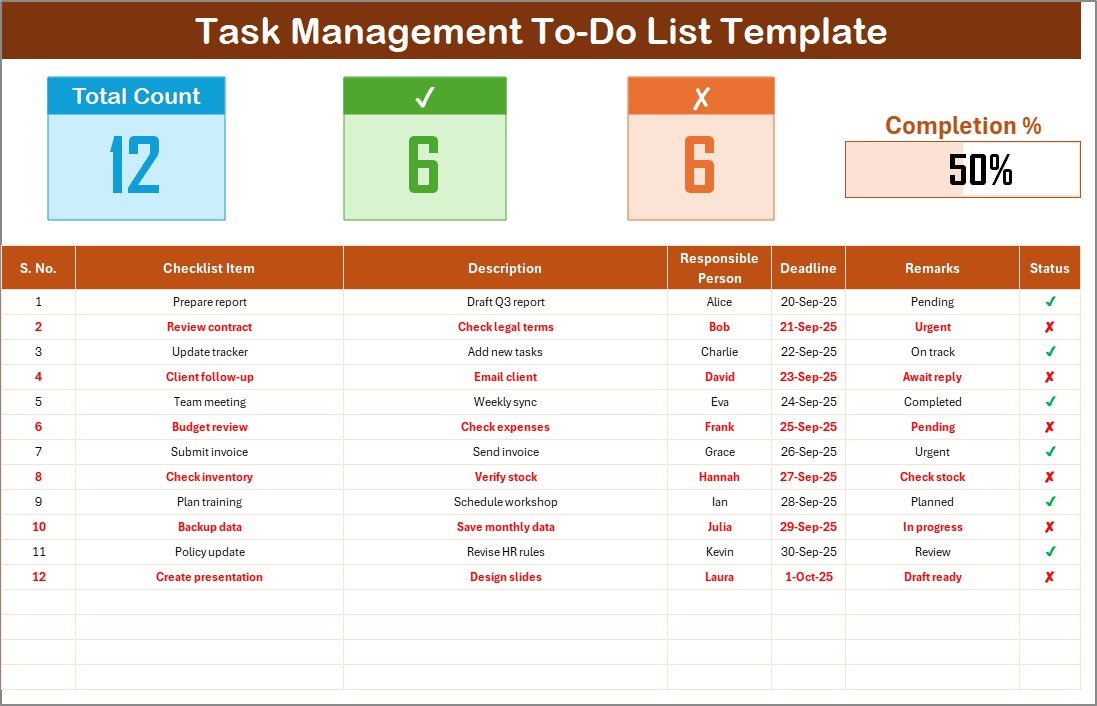
✨ Key Features of Task Management To-Do List Checklist in Excel
✅ Dual-Sheet Design – Comes with a main checklist sheet and a list sheet for responsible persons.
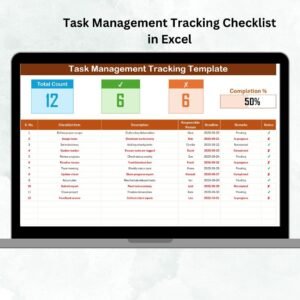
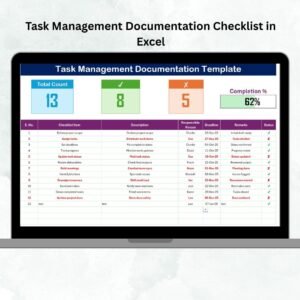
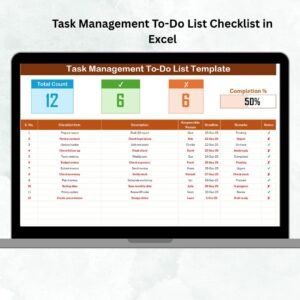
✅ Progress Overview Cards – Instantly view total tasks, completed tasks, pending tasks, and overall progress percentage.
✅ Smart Checklist Table – Includes Serial No., Task Item, Description, Responsible Person, Deadline, Remarks, and Status (✔ or ✘).
✅ Dropdown for Responsible Person – Assign tasks quickly and consistently without typing errors.
✅ Progress Bar – A visual tracker that shows how much of your work is done at a glance.
✅ Scalable Design – Manage 10 tasks or 1,000+ without slowing down your workflow.
✅ Customizable Format – Add new columns, apply conditional formatting, or integrate with other dashboards.
This structured approach makes your planning more effective and eliminates confusion around ownership and deadlines.
📦 What’s Inside the Task Management To-Do List Checklist in Excel
When you download this template, you get:
Task Management Checklist Sheet – The main sheet to capture and track all tasks.
Overview cards for total, completed, pending, and progress %.
A detailed checklist table with all the necessary columns.
List Sheet – A dedicated sheet to maintain a unique list of responsible persons, enabling dropdowns for assigning tasks.
This structure ensures smooth collaboration, especially for teams, and gives you a complete picture of where your project stands.
🛠️ How to Use the Task Management To-Do List Checklist in Excel
Using this template is simple and intuitive:
Enter Tasks – Add tasks with descriptions, deadlines, and remarks.
Assign Responsibility – Select the responsible person from the dropdown list.
Update Status – Mark tasks as ✔ (done) or ✘ (pending).
Track Progress – Instantly check completion counts and the progress bar.
Review Weekly – Conduct reviews, reassign if needed, and update overdue tasks.
With just a few clicks, you can manage complex projects or simple daily routines.
👥 Who Can Benefit from This Task Management To-Do List Checklist in Excel
This template is versatile and suits a wide range of users:
Students 🎓 – Track assignments, exams, and personal goals.
Freelancers 💻 – Manage client projects and deliverables.
Small Teams 👨👩👧👦 – Organize shared tasks and deadlines.
Corporate Professionals 🏢 – Monitor project tasks, meetings, and reporting.
Entrepreneurs 🚀 – Keep business goals and operations on track.
Educators 📚 – Plan lessons, projects, and grading deadlines.
No matter who you are, this Excel checklist helps you stay accountable and productive.
Click here to read the Detailed blog post
Watch the step-by-step video Demo:
Visit our YouTube channel to learn step-by-step video tutorials 👉 YouTube.com/@PKAnExcelExpert
Compatibility and Requirements
- Works in Microsoft Excel desktop (Excel 2016 or later, or Microsoft 365).
- The Responsible Person drop-down reads its names from the List sheet.
- To edit drop-down lists, see the Microsoft guide Create a drop-down list.
Frequently Asked Questions
What sheets are in the Task Management To-Do List Checklist?
Two: the Task Management Checklist sheet with overview cards and the task table, and the List sheet that holds the names of responsible persons.
Which columns does the checklist have?
Serial No., Task Item, Description, Responsible Person, Deadline, Remarks and Status.
How do I mark a task as done?
Set the Status to ✔ for done or ✘ for pending. The completed and pending counts and the progress bar update.
Can I add more columns?
Yes. You can add columns or apply your own conditional formatting.
Related To-Do and Task Templates
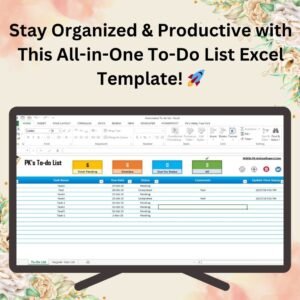
- Fully Functional To-do List in Excel: a fuller to-do list workbook
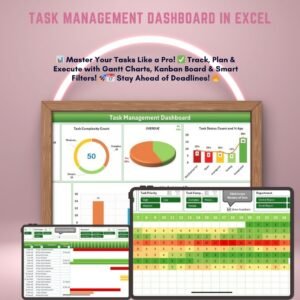
- Task Management Dashboard in Excel: charts for task status and owners
- Task Management Tracker in Google Sheets: track tasks in a shared sheet
- Smart To-do List with Excel’s New Checkbox Feature: a free checkbox to-do list
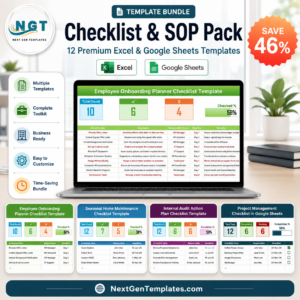
- Checklist & SOP Pack: 12 checklist templates in one bundle
Browse all Excel checklists or the Excel project management templates.




Reviews
There are no reviews yet.