Supply chain operations involve multiple tasks, people, and deadlines. Even a single missed activity can delay deliveries, increase costs, and impact customer satisfaction. Supply Chain Tracking Checklist in Excel However, many teams still depend on emails, phone calls, or unstructured spreadsheets to track supply chain tasks. As a result, visibility gets lost, responsibilities become unclear, and progress tracking turns messy.
Supply Chain Tracking Checklist in Excel That is exactly where the Supply Chain Tracking Checklist in Excel becomes a smart, simple, and highly effective solution.
This ready-to-use Excel checklist helps businesses track supply chain activities in a clear, structured, and visual format. Instead of chasing updates or manually reviewing task lists, teams can monitor progress in real time using simple ✔ and ✘ status indicators. Because everything is centralized in one Excel file, managers gain instant clarity and better control over daily supply chain operations.
✅ Key Features of Supply Chain Tracking Checklist in Excel
📋 Centralized Checklist Management
Track all supply chain activities in one structured Excel checklist instead of scattered files.
✔️ Simple Status Tracking (✔ / ✘)
Update task completion instantly using check and cross symbols—no complex formulas needed.
👤 Clear Task Ownership
Assign a responsible person to every task to improve accountability.
📅 Deadline Monitoring
Set due dates for each activity to avoid delays and last-minute surprises.
📊 Auto-Calculated Counts
Total tasks, completed tasks, and pending tasks update automatically.
📈 Visual Progress Bar
See overall completion percentage through an automatic progress bar.
⬇️ Dropdown for Responsible Persons
Avoid errors using a controlled dropdown list sourced from a master list.
🧩 Fully Customizable Template
Easily add, remove, or modify checklist items as your process evolves.
📦 What’s Inside the Supply Chain Tracking Checklist in Excel
📄 Supply Chain Tracking Checklist Sheet
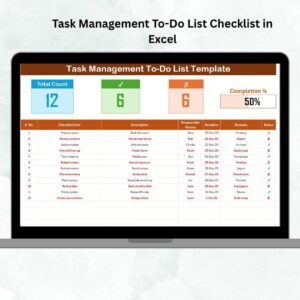
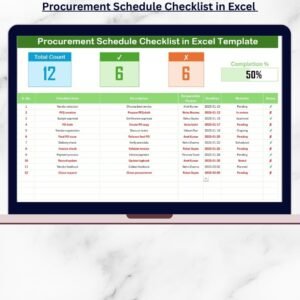
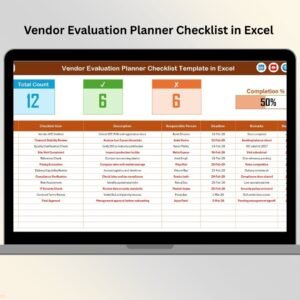
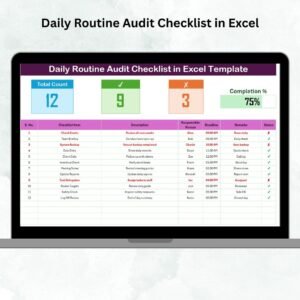
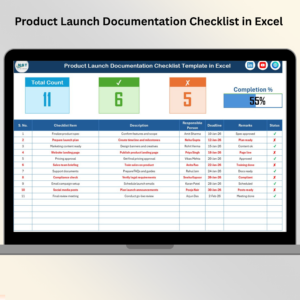
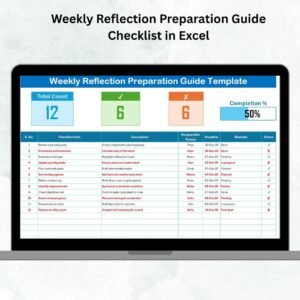
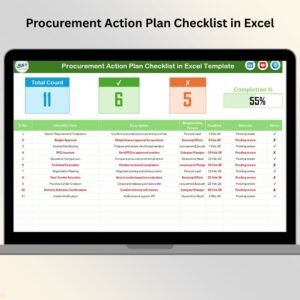
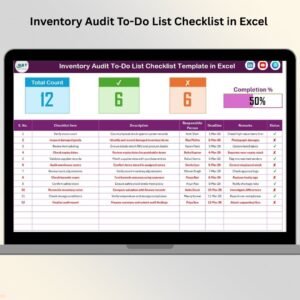
This is the main working sheet where all supply chain tasks are tracked.
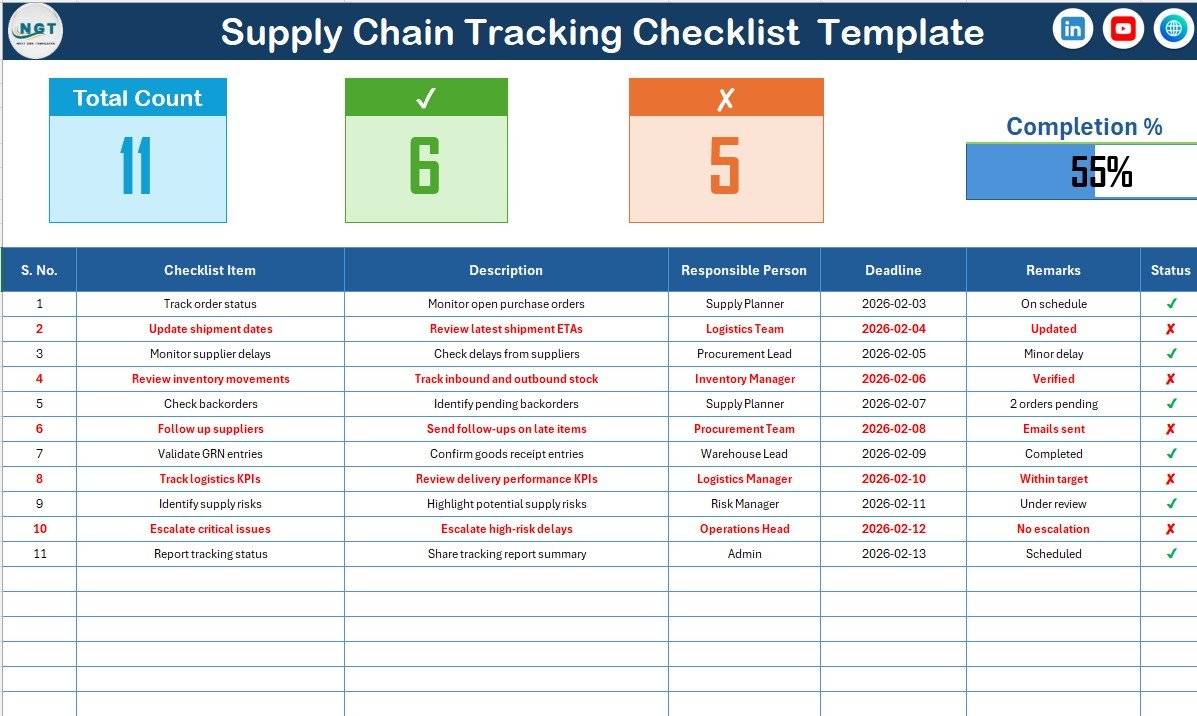
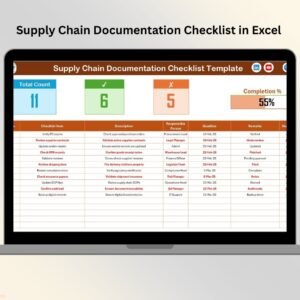
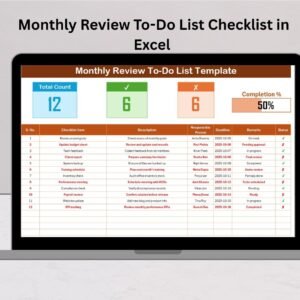
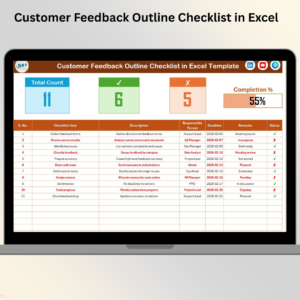
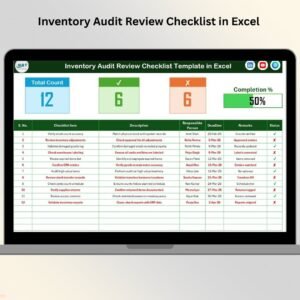
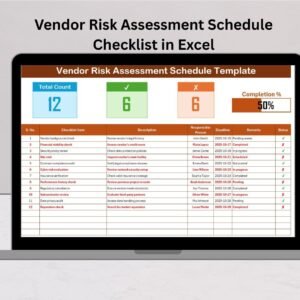
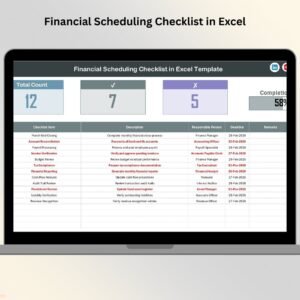
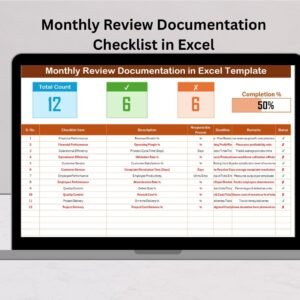
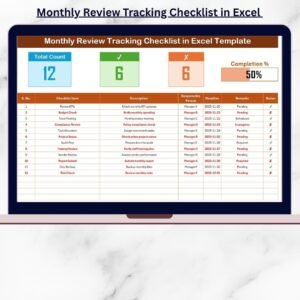
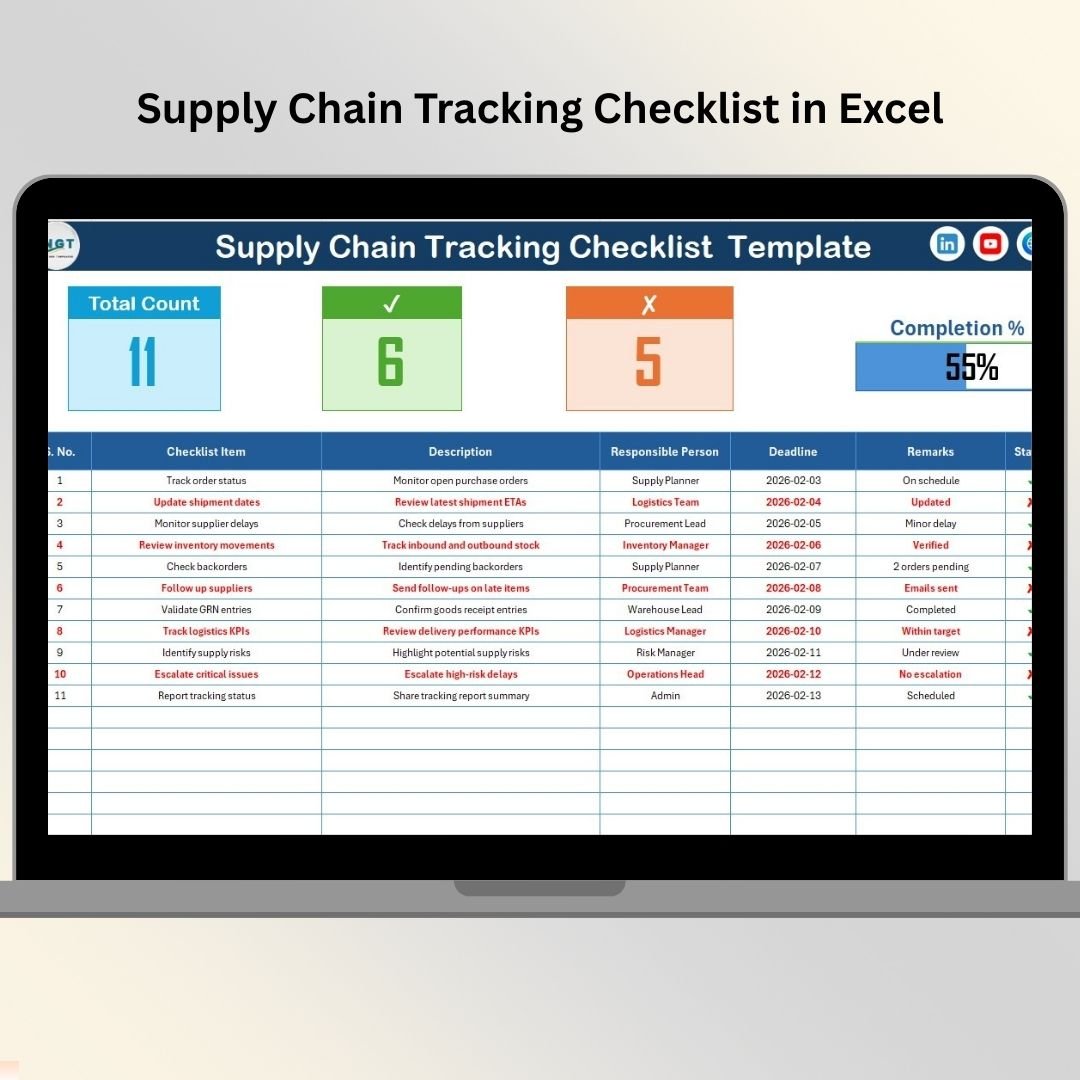
Top Summary Section Displays:
Total number of checklist items
Checked (completed) task count
Crossed (pending) task count
Progress bar showing completion percentage
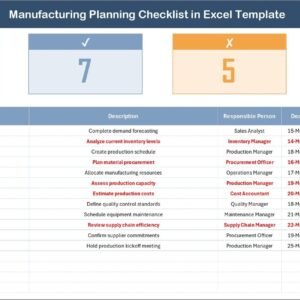
Checklist Table Includes:
Serial Number
Checklist Item
Description
Responsible Person
Deadline
Remarks
Status (✔ / ✘)
📑 List Sheet
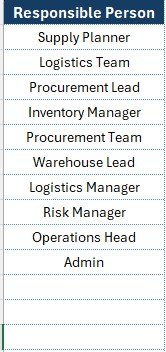
This supporting sheet stores the unique list of responsible persons used in dropdowns.
Benefits of the List Sheet:
Avoids spelling mistakes
Prevents duplicate names
Ensures consistent reporting
🛠️ How to Use the Supply Chain Tracking Checklist in Excel
1️⃣ List all supply chain activities in the checklist table
2️⃣ Assign a responsible person using the dropdown
3️⃣ Set deadlines for each task
4️⃣ Update task status using ✔ or ✘
5️⃣ Review progress through auto-updated counts and progress bar
6️⃣ Add remarks for delays or special notes
Because Excel calculations update automatically, you always see real-time progress without manual tracking.
👥 Who Can Benefit from This Supply Chain Tracking Checklist
🏭 Supply Chain Managers
🚚 Logistics & Distribution Teams
📦 Procurement Departments
🏢 Operations Teams
🏬 Warehouse Managers
🏗️ Small & Mid-Sized Businesses
Whether your operations are simple or complex, this checklist adapts easily to your workflow.
📘 Click here to read the Detailed blog post
▶️ Visit our YouTube channel to learn step-by-step video tutorials
👉 Youtube.com/@PKAnExcelExpert
Watch the step-by-step video tutorial:
Compatibility and Requirements
- Works in Microsoft Excel desktop (Excel 2016 or later, or Microsoft 365).
- The Responsible Person column uses a dropdown fed by the List sheet.
- Microsoft explains how these lists work in Create a drop-down list.
Frequently Asked Questions
What does the summary section show?
Total checklist items, checked tasks, crossed tasks and a progress bar with the completion percentage.
Which columns does the checklist table have?
Serial number, checklist item, description, responsible person, deadline, remarks and status.
How do I mark a task done?
Set its status to the check mark. Pending tasks use the cross mark, and the counts and progress bar update automatically.
Can I add my own tasks?
Yes. You can add, remove or change checklist items as your process changes.
Related Supply Chain Templates
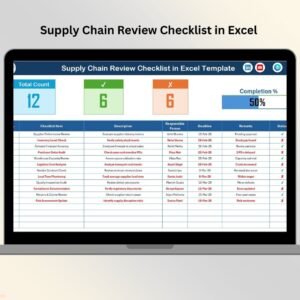
- Supply Chain Review Checklist in Excel: for periodic supply chain reviews
- Supply Chain Management Checklist Template in Excel: a wider supply chain checklist
- Supply Chain Management Checklist in Google Sheets: a checklist in Google Sheets
- Supply Chain Report in Excel: report supply chain results
- Checklist & SOP Pack: 12 checklist templates in one bundle
Browse all Excel checklists or the Excel logistics templates.