

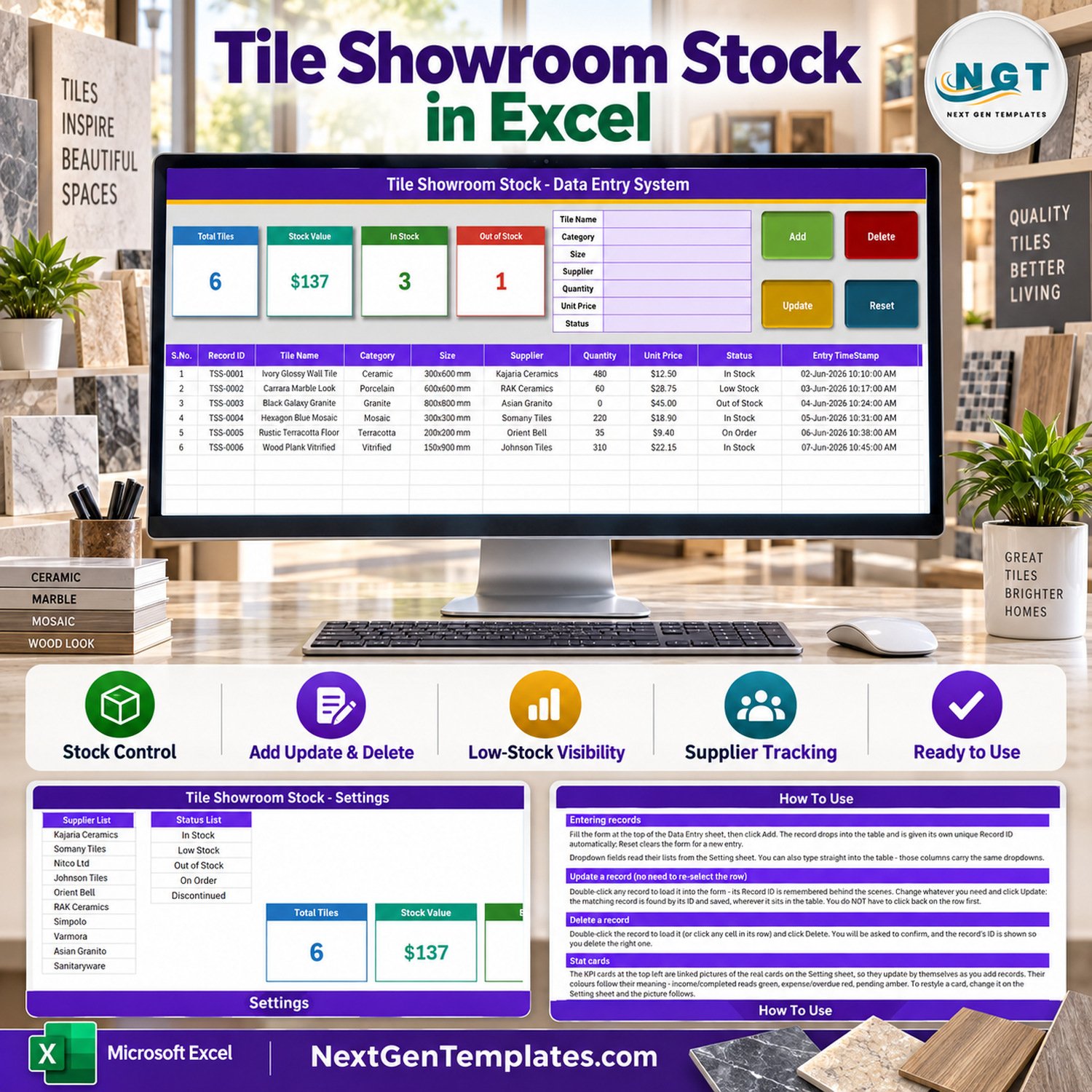

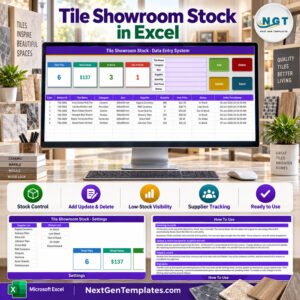
The Tile Showroom Stock Data Entry System in Excel is a single macro-enabled workbook (about 64 KB, four sheets) that keeps a clean register of every tile line in your showroom. Fill one seven-field form – Tile Name, Category, Size, Supplier, Quantity, Unit Price and Status – click Add, and the row lands in a 200-row validated table with its own TSS-0001 style Record ID and an automatic entry timestamp. Four stat cards sit above the form: Total Tiles, Stock Value, In Stock and Out of Stock. Ten tile categories, nine sizes, ten suppliers and five stock statuses are already loaded as dropdown lists you can rewrite. No subscription, no login, no cloud account – one .xlsm file you own outright, and every limitation is listed below before you buy.
Key Features of the Tile Showroom Stock Data Entry System
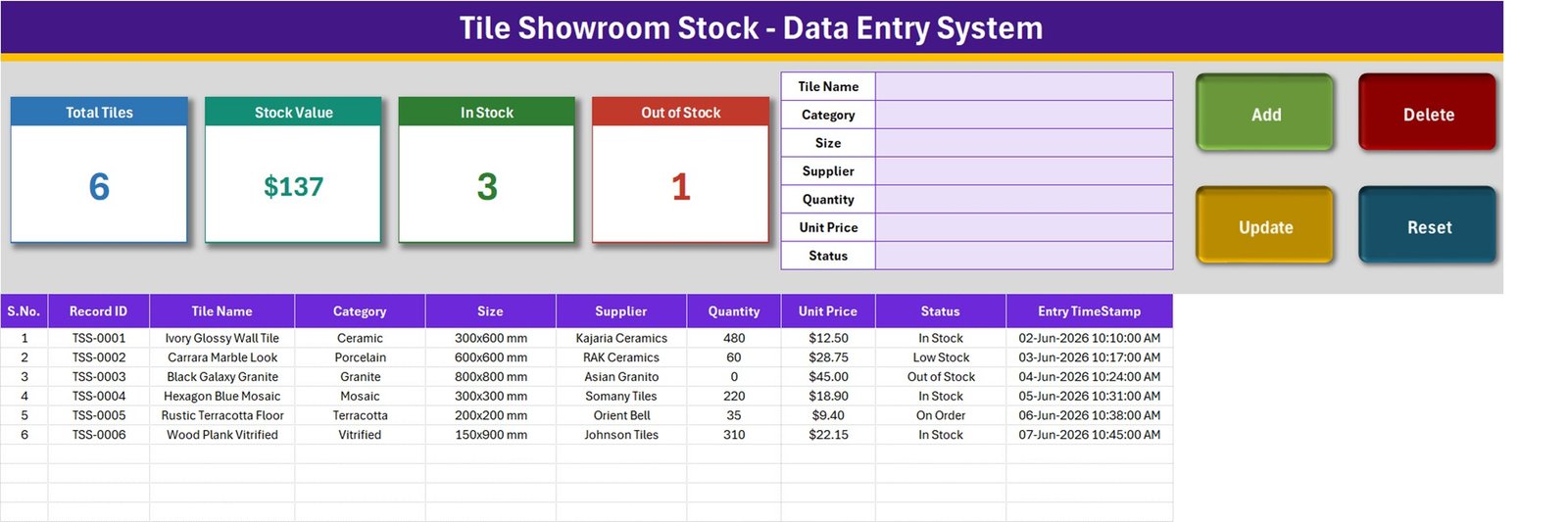
- Seven-field entry form – Tile Name, Category, Size, Supplier, Quantity, Unit Price and Status, in one lilac panel at the top of the Data Entry sheet.
- Four real VBA buttons – Add (green), Delete (red), Update (amber) and Reset (teal). They are macros inside an
.xlsm, so Excel for Windows desktop and Enable Content are both required. - Automatic Record IDs – every saved line gets a sequential
TSS-0001ID plus an Entry TimeStamp such as 02-Jun-2026 10:10:00 AM, written by the macro rather than typed. - Update by ID, not by row position – double-click any record to load it back into the form. The Record ID is remembered, so Update saves to the right row even after the table has been sorted.
- Four linked stat cards – Total Tiles, Stock Value, In Stock and Out of Stock. They are linked pictures of live formula cells on the Setting sheet, so restyling a card on Setting restyles the picture.
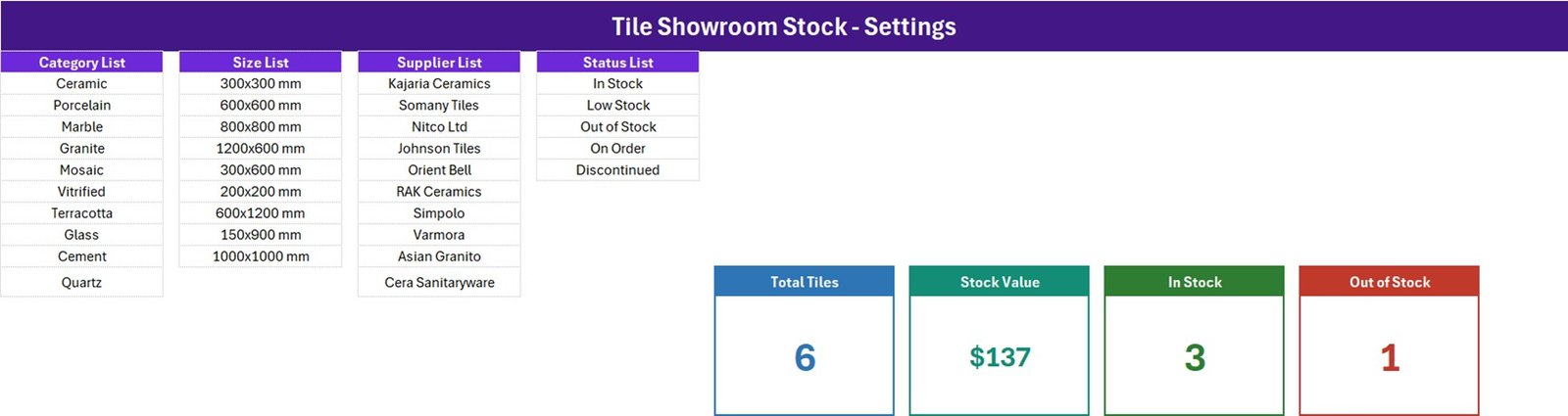
- Four dropdown lists you control – 10 categories (Ceramic, Porcelain, Marble, Granite, Mosaic, Vitrified, Terracotta, Glass, Cement, Quartz), 9 sizes from 150×900 mm to 1200×600 mm, 10 supplier names and 5 statuses (In Stock, Low Stock, Out of Stock, On Order, Discontinued).
- Ten-column register – S.No., Record ID, Tile Name, Category, Size, Supplier, Quantity, Unit Price, Status and Entry TimeStamp.
- 200 pre-formatted rows – rows 15 to 214 already carry the dropdown validation for Category, Size, Supplier and Status.
What’s Inside the Download
One ZIP holding one .xlsm workbook with four sheets. There is no separate PDF manual for this family – the instructions live on a sheet inside the file.
- Data Entry – the working sheet: stat cards, the form, the four buttons and the ten-column table, seeded with six sample tiles (Ivory Glossy Wall Tile, Carrara Marble Look, Black Galaxy Granite, Hexagon Blue Mosaic, Rustic Terracotta Floor, Wood Plank Vitrified) that you delete once you have seen how it behaves.
- Setting – the four dropdown source lists side by side, plus the four real KPI cells the Data Entry pictures point at.
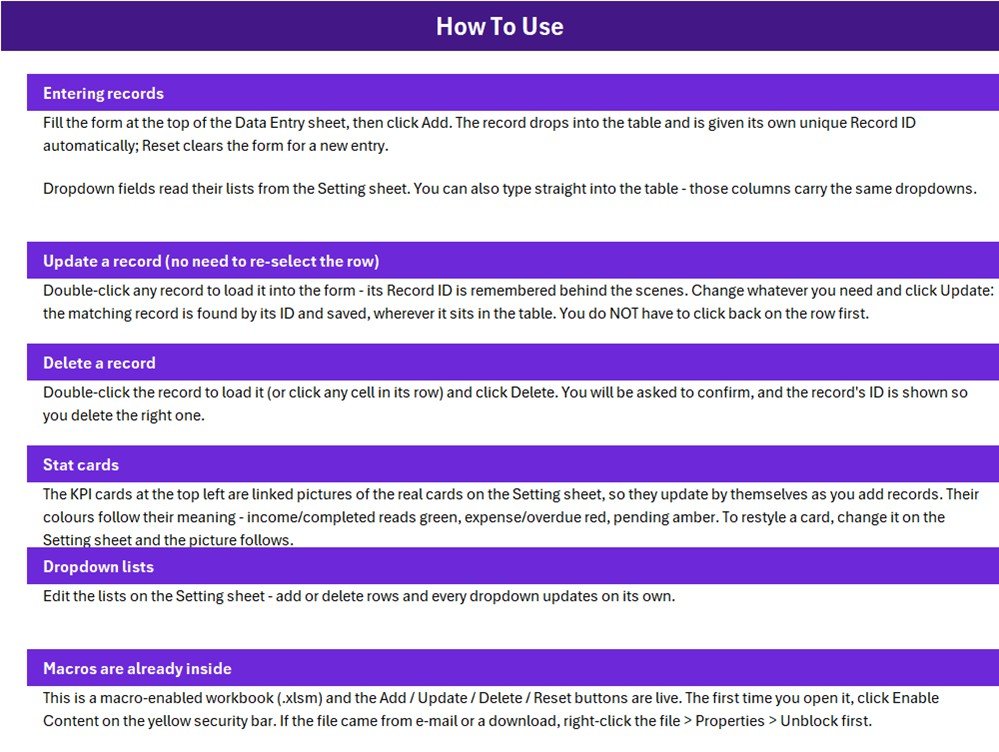
- Instructions – a How To Use page covering entering, updating and deleting records, the stat cards, the dropdown lists and the Enable Content / Properties > Unblock step.
- Get More Templates – a links sheet pointing back to the NextGenTemplates catalogue.
This Workbook vs. a Google Sheets Stock List vs. Inventory Software
| What matters | This workbook | A Google Sheets stock list | Zoho Inventory / ERP software |
|---|---|---|---|
| Cost | $6.99 once | Free, but you build it | Recurring monthly subscription |
| Platform | Excel for Windows desktop, macros on | Any browser | Browser and mobile apps |
| Setup time | Under 5 minutes | 1 – 3 hours of building | Days, often with onboarding |
| Real-time team collaboration | No – single user, one file | Yes | Yes |
| Mobile access | No | Yes | Yes |
| Customizable fields | Yes, edit the sheet and the VBA | Yes | Within the vendor’s model |
| Share with link | No – send the file | Yes | Yes |
| Barcodes / batch and shade tracking | No | No, unless you add it | Usually yes |
| Automatic reorder alerts | No – Status is chosen by hand | No, unless you build it | Yes |
Who This Template Is For – and Who It’s Not For
It fits a single tile showroom, a flooring and sanitaryware counter that keeps a paper stock book, a small tile trader holding a few hundred lines, or a store assistant who wants every tile, size and supplier in one tidy, dropdown-controlled list.
It does not fit a multi-branch dealer that needs one shared stock figure, anyone who must track batch numbers, shade or calibre lots, box-to-square-metre conversion, or breakage, or a business expecting barcodes, purchase orders or automatic reordering. It is not a billing or point-of-sale system: nothing reduces Quantity when a sale happens. You edit the quantity yourself.
How to Use It
- Unzip the download, right-click the
.xlsm, choose Properties > Unblock, then open it and click Enable Content. The buttons do nothing until you do. - Open the Setting sheet and edit the four lists to match your showroom – your categories, the sizes you stock, your suppliers and your status words. Then widen the matching named range if a list grows (see the limits below).
- Delete the six sample rows from the Data Entry table.
- Fill the form and click Add. The Record ID and timestamp are written for you; Reset clears the form for the next tile.
- To correct a line, double-click it, change what is wrong and click Update. To remove one, double-click it and click Delete – a confirmation shows the Record ID first.
Real-World Use Cases
Anita, owner of a single-counter tile showroom. She keeps around 250 lines on display and in the back store. Each Saturday she updates Quantity and moves anything running thin to “Low Stock”, so she knows which supplier to call on Monday.
Farhan, store assistant at a flooring and bath fittings shop. He sorts the table by Size and Category, so a customer asking for a 600×600 mm porcelain gets an answer in seconds, and the Entry TimeStamp shows which lines have not been touched since the last delivery.
Joseph, small tile trader. He uses the On Order and Discontinued statuses to separate what is genuinely sellable from what is still in transit or being cleared.
Honest Limits – Read Before You Buy
- “Stock Value” is a sum of unit prices, not the value of your stock. The card is
SUMof the Unit Price column with no quantity multiplier and no status filter. On the shipped sample it reads $137 – the six unit prices added together – while those same six lines at their listed quantities are worth $19,078.50. Add a Quantity x Unit Price column yourself if you need a true stock-at-cost figure. - Only two of the five statuses have a card. In Stock and Out of Stock are counted; Low Stock, On Order and Discontinued are not, so the cards never add up to Total Tiles.
- Total Tiles counts the Tile Name column, not the Record ID, and it counts records (lines), not the quantity on hand. A row saved without a tile name is never counted, and Quantity is never totalled anywhere.
- The dropdown ranges are fixed, not auto-extending. The Instructions sheet says every dropdown updates on its own, but the four named ranges are exactly as long as the shipped lists (10 categories, 9 sizes, 10 suppliers, 5 statuses). An 11th supplier typed below the last one will not appear in the dropdown until you widen
SupplierListin Formulas > Name Manager. - Status is never set automatically. A line at quantity 0 is only “Out of Stock” if you pick that status.
- Validation covers rows 15 to 214 – 200 records. Past that you copy the validation down yourself.
- Cosmetic: the Instructions “Stat cards” paragraph is generic wording that mentions income, expense and overdue colours that do not apply to this workbook’s four cards.
- The supplier names are sample list entries for illustration only; NextGenTemplates is not affiliated with any tile manufacturer.
Frequently Asked Questions
Does it warn me when a tile runs low?
No. There is no reorder point and no alert. Status is a dropdown you set by hand, and there is no card for Low Stock at all – filter the Status column to see those lines.
Is the Stock Value card the value of my stock?
No, and this is the most important thing to understand before buying. It adds the Unit Price column only. Multiply Quantity by Unit Price in a spare column for a real valuation.
Can I track boxes and square metres?
There is one Quantity column and no unit field, so decide on one unit – boxes, pieces or square metres – and use it consistently.
Can I run it in Excel for the web or on a Mac?
Excel for the web cannot run VBA, so the buttons will not work there. It is sold as an Excel for Windows desktop tool.
Can more than one person use it at once?
No. It is one desktop file with macros – single user.
Is the VBA locked?
The workbook ships as a normal .xlsm with the Add, Update, Delete and Reset macros inside, so you can adapt the fields to your own showroom.
About the Author
Built by PK – Microsoft Certified Professional with 15+ years of Excel, Google Sheets, and Power BI experience. Founder of NextGenTemplates, reaching 300K+ subscribers across YouTube channels. Every template is hand-built and tested before release.
Explore Related Templates
- Hardware Store Inventory Data Entry System in Excel – the same form-and-cards build for a hardware counter.
- Footwear Shop Stock Data Entry System in Excel – sizes, brands and stock status for a shoe shop.
- Salon Product Stock Data Entry System in Excel – retail product stock in the same family.
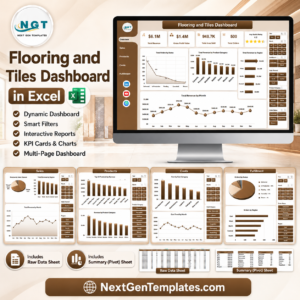
- Flooring and Tiles Dashboard in Excel – once you have months of data, this is the reporting layer for the tile trade.
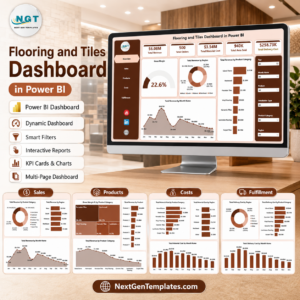
- Flooring and Tiles Dashboard in Power BI – the same industry view for Power BI users.
Browse more in MS Excel templates and VBA Tools.
Read the full sheet-by-sheet walkthrough on PK: An Excel Expert, and watch Excel and VBA tutorials at youtube.com/@PKAnExcelExpert.
Last updated: 13 September 2026.
Watch the demo video:
Compatibility and Requirements
- Works in Excel desktop on Windows with macros enabled. The buttons will not run in Excel for the web, Google Sheets or on mobile.
- After unzipping, right-click the .xlsm file, choose Properties, then Unblock, and click Enable Content when you open it. Microsoft explains macro settings in Enable or disable macros in Microsoft 365 files.
- The workbook is a single .xlsm file for one user.




Reviews
There are no reviews yet.