

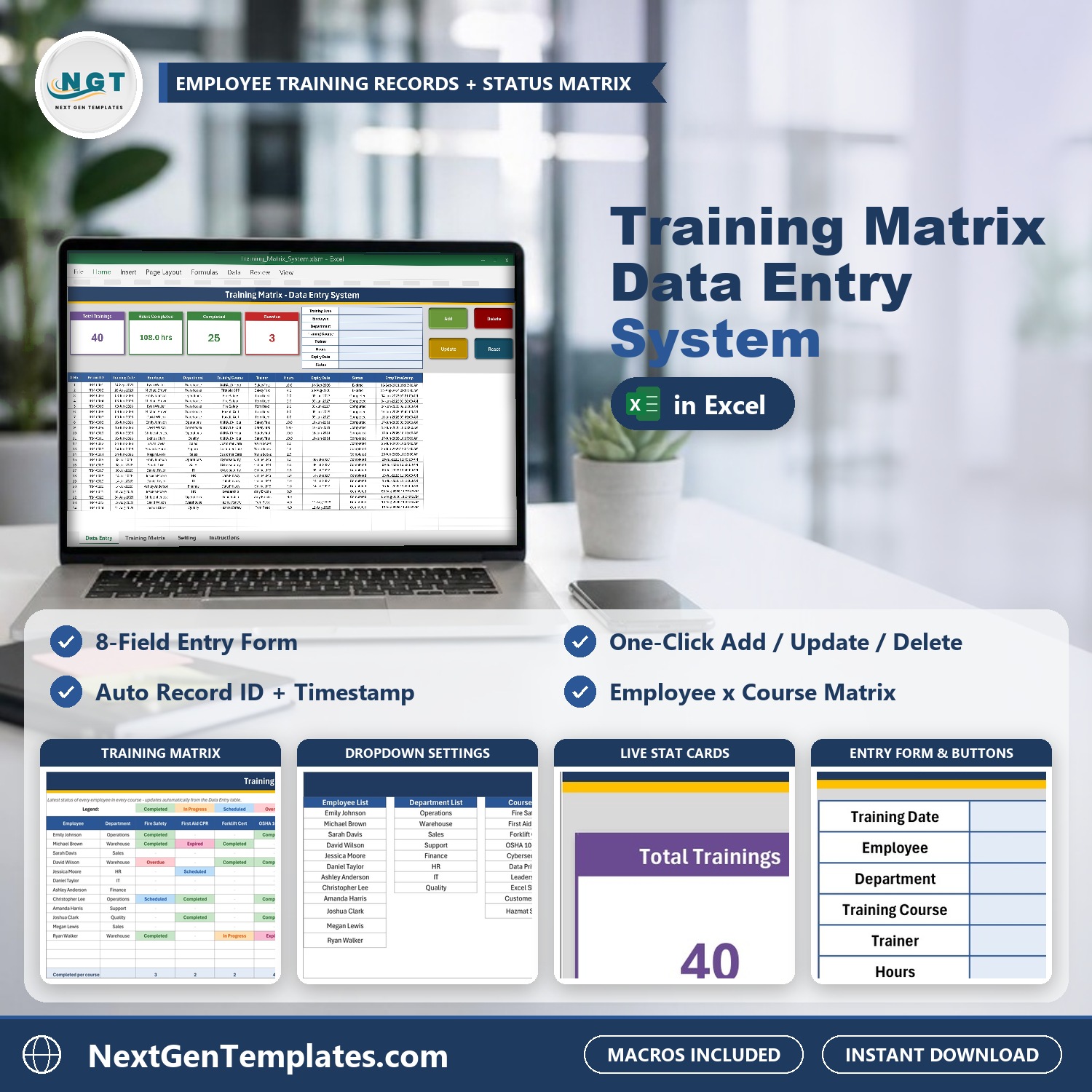

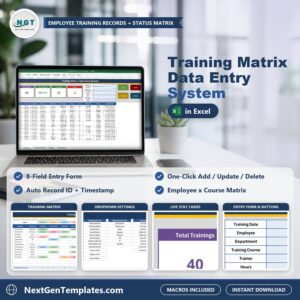
The Training Matrix Data Entry System in Excel is a macro-enabled workbook that keeps every employee training record in one table and turns it into an employee x course status grid automatically. Fill an eight-field form, click Add, and the record gets its own ID (TRM-0001, TRM-0002 and so on) and an entry timestamp. The Training Matrix sheet then shows, for every person and every course, whether the training is Completed, In Progress, Scheduled, Overdue, Expired or Cancelled – colour coded, with a completion % per employee and a completed count per course. If you have been searching for a training matrix template Excel users can run without a subscription, this is a working system rather than a blank grid: it runs on your own PC, there is no account, no cloud and no per-user fee.
Watch the Training Matrix Data Entry System in Excel walkthrough
Key Features of the Training Matrix Data Entry System in Excel
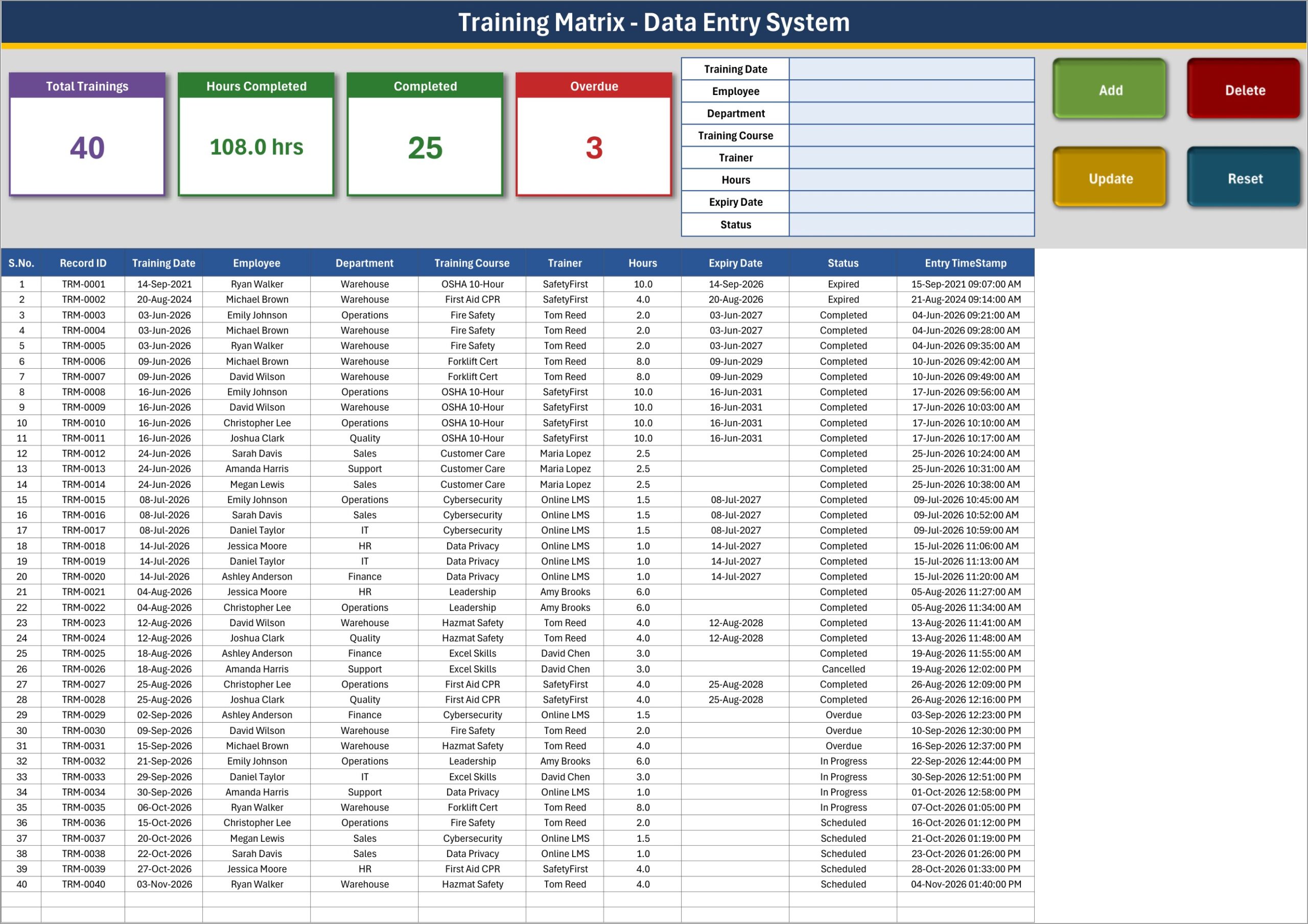
- Eight-field entry form – Training Date, Employee, Department, Training Course, Trainer, Hours, Expiry Date and Status. Employee, Department, Course, Trainer and Status are dropdowns; the two dates and Hours are validated.
- Automatic Record IDs and timestamps – the Add macro stamps every row TRM-0001 upward and writes the date and time it was saved, separate from the Training Date it describes.
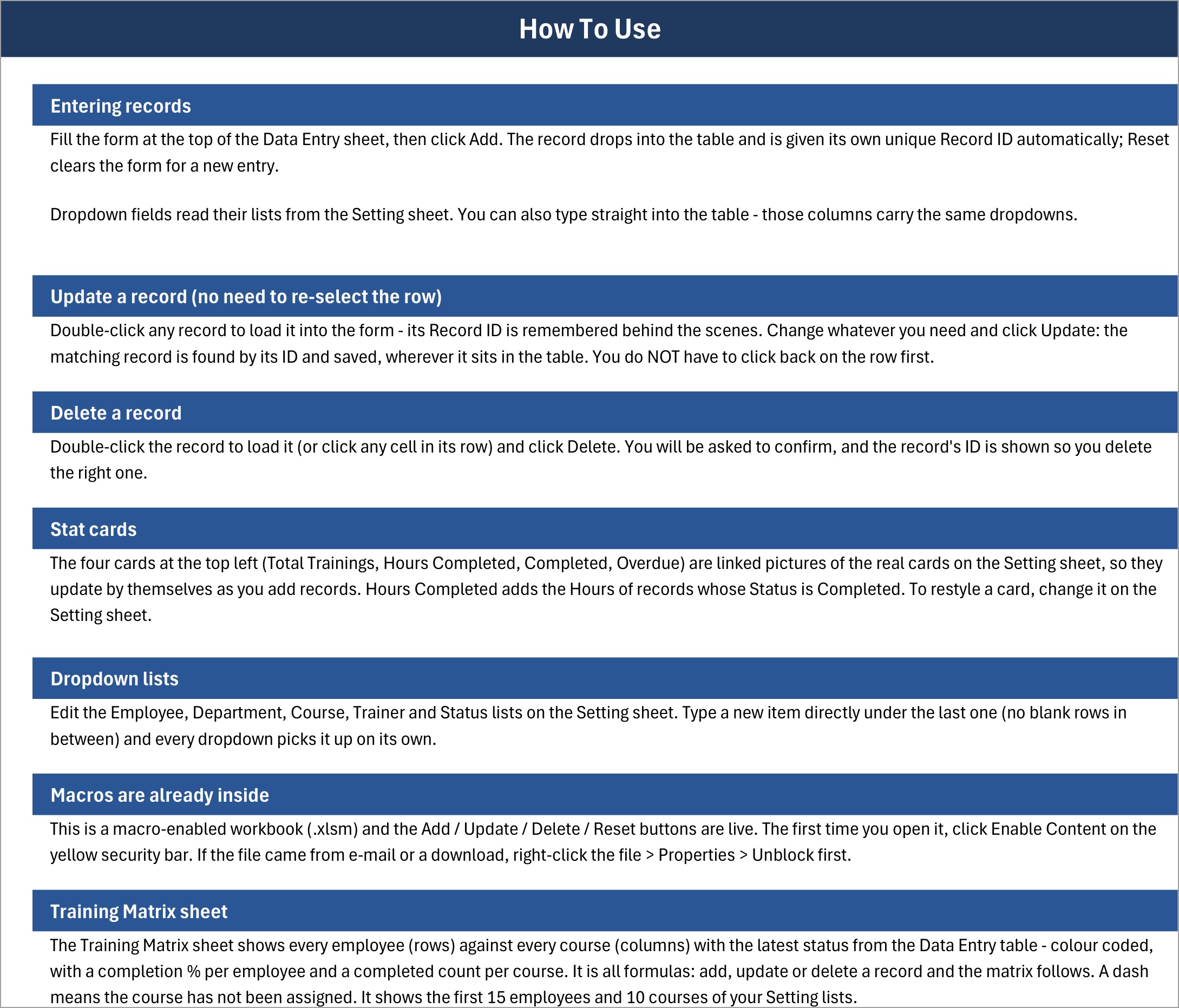
- Add, Update, Delete and Reset buttons – double-click any row to load it back into the form. The workbook remembers the Record ID, so Update finds the right row wherever it sits in the table; Delete asks you to confirm and shows the ID first.
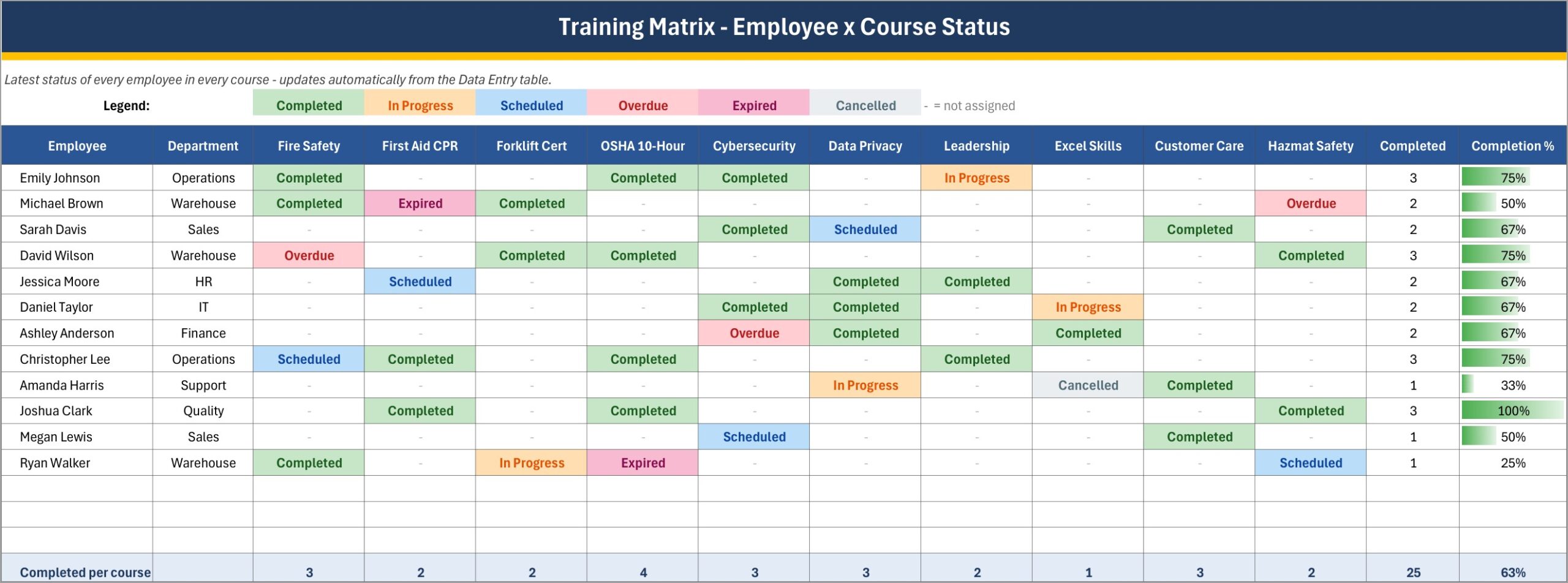
- Employee x course Training Matrix – a second sheet that is all formulas: up to 15 employees down the side, up to 10 courses across the top, the latest status in every cell, a Completed count and a Completion % bar per employee, and a Completed count per course.
- Four live stat cards – Total Trainings, Hours Completed, Completed and Overdue. Hours Completed adds only the hours of records whose status is Completed.
- Expiry Date on every record – so certifications such as forklift, first aid or safety refreshers carry the date they lapse right next to the training itself.
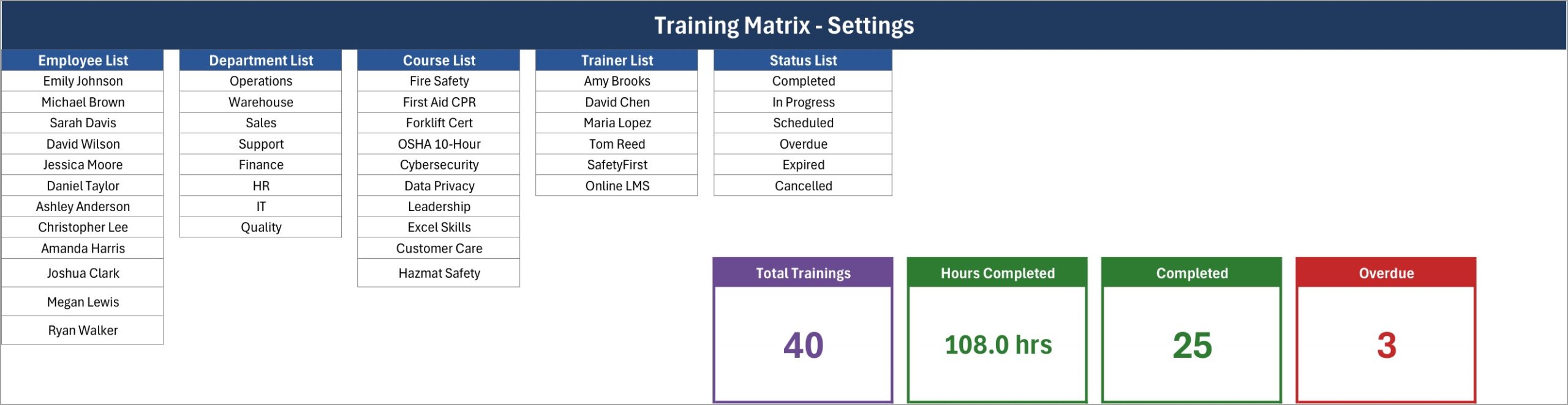
- Editable lists that grow on their own – Employee, Department, Course, Trainer and Status lists live on the Setting sheet. Type a new item directly under the last one and every dropdown picks it up.
- 40 sample records – 12 employees, 8 departments, 10 courses and 6 trainers, so you can see the matrix working before you clear it and add your own people.
What’s Inside the Training Matrix Data Entry System in Excel
The download is a ZIP holding Training_Matrix_System.xlsm and a PDF user manual. The workbook has five sheets.
Data Entry sheet
The working sheet: four stat cards top-left, the eight-field form in the middle, the four macro buttons top-right and the eleven-column training records table below (S.No., Record ID, Training Date, Employee, Department, Training Course, Trainer, Hours, Expiry Date, Status, Entry TimeStamp).
Training Matrix sheet
The employee x course status grid. Each cell shows the latest status for that person and course from the Data Entry table, with a legend for the six statuses and a dash where the course has not been assigned. In the sample data, Joshua Clark is at 100%, Amanda Harris at 33% and the whole team at 63%.
Setting sheet
The five dropdown lists (Employee, Department, Course, Trainer, Status) plus the real formula cards that the Data Entry sheet shows as linked pictures. Restyle a card here and it changes on the Data Entry sheet too.
Instructions sheet
Plain-English steps for entering, updating and deleting records, editing the lists, enabling macros and reading the matrix.
Get More Templates sheet
Links to other NextGenTemplates products.
Training Matrix Excel vs. a Plain Spreadsheet vs. LMS Software
| What you need | This workbook | Blank training matrix spreadsheet | LMS / HR training software |
|---|---|---|---|
| Record each training session with date, trainer and hours | Yes – form + table | You build it | Yes |
| Employee x course status grid | Yes – updates by formula | Typed by hand | Usually |
| Unique Record ID and entry timestamp | Yes – automatic | No | Yes |
| Completion % per employee | Yes | You write the formula | Yes |
| Automatic expiry alerts or e-mails | No – status is set by you | No | Usually |
| Delivers e-learning courses | No | No | Yes |
| Multi-user, web or mobile access | No – one desktop file | Depends | Yes |
| Cost | One-time | Your time | Monthly per user |
Who This Template Is For – and Who It’s Not For
A good fit for: small and mid-sized teams, HR coordinators, warehouse and operations supervisors, safety officers and training managers who want an employee training tracker Excel file that shows at a glance who has done which course. It suits teams that already keep a training record template Excel sheet and are tired of updating a separate matrix by hand.
Not a fit for: organisations that need an LMS that delivers courses, automatic reminder e-mails, multi-user editing or an audited compliance record. This workbook records what you enter; it does not certify training, check legal requirements or prove compliance with OSHA or any other standard. The course names in the sample (OSHA 10-Hour, Hazmat Safety and so on) are example labels you can rename.
How to Use the Training Matrix Data Entry System in Excel
- Unzip the download and open
Training_Matrix_System.xlsmin Excel for Windows. If the file came from a download, right-click it, choose Properties and tick Unblock first. Click Enable Content on the yellow bar. - Go to the Setting sheet and replace the sample employees, departments, courses and trainers with your own. Keep each list without blank rows.
- Clear the 40 sample rows on the Data Entry sheet (select the table rows from row 15 down and delete them), so the cards and the matrix start from zero.
- Fill the form and click Add for each training session. Use Reset to clear the form.
- To change a record, double-click its row, edit the form and click Update. To remove one, load it and click Delete.
- When a training becomes overdue or a certificate lapses, update that record’s Status to Overdue or Expired – the matrix and the Overdue card follow.
- Open the Training Matrix sheet to see who has done what, and use the Completion % column to plan the next sessions.
Real-World Use Cases
- Warehouse safety training – forklift, fire safety and first aid refreshers with expiry dates per operator.
- New-hire onboarding – data privacy, cybersecurity and customer care courses tracked per department.
- Skills development – leadership and Excel skills sessions, with hours completed for the year.
- Audit preparation – one table of who attended what, when, with whom and for how long, plus the matrix view to spot gaps before an inspection.
Frequently Asked Questions
Does the status change to Overdue or Expired by itself?
No. Status is a dropdown you set. The Expiry Date is stored on each record, but the workbook does not compare it with today’s date or send alerts. When a training lapses, update its status and the matrix and cards update immediately.
Which record does the matrix show if an employee took the same course twice?
The one lowest in the Data Entry table – normally the most recent entry, because new records are added at the bottom. If you type an older record below a newer one, the older status will show.
How many employees and courses fit in the Training Matrix?
The first 15 employees and the first 10 courses of your Setting lists. The lists themselves can be longer; anything beyond those limits is still recorded on the Data Entry sheet and counted in the cards.
How is Completion % calculated?
Completed courses divided by the courses assigned to that employee (cells that are not a dash). A Cancelled entry counts as assigned, so it lowers the percentage until you replace or delete it.
What does Hours Completed add up?
Only the Hours of records whose Status is Completed. Scheduled, In Progress and Cancelled sessions are not included.
How many rows can I enter?
The table has dropdowns and date checks ready on rows 15 to 213 (about 200 records), and the matrix reads up to row 2000. Past row 213 you can still add records with the form; the in-table dropdowns simply stop there.
Do I need macros enabled? Can I use it on a Mac or in Google Sheets?
Yes, macros must be enabled for the four buttons. It needs Microsoft Excel for Windows desktop. Excel for the web, Excel for Mac and Google Sheets cannot run the VBA buttons.
Can I rename the courses and statuses?
Courses, employees, departments and trainers – yes, freely. Keep the six status words as they are, because the cards and the matrix colours look for Completed, In Progress, Scheduled, Overdue, Expired and Cancelled.
About the Author
Built by PK (Priyendra Kumar), Microsoft Excel trainer and founder of NextGenTemplates and PK: An Excel Expert. Questions or customisation requests: contact us.
Explore Related Templates
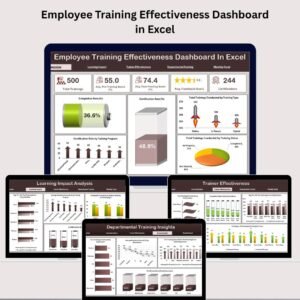
- Employee Training Effectiveness Dashboard in Excel
- Training and Development Dashboard in Excel
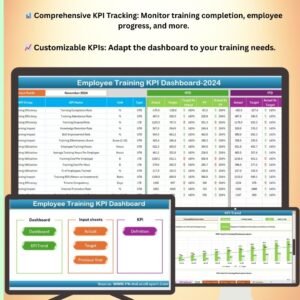
- Employee Training KPI Dashboard in Excel
- Training Schedule Request Tracker in Excel
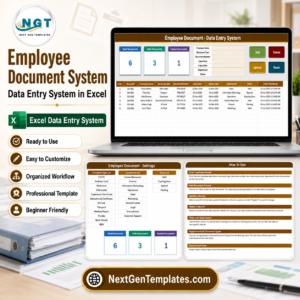
- Employee Document Data Entry System in Excel
Read the full walkthrough on our blog: Training Matrix Excel Template – Data Entry System.










Reviews
There are no reviews yet.