

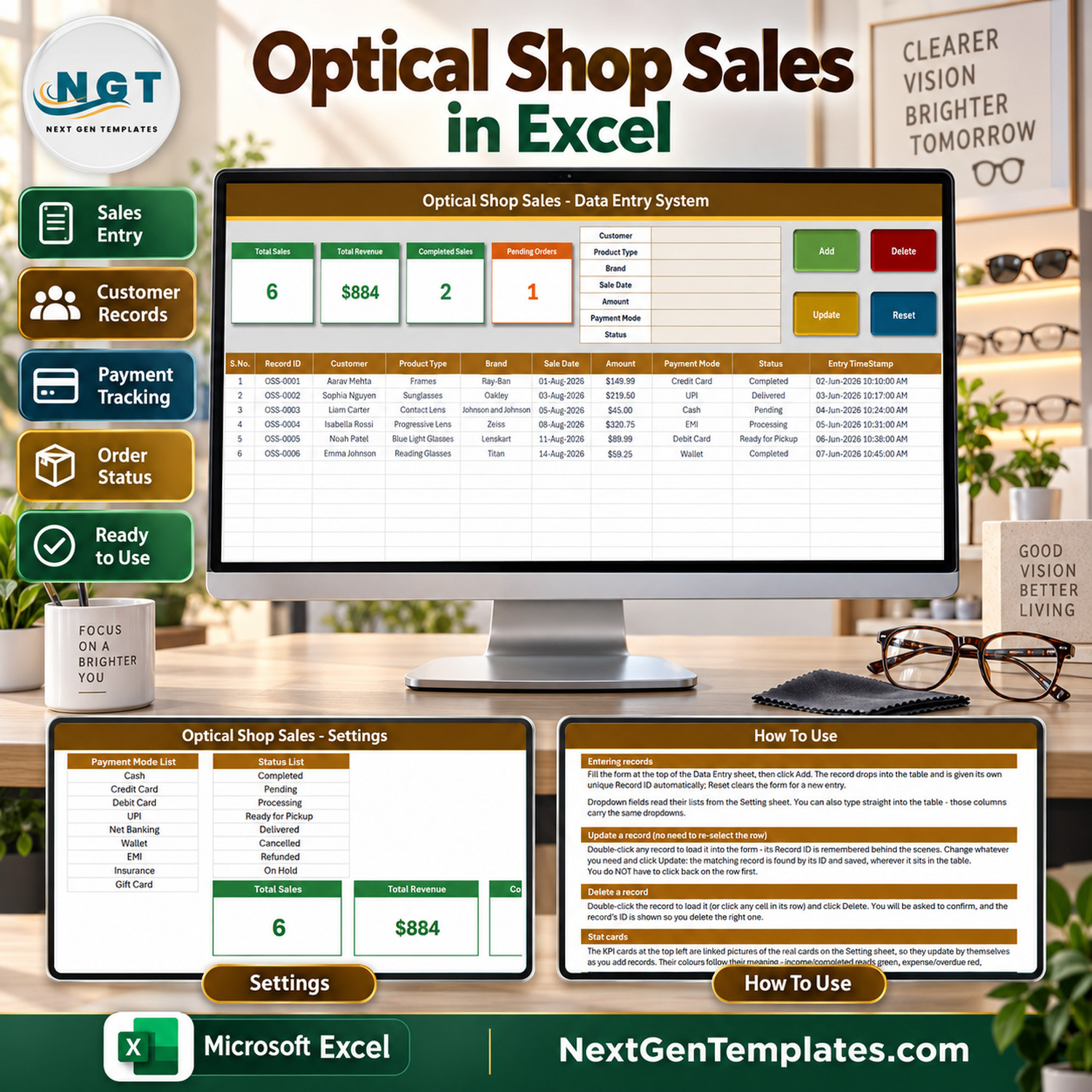

The Optical Shop Sales Data Entry System in Excel is a macro-enabled workbook for logging every sale an optical shop makes at the counter: frames, lenses, sunglasses, contact lenses, reading glasses and eyewear accessories. It gives you a 7-field entry form, 4 live VBA buttons, 4 self-updating stat cards and 4 editable dropdown lists holding 39 ready values. Fill the form, click Add, and the sale lands in the records table with its own Record ID and timestamp.
It is a sales register, not a point-of-sale system, not accounting software and not a clinical record. It answers the three questions an eyewear store owner asks at the end of the week – how many sales, how much was billed, and how many orders are still pending – without scrolling back through a notebook.
✅ Instant download · One-time payment · No subscription · No per-user fees · Fully unlocked and editable
🔑 Key Features of the Optical Shop Sales Data Entry System in Excel
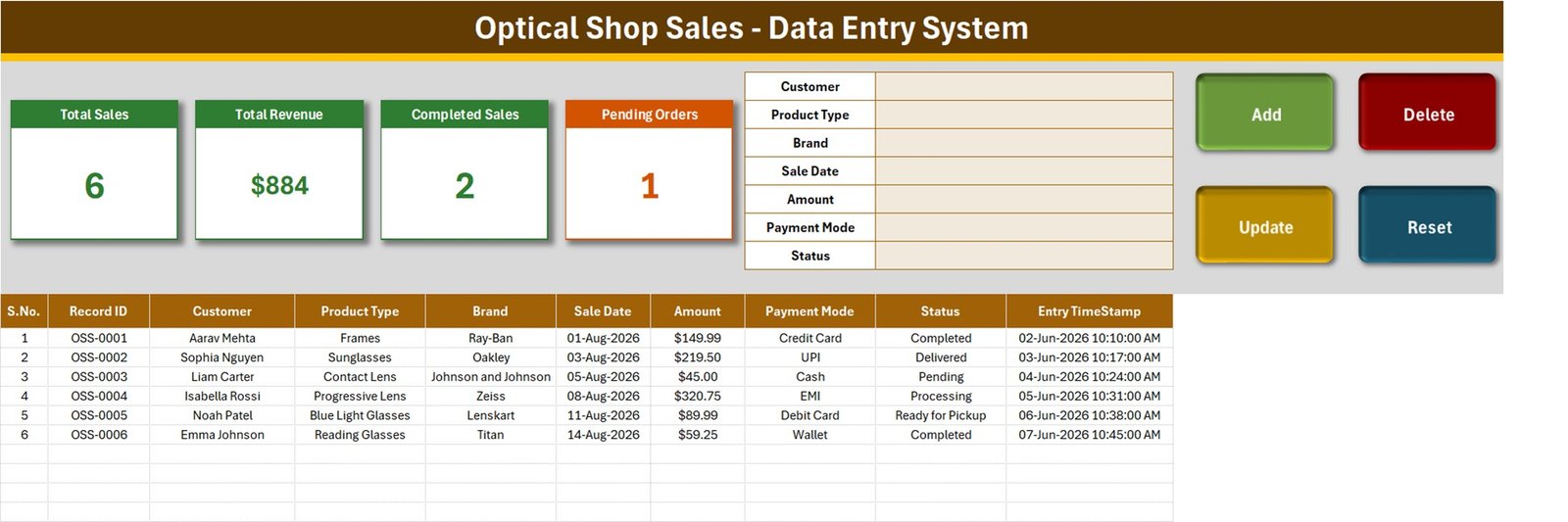
- 🧾 A seven-field entry form – Customer, Product Type, Brand, Sale Date, Amount, Payment Mode and Status – placed beside the stat cards on the Data Entry sheet, so one screen covers entry and review.
- 🔘 Four live VBA buttons. Add saves the form as a new record, Update rewrites the record you loaded, Delete removes a record after a confirmation that shows its Record ID, and Reset clears the form without touching the table.
- 🔢 Automatic Record IDs in the OSS-0001 series plus an Entry TimeStamp on every saved sale, so each record can be found again after the table has been sorted or filtered.
- 🖱️ Double-click editing. Double-click any row and it loads back into the form. The workbook remembers the Record ID, so Update finds that record wherever it now sits.
- 📋 Four dropdown lists on the Setting sheet – 10 product types, 12 brands, 9 payment modes and 8 order statuses – shared by the form and by the table columns.
- 👓 Order statuses that match an optical counter: Processing, Ready for Pickup and Delivered sit alongside Completed, Pending, Cancelled, Refunded and On Hold, following a pair of glasses from the lab to the customer.
- 📊 Four stat cards – Total Sales, Total Revenue, Completed Sales and Pending Orders – that recalculate from the table as you add records, with no refresh button and no pivot table to rebuild.
- 🧪 Six fictional sample sales (OSS-0001 to OSS-0006) already loaded, so you can watch every button work before you clear them out.
📦 What’s Inside the Workbook
Four sheets make up the whole product: Data Entry, Setting, Instructions (a How To Use page) and Get More Templates.
Sheet 1: Data Entry
This is the working screen. It shows the Total Sales, Total Revenue, Completed Sales and Pending Orders cards, the seven-field form, the Add, Delete, Update and Reset buttons, and a ten-column records table: S.No., Record ID, Customer, Product Type, Brand, Sale Date, Amount, Payment Mode, Status and Entry TimeStamp. On the sample data the cards read 6, $884, 2 and 1.
Sheet 2: Setting
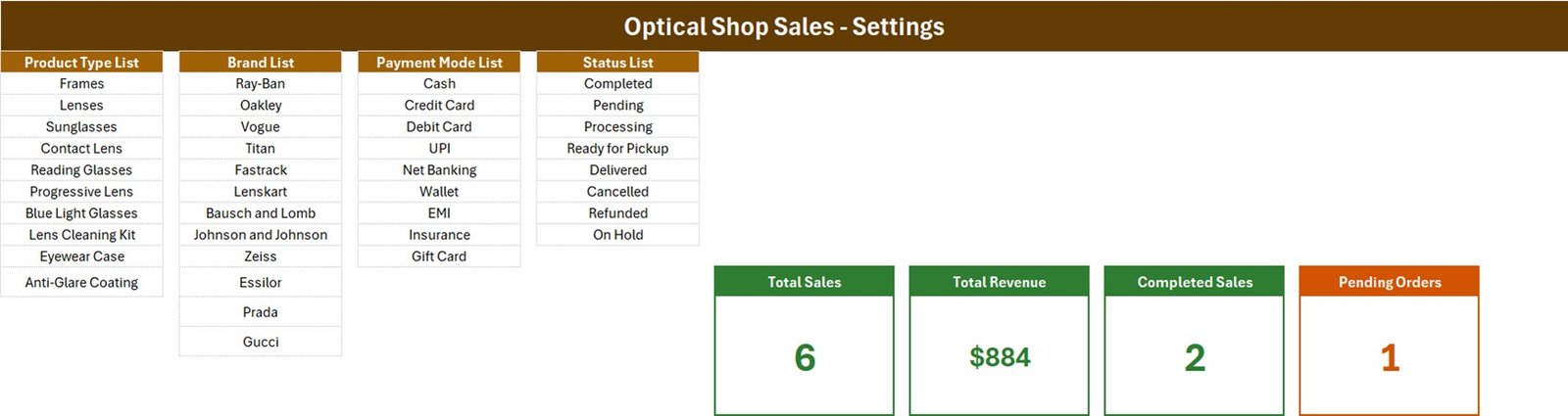
This sheet holds the four dropdown lists and the real stat-card formulas. The lists ship with these values, all editable:
- 🕶️ Product Type List (10): Frames, Lenses, Sunglasses, Contact Lens, Reading Glasses, Progressive Lens, Blue Light Glasses, Lens Cleaning Kit, Eyewear Case, Anti-Glare Coating.
- 🏷️ Brand List (12): Ray-Ban, Oakley, Vogue, Titan, Fastrack, Lenskart, Bausch and Lomb, Johnson and Johnson, Zeiss, Essilor, Prada, Gucci.
- 💳 Payment Mode List (9): Cash, Credit Card, Debit Card, UPI, Net Banking, Wallet, EMI, Insurance, Gift Card.
- 📌 Status List (8): Completed, Pending, Processing, Ready for Pickup, Delivered, Cancelled, Refunded, On Hold.
The brand names are sample list entries that you replace with the brands you stock. NextGenTemplates is not affiliated with any of them.
Sheet 3: How To Use
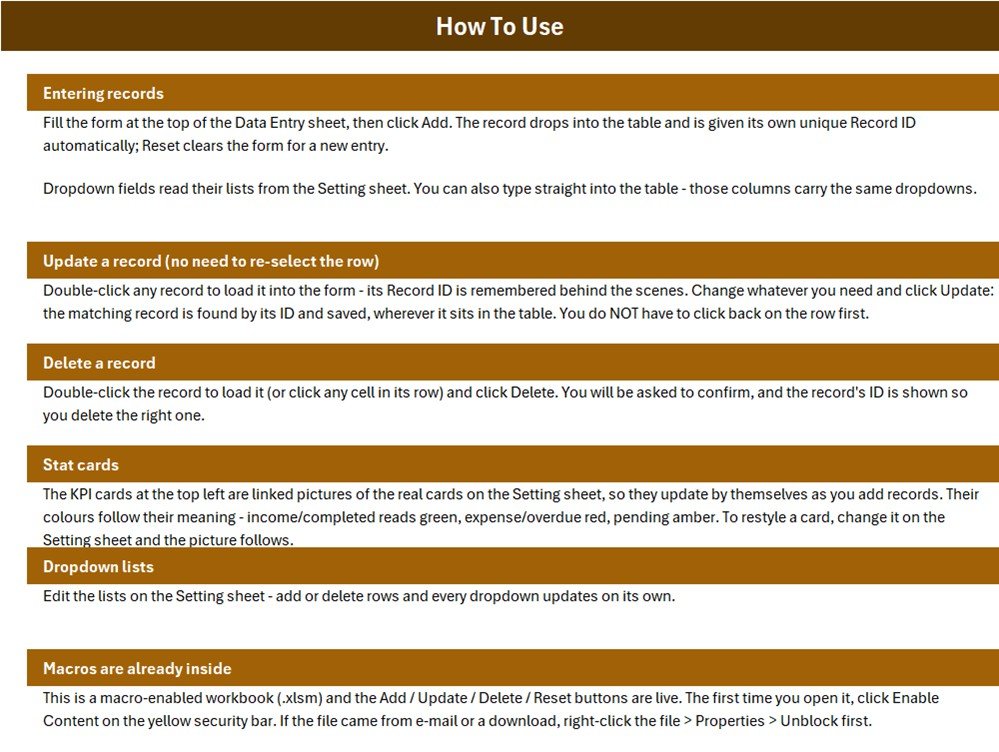
This page explains entering records, updating without re-selecting the row, deleting, how the stat cards work, editing the dropdown lists and enabling macros on first open.
📐 What the Four Stat Cards Actually Count
These are the real formulas from the Setting sheet. Read them once and the cards will never surprise you:
- 🔹 Total Sales =
COUNTA('Data Entry'!$C$15:$C$1048576)– a count of the Customer column, not the Record ID column. A walk-in sale saved with a blank Customer is not counted. - 🔹 Total Revenue =
SUM('Data Entry'!$G$15:$G$1048576)– every Amount whatever the status, so Cancelled and Refunded rows are included. The six samples total 884.48, displayed as $884. Treat it as billed value, not cash collected. - 🔹 Completed Sales =
COUNTIF('Data Entry'!$I$15:$I$1048576,"Completed"). - 🔹 Pending Orders =
COUNTIF('Data Entry'!$I$15:$I$1048576,"Pending").
Only two of the eight statuses have a card. Processing, Ready for Pickup, Delivered, Cancelled, Refunded and On Hold are not counted by either card, so on the sample data Completed plus Pending is 2 + 1 against 6 records – the Delivered sale OSS-0002 is not in Completed Sales. For revenue from finished sales only, add one cell on the Setting sheet: =SUM(SUMIFS('Data Entry'!$G$15:$G$1048576,'Data Entry'!$I$15:$I$1048576,{"Completed","Delivered"})).
Amount is typed, not calculated. There is no Quantity, Unit Price, discount or tax column, so enter the final billed amount for the whole sale.
📊 This Excel Workbook vs. a Google Sheets Log vs. Optical POS Software
| Feature | Optical Shop Sales Data Entry System in Excel | Home-made Google Sheets log | Optical retail POS / practice software |
|---|---|---|---|
| Cost | ✅ $6.99 one-time (regular $11.99) | Free, but you build it yourself | Recurring monthly subscription, often per location |
| Platform | Excel for Windows desktop | Any browser | Vendor app or browser |
| Setup time | ✅ About 10 minutes – edit four lists | Hours to design form, lists and formulas | Days of onboarding and data import |
| Entry form with Add / Update / Delete | ✅ Built in, VBA | No – typing straight into rows | ✅ Yes |
| Real-time team collaboration | No – one file on one PC | ✅ Yes | ✅ Yes |
| Mobile access | No | ✅ Yes | ✅ Usually |
| Customizable lists and fields | ✅ Fully unlocked | ✅ Yes | Limited to vendor settings |
| Prescriptions, inventory, invoices | No | No | ✅ Usually included |
| Year-1 cost at 5 users | ✅ One purchase per user licence, no renewal | Free | Subscription x 12 months |
For a small eyewear counter that wants a tidy, searchable sales register without paying for POS software it will not fully use, this workbook sits in the sweet spot.
👥 Who This Template Is For – and Who It’s Not For
✅ Built for:
- Independent optical shops and eyewear boutiques keeping a daily sales register
- Sunglasses kiosks and mall counters that need a simple record of each sale and its payment mode
- Owners who want to see pending and completed glasses orders at a glance
❌ NOT for:
- Optometry practices that need prescription, eye-test or patient records – this is not a clinical system
- Chains needing stock control, billing, tax invoices or several users editing at once
- Anyone working on a Mac, in Excel for the web or in Google Sheets, where the VBA buttons do not run
⚙️ How to Use the Optical Shop Sales Data Entry System
- Unzip the download and open
Optical_Shop_Sales_System.xlsmin Excel for Windows. Click Enable Content; if Excel still blocks it, right-click the file, choose Properties and tick Unblock. - Open the Setting sheet and rewrite the four lists with your own product types, brands, payment modes and statuses.
- Delete the six sample rows when you are ready to start.
- Fill the form on Data Entry and click Add. The Record ID and Entry TimeStamp are written for you.
- To correct a sale, double-click its row, edit it and click Update. To remove one, load it and click Delete, then confirm.
- Click Reset to clear the form without touching the table.
💼 Real-World Use Cases
Ravi runs a two-counter optical store. He logs each frame and lens sale, marks lab orders as Processing, flips them to Ready for Pickup when the glasses arrive, and checks the Pending Orders card every morning before calling customers.
Maria owns a small eyewear boutique. She filters the table by Brand at month-end to see which labels actually sell, then trims her Brand List to the ones worth reordering.
A mall sunglasses kiosk uses the Payment Mode column to split card, UPI and cash sales before closing the day, instead of adding them up on paper.
⚠️ Limits to Know Before You Buy
- 🔸 The in-table dropdowns cover rows 15 to 214 – 200 records. The Add button and the card formulas keep working below that, but drag the validation down if you keep more than 200 sales in one file.
- 🔸 The four lists are fixed named ranges, and each is already full. Product Type reads
Setting!$A$3:$A$12, Brand$C$3:$C$14, Payment Mode$E$3:$E$11and Status$G$3:$G$10. The How To Use page says the dropdowns update on their own when you add rows; that is only true if you insert a row inside a list. A value typed in the first blank cell below a list will not appear until you widen the range in Formulas > Name Manager. - 🔸 No stock, billing or tax. Recording a sale does not reduce any stock count, and there is no receipt, tax invoice, GST or VAT calculation.
🩺 Customer Data and Prescriptions
All six sample customers are fictional. The workbook stores a customer name on each sale but has no prescription, eye-test or health fields, and it is not a clinical or medical record system – do not use it to keep prescriptions. The file has no password, encryption or access log, so you are responsible for the customer data you enter and for handling it under the privacy rules that apply to your shop.
❓ Frequently Asked Questions
What does the Optical Shop Sales Data Entry System in Excel track?
It records one row per sale with Customer, Product Type, Brand, Sale Date, Amount, Payment Mode and Status, plus an automatic Record ID and Entry TimeStamp. Four cards show Total Sales, Total Revenue, Completed Sales and Pending Orders, recalculating as you add, update or delete records.
How long does setup take?
About ten minutes. Enable macros, replace the values in the four Setting lists with your own products, brands, payment modes and statuses, delete the six sample rows, and start adding sales through the form. No formulas need editing.
Why do Completed Sales and Pending Orders not add up to Total Sales?
Only two of the eight statuses have a card. Processing, Ready for Pickup, Delivered, Cancelled, Refunded and On Hold sales stay in the table and in Total Revenue, but neither card counts them. Add a COUNTIF for any other status you want to watch.
Can it store customer prescriptions?
No. There are no prescription or eye-test fields, and the workbook is not a clinical or medical record system. It is a sales register. Keep prescriptions in your practice system, and treat the customer names you enter as personal data you are responsible for.
Will it work on a Mac or in Excel for the web?
No. Excel for the web cannot run VBA, and Excel for Mac handles macros and security prompts differently, so the Add, Update, Delete and Reset buttons are supported on Excel for Windows desktop only. Google Sheets cannot run the macros either.
How does this compare to optical POS software?
POS software adds inventory, invoicing, prescriptions and multi-user access for a monthly fee. This workbook costs $6.99 once and does one job: a clean, filterable sales register with live stat cards for a single computer.
Is the file locked?
No. Every sheet, list, formula and macro is open, so you can rename columns, recolour cards or add your own calculations.
👤 About the Author
Built by PK – Microsoft Certified Professional with 15+ years of Excel, Google Sheets and Power BI experience. Founder of NextGenTemplates, reaching 300K+ subscribers across YouTube channels (@PKAnExcelExpert, @NextGenTemplates, @NeoTechNavigators). Every template is hand-built and tested before release.
🔗 Explore Related Templates
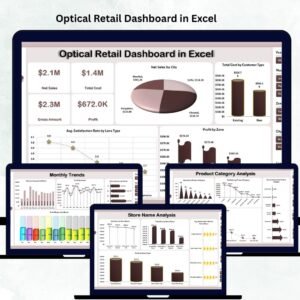
- 📈 Optical Retail Dashboard in Excel – analysis instead of entry: charts and KPIs over optical store sales.
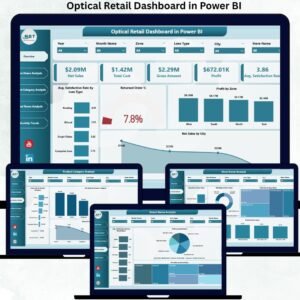
- 📊 Optical Retail Dashboard in Power BI – the same optical retail analysis as an interactive Power BI report.
- 📅 Optical Store Appointment Calendar in Excel – schedules the fittings and pickups behind these sales (also in Google Sheets).
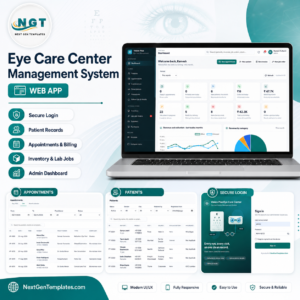
- 🏥 Eye Care Center Management System Web App – a multi-user web app when one Excel file is no longer enough.
- 🧾 Garment Shop Sales Data Entry System in Excel and Electronics Sales Log Data Entry System in Excel – the same form-and-cards build for other retail counters.
Browse more Excel VBA tools in the store.
📖 Click here to read the Detailed Blog Post
🎥 Visit our YouTube channel for step-by-step video tutorials
👉 YouTube.com/@NextGenTemplates
📅 Last updated: September 2026
Watch the demo video:
Compatibility and Requirements
- Runs in Excel desktop on Windows with macros enabled. The Add, Update, Delete and Reset buttons are VBA, so they do not run in Excel for the web, Google Sheets or mobile.
- If Excel blocks the file on first open, click Enable Content. Microsoft explains the settings in Enable or disable macros in Microsoft 365 files.







Reviews
There are no reviews yet.