

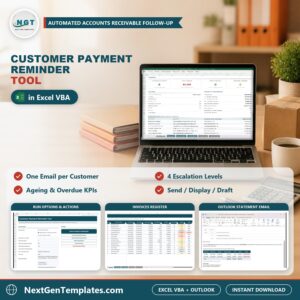
The Customer Payment Reminder Tool in Excel VBA turns your open invoice list into one statement email per customer in Microsoft Outlook, escalating across 4 reminder levels from Upcoming Due to Final Notice. It ships with 6 sheets, 6 action buttons and 3 email actions (send, display for review, or save as drafts). The sample file holds 16 invoices for 8 customers, with 6 reminders due and 85,150 overdue.
🌍 Join 8,400+ teams in 40+ countries using NextGenTemplates to replace paid SaaS tools with one-time-purchase Excel, Google Sheets, Power BI and HTML templates.
✅ Instant download · One-time payment · No subscription · No per-user fees · Lifetime access
⚠️ Important – Outlook requirement: this tool works only with the classic Microsoft Outlook desktop app on Windows. It does not work with the new Outlook, Outlook on the web or Gmail. Classic Outlook must be open and signed in when you run the macros. Need it for Gmail, another email system or a custom workflow? Contact us for a customized version.
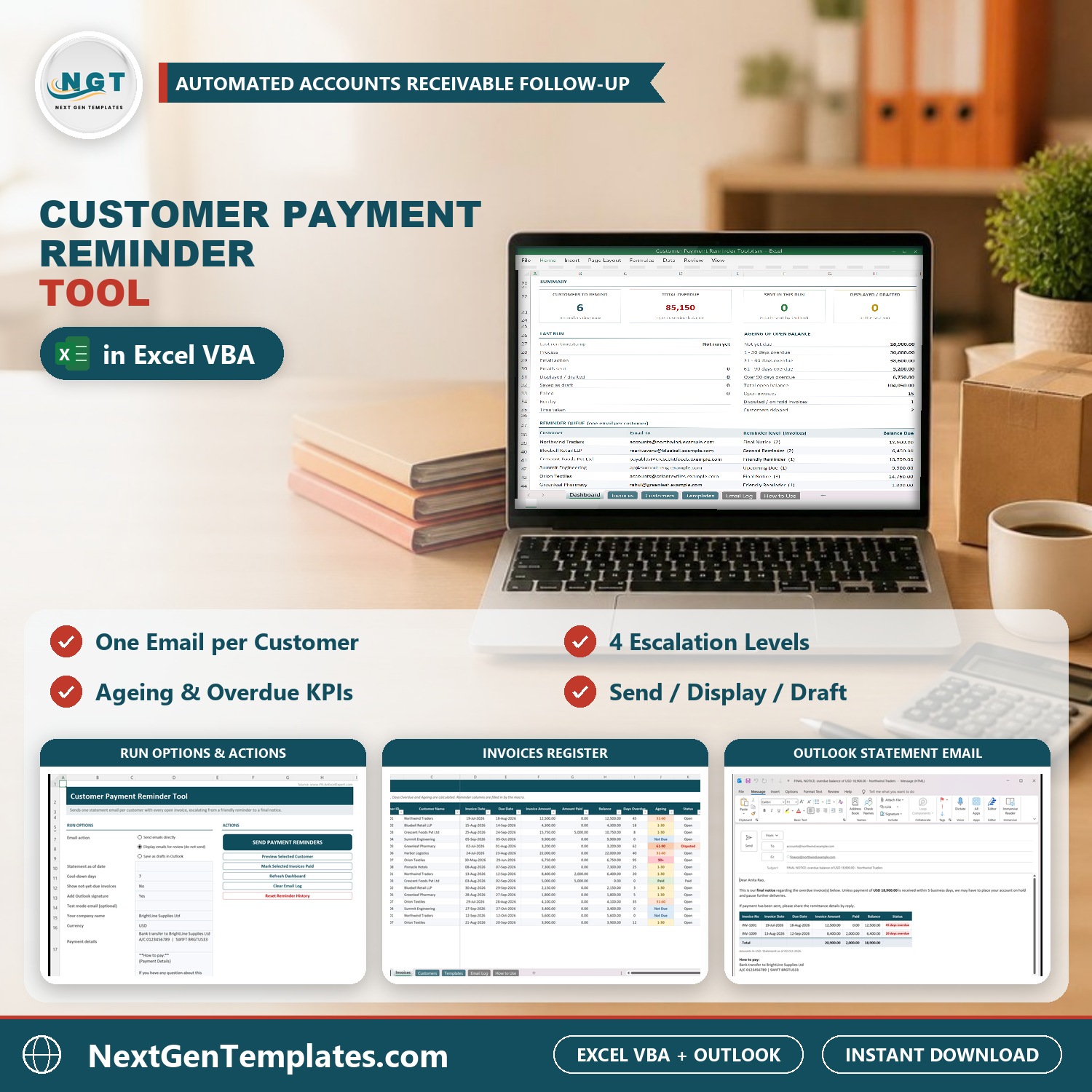
🔑 Key Features of the Customer Payment Reminder Tool in Excel VBA
📧 One statement email per customer. Instead of one email per invoice, the macro groups every open invoice of a customer into a single HTML email with an invoice table, totals and your payment details. A customer with three overdue invoices gets one clear statement, not three separate chasers.
📈 Four escalation levels. Upcoming Due starts 5 days before the due date, Friendly Reminder from 1 day overdue, Second Reminder from 15 days and Final Notice from 30 days. The oldest open invoice decides the level, so the tone always matches how late the customer really is.
⚙️ Three email actions. Send emails directly, display every email for review without sending, or save them as drafts in Outlook. A test-mode email address redirects every message to your own inbox while you set the tool up, so no customer is contacted by mistake.
⏳ Cool-down and skip rules. Customers reminded within the cool-down days (default 7) are skipped unless their level has gone up. Customers marked Do Not Remind, or with a missing email address, are listed as skipped in the reminder queue with the reason.
📊 Ageing and overdue KPIs. The Dashboard shows Customers to Remind, Total Overdue, emails sent and emails displayed or drafted, a Last Run panel, and the open balance split into Not yet due, 1-30, 31-60, 61-90 and over 90 days overdue.
📝 Editable templates with placeholders. Each level has its own subject and message. Use placeholders such as {Customer Name}, {Total Due} or {Max Days Overdue}, and wrap words in double asterisks for bold. Your Outlook signature can be added automatically.
This is a practical alternative to monthly payment reminder software: automated payment reminders run from the workbook you already keep, using the Outlook account you already send from.
🎥 Watch the Customer Payment Reminder Tool Demo
Video Overview
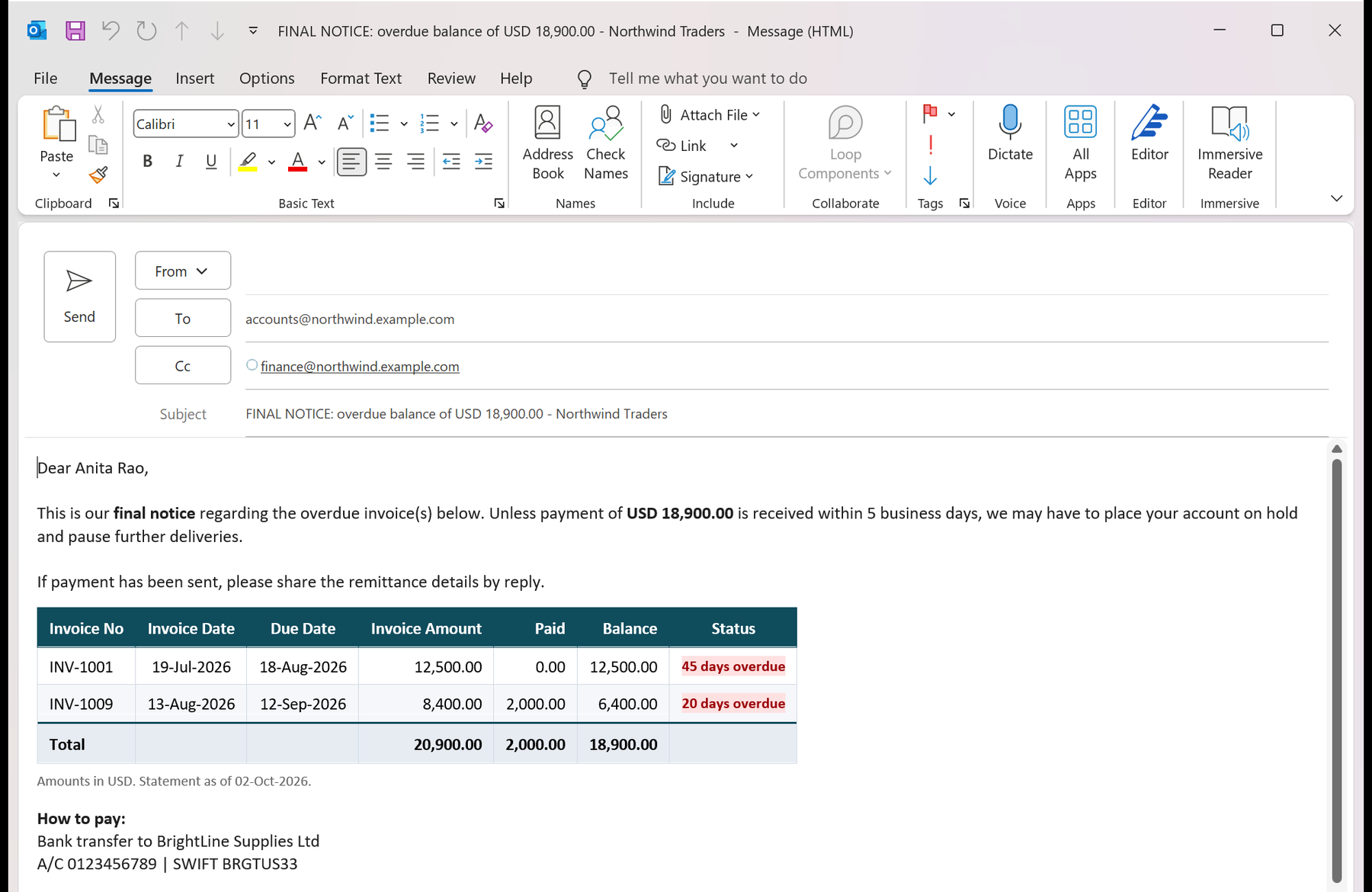
This 6-minute narrated demo walks through the Customer Payment Reminder Tool from start to finish. It begins on the Dashboard with the run options – email action, as-of date, cool-down days, test mode and payment details – then the summary cards, ageing panel and reminder queue, including why two customers are skipped. Next it covers the Invoices, Customers and Templates sheets and explains the reminder-level ladder from Upcoming Due to Final Notice. You then see Northwind Traders’ Final Notice previewed in Outlook, followed by a full run of all 6 reminders in Display mode, so nothing is sent. The video ends with the Email Log, the Last Run panel, a reminder that the tool needs the classic Outlook desktop app, and our offer to customize it for Gmail or other email systems.
📦 What’s Inside the Customer Payment Reminder Tool
The download is a ZIP with the macro-enabled workbook (.xlsm) and an illustrated PDF user manual. The workbook has six sheets: Dashboard, Invoices, Customers, Templates, Email Log and How to Use.
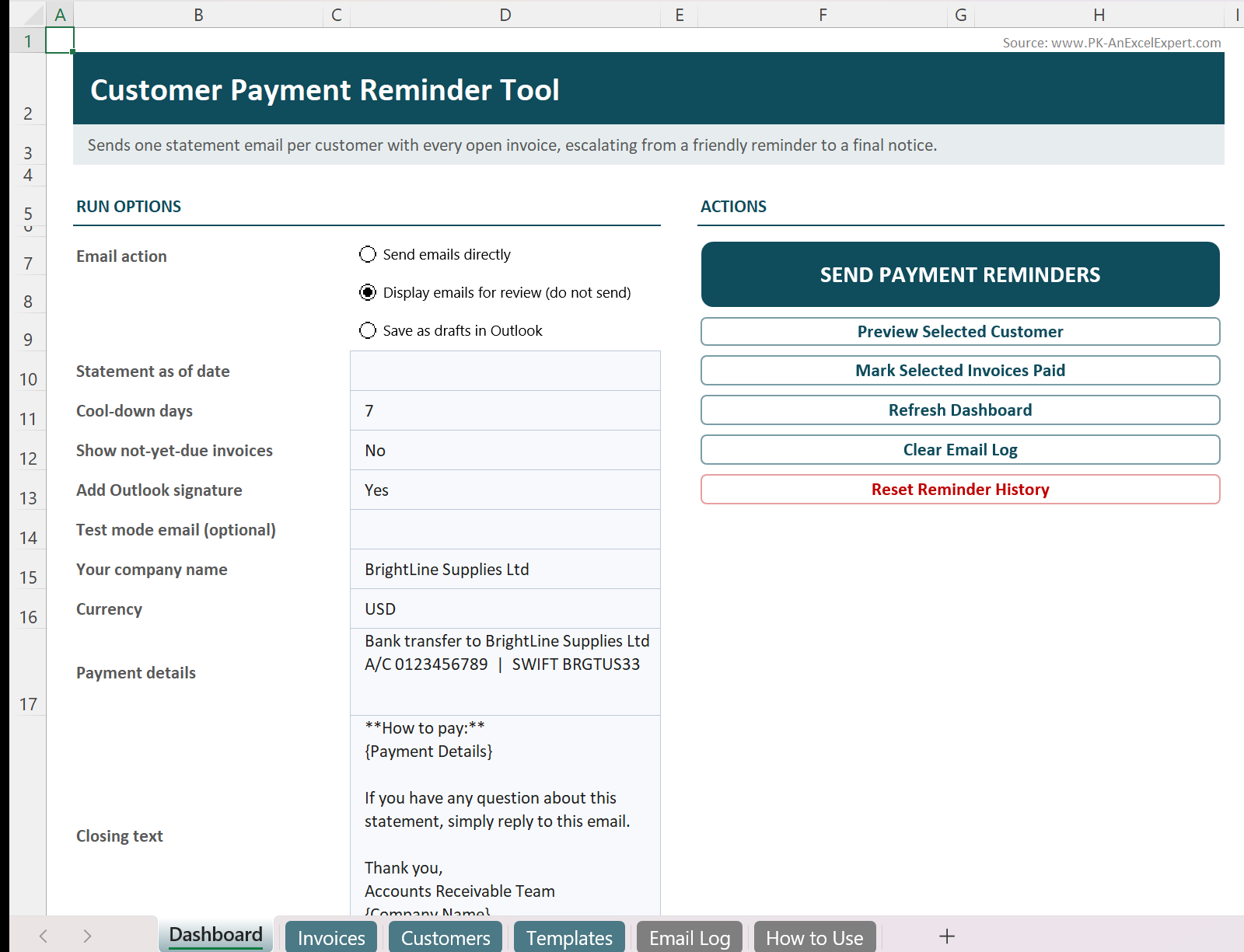
Dashboard: Run Options and Actions
The top of the Dashboard holds the run options – email action, statement as-of date, cool-down days, show not-yet-due invoices, add Outlook signature, test mode email, company name, currency, payment details and closing text. On the right sit the action buttons: Send Payment Reminders, Preview Selected Customer, Mark Selected Invoices Paid, Refresh Dashboard, Clear Email Log and Reset Reminder History.
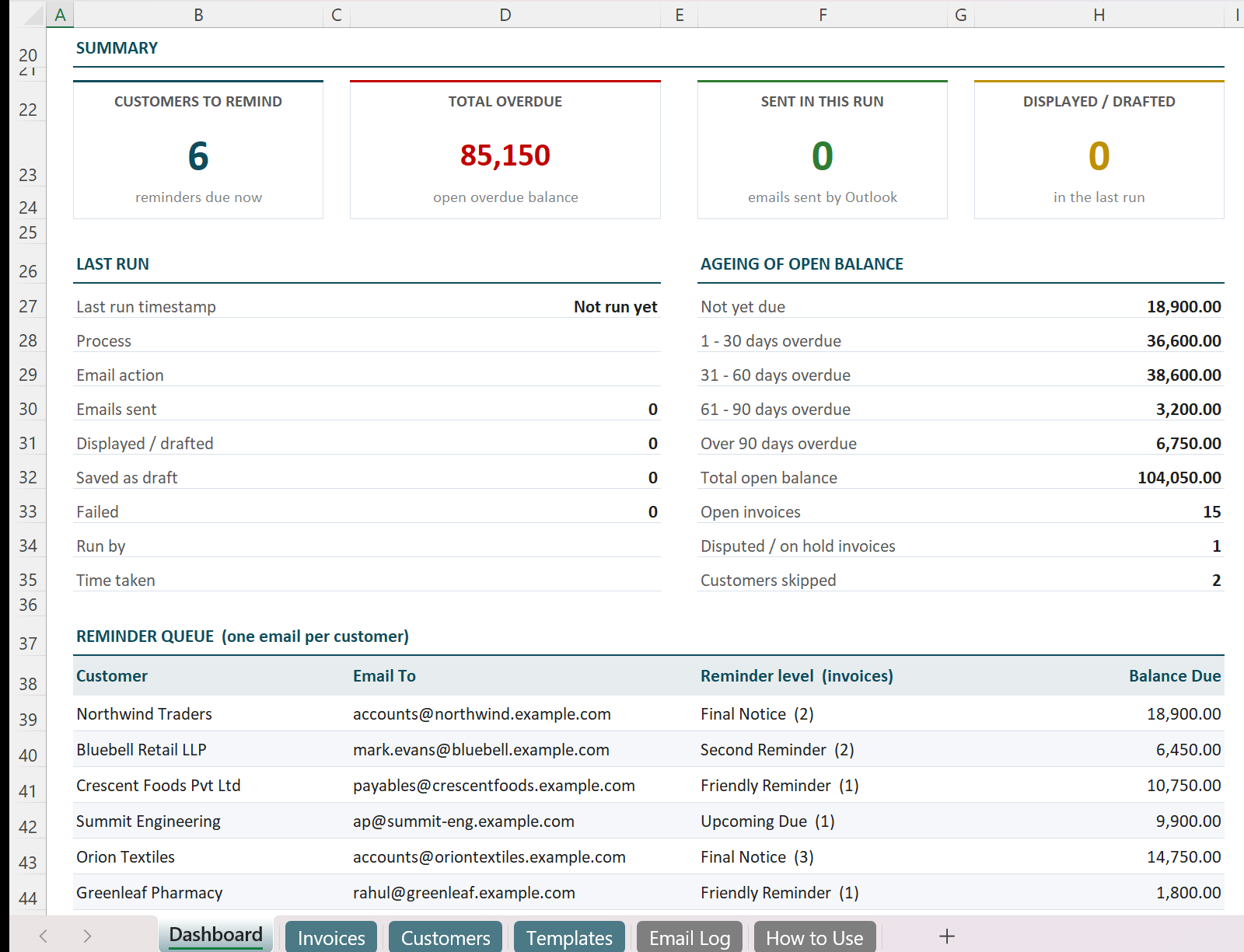
Dashboard: Summary, Ageing and Reminder Queue
The summary cards show 6 customers to remind and 85,150 total overdue in the sample data. The ageing panel splits the 104,050 open balance into five buckets, and the reminder queue lists each customer, the email address, the reminder level with the invoice count, and the balance due.
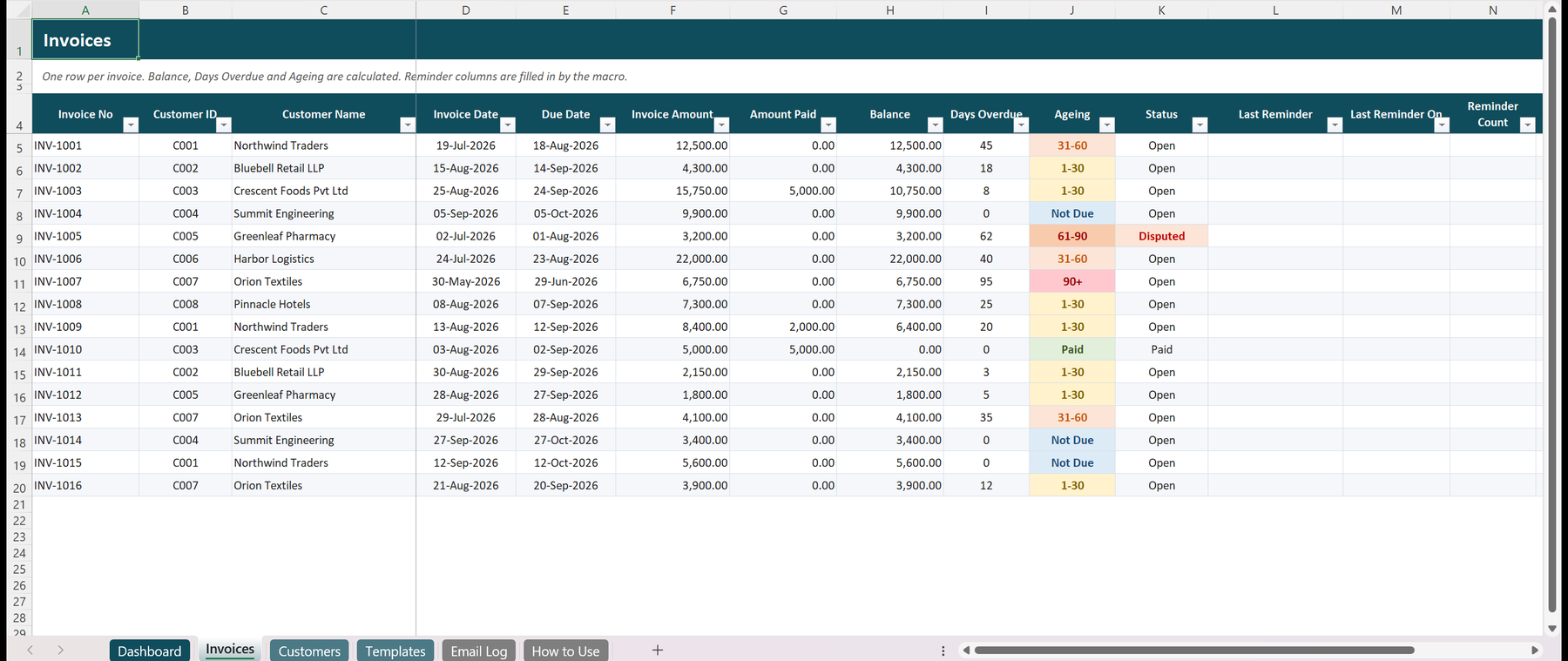
Invoices Sheet
One row per invoice with invoice number, customer ID, invoice and due dates, invoice amount and amount paid. Balance, Days Overdue and Ageing are calculated; Status can be Open, Disputed, On Hold or Paid. After a Send run, the macro stamps Last Reminder, Last Reminder On and Reminder Count. Preview Selected Customer and Mark Selected Invoices Paid buttons also sit on this sheet.
The Statement Email in Outlook
Every overdue invoice reminder is a formatted HTML email: greeting to the contact person, the level’s message, a table of all open invoices with days overdue, the total, and your payment instructions. Customers, Templates and the Email Log complete the workbook.
📊 Customer Payment Reminder Tool vs. Paid Excel Add-in vs. QuickBooks / Xero Reminders – Where This Fits
| Feature | Customer Payment Reminder Tool | Paid Excel / Outlook Add-in | QuickBooks / Xero / Chaser |
|---|---|---|---|
| Cost | ✅ $9.99 one-time | Annual licence | Monthly subscription |
| Platform | Excel (Windows) + classic Outlook | Excel + Outlook | Web app |
| Setup time | ✅ Under 15 minutes | Install and configure | Hours (import customers and invoices) |
| One statement email per customer | ✅ Yes | Varies | ✅ Yes |
| Escalation levels | ✅ 4 editable levels | Varies | ✅ Yes |
| Review before sending (display / drafts) | ✅ Yes | Varies | Limited |
| Data stays on your PC | ✅ Yes | ✅ Yes | No (cloud) |
| Mobile access | No | No | ✅ Yes |
| Year-1 cost at 5 users | ✅ $9.99 | Per-seat licences | Subscription x 12 months |
For small finance teams that want automated payment reminders without a new accounting platform or a monthly fee, the Customer Payment Reminder Tool sits in the sweet spot.
👥 Who This Template Is For – and Who It’s Not For
✅ This template is built for:
- Accounts receivable clerks and finance teams who chase invoices from Excel and classic Outlook
- Small business owners, wholesalers and agencies with tens to a few hundred customers
- Bookkeepers who want a consistent, escalating overdue invoice reminder routine
❌ This template is NOT for:
- Teams on the new Outlook, Outlook on the web, Gmail or a Mac – the macros need classic Outlook on Windows (ask us about a customized version)
- Businesses that need reminders sent automatically from an accounting system with online payment links
⚙️ How to Use the Customer Payment Reminder Tool
- Unzip the download, open the .xlsm file and click Enable Content.
- Open classic Microsoft Outlook and sign in.
- Enter your company name, currency, payment details and closing text on the Dashboard.
- Add customers (email, CC, payment terms, Do Not Remind) and your open invoices.
- Set a test-mode email, choose Display emails for review and click Send Payment Reminders.
- When the emails look right, clear the test email and switch to Send or Save as drafts.
💼 Real-World Use Cases
Maria runs accounts receivable at a 25-person wholesale distributor. Every Monday she pastes the open invoice list into the Invoices sheet, checks the reminder queue and sends 30 statement emails in one click, instead of writing each overdue invoice reminder by hand.
James owns a small design agency. He uses the display option to review each email before it goes out, so long-standing clients get a friendly tone and only genuinely late accounts reach the Final Notice level.
Priya is a freelance bookkeeper for four clients. She keeps one copy of the workbook per client, sets each company’s payment details, and uses the Email Log as proof of when every customer was reminded.
❓ Frequently Asked Questions
Does the Customer Payment Reminder Tool work with Gmail or the new Outlook?
No. The Customer Payment Reminder Tool works only with the classic Microsoft Outlook desktop app on Windows, which must be open and signed in. It does not work with the new Outlook, Outlook on the web or Gmail. We can customize it for Gmail or other email systems – contact us.
Can you customize the tool for my own workflow?
Yes. We offer paid customization of the Customer Payment Reminder Tool, for example connecting it to Gmail or another email system, adding fields, changing the reminder rules or building a custom collections workflow. Contact us with your requirements for a quote.
How does the tool decide which reminder to send?
The oldest open invoice of each customer decides the level: Upcoming Due from 5 days before the due date, Friendly Reminder from 1 day overdue, Second Reminder from 15 days and Final Notice from 30 days. You can change these thresholds on the Templates sheet.
Can I check the emails before they are sent?
Yes. Choose Display emails for review to open every email in Outlook without sending, or Save as drafts. Preview Selected Customer opens one customer’s email, and a test-mode address redirects all emails to your own inbox while testing.
How does it compare to payment reminder software like Chaser or QuickBooks reminders?
Cloud payment reminder software charges a monthly fee and needs your customer data in its system. The Customer Payment Reminder Tool is a one-time Excel VBA purchase that keeps data on your PC and sends through your own Outlook, but it has no online payment links or mobile app.
How long does setup take?
Most users are running the Customer Payment Reminder Tool in under 15 minutes: enable macros, enter company and payment details, add customers and invoices, then do a test run in Display mode. The included PDF manual walks through every step.
Do I need to know VBA?
No. Everything runs from buttons. If you want to learn how to send email from Excel VBA yourself, the code is open and readable, and the manual explains each button.
👤 About the Author
Built by PK – Microsoft Certified Professional with 15+ years of Excel, Google Sheets and Power BI experience. Founder of NextGenTemplates, reaching 300K+ subscribers across YouTube channels (@PKAnExcelExpert, @NextGenTemplates, @NeoTechNavigators). Every template is hand-built and tested before release.
🔗 Explore Related Templates
📧 Send Bulk Emails using VBA and Outlook – personalised mass emails from an Excel list.
⏰ Email Reminder Scheduler in Excel – scheduled reminder emails for any date-based task.
📊 Accounts Receivable KPI Dashboard in Excel – track DSO, collections and receivable trends alongside your reminders.
📅 Accounts Payable and Receivable Calendar in Excel – see every due date on a calendar.
Browse more Excel VBA tools.
💎 Save more with the VBA Management Systems Mega Pack →
📖 Click here to read the Detailed Blog Post
🎥 Visit our YouTube channel for step-by-step video tutorials
👉 YouTube.com/@NextGenTemplates
📅 Last updated: October 2026


Reviews
There are no reviews yet.