

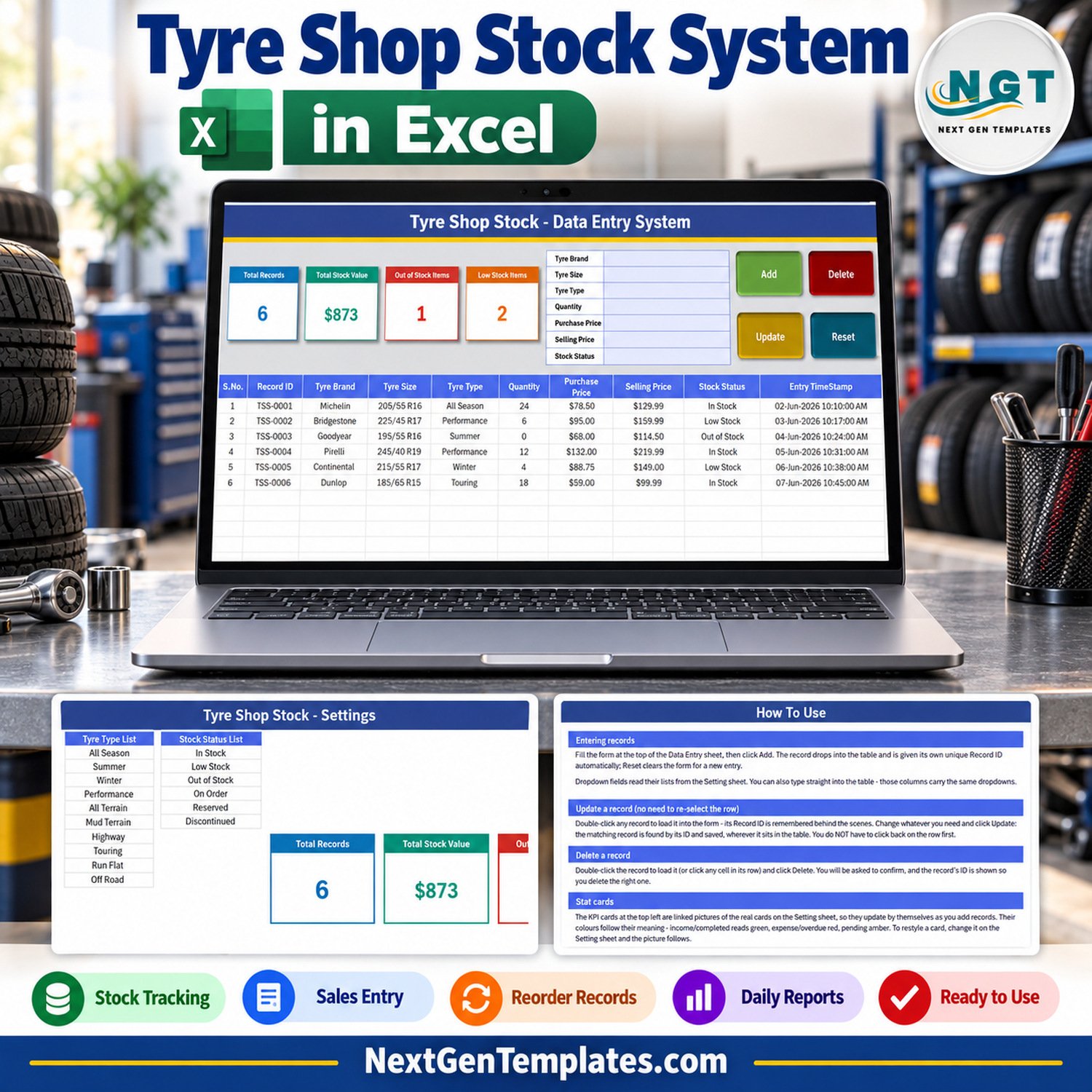

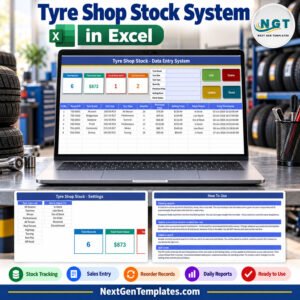
The Tyre Shop Stock Data Entry System in Excel is a macro-enabled workbook that keeps a tyre shop’s stock list in one tidy table: brand, size, type, quantity on hand, purchase price, selling price and stock status for every line. It gives you a 7-field entry form, 4 live VBA buttons, 4 self-updating stat cards and 4 editable dropdown lists holding 40 ready values – 12 tyre brands, 12 tyre sizes, 10 tyre types and 6 stock statuses. Fill the form, click Add, and the tyre line lands in a 10-column records table with its own Record ID and timestamp.
It is a stock register, not a point-of-sale till, not a purchase-order or automatic reorder system, not a fitting or job-card tool and not accounting software. It answers the question a tyre dealer hears all day – do we have a 225/45 R17 in stock, what did it cost and what do we sell it for – without walking the racks.
✅ Instant download · One-time payment · No subscription · No per-user fees · Fully unlocked and editable
🔑 Key Features of the Tyre Shop Stock Data Entry System in Excel
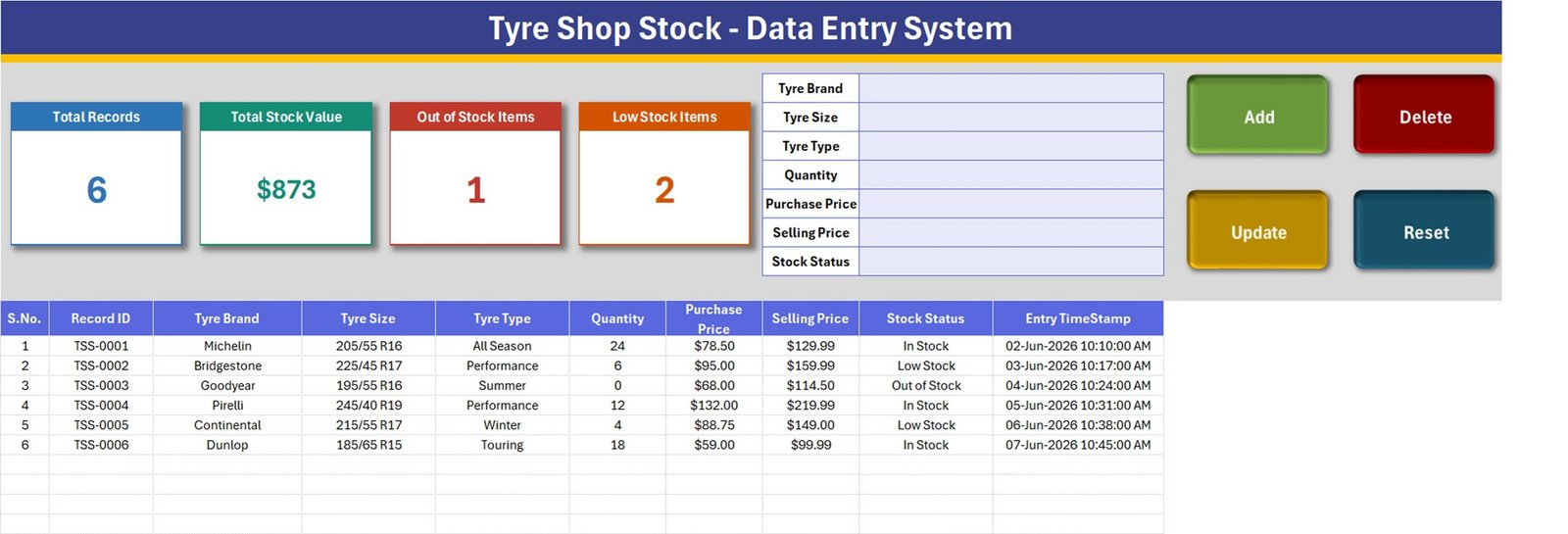
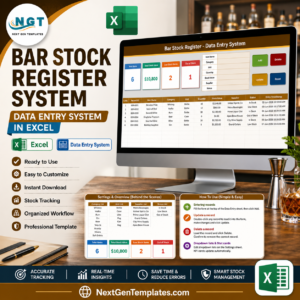
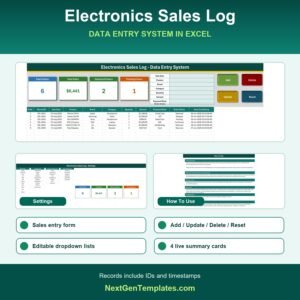
- 🧾 A seven-field entry form – Tyre Brand, Tyre Size, Tyre Type, Quantity, Purchase Price, Selling Price and Stock Status – placed beside the stat cards on the Data Entry sheet, so one screen covers entry and review.
- 🔘 Four live VBA buttons. Add saves the form as a new record, Update rewrites the record you loaded, Delete removes a record after a confirmation that shows its Record ID, and Reset clears the form without touching the table.
- 🔢 Automatic Record IDs in the TSS-0001 series plus an Entry TimeStamp on every saved line. The next ID is always one more than the highest ID still in the table.
- 🖱️ Double-click editing. Double-click any row and it loads back into the form. The macro remembers the Record ID, so Update finds the right row even if you have clicked somewhere else in the meantime.
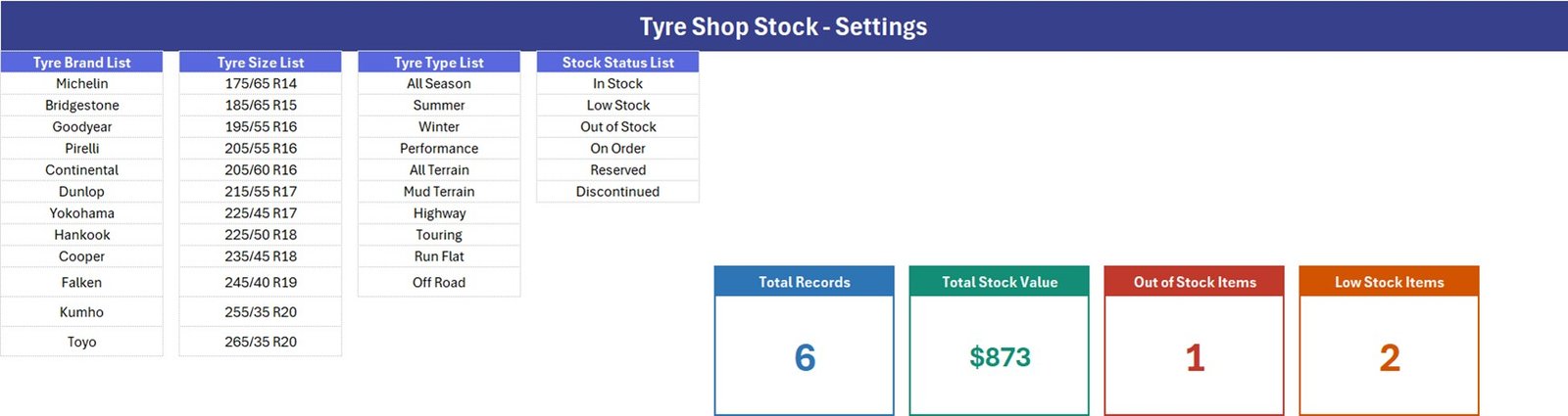
- 📋 Four dropdown lists on the Setting sheet – Tyre Brand (Michelin, Bridgestone, Goodyear, Pirelli, Continental, Dunlop, Yokohama, Hankook, Cooper, Falken, Kumho, Toyo), Tyre Size (twelve sizes from 175/65 R14 to 265/35 R20), Tyre Type (All Season, Summer, Winter, Performance, All Terrain, Mud Terrain, Highway, Touring, Run Flat, Off Road) and Stock Status (In Stock, Low Stock, Out of Stock, On Order, Reserved, Discontinued). The same dropdowns sit on the form and on table rows 15-214.
- 📈 Four stat cards – Total Records, Total Stock Value, Out of Stock Items and Low Stock Items. They are linked pictures of formula cards on the Setting sheet, so they recalculate the moment a record is added, updated or deleted.
- 🔓 Nothing locked. No sheet protection and no VBA password – rename a column, add a list value or change a card formula yourself.
📦 What’s Inside the Workbook
One .xlsm file with four sheets: Data Entry, Setting, Instructions (headed How To Use) and Get More Templates. Six fictional sample tyre lines are included so you can see the register working before you clear it.
Sheet 1: Data Entry
The working screen. The form and the four buttons sit at the top beside the stat cards; below them is the records table with S.No., Record ID, Tyre Brand, Tyre Size, Tyre Type, Quantity, Purchase Price, Selling Price, Stock Status and Entry TimeStamp. The six samples read 6 records, $873 stock value, 1 out-of-stock item and 2 low-stock items.
Sheet 2: Setting
Holds the Tyre Brand List, Tyre Size List, Tyre Type List and Stock Status List that feed every dropdown, plus the four formula cards the Data Entry sheet displays as pictures. Restyle a card here and the picture follows.
Sheet 3: How To Use
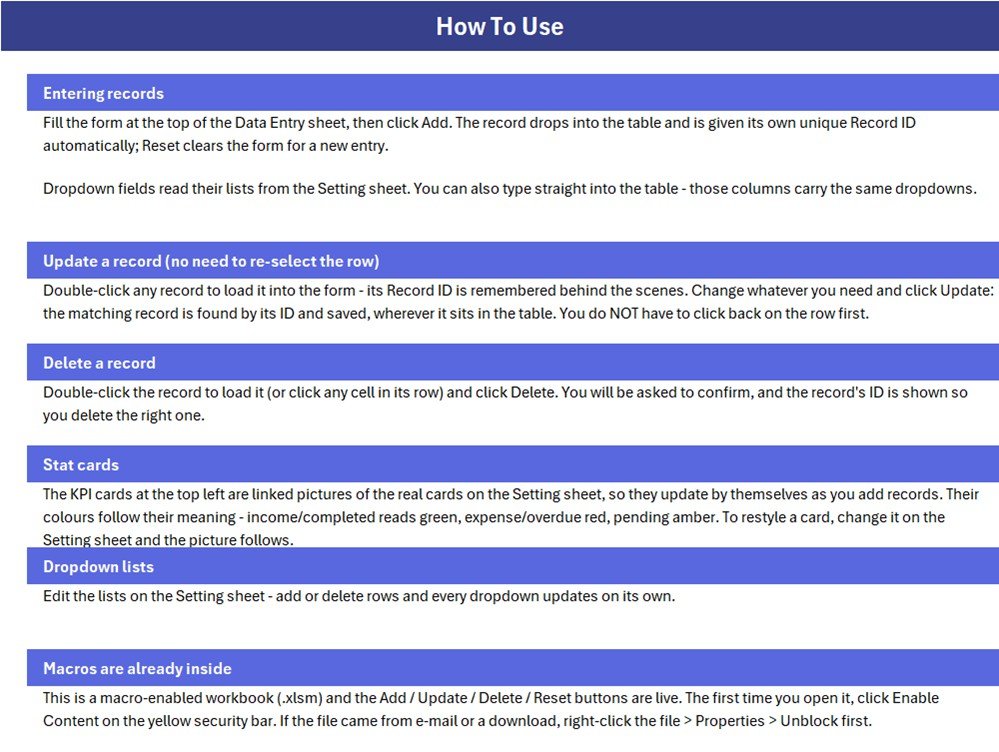
Plain-English instructions for entering, updating and deleting records, how the stat cards work, how to edit the dropdown lists, and how to enable the macros the first time you open the file.
📐 What the Four Stat Cards Actually Count
We read the workbook’s own formulas and macro before writing this page. Six things are worth knowing before you rely on the cards, most with a one-line fix:
- 💰 Total Stock Value is not quantity x price.
Setting!K13 = SUM('Data Entry'!$H$15:$H$1048576)adds one Selling Price per row, ignoring Quantity and Stock Status. The sample $873 is simply six unit prices added together; the 64 tyres on hand are worth $9,115.40 at selling price and $5,455.00 at purchase price. For a real stock value use=SUMPRODUCT('Data Entry'!$F$15:$F$5000,'Data Entry'!$H$15:$H$5000), or swap column H for G to value stock at cost. - 🔢 Total Records counts the Tyre Brand column.
Setting!I13 = COUNTA('Data Entry'!$C$15:$C$1048576), so a row typed straight into the table without a Record ID is still counted, even though Update and Delete cannot find it. Count IDs instead with=COUNTA('Data Entry'!$B$15:$B$1048576). - 🚦 Only two of six statuses have a card. Out of Stock Items and Low Stock Items are carded; In Stock, On Order, Reserved and Discontinued are not. Add a card such as
=COUNTIF('Data Entry'!$I$15:$I$1048576,"On Order")for any status you want to watch. - ✋ Stock Status is picked by hand. Nothing links it to Quantity and there is no reorder level, so a line with quantity 0 can still say In Stock and the two status cards count what was chosen, not what is on the rack. If you want a check, add a helper column such as
=IF(B15="","",IF(F15=0,"Out of Stock",IF(F15<=6,"Low Stock","In Stock")))with your own threshold. - 📋 The dropdown lists are fixed-length named ranges. Tyre_BrandList is
Setting!$A$3:$A$14, Tyre_SizeList$C$3:$C$14, Tyre_TypeList$E$3:$E$12and Stock_StatusList$G$3:$G$8, and all four are already full. How To Use says the dropdowns update on their own; that is only true when you insert a row inside a list. A value typed below the list never appears. Either insert rows inside the block, or redefine the name as=OFFSET(Setting!$A$3,0,0,COUNTA(Setting!$A$3:$A$100),1). - 🕒 Entry TimeStamp is rewritten on every Update. The macro stamps the current time each time a row is saved, so the column shows when a line was last changed, not when it was first entered.
Two smaller notes: only Tyre Brand is required by the Add button, and Quantity and the two prices are not checked as numbers, so keep those cells numeric. Deleting the newest record frees its ID, which the next Add reuses.
📊 This Excel Workbook vs. a Google Sheets Log vs. Tyre Shop Inventory Software
| Feature | Tyre Shop Stock workbook (Excel) | Home-made Google Sheets log | Tyre and auto-parts inventory software |
|---|---|---|---|
| Cost | ✅ $6.99 one-time (regular $11.99) | Free, but you build it yourself | Recurring monthly subscription, often per location |
| Platform | Excel for Windows desktop | Any browser | Vendor app or browser |
| Setup time | ✅ About 10 minutes – edit four lists | Hours to design form, lists and formulas | Days of onboarding and catalogue import |
| Entry form with Add / Update / Delete | ✅ Built in, VBA | No – typing straight into rows | ✅ Yes |
| Real-time team collaboration | No – one file on one PC | ✅ Yes | ✅ Yes |
| Mobile access | No | ✅ Yes | ✅ Usually |
| Customizable lists and fields | ✅ Fully unlocked | ✅ Yes | Limited to vendor settings |
| Barcodes, reorder alerts, invoicing | No | No | ✅ Usually included |
| Year-1 cost at 5 users | ✅ One purchase per user licence, no renewal | Free | Subscription x 12 months |
For a small tyre shop that wants a searchable stock list without paying for inventory software it will not fully use, this workbook sits in the sweet spot.
👥 Who This Template Is For – and Who It’s Not For
✅ Built for:
- Independent tyre shops and tyre-and-alignment garages keeping one line per brand, size and type
- Small tyre dealers who want purchase and selling prices side by side for every size they carry
- Owners who want a stock list in a file they fully control, with no login and no subscription
❌ NOT for:
- Shops that need a till, barcode scanning, purchase orders, automatic reorder alerts or tax invoices – this is not a POS, billing or reorder system
- Businesses that must track DOT or manufacture date codes, rack locations, suppliers or serial numbers – there are no such fields
- Anyone working on a Mac, in Excel for the web or in Google Sheets, where the VBA buttons do not run
⚙️ How to Use the Tyre Stock Register
- Unzip the download and open
Tyre_Shop_Stock_System.xlsmin Excel for Windows. Click Enable Content; if the file came from a download, right-click it, choose Properties and tick Unblock first. - On the Setting sheet, replace the sample brands, sizes and types with the ones you stock. Each list is full, so insert a row inside the block to add a value.
- Delete the six sample rows, or keep them while you learn the buttons.
- Pick Tyre Brand, Tyre Size, Tyre Type and Stock Status, type Quantity, Purchase Price and Selling Price, then click Add.
- To change a line after a delivery or a sale, double-click its row, edit the form and click Update.
- To remove a line, double-click it (or click any cell in its row), click Delete and confirm the Record ID.
- Switch Total Stock Value to the SUMPRODUCT formula above before you rely on it.
💼 Real-World Use Cases
Imran runs a two-bay tyre and alignment garage. He keeps one line per size he stocks, updates the quantity after each morning delivery, and checks the Low Stock Items card before placing his weekly order with the wholesaler.
Claire sells winter and all-season tyres from a rural workshop. She filters the table by Tyre Type in October to see how many winter tyres she has on hand, and compares purchase and selling price per size before setting her seasonal prices.
A small tyre dealer adds the SUMPRODUCT stock value formula and an On Order card, so the top of the sheet shows what the racks are really worth and how many lines are waiting on a supplier.
⚠️ Limits to Know Before You Buy
- 🪟 Macros must be enabled, and Windows desktop Excel is required. The buttons do not run on Mac, in Excel for the web, on mobile or in Google Sheets.
- 🗂️ The in-table dropdowns cover rows 15-214, and Delete removes the whole worksheet row, so that formatted block shortens by one row per delete.
- 🏷️ The brand names are sample dropdown values only – NextGenTemplates has no affiliation with any tyre maker. The sample quantities and prices are fictional.
- 🛞 The workbook makes no tyre-safety, tread-depth, age or legal-compliance claim; it records stock, nothing more.
❓ Frequently Asked Questions
What does the Tyre Shop Stock Data Entry System in Excel record?
It records one row per tyre line: Tyre Brand, Tyre Size, Tyre Type, Quantity, Purchase Price, Selling Price and Stock Status, plus an automatic Record ID and Entry TimeStamp. Four stat cards show total records, total stock value, out-of-stock items and low-stock items.
How long does setup take?
About ten minutes. Enable macros, replace the sample brands, sizes and types on the Setting sheet, delete the six sample rows and start adding stock. There is nothing to install and no account to create.
Why is Total Stock Value so much lower than my stock is worth?
Because the card adds one Selling Price per row and ignores Quantity. On the samples it shows $873 while the 64 tyres on hand are worth $9,115.40 at selling price. Replace the formula with the SUMPRODUCT version on this page to multiply quantity by price.
Does Stock Status update when the quantity changes?
No. Stock Status is a dropdown you choose yourself, and there is no reorder level. Update it whenever you change a quantity, or add the helper formula on this page to flag lines that should read Low Stock or Out of Stock.
Will it work on a Mac or in Excel for the web?
The sheets open, but the Add, Update, Delete and Reset buttons are VBA macros that need Excel for Windows on the desktop with macros enabled. On a Mac, in a browser or in Google Sheets you can only type directly into the table.
How does this compare to tyre shop inventory software?
Inventory software handles barcodes, purchase orders, reorder alerts and invoices for a monthly fee. This workbook does none of that; it is a one-time $6.99 stock register for recording what you carry and at what price, in a file you own and can edit.
Is the file locked?
No. There is no sheet protection and no VBA project password, so you can rename columns, extend lists, change card formulas or edit the macro.
👤 About the Author
Built by PK – Microsoft Certified Professional with 15+ years of Excel, Google Sheets and Power BI experience. Founder of NextGenTemplates, reaching 300K+ subscribers across YouTube channels (@PKAnExcelExpert, @NextGenTemplates, @NeoTechNavigators). Every template is hand-built and tested before release.
🔗 Explore Related Templates
- 🔧 Hardware Store Inventory Data Entry System in Excel – the same form-and-cards build for a hardware counter.
- 🎨 Paint Shop Stock and Tile Showroom Stock data entry systems – stock registers for other retail trades.
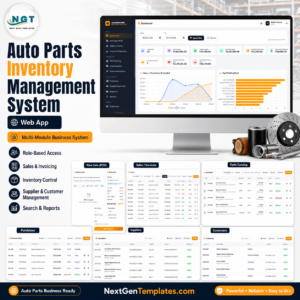
- 🚗 Auto Parts Inventory Management System Web App – a multi-user Google Apps Script system for when one Excel file is no longer enough.
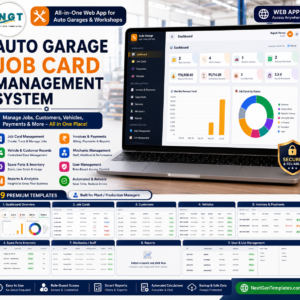
- 🛠️ Auto Garage Job Card Management System Web App – job cards for the fitting and repair side of the business.
Browse more Excel inventory management templates and Excel VBA tools in the store. New to macros? Microsoft explains how to enable or disable macros in Microsoft 365 files, and the SUMPRODUCT function page covers the stock value fix.
📖 Click here to read the Detailed Blog Post
🎥 Visit our YouTube channel for step-by-step video tutorials
👉 YouTube.com/@NextGenTemplates
📅 Last updated: September 2026











Reviews
There are no reviews yet.