

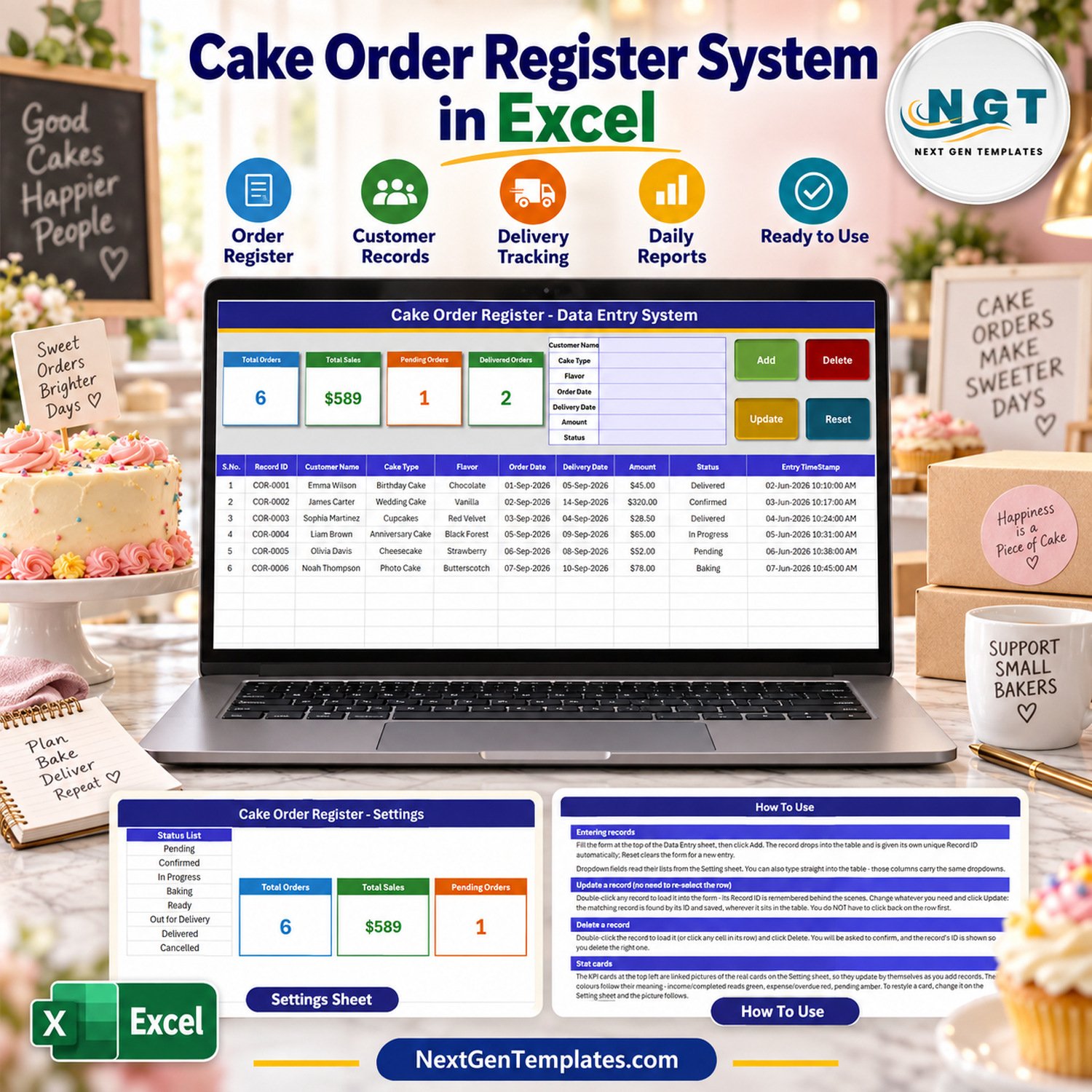
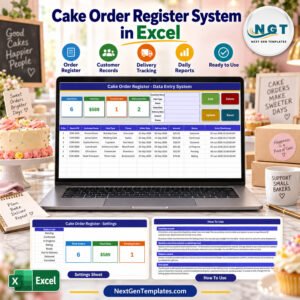
The Cake Order Register Data Entry System in Excel is a macro-enabled workbook for writing down every cake order your bakery takes: who ordered it, the cake type, the flavor, the order date, the delivery date, the amount and where the order stands – from Pending and Confirmed through Baking, Ready and Out for Delivery to Delivered or Cancelled. It gives you a 7-field entry form, 4 live VBA buttons, 4 self-updating stat cards and 3 editable dropdown lists holding 30 ready values – 10 cake types, 12 flavors and 8 order statuses. Fill the form, click Add, and the order lands in a 10-column records table with its own Record ID and timestamp.
Be clear about what it is: a simple cake order register that replaces the order notebook by the counter. It does not take payments or deposits, schedule baking, send reminders, print order slips or record allergens. You take the order the way you always do and log it here, so you can see how many orders are on the books, what they add up to and which ones are still pending or already delivered.
✅ Instant download · One-time payment · No subscription · No per-user fees · Fully unlocked and editable
🔑 Key Features of the Cake Order Register Data Entry System in Excel
- 🎂 A seven-field order form – Customer Name, Cake Type, Flavor, Order Date, Delivery Date, Amount and Status – placed beside the stat cards on the Data Entry sheet, so one screen covers entry and review.
- 🔘 Four live VBA buttons. Add saves the form as a new order, Update rewrites the order you loaded, Delete removes an order after a confirmation that shows its Record ID, and Reset clears the form without touching the table.
- 🔢 Automatic Record IDs in the COR-0001 series plus an Entry TimeStamp on every saved order, so two orders from the same customer never get mixed up.
- 🖱️ Double-click editing. Double-click any saved row and it loads back into the form. The macro remembers the Record ID, so Update finds the right row even after you have clicked elsewhere, sorted or filtered the table – handy when a wedding cake moves from Confirmed to Baking to Ready.
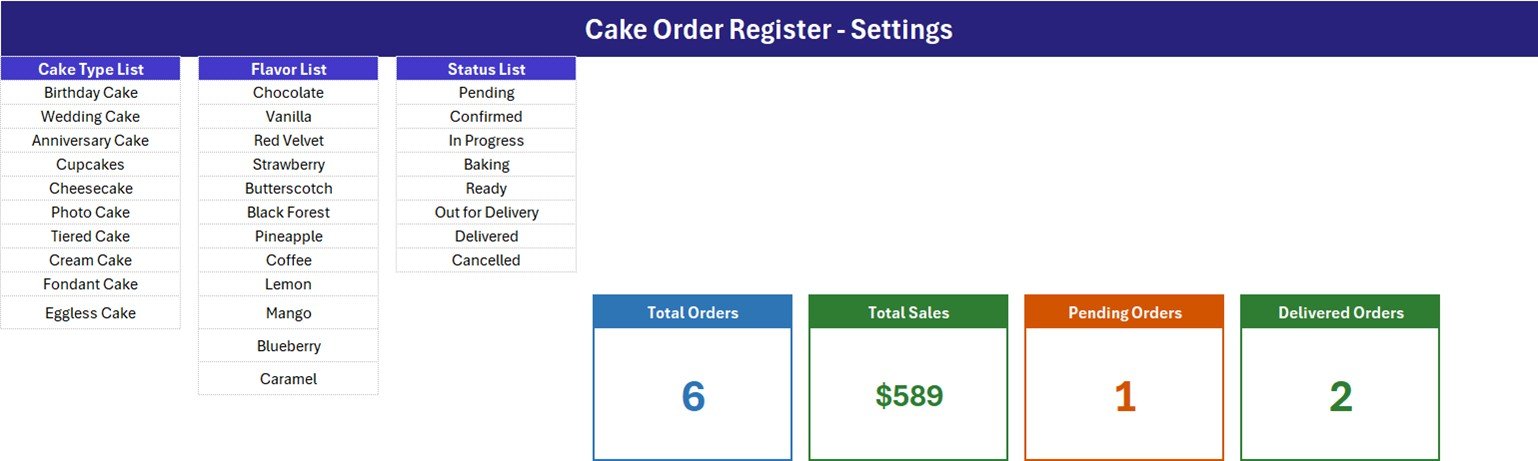
- 📋 Three dropdown lists on the Setting sheet – Cake Type (Birthday Cake, Wedding Cake, Anniversary Cake, Cupcakes, Cheesecake, Photo Cake, Tiered Cake, Cream Cake, Fondant Cake, Eggless Cake), Flavor (Chocolate, Vanilla, Red Velvet, Strawberry, Butterscotch, Black Forest, Pineapple, Coffee, Lemon, Mango, Blueberry, Caramel) and Status (Pending, Confirmed, In Progress, Baking, Ready, Out for Delivery, Delivered, Cancelled). The same dropdowns sit on the form and on table rows 15-214.
- 📈 Four stat cards – Total Orders, Total Sales, Pending Orders and Delivered Orders. They are linked pictures of formula cards on the Setting sheet, so they recalculate the moment an order is added, updated or deleted.
- 🔓 Nothing locked. No sheet protection and no VBA password – rename a column, add a flavor or change a card formula yourself.
📦 What’s Inside the Workbook
One .xlsm file with four sheets: Data Entry, Setting, Instructions (headed How To Use) and Get More Templates. Six fictional sample orders are included so you can see the register working before you clear it.
Sheet 1: Data Entry
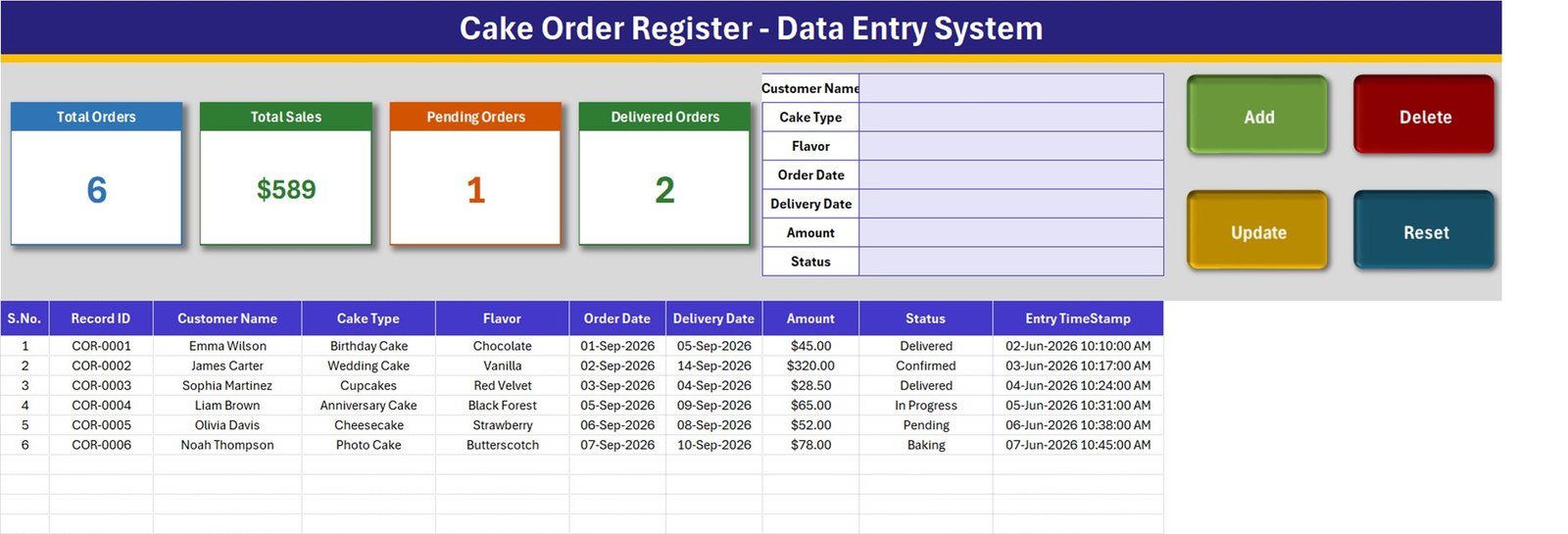
The working screen. The form and the four buttons sit at the top beside the stat cards; below them is the records table with S.No., Record ID, Customer Name, Cake Type, Flavor, Order Date, Delivery Date, Amount, Status and Entry TimeStamp. The six samples read 6 orders, $589 total sales, 1 pending order and 2 delivered orders.
Sheet 2: Setting
Holds the Cake Type List, Flavor List and Status List that feed every dropdown, plus the four formula cards the Data Entry sheet displays as pictures. Restyle a card here and the picture follows.
Sheet 3: How To Use
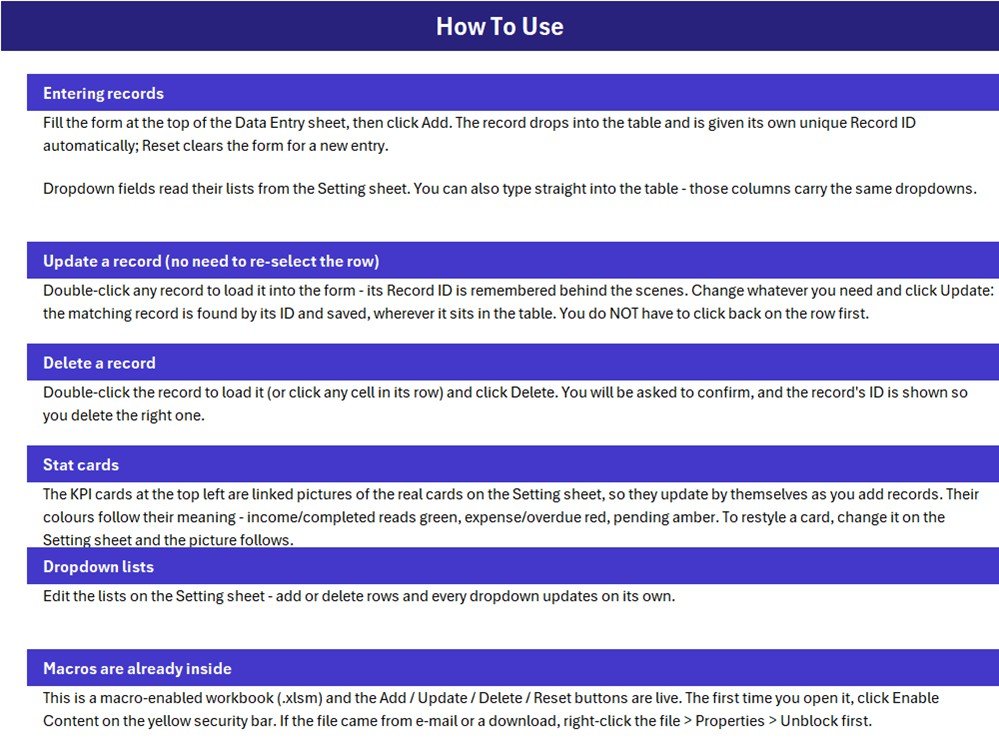
Plain-English instructions for entering, updating and deleting records, how the stat cards work, how to edit the dropdown lists, and how to enable the macros the first time you open the file.
📐 What the Four Stat Cards Actually Count
We read the workbook’s own formulas and macro before writing this page. A few things are worth knowing before you rely on the cards, each with a one-line fix:
- 💵 Amount is typed, not calculated. There are no size, weight, tier, quantity, add-on, discount, deposit or tax fields, and Module1 simply copies the Amount box into column H. Enter the final order price yourself.
- 🧮 Total Sales has no status filter.
Setting!I13 = SUM('Data Entry'!$H$15:$H$1048576)adds every Amount, so Pending, Confirmed, Baking and even Cancelled orders are included. It is the value of orders booked, not money collected. The sample $589 (exactly $588.50) holds only $73.50 from the two Delivered orders; the $320 confirmed wedding cake, the $78 photo cake still baking, the $65 anniversary cake in progress and the $52 pending cheesecake make up the rest. For delivered sales use=SUMIFS('Data Entry'!$H$15:$H$1048576,'Data Entry'!$I$15:$I$1048576,"Delivered"). - 🚦 Only two of eight statuses have a card. Pending Orders and Delivered Orders are carded; Confirmed, In Progress, Baking, Ready, Out for Delivery and Cancelled are not, so on the samples 1 + 2 does not reach 6. Add a card such as
=COUNTIF('Data Entry'!$I$15:$I$1048576,"Ready")for any status you want to watch. - 📋 The dropdown lists are fixed-length named ranges. Cake_TypeList is
Setting!$A$3:$A$12, FlavorList$C$3:$C$14and StatusList$E$3:$E$10, and all three are already full. How To Use says every dropdown updates on its own; that is only true when you insert a row inside a list. A value typed below a list never appears. Either insert rows inside the block, or redefine the name as=OFFSET(Setting!$A$3,0,0,COUNTA(Setting!$A$3:$A$100),1).
The Total Orders card counts the Customer Name column, which the Add button requires, so it matches the number of orders you add through the form. There is no card or alert for orders due today – sort or filter the Delivery Date column for that.
📊 This Excel Workbook vs. a Paper Order Book vs. Bakery Order Software
| Feature | Cake Order Register workbook (Excel) | Paper order book | Bakery order management software |
|---|---|---|---|
| Cost | ✅ $6.99 one-time (regular $11.99) | Cheap, but nothing adds up for you | Recurring monthly subscription |
| Platform | Excel for Windows desktop | Pen and paper | Vendor app or browser |
| Setup time | ✅ About 10 minutes – edit three lists | None | Days of onboarding and menu import |
| Entry form with Add / Update / Delete | ✅ Built in, VBA | No – crossing out and rewriting | ✅ Yes |
| Sort and filter by delivery date, cake type or status | ✅ Yes, standard Excel filters | No | ✅ Yes |
| Online ordering, deposits, reminders, production schedule | No | No | ✅ Usually included |
| Real-time team collaboration and mobile access | No – one file on one PC | No | ✅ Yes |
| Customizable lists and fields | ✅ Fully unlocked | ✅ Yes | Limited to vendor settings |
| Year-1 cost at 5 users | ✅ One purchase per user licence, no renewal | Cost of notebooks | Subscription x 12 months |
For a home baker or small cake shop that takes orders over the counter or by phone and just wants a tidy, searchable list of them, this workbook sits in the sweet spot.
👥 Who This Template Is For – and Who It’s Not For
✅ Built for:
- Home bakers and small cake shops logging custom orders for birthdays, weddings and anniversaries
- Bakery counters that want to see pending and delivered orders at a glance
- Owners who want a file they fully control instead of another subscription
❌ NOT for:
- Bakeries that need online ordering, deposit or payment tracking, SMS reminders, a baking or production schedule, recipe costing or stock control
- Anyone who must record allergens, dietary requirements or food-safety checks – there is no field for them, so keep that on your order slip
- Teams needing several people editing at once, or anyone on a Mac, in Excel for the web or in Google Sheets, where the VBA buttons do not run
⚙️ How to Use the Cake Order Register
- Unzip the download and open
Cake_Order_Register_System.xlsmin Excel for Windows. Click Enable Content; if the file came from a download, right-click it, choose Properties and tick Unblock first. - On the Setting sheet, replace the sample cake types and flavors with your own menu. Each list is full, so insert a row inside the block to add a value.
- Delete the six sample rows, or keep them while you learn the buttons.
- Fill Customer Name, Cake Type, Flavor, Order Date, Delivery Date, Amount and Status, then click Add. Customer Name is the one field the macro insists on – and always type both dates, because a blank or unreadable date is saved as today’s date.
- To move an order along, double-click its row, change the Status and click Update.
- To remove an order, double-click it (or click any cell in its row), click Delete and confirm the Record ID.
- Decide whether you want the delivered-sales formula above before you start relying on the Total Sales card.
💼 Real-World Use Cases
Anita bakes custom cakes from home. Orders come in by phone and message, so she logs each one as Pending, switches it to Confirmed once the design is agreed, and filters the Delivery Date column every evening to see what she is baking tomorrow.
A small cake shop keeps Birthday Cake and Photo Cake at the top of the Cake Type list, moves orders through Baking, Ready and Out for Delivery during the day, and checks the Delivered Orders card at closing.
A wedding cake studio adds a Confirmed card with a single COUNTIF and switches Total Sales to Delivered-only, so the top of the sheet separates booked work from completed work.
⚠️ Limits to Know Before You Buy
- 🪟 Macros must be enabled, and Windows desktop Excel is required. The buttons do not run on Mac, in Excel for the web, on mobile or in Google Sheets.
- 📅 A blank or unreadable Order Date or Delivery Date is saved as today, and nothing checks that the delivery date falls after the order date.
- 🔁 Record IDs are the highest existing number plus one, so if you delete the newest order, the next order added reuses its Record ID. Deleting an older order never causes a repeat.
- 🕒 Update rewrites the Entry TimeStamp, so it shows when an order was last saved, not when it was first taken.
- 🗂️ The in-table dropdowns cover rows 15-214, and Delete removes the whole worksheet row, so that formatted block shortens by one row per delete.
- 🔐 Customer names are stored in an unprotected workbook. Keep the file on a secured PC, and do not add phone numbers or addresses unless you need them.
- 🧪 The sample customers, orders and figures are fictional, and amounts are formatted in US dollars – change the cell format for your own currency.
❓ Frequently Asked Questions
What does the Cake Order Register Data Entry System in Excel record?
It records one row per order: Customer Name, Cake Type, Flavor, Order Date, Delivery Date, Amount and Status, plus an automatic Record ID and Entry TimeStamp. Four stat cards show total orders, total sales, pending orders and delivered orders.
Can it take deposits or track payments?
No. There is a single Amount field and no paid, deposit or balance column, so it cannot tell you who still owes money. Add your own column if you need that.
Why is Total Sales higher than the cakes I have delivered?
Because the card sums every Amount regardless of Status, including Pending, Confirmed, Baking and Cancelled orders. On the samples it shows $589 while Delivered orders total $73.50. Replace the formula with the SUMIFS version on this page to count Delivered orders only.
How long does setup take?
About ten minutes. Enable macros, replace the sample cake types and flavors on the Setting sheet, delete the six sample rows and start adding orders. There is nothing to install and no account to create.
Will it work on a Mac or in Excel for the web?
The sheets open, but the Add, Update, Delete and Reset buttons are VBA macros that need Excel for Windows on the desktop with macros enabled. On a Mac, in a browser or in Google Sheets you can only type directly into the table.
Is the file locked?
No. There is no sheet protection and no VBA project password, so you can rename columns, extend lists, change card formulas or edit the macro.
👤 About the Author
Built by PK – Microsoft Certified Professional with 15+ years of Excel, Google Sheets and Power BI experience. Founder of NextGenTemplates, reaching 300K+ subscribers across YouTube channels (@PKAnExcelExpert, @NextGenTemplates, @NeoTechNavigators). Every template is hand-built and tested before release.
🔗 Explore Related Templates
- 🥐 Bakery Sales Register Data Entry System in Excel – the same form-and-cards build for recording counter sales rather than orders.
- 📦 Online Order Tracker Data Entry System in Excel – an order register for online shops.
- 📈 Bakery Business Dashboard in Excel and Bakery KPI Dashboard in Excel – charts and KPI tracking once you outgrow a simple register.
- 🖥️ Bakery POS Web App and Bakery Production Planning Management System Web App – if what you actually need is billing or a baking schedule.
Browse more Excel VBA tools and Excel sales templates in the store. New to macros? Microsoft explains how to enable or disable macros in Microsoft 365 files.
📖 Click here to read the Detailed Blog Post
🎥 Visit our YouTube channel for step-by-step video tutorials
👉 YouTube.com/@NextGenTemplates
📅 Last updated: September 2026












Reviews
There are no reviews yet.