

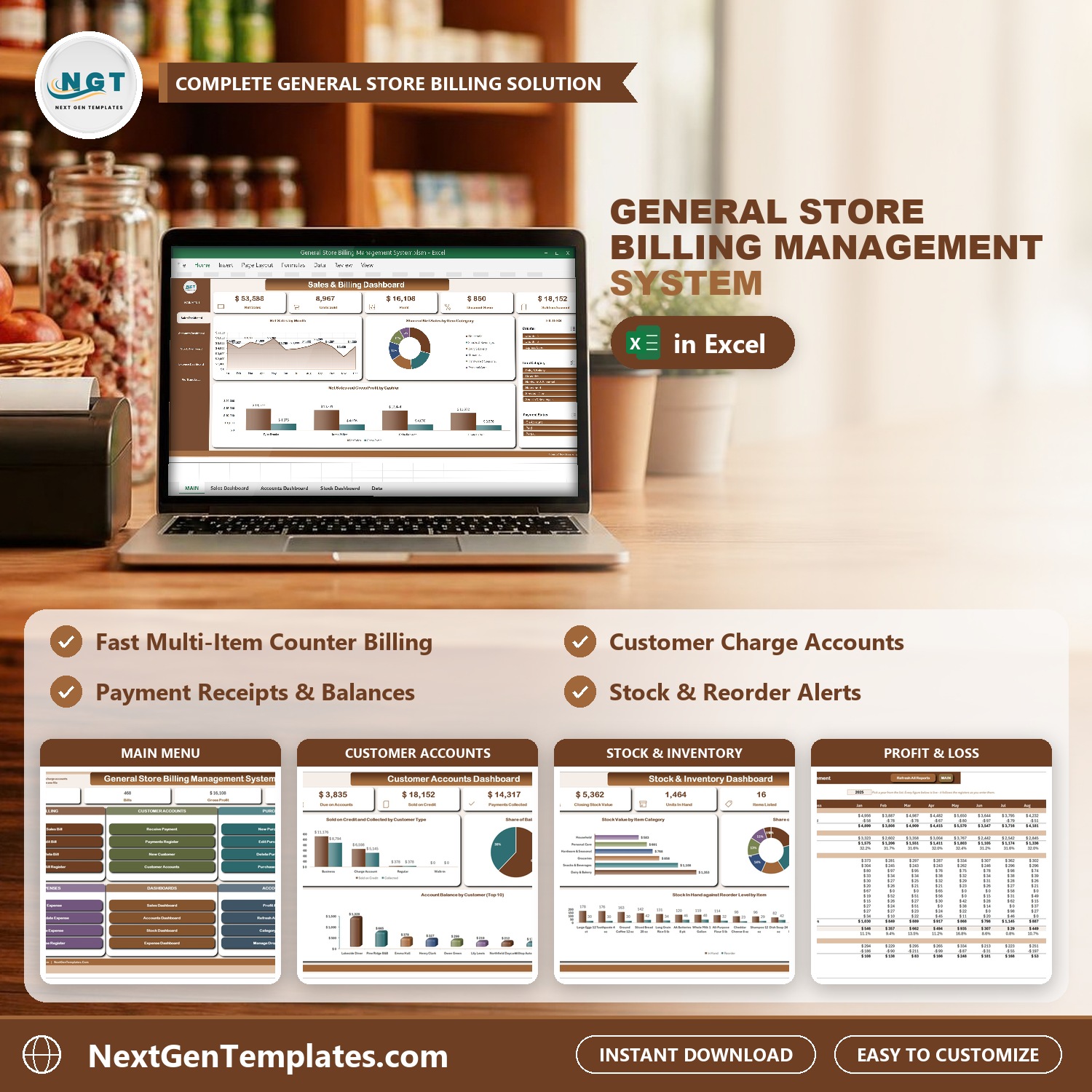
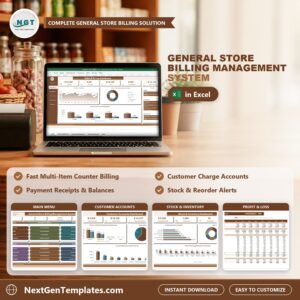
The General Store Billing Management System runs a whole general store from one macro-enabled Excel file: counter billing, customer charge accounts, supplier purchases, stock, expenses and profit. It has 15 worksheets, 10 VBA forms, 4 pivot dashboards, a live Profit & Loss statement and 3 printable documents that come out at A4, 4 inch and 3 inch. Nothing is typed into a data sheet: every sale, purchase, payment and expense goes in through a checked form.
Sample data ships with 468 sales bills (1,400 bill lines), 120 purchase lines, 90 payment receipts and 180 expense vouchers, across 16 items, 24 customers, 6 suppliers, 3 counters and 4 cashiers, so every chart is populated the moment you open it. Replace it with your own and the whole system follows. If you are looking for an excel billing system or billing software excel users can run without a monthly fee, this is a complete general store billing software that keeps the data on your own PC. Think of it as an excel pos system for a single counter, with the accounts and stock behind it.
✅ Instant download · One-time payment · No subscription · No per-user fees · Lifetime access
🎁 Try it free for 7 days before you buy – every form, dashboard and report works in the free trial, so you can test it on your own PC first.
🔑 Key Features of the General Store Billing Management System
📌 Fast multi-item counter billing. The Sales Bill form is a basket: pick the customer, counter and cashier, search an item, enter the quantity and a discount %, add as many lines as the customer buys and save. Every bill gets its own GSB- number and the stock follows.
📌 Customer charge accounts with credit limits. Mark a bill Paid, Partial or On Account. Each customer carries a credit limit, what has been billed, paid at the counter, charged to the account, payments received, the account balance and a credit status, so you can see at a glance who is over their limit.
📌 Payment receipts that settle balances. Receive Payment records cash, card, check, bank transfer or mobile wallet against a customer account, gives it an RCPT- number and brings the balance down. Print the receipt at the till.
📌 Stock and reorder alerts. Purchases add stock and sales take it away. Every item shows stock in hand, a reorder level and a status of In Stock, Low Stock or Out of Stock, and the MAIN page counts what needs reordering.
📌 Purchases from suppliers. A purchase basket works like the sales basket: choose the supplier, add items with quantity and unit cost, and record the payment terms (Cash on Delivery, Net 15, Net 30 or Net 45) and received status. Print a purchase order for the supplier.
📌 Four dashboards and a live Profit & Loss. Sales, Customer Accounts, Stock and Expense dashboards are driven by slicers. The Profit & Loss shows twelve months and a year total, from gross sales through cost of goods sold to net profit, with a sales tax memo.
📌 Printing the counter actually uses. Sales Bill, Payment Receipt and Purchase Order print from the same data at A4, 4 inch (104 mm) and 3 inch (80 mm). Paper size and what the print button does (preview, print or save as PDF) are set on the Settings sheet.
📌 Type-to-search lists and locked dates. Customer and item lists filter as you type, and date boxes open a calendar picker, so 03/04 never means March on one PC and April on another.
📌 Everything is yours to edit. Counters, item categories, brands, cashiers, cities, expense categories, units and statuses are master lists you extend from the Manage Dropdown Lists form. Currency symbol and sales tax rate are set once on the Settings sheet.
📦 What’s Inside the General Store Billing Management System
Fifteen worksheets, laid out in the order you work in them.
MAIN – the menu screen
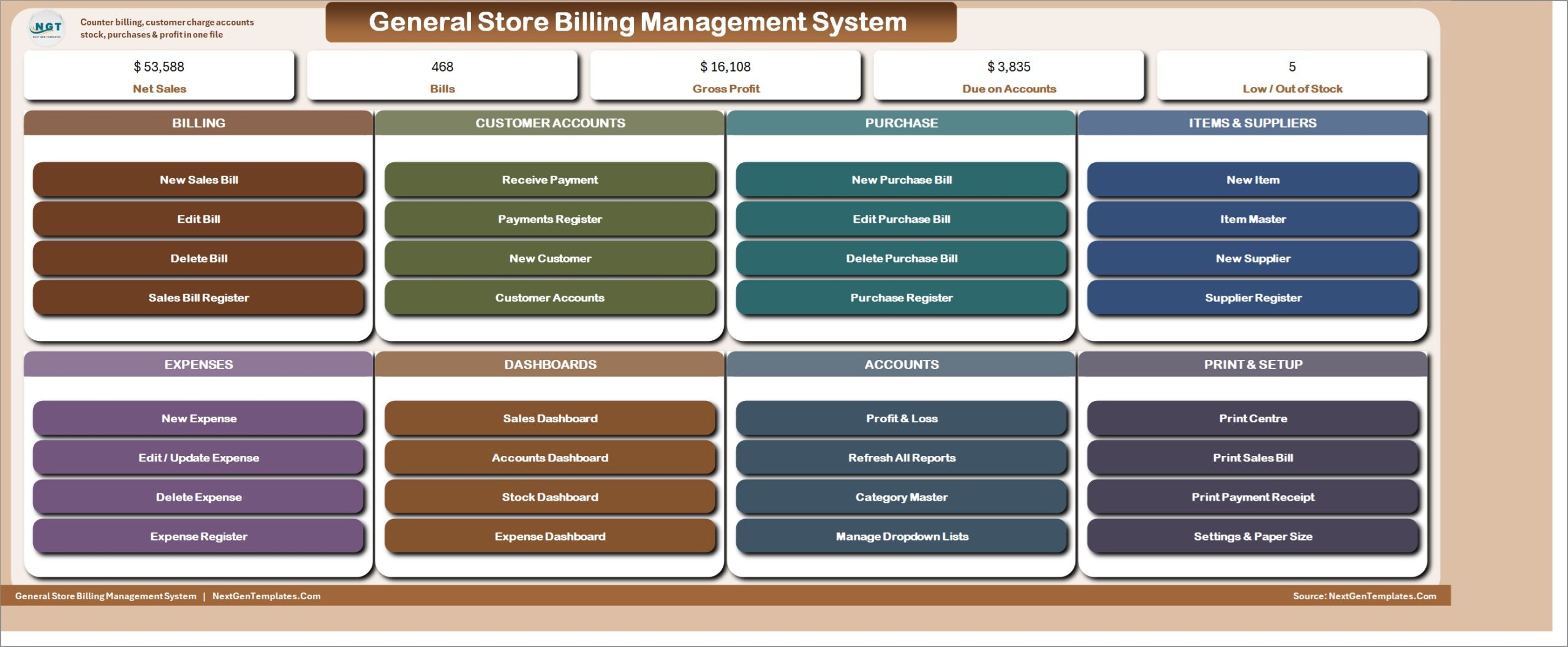
The file opens here every time. Five live KPI chips – Net Sales, Bills, Gross Profit, Due on Accounts and Low / Out of Stock – then eight colour-coded cards: Billing, Customer Accounts, Purchase, Items & Suppliers, Expenses, Dashboards, Accounts and Print & Setup. Thirty-two buttons, no menu hunting.
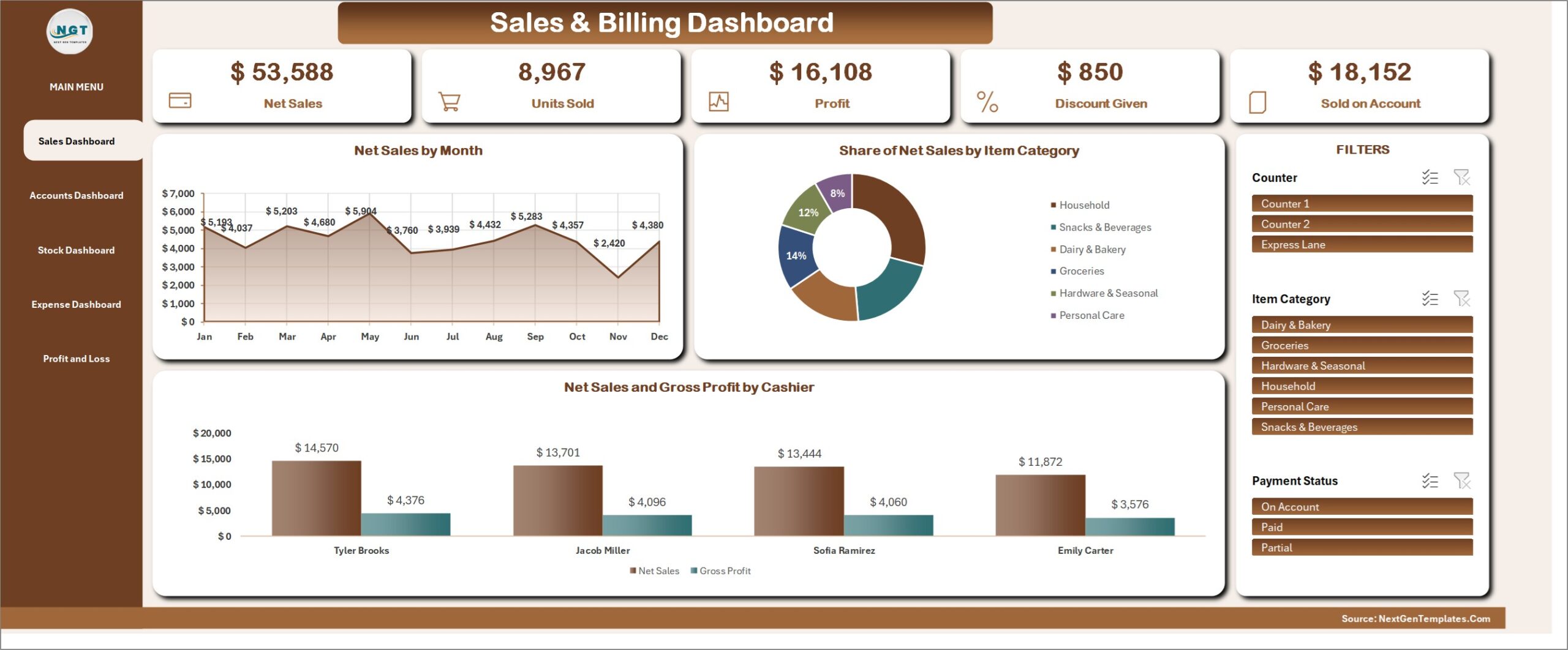
Sales & Billing Dashboard
Net Sales, Units Sold, Profit, Discount Given and Sold on Account, with Net Sales by Month, Share of Net Sales by Item Category, and Net Sales and Gross Profit by Cashier. Slicers for Counter, Item Category and Payment Status drive every figure and chart.
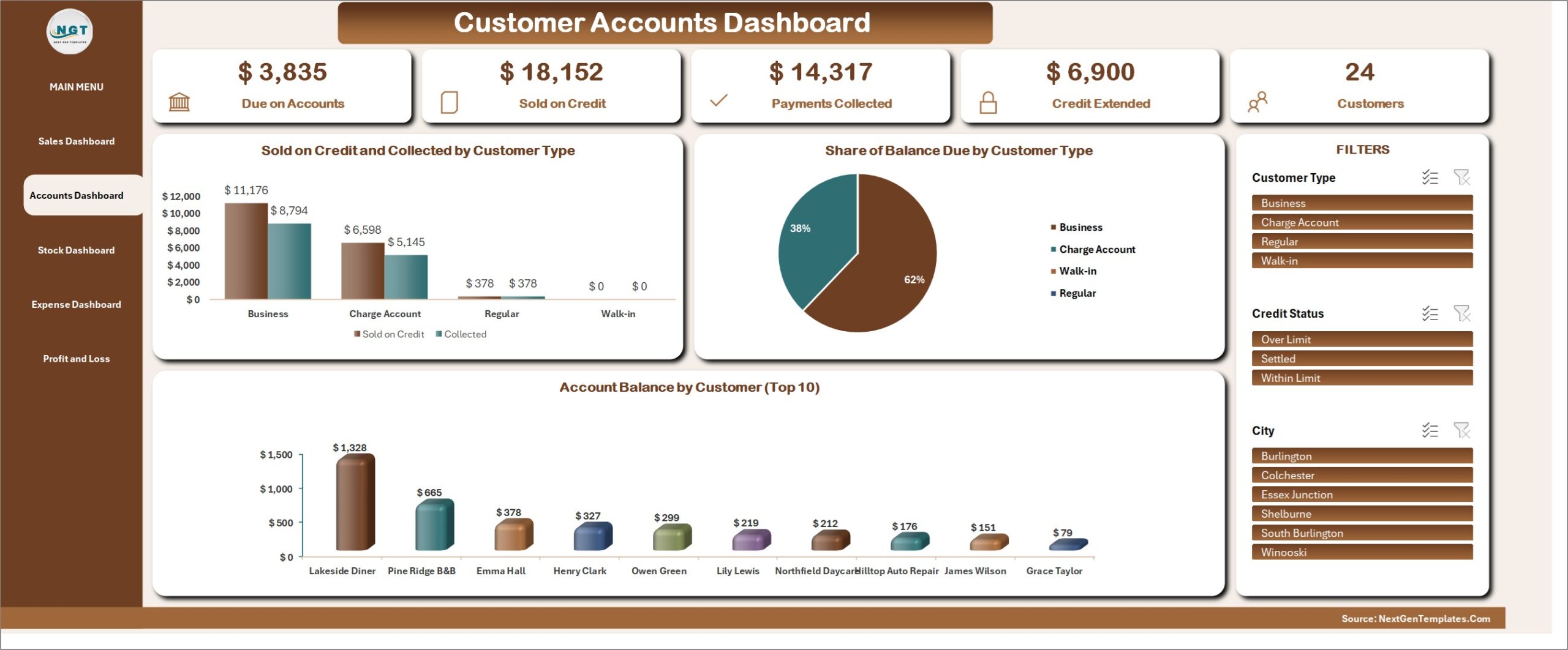
Customer Accounts Dashboard
Due on Accounts, Sold on Credit, Payments Collected, Credit Extended and customer count, with Sold on Credit and Collected by Customer Type, Share of Balance by Customer Type, and Account Balance by Customer (Top 10). Filter by customer type, credit status or city.
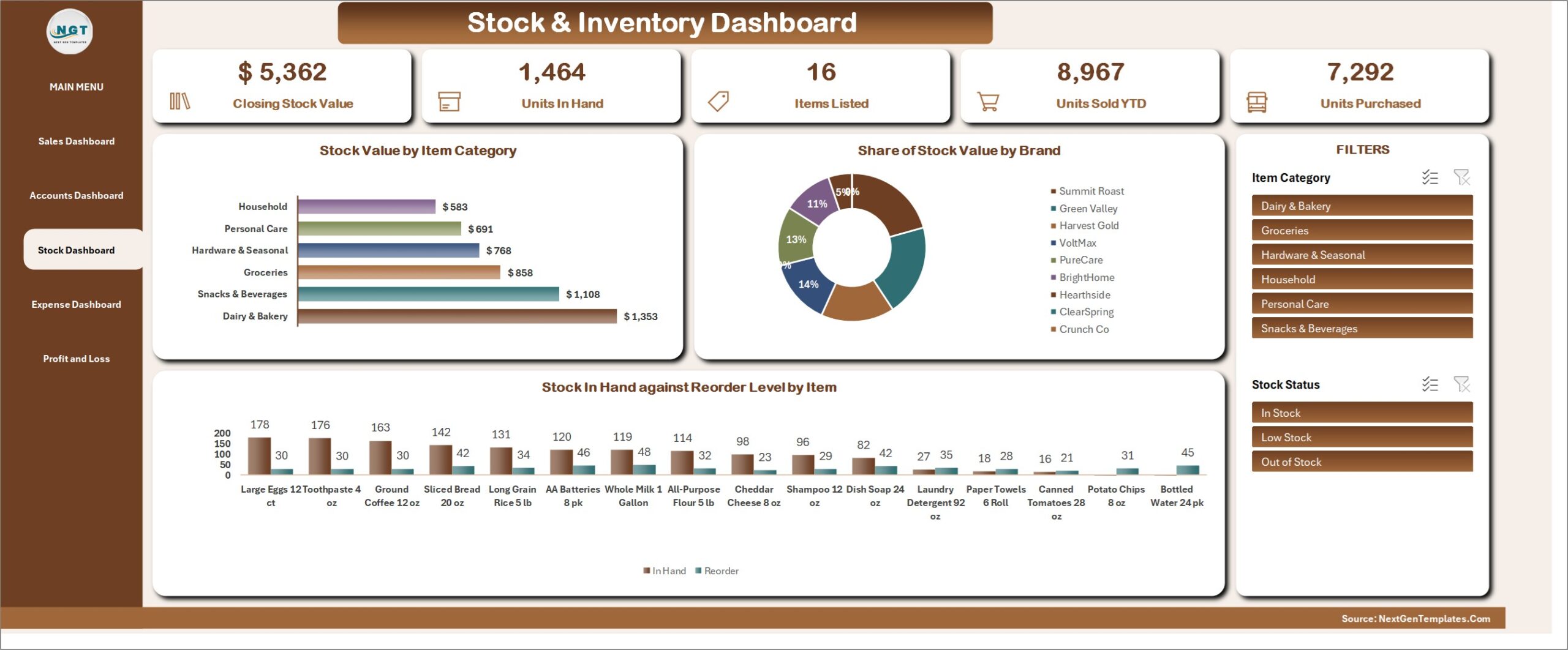
Stock & Inventory Dashboard
Closing Stock Value, Units in Hand, Items Listed, Units Sold and Units Purchased, with Stock Value by Item Category, Share of Stock Value by Brand, and Stock in Hand against Reorder Level by Item. Slicers for item category, brand and stock status.
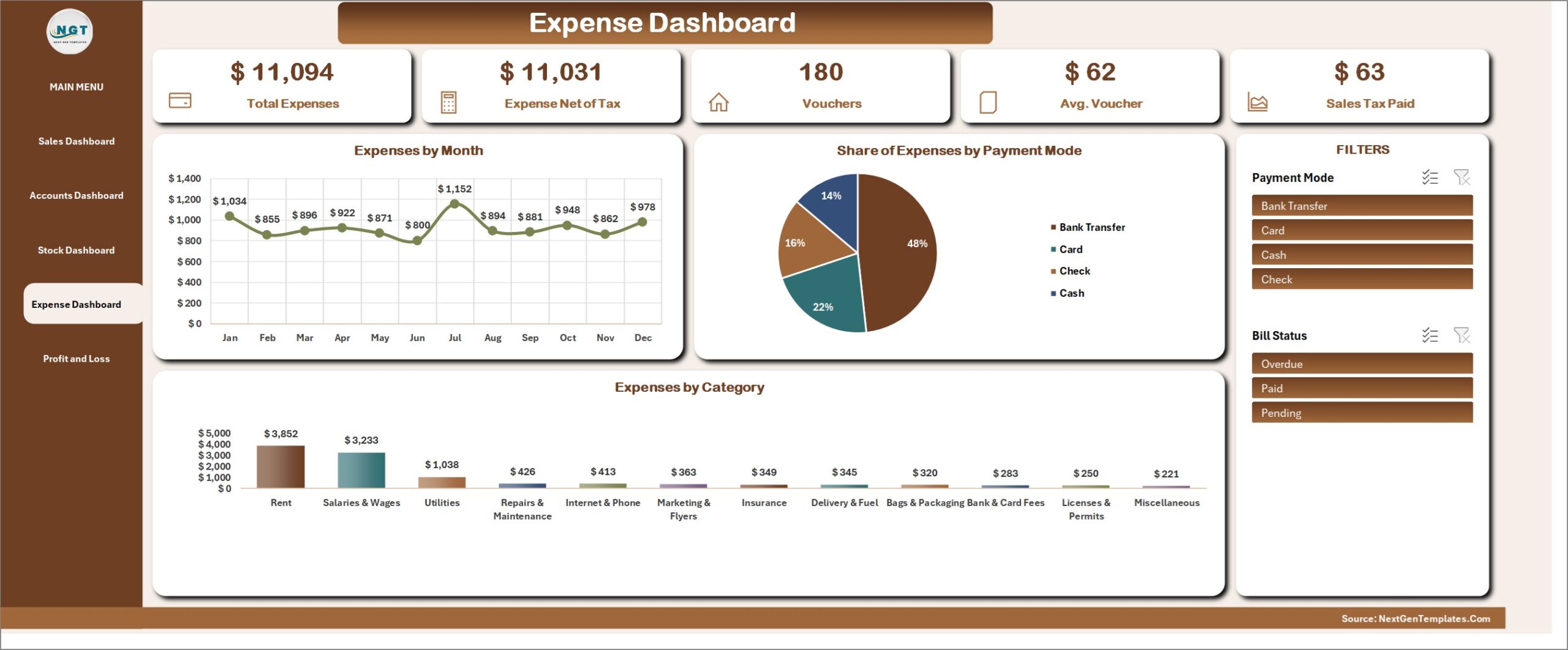
Expense Dashboard
Total Expenses, Expense Net of Tax, vouchers, average voucher and sales tax paid, with Expenses by Month, Share of Expenses by Payment Method, and Expenses by Category. Filter by payment method or bill status.
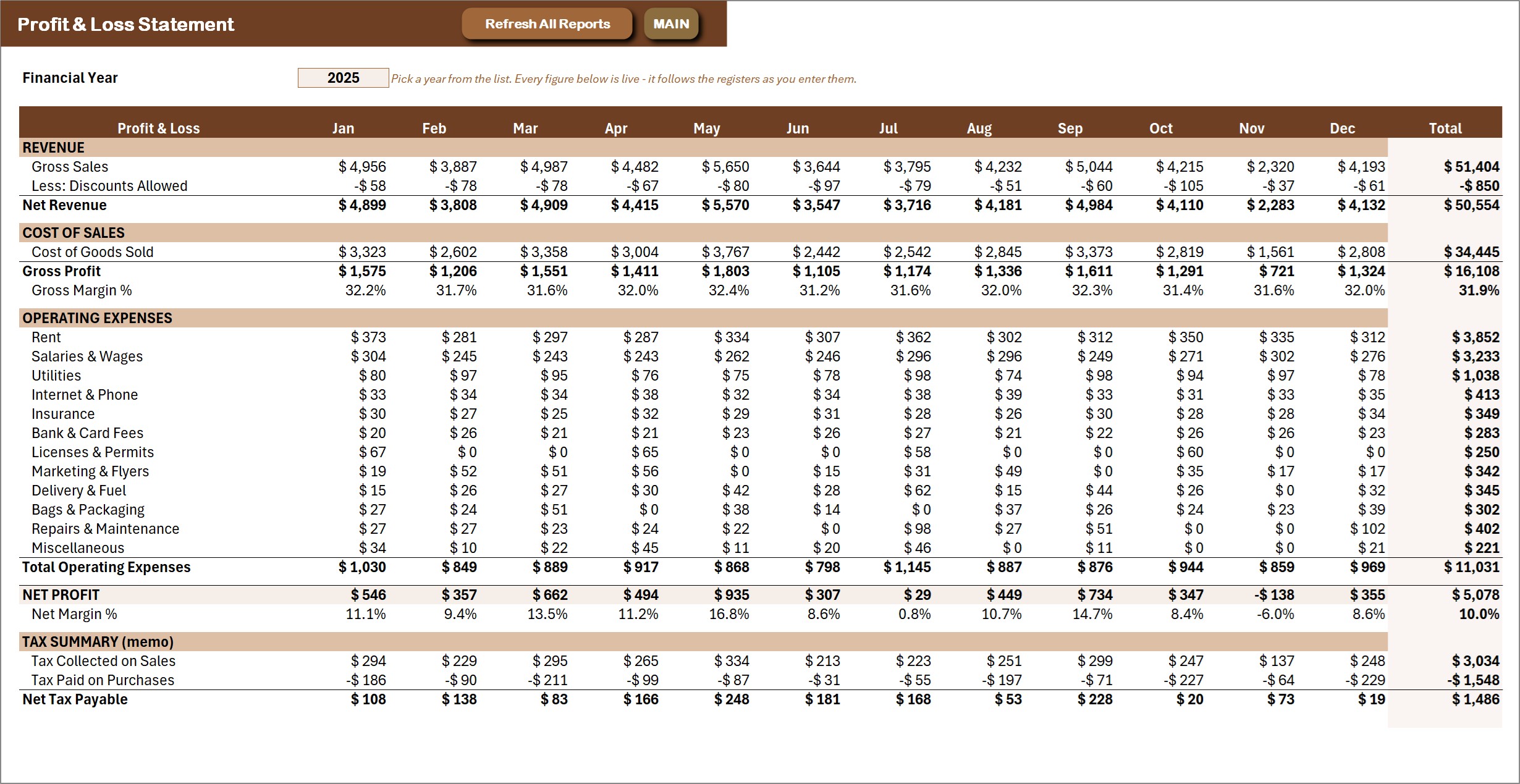
Profit & Loss statement
A live formula statement: twelve months and a year total, from gross sales and discounts through cost of goods sold and gross margin, every operating expense category, down to net profit and net margin, plus a tax memo for tax collected on sales and paid on purchases. The Financial Year dropdown picks the year and every figure follows the registers.
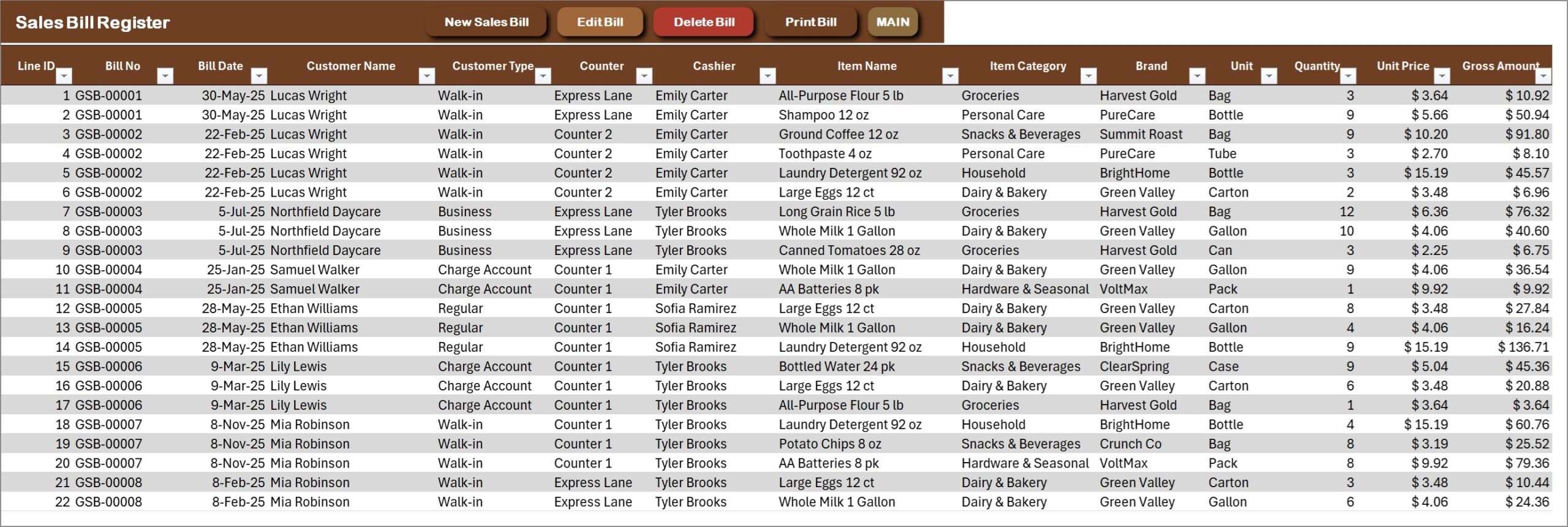
Sales Bill Register – the main ledger
One row per bill line under its GSB- bill number: date, customer, customer type, counter, cashier, item, category, brand, unit, quantity, unit price, discount, tax, net amount, cost and gross profit, payment mode and payment status. New Sales Bill, Edit Bill, Delete Bill and Print Bill sit on the action bar.
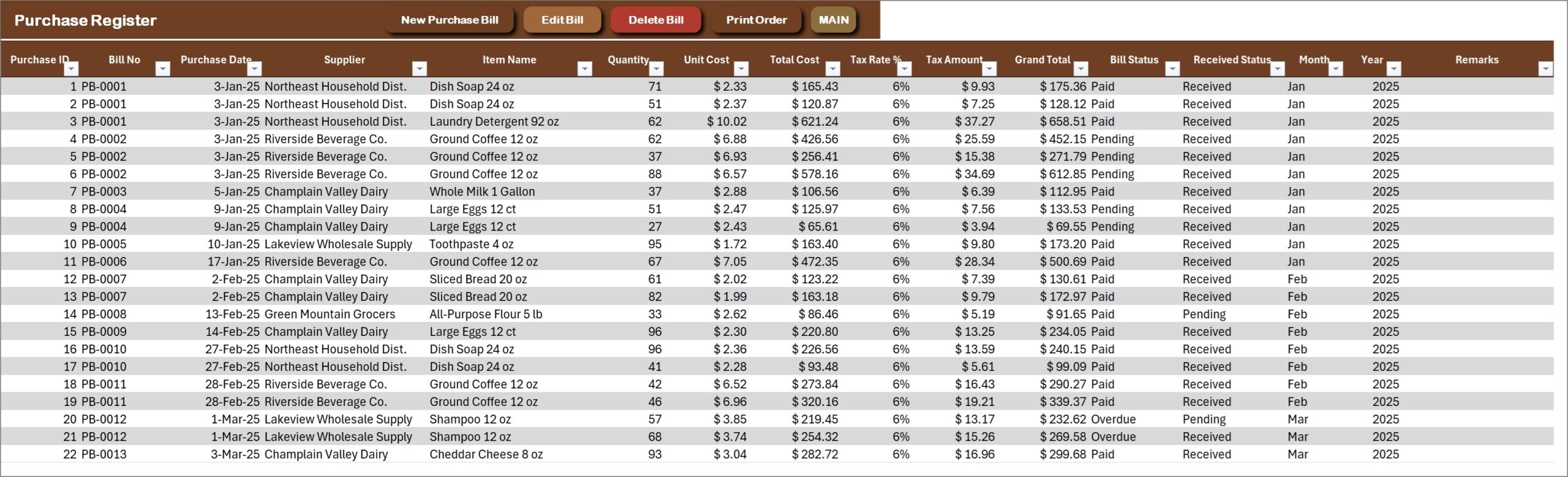
Purchase Register
Every purchase line under its PB- bill number: supplier, item, quantity, unit cost, total cost, tax, bill total, payment terms and received status. New Purchase Bill, Edit, Delete and Print Order are on the action bar.
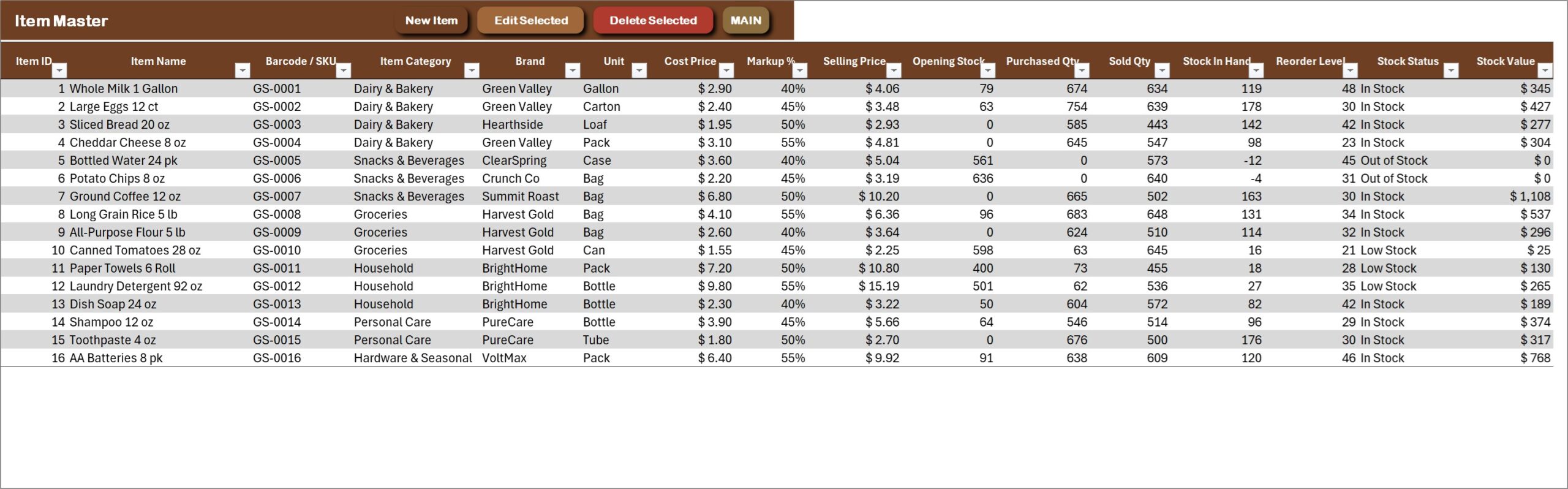
Item Master
Every item with its code, category, brand, unit, supplier, cost and selling price, plus opening stock, purchased, sold, stock in hand, reorder level, stock status and stock value, all kept current by the purchase and sales registers.
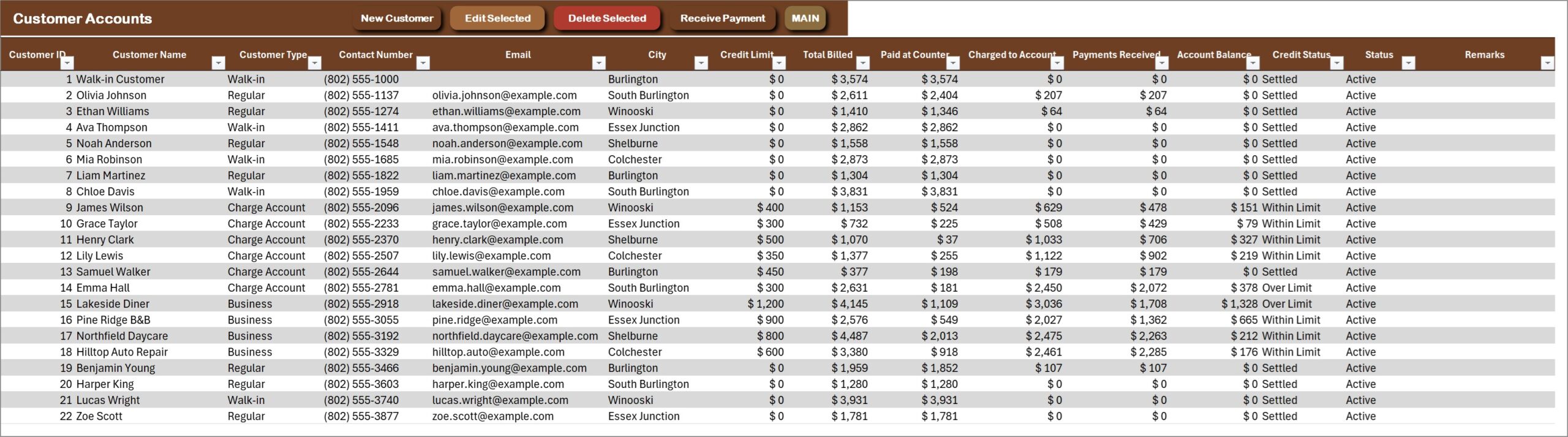
Customer Accounts
Customers by type – Walk-in, Regular, Charge Account or Business – with contact details, credit limit, billed amount, paid at the counter, charged to account, payments received, account balance and credit status.
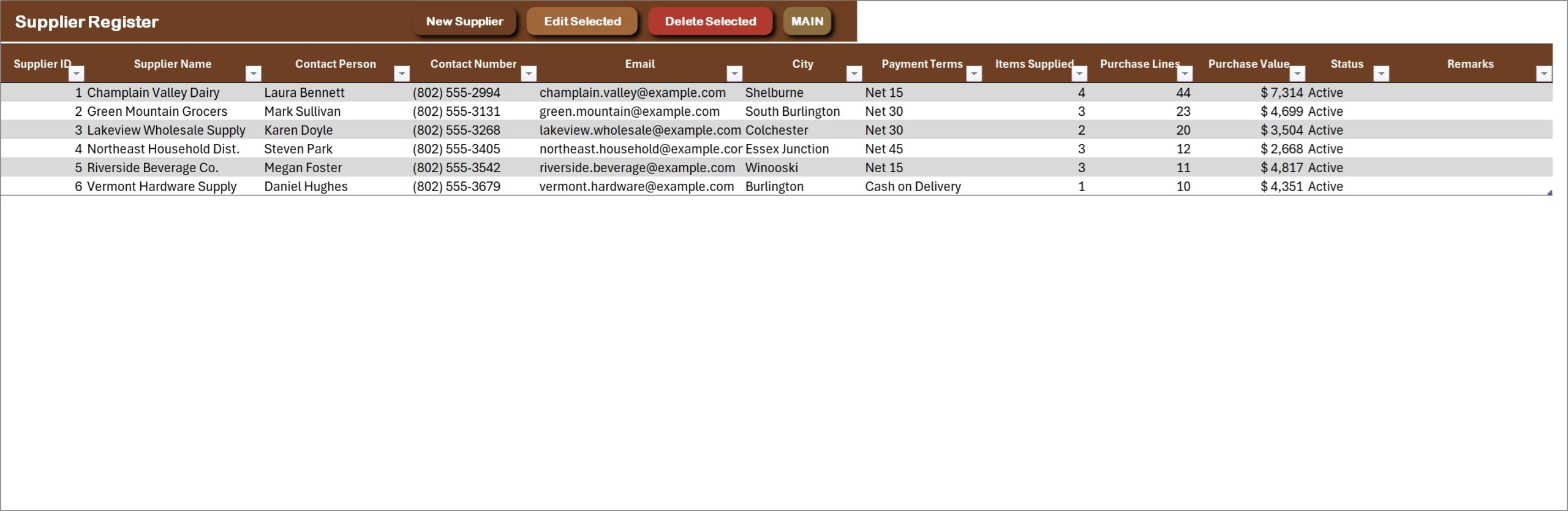
Supplier Register
Suppliers with contact person, phone, email, city and payment terms, plus the purchase lines and purchase value pulled from the Purchase Register.
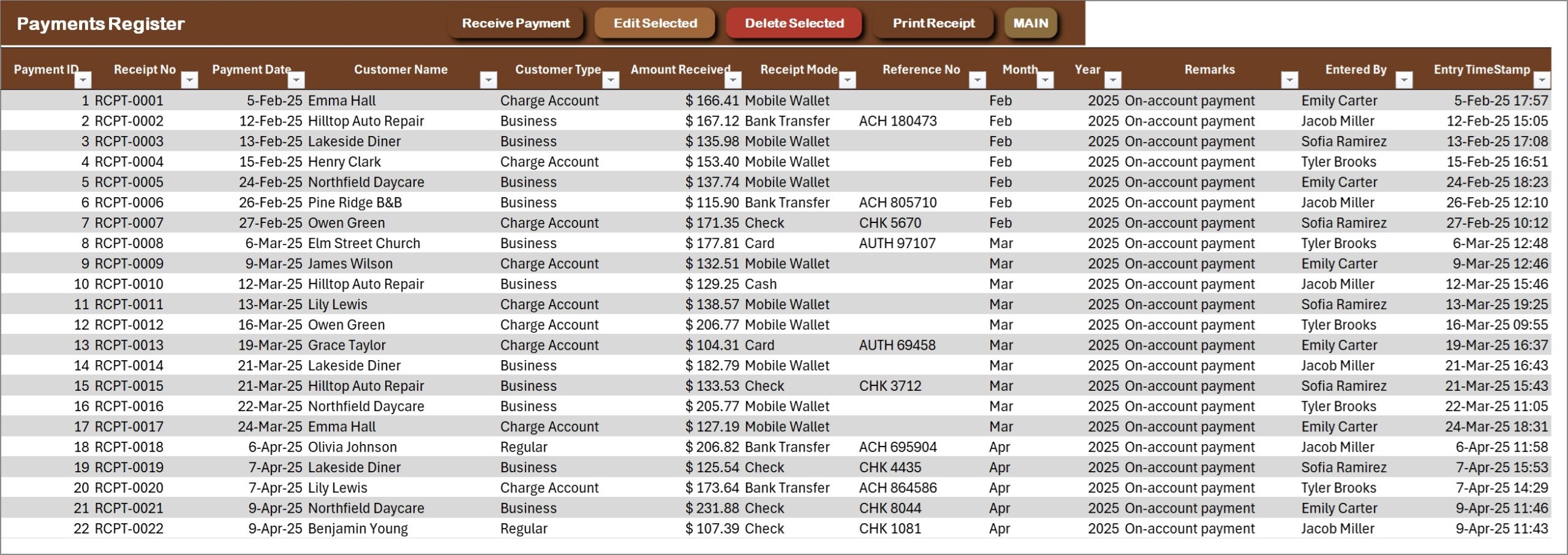
Payments Register
Every payment received against a customer account: receipt number, date, customer, amount, receipt mode, reference and who entered it. Print Receipt prints the selected payment.
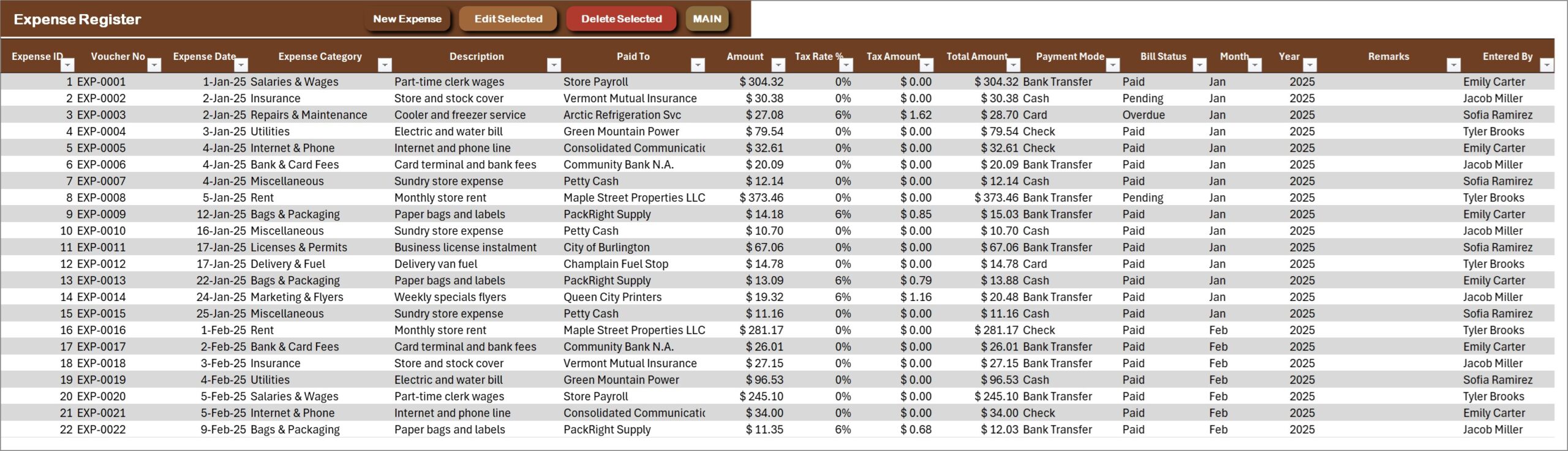
Expense Register
Store running costs by category – rent, salaries and wages, utilities, insurance, marketing, repairs and more – with vendor, payment method, tax and bill status. This is the expense side of the Profit & Loss statement.
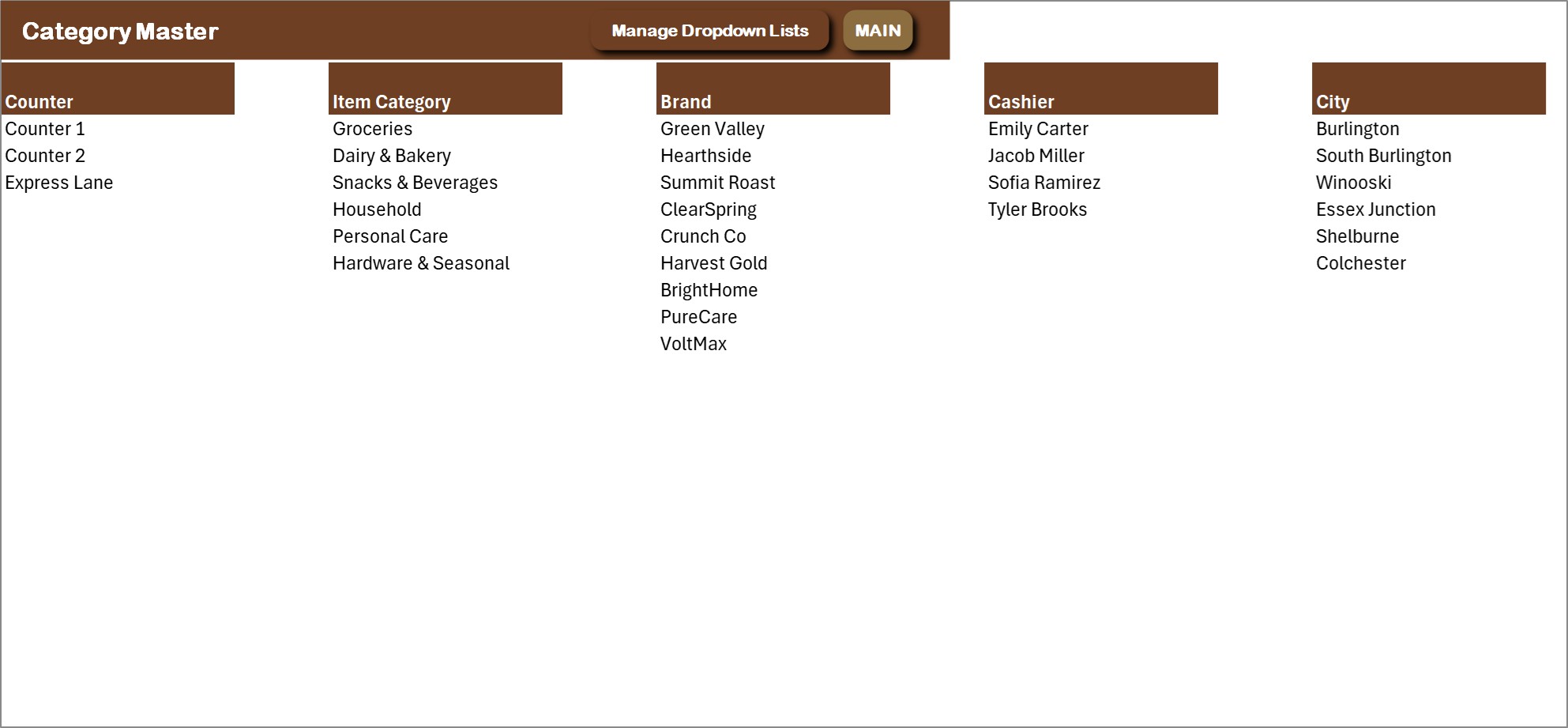
Category Master
The main dropdown lists in one place: counters, item categories, brands, cashiers and cities. Edit here or through the Manage Dropdown Lists form.
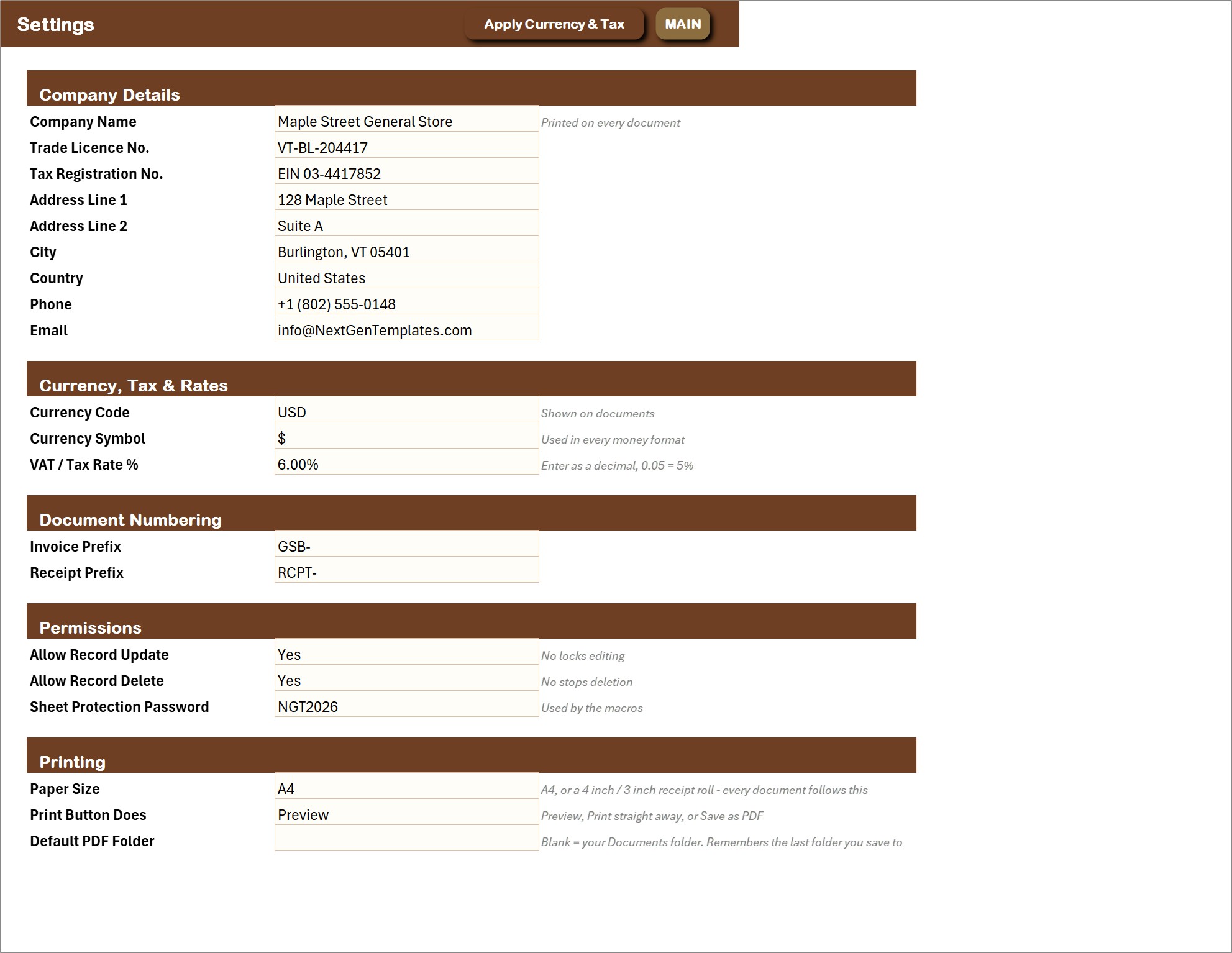
Settings
Store name, address, phone and email printed on every document, currency code and symbol, sales tax rate, bill and receipt number prefixes, permissions (allow record update, allow record delete and the sheet protection password) and the printing defaults: paper size, what the print button does and the default PDF folder.
📊 General Store Billing Management System vs. a Billing Spreadsheet vs. Cloud POS Software – Where This Fits
| Feature | This Excel VBA system | Plain billing spreadsheet | Cloud POS / billing app |
|---|---|---|---|
| Cost | $29 one-time ✅ | Free to $20 one-time | Monthly subscription, often per register |
| Platform | Microsoft Excel for Windows (macros) | Excel or Google Sheets | Cloud, browser or tablet |
| Setup time | Under 20 minutes ✅ | Hours of building | Hours to days |
| Multi-item bills with discount and tax | Yes, basket form ✅ | One row at a time | Yes ✅ |
| Customer charge accounts with credit limit and balance | Yes, automatic ✅ | Manual | Depends on plan |
| Stock that moves with every bill, with reorder status | Yes ✅ | Manual | Yes ✅ |
| Print bills and receipts at A4 + 4 inch + 3 inch | Yes, all three ✅ | No | Receipt printer, A4 / PDF |
| Card terminal and barcode scanner integration | No | No | Yes ✅ |
| Works offline, data stays on your PC | Yes ✅ | Yes | Usually no |
For a single-counter general store that wants billing, charge accounts, stock and profit in one file without a monthly subscription, this excel billing system sits in the sweet spot. If you need card-terminal payments, barcode scanners or several tills at once, buy a cloud POS.
👥 Who This Template Is For – and Who It’s Not For
✅ This template is built for:
- General stores, convenience stores and neighbourhood shops that bill at one counter and want a proper bill and receipt
- Owners who sell on credit to regular customers and need balances, credit limits and payments in one place
- Shopkeepers who want stock, reorder alerts, purchases from suppliers and monthly profit without a monthly software fee
- Stores that print bills on an A4 printer or a 3 inch or 4 inch receipt printer
❌ This template is NOT for:
- Teams that need several people billing in the same file at the same time – this is a single-user desktop workbook
- Mac or Excel-for-web users; the forms are VBA and need Excel for Windows with macros enabled
- Stores that need built-in card-terminal payments or barcode-scanner integration
- Businesses that need tax-return filing or statutory e-invoicing – it prints bills with a simple sales tax rate and shows a tax memo, nothing more
⚙️ How to Use the General Store Billing Management System
- Download the ZIP, extract it, open the .xlsm file and click Enable Content so the VBA runs.
- Go to Print & Setup > Settings and enter your store details, currency symbol, sales tax rate and printing defaults.
- Open Manage Dropdown Lists and replace the sample counters, categories, brands, cashiers and cities with your own.
- Add your items, customers and suppliers with New Item, New Customer and New Supplier.
- Press New Sales Bill at the counter, add the items, choose Paid, Partial or On Account and print the bill.
- When a charge-account customer pays, press Receive Payment; when stock arrives, press New Purchase Bill.
- Record running costs with New Expense, then open the dashboards and the Profit & Loss.
- Delete the sample rows when you are ready – the dashboards and the Profit & Loss refresh themselves.
💼 Real-World Use Cases
A corner general store with one till. The cashier opens New Sales Bill, adds milk, bread and a household item, takes the payment and prints a 3 inch bill. At close the owner checks the Sales & Billing Dashboard for the day’s net sales and gross profit.
A shop that lets regulars run a tab. A café down the street buys on account all month. Each bill is marked On Account, the Customer Accounts register shows the balance against the credit limit, and Receive Payment prints a receipt when they settle up.
An owner who restocks every week. The Stock Dashboard shows which items are Low or Out of Stock against their reorder level. New Purchase Bill records what arrived from each supplier, and the Purchase Order prints for the next order.
🎁 Try Before You Buy: 7-Day Free Trial
Download the free trial of the General Store Billing Management System in Excel VBA and use the complete system for 7 days. Every form, register, dashboard, printable document and setting works exactly as in the full version, so you can test it with your own records before you decide.
How the free trial works
- Click Get the 7-Day Free Trial below, enter your email and download the ZIP from the email we send you. Unzip it.
- Open it in Microsoft Excel for Windows (the desktop app, not Excel Online or Mac) and click Enable Content on the yellow bar. If there is no yellow bar, right-click the file, choose Properties, tick Unblock and open it again.
- Your 7 days start the first time the file opens with macros on. A banner on the MAIN page shows how many days are left.
- After 7 days the trial locks and shows a Buy Full Version button. Buy the full version to keep working with no time limit.
| Free Trial | Full Version | |
|---|---|---|
| Every feature, form and dashboard | Yes | Yes |
| Time limit | 7 days | None, lifetime use |
| Trial banner | Yes | No |
| PDF user manual | Included | Included |
| Editable (unlocked) VBA code | No, locked | Yes |
Enter your email and we send the download link straight to your inbox.
The trial runs once per computer: downloading it again does not restart the 7 days. Records you enter during the trial can be copied into the full version.
❓ Frequently Asked Questions
What does the General Store Billing Management System track?
Sales bills, customers and their charge accounts, payment receipts, items and stock, suppliers, purchases and expenses. Four dashboards and a live Profit & Loss statement are built on top of those registers.
Can I sell on credit to regular customers?
Yes. Mark a bill On Account or Partial and the amount is charged to the customer. The Customer Accounts register tracks the credit limit, the account balance and a credit status, and Receive Payment brings the balance down.
Does stock update automatically?
Yes. Purchases add to stock in hand and sales take from it. Each item shows In Stock, Low Stock or Out of Stock against its reorder level, and the MAIN page counts items that are low or out.
What can I print?
Sales Bill, Payment Receipt and Purchase Order, each at A4, 4 inch (104 mm) or 3 inch (80 mm). Choose the paper size and whether the button previews, prints or saves a PDF on the Settings sheet, or print any document by number from the Print Centre.
Can I change the currency and tax rate?
Yes. The sample store uses US dollars and a 6% sales tax. Enter your own currency code, symbol and tax rate on the Settings sheet and apply them.
Can I stop staff editing or deleting records?
Yes. Allow Record Update and Allow Record Delete on the Settings sheet switch editing and deleting off, and the data sheets are protected with a password the macros use. There are no separate user logins – it is a single-user desktop workbook.
Does it work on Mac or Excel for the web?
No. The entry forms and the printing engine are VBA, so it needs Microsoft Excel 2016 or later for Windows on the desktop, with macros enabled. It will open elsewhere but the buttons will not run.
Can you customise it for my store?
Yes. Write to [email protected] with what you need changed and we will reply with a quote.
👤 About the Author
Built by PK – Microsoft Certified Professional with 15+ years of Excel, Google Sheets and Power BI experience, and founder of NextGenTemplates. Every template is hand-built and tested before release. Follow the tutorials on YouTube: @PKAnExcelExpert, @NextGenTemplates, @NeoTechNavigators.
🔗 Explore Related Templates
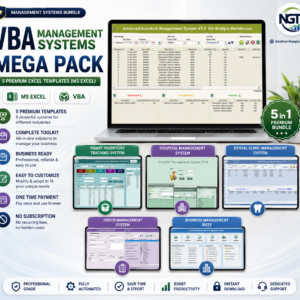
💎 Best value: the VBA Management Systems Mega Pack bundles five complete Excel VBA systems for less than buying them separately.
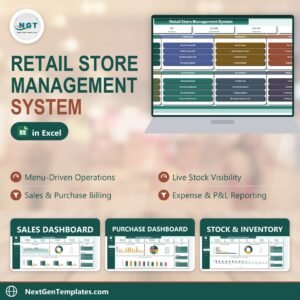
- Retail Store Management System V1.0 in Excel VBA – billing, purchases and stock for a shop counter, from the same engine.
- General Store POS Web App – a browser-based point of sale if several people need to bill at once.
- Grocery Store Billing Data Entry System in Excel – a lighter billing data-entry workbook for a grocery shop.
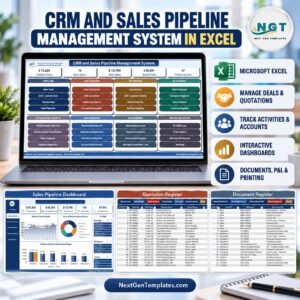
- CRM and Sales Pipeline Management System V1.0 in Excel VBA – track your business customers, deals and quotations.
- GST Billing Software V1.0 – if you need GST invoicing for Indian tax rules.
Browse more Excel VBA Tools or the full range of MS Excel templates.
📖 Click here to read the Detailed Blog Post
🎥 Visit our YouTube channel for step-by-step video tutorials
👉 YouTube.com/@NextGenTemplates
📅 Last updated: October 2026



Reviews
There are no reviews yet.