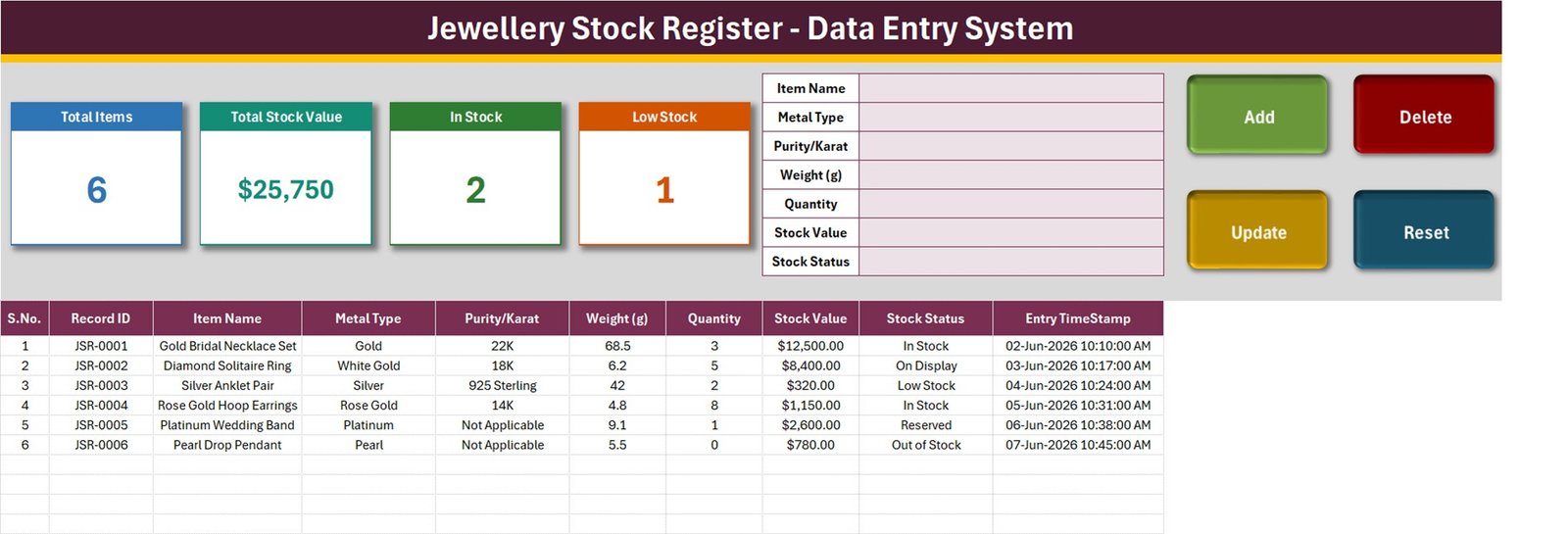
The Jewellery Stock Register Data Entry System in Excel is a macro-enabled workbook that turns the paper stock book behind the counter into a searchable, timestamped record. Every piece you hold – a 22K gold bridal set, a 925 sterling anklet, a platinum band – goes in through one seven-field form, gets its own permanent Record ID, and lands in a 200-row table you can sort, filter and print. Four live stat cards at the top of the sheet recount themselves the moment you press Add.
It is deliberately small. This is a stock register, not a billing system: no barcodes, no POS, no gold-rate feed, no supplier ledger. What it does, it does with real VBA – Add, Update, Delete and Reset are buttons, not formulas you have to nurse.
Key Features of the Jewellery Stock Register in Excel
- Seven-field entry form – Item Name, Metal Type, Purity/Karat, Weight (g), Quantity, Stock Value and Stock Status, all in one block beside the buttons.
- Add, Update, Delete and Reset are real macros – genuine VBA behind four buttons, so the workbook behaves like a small application rather than a spreadsheet you must not break.
- Automatic JSR-0001 Record IDs – every piece gets a permanent identifier plus an Entry TimeStamp, which is what makes a stock register defensible when two staff members log the same tray.
- Update by ID, not by row – double-click any record to pull it back into the form. The macro remembers its Record ID, so it still saves to the right piece after you have sorted the table by weight or by status.
- Four live stat cards – Total Items, Total Stock Value, In Stock and Low Stock, driven by COUNTA, SUM and COUNTIF over the whole table.
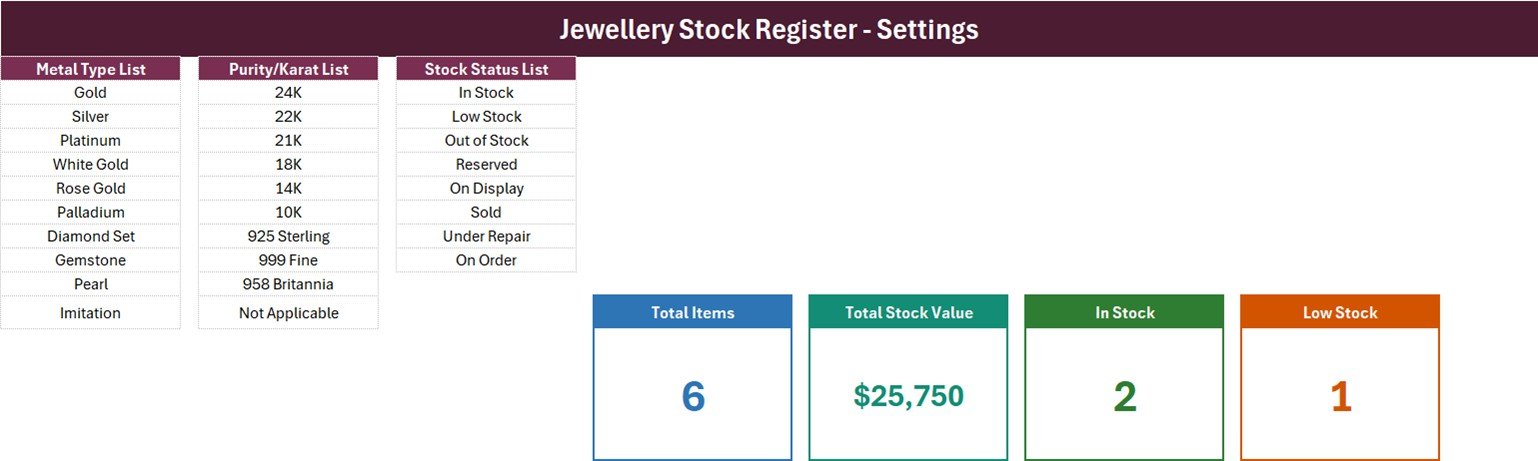
- Three dropdown lists you own – 10 metal types (Gold, Silver, Platinum, White Gold, Rose Gold, Palladium, Diamond Set, Gemstone, Pearl, Imitation), 10 purity grades (24K down to 10K plus 925 Sterling, 999 Fine, 958 Britannia and Not Applicable) and 8 stock statuses (In Stock, Low Stock, Out of Stock, Reserved, On Display, Sold, Under Repair, On Order).
- The same dropdowns inside the table – rows 15 to 214 carry the identical validation, so you can type straight into the grid when you are entering a whole tray at once.
- 200 pre-formatted rows – already styled, already validated, ready before you type anything.
- Stat cards are linked pictures – the real cards live on the Setting sheet, so restyling one there restyles it on the entry page automatically.
What Is Inside the Workbook
Four sheets, and you will spend almost all your time on the first one.
- Data Entry – the working page. Form and buttons at the top, four stat cards to the left, the ten-column item table from row 15 down to row 214.
- Setting – the three dropdown lists and the master copies of the four stat cards. This is the only sheet you edit to change how the workbook behaves.
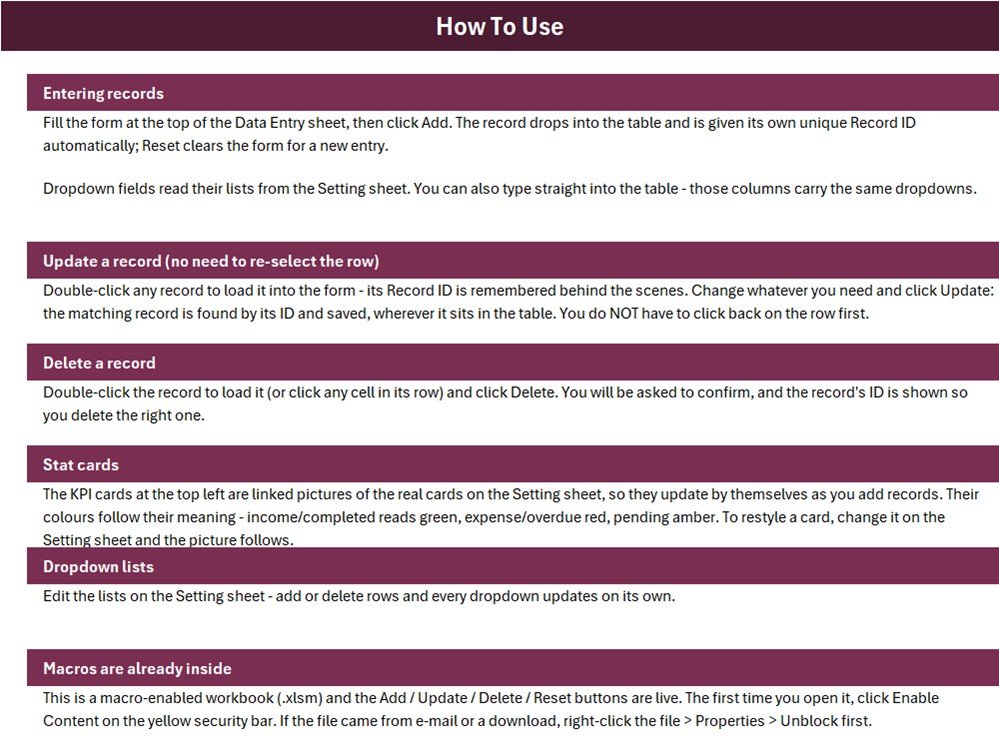
- Instructions – a plain-English How To Use page covering entry, update, delete, the stat cards, the dropdown lists and the macro security prompt.
- Get More Templates – links back to the rest of the NextGenTemplates catalogue.
Excel vs. a Paper Stock Book vs. Jewellery Retail Software
| This workbook | Paper stock book | Jewellery retail software | |
|---|---|---|---|
| Cost | One-off, under $12 | Nearly nothing | $40-$150 a month, per counter |
| Setup time | Minutes – open and type | None | Days, plus data migration |
| Find one piece | Filter or Ctrl+F | Turn pages | Instant search |
| Record history | Entry TimeStamp per row | Handwriting and dates | Full audit trail |
| Barcodes and billing | No | No | Yes |
| Live metal rates | No – you type the value | No | Usually yes |
| Works offline | Yes | Yes | Rarely |
| You own the data | Yes, one file | Yes | Vendor-hosted |
The honest summary: if you are running a busy showroom with hallmarking, billing and karat-wise valuation, buy retail software. If you have a few hundred pieces and a stock book you keep rewriting, this replaces the book and costs less than lunch.
Who This Template Is For – and Who It Is Not For
A jewellery stock register earns its place the moment the trays outgrow a notebook. A good fit for small jewellery shops and family showrooms, goldsmiths and workshop owners tracking finished pieces, artisan and handmade sellers, pawnbrokers logging held items, exhibition and trunk-show sellers who need a stock list on a laptop, and anyone auditing a tray against a register once a month.
Not a good fit if you need barcode scanning, GST or VAT invoicing, karat-wise live gold rate valuation, customer or supplier ledgers, multi-branch stock transfer, or automatic stock deduction on a sale. Nothing here decrements a quantity when you sell something – you edit the record yourself.
How to Use It
- Unblock and enable macros. Right-click the downloaded file, choose Properties and tick Unblock, then open it and click Enable Content on the yellow bar. The buttons will not work otherwise.
- Set up your lists first. On the Setting sheet, edit the three lists to match your counter – your metal types, the purities you actually stock, the statuses you use.
- Enter a piece. Fill the seven form fields on the Data Entry sheet and click Add. The row lands in the table with its own JSR Record ID and a timestamp, and Reset clears the form for the next one.
- Edit a piece. Double-click its row to load it back into the form, change what you need, click Update. You do not have to click back onto the row first.
- Remove a piece. Double-click it (or click any cell in its row) and click Delete. You will be asked to confirm, with the Record ID shown so you delete the right one.
- Watch the cards. Total Items, Total Stock Value, In Stock and Low Stock recalculate on their own as the table changes.
Real-World Use Cases
Six ways shop owners actually put a jewellery stock register to work day to day:
- Monthly tray audit. Filter Stock Status to In Stock, print the table, walk the trays and tick. Anything missing has a Record ID to chase.
- Repairs going out. Set a piece to Under Repair rather than deleting it, so it stays on the register and off the In Stock count.
- Display versus safe. On Display and Reserved separate what is in the window from what a customer has put money on.
- Exhibition stock list. Copy the workbook, keep only the pieces going to the show, and reconcile on the way back.
- Insurance schedule. Weight, purity and stock value per piece, exported straight from the table.
- Handing over to staff. The Instructions sheet is the training – there is nothing else to teach.
Honest Limits – Read Before You Buy
- Stock Value is typed, not calculated. There is no weight x rate formula and no quantity multiplier. Total Stock Value simply sums the column you filled in, so it is only as current as your last edit.
- In Stock and Low Stock count two statuses only. The cards use COUNTIF on the exact words “In Stock” and “Low Stock” – Reserved, On Display, Sold, Under Repair and On Order are not counted anywhere.
- The dropdown ranges are fixed length. Metal Type and Purity read ten rows, Stock Status reads eight. Add an eleventh metal and you must widen the named range in Formulas > Name Manager.
- 200 rows are formatted. Rows 15 to 214. Beyond that you extend the formatting and validation yourself.
- Windows desktop Excel only. Macros mean no Excel for the web, no iPad, and Mac VBA is not supported.
- Single file, single user. No co-authoring, no multi-branch, no barcode scanner, no billing.
Frequently Asked Questions
Does it calculate the value from the gold rate and weight?
No. You type the Stock Value for each piece. The card adds that column up – there is no rate feed and no karat-wise valuation.
Can I add my own metal types and purities?
Yes, on the Setting sheet. If you go past ten rows in a list, widen its named range in Name Manager so the dropdown picks the new entries up.
What happens if I sort the table?
Nothing breaks. Update and Delete find the record by its Record ID, not by its position, so sorting by weight or status is safe.
Will it run on Mac or Excel for the web?
No. The Add, Update, Delete and Reset buttons are VBA, which needs Windows desktop Excel.
How many pieces can it hold?
200 rows come pre-formatted. The stat card formulas already read the whole column, so extending the table is a formatting job, not a formula job.
Can two people use it at once?
No. It is a single .xlsm file. Keep it on one machine, or on shared storage with one person in it at a time.
Is anything locked or password-protected?
No. The sheets, the lists and the VBA are all open, so you can rename fields or restyle the cards freely.
About the Author
Built by the NextGenTemplates team, who have shipped hundreds of Excel, VBA, Power BI and Google Sheets tools for small businesses. The same team publishes tutorials at PK: An Excel Expert on YouTube. Every template ships with its own Instructions sheet, and customisation requests are welcome.
Explore Related Templates
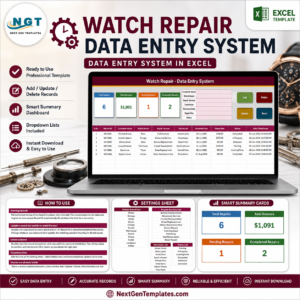
- Watch Repair Data Entry System in Excel – the repair-bench companion to this register
- Jewellery & Watches Dashboard in Excel – when you want analysis rather than a register
- Jewellery and Watches KPI Dashboard in Excel – margin, turnover and sell-through KPIs
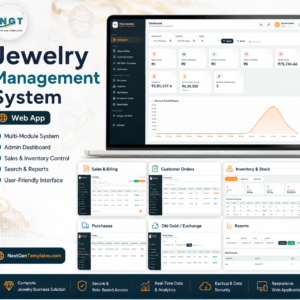
- Jewelry Management System Web App – the multi-user, browser-based step up
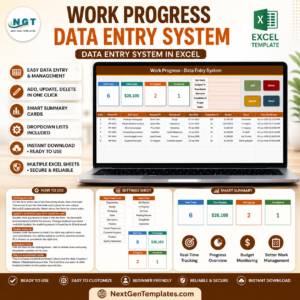
- Footwear Shop Stock Data Entry System in Excel – the same engine for a shoe shop
- Luxury Goods KPI Scorecard in Excel – board-level luxury retail reporting
Watch the demo video: