

🔑 Key Features of the Digital Marketing Campaign Dashboard in Google Sheets
The Digital Marketing Campaign Dashboard in Google Sheets is a comprehensive analytics template designed for marketing managers, digital strategists, and business owners who want to track, analyze, and optimize their marketing campaigns from a single Google Sheets workbook. This dashboard includes 6 interactive pages covering campaign overview, channel analysis, campaign performance, ROI and budget insights, a campaign search tool, and a structured data sheet. It tracks critical digital marketing KPIs including Total Campaigns, Total Spend, Total Revenue, Total Conversions, and Average ROAS across channels, regions, campaign types, and target audiences.
Whether you manage paid ads, social media campaigns, email marketing, or SEO initiatives, this ready-to-use Google Sheets marketing template transforms raw campaign data into clear visual insights — no advanced spreadsheet skills required. Simply replace the sample data with your own and every chart, card, and slicer updates automatically. Explore more Sales & Marketing Google Sheets Templates on our store.
📦 What’s Inside the Digital Marketing Campaign Dashboard in Google Sheets
This powerful marketing analytics template is organized into 6 sheet tabs, each serving a specific purpose:
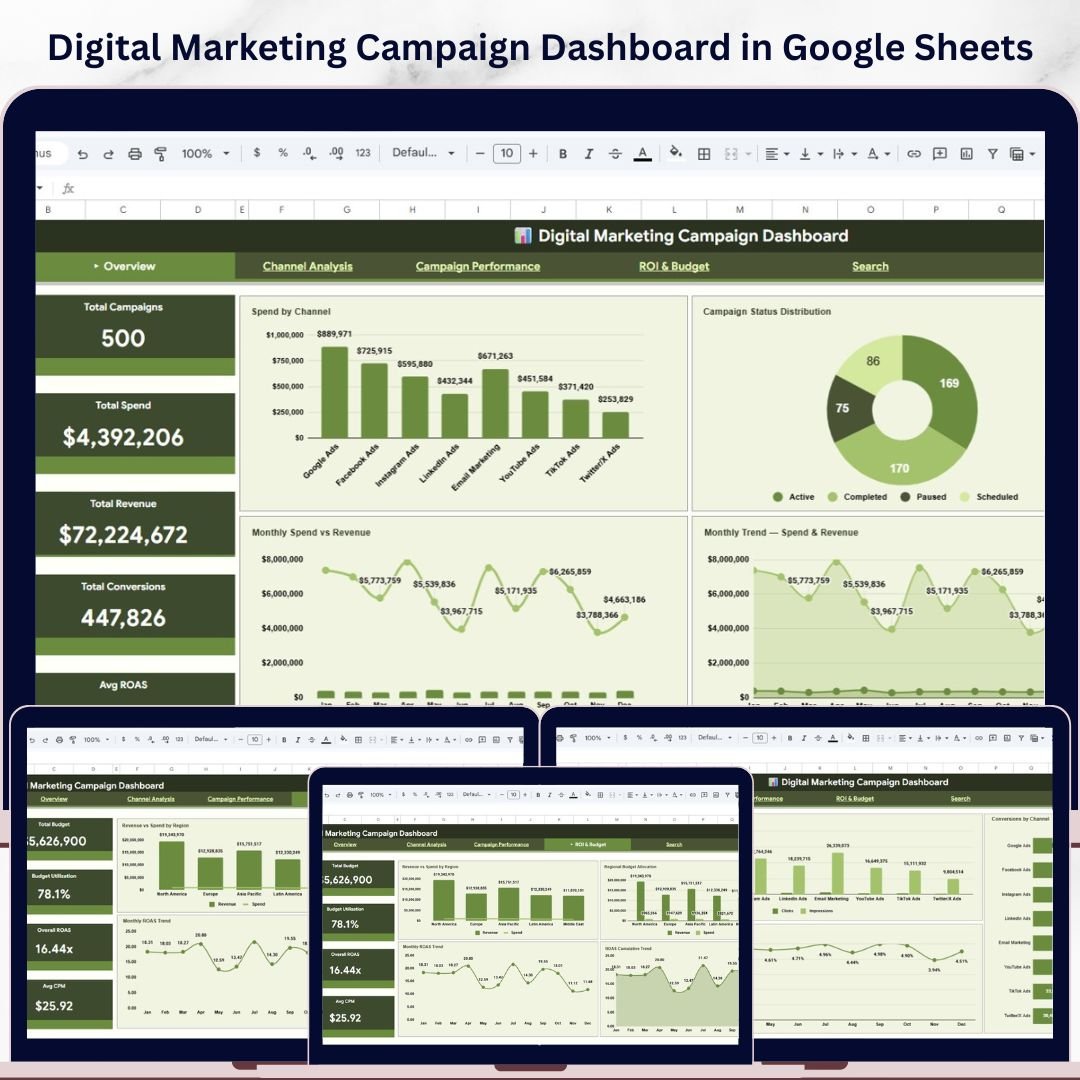
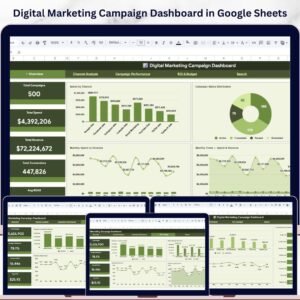
📊 Overview Page — High-level KPI cards displaying Total Campaigns, Total Spend, Total Revenue, Total Conversions, and Avg ROAS. Interactive charts include Spend by Channel, Campaign Status Distribution, Monthly Spend vs Revenue, and Monthly Trend for Spend and Revenue. Multiple slicers let you filter the entire dashboard instantly by channel, region, campaign type, or status.
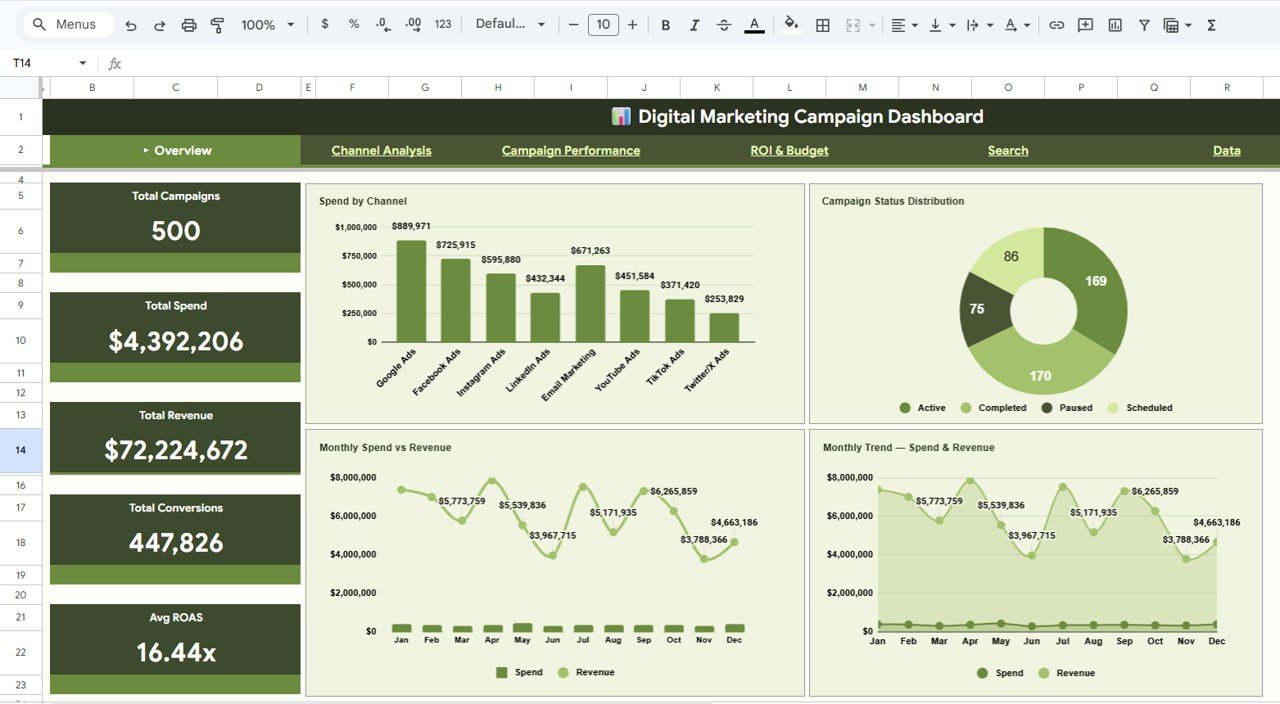
Digital Marketing Campaign Dashboard in Google Sheets
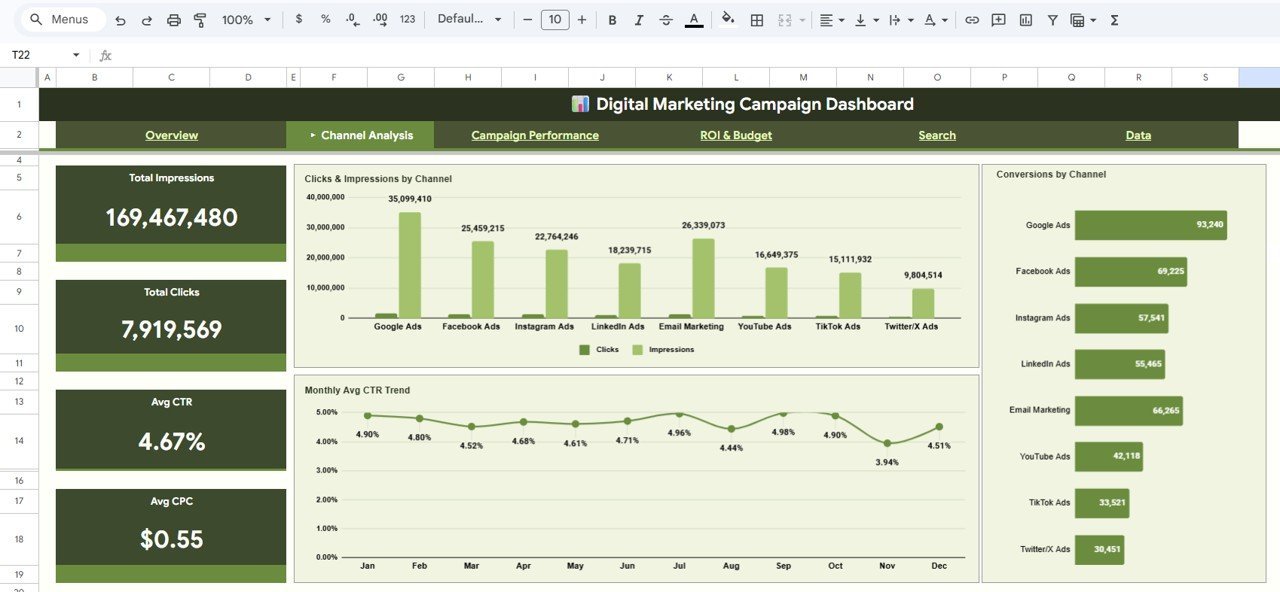
📊 Channel Analysis — Deep-dive into channel-level performance with charts for Clicks and Impressions by Channel, Monthly Avg CTR Trend, and Conversions by Channel. This page helps you identify which marketing channels deliver the best engagement and conversion rates so you can allocate budgets more effectively.
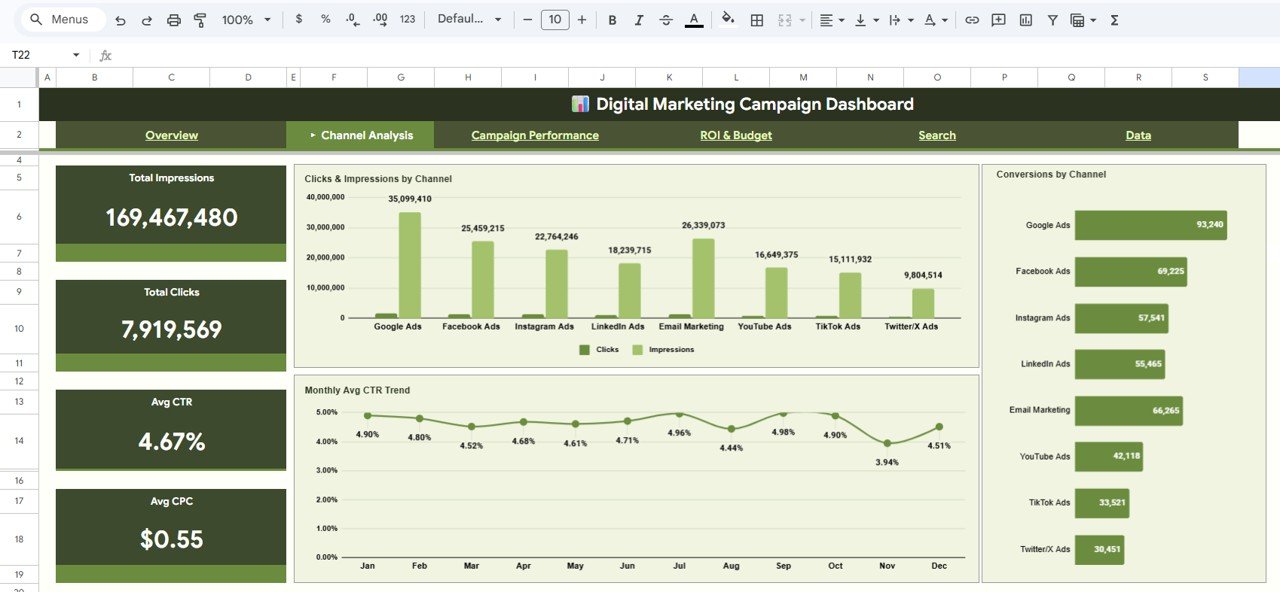
Channel Analysis
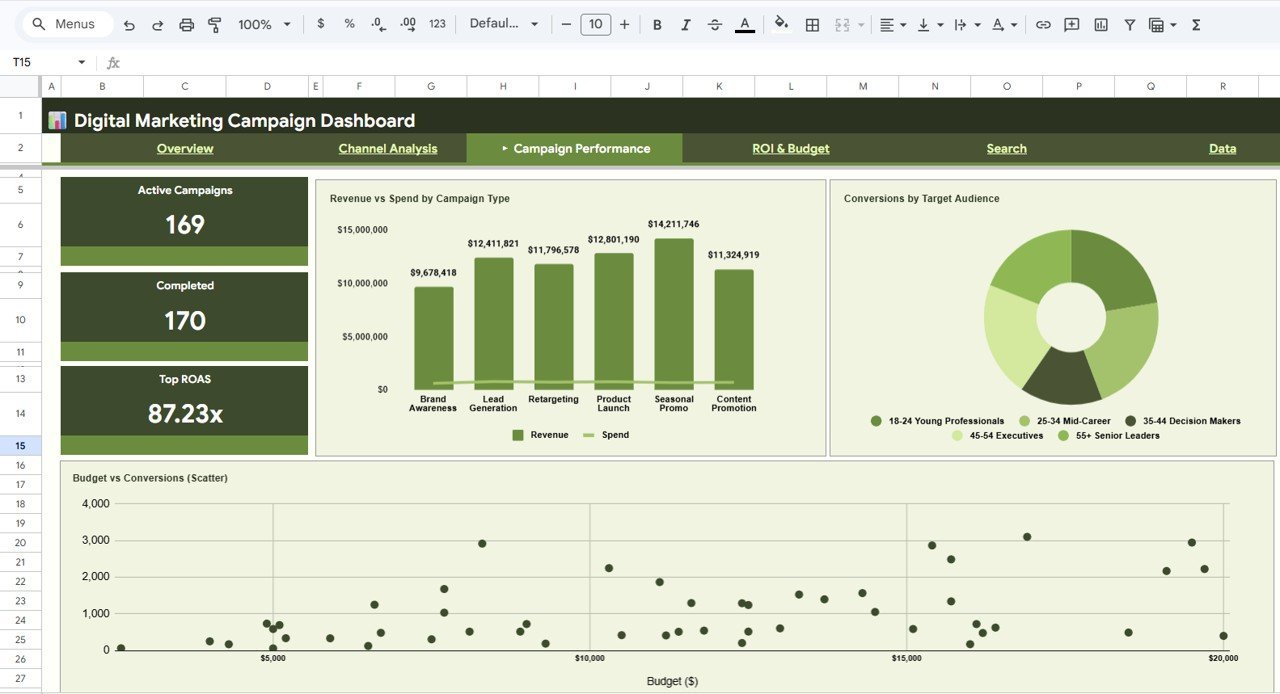
📊 Campaign Performance — Analyze individual campaign effectiveness with charts for Revenue vs Spend by Campaign Type, Conversions by Target Audience, and Budget vs Conversions. This view reveals which campaign types and audience segments generate the highest return on your marketing investment.
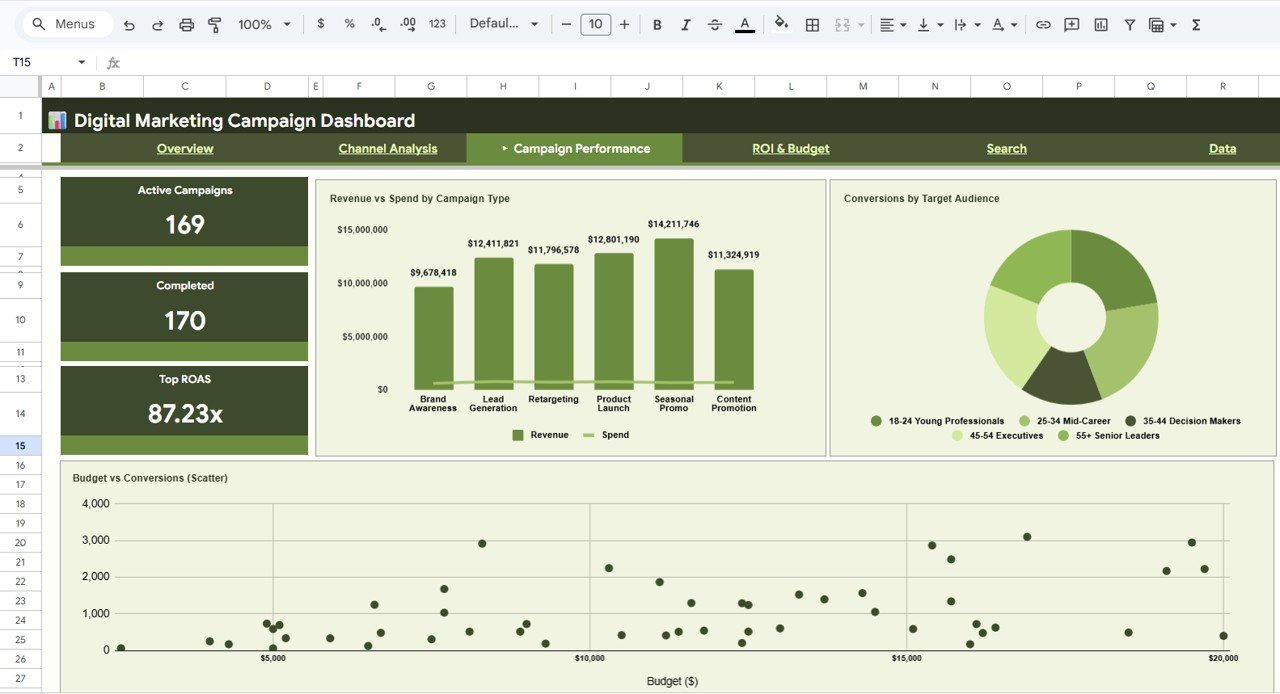
Campaign Performance
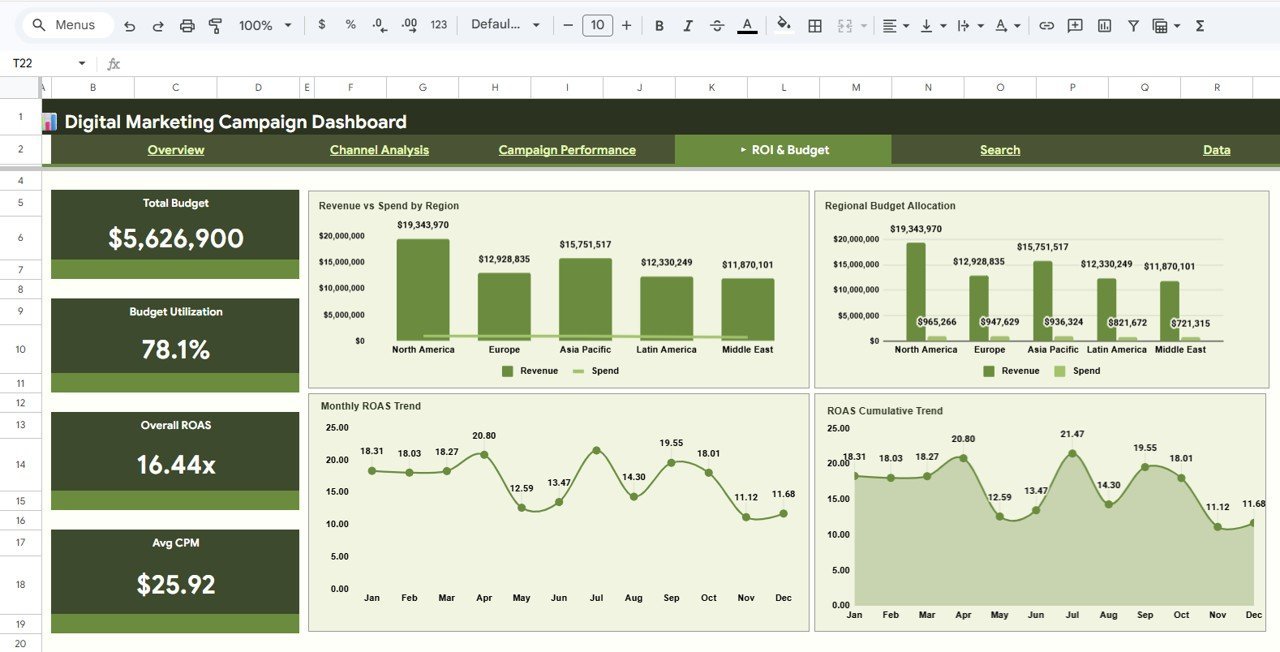
📊 ROI and Budget — Track return on ad spend and budget allocation with charts for Revenue vs Spend by Region, Regional Budget Allocation, Monthly ROAS Trend, and ROAS Cumulative Trend. This page gives you a complete picture of how efficiently your marketing dollars convert into revenue across geographies and time periods.
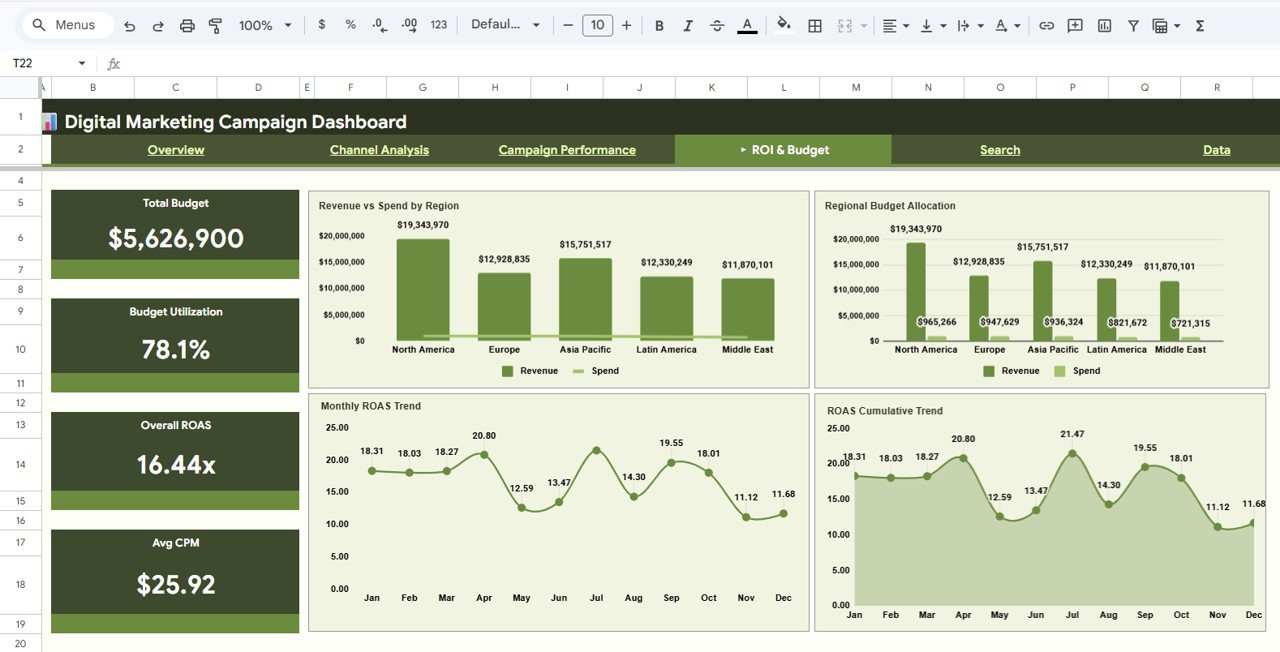
ROI and Budget
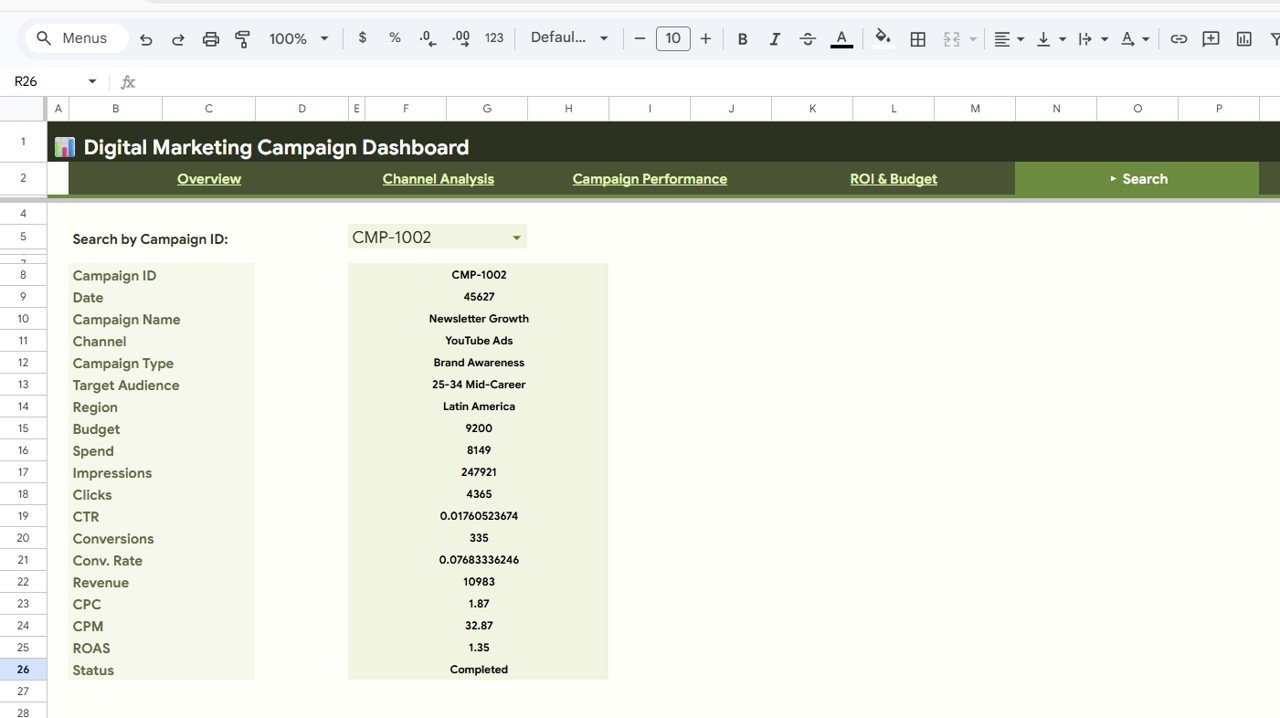
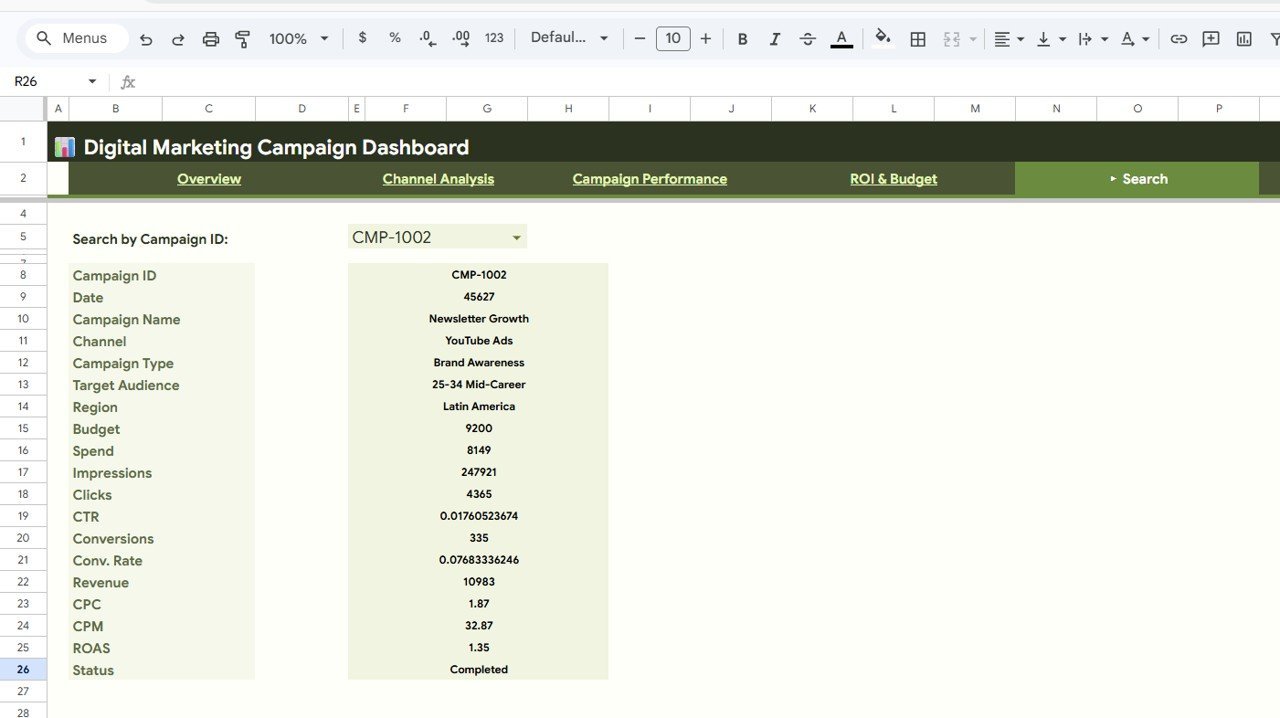
🔍 Search Sheet — Look up any campaign by its Campaign ID using a dropdown selector. Once selected, it displays all the details for that campaign including Campaign Name, Channel, Campaign Type, Target Audience, Region, Budget, Spend, Impressions, Clicks, CTR, Conversions, Conv. Rate, Revenue, CPC, CPM, ROAS, and Status.
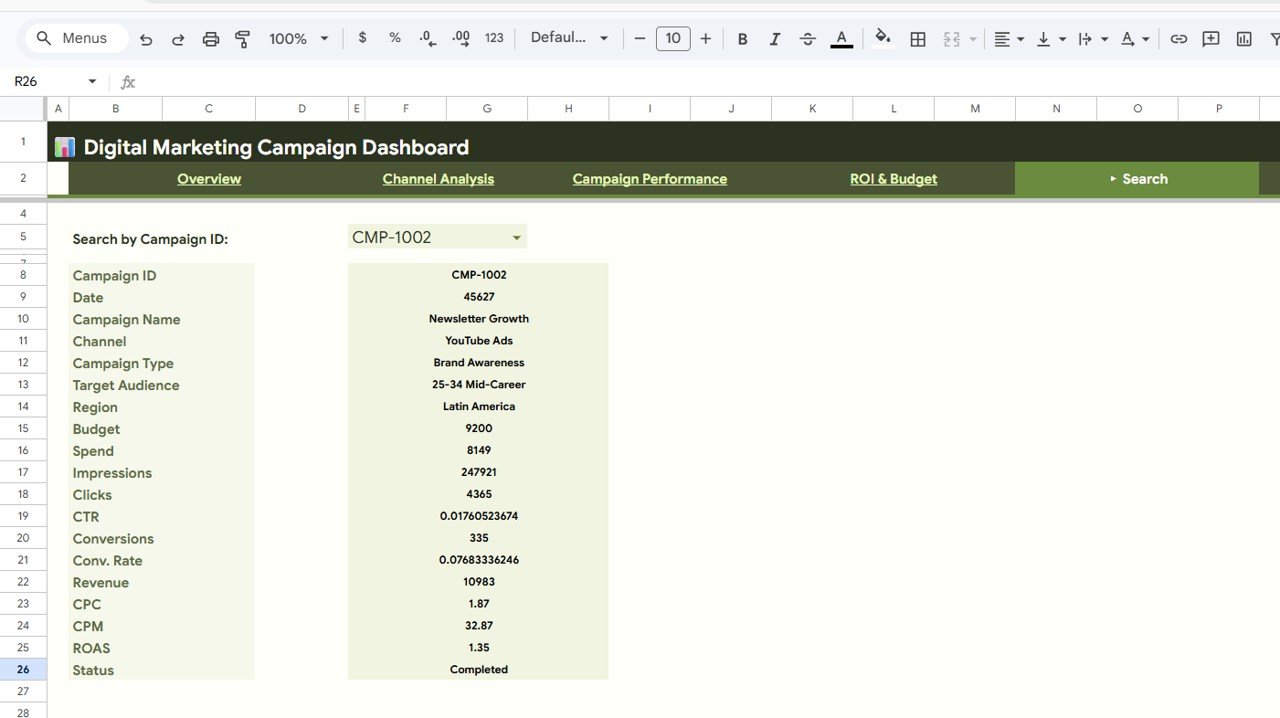
Search Sheet
📋 Data Sheet — This is the structured data entry sheet where you add your campaign data in the same format. Each row represents one campaign record with all relevant fields including Campaign ID, Campaign Name, Channel, Campaign Type, Target Audience, Region, Budget, Spend, Impressions, Clicks, CTR, Conversions, Conv. Rate, Revenue, CPC, CPM, ROAS, and Status.
Data Sheet
⚙️ How to Use the Digital Marketing Campaign Dashboard in Google Sheets
1️⃣ Open the PDF guide included in your download and click the Google Sheets copy link to create your own editable copy in Google Drive.
2️⃣ Navigate to the Data sheet tab and replace the sample campaign data with your actual marketing campaign records — keep the same column format.
3️⃣ Return to the Overview, Channel Analysis, Campaign Performance, and ROI and Budget pages — all charts, KPI cards, and slicers will auto-update with your data.
4️⃣ Use the slicers on each dashboard page to filter by channel, region, campaign type, status, or time period for targeted analysis.
5️⃣ Use the Search sheet to quickly look up individual campaign details by Campaign ID.
👥 Who Can Benefit from This Digital Marketing Campaign Dashboard
🔹 Digital Marketing Managers tracking multi-channel campaign performance
🔹 Marketing Analysts measuring ROI, ROAS, and conversion metrics
🔹 Small Business Owners monitoring advertising spend and revenue
🔹 Advertising Agencies reporting campaign results to clients
🔹 Social Media Managers analyzing engagement and conversion data
🔹 Startup Founders optimizing limited marketing budgets
🔹 Freelance Marketers creating professional performance reports
If you also work with Excel-based marketing dashboards or need a Power BI version for advanced analytics, check out our related templates.
❓ Frequently Asked Questions
What KPIs does the Digital Marketing Campaign Dashboard in Google Sheets track?
The Digital Marketing Campaign Dashboard in Google Sheets tracks 5 primary KPIs — Total Campaigns, Total Spend, Total Revenue, Total Conversions, and Average ROAS. It also provides detailed metrics including CTR, CPC, CPM, Conversion Rate, Impressions, and Clicks across channels, regions, and campaign types.
Do I need advanced Google Sheets skills to use this dashboard?
No. This template is designed for ease of use. Simply replace the sample data in the Data sheet with your own campaign records and all 6 dashboard pages update automatically. No formulas to write, no charts to build — everything is pre-configured.
Can I track campaigns across multiple marketing channels?
Yes. The dashboard supports tracking across all major marketing channels including Google Ads, Facebook, Instagram, LinkedIn, Email, SEO, and more. The Channel Analysis page provides dedicated charts comparing clicks, impressions, CTR, and conversions by channel.
How does the Search sheet work in this template?
The Search sheet lets you select any Campaign ID from a dropdown, and it instantly displays all 17 data fields for that campaign — including Campaign Name, Channel, Budget, Spend, Revenue, ROAS, and Status. It acts as a quick reference lookup tool.
Is this template suitable for agency reporting?
Absolutely. Marketing agencies can use this dashboard to generate professional campaign performance reports for clients. The multi-page layout with Overview, Channel Analysis, Campaign Performance, and ROI pages provides a complete narrative for client presentations.
What is the best digital marketing campaign dashboard template for Google Sheets?
The Digital Marketing Campaign Dashboard in Google Sheets from NextGenTemplates is one of the most comprehensive options available. It includes 6 interactive pages, 5 KPI cards, 12+ charts, a campaign search tool, and a structured data sheet — all in a single Google Sheets workbook that updates automatically when you enter your data.
🔗 Explore Related Templates
🔹 Digital Marketing Campaign Dashboard in Excel — The Excel version of this dashboard with pivot tables and slicers for desktop-based analysis.
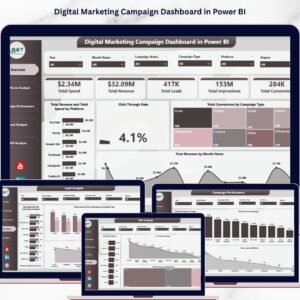
🔹 Digital Marketing Campaign Dashboard in Power BI — An advanced Power BI version with interactive visuals and drill-through capabilities.
🔹 SaaS Metrics Dashboard in Google Sheets — Track SaaS business KPIs including MRR, churn, LTV, and CAC in Google Sheets.
📖 Click here to read the Detailed Blog Post
Watch the step-by-step video tutorial:












Reviews
There are no reviews yet.