

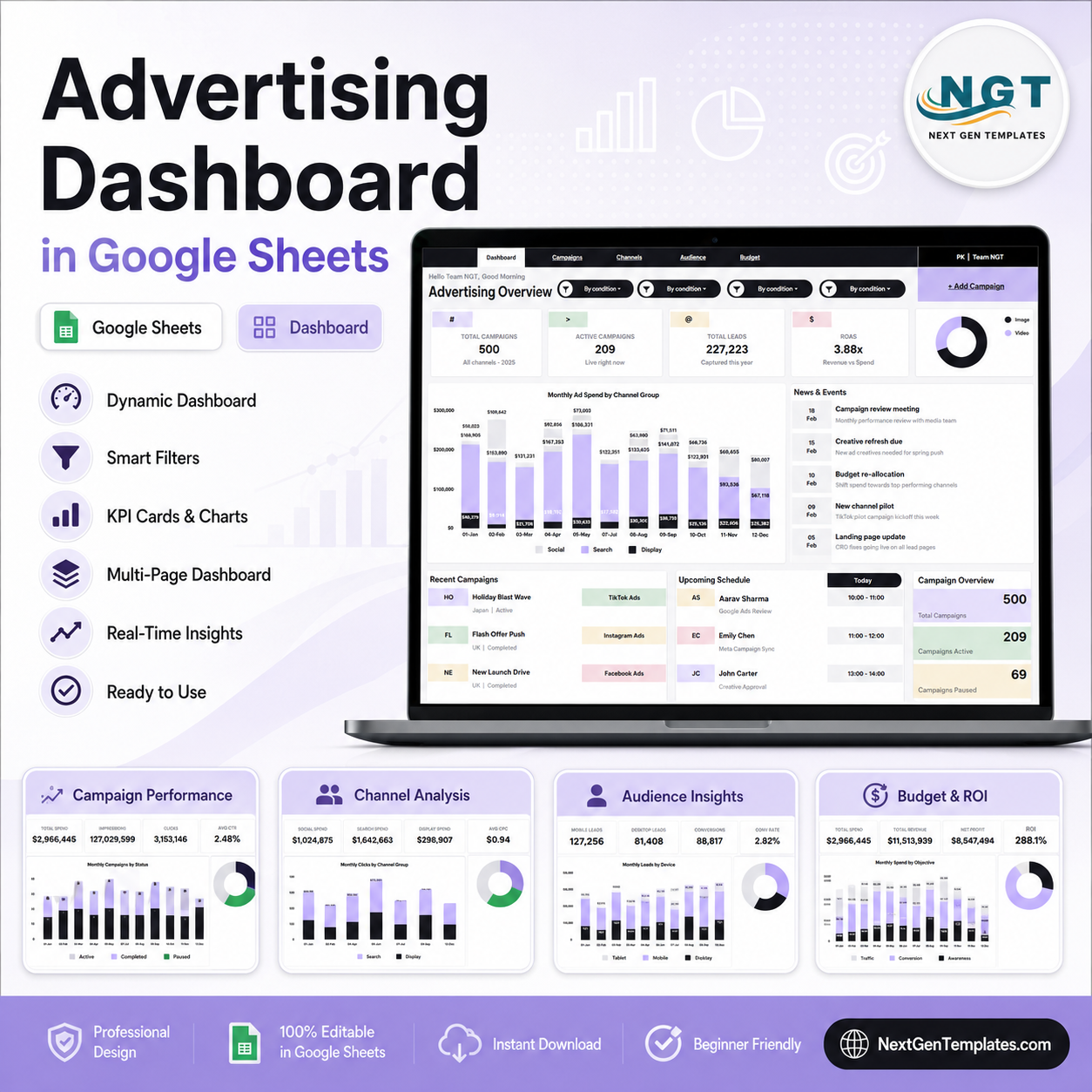
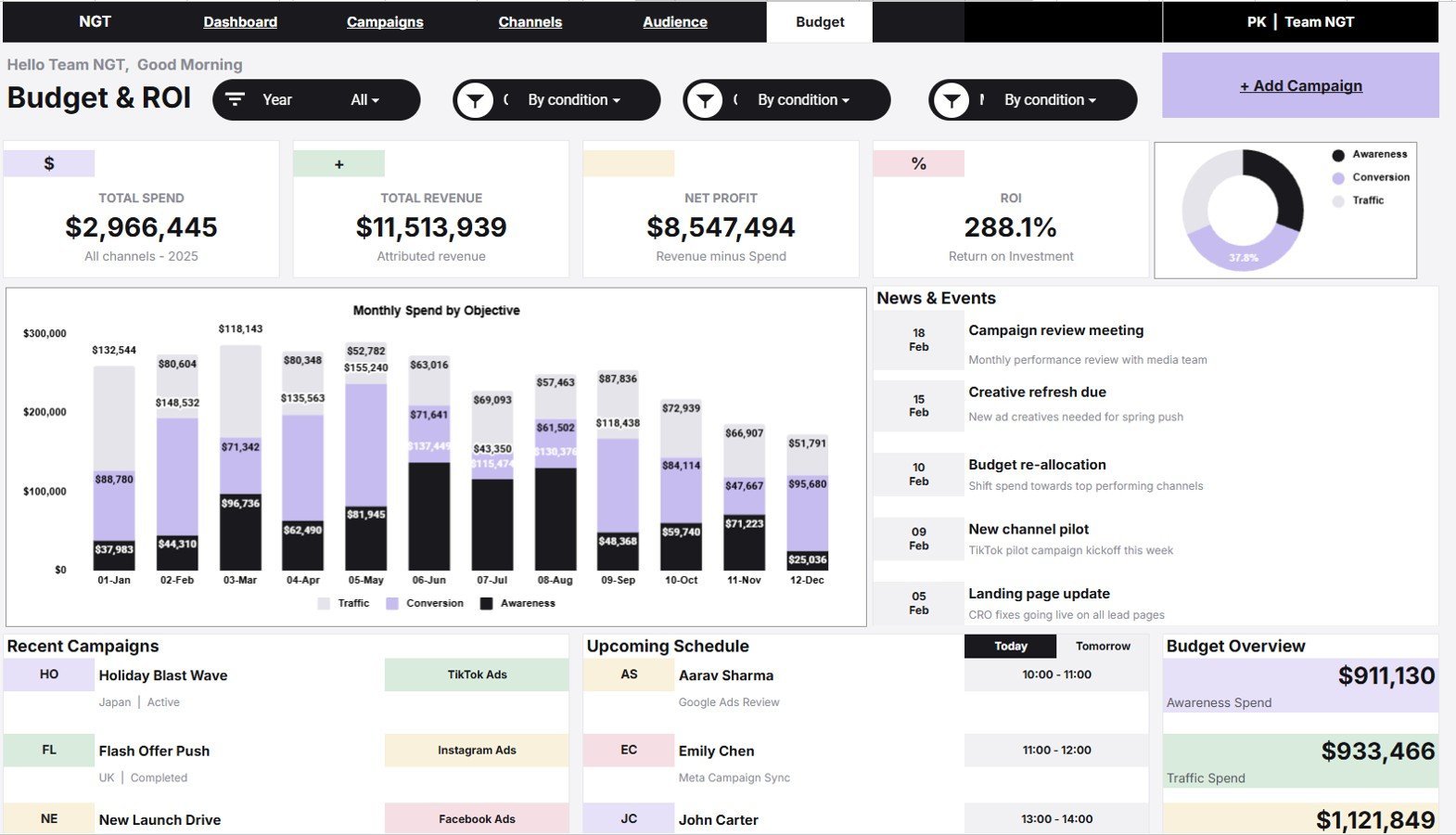
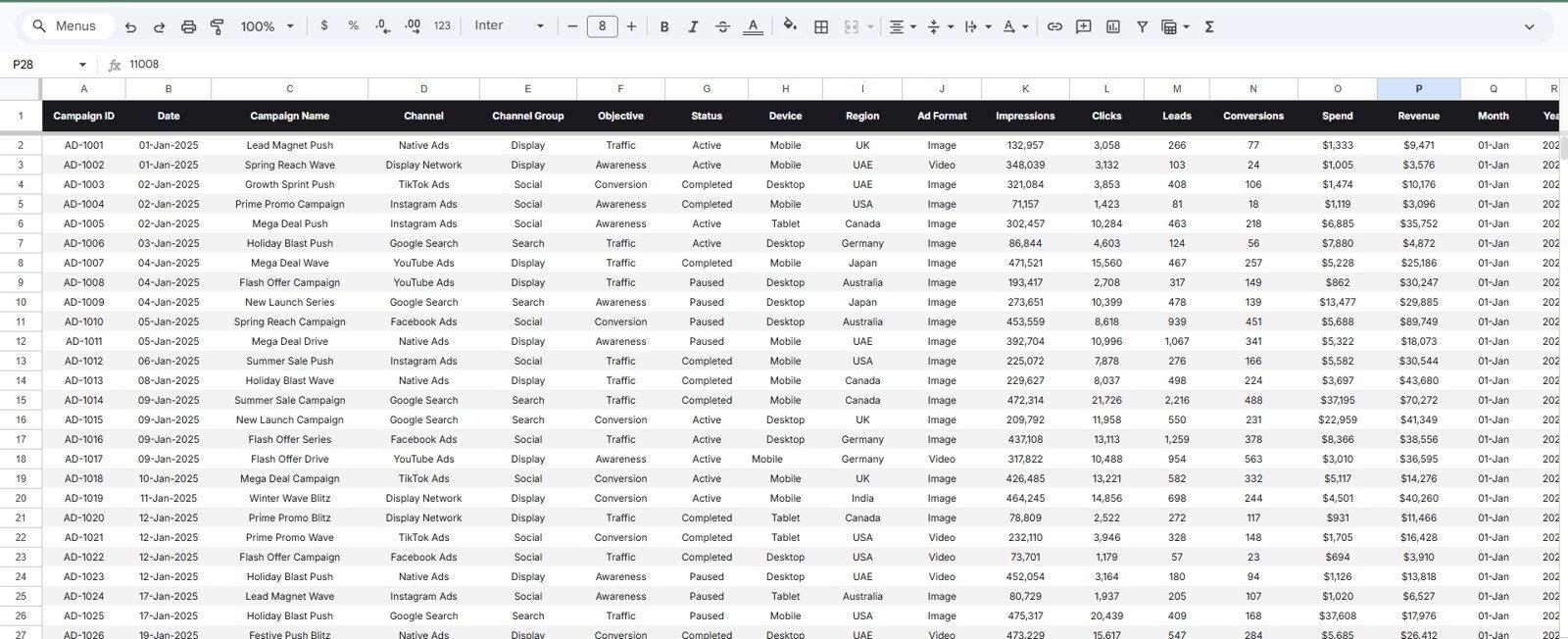

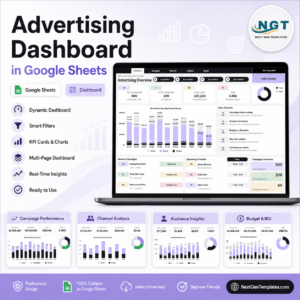
Advertising Dashboard in Google Sheets turns one campaign data sheet into 6 working tabs, 4 executive cards, and 20 chart views for spend, leads, ROAS, channel, device, objective, status, team, and campaign performance. Marketing teams often lose reporting time because ad spend, clicks, leads, and budgets sit in separate exports. This template gives agencies and in-house teams an editable Google Sheets reporting file instead of a recurring SaaS subscription. Built by PK, whose template tutorials reach 300K+ YouTube subscribers, it is designed for manual or exported advertising data. Review all six screenshots before purchase, pay a one-time template price, and work from your own Google Drive copy.
Key Features of Advertising Dashboard in Google Sheets
- 6 connected sheet tabs: Overview, Campaign Performance, Channel Analysis, Audience Insights, Budget & ROI, and Data Sheet.
- 4 headline cards: Total Campaigns, Active Campaigns, Total Leads, and ROAS.
- 20 chart views: analyze spend, status, clicks, leads, conversions, CPC, campaign objective, team schedule, and channel group.
- Slicer-based filtering: narrow the dashboard quickly by the dimensions used in the file.
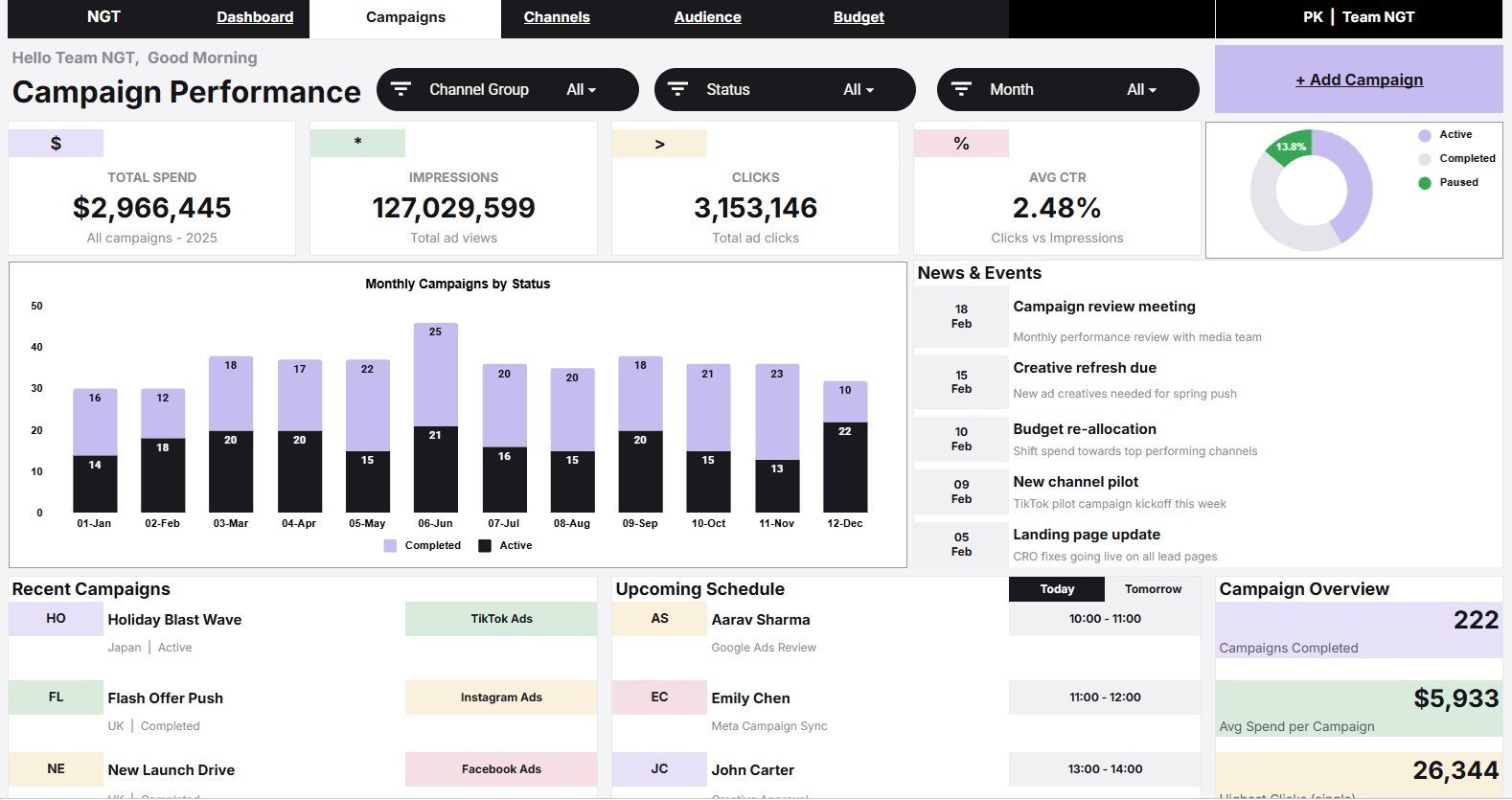
- Campaign performance views: compare campaign count, status, spend, and clicks without rebuilding reports.
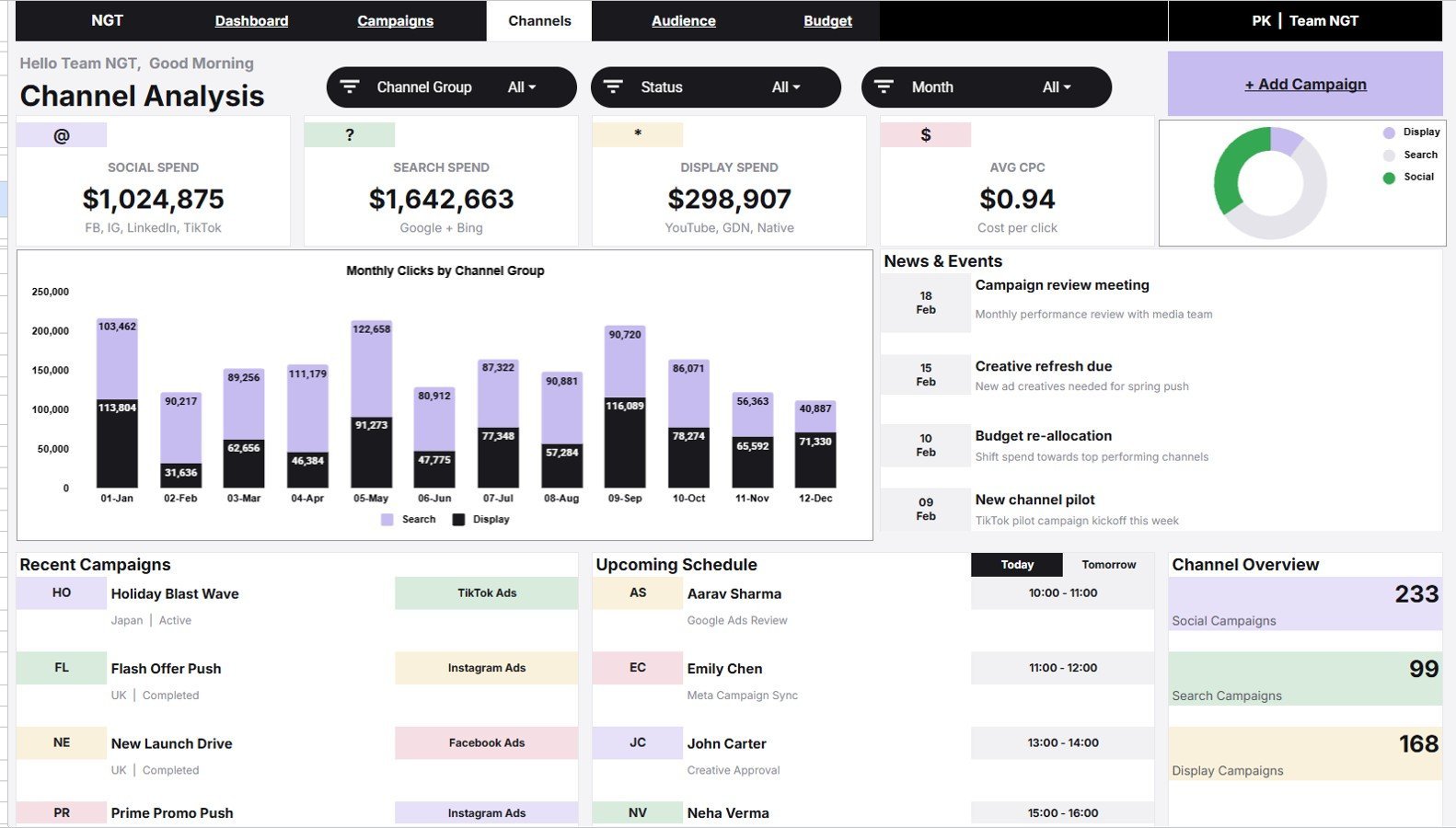
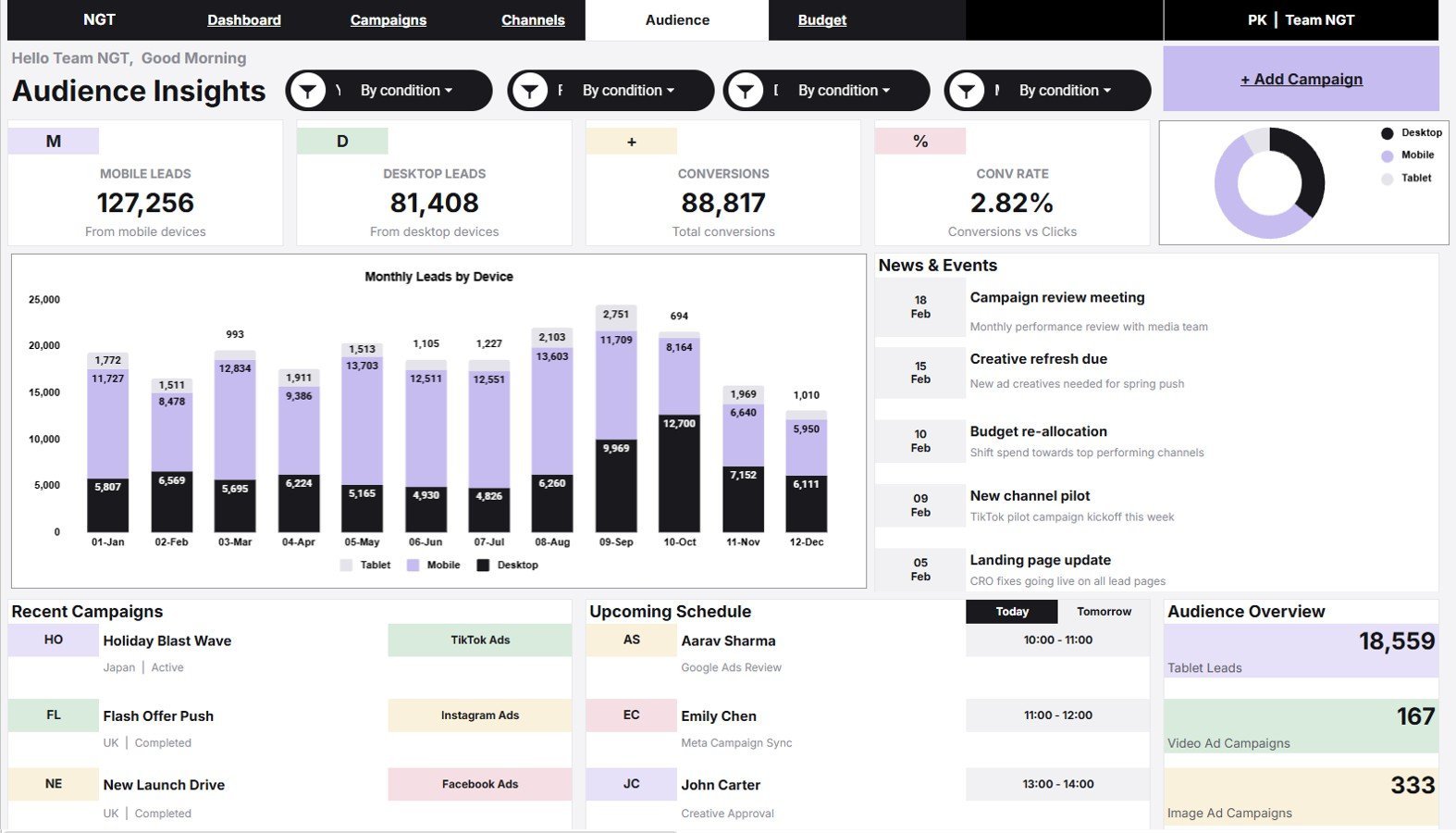
- Channel and audience analysis: review channel group, device, ad format, and conversion behavior.
- Budget and ROI page: connect spend to objective-level budget planning and return review.
- Editable data sheet: replace sample records in the supplied column format.
What’s Inside the Advertising Dashboard in Google Sheets
1. Overview Page
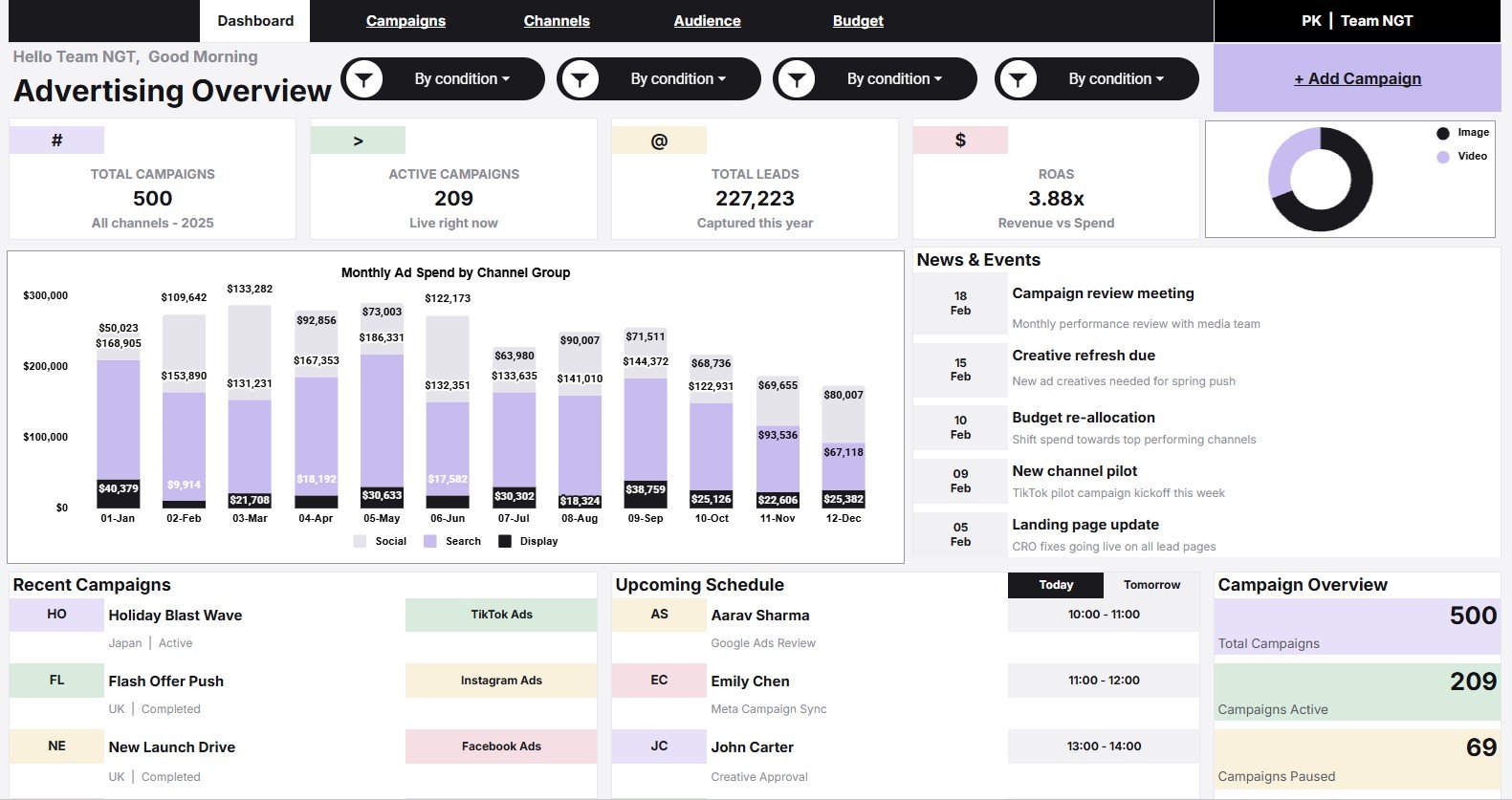
The Overview page gives managers a fast read on Total Campaigns, Active Campaigns, Total Leads, and ROAS. It also includes slicers so users can filter the dashboard and review a focused campaign segment quickly.
Monthly Ad Spend by Channel Group shows how budget moves across channels over time. Campaigns by Ad Format, Campaigns by Status, Recent Campaigns by Channel, and Schedule by Team Member help connect campaign mix, execution status, recent activity, and ownership.
2. Campaign Performance
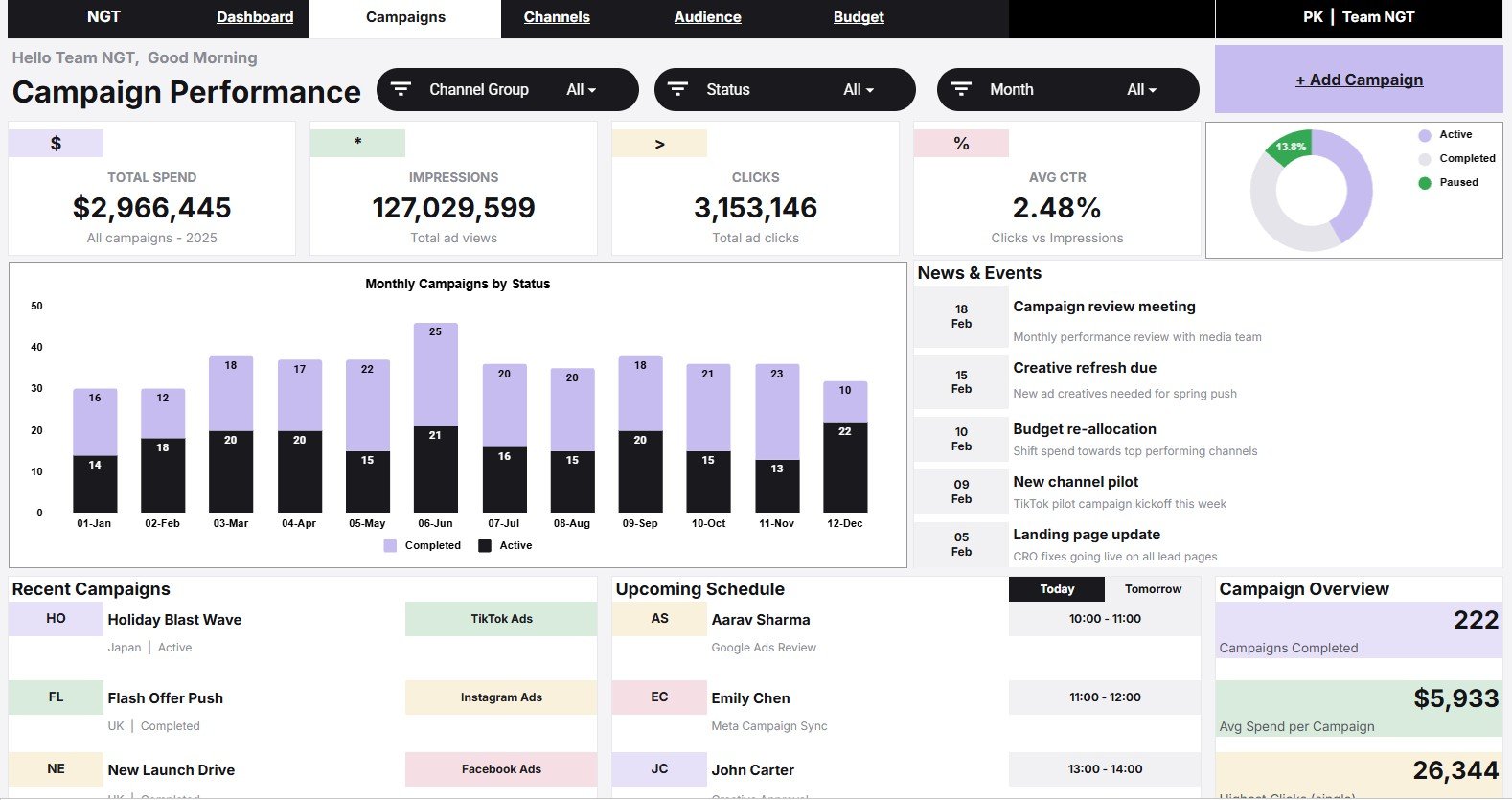
The Campaign Performance tab focuses on campaign movement, status, spend, and clicks. Monthly Campaigns by Status shows how active, planned, paused, or completed campaigns change over time, while Spend by Campaign and Clicks by Campaign highlight the campaigns taking the most budget and traffic.
3. Channel Analysis
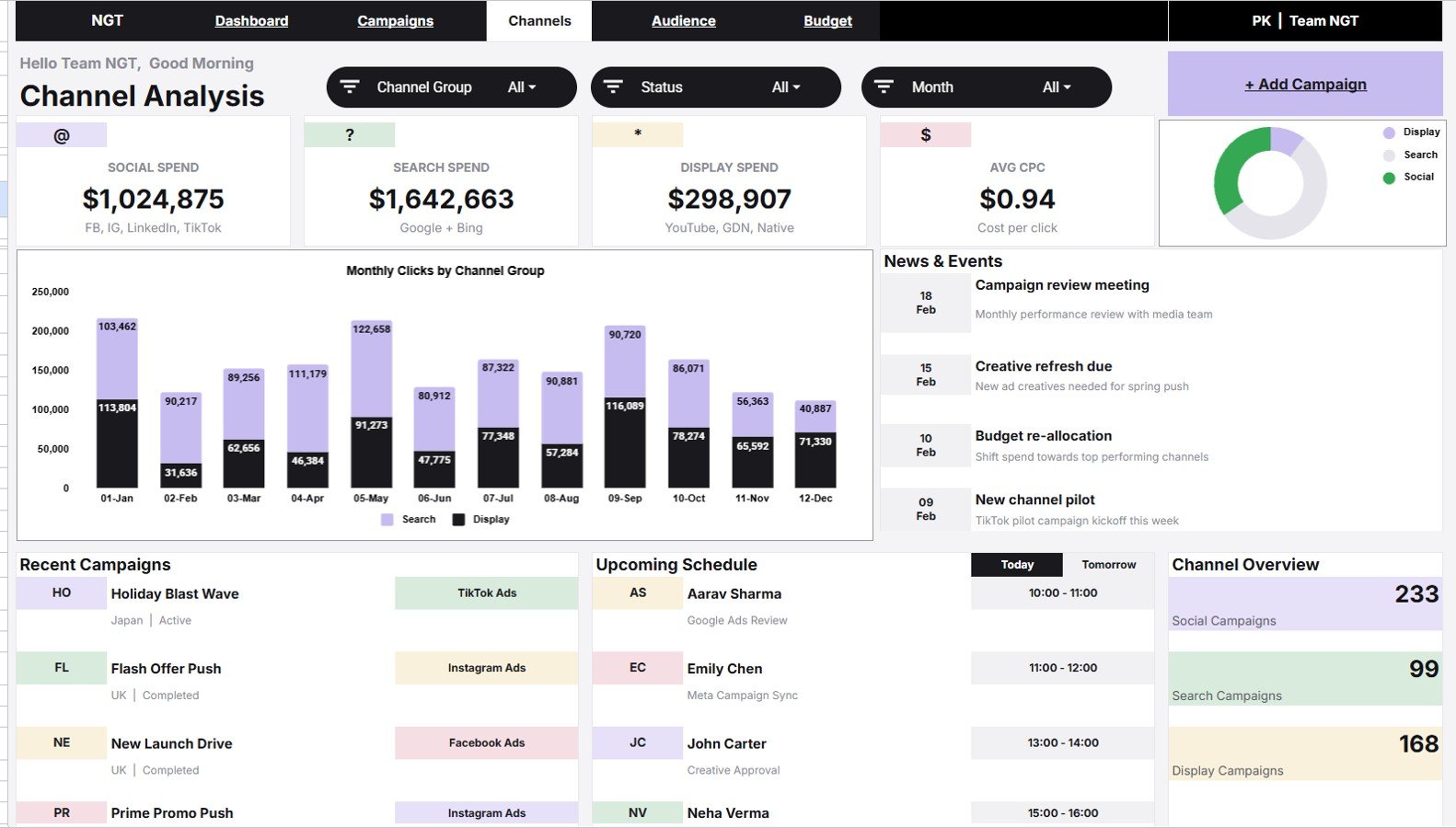
The Channel Analysis tab compares Monthly Clicks by Channel Group, Spend by Channel Group, Campaigns by Channel Group, and Average CPC by Channel Group. Use it to see where budget is concentrated, where clicks are coming from, and which channel groups have higher or lower click cost.
4. Audience Insights
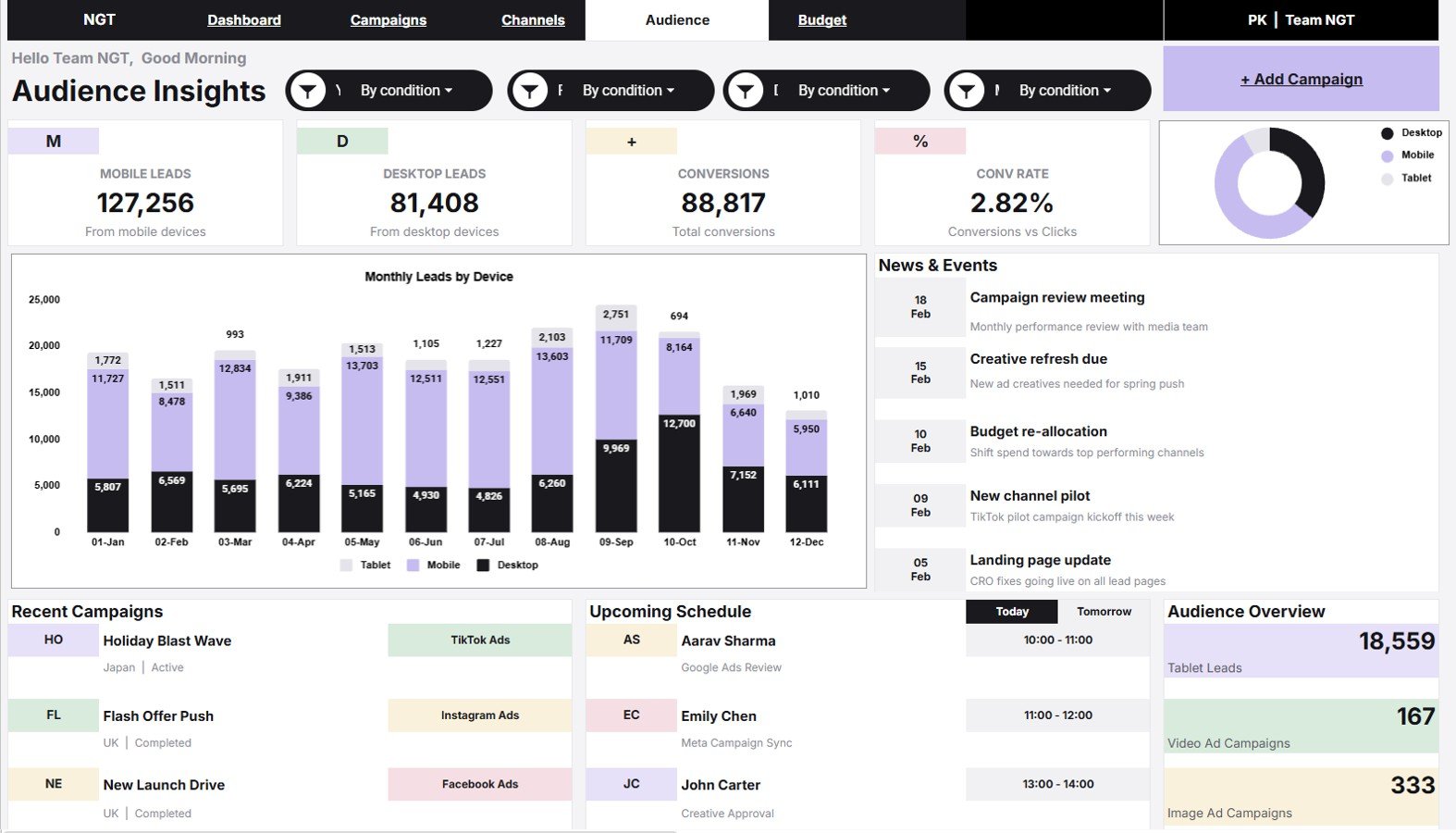
The Audience Insights tab reviews Monthly Leads by Device, Leads by Device, Conversions by Clicks, and Campaigns by Ad Format. This helps marketers compare device response, understand how click volume relates to conversions, and check whether the creative format mix supports the target audience.
5. Budget & ROI
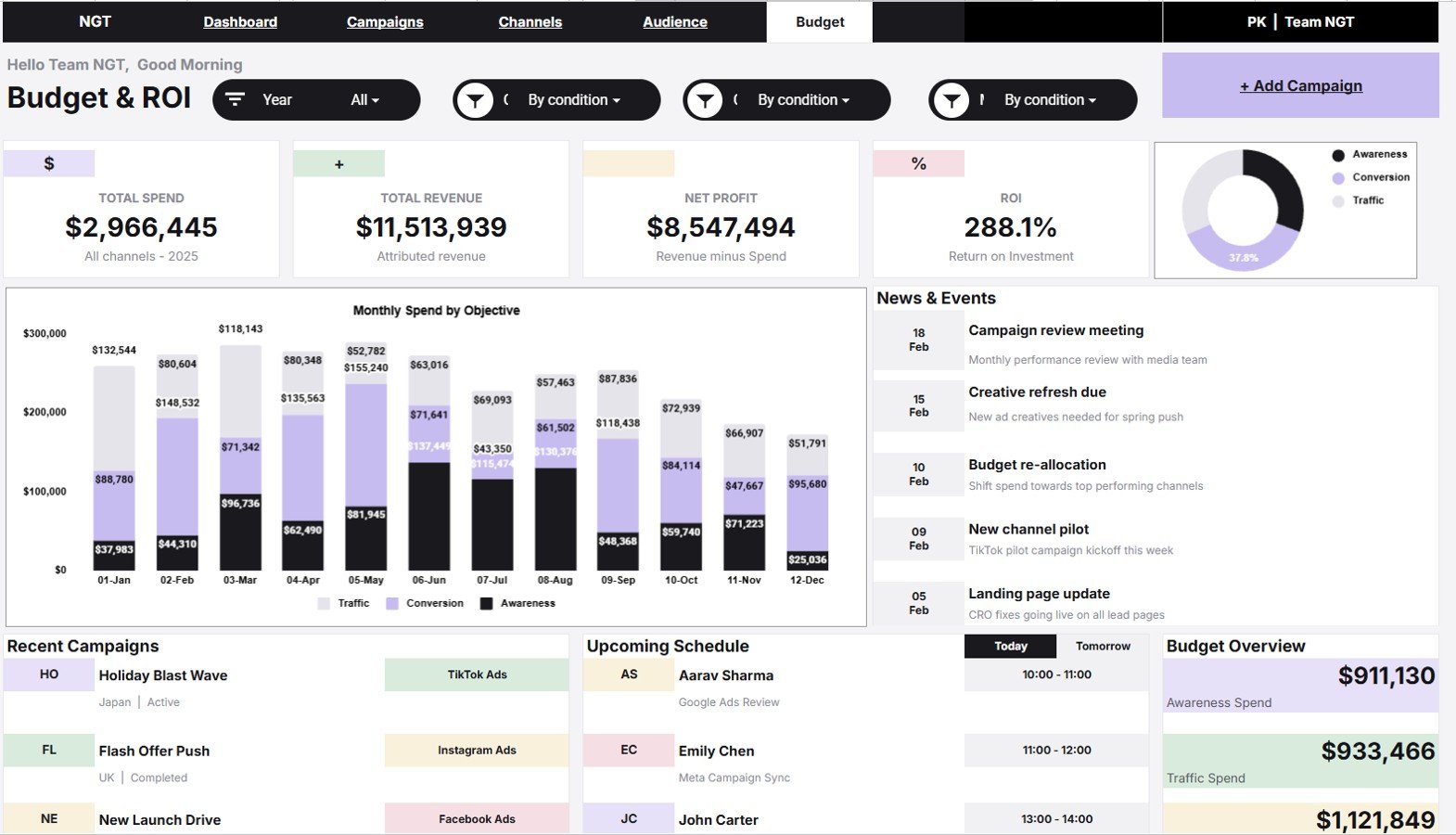
The Budget & ROI tab shows Monthly Spend by Objective, Spend by Objective, and Budget Overview by Objective. It helps teams compare spending against campaign purpose, spot objective-level cost concentration, and prepare cleaner budget conversations.
6. Data Sheet Tab
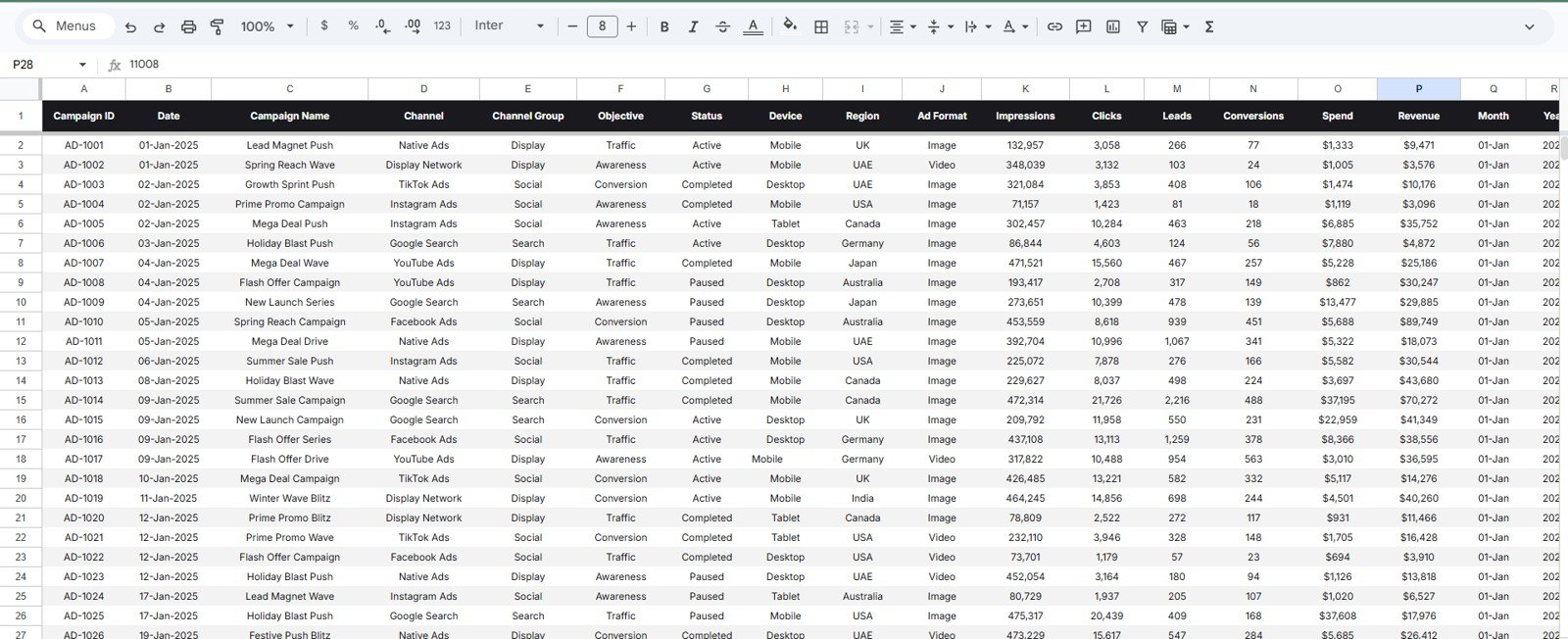
The Data Sheet is where users add advertising records in the same format used by the template. Keeping campaign, channel group, ad format, status, objective, device, team member, spend, clicks, leads, and conversion fields consistent helps the charts group records correctly.
Advertising Dashboard in Google Sheets vs. Microsoft Excel Dashboard vs. Paid Marketing SaaS – Where This Fits
| Feature | This Google Sheets Template | Microsoft Excel Dashboard | Paid Marketing SaaS |
|---|---|---|---|
| Cost | $9.99 sale price | Template cost plus Excel access where needed | Recurring and plan-dependent |
| Platform | Google Sheets in browser | Desktop or web Excel | Vendor-hosted application |
| Setup time | Copy the file and replace sample rows | Open workbook and replace data | Account setup, connectors, and permissions vary |
| Real-time team collaboration | Native Google Drive sharing | Available with Microsoft cloud sharing | Usually included by plan |
| Mobile access | Google Sheets app or browser | Excel app or browser | Vendor app or browser |
| Customizable fields | Editable sheet structure | Editable workbook structure | Limited by configuration |
| Share with link | Yes, with owner-controlled permissions | Yes, with compatible cloud storage | Usually account based |
| Year-1 cost at 5 users | $9.99 template price | Depends on existing licenses | Often monthly or annual subscription cost |
| Advertising-specific pages | Campaign, channel, audience, budget, and data tabs included | Possible with custom setup | Varies by product tier |
Who This Template Is For – and Who It’s Not For
Best for: PPC specialists, advertising agencies, marketing managers, startup founders, freelancers, and small teams that track campaigns from manual entries or exported platform data.
Not the right fit for: teams needing automatic Google Ads imports, Meta Ads connectors, multi-touch attribution, budget approvals, creative workflow management, or enterprise permissions. This is an editable reporting template, not a connected ad management platform.
How to Use the Advertising Dashboard in Google Sheets
- Open the PDF guide from your download and use the Google Sheets copy link.
- Create your own editable copy in Google Drive.
- Review the Data Sheet and keep the supplied column order.
- Replace sample records with your campaign data.
- Use slicers to filter the dashboard by the available dimensions.
- Review Overview first, then move into campaign, channel, audience, and budget pages for detail.
Real-World Use Cases
Nisha, PPC manager: reviews ROAS, leads, spend, and clicks before a weekly budget meeting, then uses Channel Analysis to explain CPC changes.
Daniel, agency account lead: filters the Overview for a client segment and checks Campaign Performance before preparing the client recap.
Meera, startup founder: uses Budget & ROI to compare campaign objectives before shifting budget to campaigns with stronger lead contribution.
Frequently Asked Questions
What does this advertising dashboard track?
It tracks campaigns, status, leads, ROAS, spend, clicks, device, channel group, ad format, objective, and team schedule using the supplied data structure.
Is this built for Google Sheets?
Yes. The template is designed for Google Sheets and is used from your own editable Google Drive copy.
Does it connect automatically to ad platforms?
No. Add or paste campaign records into the Data Sheet. API imports are not included in this version.
Can I customize the sheet?
Yes. Google Sheets files are editable, but preserve formulas, chart ranges, and the data column structure unless you are comfortable updating them.
Can multiple people use the dashboard?
Yes. You can share the file through Google Drive with viewer, commenter, or editor access depending on your team’s needs.
What should I check before using it for reporting?
Check missing values, duplicate campaign names, inconsistent channel labels, and spend or click entries that look unusually high or low.
About the Author
Built by PK – Microsoft Certified Professional with 15+ years of Excel, Google Sheets, and Power BI experience. Founder of NextGenTemplates, reaching 300K+ subscribers across YouTube channels. Every template is hand-built and tested before release.
Explore Related Templates
- Digital Advertising KPI Dashboard in Google Sheets
- Advertising KPI Dashboard in Google Sheets
- Influencer Marketing Campaign Performance Dashboard in Google Sheets
- Email Marketing KPI Dashboard in Google Sheets
- Digital Advertising Calendar in Google Sheets
- Browse more Google Sheets templates and Google Sheets dashboards.
Download the Advertising Dashboard in Google Sheets to turn campaign rows into repeatable advertising reporting.
Watch the step-by-step video Demo:
Last updated: July 26, 2026.
Compatibility and Requirements
- Works in Google Sheets. You need a free Google account and a web browser.
- The Overview page uses slicers to filter the charts. Google explains how charts work in Add and edit a chart or graph.







Reviews
There are no reviews yet.