

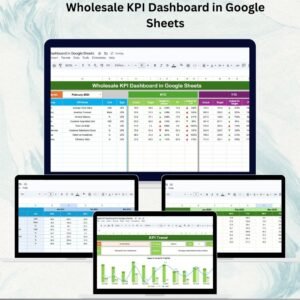
Running a wholesale business means handling complex operations — from managing sales and inventory to monitoring delivery performance and customer satisfaction. Without a proper tracking system, it’s easy to miss important trends, face inefficiencies, and lose revenue opportunities. That’s why we built the Wholesale KPI Dashboard in Google Sheets — a ready-to-use tool that centralizes all wholesale performance metrics into one powerful and interactive dashboard. 🚀
This template helps managers, business analysts, and executives make data-driven decisions by providing instant visibility into sales, customer satisfaction, delivery timelines, and cost management. With automated comparisons for Month-to-Date (MTD), Year-to-Date (YTD), and Previous Year (PY) performance, it ensures you always stay one step ahead.
🔑 Key Features of the Wholesale KPI Dashboard
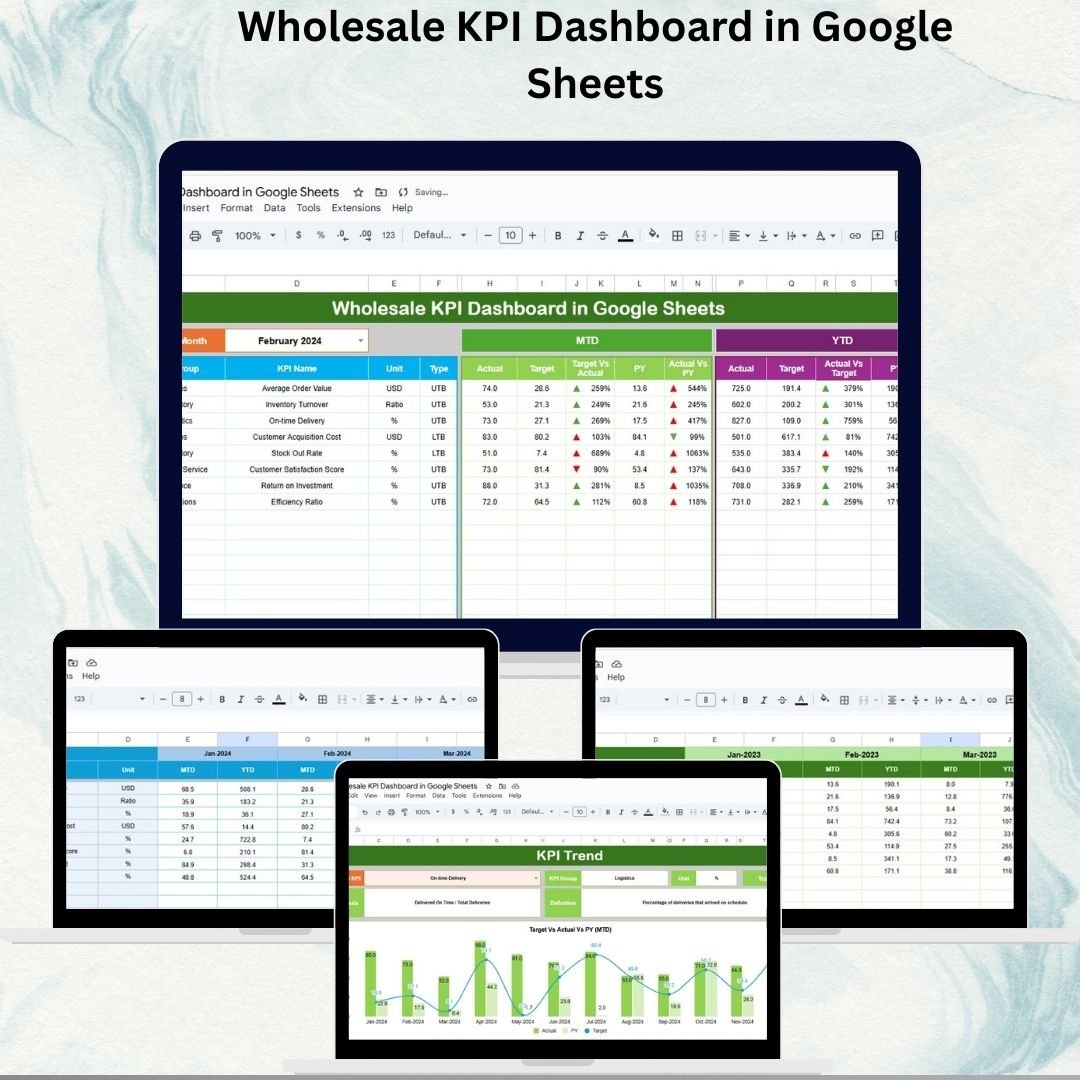
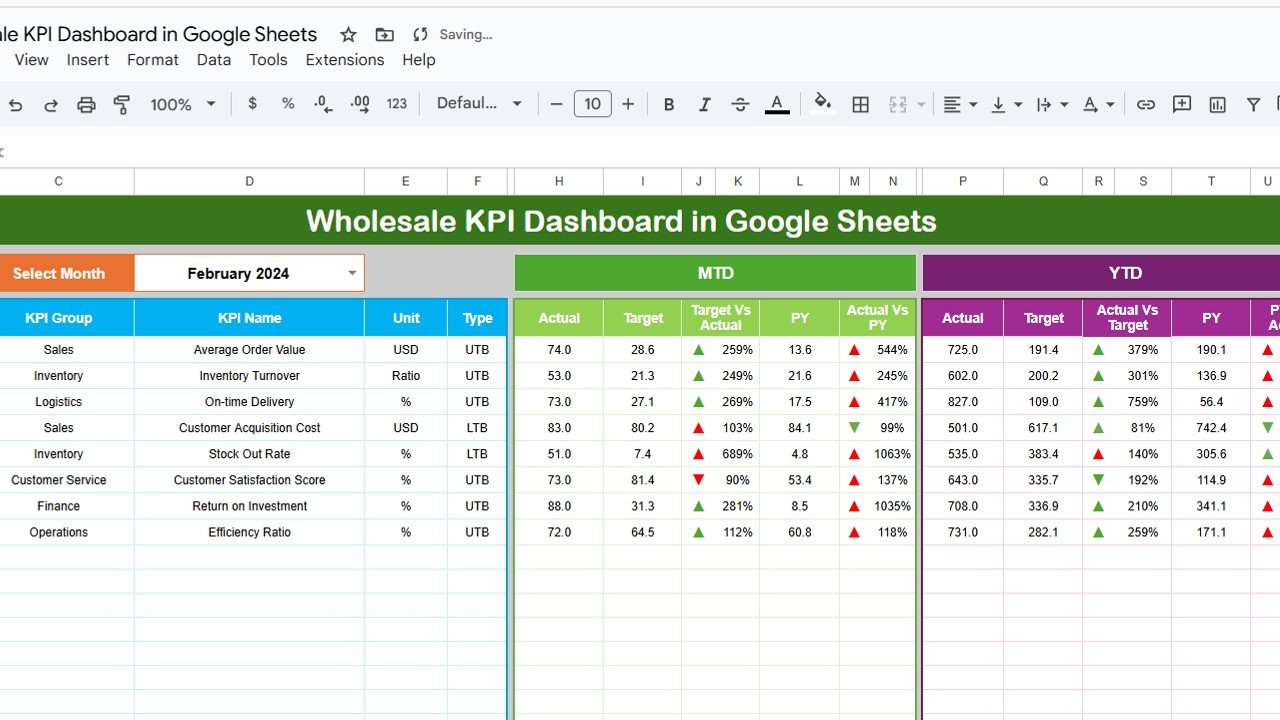
📊 Dashboard Tab – Real-Time Insights
Select a month (drop-down in cell D3) to update KPIs instantly
MTD Actual vs Target vs Previous Year, with ✅ up/down arrows for quick performance checks
YTD performance for long-term tracking
Visual cards and charts summarizing critical wholesale KPIs
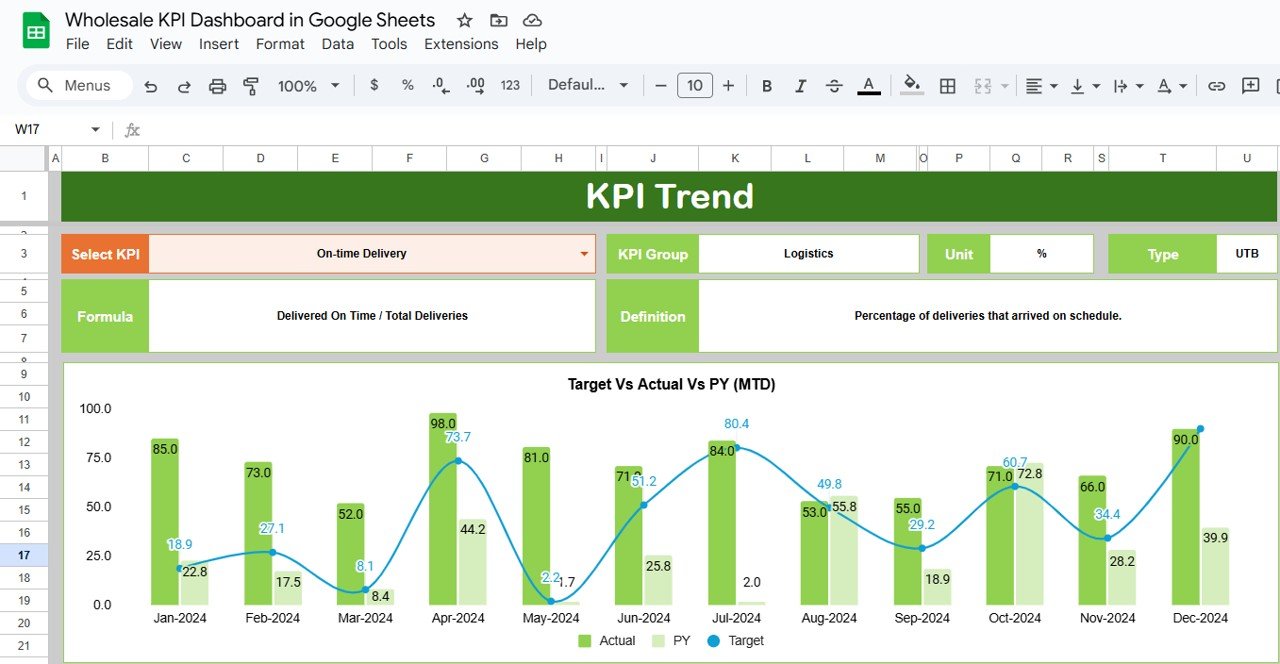
📈 KPI Trend Tab – Deep Dive Analysis
Pick any KPI (drop-down in cell C3) to view its trends over time
Displays KPI Group, Unit, Formula, Definition, and Type (LTB/UTB)
Trend charts for spotting recurring performance gaps
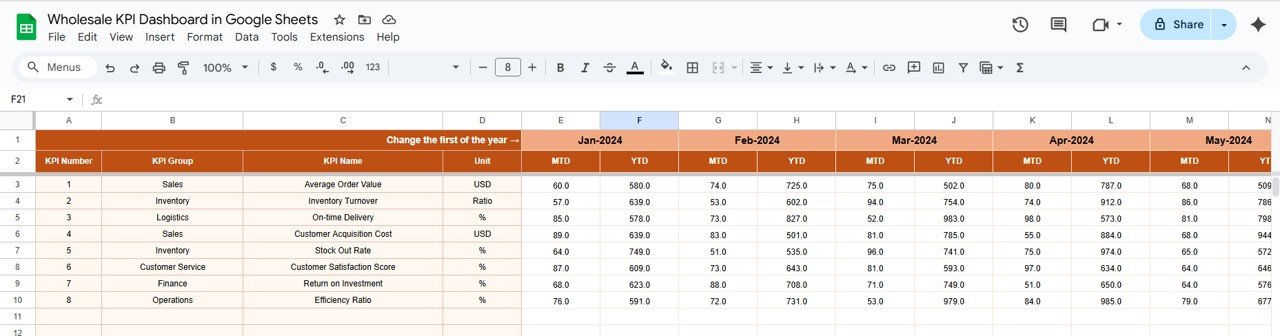
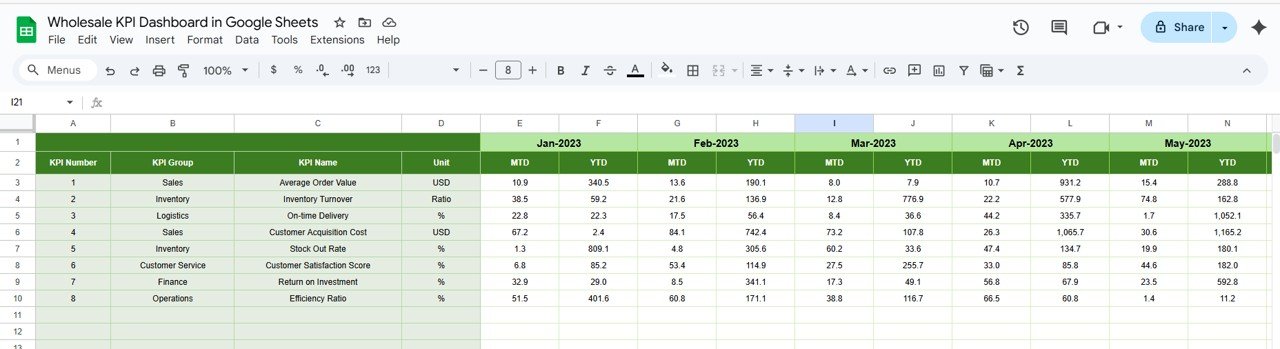
🗂 Actual Numbers Tab – Performance Data Entry
Record MTD and YTD actual values
Month selector in cell E1 automatically updates dashboard metrics
Perfect for tracking KPIs like sales, returns, delivery time, and inventory levels
🎯 Target Tab – Benchmark Your Goals
Define monthly and annual targets for each KPI
Compare actuals against targets to identify achievement gaps
Aligns business goals with performance outcomes
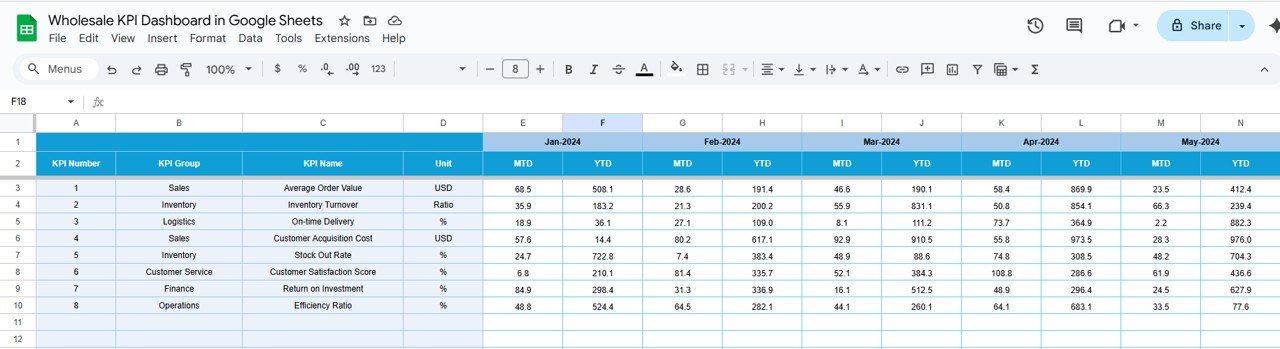
📊 Previous Year Tab – Historical Benchmarking
Enter prior year data for MTD and YTD
Compare current performance with historical benchmarks
Identify seasonal trends and long-term growth patterns
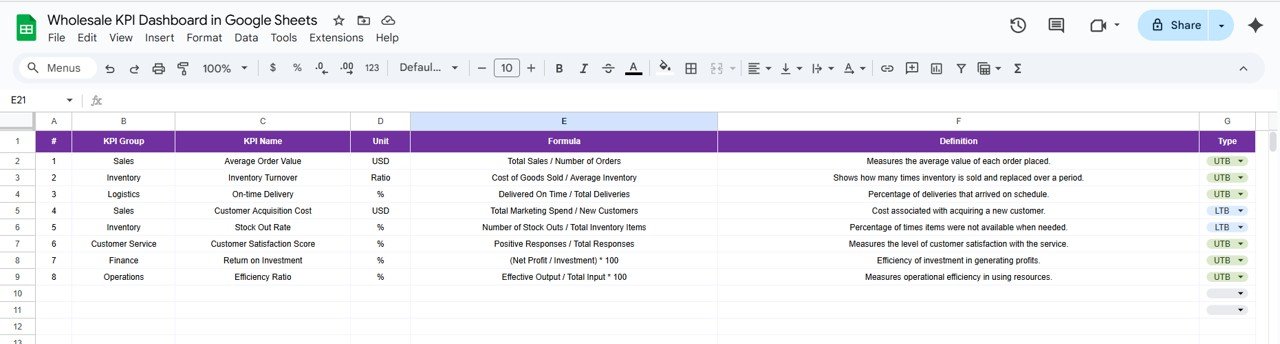
📖 KPI Definition Tab – Standardized Metrics
Clear documentation of all KPIs
Includes Name, Group, Unit, Formula, Definition, and Type (LTB/UTB)
Ensures consistent understanding across teams
📦 What’s Inside the Template?
✅ Dashboard Tab – Real-time KPI overview
✅ KPI Trend Tab – Drill-down analysis by metric
✅ Actual Numbers Tab – Input MTD & YTD data
✅ Target Tab – Define KPI goals
✅ Previous Year Tab – Compare with past performance
✅ KPI Definition Tab – KPI glossary with formulas
🧠 How to Use the Wholesale KPI Dashboard
Input Actuals – Update the Actual Numbers tab with monthly performance
Set Targets – Define expected KPI values in the Target tab
Add Previous Year Data – Record last year’s performance for benchmarking
Review Dashboard – Monitor MTD & YTD results visually
Drill into Trends – Use KPI Trend tab to analyze detailed metrics
Check KPI Definitions – Ensure consistency with documented formulas
👥 Who Can Benefit from This Dashboard?
🏬 Wholesale Managers – Track overall operations in real time
📈 Business Analysts – Deep-dive into performance trends
💼 Executives – Monitor growth and profitability at a glance
📦 Supply Chain Teams – Improve delivery timelines & inventory control
🛠 Finance Teams – Track cost efficiency & performance gaps
⭐ Advantages of Using the Wholesale KPI Dashboard
📊 Centralized KPI Tracking – All wholesale metrics in one place
⚡ Dynamic & Interactive – Month selector updates dashboard instantly
🕒 Historical Benchmarking – Compare current vs last year’s results
🎯 Target vs Actual Insights – Measure success against defined goals
✅ Data-Driven Decisions – Identify bottlenecks & optimize operations
🛠 Customizable – Easily adapt KPIs to your business
🔗 Click here to read the Detailed blog post
🔗 Visit our YouTube channel to learn step-by-step video tutorials
Compatibility and Requirements
- Works in Google Sheets. You need a free Google account and a web browser.
- You pick the month from a dropdown on the Dashboard sheet. Google explains dropdowns in Create an in-cell dropdown list.
Frequently Asked Questions
Which tabs are included?
Six tabs: Dashboard, KPI Trend, Actual Numbers, Target, Previous Year and KPI Definition.
How do I update the dashboard?
Enter your MTD and YTD actual values in the Actual Numbers tab and your goals in the Target tab. Then pick a month from the dropdown in cell D3 on the Dashboard tab and the KPIs update.
Can I compare this year with last year?
Yes. Enter prior year MTD and YTD data in the Previous Year tab. The Dashboard shows it next to your actuals and targets.
How do I look at the trend of one KPI?
Open the KPI Trend tab and choose a KPI from the dropdown in cell C3. It shows the KPI group, unit, formula, definition and type (LTB or UTB) with a trend chart.
Is there an Excel or Power BI version?
Yes. See the Wholesale KPI Dashboard in Excel and the Wholesale KPI Dashboard in Power BI.
Related Wholesale and Sales Templates
- Wholesale KPI Dashboard in Excel: the same wholesale KPIs in Excel
- Wholesale KPI Dashboard in Power BI: the Power BI edition
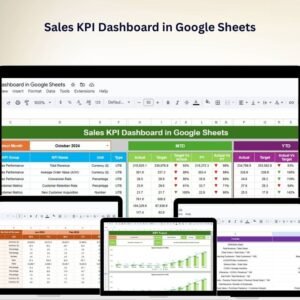
- Sales KPI Dashboard in Google Sheets: a sales-focused KPI view
- Monthly Sales Tracker and Report in Google Sheets: track sales month by month
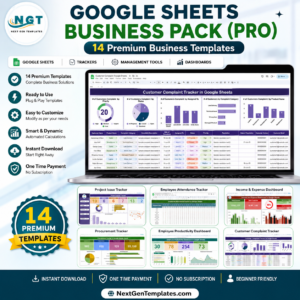
- Google Sheets Business Pack (Pro): 14 business templates in one download
Browse all Google Sheets KPI dashboards and Google Sheets sales and marketing templates.


Reviews
There are no reviews yet.