


Tired of forgetting deadlines, follow-ups, or important emails? Say goodbye to missed opportunities with the Email Reminder Scheduler in Excel—your smart, Excel-based automation tool that schedules and sends emails directly from Outlook. 🧠📨
Whether you’re a freelancer, HR manager, project lead, or small business owner, this tool helps you automate email reminders, streamline task management, and keep communication flowing—all from one convenient Excel file. Best of all? It requires zero third-party apps and works seamlessly with your existing Microsoft Outlook.
🔧 Key Features of Email Reminder Scheduler
📋 Single-Sheet Simplicity

All scheduling happens on one sheet—no switching tabs or tools. Everything you need is in one place.
✍️ Easy-to-Fill Fields
Input details like:
Recipient Name
Email Address
Subject
Body Text
Reminder Date
Reminder Time
Status (✔ Sent / ✘ Pending)
🖱️ One-Click Buttons
Use:
Schedule Reminder to set a future reminder
💼 Outlook Integration
The template uses Excel VBA to work with Microsoft Outlook:
No external software needed
Fully offline-capable (when Outlook is open)
Secure and private – your data stays local
✅ Real-Time Status Updates
Once an email is sent, the status automatically updates to ✔ Sent. No manual tracking needed.
📂 What’s Inside the Scheduler Template?
✅ Excel file with built-in macro functionality
✅ “Email Reminders” sheet for all data entry
✅ VBA-backed buttons for automation
✅ Custom time-based reminder logic
✅ Fields that are editable and extendable
✅ Status updates tied directly to your Outlook activity
Everything works out-of-the-box with Microsoft Excel and Outlook on Windows.
🛠️ How to Use the Email Reminder Scheduler
📁 Step 1: Open the Template
Launch the Excel file and enable macros.
📝 Step 2: Enter Reminder Details
Fill out each row with recipient email, subject, message, and scheduled date/time.
⏰ Step 3: Schedule and Send
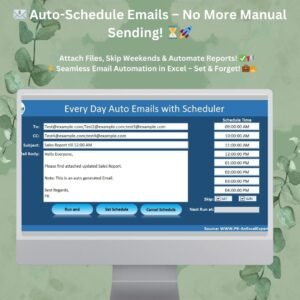
Use “Run and Schedule” to monitor future emails and “Send Now” to fire off immediate reminders.
📬 Step 4: Keep Outlook Running
Ensure Outlook is open so that the automation can trigger at the right time.
📊 Step 5: Monitor Status
Once sent, the Status column will change from ✘ to ✔ so you know it was delivered.
👥 Who Can Benefit from This Tool?
This template is ideal for:
🧑💼 HR Teams – Interview & onboarding follow-ups
📦 Project Managers – Milestone reminders
📊 Finance Teams – Payment or invoice alerts
📞 Sales Executives – Lead and client follow-ups
📆 Event Planners – RSVP and coordination reminders
🧑🎓 Educators/Coordinators – Assignment or session alerts
Anyone who manages schedules or communications will find this tool indispensable.
✅ Click here to read the Detailed blog post
🔗 Visit our YouTube channel to learn step-by-step video tutorials
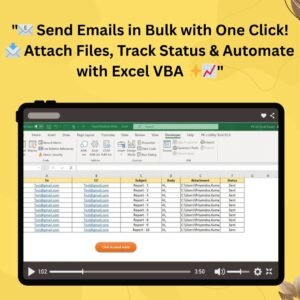
Watch the step-by-step video tutorial:
Compatibility and Requirements
- Needs Microsoft Excel desktop on Windows with macros enabled, plus Microsoft Outlook installed and open, because the VBA code sends mail through Outlook.
- It does not run in Excel for the web, Google Sheets or the Excel mobile apps.
- Microsoft explains how to turn on macros in Enable or disable macros in Microsoft 365 files.
Frequently Asked Questions
Does Outlook need to be open?
Yes. Keep Outlook running so the scheduler can send each reminder at the set date and time.
What details do I enter for each reminder?
Recipient name, email address, subject, body text, reminder date and reminder time.
How do I know a reminder was sent?
The Status column changes from pending to sent automatically once the email goes out.
Can I send a reminder right away?
Yes. Use Send Now for an immediate email, or Run and Schedule to send at the planned time.
Where is my data stored?
In the Excel file on your own computer. The tool sends through your Outlook and needs no third-party apps.
Related Email Automation Tools
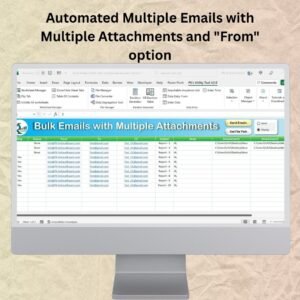
- Automated Multiple Emails with Multiple Attachments and From Option: send many emails with attachments from Excel
- Hourly Auto Email with Scheduler: send emails on an hourly schedule
- Automated Bulk Emails Form in Excel VBA: send bulk emails from a form
- Outlook Calendar Events Automation in Excel VBA: create Outlook calendar events from Excel
Browse all Excel VBA tools or the Excel utility and converter tools.



Reviews
There are no reviews yet.