



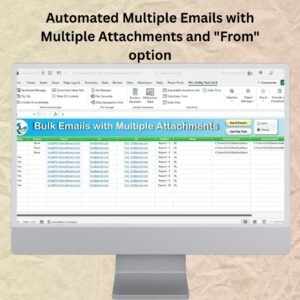
The Automated Multiple Emails with Multiple Attachments and “From” Option is an advanced Excel VBA email tool that sends bulk emails with attachments and customizable “From” addresses, all from inside Excel. It is built for marketers, business owners and teams who regularly send reports, invoices or newsletters. Instead of sending each email by hand, you can send personalized messages to many recipients in one automated process.

Key Features of This Excel VBA Email Tool
- Bulk email sending: Send personalized emails to multiple recipients with just a few clicks.
- Multiple email attachments: Attach several files to each email, whether they are reports, images or documents.
- Customizable “From” option: Choose the “From” email address for each email, giving you flexibility and control over your outgoing communication.
- Personalized emails: Customize the email body and add personalized fields such as the recipient name and subject line.
- Schedule email sending: Automate your email campaigns by scheduling emails to be sent at specific times or intervals.
- Real-time progress tracking: Monitor the email sending progress so no email is missed.
- User-friendly interface: A simple Excel-based interface lets anyone send emails with attachments without technical knowledge.
Why You Will Love It
- Automates bulk emailing: Send emails with multiple attachments and from different email addresses in one automated process.
- Saves time: Automate repetitive emailing tasks and save hours of manual work.
- Fully customizable emails: Personalize the email body, attachments and sender address to suit your needs.
- Flexible sender options: Easily switch between different email addresses for your outgoing emails.
- Easy to use: Set up and send emails even if you have no technical background.
What’s Inside the Tool
| Component | What It Does |
|---|---|
| Bulk Email Sender | Sends bulk emails to multiple recipients from your Excel list. |
| Multiple Attachments | Attaches several files to each email without hassle. |
| Flexible Sender Options | Lets you choose the email address you want to send from for each email. |
| Scheduling Feature | Sets specific times to send emails or automates the process with preset schedules. |
| Real-Time Tracking | Shows the progress of email sending so you can confirm all emails go out. |
The download is an Excel file with VBA code for bulk emailing. Because it runs on macros, you need to enable macros after downloading and unzipping the file (see the instructions below).
Who Is It For?
This tool suits anyone who needs to send bulk emails with attachments on a regular basis, including:
- Marketers sending newsletters and campaign emails
- Business owners sending invoices and reports
- Sales teams
- Event coordinators
- Customer service teams
- HR departments
- Freelancers and consultants
How to Use It
- Download the template: Get the Excel file with VBA code for bulk emailing, unzip it and enable macros.
- Enter the recipient list: Add recipient names and email addresses to the list in Excel.
- Customize the email content: Personalize the email body and subject line, and attach your files.
- Select the “From” email address: Choose the email address you want to send each email from.
- Send emails: Hit send and let the tool deliver personalized emails with multiple attachments, tracking progress in real time.
After downloading and unzipping this file, ensure that macros are enabled before use. Refer to our tutorial below for step-by-step instructions on enabling macros in Excel:
https://www.pk-anexcelexpert.com/4-easy-ways-to-enable-macros-in-excel-vba/
Read the Detailed Blog Post
Click here to read the detailed blog post on Multiple Emails with Multiple Attachments.
Watch the Step-by-Step Video Tutorial: Multiple Emails with Multiple Attachments
Visit our YouTube channel to learn from step-by-step video tutorials: Youtube.com/@PKAnExcelExpert
Frequently Asked Questions
What does this Excel VBA email tool do?
It automates sending bulk emails from Excel. You can send personalized emails to multiple recipients, attach multiple files to each email and choose the “From” address for each message.
Can I attach more than one file to each email?
Yes. Multiple email attachments are a core feature, so you can attach several reports, images or documents to each email.
Can I send emails from different addresses?
Yes. The customizable “From” option lets you choose the sender email address for each email and switch between addresses easily.
Can I schedule emails?
Yes. You can schedule email sending at specific times or intervals and track the sending progress in real time.
Do I need to enable macros?
Yes. The tool is built with VBA, so after downloading and unzipping the file you must enable macros in Excel. The tutorial link above explains how.
Do I need technical skills to use it?
No. The user-friendly Excel-based interface is designed so anyone can send emails with attachments without technical knowledge.
Save time, increase efficiency and streamline your communication with this automated email tool that simplifies sending bulk emails with attachments and different sender addresses.
Also check our Asset Transfer Management System V1.0
Last updated: October 2026
Compatibility and Requirements
- Needs Microsoft Excel desktop on Windows with macros enabled, because the email tool runs on VBA.
- Unzip the download and enable macros before the first run.
- It does not run in Excel for the web, Google Sheets or the Excel mobile apps.
- Microsoft explains how to turn on macros in Enable or disable macros in Microsoft 365 files.
Related Email Automation Tools
- Email Reminder Scheduler in Excel: schedule reminder emails from Excel
- Hourly Auto Email with Scheduler: send emails on an hourly schedule
- Automated Bulk Emails Form in Excel VBA: send bulk emails from a form
- Bulk Auto Emailer with Picture Signature and HTML Body: add a picture signature and HTML body
- Send Bulk Emails Using VBA and Outlook: a simpler bulk email sender
Browse all Excel VBA tools or the Excel utility and converter tools.





Reviews
There are no reviews yet.