

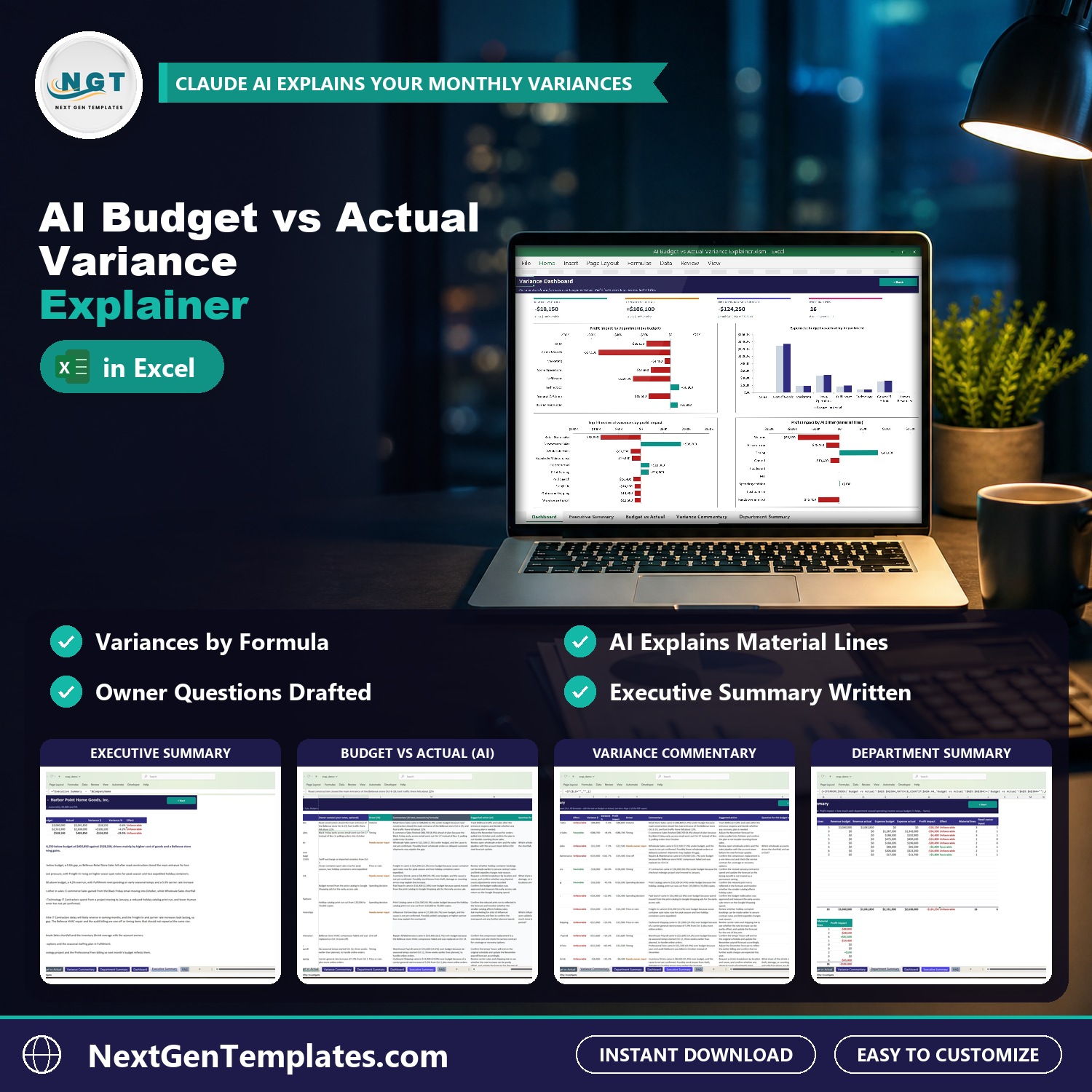
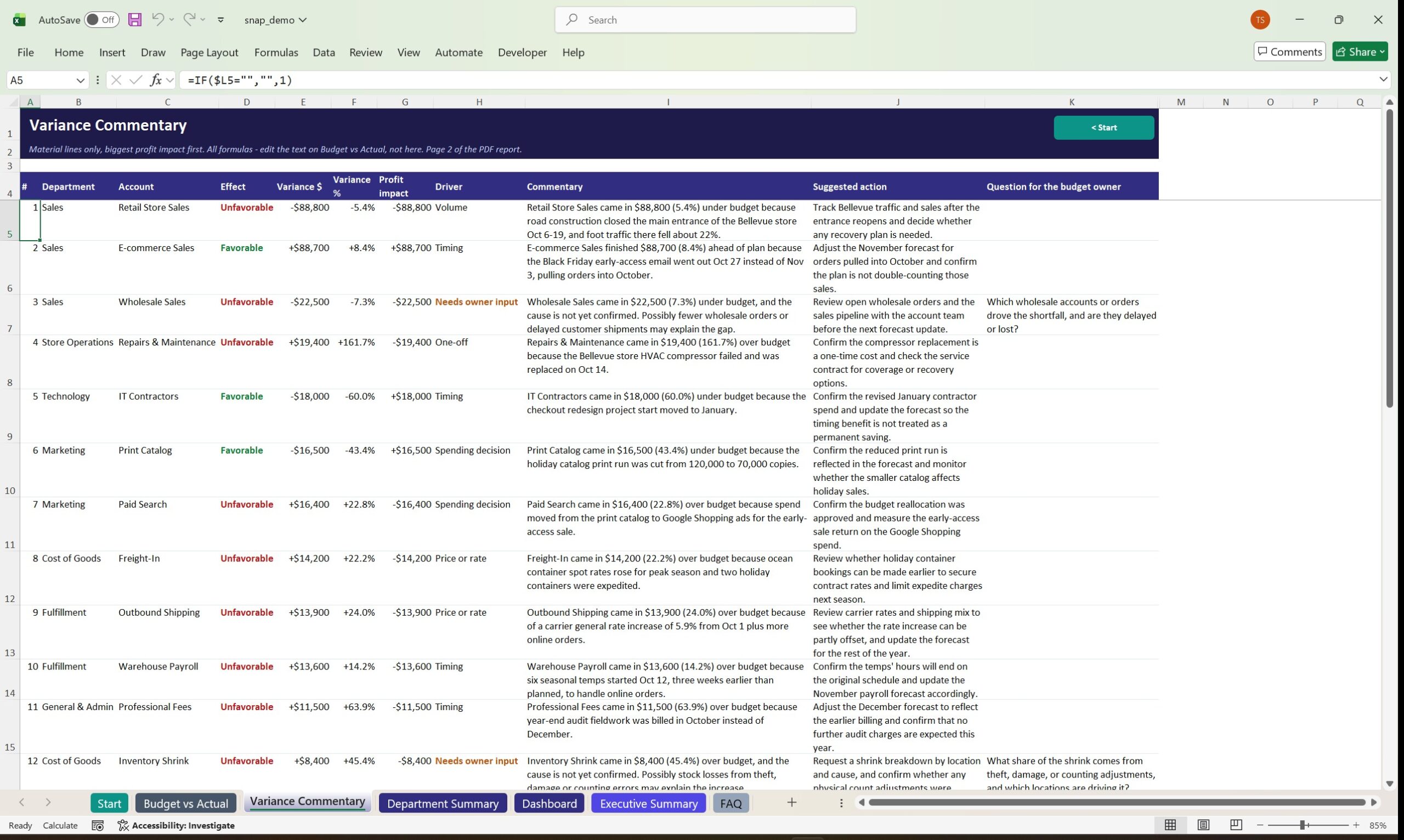
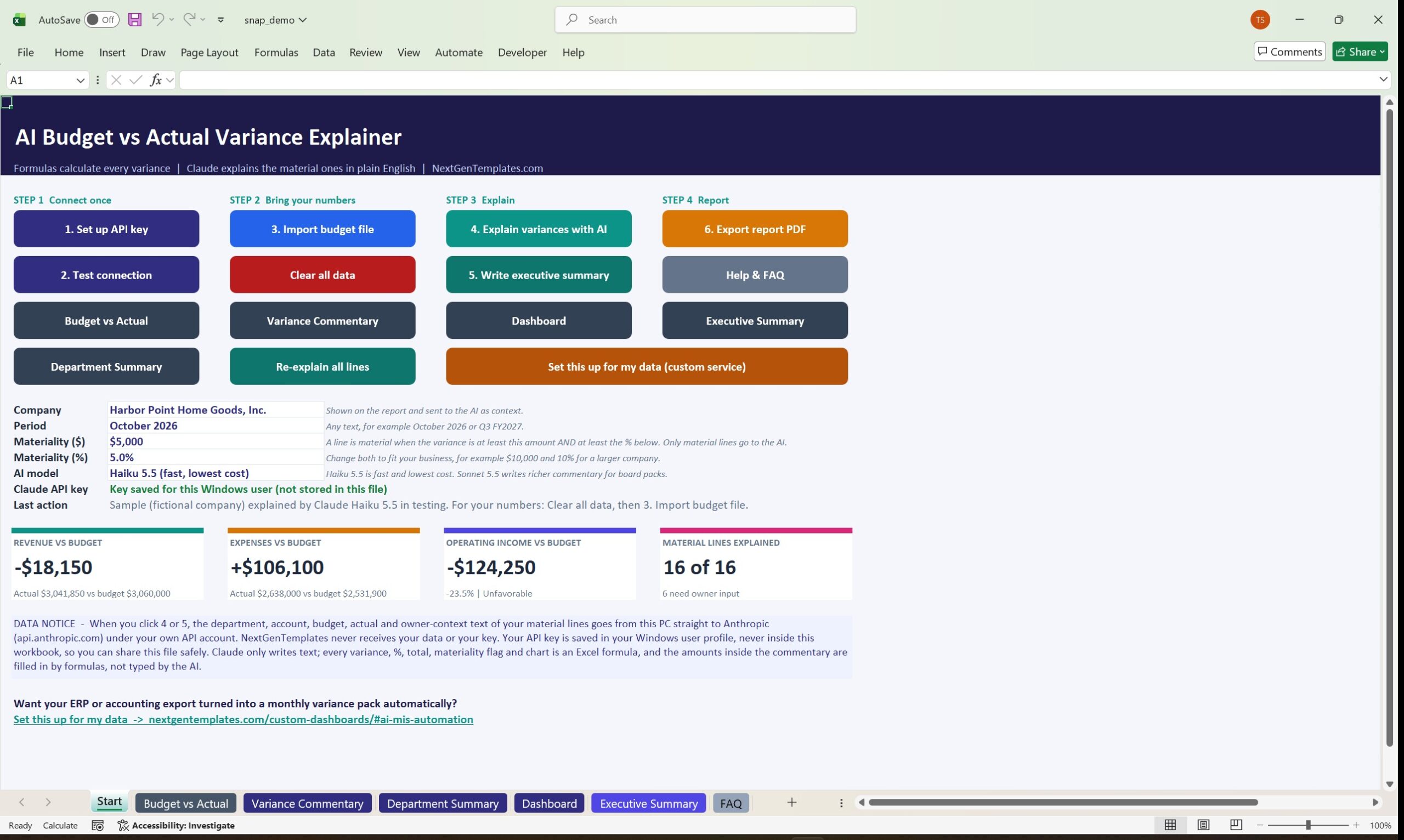
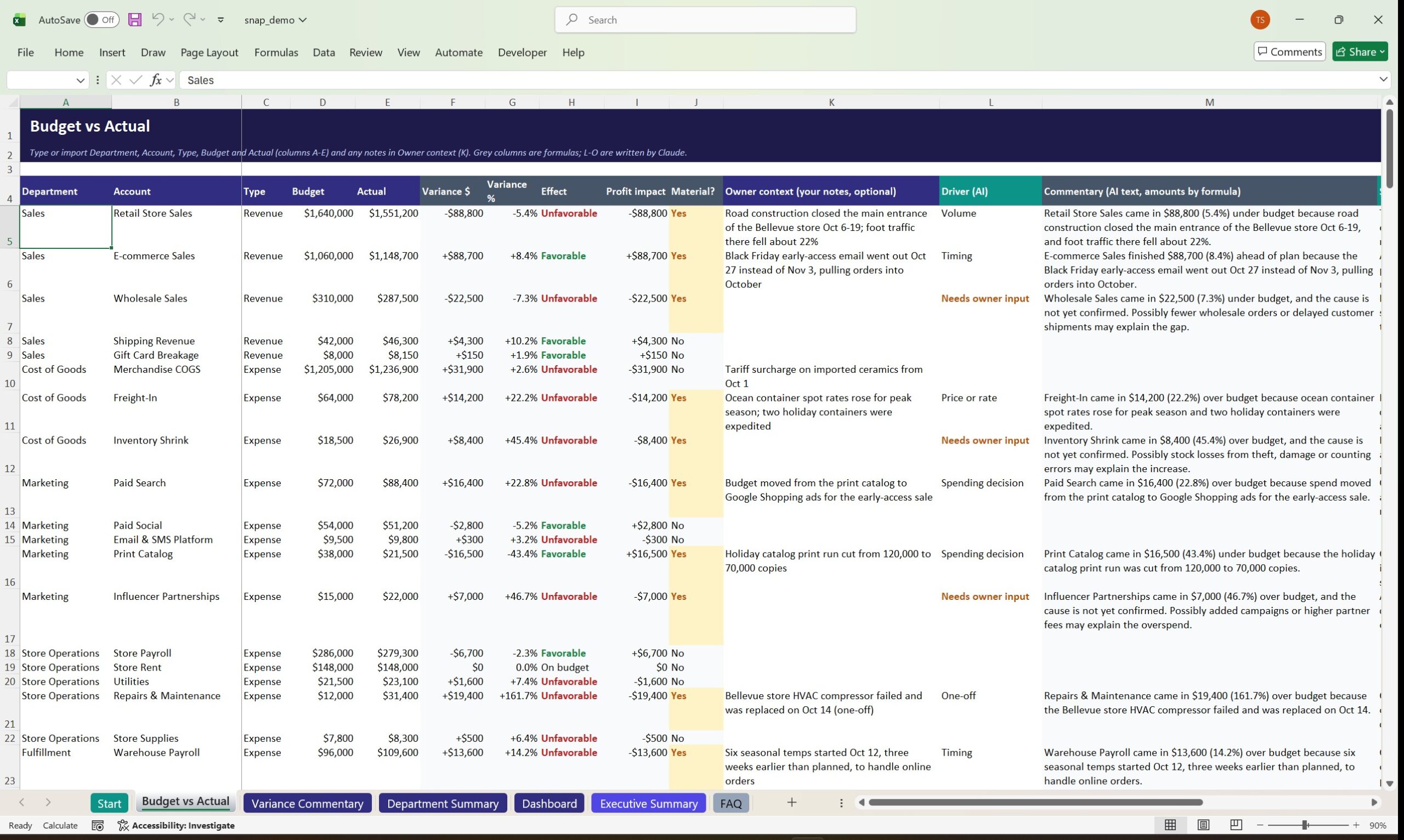
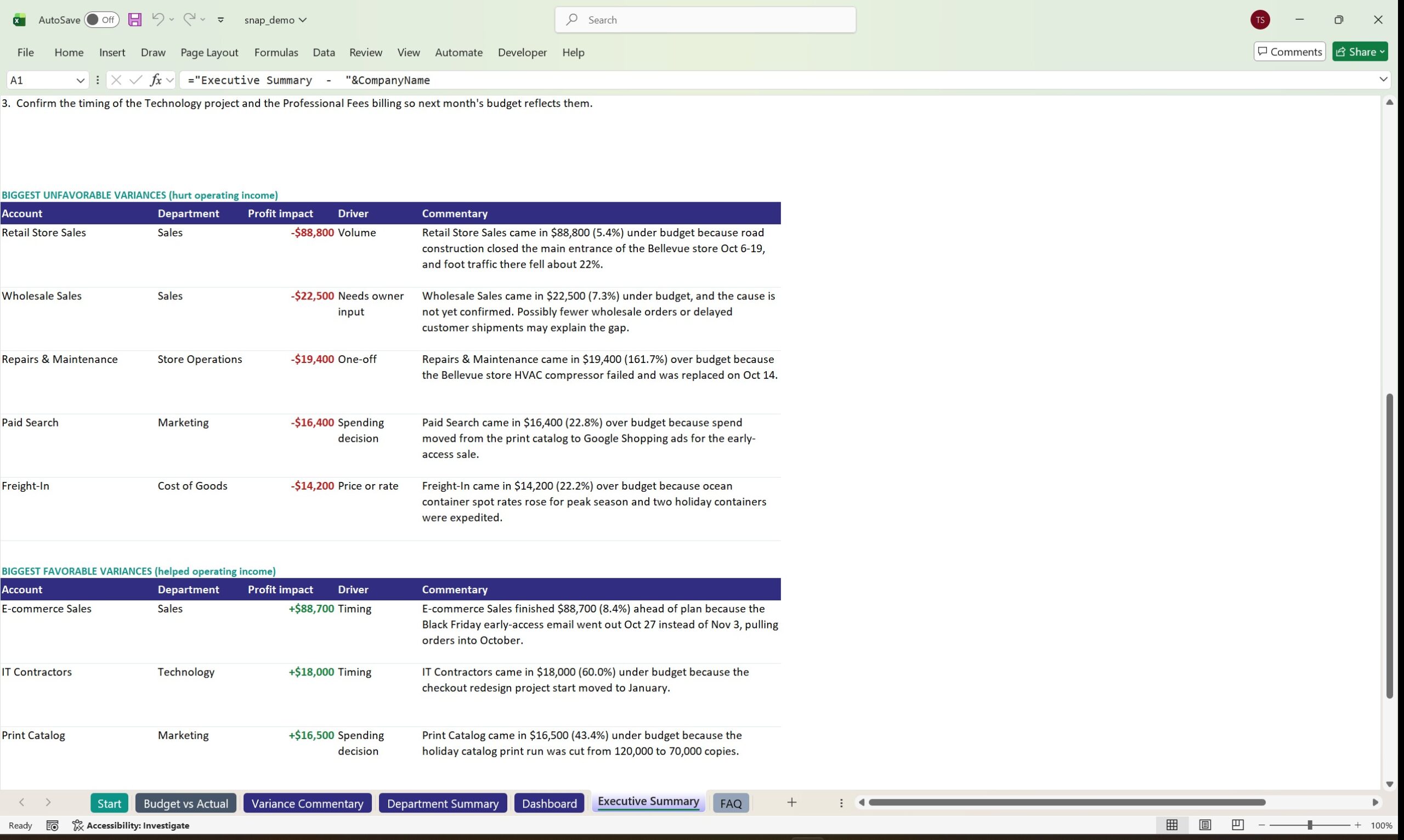
Every month end someone in finance has to explain why the actuals missed the budget, line by line, and write it up for management. The AI Budget vs Actual Variance Explainer does the variance analysis in Excel with normal formulas, then Claude AI writes the variance commentary in plain English. In the sample file it explains 16 material lines of a 33-line October budget vs actual in about 20 seconds.
Watch the AI Budget vs Actual Variance Explainer walkthrough
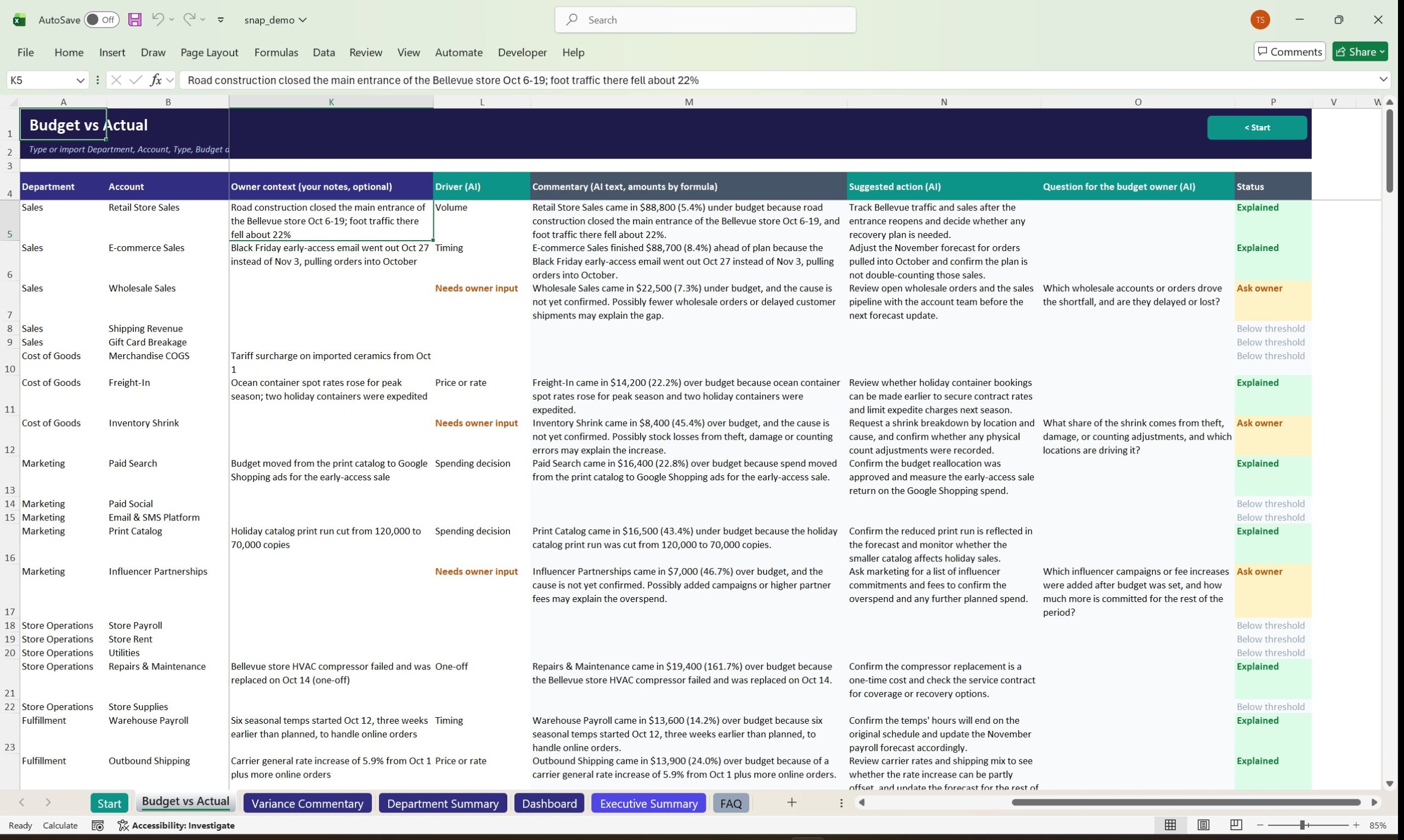
The AI never types a number. It writes placeholders for the variance and the percent, and Excel formulas fill in the real amounts from the same row, so the text always matches your sheet. When a line has no note from the budget owner, Claude does not invent a reason. It marks the line Needs owner input and writes a question for the owner. It is a fast way to produce budget vs actual variance analysis for a monthly management pack without writing every comment by hand.
What You Get
- A macro-enabled Excel workbook (.xlsm for Windows Excel 2016 or later and Microsoft 365) with numbered buttons. It opens with a sample budget vs actual for a fictional retailer (October 2026) already explained.
- Sample data for the same fictional company as .xlsx and .csv, so you can try the import before you use your own numbers.
- A Sample Variance Report (PDF) that shows the finished two-page report.
- A one-page Claude API Key Guide (PDF), a step-by-step User Manual (PDF with screenshots) and a README.
Key Features
- Import a budget file (Account, Budget and Actual columns, plus Department, Type and Notes when you have them) or paste up to 300 lines into the Budget vs Actual sheet.
- Formula-driven variance analysis in Excel: variance in dollars and percent, favorable or unfavorable effect, profit impact and a Material flag. The default rule is a variance of at least $5,000 and at least 5% of budget, and you can change both numbers on the Start sheet.
- Owner context column: budget owners write what they already know, and Claude uses it as the cause instead of guessing.
- Explain variances with AI: only the material lines go to Claude. For each one you get a driver (Volume, Price or rate, Timing, One-off, Headcount, Mix, Spending decision, Cost overrun or Needs owner input), the variance commentary, a suggested action and a status.
- Re-explain all lines after the owners answer the questions, so the commentary improves as you learn the cause.
- Variance Commentary sheet with the material lines sorted by profit impact. It becomes page two of the report.
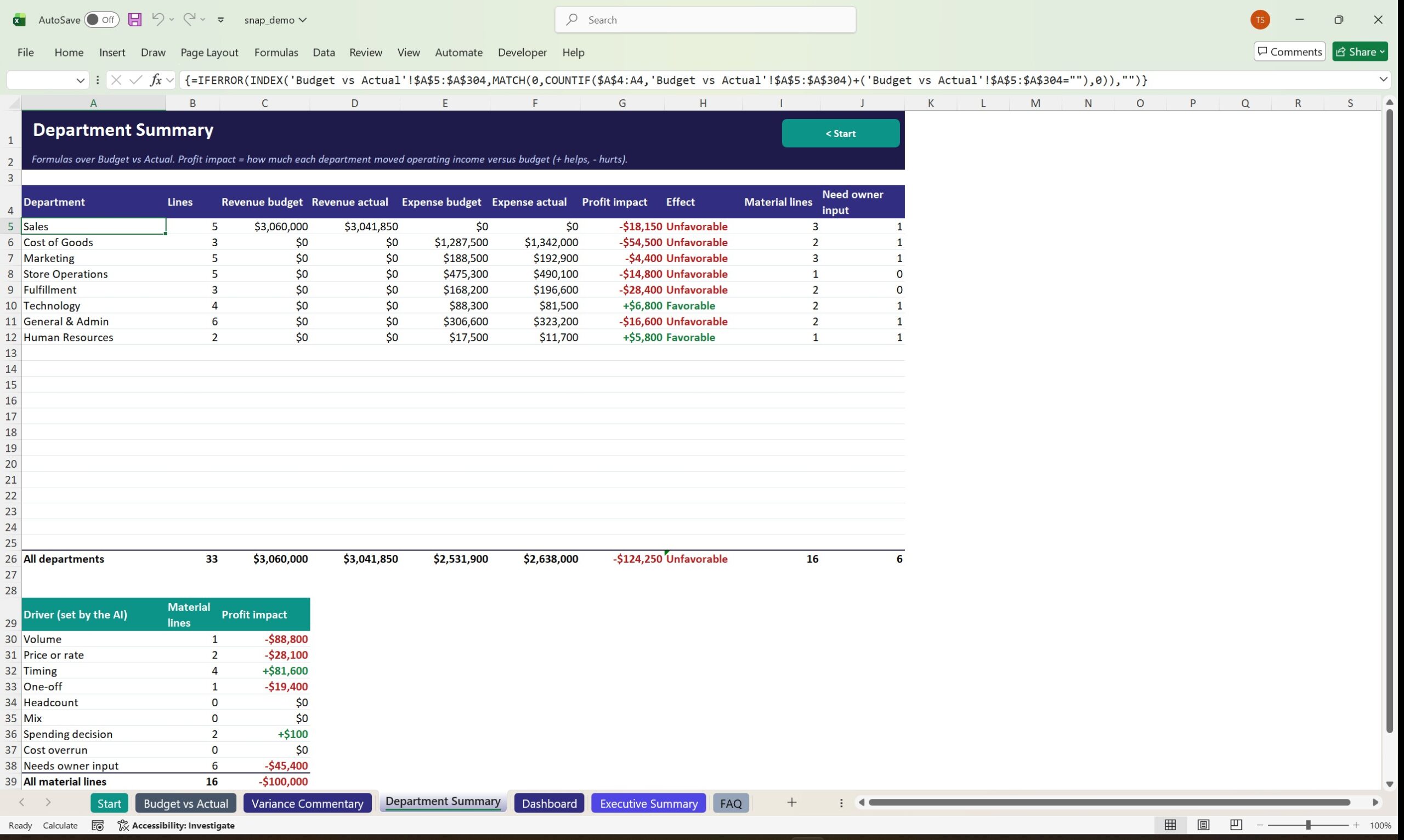
- Department Summary that rolls revenue, expenses and profit impact up by department and splits the profit impact by AI driver.
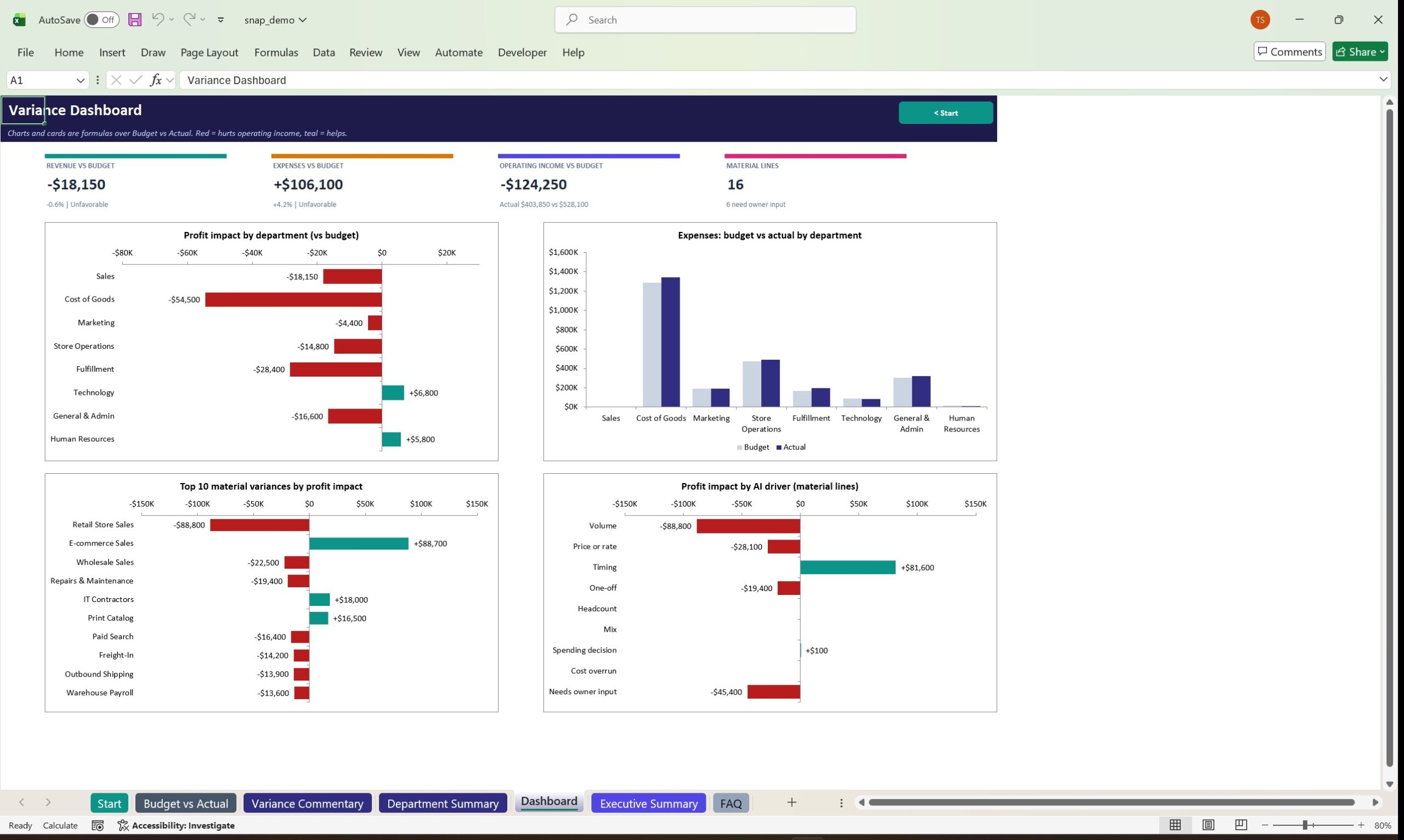
- Dashboard with four charts: profit impact by department, expenses budget vs actual, the top 10 material variances and profit impact by driver.
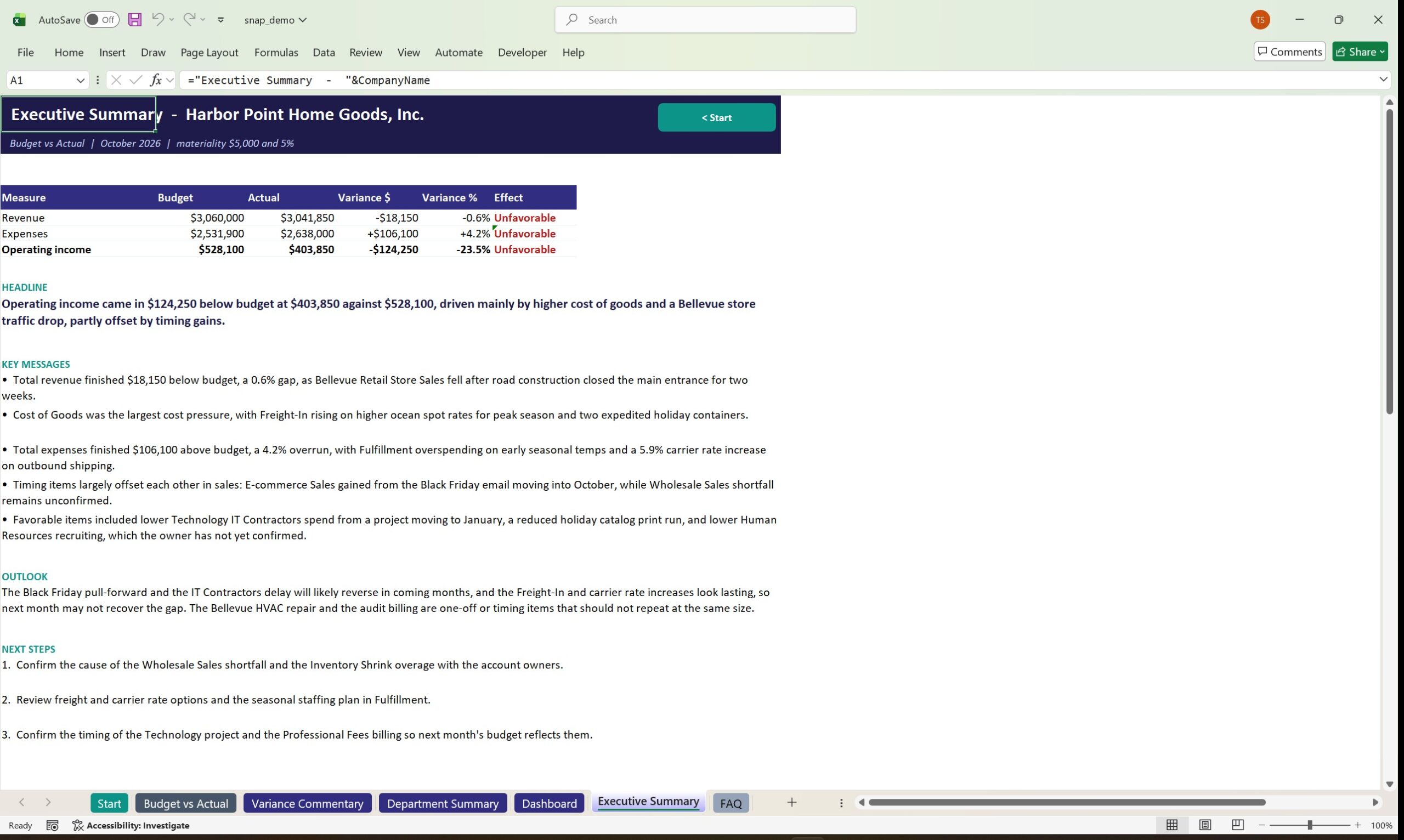
- Executive Summary: one click writes the headline, key messages, outlook and three next steps from the commentary and the totals. The totals table and the biggest favorable and unfavorable variances come from formulas.
- Export report PDF with the executive summary on page one and the variance commentary on page two, ready for the management pack.
- Choose Claude Haiku 5.5 (fast and lowest cost, the default) or Claude Sonnet 5.5.
- Help and FAQ sheet inside the workbook.
How the AI Budget vs Actual Variance Explainer Works
- Get your own Claude API key from Anthropic (about 2 minutes, the guide shows every click). Click Set up API key, then Test connection.
- Click Clear all data, then Import budget file, or paste your lines into Budget vs Actual from row 5.
- Set the materiality rule on the Start sheet and add what you know in the Owner context column.
- Click Explain variances with AI. The 16 material lines in the sample take roughly 20 seconds with Haiku 5.5.
- Click Write executive summary, review the Dashboard, then click Export report PDF.
Your Data and Your Key
You use your own Claude API key, the same way every Claude AI Excel workflow does. When you click Explain variances with AI, only the material lines (department, account, type, budget, actual, variance and your owner note) and the totals go from your computer straight to Anthropic (api.anthropic.com) under your own account. NextGenTemplates never receives your data or your key. The key is kept in your Windows user profile, never inside the workbook, so the file can be shared safely. The download does not contain anyone’s key.
What It Costs to Run
You pay Anthropic for what you use. The default Haiku 5.5 model is the lowest cost option and a small credit balance goes a long way. Sonnet 5.5 costs more per run. Prices can change, so check Anthropic’s current pricing.
Who Is It For?
- FP&A analysts and finance managers who write the monthly variance commentary.
- Controllers and accountants who prepare the management reporting pack.
- Department heads and budget owners who are asked to explain their numbers.
- Small business owners who want a clear budget vs actual explanation without a finance team.
What It Does Not Do
- It does not connect to your ERP or accounting system. You import or paste a budget vs actual export.
- It needs an internet connection and your own Claude API key for the AI parts. The formulas, dashboard and charts work offline.
- It does not know why a variance happened. Without an owner note the commentary says the cause is not confirmed and asks a question.
- It needs Microsoft Excel for Windows with macros enabled. It does not run on Mac, in Excel for the web or in Google Sheets.
Comparison
| Feature | Writing commentary by hand | AI Budget vs Actual Variance Explainer |
|---|---|---|
| Commentary for every material line | Hours each month | Yes, one click |
| Numbers in the text match the sheet | Typed by hand, easy to misquote | Yes, filled in by formulas |
| Unknown causes | Often guessed | Marked Needs owner input with a question |
| Executive summary and PDF report | Written and formatted manually | Yes, two clicks |
| Variances, totals and charts | Only if you build them | Yes, formulas, never AI numbers |
| Connects to your ERP | No | No |
Frequently Asked Questions
Do I need a Claude API key?
Yes, for the AI commentary and the executive summary. The tool uses your own key so your figures go straight to Anthropic under your own account. The Claude API Key Guide in the download shows how to get one in about 2 minutes.
Does NextGenTemplates see my budget data?
No. The material lines you explain go from your computer to api.anthropic.com. Nothing is sent to NextGenTemplates.
Does the AI calculate the variances?
No. Every variance, percent, total, materiality flag and chart is an Excel formula. Claude only writes text, and the amounts inside that text are filled in by formulas.
What counts as a material variance?
By default a line is material when the variance is at least $5,000 and at least 5% of its budget. You can change both numbers on the Start sheet.
How many lines can I load?
Up to 300 budget vs actual lines. You can import an Excel or CSV file or paste the lines into the sheet.
What if the AI does not know the reason?
It does not invent one. The driver becomes Needs owner input and Claude writes a question for the budget owner. Type the answer in Owner context and click Re-explain all lines.
Does it work on Mac or in Google Sheets?
No. It needs Excel for Windows with macros enabled.
Can you set this up for my own data?
Yes. Use the Set this up for my data button on the Start sheet or see our custom MIS automation service.
Get the AI Budget vs Actual Variance Explainer
Download the AI Budget vs Actual Variance Explainer, add your Claude API key, run the sample month, then explain your own budget vs actual. Questions? Write to [email protected].






















Reviews
There are no reviews yet.