
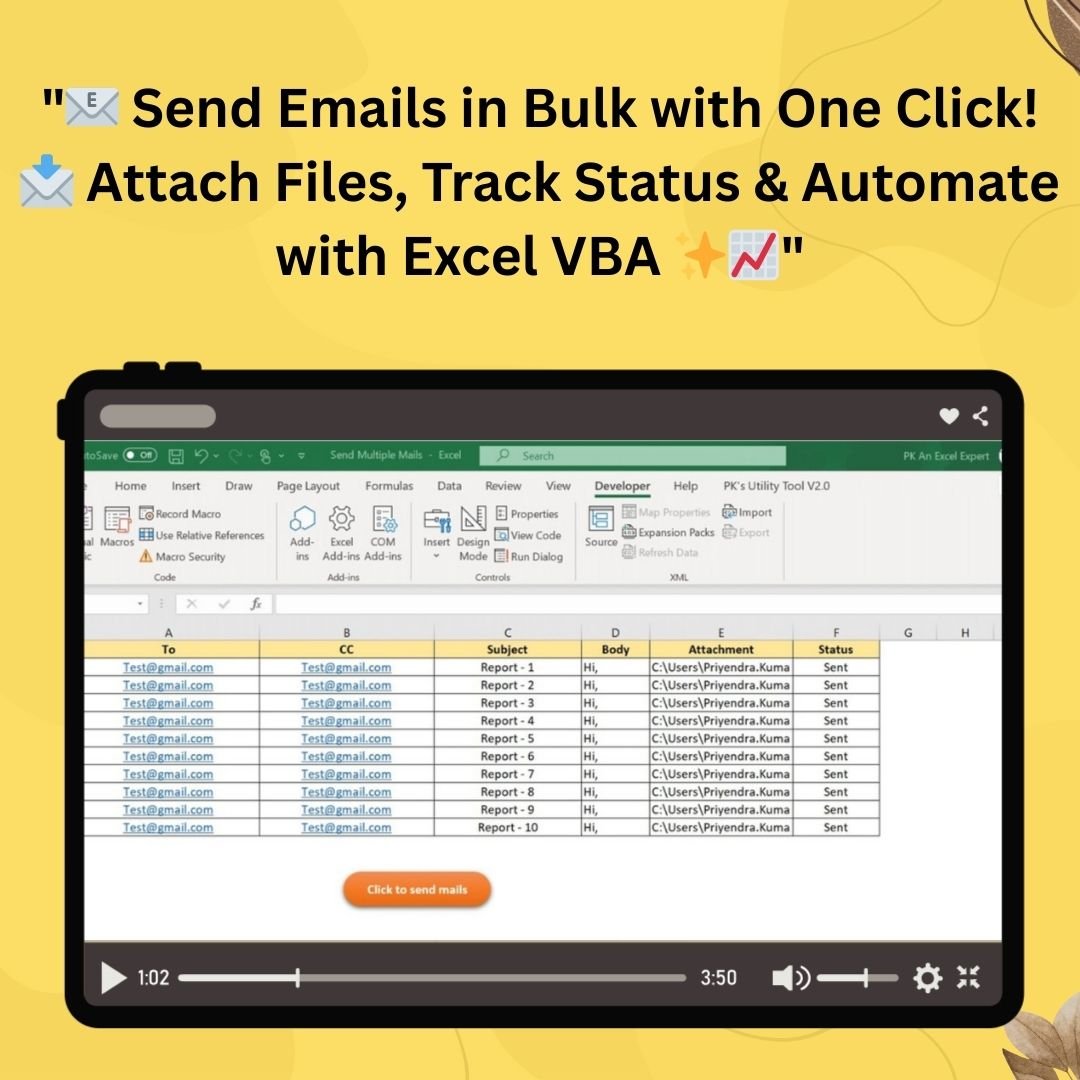
The Send bulk emails using VBA and Outlook tool lets you send personalized bulk emails directly from Excel through Microsoft Outlook. It is built for businesses, marketers, customer support teams and individuals who need to send many emails quickly while keeping each message personal. Fill in your recipient list, click one button, and the macro sends every email and marks it as “Sent” in your sheet.

Key Features
- One-click email sending: Sending a bulk email campaign is as simple as pressing the “Send Mails” button. The tool uses Visual Basic for Applications (VBA) to send emails automatically through Outlook, making the process faster and reducing human errors.
- Personalized emails: Customize each email with its own recipient, subject, body text and attachments, all driven by the data in your Excel rows.
- Customizable fields: Specify the recipient’s email address (To), CC recipients, subject, message body and attachment file paths. Everything is edited directly in Excel.
- Automated status tracking: After each email is sent, the tool automatically updates the Excel sheet to mark it as “Sent”, giving you a visual confirmation and a clear record of your campaign progress.
- Attachment support: Add the file path of a report, image or other document in the sheet and the correct file is attached to each email automatically, so you never have to attach email attachments by hand.
- Seamless Outlook integration: Emails are sent directly from Excel through Microsoft Outlook.
- Bulk sending: Ideal for marketing campaigns, reports and notifications.
- Time-saving: Avoid manual email creation by automating the whole process.
- Easy to use: A familiar, user-friendly Excel interface with built-in VBA functionality.
What’s Inside the Tool
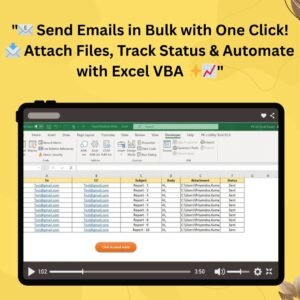
The tool is a macro-enabled Excel file with a VBA script already integrated. It includes an email data sheet where each row represents one email, and a “Send Mails” button that triggers the macro.
| Column / Element | Purpose |
|---|---|
| To | Recipient’s email address |
| CC | CC recipients for the email |
| Subject | Subject line for each individual email |
| Message body | Personalized body text for each recipient |
| Attachment file path | Path of the file to attach to that email |
| Status | Tracks whether each email is Sent / Not Sent |
| “Send Mails” button | Runs the VBA macro that connects to Outlook and sends the emails |
Benefits of VBA Email Automation
- Efficiency: The one-click solution removes the need to create emails manually, saving you hours of work.
- Scalability: Whether you are sending 10 emails or 1,000, the tool automates repetitive tasks without additional effort.
- Accuracy: Emails are addressed correctly and contain personalized details, so they feel genuine and professional.
- Flexibility: Attach different files to each email based on the recipient’s needs, such as invoices, reports or marketing material.
- User-friendly interface: Excel is familiar to most users, so there is no complicated new software to learn.
Who It’s For
- Marketing teams: Send personalized marketing messages or newsletters to a large number of clients or subscribers.
- Business communication: Keep clients or employees informed by sending important documents or updates quickly.
- Customer support teams: Send support tickets, troubleshooting documents or other customer communication in bulk.
- Sales and reporting: Send reports, proposals or quotes to multiple prospects and clients without losing track of who received them.
How to Use It
- Download and enable macros: After downloading and unzipping the file, make sure macros are enabled before use. Follow our tutorial for step-by-step instructions on enabling macros in Excel: https://www.pk-anexcelexpert.com/4-easy-ways-to-enable-macros-in-excel-vba/
- Prepare your data: Enter each recipient’s email address (To), CC recipients, subject, message body and attachment file paths in the sheet. Use the status column to track Sent / Not Sent.
- Click “Send Mails”: The macro connects to Microsoft Outlook and sends the emails one by one, each customized with the data from its row, including the subject line, body and attachments.
- Track sent emails: After each email is sent successfully, the sheet is updated to show its status as “Sent”, so you can follow progress in real time.
Click here to read the detailed blog post Send bulk emails using VBA and Outlook
Watch the step-by-step video tutorial: Send bulk emails using VBA and Outlook
Visit our YouTube channel to learn from step-by-step video tutorials: Youtube.com/@PKAnExcelExpert
Frequently Asked Questions
Can I send emails from Excel without copying and pasting into Outlook?
Yes. The tool lets you send emails from Excel directly. Click the “Send Mails” button and the VBA macro sends every email through Microsoft Outlook using the data in your sheet.
Do I need Microsoft Outlook?
Yes. The tool is built around Outlook integration: the macro connects to Microsoft Outlook to send each email.
Can each recipient get a different attachment?
Yes. Add a file path in the attachment column for each row, and the matching file is attached to that specific email automatically.
How do I know which emails have been sent?
The tool includes automated status tracking. After each email is sent successfully, its row is marked as “Sent” in the Excel sheet.
Can I personalize the subject and body for each email?
Yes. The subject line, message body, CC recipients and attachments are all taken from each row, so every email can be different.
Why is the tool not working after download?
The tool uses VBA, so macros must be enabled. After unzipping the file, enable macros using the tutorial link in the How to Use section above.
Also check our Incentive Dashboard in Excel
Last updated: October 2026
Compatibility and Requirements
- Built for Microsoft Excel desktop on Windows with macros enabled.
- Microsoft Outlook must be installed and set up, because the macro sends each email through Outlook.
- The tool runs on VBA, so Excel for the web, Google Sheets and mobile Excel are not supported.
- Need help turning macros on? See Microsoft’s guide: Enable or disable macros in Microsoft 365 files.
Related Email Automation Tools
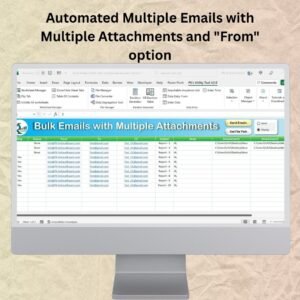
- Automated Multiple Emails with Multiple Attachments and From option: several attachments and a From address per email
- Bulk Auto Emailer with Picture Signature and HTML body: HTML emails with a picture signature
- Automated Bulk Emails Form in Excel VBA: send bulk emails from a form
- Email Reminder Scheduler in Excel: schedule reminder emails
- Outlook Calendar Events Automation in Excel VBA: create Outlook calendar events from Excel
Browse all Excel VBA tools or the template bundles.





Reviews
There are no reviews yet.