


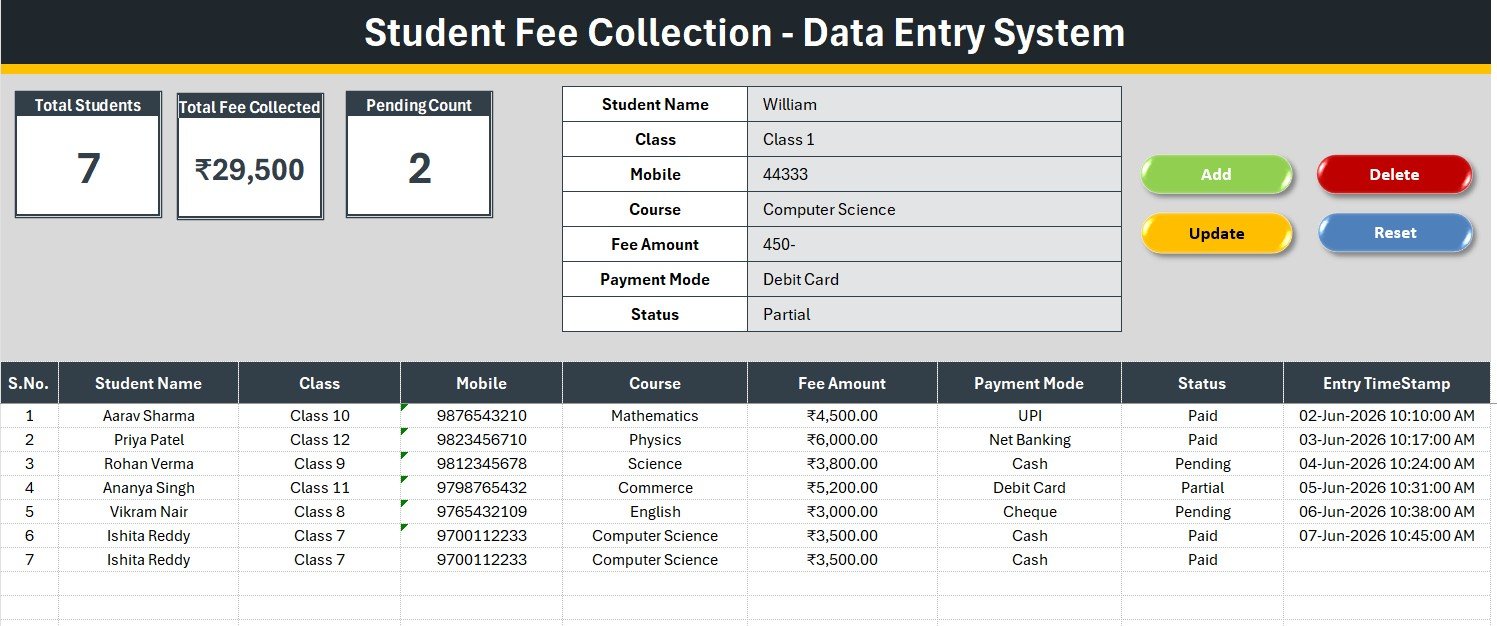
The Student Fee Collection System in Excel records 7 data points per student — Student Name, Class, Mobile, Course, Fee Amount, Payment Mode, and Status — through a single VBA-powered form, and updates 3 live KPI cards (Total Students, Total Fee Collected, Pending Count) on every entry. Setup takes under 5 minutes: enable macros, clear the 6 sample rows, and start adding students.
🌍 Join 10,000+ customers in 180+ countries using NextGenTemplates to replace paid SaaS tools with one-time-purchase Excel, Google Sheets, Power BI, and HTML templates.
✅ Instant download · One-time payment · No subscription · No per-student fees · Lifetime access
🔑 Key Features of the Student Fee Collection System in Excel
🟢 Single-screen fee entry form. The Student Fee Collection System in Excel puts all 7 fields on one form with bold labels and tinted input cells. You type once and the VBA writes a clean, numbered row to the records table — no scrolling across columns.
📊 3 live KPI cards. Total Students counts every record, Total Fee Collected sums the Fee Amount column, and Pending Count uses COUNTIF on the Status field. All three recalculate the moment you add, update, or delete a student.
🎛️ Dropdown-driven accuracy. Class, Course, and Payment Mode read from named lists on the Setting sheet, so data stays consistent and filter-ready. Edit the lists once and every future entry follows them.
🔘 Four VBA buttons. Add, Update, Delete, and Reset are wired to macros (Add_Record, Update_Record, Delete_Record, Reset_Form). Double-click any row to load it back into the form for editing.
🕒 Auto S.No and Entry TimeStamp. Every saved student gets an automatic serial number and a date-time stamp, giving you an audit trail of when each fee was recorded.
🟠 Pending-fee visibility. The Status field (Paid / Pending / Partial) drives the Pending Count card so you always know how many students still owe — the single most useful number for a fee desk.
📦 What’s Inside the Student Fee Collection System in Excel
The workbook ships with four sheets. Below is what each one does.
Data Entry Sheet — Form, KPIs & Records Table
The main working screen: a dark slate heading bar, three KPI cards (Total Students, Total Fee Collected, Pending Count), the 7-field entry form, the Add / Delete / Update / Reset buttons, and the live records table with auto S.No and timestamp. This is where 95% of your work happens.
Setting Sheet — Dropdown Lists & Linked Stat Cards
Holds the editable source lists for Class, Course, and Payment Mode plus a duplicated copy of the KPI cards you can paste as a linked picture. Change a dropdown here and every entry on the Data Entry sheet updates instantly.

Instructions Sheet — One-Time Setup Guide
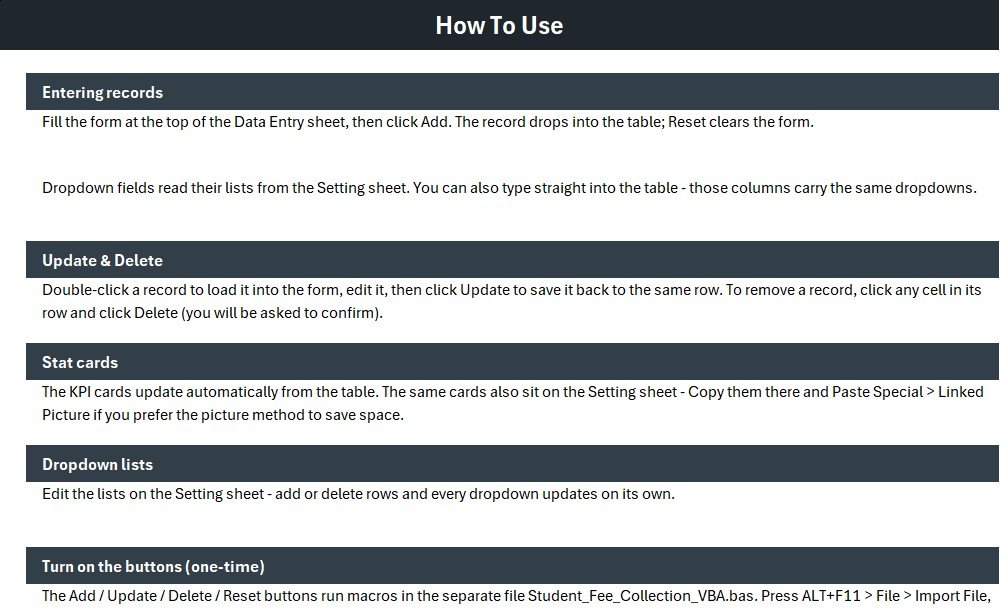
Step-by-step activation notes: import the VBA module, attach the four buttons to their macros, and save as a macro-enabled workbook. Keeps non-technical staff confident from day one.
📊 Student Fee Collection System vs. Google Sheets vs. Paid School Fee SaaS — Where This Fits
| Feature | Student Fee Collection System (Excel) | Google Sheets Equivalent | School Fee SaaS (Fedena / MyClassCampus) |
|---|---|---|---|
| Cost | $5.99 one-time | Free – $12/mo add-ons | $1–$3 / student / year |
| Platform | Microsoft Excel (offline) | Browser + Google account | Cloud only |
| Setup time | Under 5 minutes ✅ | 10–15 minutes | Days (onboarding) |
| Works fully offline | Yes ✅ | No | No |
| One-click Add / Update / Delete (VBA) | Yes ✅ | Needs Apps Script | Yes |
| Customizable fields & dropdowns | Fully editable ✅ | Editable | Limited to vendor schema |
| You own the data file | Yes ✅ | On Google servers | On vendor servers |
| Year-1 cost at 300 students | $5.99 ✅ | ~$144 | $300–$900 |
For tutors, coaching centres, and small schools that want fast fee recording and pending-fee visibility without paying per-student SaaS fees, the Student Fee Collection System in Excel sits in the sweet spot.
👥 Who This Template Is For — and Who It’s Not For
✅ This template is built for:
- Private tutors, coaching classes, and music/skill academies collecting monthly or course fees
- Small and mid-size schools (up to a few thousand students) that want offline fee records
- Admin staff who prefer a simple Excel form over learning a full school ERP
❌ This template is NOT for:
- Schools needing online parent logins, SMS receipts, or payment-gateway integration
- Multi-branch institutions requiring real-time cloud sync across campuses
- Teams that cannot enable Excel macros due to strict IT policy
⚙️ How to Use the Student Fee Collection System in Excel
- Unzip the download and open the workbook in Microsoft Excel; enable macros when prompted.
- Open the Setting sheet and edit the Class, Course, and Payment Mode lists to match your institution.
- On the Data Entry sheet, fill the form and click Add to save a student fee record.
- Double-click any row to load it, edit the form, and click Update; use Delete to remove a row.
- Watch the Total Students, Total Fee Collected, and Pending Count cards update automatically.
💼 Real-World Use Cases
Anil runs a coaching centre with 220 students. He uses the Student Fee Collection System in Excel to log every monthly payment by Class and Course, then checks the Pending Count card each Friday to call families who still owe — without paying for a per-student fee app.
Meera manages the front desk of a music academy. She records cash, UPI, and card payments through the dropdown form, and the Total Fee Collected card gives her an instant month-to-date total for the owner’s review.
A small CBSE school clerk keeps an offline backup of fee records in this workbook, exporting the records table to share with the accountant at month-end.
❓ Frequently Asked Questions
What does the Student Fee Collection System in Excel track?
The Student Fee Collection System in Excel tracks 7 fields per student — Student Name, Class, Mobile, Course, Fee Amount, Payment Mode, and Status — and rolls them up into Total Students, Total Fee Collected, and Pending Count KPI cards that update automatically.
How does it track pending fees?
Each record has a Status field set to Paid, Pending, or Partial. The Pending Count card uses COUNTIF on that field, so the number of students who still owe is always visible at the top of the Data Entry sheet.
Do I need to enable macros?
Yes. The Add, Update, Delete, and Reset buttons in the Student Fee Collection System in Excel are powered by VBA, so you must enable macros and save the file as a macro-enabled (.xlsm) workbook for full functionality.
Can I change the Class, Course, or Payment Mode options?
Absolutely. All dropdown values live on the Setting sheet. Edit them once and every future entry on the Student Fee Collection System in Excel uses your updated lists.
How does this compare to paid school fee software?
Paid school ERP and fee SaaS typically charge $1–$3 per student per year. The Student Fee Collection System in Excel is a one-time $5.99 purchase, works offline, and lets you keep full ownership of your data file.
How long does setup take?
Under 5 minutes — enable macros, edit the dropdown lists on the Setting sheet, clear the sample rows, and start adding students.
👤 About the Author
Built by PK — Microsoft Certified Professional with 15+ years of Excel, Google Sheets, and Power BI experience. Founder of NextGenTemplates, reaching 300K+ subscribers across YouTube channels (@PK-AnExcelExpert, @NextGenTemplates, @NeoTechNavigators). Every template is hand-built and tested before release.
🔗 Explore Related Templates
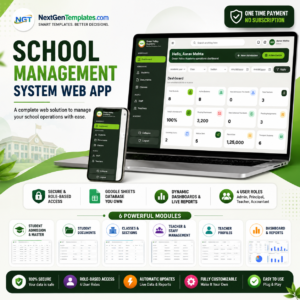
Scaling beyond a simple fee register? The School Management System Web App adds multi-user logins, dashboards, and reports. For data-entry workflows in other domains, the Appliance Service Data Entry System in Excel follows the same fast form-and-KPI layout. Education teams also use the Tutoring Business Dashboard in Google Sheets and the Music School Dashboard in Google Sheets. Browse more in Education Templates and Excel VBA Tools.
📖 Click here to read the Detailed Blog Post
🎥 Visit our YouTube channel for step-by-step video tutorials
👉 YouTube.com/@NextGenTemplates
Watch the step-by-step video tutorial:
Compatibility and Requirements
- Needs Microsoft Excel desktop on Windows with macros enabled, saved as a macro-enabled (.xlsm) workbook.
- The VBA buttons do not run in Excel for the web, Google Sheets or the Excel mobile apps.
- Microsoft explains how to turn macros on in Enable or disable macros in Microsoft 365 files.





















Reviews
There are no reviews yet.