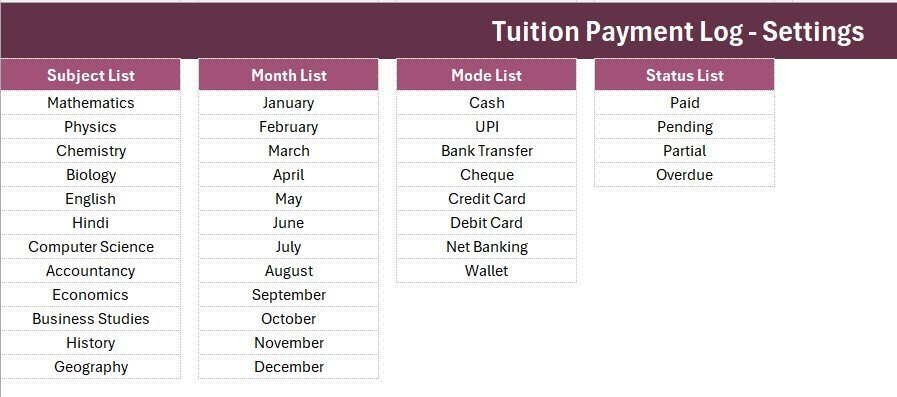
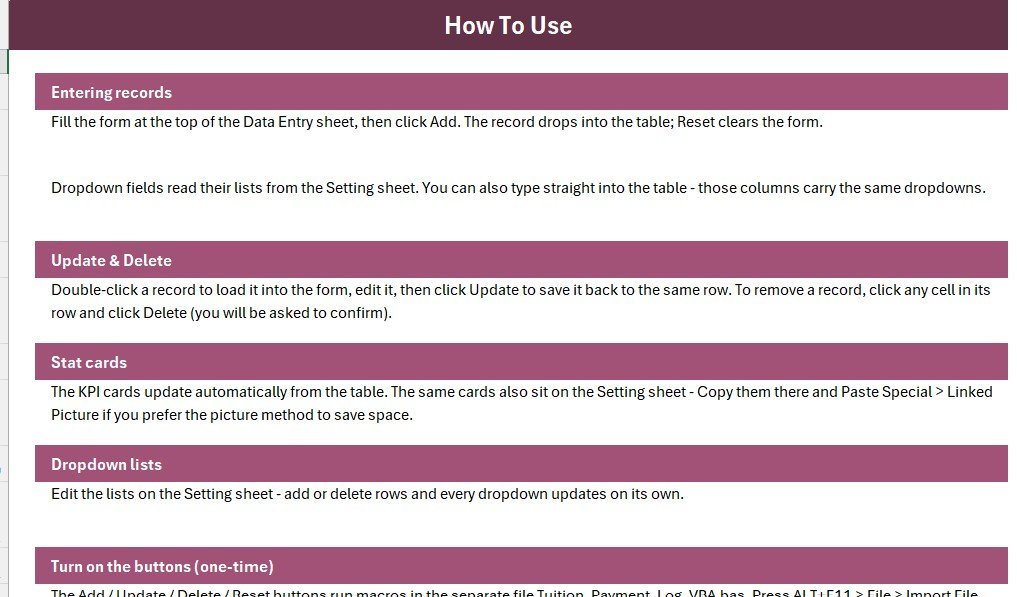
The Tuition Payment Log Data Entry System in Excel records 6 fields per payment through one VBA form and updates 3 live KPI cards — Total Collected, Pending Payments, and Active Students — the instant you save a record. Setup takes under 5 minutes, the file runs fully offline, and it is a one-time $5.99 instead of $10–50 per month for tuition-management software.
🌍 Join 8,400+ teams in 40+ countries using NextGenTemplates to replace paid SaaS tools with one-time-purchase Excel, Google Sheets, Power BI, and HTML templates.
✅ Instant download · One-time payment · No subscription · No per-student fees · Lifetime access
🔑 Key Features of the Tuition Payment Log Data Entry System in Excel
Every feature exists to make tuition fee logging faster and reporting automatic for coaching centres, home tutors, and small academies.
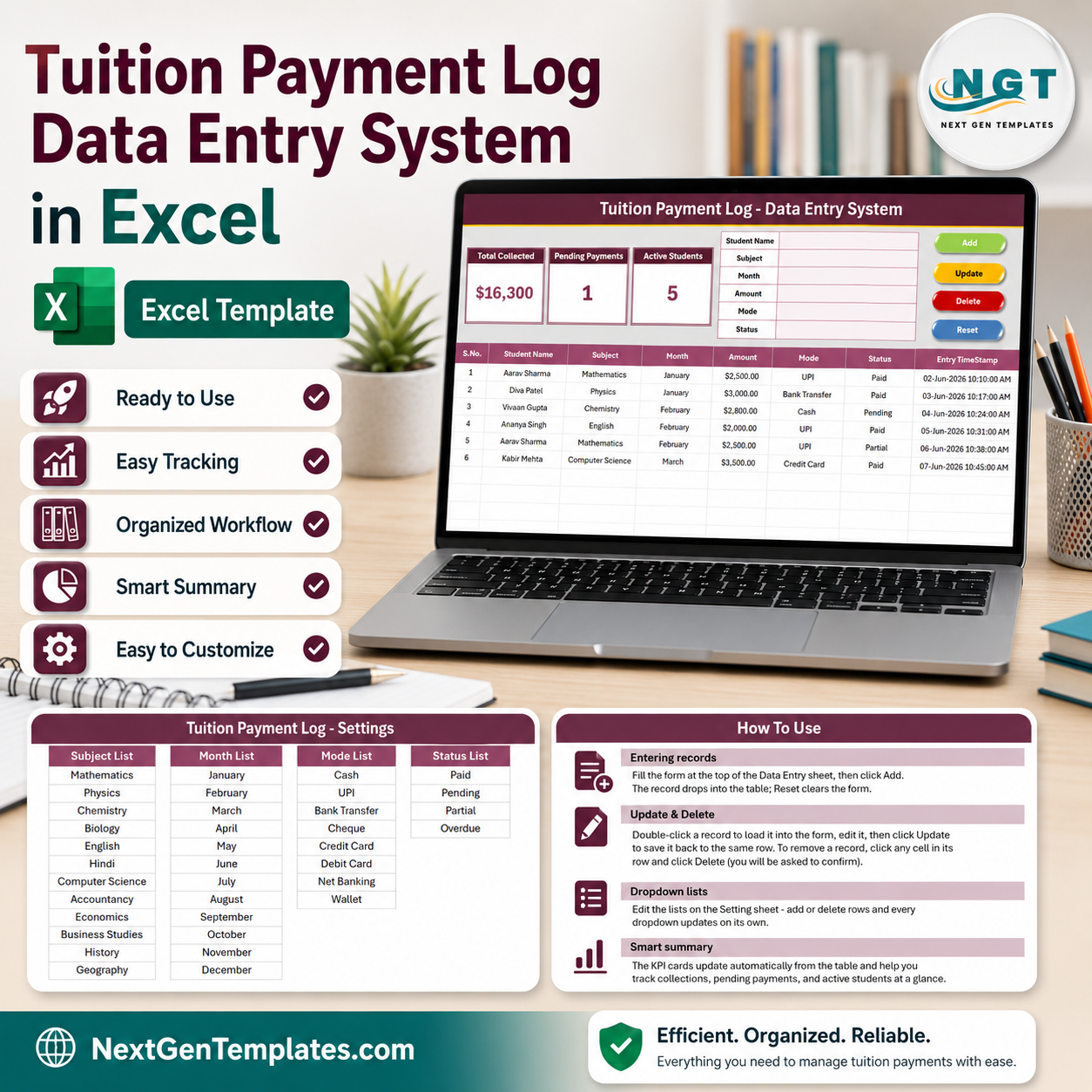
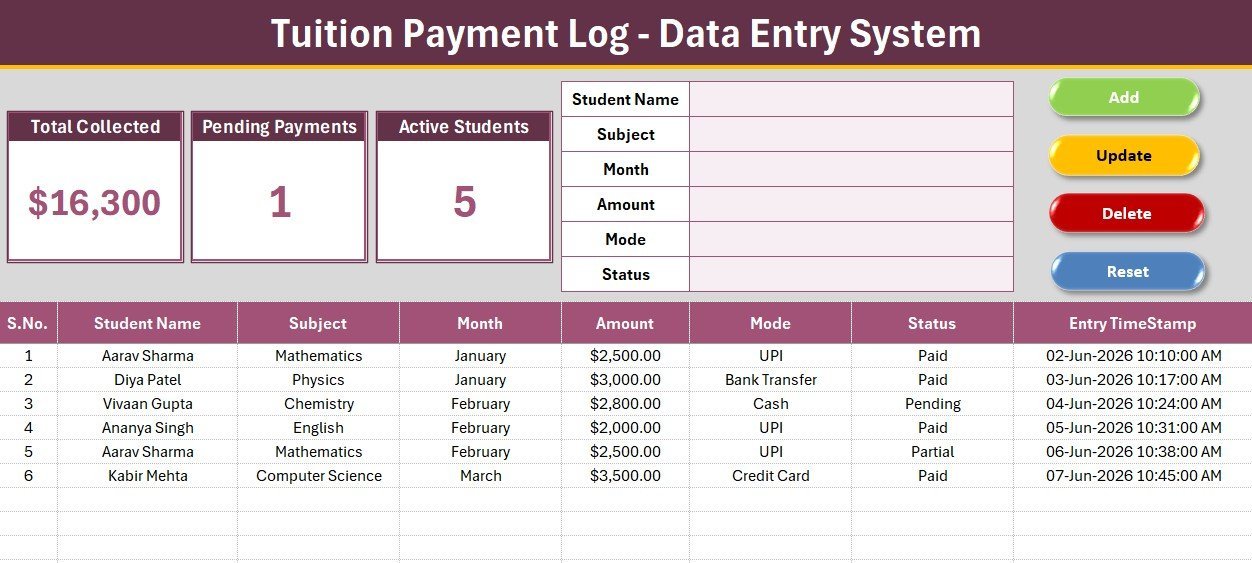
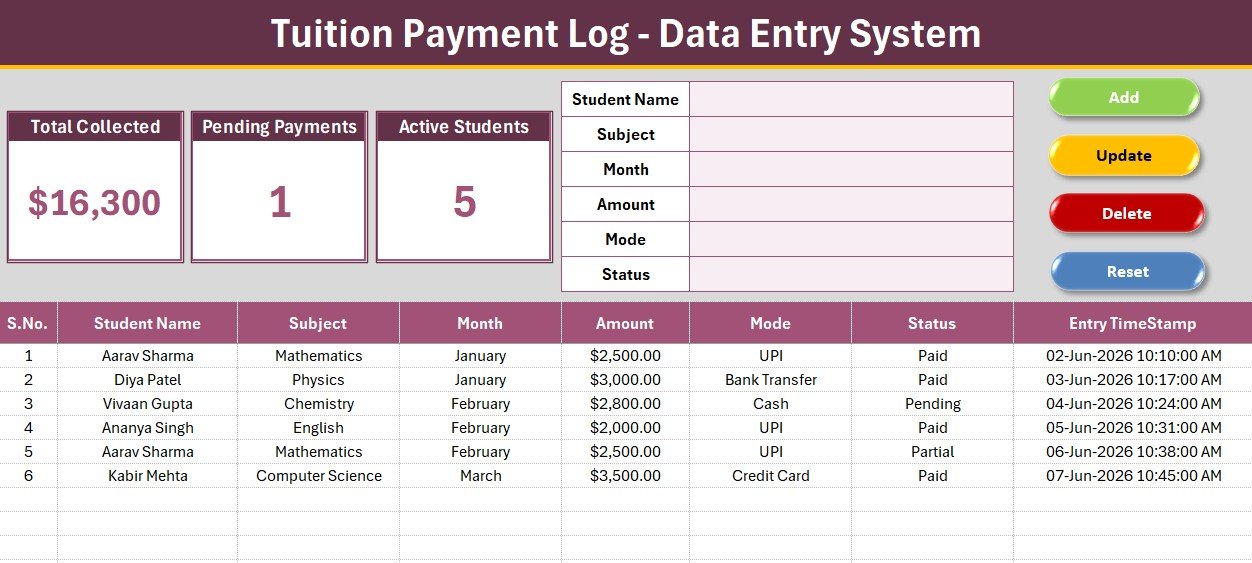
- 💳 6-field payment form – Student Name, Subject, Month, Amount, Mode, and Status sit at the top of the Data Entry sheet, so a tutor can record a payment in seconds without scrolling.
- 📊 3 live KPI cards – Total Collected sums the Amount column, Pending Payments counts rows marked Pending, and Active Students returns the count of unique student names. All three recalculate on every Add, Update, or Delete.
- 🧮 True unique-student count – Active Students uses a distinct-count formula on the Student Name column, so a student who pays across several months is counted once, not once per payment.
- 🖱️ 4 one-click VBA buttons – Add appends a timestamped payment, Update overwrites the selected row, Delete removes a record after a confirmation prompt, and Reset clears the form.
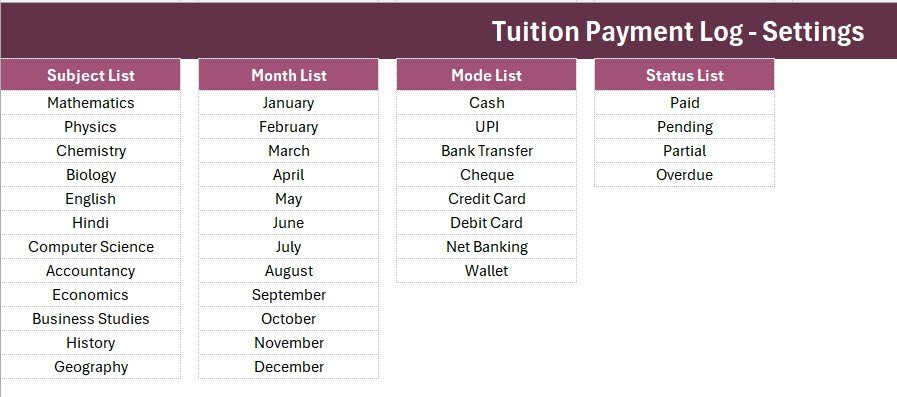
- 🔽 Editable dropdowns – 12 subjects, 12 months, 8 payment modes (Cash, UPI, Bank Transfer, Cheque, Credit Card, Debit Card, Net Banking, Wallet), and 4 statuses (Paid, Pending, Partial, Overdue) are wired as named ranges on the Setting sheet.
- 🔢 Auto S.No and Entry TimeStamp – every saved payment gets a serial number and a date-time stamp for a clean audit trail.
📦 What’s Inside the Tuition Payment Log Data Entry System in Excel
Data Entry Dashboard in Excel
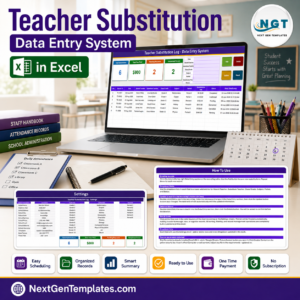
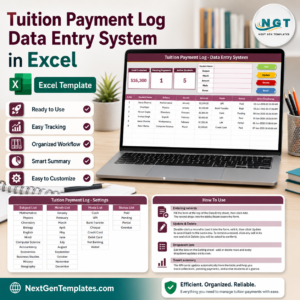
The main sheet holds the dark heading bar, the three KPI cards (Total Collected, Pending Payments, Active Students), the 6-field payment form, the Add/Update/Delete/Reset buttons, and a records table with auto S.No, Student Name, Subject, Month, Amount, Mode, Status, and Entry TimeStamp.
Setting Sheet – Dropdowns and KPI Source
This sheet stores the Subject, Month, Mode, and Status lists that feed every dropdown, plus a duplicate of the Total Collected, Pending Payments, and Active Students cards you can copy and Paste Special as a linked picture into a management report.
Records Table, Instructions, and Get More Templates
Every saved payment lands in a clean hair-grid table, while the Instructions sheet explains the one-time macro setup and the Get More Templates sheet links to related Education templates.
📊 Tuition Payment Log vs. Google Sheets vs. Paid Tuition Software — Where This Fits
| Feature | Tuition Payment Log (Excel) | Google Sheets version | TeachWorks / Teachmint / MyMusicStaff |
|---|---|---|---|
| Cost | $5.99 one-time | Free – manual build | $10–50 / month |
| Platform | Microsoft Excel (offline) | Google Sheets (online) | Cloud SaaS |
| Setup time | Under 5 minutes | 15–30 minutes | Days + onboarding |
| One-click Add / Update / Delete | Built-in VBA buttons | Needs Apps Script | Yes |
| Works fully offline | Yes | No | No |
| Per-student / per-tutor fees | None | None | Often charged |
| Own your data file | Yes (.xlsm) | Google account | Vendor-hosted |
| Live Collected / Pending counts | Auto KPI cards | Needs formulas | Yes |
| Year-1 cost at 100 students | $5.99 | $0 | $120–600 |
For tutors and coaching centres that want to log tuition payments and watch Collected and Pending figures without paying a monthly per-tutor fee, the Tuition Payment Log Data Entry System in Excel sits in the sweet spot.
👥 Who This Template Is For — and Who It’s Not For
✅ This template is built for:
- Private and home tutors collecting monthly subject-wise tuition fees
- Coaching institutes and small academies that want fast offline payment logging with live Collected and Pending figures
- Front-desk staff who prefer a simple Excel form over a heavy school ERP
❌ This template is NOT for:
- Institutes needing online parent logins, automated SMS receipts, or a payment gateway
- Multi-branch chains needing real-time cloud sync across locations
- Mac users who cannot enable Excel VBA macros
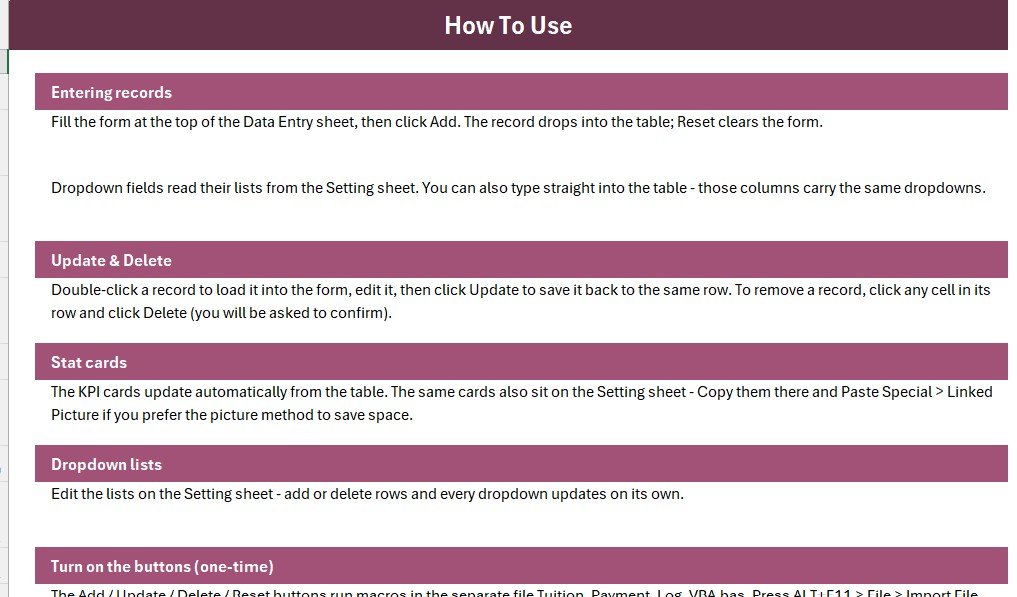
⚙️ How to Use the Tuition Payment Log Data Entry System in Excel
- Open the .xlsm file in Microsoft Excel and enable macros when prompted — the buttons need them.
- On the Setting sheet, edit the Subject, Month, Mode, and Status lists to match your tuition setup.
- Fill the form on the Data Entry sheet and click Add to save a timestamped payment.
- Double-click any payment to load it into the form, edit it, then click Update to write it back.
- Use Delete to remove a payment (with confirmation) and Reset to clear the form.
💼 Real-World Use Cases
Anil runs a coaching centre with 120 students. He logs every monthly fee by Subject and Month through the form, picks the Mode and Status from the dropdowns, and reads the Total Collected card to give the owner an instant month-to-date figure — without paying a per-tutor SaaS fee.
Meera teaches music from home. She records cash, UPI, and card payments, checks the Pending Payments card each week to follow up on unpaid months, and trusts the Active Students card to show exactly how many distinct learners are on her books.
❓ Frequently Asked Questions
What does the Tuition Payment Log Data Entry System in Excel track?
The Tuition Payment Log Data Entry System in Excel tracks 6 fields per payment — Student Name, Subject, Month, Amount, Mode, and Status — and rolls them into Total Collected, Pending Payments, and Active Students KPI cards that update automatically.
How does it calculate Active Students?
The Active Students card uses a distinct-count formula on the Student Name column, so a learner who pays across several months is counted once. It reflects how many unique students are in your log, not the number of payment rows.
Do I need to enable macros?
Yes. The Add, Update, Delete, and Reset buttons run on a small VBA module, so enable macros when Excel prompts you and save the file as a macro-enabled (.xlsm) workbook. Without macros you can still type into the table.
Can I change the Subject, Month, or Payment Mode lists?
Absolutely. All dropdown values live on the Setting sheet as named ranges. Edit a list once and every future entry in the Tuition Payment Log follows it, keeping your data clean and filter-ready.
How does this compare to paid tuition software?
Paid tuition tools like TeachWorks or Teachmint often charge $10–50 each month. The Tuition Payment Log Data Entry System in Excel is a one-time $5.99 file you own and run offline — ideal for a single tutor or centre that mainly needs payment logging and pending-fee visibility.
How long does setup take?
Under 5 minutes. Open the file, enable macros, edit the Subject, Month, Mode, and Status lists on the Setting sheet, and start logging payments from the form on the Data Entry sheet.
👤 About the Author
Built by PK — Microsoft Certified Professional with 15+ years of Excel, Google Sheets, and Power BI experience. Founder of NextGenTemplates, reaching 300K+ subscribers across YouTube channels (@PK-AnExcelExpert, @NextGenTemplates, @NeoTechNavigators). Every template is hand-built and tested before release.
🔗 Explore Related Templates
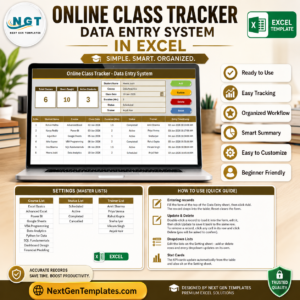
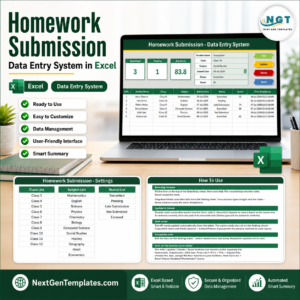
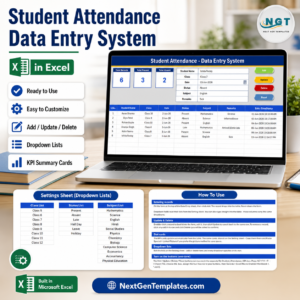
The Tuition Payment Log pairs naturally with other education tools. Collect and reconcile fees with the Student Fee Collection System in Excel, track presence with the Student Attendance Data Entry System in Excel, capture leads with the Admission Enquiry Data Entry System in Excel, and log course sign-ups with the Training Enrollment Data Entry Form. Browse more Excel VBA Tools.
💎 Save 68% — get this and 7 more school tools
Attendance, fees, assignments, progress, and events in one pack.
📖 Click here to read the Detailed Blog Post
🎥 Visit our YouTube channel for step-by-step video tutorials
👉 YouTube.com/@NextGenTemplates
Watch the step-by-step video tutorial: