

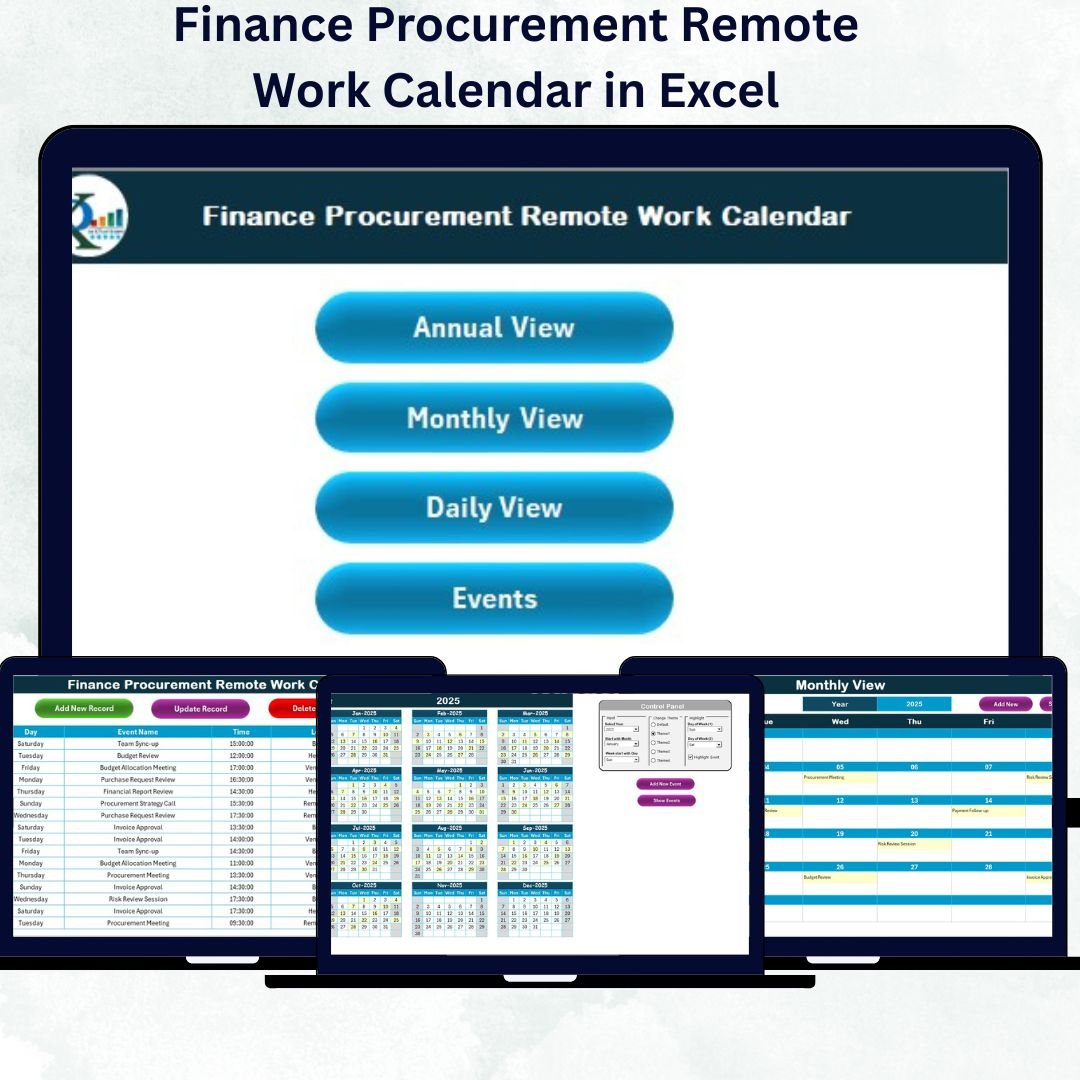

In today’s remote-first business world, finance and procurement teams often work across cities, time zones, and hybrid setups — making coordination and visibility more challenging than ever. The Finance Procurement Remote Work Calendar in Excel is a powerful, ready-to-use tool designed to help teams stay organized, transparent, and aligned throughout the year.
This Excel-based calendar consolidates all finance and procurement events — such as vendor meetings, budget reviews, audit deadlines, and payment approvals — into one interactive, color-coded system. With annual, monthly, and daily views, it ensures every task is visible, trackable, and completed on time.
⚙️ Key Features of Finance Procurement Remote Work Calendar in Excel
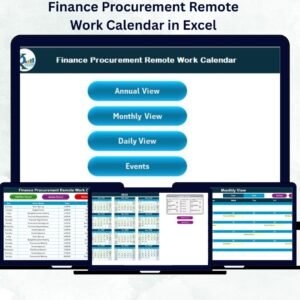
✅ Five Interactive Sheets: Home, Annual View, Monthly View, Daily View, and Events.
✅ Smart Navigation Buttons: Instantly switch between views with one click.
✅ Control Panel: Select year, start month, and theme with automatic updates.
✅ Five Professional Color Themes: Customize the look to match your company’s style.
✅ Event Management: Add, update, or delete events through built-in forms.
✅ Highlight Days: Mark weekends, holidays, or audit dates easily.
✅ Multi-Level Calendar Views: Switch seamlessly between Annual, Monthly, and Daily details.
✅ Data Synchronization: All updates feed automatically into the master Events sheet.
✅ Automation via VBA: Add events without manual typing — forms handle it all.
✅ No Complex Setup: Works out-of-the-box on any version of Excel.
This calendar gives finance professionals complete control over scheduling, making remote coordination effortless and efficient.
📊 What’s Inside the Finance Procurement Remote Work Calendar
The template includes five structured worksheet tabs, each crafted for a specific purpose 👇
1️⃣ Home Sheet – The Navigation Hub
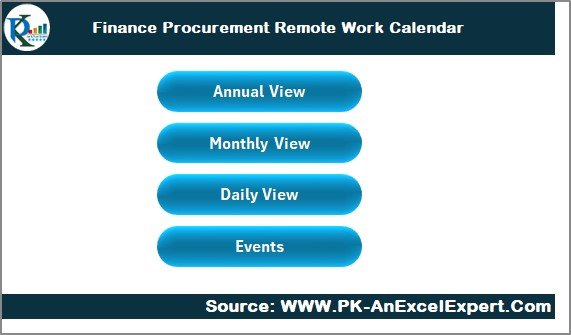
Your starting point!
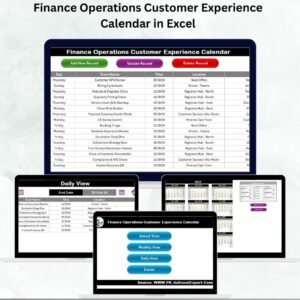
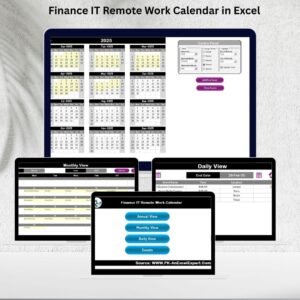
Four buttons: Annual View, Monthly View, Daily View, Events.
Acts as the central command center for navigation.
Simplifies moving between sheets — no scrolling or searching required.
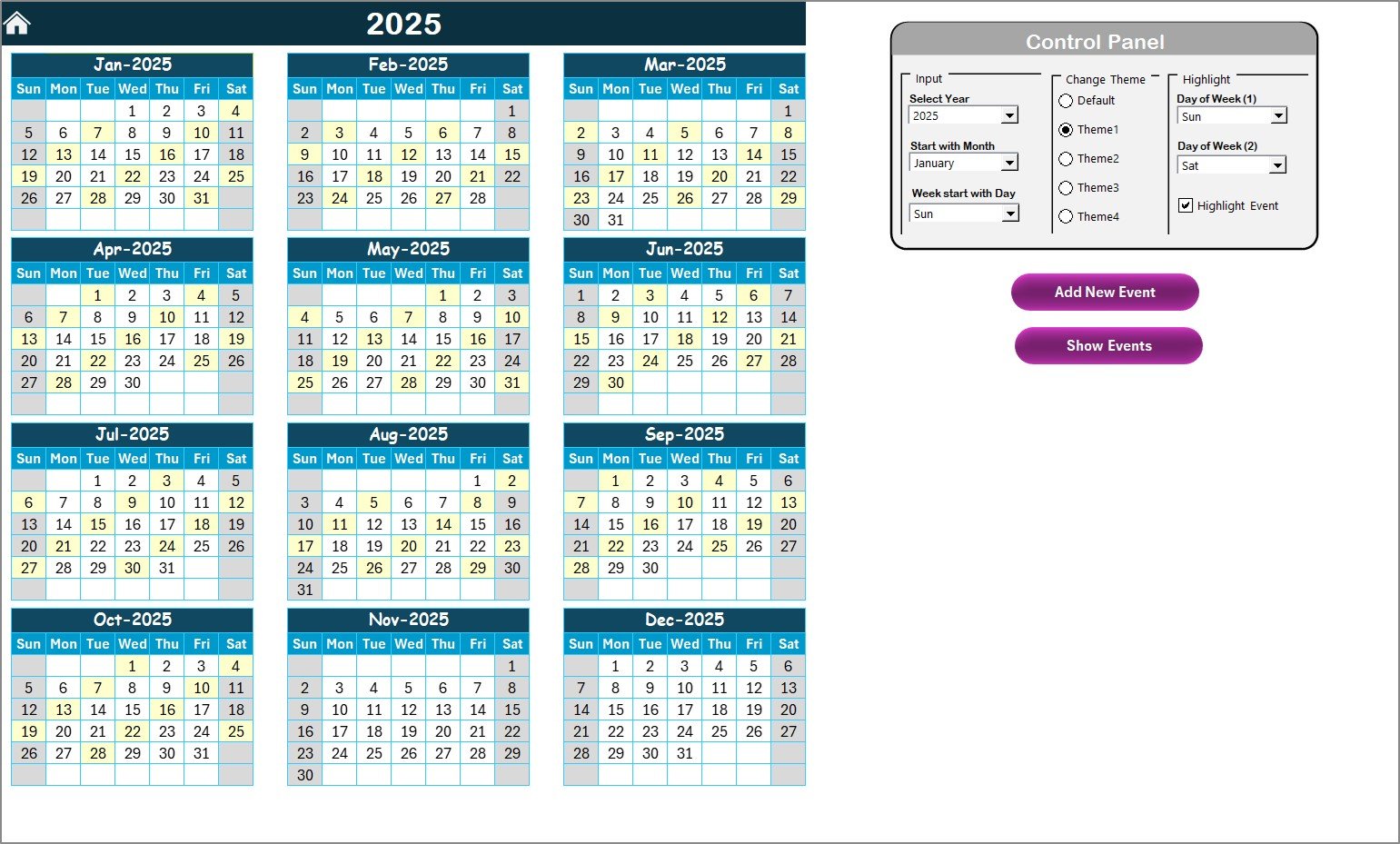
2️⃣ Annual View – Yearly Overview at a Glance
A powerful 12-month view for long-term planning.
Select year and start month to auto-update the calendar.
Highlight weekends and important financial days.
Choose from five color themes via the control panel.
Add and view events with a single click.
Perfect for CFOs or procurement heads reviewing yearly milestones.
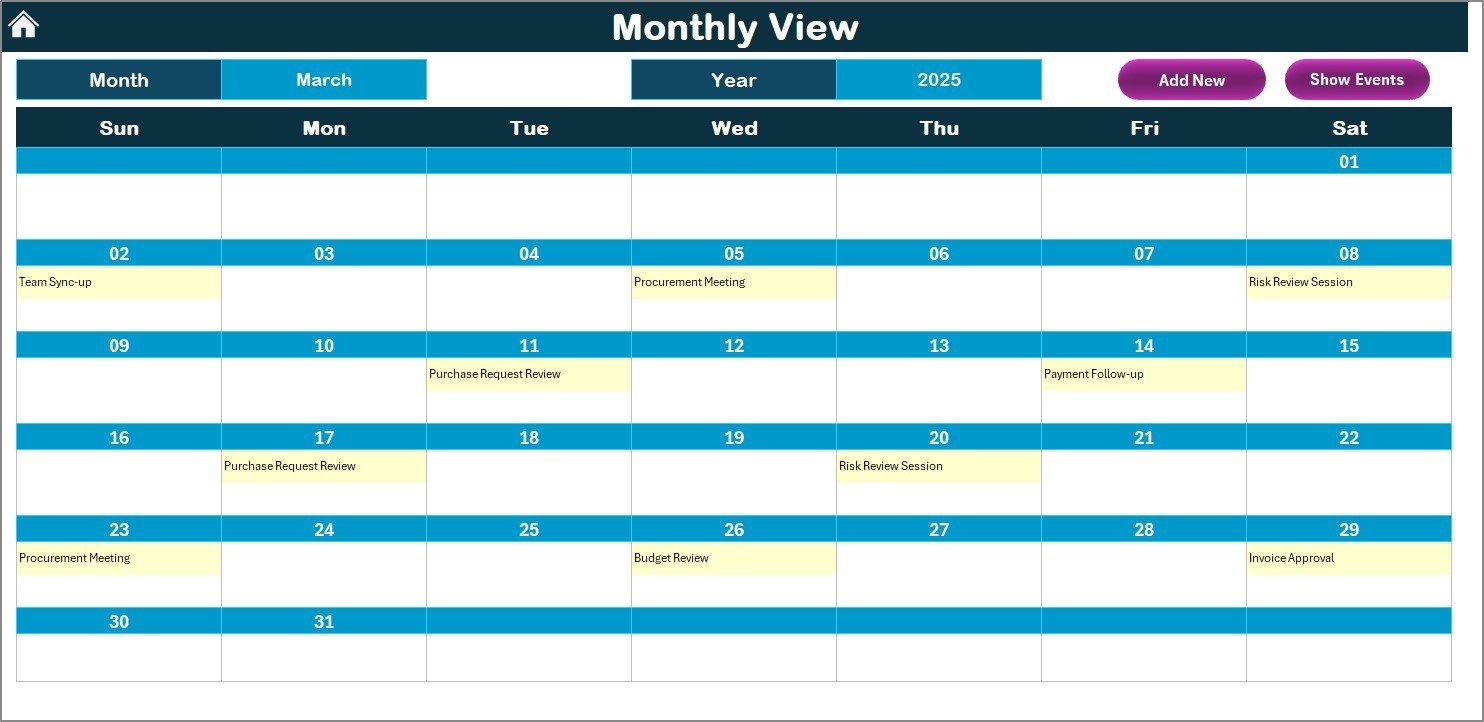
3️⃣ Monthly View – Focused Planning
Zoom into one month for detailed task tracking.
Select month and year from dropdown menus.
Automatically pulls data from the Events database.
Quick buttons to add or view daily events.
Displays an indicator when multiple events fall on the same day.
Ideal for managing payment cycles, vendor reviews, and audit schedules.
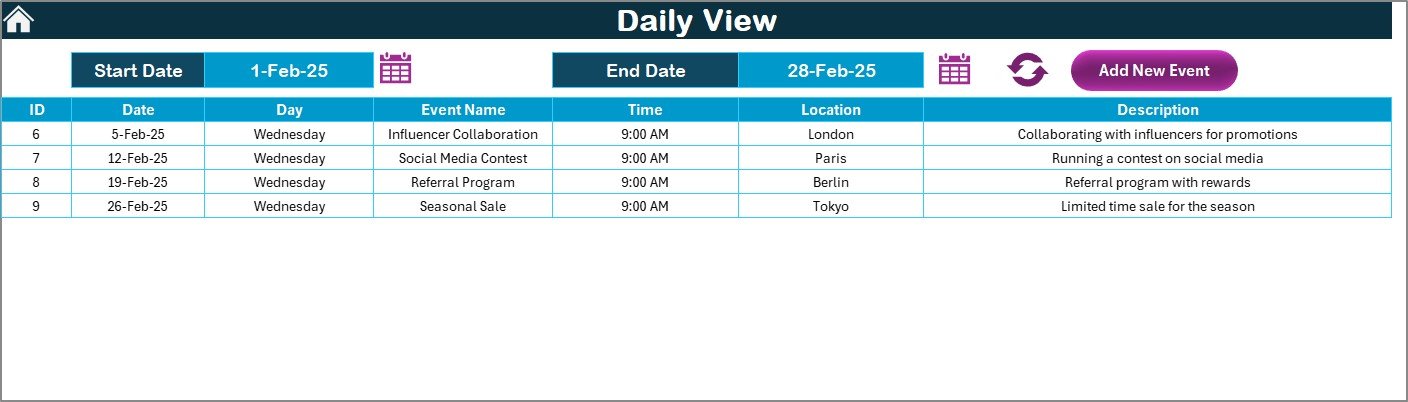
4️⃣ Daily View – Day-to-Day Activity Tracker
See exactly what’s happening each day.
Input start and end dates to load all events in range.
Add new events instantly using a simple entry form.
Perfect for monitoring daily finance operations like approvals and verifications.
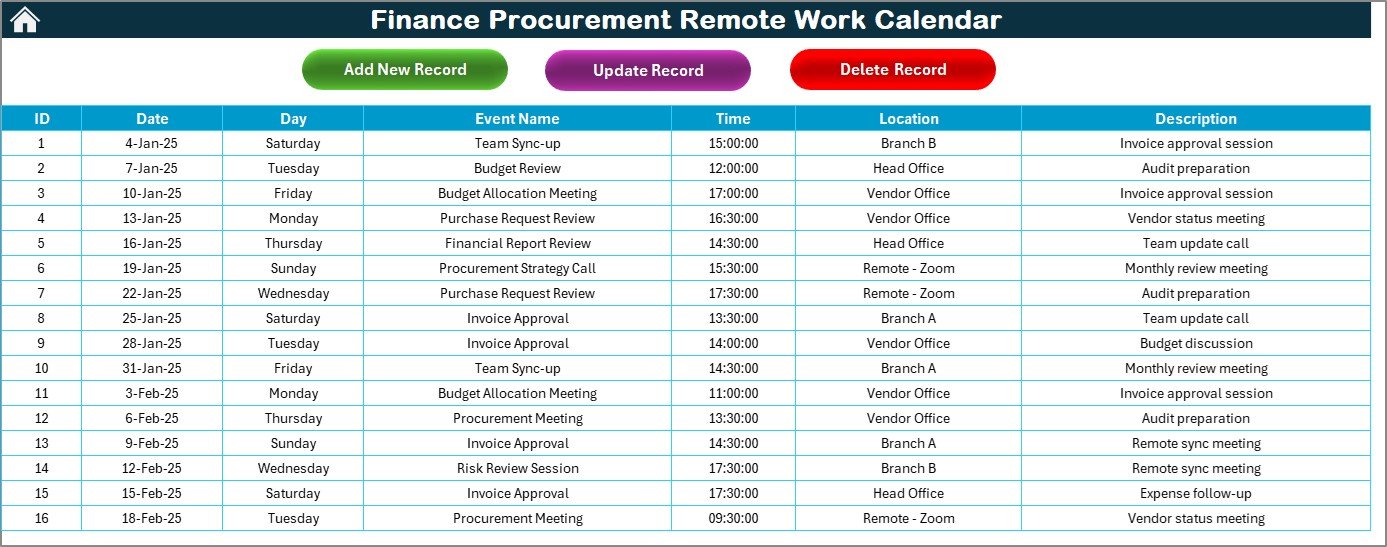
5️⃣ Events Sheet – Centralized Event Database
The foundation of the entire system.
Stores event details such as ID, Date, Day, Event Name, Time, Location, and Description.
Includes Add, Update, and Delete buttons for easy maintenance.
Automatically syncs with all other sheets.
This sheet acts as the heart of the calendar, ensuring accuracy and consistency across all views.
🧠 How to Use the Calendar
1️⃣ Open the File: Start on the Home page.
2️⃣ Select Your View: Annual, Monthly, or Daily.
3️⃣ Add Events: Use built-in forms — no manual editing needed.
4️⃣ Update Automatically: All data feeds into the Events database.
5️⃣ Refresh and Navigate: Switch between views with one click.
6️⃣ Change Theme or Highlight Days: Customize from the control panel.
Within minutes, your entire finance and procurement schedule will be organized visually.
👥 Who Can Benefit from This Template
💼 Finance Managers: Track payment cycles, audits, and reports.
🧾 Procurement Officers: Schedule vendor calls, renewals, and tenders.
🏢 Remote Teams: Coordinate across departments and time zones.
📊 CFOs and Controllers: Get a holistic view of yearly operations.
👥 Corporate Planners: Align finance activities with project milestones.
🔗 Click here to read the Detailed Blog Post
🎥 Visit our YouTube channel for step-by-step tutorials
👉 YouTube.com/@PKAnExcelExpert
Watch the step-by-step video tutorial:
Compatibility and Requirements
- Works in Microsoft Excel desktop on Windows with macros enabled. The forms that add, update and delete events run on VBA, so it does not run in Excel for the web, Google Sheets or mobile apps.
- Excel explains how to turn macros on in Enable or disable macros in Microsoft 365 files.
Frequently Asked Questions
Which sheets are included?
Five sheets: Home, Annual View, Monthly View, Daily View and Events.
How do I add an event?
Use the built-in entry form from the Annual, Monthly or Daily view, or the Add button on the Events sheet. The event is saved in the Events database and shows up in every view.
Can I change the year, start month and color theme?
Yes. The control panel on the Annual View lets you pick the year, the start month and one of five color themes. The calendar updates after you choose.
What details can I store for each event?
The Events sheet keeps the ID, date, day, event name, time, location and description. You can update or delete any entry with the buttons on that sheet.
Can I mark weekends or audit dates?
Yes. The Annual View can highlight weekends and other important days, so audit and payment dates stand out.
Related Remote Work Calendar Templates
- Procurement Remote Work Calendar in Excel: the same calendar set up for procurement teams
- Finance Operations Remote Work Calendar in Excel: for finance and operations teams working remotely
- Finance Compliance Remote Work Calendar in Excel: for compliance deadlines and reviews
- Finance Procurement Supply Chain Resilience Calendar in Excel: another finance and procurement calendar
- Remote Work KPI Dashboard in Google Sheets: a dashboard for remote work metrics
Browse all Excel calendar templates.








Reviews
There are no reviews yet.