

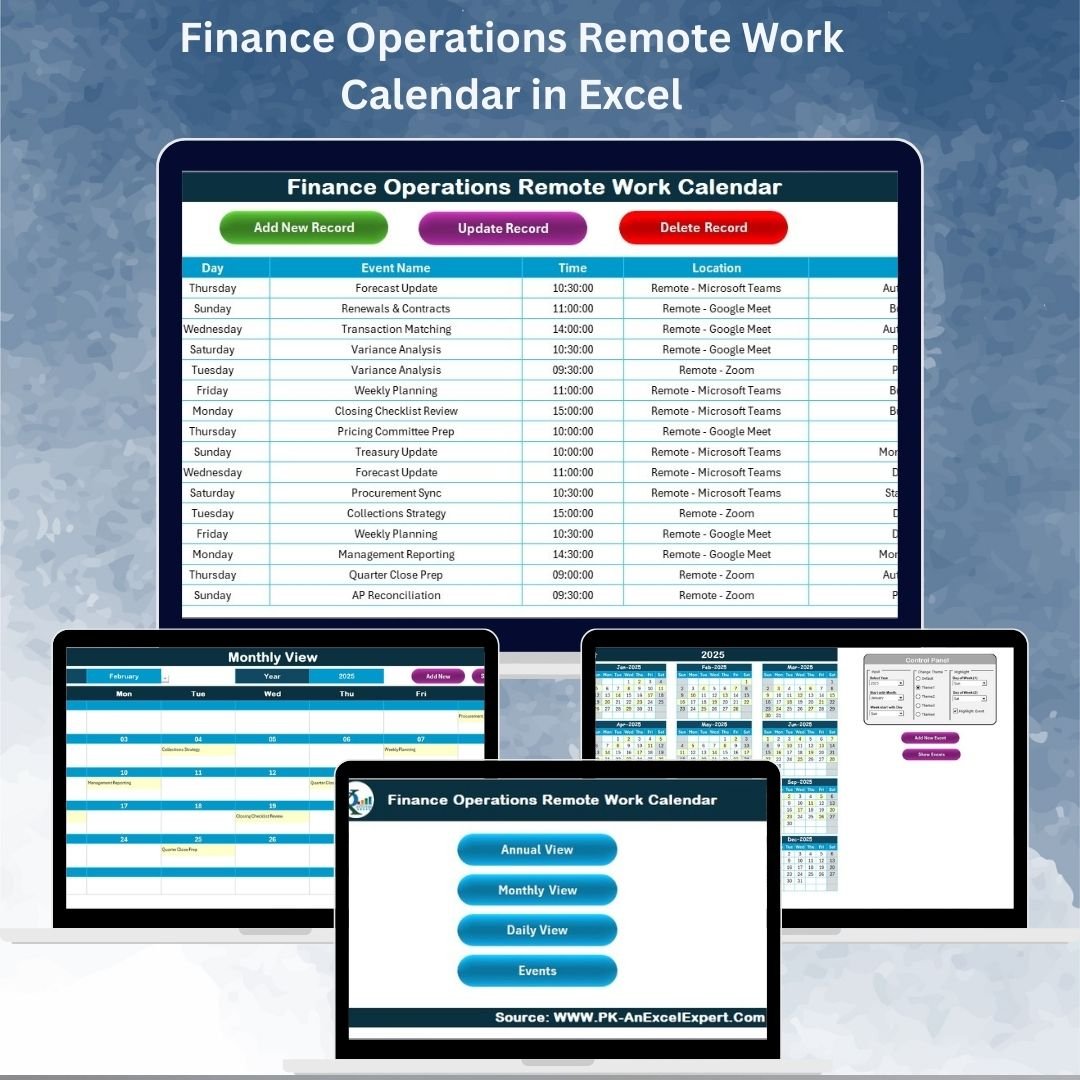

Remote work has become the backbone of modern financial management. With teams spread across different locations and strict reporting timelines to meet, finance leaders need a reliable system to track schedules, events, and responsibilities. That’s exactly what the Finance Operations Remote Work Calendar in Excel delivers—a simple yet powerful tool designed to streamline remote financial operations.
This ready-to-use Excel template helps finance professionals manage deadlines, meetings, audits, reconciliations, and compliance tasks with ease. Unlike manual trackers or scattered online calendars, it consolidates all activities into a single, interactive system with multiple views. Whether you’re planning for the year ahead, the current month, or daily operations, this calendar ensures clarity, alignment, and accountability.
Built with structured worksheets, automated buttons, and easy customization, the Finance Operations Remote Work Calendar provides everything needed to keep your team organized and productive in a remote work environment.
✨ Key Features of the Finance Operations Remote Work Calendar
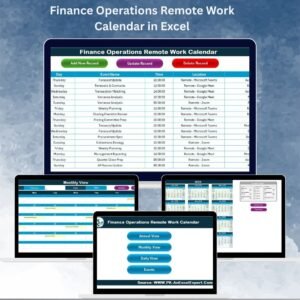
✅ Home Sheet Tab
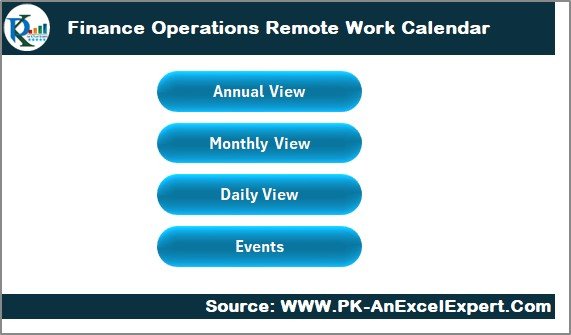
Central index with navigation buttons.
Quickly jump to Annual, Monthly, Daily, or Events sheets.
Saves time and keeps navigation smooth.
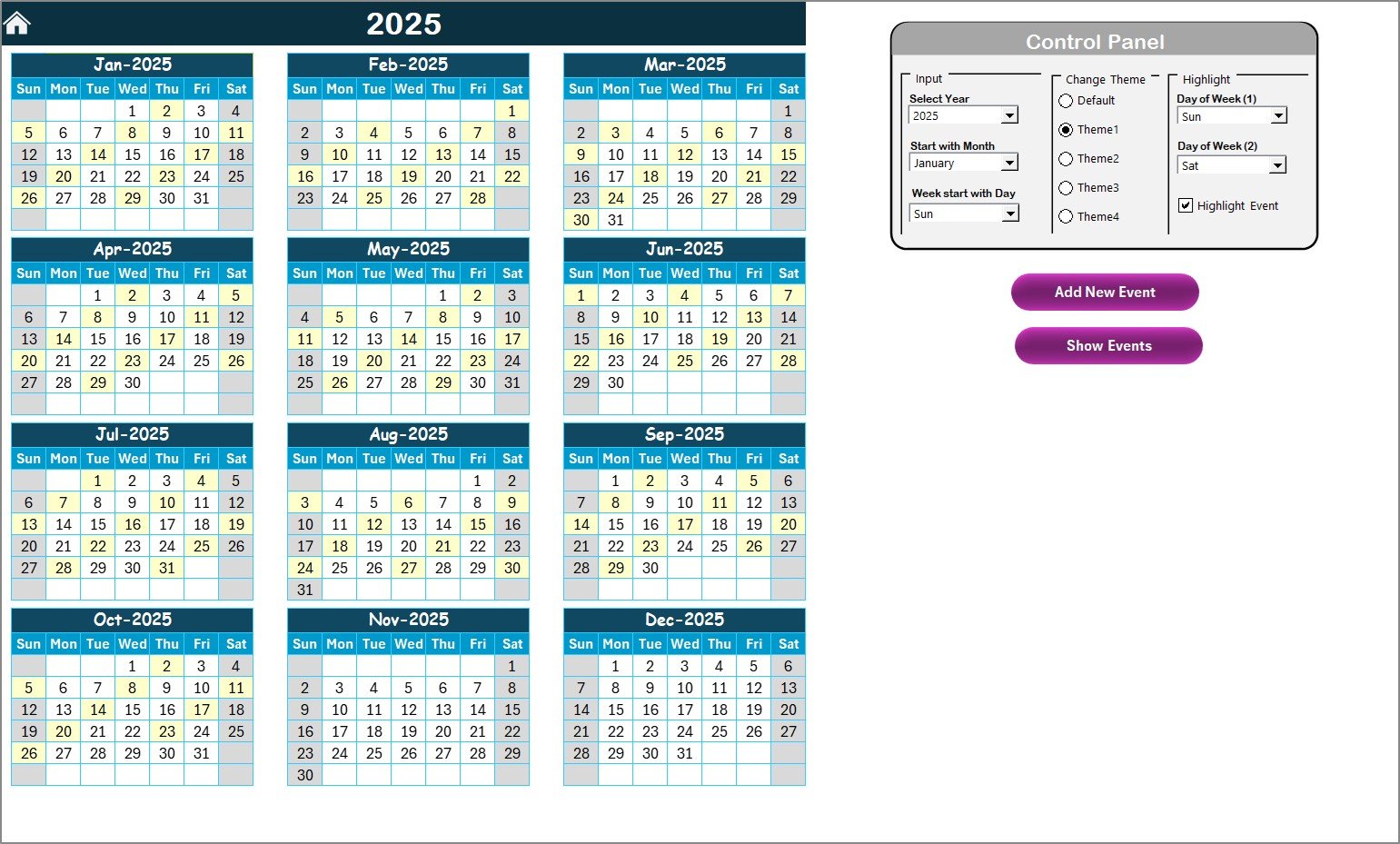
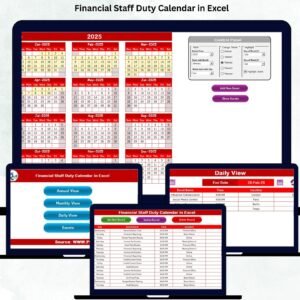
✅ Annual View Sheet Tab
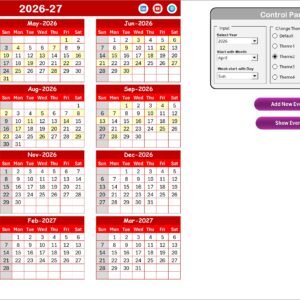
Full-year calendar for long-term planning.
Control panel to set year, start month, and first day of the week.
Theme customization with 5 different color schemes.
Highlight weekends and key dates for quick visibility.
Add and view events directly on the annual calendar.
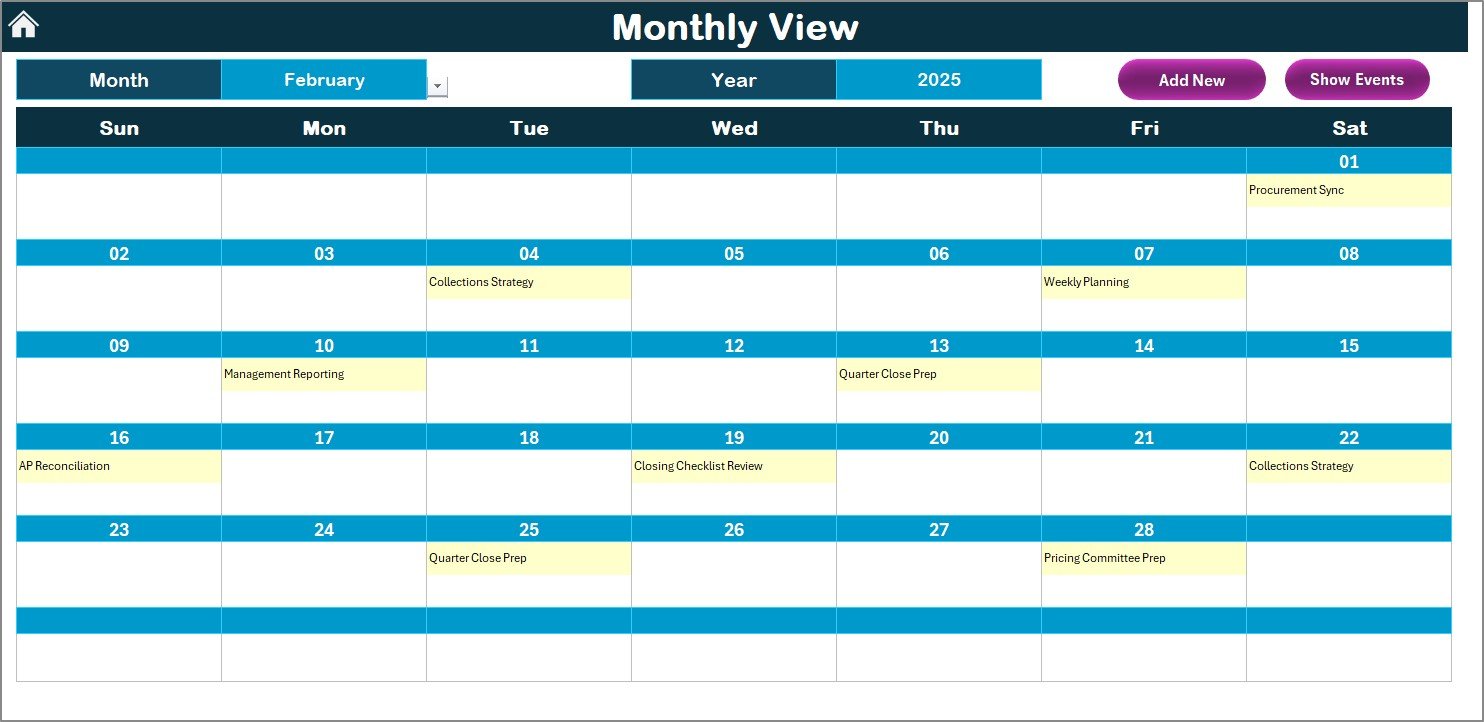
✅ Monthly View Sheet Tab
Focused view of one month at a time.
Add or view multiple events per day.
Shows “more than 1…” if multiple events are scheduled.
Perfect for monthly audits, payroll, and project deadlines.
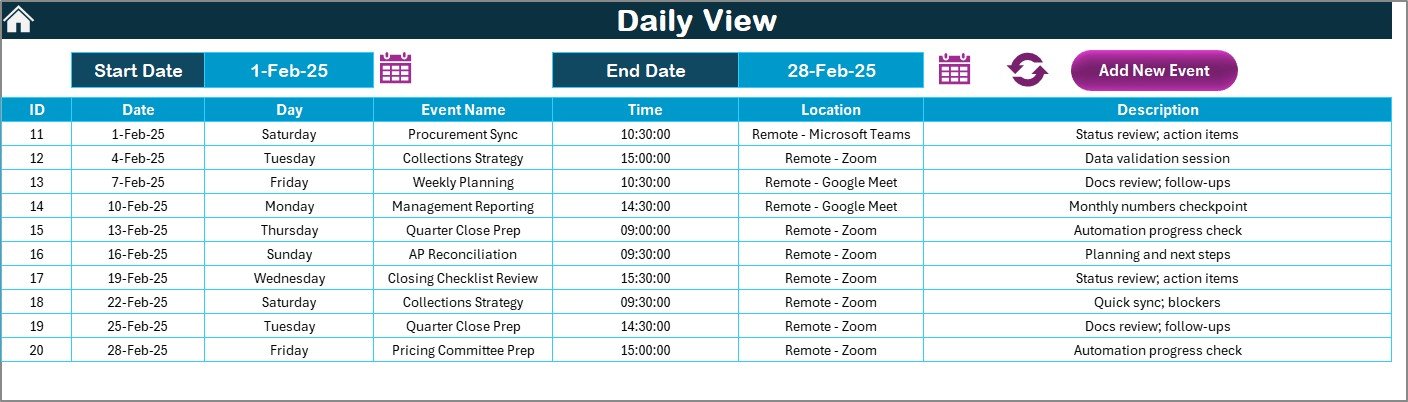
✅ Daily View Sheet Tab
Detailed event tracking by date range.
Add, view, and refresh events instantly.
Provides a clear breakdown of tasks for each day.
✅ Events Sheet Tab
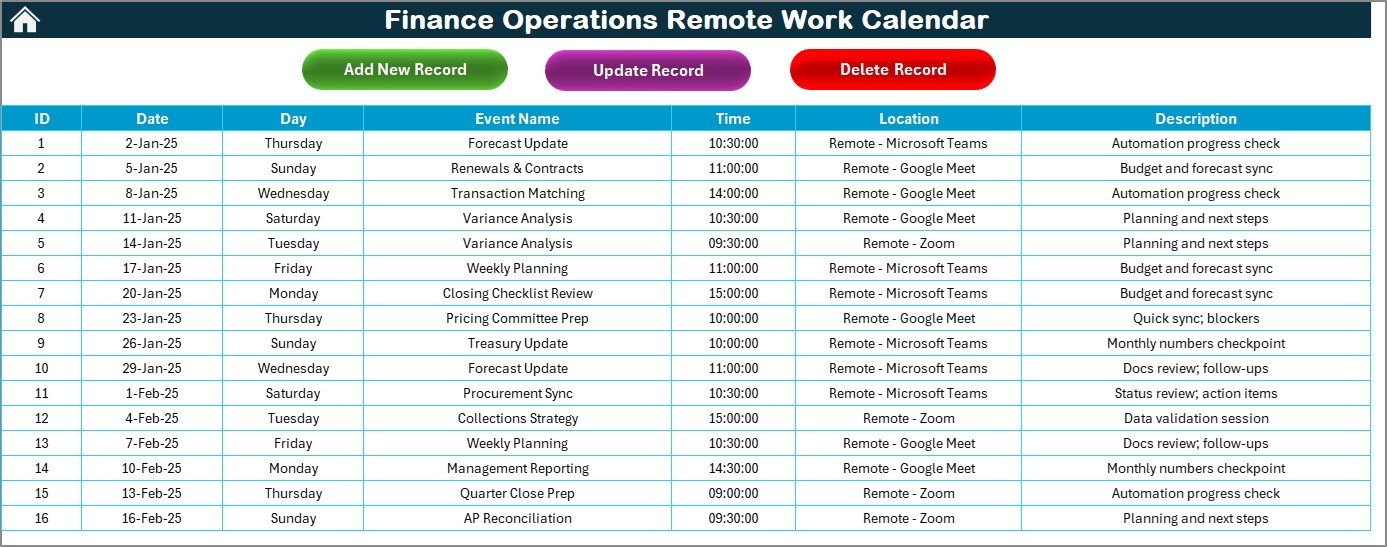
Master database of all activities.
Records ID, Date, Day, Event Name, Time, Location, and Description.
Add, Update, or Delete records with ease.
Acts as the backbone for all other views.
📦 What’s Inside the Template
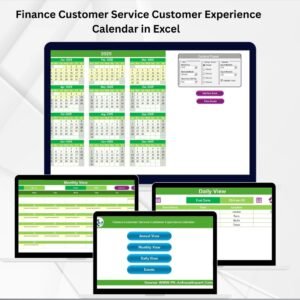
Home Sheet – Navigation hub with quick access buttons.
Annual View – 12-month calendar with customization options.
Monthly View – Focused look at individual months.
Daily View – Task-level clarity for specific days.
Events Sheet – Structured database for all activities.
🛠️ How to Use the Finance Operations Remote Work Calendar
Start from the Home Tab – Use navigation buttons to access any view.
Set Up Annual Parameters – Select year, theme, and weekend highlights.
Add Events – Use “Add New Event” to schedule tasks, deadlines, or meetings.
Check Monthly Plans – Review department-level activities and key dates.
Zoom into Daily View – Track events within a specific range for operational clarity.
Manage Events Database – Update or delete old events from the Events sheet.
👩💼 Who Can Benefit from This Calendar?
Finance Managers – Track deadlines for reporting, tax filings, and audits.
Remote Teams – Keep distributed members aligned with one calendar.
Executives – Gain clarity on upcoming financial events across months.
SMEs & Startups – Manage operations without investing in costly software.
Auditors & Accountants – Monitor tasks and compliance reviews seamlessly.
🚀 Advantages of Finance Operations Remote Work Calendar
Centralized Planning – One calendar for all finance tasks.
Flexible Views – Annual, monthly, and daily breakdowns.
User-Friendly Design – Easy navigation with buttons and forms.
Customization Options – Themes and highlights for quick recognition.
Event Management – Add, update, or delete tasks effortlessly.
Improved Collaboration – Keeps remote teams aligned and accountable.
Cost-Effective – Professional solution without third-party software.
📈 Opportunities for Improvement
Integrate with Outlook or Google Calendar for real-time sync.
Add automatic email reminders using VBA.
Display multiple events per day directly in monthly view.
Introduce department-level filters for role-based planning.
Create mobile-friendly access with cloud-based versions.
✅ Best Practices for Using the Calendar
Keep event names short and clear.
Update the calendar daily to avoid missing deadlines.
Highlight payroll cycles, audits, and compliance reviews.
Use filters in daily view for clarity on upcoming tasks.
Backup the Events sheet periodically to prevent data loss.
Share securely on OneDrive or SharePoint for collaboration.
Train team members to add and manage events efficiently.
👉 Click here to read the Detailed blog post
Visit our YouTube channel to learn step-by-step video tutorials
Watch the step-by-step video tutorial:
Compatibility and Requirements
- Works in Microsoft Excel desktop (Excel 2016 or later, or Microsoft 365).
- The Home sheet has navigation buttons, and the Events sheet has Add, Update and Delete options. Microsoft explains the basics in Excel for Windows training.
Frequently Asked Questions
Which sheets are included?
Five sheets: Home, Annual View, Monthly View, Daily View and Events.
Can I change the year and the color theme?
Yes. The Annual View sheet has a control panel where you set the year, the start month and the first day of the week. You can choose from 5 color themes and highlight weekends.
What does the Events sheet store?
Each record has an ID, Date, Day, Event Name, Time, Location and Description. You can add, update or delete records, and the other views read from this sheet.
Can I see more than one event on the same day?
Yes. The Monthly View lets you add and view several events per day, and shows “more than 1…” when a day has multiple events. The Daily View lists events for the date range you pick.
Is there a version for another team?
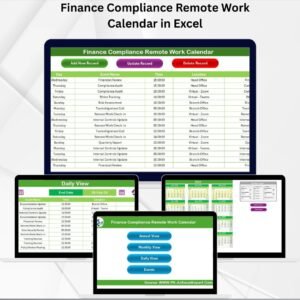
Yes. For example, see the Operations Remote Work Calendar in Excel and the Finance Compliance Remote Work Calendar in Excel.
Related Remote Work Calendars
- Finance Compliance Remote Work Calendar in Excel: the same calendar for compliance deadlines
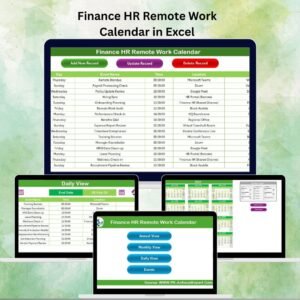
- Finance HR Remote Work Calendar in Excel: for finance and HR schedules
- Operations Remote Work Calendar in Excel: for operations teams
- Finance Procurement Remote Work Calendar in Excel: for procurement dates
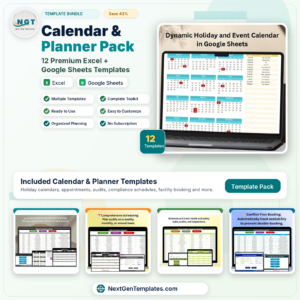
- Calendar & Planner Pack: 12 calendar and planner templates in one download
Browse all Excel calendar templates.















Reviews
There are no reviews yet.