


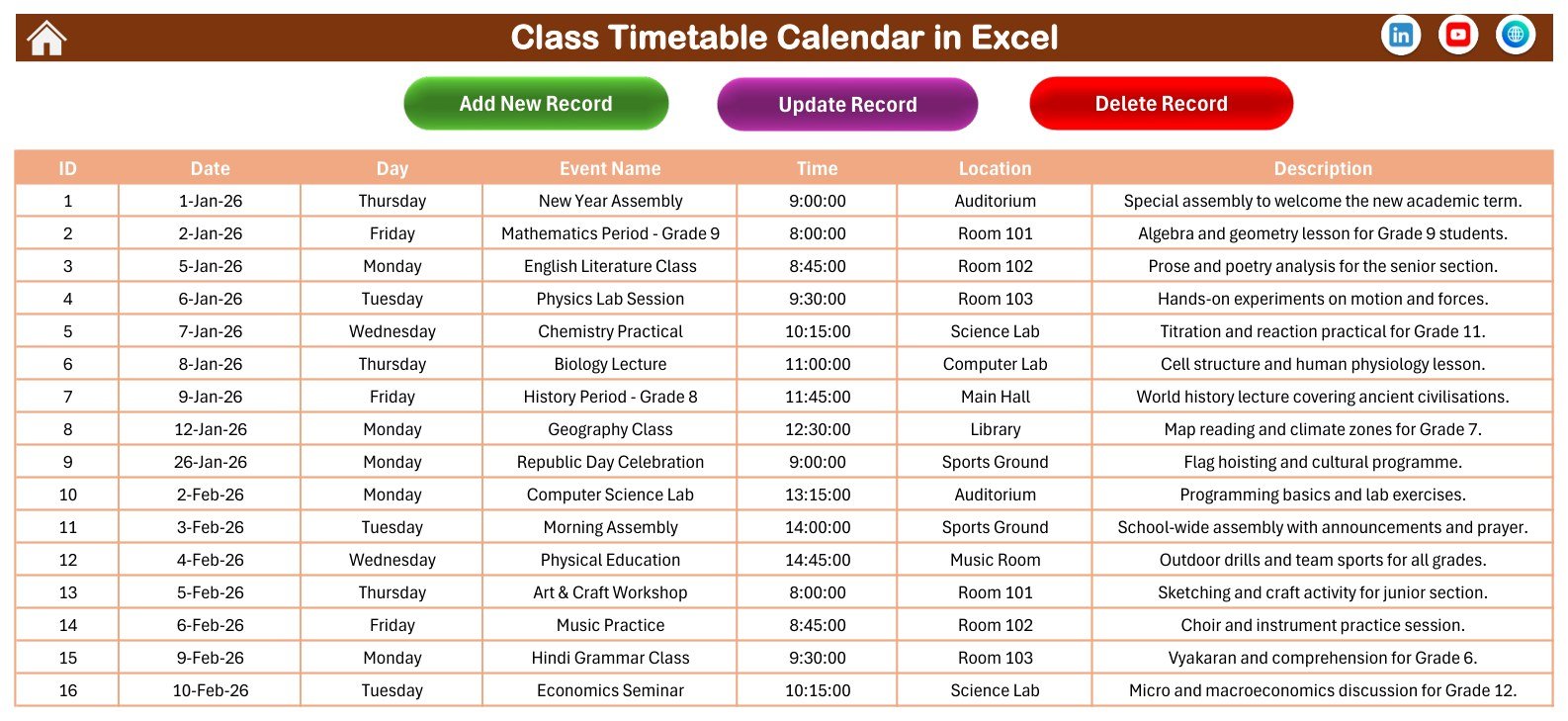


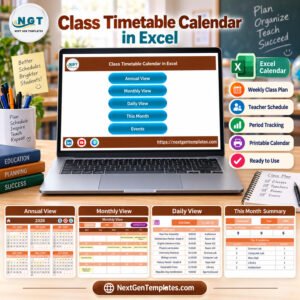
Class Timetable Calendar in Excel is a ready-to-use school scheduling workbook for teachers, tutors, coordinators, and small academic teams that need one place to plan class periods, room use, sessions, and school events. The Class Timetable Calendar includes 7 visual pages, an Excel macro-enabled workbook, and a built-in user manual inside the download ZIP. It is designed for Microsoft Excel desktop on Windows, with macros enabled for the navigation and event-management buttons.
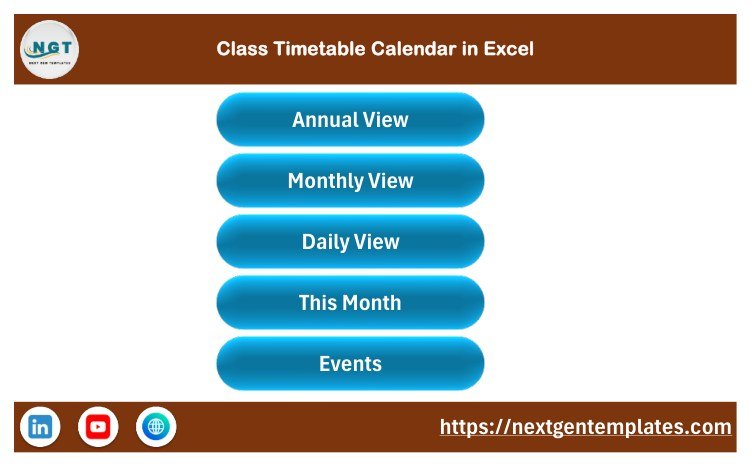
Key Features of Class Timetable Calendar in Excel
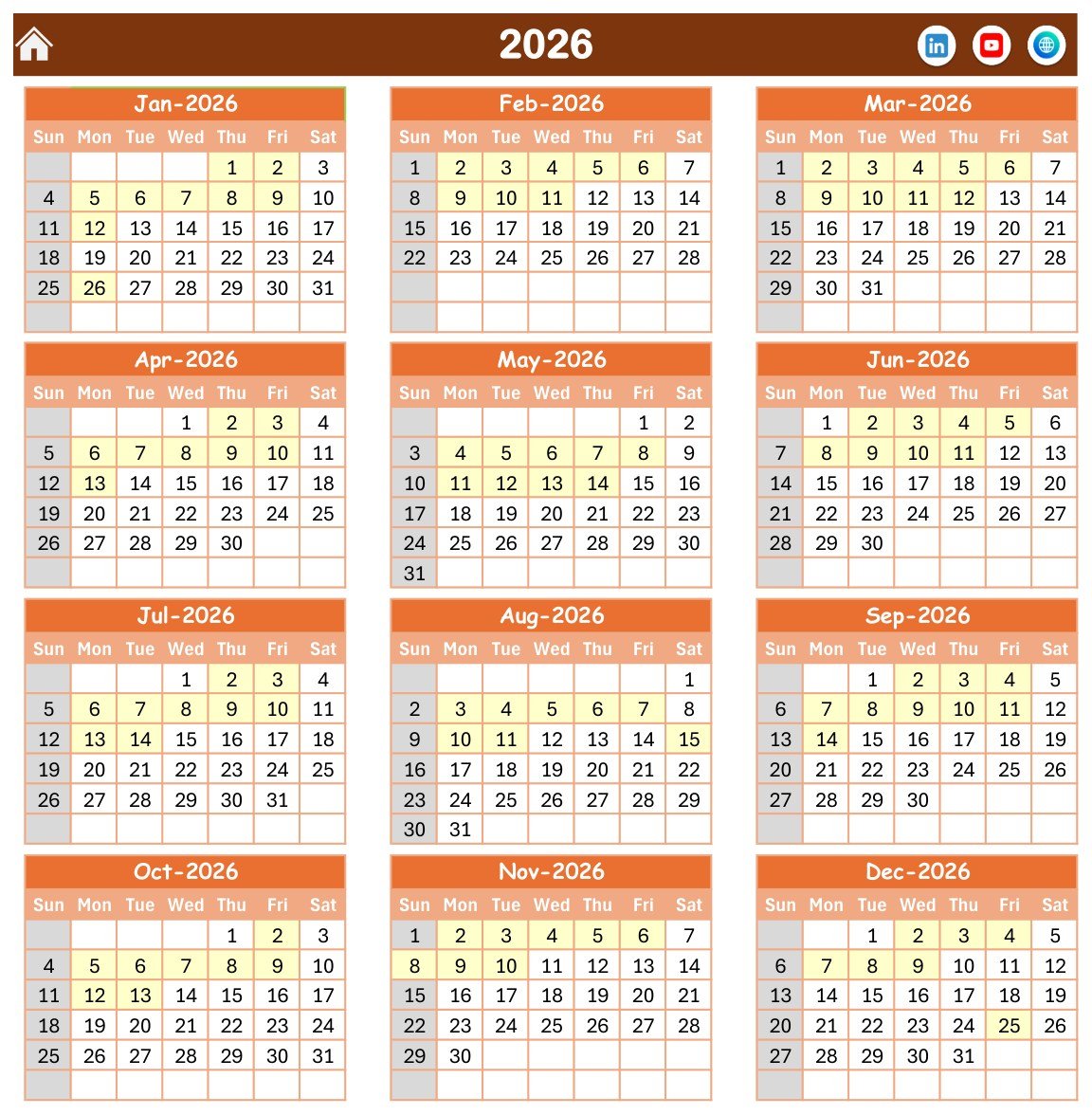
- Annual calendar view for the full academic year.
- Monthly planning page for class periods, lessons, holidays, and school events.
- Daily view with date range, event name, time, location, and description fields.
- This Month summary with active days, locations used, next seven days, and top locations.
- Events input table for adding timetable entries and school activities.
- Macro-enabled navigation buttons for faster movement between workbook pages.
- Education-focused sample data that can be replaced with your own classes.
What’s Inside the Template
The download package includes a macro-enabled Excel workbook and an Excel Calendar user manual. The workbook contains a home screen, annual view, monthly view, daily view, this-month summary, event input area, and supporting calendar screens. The screenshots below show the actual delivered workbook pages.


Excel Calendar vs. Google Sheets Calendar vs. Paid School Scheduling Software – Where This Fits
| Factor | This Excel calendar | Google Sheets alternative | Paid school scheduling software |
|---|---|---|---|
| Best fit | Desktop class timetable planning | Shared online planning | Institution-wide scheduling workflows |
| Cost | One-time template purchase | Usually free to copy but less automated | Recurring monthly or annual subscription |
| Platform | Microsoft Excel for Windows desktop | Browser-based Google Sheets | Cloud application |
| Setup time | Open, enable macros, replace sample events | Copy, adjust formulas and sharing | Configure users, roles, classes, and policies |
| Macro buttons | Included | Not applicable | Usually replaced by web workflows |
| Year-1 cost at 5 users | Template price only | Usually low, depending on workspace plan | Often much higher due to subscription pricing |
Who This Template Is For – and Who It’s Not For
This template is for teachers, academic coordinators, tutors, coaching centers, small schools, and training teams that want a simple class timetable calendar in Excel without building a workbook from scratch. It is useful when the schedule is managed by one person or a small admin team.
It is not a student information system, attendance system, fee system, LMS, conflict-prevention engine, or live multi-user scheduling app. It does not send reminders or connect to school databases. For best results, use it in Excel desktop on Windows and enable macros when prompted.
How to Use This Excel Calendar
- Download and unzip the customer package.
- Open the macro-enabled workbook in Microsoft Excel for Windows.
- Enable macros so the navigation and action buttons work correctly.
- Replace the sample events with your own class periods, lectures, labs, holidays, meetings, and school activities.
- Use the annual, monthly, daily, and this-month pages to review schedules from different levels of detail.
- Print or export the required view when you need a classroom notice or planning copy.
Because the workbook uses Excel macros, review Microsoft’s official macro security guidance before enabling macros from any downloaded workbook: enable or disable macros in Microsoft 365 files.
Real-World Use Cases
Class teacher: Plan the month with lectures, practical sessions, assemblies, and parent meetings in one workbook.
Coaching center coordinator: Track batches, subject sessions, rooms, and recurring learning events without investing in a larger school ERP.
Academic admin: Maintain a quick printable overview for staff rooms, labs, auditoriums, and shared spaces.
Planning Guidance for Schools and Tutors
A timetable file works best when the team agrees on a simple routine before the term begins. Start by listing fixed items such as regular lectures, lab periods, assembly blocks, exam windows, library slots, and staff meetings. Then add flexible items such as revision classes, guest sessions, competition practice, and parent communication days. Keeping these two groups separate makes later changes easier because recurring academic blocks stay stable while one-time activities can move without disturbing the whole schedule.
For small schools, one coordinator can maintain the master copy and circulate printed monthly pages. For coaching centers, each batch can be planned as a separate event group, with the location column used for classroom, lab, online room, or branch name. For tutors, the same layout can work as a weekly teaching plan by using event names for subjects and descriptions for lesson objectives. The point is not to build a complex database. The point is to make the weekly plan visible, printable, and easier to review.
Use consistent naming for subjects and locations. For example, use “Mathematics Grade 9” every time instead of mixing “Maths 9”, “Grade 9 Math”, and “Mathematics Period”. Consistent wording makes the summary pages more useful and reduces confusion when a different person reviews the file. If several teachers share the same workbook, agree on a naming standard before entering the first month of data.
Recommended Workflow
First, create a backup copy of the downloaded workbook and keep the original ZIP unchanged. Second, update the sample entries with your real academic dates. Third, review the annual page to confirm that the year and month sequence are correct for your planning period. Fourth, enter the main recurring sessions before adding special events. Fifth, review the month and daily pages together so no important event is visible in one place but missing from the other. Finally, export or print the view needed for the noticeboard, teacher desk, or internal planning meeting.
If the school follows a term or semester structure, use the annual page as a term overview and the monthly page for operational planning. If the organization runs batches or courses throughout the year, maintain a separate saved copy for each major batch. This keeps each file easier to audit and avoids turning a simple calendar into a crowded all-purpose database.
Data Entry Tips
Use dates carefully, especially when copying entries across months. Keep event names short enough to scan quickly, and place supporting details in the description field. Use the time field consistently, including AM and PM where needed. Use locations for actual rooms, labs, auditoriums, online links, or branches, depending on how your team schedules classes. Avoid putting sensitive student information in the planner unless your organization has a separate privacy process for storing that data.
After major edits, save a dated backup. A simple naming pattern such as “Term 1 schedule – revised 12 Sep” can save a lot of confusion later. If multiple people need to view the planner, share a PDF export or printed copy instead of letting everyone edit the same workbook. That keeps the master timetable controlled and reduces accidental changes.
Frequently Asked Questions
Does this Excel calendar require macros?
Yes. It is a macro-enabled Excel workbook, so you should enable macros in Excel for Windows to use the navigation and action buttons properly.
Can I edit the sample events?
Yes. The sample class periods and events are placeholders. Replace them with your own timetable data.
Does it work in Excel for Mac or Excel Online?
The template is built for Microsoft Excel desktop on Windows. Macro behavior can be limited or unavailable in Excel Online and may vary on Mac.
Is this a school ERP or attendance system?
No. It is a calendar and timetable planning workbook, not a full student database, attendance tracker, fee system, or LMS.
Can I print the calendar pages?
Yes. The calendar pages are designed as visual planning views and can be printed or exported from Excel.
What comes in the download?
The ZIP contains the macro-enabled Excel workbook and the Excel Calendar user manual.
About the Author
Built by PK – Microsoft Certified Professional with 15+ years of Excel, Google Sheets, and Power BI experience. Founder of NextGenTemplates, reaching 300K+ subscribers across YouTube channels. Every template is hand-built and tested before release.
Explore Related Templates
Explore more Excel calendar templates and Microsoft Excel templates on NextGenTemplates. You may also like the Google Sheets class timetable calendar if your team prefers browser-based planning.
Ready to plan school schedules faster? Add this Excel timetable calendar to your toolkit and start replacing scattered timetable notes with one organized workbook.
Last updated: September 12, 2026.
Watch the demo video:
Related School Calendar Templates
- Class Timetable Calendar in Google Sheets: the browser-based version for shared planning
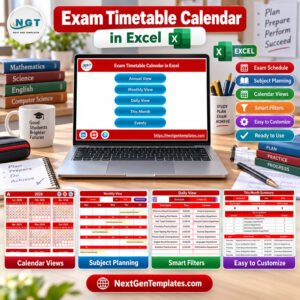
- Exam Timetable Calendar in Excel: plan exam dates and rooms
- Exam Timetable Calendar in Google Sheets: exam planning in Google Sheets
- School Events Calendar in Excel: assemblies, trips and school events
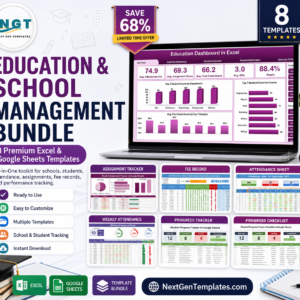
- Education & School Management Bundle: 8 school templates in one download
Browse all Excel education templates or the Google Sheets calendars.



Reviews
There are no reviews yet.