

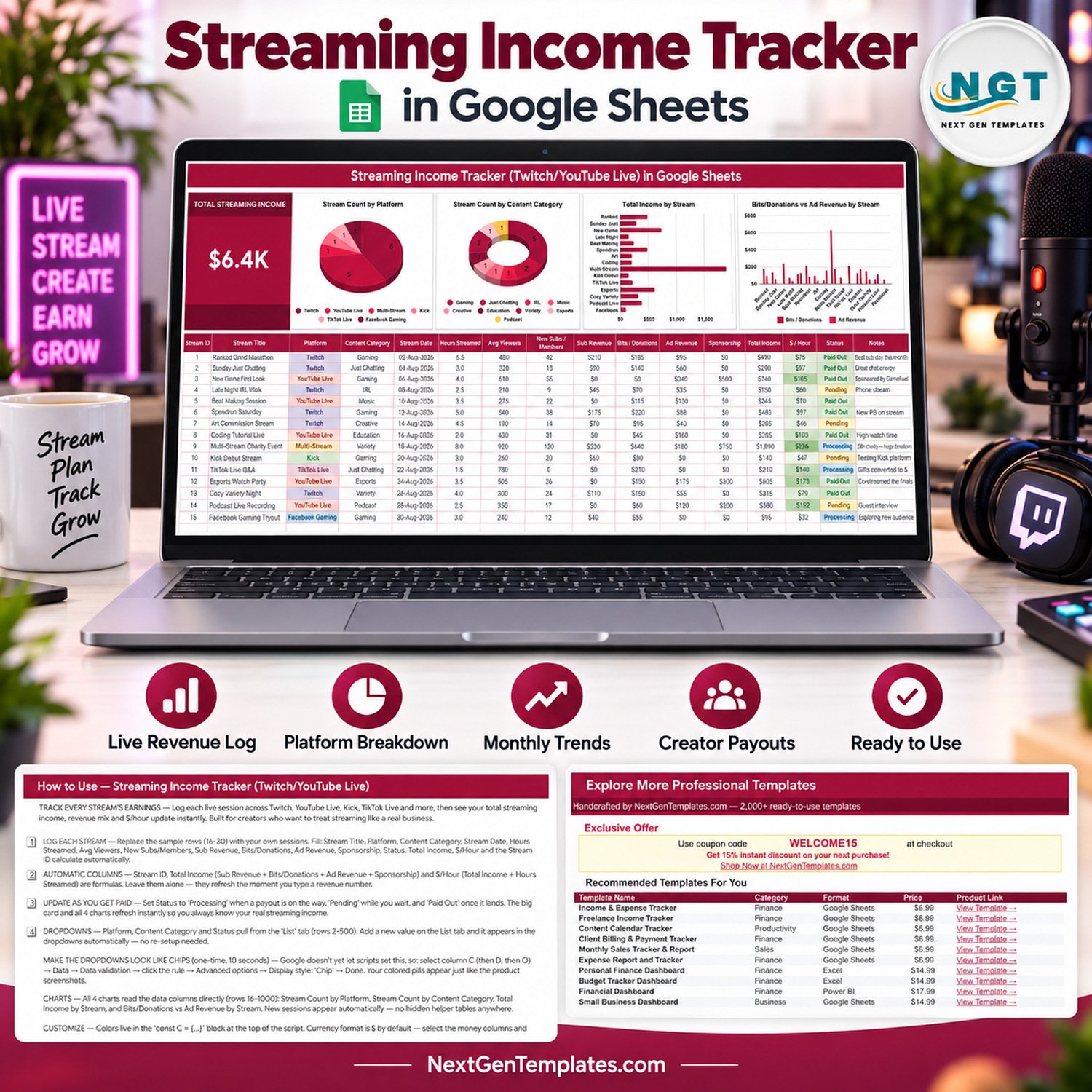
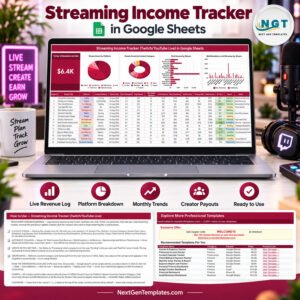
A live streamer running 15 sessions a month on Twitch, YouTube Live, Kick and TikTok Live collects money from four different places — subs, bits and donations, ad revenue and sponsorships — and every platform reports them in a different dashboard, on a different payout cycle. This streaming income tracker pulls all four into one Google Sheets page: one Total Streaming Income card, four live charts and a 16-column log that works out Total Income and $ / Hour for you. The sample file ships with 15 fully worked streams so you can see the maths before you type a single number. Run it as a Twitch income tracker on its own, as a YouTube Live revenue tracker on its own, or as one streaming income tracker in Google Sheets covering every platform you go live on. One-time payment, no subscription, and the download is a PDF that carries a “Make a copy” link straight into your own Google Drive.
Key Features of the Streaming Income Tracker (Twitch/YouTube Live)
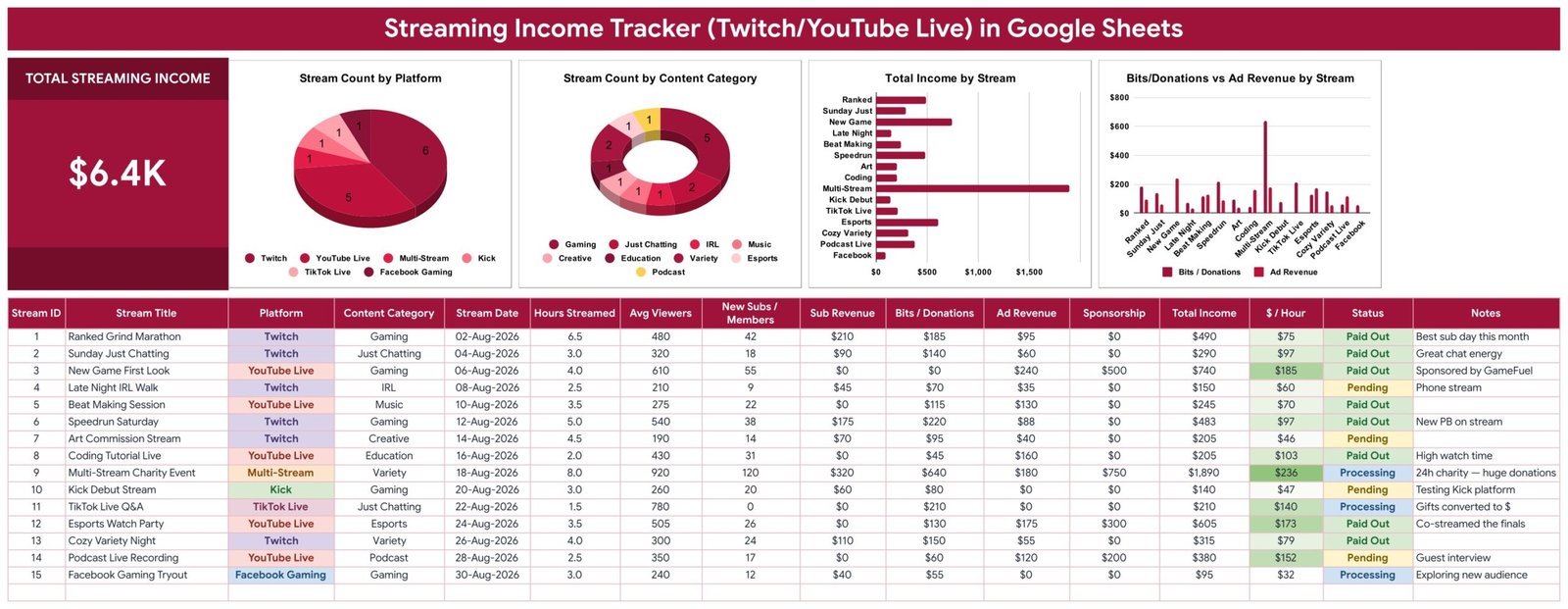
- One Total Streaming Income card — a single large figure that adds every revenue column across every logged session and refreshes the moment you type.
- Four charts wired to the data — Stream Count by Platform, Stream Count by Content Category, Total Income by Stream, and Bits/Donations vs Ad Revenue by Stream. They read the data columns directly, so there are no hidden helper tables to maintain.
- Four revenue streams per session — Sub Revenue, Bits / Donations, Ad Revenue and Sponsorship each get their own column, so you can see which one actually pays your rent.
- $ / Hour on every row — Total Income divided by Hours Streamed, calculated automatically. This is the number that tells you a 1.5-hour Q&A beat an 8-hour marathon.
- Payout status pipeline — Pending, Processing and Paid Out, colour-coded so you can chase the money that has not landed.
- Self-extending dropdowns — Platform, Content Category and Status pull from the List sheet (rows 2–500). Add “Rumble” or “Cooking” there and it appears in the dropdown instantly.
- Multi-platform out of the box — the sample data already covers Twitch, YouTube Live, Multi-Stream, Kick, TikTok Live and Facebook Gaming.
- Nine content categories — Gaming, Just Chatting, IRL, Music, Creative, Education, Variety, Esports and Podcast, so you can prove which format earns.
- Browser-based and shareable — runs in Google Sheets on any device, no macros, no add-ons, and you can share it with a manager or an accountant by link.
What’s Inside the Streaming Income Tracker
The file is deliberately small. This is a Google Sheets tracker for streamers, not an analytics suite — there is one working page, not a twelve-tab maze:
- The tracker page — the Total Streaming Income card and the four charts sit across the top; the log sits underneath. Data rows run from row 16 to row 1000, with 15 sample streams already filled in on rows 16–30.
- The 16-column log — Stream ID, Stream Title, Platform, Content Category, Stream Date, Hours Streamed, Avg Viewers, New Subs / Members, Sub Revenue, Bits / Donations, Ad Revenue, Sponsorship, Total Income, $ / Hour, Status and Notes.
- Three formula columns — Stream ID numbers itself, Total Income sums Sub Revenue + Bits/Donations + Ad Revenue + Sponsorship, and $ / Hour divides Total Income by Hours Streamed. You never type into those three.
- The List sheet — the dropdown source for Platform, Content Category and Status, read across rows 2–500.
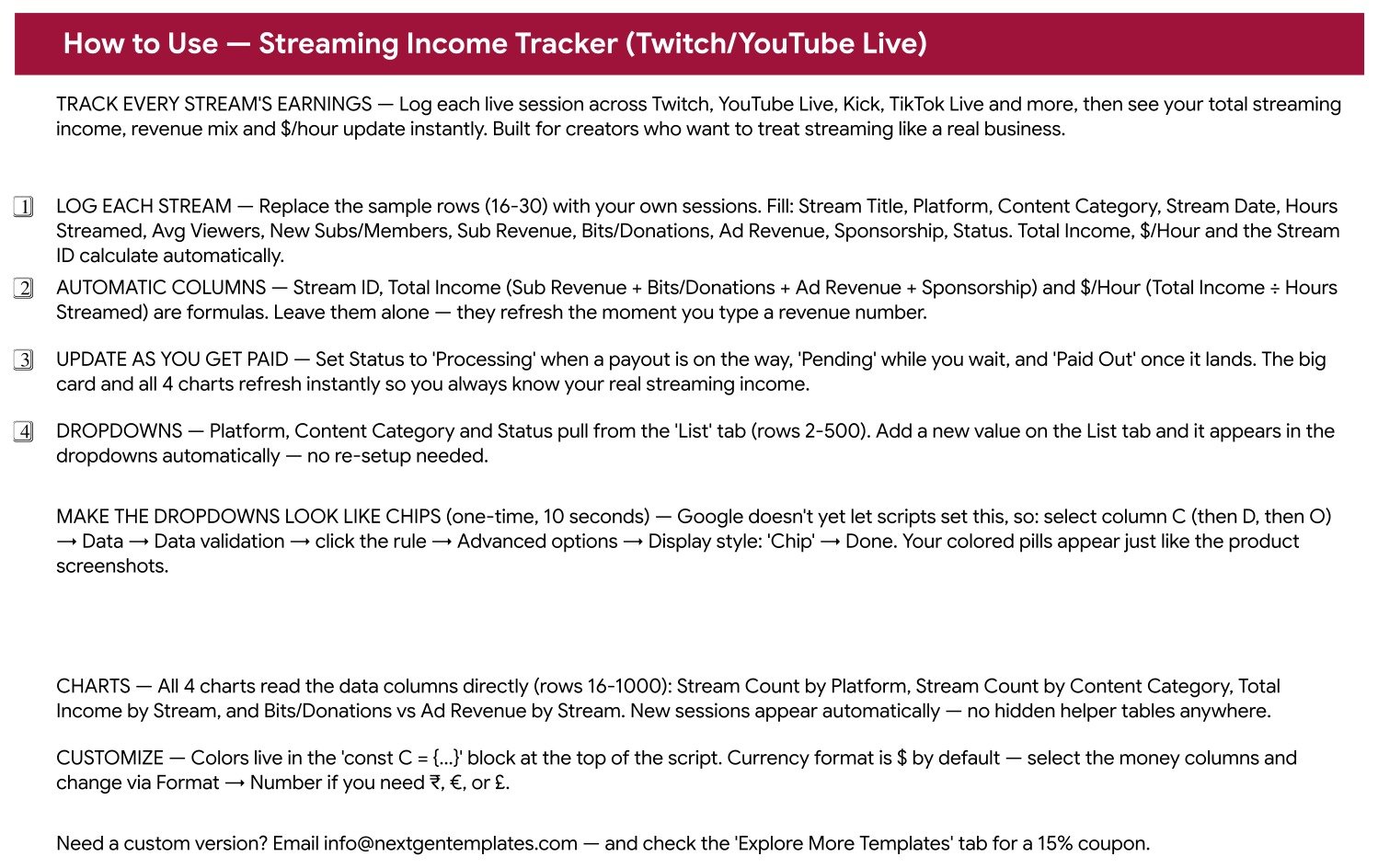
- A How to Use page — the same numbered steps reproduced inside the file, including the ten-second trick for turning the dropdowns into coloured chips.
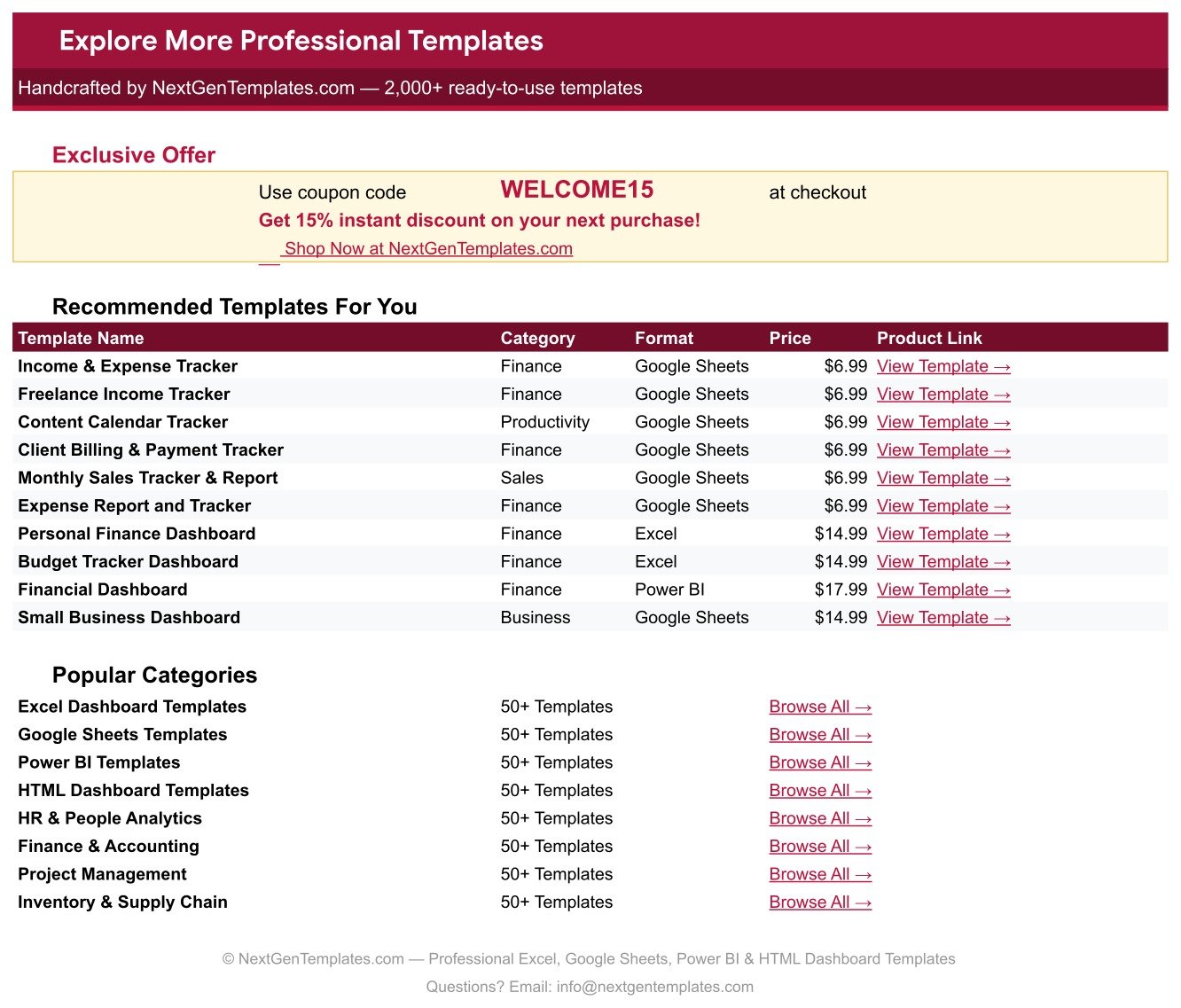
- An Explore More Templates page — a recommended-template list and a 15% coupon code.
Streaming Income Tracker vs. Excel vs. Paid Creator Analytics SaaS — Where This Fits
| This Google Sheets tracker | A DIY Excel workbook | Paid creator analytics SaaS | |
|---|---|---|---|
| Cost | One-time, under $15 | Free if you build it yourself | $20–$99 per month |
| Platform | Google Sheets in any browser | Desktop Excel | Vendor web app |
| Setup time | Copy the sheet, type your first stream — about 5 minutes | Hours of formula and chart work | Account, billing and OAuth connections |
| Real-time team collaboration | Yes, native Google Sheets sharing | Only via OneDrive co-authoring | Yes, with per-seat pricing |
| Mobile access | Yes, Google Sheets app | Limited | Yes |
| Customisable fields | Yes — add columns, add dropdown values on the List sheet | Yes | Usually fixed |
| Share with link | Yes | No | Sometimes |
| Year-1 cost at 5 users | One purchase, shared by link | Your own time | $1,200–$5,900 |
| Automatic import of platform payouts | No — you enter or paste the figures | No | Yes, via API connections |
| Works for any platform, including new ones | Yes — add the name to the List sheet | Yes | Only supported integrations |
Be clear about the trade-off. This streaming income tracker does not connect to Twitch, YouTube, Kick or TikTok. There is no API, no login, no automatic payout import, and it is not affiliated with or endorsed by Twitch, YouTube or Google. You read your figures off each platform’s own payout page and type or paste them in. In exchange you get something a SaaS tool cannot give you: a sheet that covers every platform you stream on, including the one you started yesterday, for a single payment.
Who This Template Is For — and Who It’s Not For
It is for part-time and full-time streamers who already earn from more than one source; multi-platform creators who simulcast to Twitch and YouTube Live; creators who want an honest $ / Hour figure before committing to a marathon; and anyone who needs a tidy income record for a bookkeeper at tax time. If you only stream on one platform today, it still works — use it as a Twitch income tracker now and add YouTube Live, Kick or TikTok Live to the List sheet the week you start simulcasting.
It is not for creators who want payouts pulled in automatically — that needs a connected tool. It is not an invoicing system, it is not a tax filing product, and it will not report your watch time or concurrent viewers for you; it records the money and the hours you put in.
How to Use the Streaming Income Tracker
- Make your copy. Open the PDF in your download and click the “Make a copy” link. Your own streaming income tracker lands in your Google Drive, fully editable.
- Log each stream. Replace the sample rows 16–30 with your own sessions. Fill Stream Title, Platform, Content Category, Stream Date, Hours Streamed, Avg Viewers, New Subs / Members and the four revenue columns, then set Status.
- Leave the formulas alone. Stream ID, Total Income and $ / Hour calculate themselves the moment you type a revenue number.
- Update as you get paid. Move Status from Pending to Processing to Paid Out. The card and all four charts refresh instantly.
- Turn the dropdowns into chips (optional, ten seconds). Select column C, then D, then O, and choose Data → Data validation → the rule → Advanced options → Display style: Chip. Google does not let a script set this, which is why it is a manual step.
- Change the currency if you need to. The file is formatted in $. Select the money columns and use Format → Number for €, £ or ₹.
Real-World Use Cases
Three creators, three different reasons the streaming income tracker earned its place in their workflow.
Maya, a variety streamer on Twitch and Kick. Maya simulcasts and never knew which platform actually paid. Three months into using the tracker, Stream Count by Platform and Total Income by Stream told her that Kick brought viewers and Twitch brought subs — so she kept both, but stopped treating Kick debut nights as payday.
Devon, a part-time YouTube Live creator. Devon logs a sponsored First Look, a Coding Tutorial Live and a late-night IRL walk in the same week. The $ / Hour column showed a two-hour tutorial out-earning a five-hour gaming session, which changed his whole schedule.
Priya, a charity marathon organiser. Priya runs one 24-hour multi-stream a quarter. The Bits/Donations vs Ad Revenue by Stream chart separates donation spikes from steady ad income, so her post-event report to sponsors uses real numbers instead of a screenshot.
Frequently Asked Questions
Does this connect to Twitch or YouTube?
No. There is no API connection, no sign-in and no automatic payout import, and the template is not affiliated with or endorsed by Twitch, YouTube or Google. You copy the figures from each platform’s own payout page into the sheet. That is also why it works for Kick, TikTok Live, Facebook Gaming and anything you add later.
Do I need a Google account?
Yes. The download is a PDF containing a “Make a copy” link, and the copy is created in your own Google Drive. Everything then runs in the browser — there is nothing to install and no macros.
How many streams can I log?
The charts and the Total Streaming Income card read rows 16 to 1000, so the streaming income tracker holds just under a thousand sessions. That is several years of streaming for most creators.
Will it work as a YouTube Live revenue tracker only?
Yes. Nothing in the sheet is Twitch-specific. Delete the sample rows, leave YouTube Live selected in the Platform dropdown and the same four charts and the same Total Streaming Income card keep working. The reverse is true too if you only stream on Twitch.
Can I add a platform that isn’t in the list?
Yes. Type it on the List sheet anywhere in rows 2–500 and it appears in the Platform dropdown straight away. The same applies to Content Category and Status — no re-setup and no script editing.
Why are my dropdowns plain text and not coloured pills?
Google Sheets does not let a script set the Chip display style. Select the column, open Data → Data validation → the rule → Advanced options and choose Display style: Chip. It takes about ten seconds per column and matches the screenshots exactly.
Can I use it for tax records?
It gives your accountant a clean, dated income log per session and per platform, which is a good starting point. It is a record-keeping sheet, not tax advice or a filing tool — in the US, see the IRS Self-Employed Individuals Tax Center for what you actually owe.
Can I change the colours?
Yes. The palette lives in the const C = {...} block at the top of the script, and normal Google Sheets formatting works everywhere else.
About the Author
Built by PK – Microsoft Certified Professional with 15+ years of Excel, Google Sheets, and Power BI experience. Founder of NextGenTemplates, reaching 300K+ subscribers across YouTube channels. Every template is hand-built and tested before release.
Explore Related Templates
- Sponsorship & Brand Deal Tracker in Google Sheets — the deal pipeline behind the Sponsorship column in this sheet.
- YouTube Channel Performance Tracker in Google Sheets — views, watch time and subscribers for the VOD side of your channel.
- Short-Form Video Performance Tracker in Google Sheets — for the clips you cut out of last night’s stream.
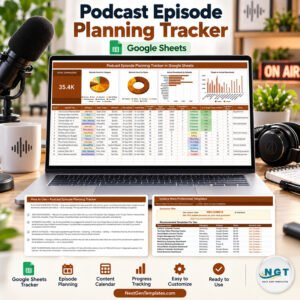
- Podcast Episode Planning Tracker in Google Sheets — if your Podcast category is growing into its own show.
- Side Hustle Income Tracker in Google Sheets — for everything you earn away from the stream.
- Browse every Google Sheets tracker or the full Google Sheets template catalogue.
Useful reading while you set up: Twitch Creator Camp, the YouTube monetization policies, and the Google Sheets function list if you want to extend the formulas.
We also wrote a full walkthrough of this template: Streaming Income Tracker (Twitch/YouTube Live) in Google Sheets on NeoTechNavigators.
Stop guessing what your streams earn. Add the Streaming Income Tracker (Twitch/YouTube Live) in Google Sheets to your cart, make your copy, and log tonight’s session before you go live. It is the simplest streaming income tracker we ship, and the one creators come back to every payout cycle. One-time payment, instant download, and a sheet that is yours to edit forever.
Watch the step-by-step video Demo:
Last updated: 23 September 2026.






















Reviews
There are no reviews yet.