

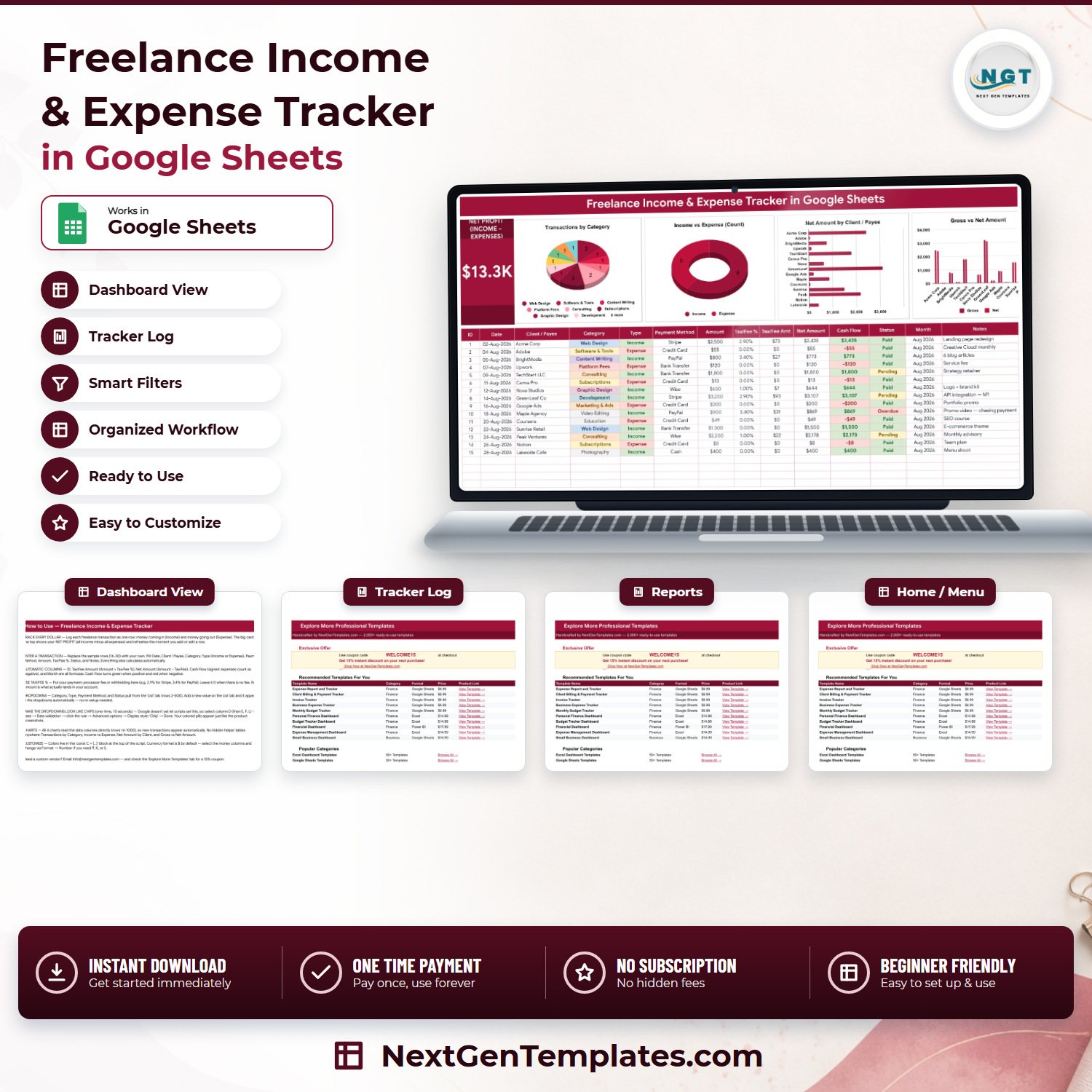

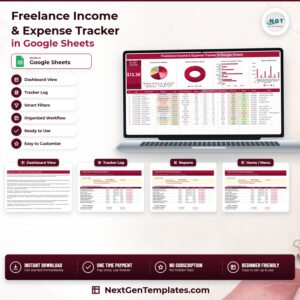
The Freelance Income & Expense Tracker in Google Sheets puts every invoice you raise and every cost you carry into one register. 14 columns, 5 of which calculate themselves, a single NET PROFIT (INCOME − EXPENSES) card and 4 charts that redraw the moment you type. It ships with 15 worked sample rows so the logic is visible before you replace it, and the formulas and charts already reach row 1000. Built by a Microsoft Certified Professional with 15+ years across Excel, Google Sheets and Power BI. One-time $6.99 — no subscription, no add-on, and if the copy link does not work we will fix it or refund you.
One thing to be clear about before you buy: this is a record-keeping sheet, not tax software. It adds up the figures and dates you type in. It does not work out what you owe, it does not know your filing obligations or thresholds, and nothing in it should be treated as a return-ready number. Confirm anything tax-related with your own accountant.
Key Features of the Freelance Income & Expense Tracker in Google Sheets
- One register for both directions of money. Income and Expense sit in the same table, separated by a Type dropdown, so a month is one scroll rather than two files.
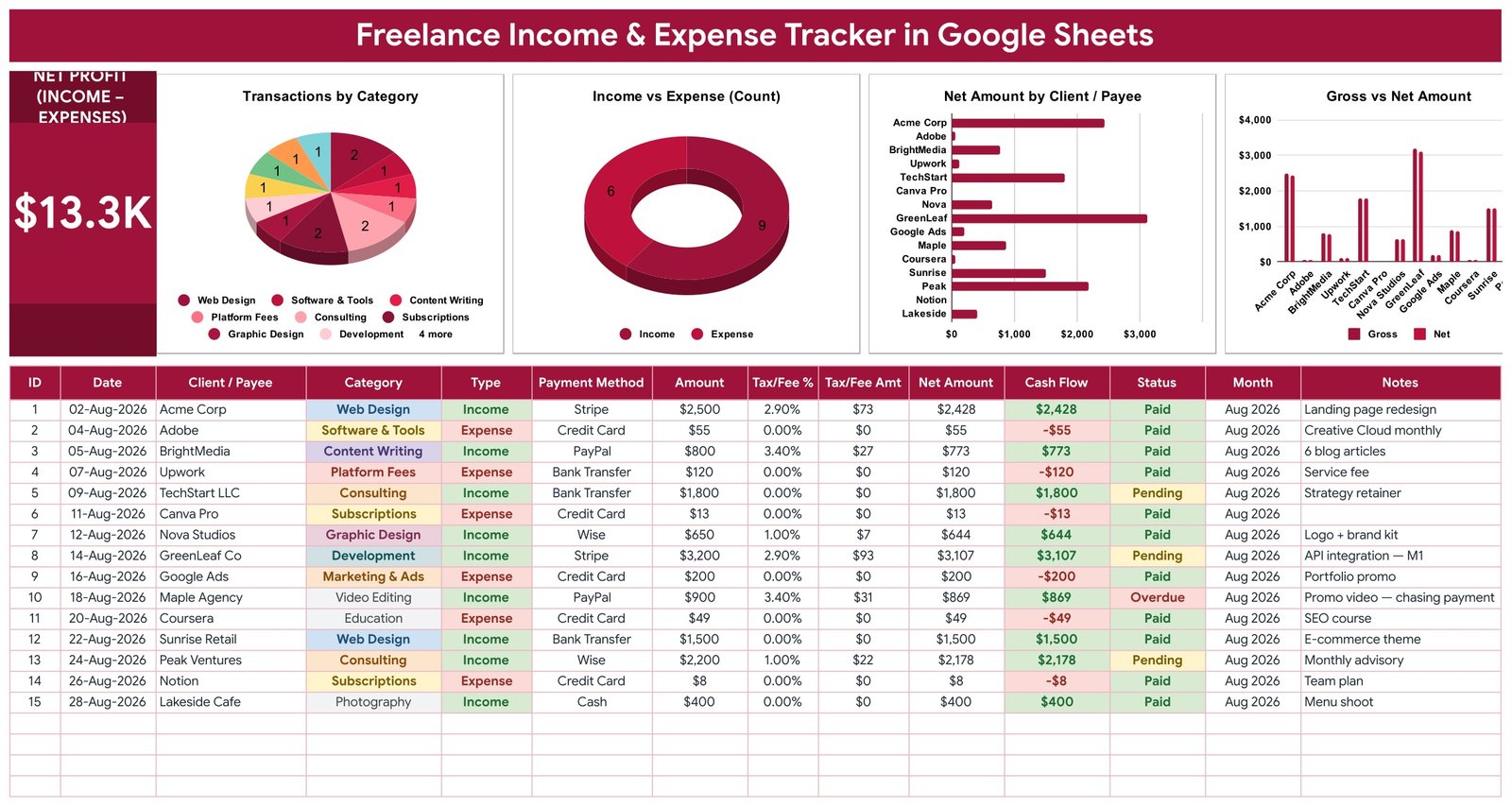
- Net Profit card that never goes stale. The card at the top left is driven by the Cash Flow column across rows 16 to 1000. Add a row and it moves; on the sample data it reads $13.3K.
- Five self-calculating columns. ID, Tax/Fee Amt, Net Amount, Cash Flow and Month are formulas. You never type them and they cannot fall out of step.
- A Tax/Fee % you control. Enter the processor cut or withholding you actually pay — the Instructions tab uses 2.9% for Stripe and 3.4% for PayPal as worked examples — and Net Amount shows what really lands in the account.
- Signed cash flow with colour. Expenses are stored negative, so the column reads green above zero and red below it without you formatting anything.
- Four charts, no helper tables. Every chart reads the data columns directly, so there is no hidden staging sheet to break.
- Dropdowns you can extend. Category, Type, Payment Method and Status are pulled from the List tab, rows 2 to 500. Add a value there and it appears in the dropdown.
- Native Google Sheets only. Formulas, data validation, conditional formatting and charts. No macro, no add-on, no permission prompt.
What’s Inside the Freelance Income & Expense Tracker in Google Sheets
Four tabs, and none of them is filler.
Freelance Tracker
The working page. A 14-column register — ID, Date, Client / Payee, Category, Type, Payment Method, Amount, Tax/Fee %, Tax/Fee Amt, Net Amount, Cash Flow, Status, Month, Notes. Above it sits the NET PROFIT (INCOME − EXPENSES) card and four charts: Transactions by Category, Income vs Expense (Count), Net Amount by Client / Payee and Gross vs Net Amount. Fifteen sample transactions run from 02-Aug-2026 to 28-Aug-2026 — a landing page redesign, a Creative Cloud renewal, an Upwork service fee, an overdue promo video — so you can see how a mixed month behaves before you clear them out.
List
The dropdown source. Four columns: 16 Categories (Web Design, Development, Content Writing, Consulting, Graphic Design, Photography, Video Editing, Software & Tools, Marketing & Ads, Office & Supplies, Subscriptions, Platform Fees, Travel, Education, Taxes, Other), 2 Types (Income, Expense), 8 Payment Methods (Bank Transfer, PayPal, Stripe, Wise, Credit Card, Cash, UPI, Check) and 3 Statuses (Paid, Pending, Overdue). Each list is read down to row 500, so there is room to grow.
Instructions
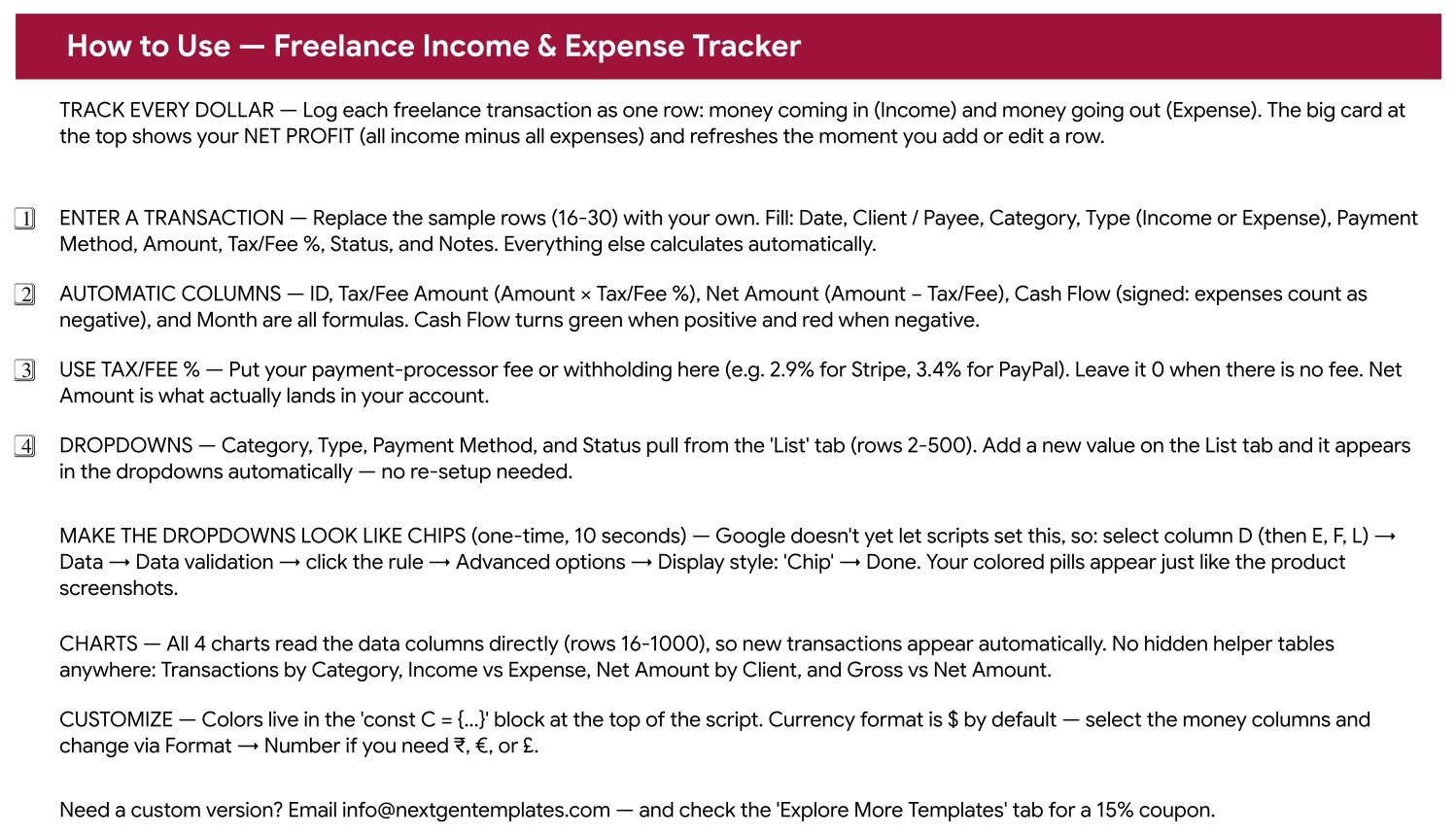
A one-page How to Use, written for this sheet rather than copied in. It covers what to type and what calculates, how to use the Tax/Fee % column, where the dropdowns come from, and a ten-second one-time step to turn those dropdowns into coloured chips through Data → Data validation → Advanced options → Display style: Chip.
Explore More Templates
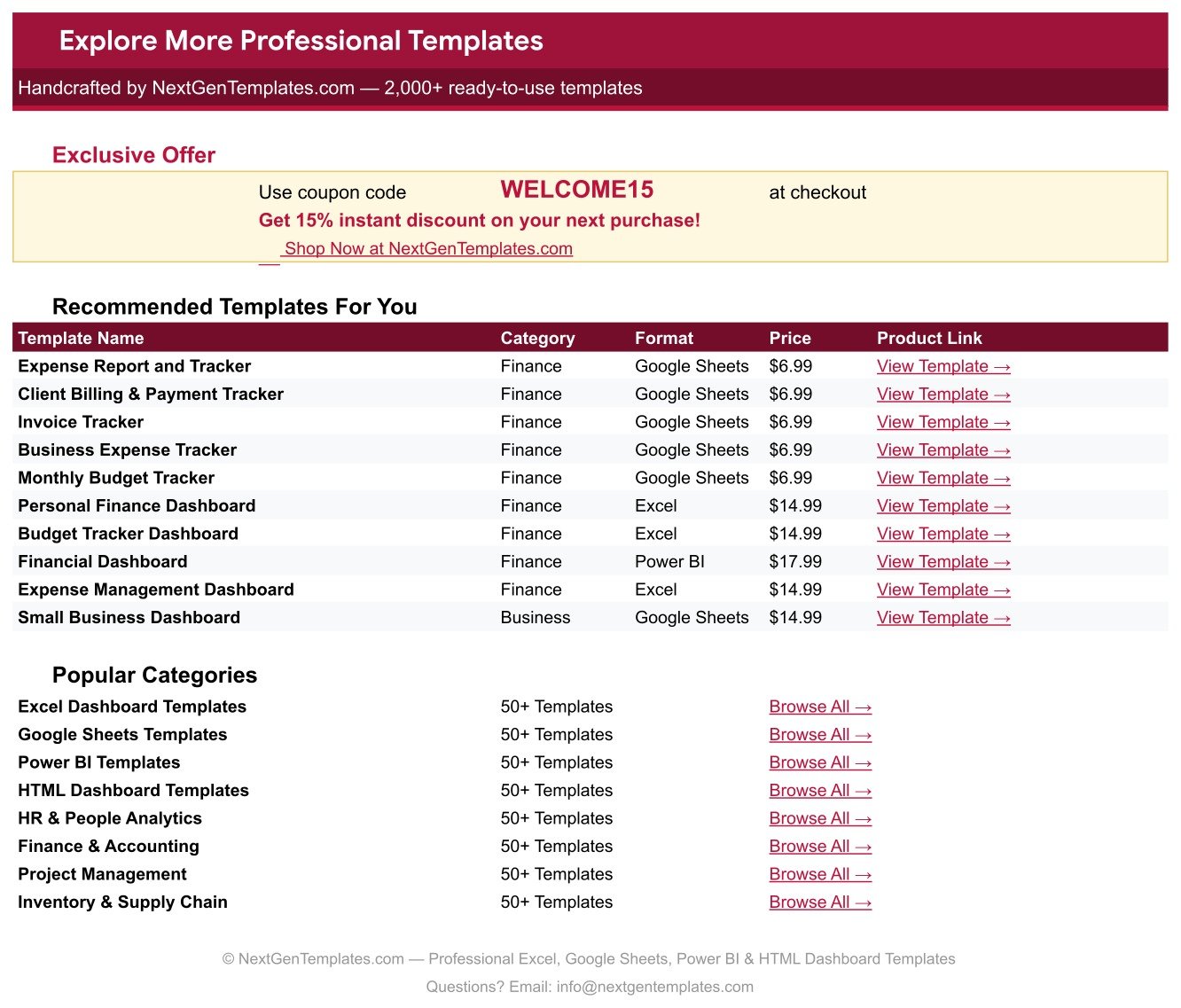
A WELCOME15 coupon for 15% off your next purchase, ten recommended finance and business templates with direct product links, and eight category shortcuts.
Freelance Income & Expense Tracker vs. an Excel Build vs. Paid Accounting Software — Where This Fits
| This tracker (Google Sheets) | Your own Excel file | Paid accounting software | |
|---|---|---|---|
| Cost | $6.99 once | Free, plus your weekend | Monthly, per seat |
| Platform | Any browser, plus the free Sheets app | Excel on desktop | Web and mobile app |
| Setup time | About 5 minutes | Hours of layout and chart work | Days, including a chart of accounts |
| Real-time collaboration | Yes — you and your bookkeeper at once | Only via OneDrive co-authoring | Yes, usually an extra seat |
| Mobile access | Yes, free app | Limited | Yes |
| Customisable fields | Yes, from the List tab | Yes, if you rebuild the charts too | Within the vendor’s model |
| Share with a link | Yes, one link to your accountant | Attachments and version confusion | Yes, recipient usually needs a seat |
| Year-1 cost at 5 users | Under $10 in total | Existing licences plus your time | Typically hundreds per year |
| Processor fee per transaction | Your own Tax/Fee % per row | You build the column | Often inferred from a feed |
| Bank feed or auto-import | No — you type the rows | No | Yes |
| Works out what you owe | No, by design | No | Sometimes, with an accountant |
| Your data stays in your Drive | Yes | Yes | No, vendor-hosted |
Who This Template Is For — and Who It’s Not For
It fits solo freelancers and contractors who invoice a handful of clients a month and want the net figure without opening three apps. It fits people paid through Stripe, PayPal, Wise or a marketplace, because the Tax/Fee % column is where the platform’s cut finally becomes visible. It fits anyone preparing to hand a year of records to an accountant, since one link beats a folder of screenshots. And it fits a freelancer who has outgrown a notes app but does not want another subscription.
It is not for you if you want software that calculates your liability, applies deduction rules or files anything — this sheet records, it does not compute obligations. It is not for you if you need bank-feed reconciliation, invoice generation or payroll; that belongs in accounting software. And if you are consolidating several legal entities or thousands of transactions a month, a single sheet has stopped being the right container.
How to Use the Freelance Income & Expense Tracker in Google Sheets
- Make your copy. Open the PDF in your download and click the copy link. The sheet lands in your own Google Drive.
- Set the currency. It ships formatted in US dollars. Select the money columns and change it through Format → Number if you work in another currency.
- Tune the List tab first. Rename Categories to match your services, add your payment methods, then go back to the register.
- Turn on chips once. Follow the ten-second step on the Instructions tab so Category, Type, Payment Method and Status display as coloured pills.
- Replace rows 16 to 30. Enter Date, Client / Payee, Category, Type, Payment Method, Amount, Tax/Fee %, Status and Notes. Everything else fills itself.
- Log as you go. Add the invoice the day you raise it with Status Pending, then switch it to Paid when the money lands. Watch the Net Profit card instead of your banking app.
Real-World Use Cases
Maya, freelance UI designer. Four retainer clients and a Stripe account. She logs each invoice on the day it goes out, sets Tax/Fee % to 2.9%, and lets Net Amount show what actually clears. The Net Amount by Client / Payee chart tells her which client is really her biggest — which is not the one with the largest gross figure.
Daniel, part-time copywriter. He works evenings, so his costs are small and constant: Notion, Canva Pro, a Coursera course. Filing them under Subscriptions, Software & Tools and Education makes the Transactions by Category chart show where a slow month is quietly leaking, and the red Cash Flow cells make an expense-heavy week obvious at a glance.
Priya, video editor working with an accountant. She keeps one copy per financial year in Drive and gives her accountant view access. Because it is a link and not an attachment, he always sees the current version, and the Notes column carries the explanation for anything unusual. She asks him what any of it means for tax; the sheet does not.
Frequently Asked Questions
Does this calculate my tax bill?
No, and that is deliberate. The Tax/Fee % column is a rate you enter yourself — a payment-processor fee or a withholding you already know about. The sheet multiplies and totals what you type. It applies no tax rules and knows nothing about your jurisdiction. Ask your accountant what your obligations are.
Do I need Google Sheets experience?
No. If you can type into a cell and pick from a dropdown, you can run it. The Instructions tab covers everything else in one page.
How many transactions does it hold?
The formulas and the four charts already cover rows 16 to 1000, so you can add roughly 985 transactions without touching a formula. Copy the last row down if you need more.
Can I add my own categories or payment methods?
Yes. Add them on the List tab, which is read down to row 500 for each of the four lists. New values appear in the dropdowns straight away with no re-setup.
Can I change the currency?
Yes. It ships in US dollars. Select the money columns and switch through Format → Number for rupees, euros, pounds or anything else Sheets supports.
Does it need macros or an add-on?
No. Everything is native Google Sheets — formulas, data validation, conditional formatting and charts. Nothing asks for extra permissions.
Will it connect to my bank or my invoicing tool?
No. This is a typed record, not an integration. If you want automatic import, you want accounting software.
About the Author
Built by PK – Microsoft Certified Professional with 15+ years of Excel, Google Sheets, and Power BI experience. Founder of NextGenTemplates, reaching 300K+ subscribers across YouTube channels. Every template is hand-built and tested before release.
Explore Related Templates
- Client Billing and Payment Tracker in Google Sheets — for when the question changes from “what did I earn” to “who has not paid me”.
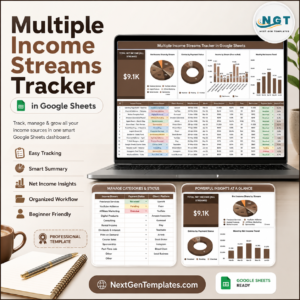
- Multiple Income Streams Tracker in Google Sheets — for freelancers splitting income across services, platforms and products.
- Expense Report and Tracker in Google Sheets — a deeper cost register when expenses outgrow one column.
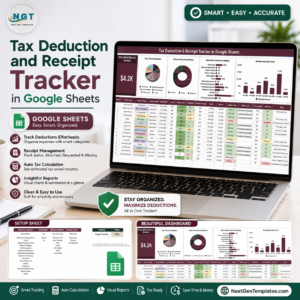
- Tax Deduction and Receipt Tracker in Google Sheets — a place to keep receipts filed against the records your accountant will ask for.
- Freelancer Business Dashboard in Google Sheets — the step up, for when one register is no longer the whole picture.
Browse the full Google Sheets Trackers range, or the wider Google Sheets Financial Tools category.
Get the Freelance Income & Expense Tracker in Google Sheets for $6.99 — instant download, one-time payment, yours to copy into your own Drive and keep. Video walkthroughs of templates like this one are on youtube.com/@PKAnExcelExpert.
Watch the step-by-step video Demo:
Last updated: September 2026.
Compatibility and Requirements
- Works in Google Sheets. You need a free Google account and a web browser. The free Sheets app also works on mobile.
- Category, Type, Payment Method and Status are dropdowns fed by the List tab. Google explains how they work in Create an in-cell dropdown list.
- Everything is native Google Sheets: formulas, data validation, conditional formatting and charts. No macro or add-on is used.






Reviews
There are no reviews yet.