

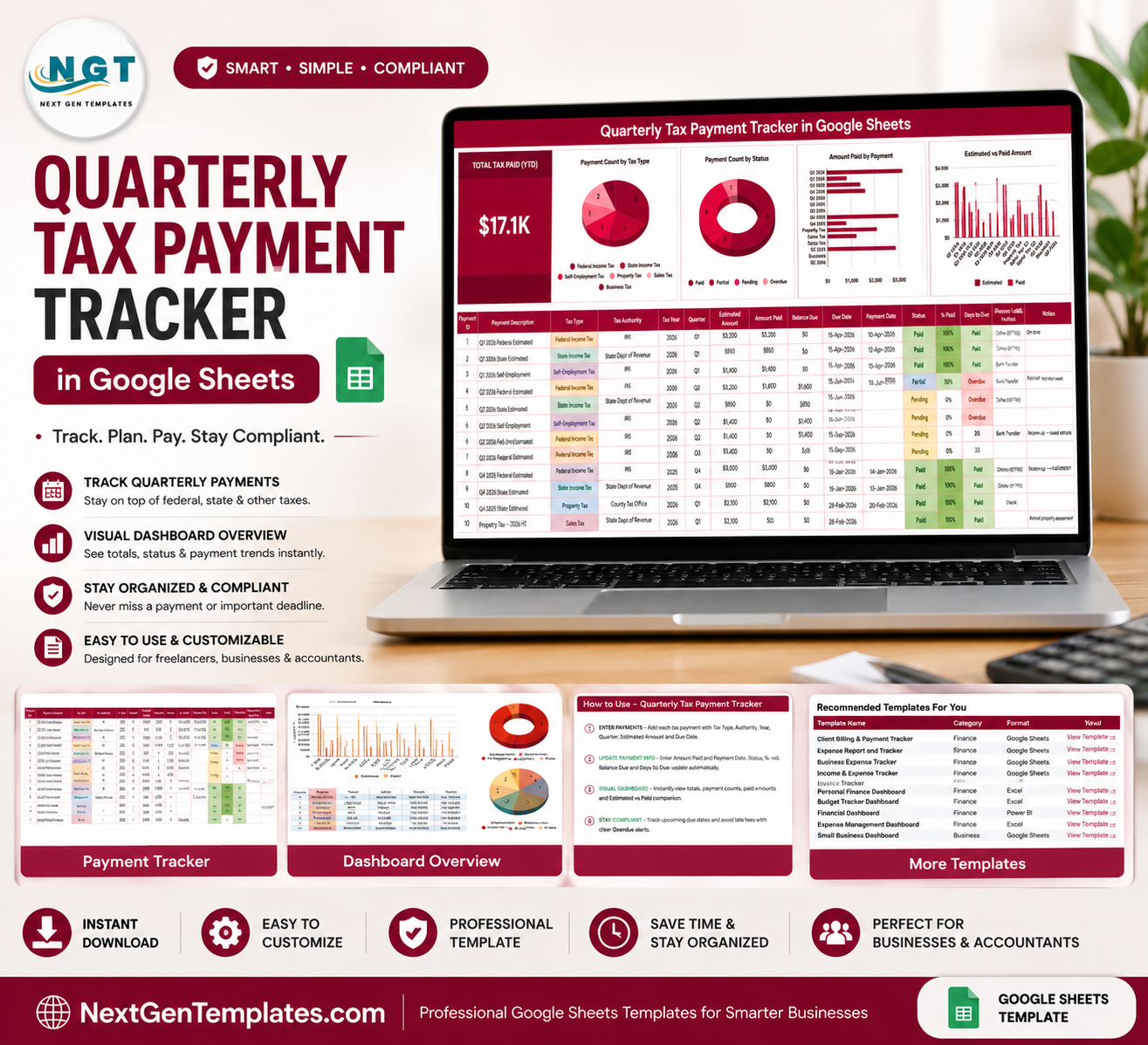
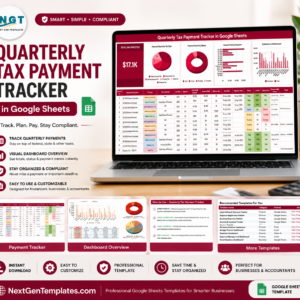
The Quarterly Tax Payment Tracker in Google Sheets puts every estimated tax payment you are managing – federal, state, self-employment, property, sales and business – on a single screen, with a live Total Tax Paid (YTD) card, four charts that refresh as you type, and a 16-column register that works out Balance Due, % Paid and Days to Due for you. It ships with 15 realistic sample rows so the logic is visible before you replace them. Part of a library of 2,000+ hand-built templates from NextGenTemplates, whose YouTube channels reach 300K+ subscribers. One-time $6.99, no subscription, unlimited devices, free lifetime updates – and if the copy link does not work for you, email us and we will fix it or refund you.
Please read: this is a record-keeping and organisation tool, not tax advice. It stores and totals the figures and dates you type in. It does not calculate what you owe, it does not know your filing obligations, and the dates in the sample rows are illustrative only. Confirm every amount and every deadline with your tax professional or with the official schedule published by the relevant tax authority.
Key Features of Quarterly Tax Payment Tracker in Google Sheets
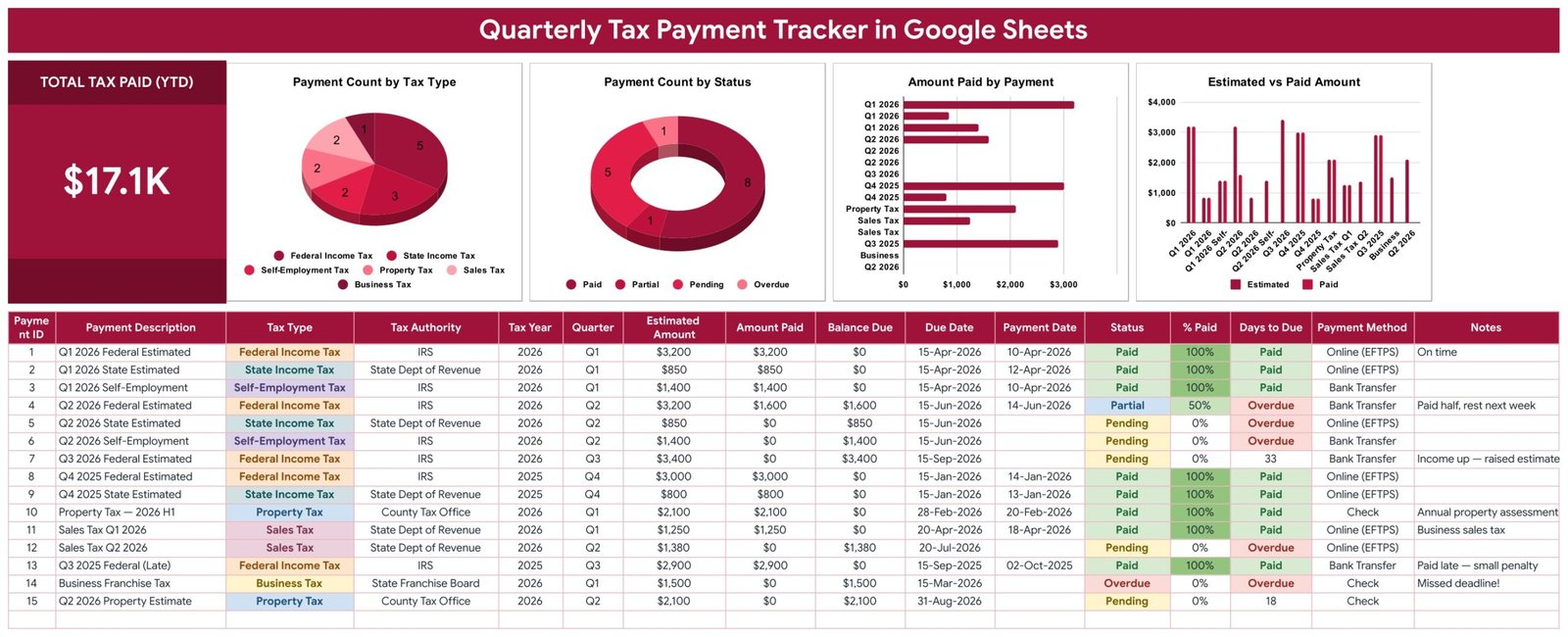
- One Total Tax Paid (YTD) card. A single large KPI on the left of the page that sums the Amount Paid column and moves the instant you record a payment.
- Four charts wired straight to the data. Payment Count by Tax Type, Payment Count by Status, Amount Paid by Payment and Estimated vs Paid Amount. Each reads rows 16-1000 of the register directly using the built-in Aggregate option, so there are no hidden helper tables to repair when you add rows.
- A 16-column payment register. Payment ID, Payment Description, Tax Type, Tax Authority, Tax Year, Quarter, Estimated Amount, Amount Paid, Balance Due, Due Date, Payment Date, Status, % Paid, Days to Due, Payment Method and Notes.
- Four columns that fill themselves in. Payment ID numbers each row, Balance Due is Estimated minus Paid, % Paid is the completion ratio, and Days to Due counts down to the date you entered, shows Overdue in red once that date has passed and reads Paid once the estimate is fully covered.
- Six tax types out of the box. Federal Income Tax, State Income Tax, Self-Employment Tax, Property Tax, Sales Tax and Business Tax, each with its own colour in the Tax Type column.
- Four payment statuses. Paid, Partial, Pending and Overdue, colour-coded so one glance down the column tells you where the quarter stands.
- Partial payments handled properly. Pay half an estimate and the row shows 50% Paid with the remainder sitting in Balance Due, rather than forcing an all-or-nothing tick box.
- Auto-expanding dropdowns. Tax Type, Tax Authority, Quarter, Status and Payment Method all pull from the List tab, rows 2-500. Add your own state agency or payment method there and it appears in the dropdown immediately – no re-setup.
- Room for 985 payments. Formulas and chart ranges already run to row 1000, which covers many years of quarterly filings across six tax types.
- Any currency. Money columns are formatted in $ by default; select them and switch to INR, EUR or GBP through Format then Number.
- Recolour in one place. The whole palette lives in a single const C block at the top of the build script, so the crimson theme becomes your brand colour in about a minute.
What’s Inside the Quarterly Tax Payment Tracker in Google Sheets
Your download is a PDF that carries the Make a copy link. Clicking it drops a private, fully editable copy into your own Google Drive – nothing is shared with anyone, and no one else can see your figures. That copy contains four tabs.
1. Tracker – the working page
The crimson title banner runs across the top. Underneath, the Total Tax Paid (YTD) card sits on the left with the four charts beside it, and the register starts at row 16. Header row, dropdowns, colour rules and formulas are all in place; you type into the white cells and everything else responds.
2. List – the dropdown source
A plain lookup tab holding the values behind every dropdown: the six tax types, the tax authorities (IRS, State Dept of Revenue, County Tax Office, State Franchise Board in the sample), Q1-Q4, the four statuses and the payment methods (Online EFTPS, Bank Transfer, Check). Edit this tab, not the validation rules.
3. How to Use – the printable guide
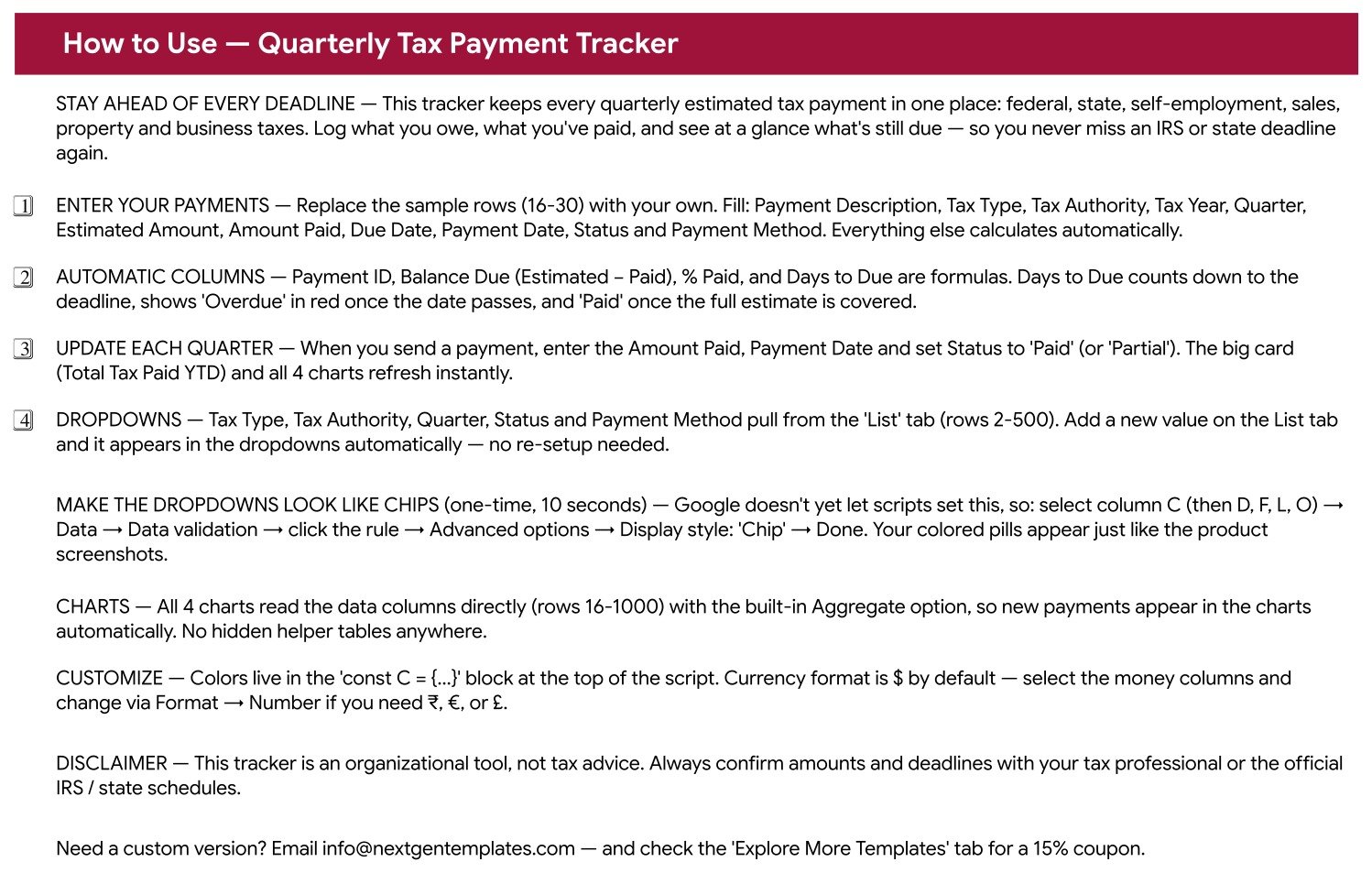
A four-step walkthrough covering data entry, which columns calculate themselves, the quarterly update routine and how the dropdowns work. It also explains the one-time, ten-second Data validation setting that turns the dropdowns into the coloured chips you can see in the screenshots, and where to change the currency and the colour palette.
4. Explore More Templates – the directory
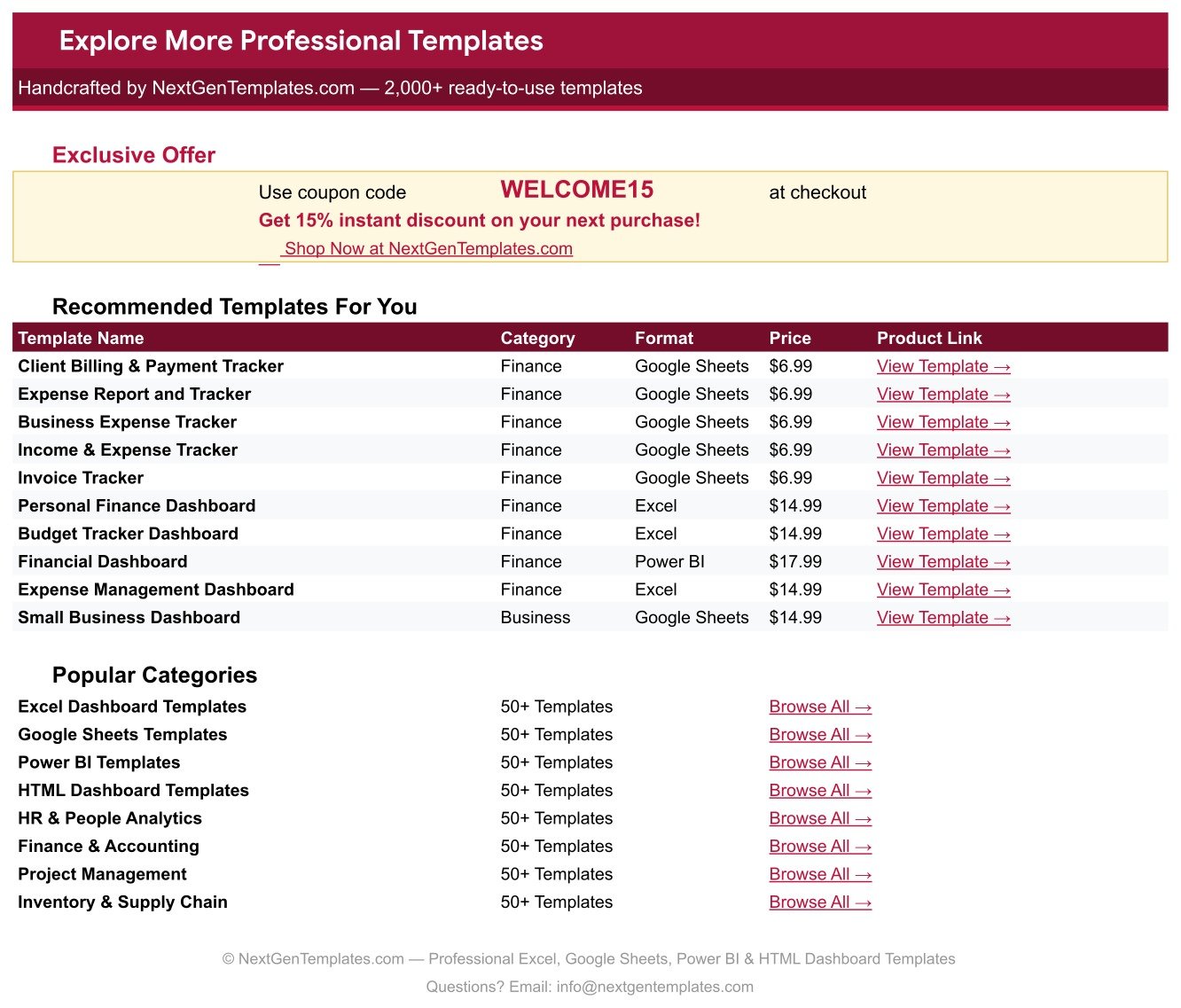
A linked table of related NextGenTemplates products by category, format and price, plus a WELCOME15 coupon worth 15% off your next purchase.
Quarterly Tax Payment Tracker in Google Sheets vs. a Home-Built Excel File vs. Paid Accounting Software – Where This Fits
| This tracker (Google Sheets) | Excel file you build yourself | Paid accounting software | |
|---|---|---|---|
| Cost | $6.99 one-time | Free if you already own Excel, plus your build time | Recurring subscription, usually billed per user per month |
| Platform | Google Sheets, any browser | Desktop Excel, Microsoft 365 | Web app plus mobile app |
| Setup time | About 5 minutes – copy, replace 15 sample rows | Several hours to design the columns, formulas and charts | Days, including a chart of accounts and bank connections |
| Real-time team collaboration | Yes, native multi-user editing | Only through OneDrive co-authoring | Yes, with seat licensing |
| Mobile access | Yes, Google Sheets app | Limited on the Excel mobile app | Yes |
| Customisable fields | Yes – add columns, edit the List tab, recolour | Yes, but you maintain every formula | Restricted to what the vendor exposes |
| Share with a link | Yes, one link to your accountant | File attachments and version confusion | Yes, but the recipient usually needs a seat |
| Year-1 cost at 5 users | $6.99 total – share one sheet | Existing Microsoft 365 licences plus build time | Typically hundreds to thousands of dollars per year |
| Six tax types in one register | Built in and colour-coded | You design it | Often split across modules |
| Partial-payment and balance-due logic | Automatic per row | You write the formulas | Yes |
Who This Template Is For – and Who It’s Not For
A good fit if you are: a freelancer or sole trader who sends estimated payments through the year; a small-business owner juggling income tax, sales tax and a franchise or property bill from different authorities; a bookkeeper who wants one shared sheet per client instead of a folder of emails; anyone who has been running this on a notes app and wants the balances calculated instead of guessed.
Not a good fit if you: want software that calculates your liability or files on your behalf – this tracker records what you tell it and nothing more; need bank-feed reconciliation, invoicing or payroll, which belong in accounting software; are managing dozens of legal entities with consolidated reporting, where a single sheet stops being the right container; or need an offline desktop file, since this is a Google Sheets template and the whole point is browser access and link sharing.
How to Use the Quarterly Tax Payment Tracker in Google Sheets
- Open the PDF and click the copy link. Google creates your own copy in your Drive. Rename it and it is yours.
- Skim the sample. Rows 16-30 hold 15 worked examples across all six tax types and all four statuses. Look at how a Partial row behaves before you delete them.
- Enter your payments. Fill Payment Description, Tax Type, Tax Authority, Tax Year, Quarter, Estimated Amount, Amount Paid, Due Date, Payment Date, Status and Payment Method. Leave Payment ID, Balance Due, % Paid and Days to Due alone – they are formulas.
- Add your own dropdown values. If your state agency or preferred payment method is not listed, add it on the List tab and it appears in the dropdown right away.
- Turn the dropdowns into chips (optional, ten seconds). Select column C, then Data, Data validation, click the rule, Advanced options, Display style Chip. Repeat for D, F, L and O to match the screenshots.
- Update as you pay. Enter the Amount Paid and Payment Date and set the Status. The Total Tax Paid card and all four charts refresh instantly.
- Review before each filing period. Sort or filter by Days to Due to see what is closest, and by Status to catch anything still Pending or Partial – then confirm the real deadlines with your tax professional.
Real-World Use Cases
Maya, freelance UX designer. Maya sends federal estimated payments and self-employment tax four times a year and always loses track of what she has already sent. She logs each estimate as soon as she works it out with her accountant, then fills in Amount Paid on the day she transfers. The Estimated vs Paid Amount chart shows her at a glance which quarters are short.
Daniel, owner of a two-van cleaning company. Daniel deals with three authorities: federal, his state revenue department for sales tax, and the county for a property bill. Colour-coded tax types mean he can scan one register instead of three folders, and the Payment Count by Status donut tells him how many items are still Pending before he calls his bookkeeper.
Priya, bookkeeper with 14 small clients. Priya keeps one copy of the tracker per client in a shared Drive folder and gives each client view access. Because it is a link rather than an attachment, the client always sees the current version, and the Notes column carries the running explanation of anything unusual.
Frequently Asked Questions
Does this tracker calculate how much tax I owe?
No. It records the estimated amounts you enter and totals what you have paid against them. Working out the liability is your job or your accountant’s – the tracker is the register, not the calculator.
Is this specific to one country’s tax system?
No. The sample data uses United States terms because that is the most common request, but Tax Type and Tax Authority are ordinary dropdowns fed by the List tab. Replace IRS with HMRC, the GST department or any other authority and the sheet works exactly the same way.
What do I actually download?
A PDF that contains the Make a copy link plus setup notes. Click the link, Google places a private editable copy in your Drive. There is no add-on to install and no permission to grant.
Do I need to know Google Sheets formulas?
No. Every formula is already written. You type into the white columns; Payment ID, Balance Due, % Paid and Days to Due look after themselves.
Can more than one person use it at the same time?
Yes. Share your copy from Google Sheets like any other file. Editors can log payments together and viewers – your accountant, for instance – can watch without changing anything.
Will the charts break when I add rows?
No. All four charts and the KPI card cover rows 16 to 1000 already, so new payments appear automatically until you exceed 985 rows.
Can I change the colours and the currency?
Yes. The palette sits in one const C block at the top of the build script, and the money columns are ordinary currency formats – select them and switch to INR, EUR or GBP via Format then Number.
About the Author
Built by PK – Microsoft Certified Professional with 15+ years of Excel, Google Sheets, and Power BI experience. Founder of NextGenTemplates, reaching 300K+ subscribers across YouTube channels. Every template is hand-built and tested before release.
Explore Related Templates
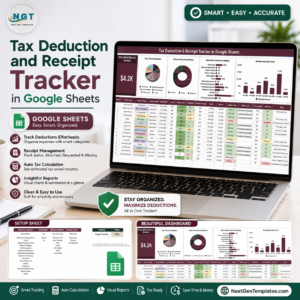
- Tax Deduction and Receipt Tracker in Google Sheets – log the deductions and receipts that feed the estimates you record here.
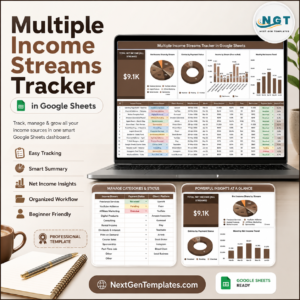
- Multiple Income Streams Tracker in Google Sheets – see where the income is coming from before you size the next quarterly payment.
- Bank Account Balance Tracker in Google Sheets – make sure the cash is there on the day the transfer goes out.
- Annual Family Budget Tracker in Google Sheets – fit the tax bill into the household plan for the year.
- Utility Bills and Usage Tracker in Google Sheets – another recurring-bill register with the same layout and logic.
Browse the full Google Sheets templates collection, or go straight to the Google Sheets Trackers category.
Get the Quarterly Tax Payment Tracker in Google Sheets for $6.99 (regular $12.99) – instant download, one-time payment, unlimited use, free lifetime updates. Need a custom version with your own tax types or a multi-entity layout? Email [email protected].
Watch the step-by-step video Demo:
Last updated: 13 August 2026.
























Reviews
There are no reviews yet.