


Managing a technology marketing team remotely? Struggling with scattered schedules, time zone confusion, and campaign overlaps? Say goodbye to chaos with our Technology Marketing Remote Work Calendar in Excel — a powerful, user-friendly, and 100% customizable solution designed for today’s remote-first marketing teams.
This dynamic calendar brings your entire marketing operation into one place — with automated views, interactive buttons, and structured scheduling. Whether you’re a solo marketer or leading a global team, this Excel-based template helps you plan smarter, act faster, and stay in sync.
✨ Key Features of Technology Marketing Remote Work Calendar
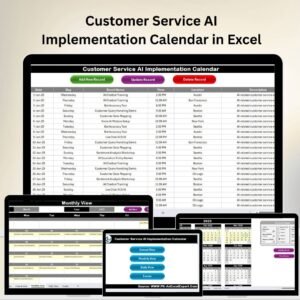
📅 5 Smartly Designed Worksheets

Home Tab – Central dashboard with clickable buttons to jump to any view
Annual View – See your whole year at a glance with filters and color themes
Monthly View – Focus on campaigns and events for any selected month
Daily View – Zoom in to daily plans with start/end filters
Events Sheet – Backend database to store, edit, and manage all events
🎨 Customizable Control Panel
Set calendar year, start month, and week start day
Choose from five color themes (professional, bold, or minimalist)
Highlight weekends or special days easily with checkboxes
📝 Interactive Event Management
Add, Edit, or Delete events using buttons
Auto-generate event IDs
View all entries for a selected date with Show Event
🔁 Multiple Calendar Views
Annual for strategy
Monthly for campaigns
Daily for execution
📦 What’s Inside the Calendar Template?
🔹 Home Tab – Click-and-go interface for smooth navigation
🔹 Annual View Sheet – Yearly planning with theme, input & highlight controls
🔹 Monthly View Sheet – View up to one event/day with dynamic layout
🔹 Daily View Sheet – Filter by date ranges, ideal for focused planning
🔹 Events Sheet – Your event database, fully editable with auto-updates
This all-in-one system gives remote tech marketers the structure of a tool like Trello or Asana, but in Excel!
🛠 How to Use the Remote Work Calendar
✅ Download & Open the Excel template
🗓️ On the Annual View tab, set your year, start month, and week start
🖊️ Use the Add Event button to input meetings, campaigns, or deadlines
🔍 Navigate between Annual, Monthly, or Daily View using buttons
🧠 Track and manage events from the Events Sheet
📤 Share it with your team on OneDrive, Google Drive, or Dropbox for collaboration
👥 Who Can Benefit from This Calendar?
This template is ideal for:
🧑💻 Remote Marketing Teams – Keep campaigns and events aligned
📈 Digital Marketers & Freelancers – Stay organized with all client projects
🗂️ Startup Founders – Manage product launches, PR, and outreach timelines
📅 Content Creators – Plan editorial calendars, videos, SEO, and more
📌 Agile Project Managers – Track sprints, tasks, and delivery milestones
If you work in tech marketing and juggle tasks remotely, this Excel calendar will instantly simplify your planning.
🚀 Why This Calendar is a Game-Changer
🧩 Centralized Schedule – Manage all events, campaigns, and meetings in one Excel
🎨 Fully Customizable – Choose color themes, start days, and monthly layouts
🔄 Multiple Views – Annual, monthly, and daily zooms with real-time filtering
📤 Cloud-Ready – Compatible with Excel Online, Google Sheets, or OneDrive
🛠️ No Special Software – Built with pure Excel—easy, powerful, and familiar
🔁 Click here to read the Detailed blog post
📺 Visit our YouTube channel to learn step-by-step video tutorials
Watch the step-by-step video tutorial:
Compatibility and Requirements
- Works in Microsoft Excel desktop (Excel 2016 or later, or Microsoft 365).
- The Annual View has checkboxes to highlight weekends or special days. Microsoft explains them in Using check boxes in Excel.
Frequently Asked Questions
Which sheets are included?
Five sheets: Home, Annual View, Monthly View, Daily View and Events. The Home sheet has buttons that jump to each view, and the Events sheet stores every entry.
How do I add an event?
Use the Add Event button to enter a meeting, campaign or deadline. You can also edit or delete an event with buttons, and event IDs are generated automatically.
Can I change the year, start month and first day of the week?
Yes. On the Annual View sheet you set the calendar year, the start month and the week start day. You can also pick one of five color themes.
How do I see the events for one date?
Select the date and use the Show Event button to list every entry for it. The Daily View also lets you filter by start and end dates.
Is there a marketing calendar for other teams or industries?
Yes. See the Marketing Remote Work Calendar in Excel or the Technology Sales Remote Work Calendar in Excel.
Related Remote Work Calendars
- Marketing Remote Work Calendar in Excel: the same calendar for general marketing teams
- Marketing Team Remote Work Calendar in Excel: a version built around marketing team schedules
- Technology Sales Remote Work Calendar in Excel: remote scheduling for tech sales teams
- Technology HR Remote Work Calendar in Excel: remote scheduling for tech HR teams
- Technology Operations Remote Work Calendar in Excel: remote scheduling for tech operations
Browse all Excel calendar templates.









Reviews
There are no reviews yet.