

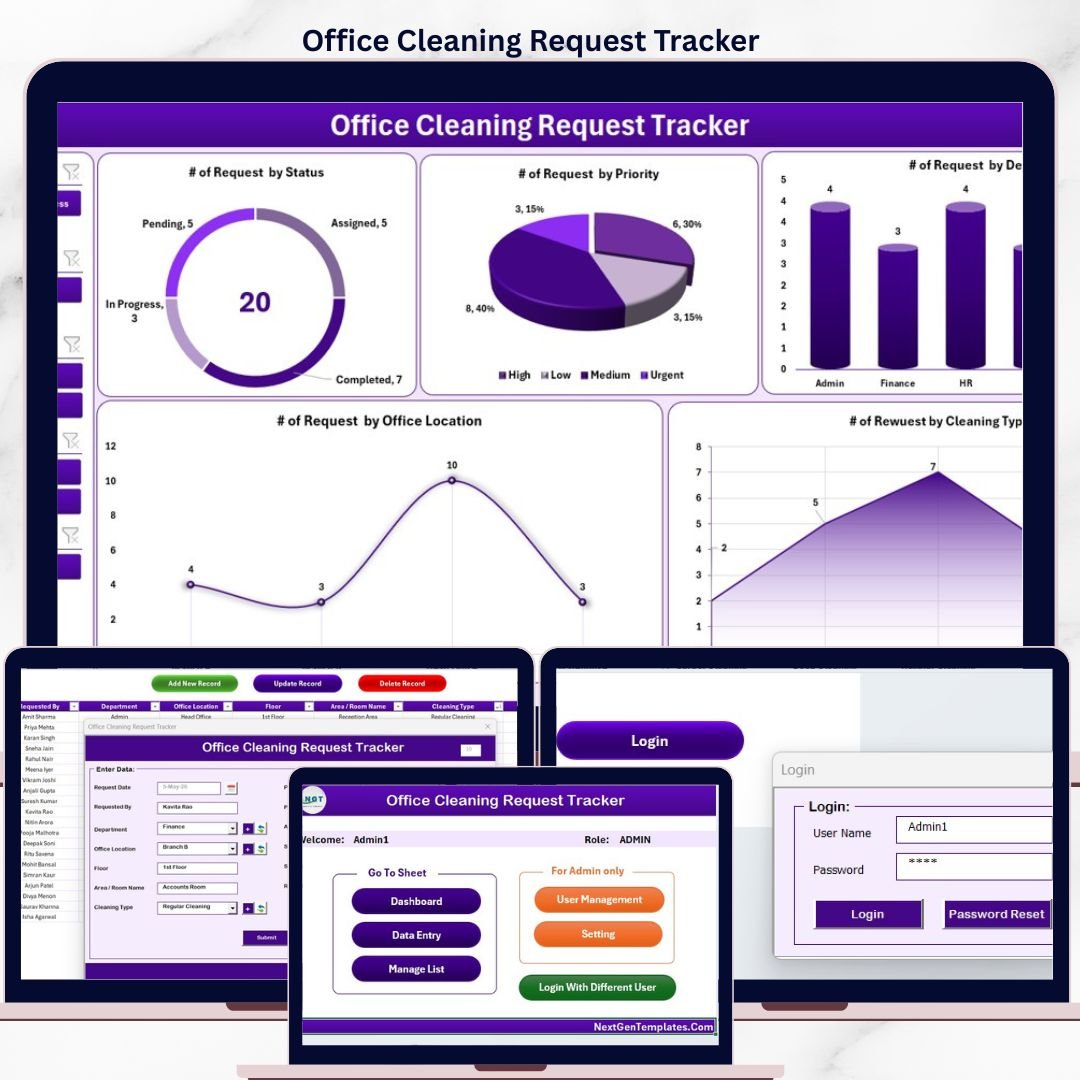
The Office Cleaning Request Tracker in Excel manages 8 dedicated worksheets, processes requests through a VBA UserForm with Add, Update, and Delete operations, and visualizes all cleaning data through 5 interactive charts with 4 slicers. Setup takes under 10 minutes — open the file, enable macros, and you’re tracking requests from day one.
🌍 Join 8,400+ teams in 40+ countries using NextGenTemplates to replace paid SaaS tools with one-time-purchase Excel, Google Sheets, Power BI, and HTML templates.
✅ Instant download · One-time payment · No subscription · No per-user fees · Lifetime access
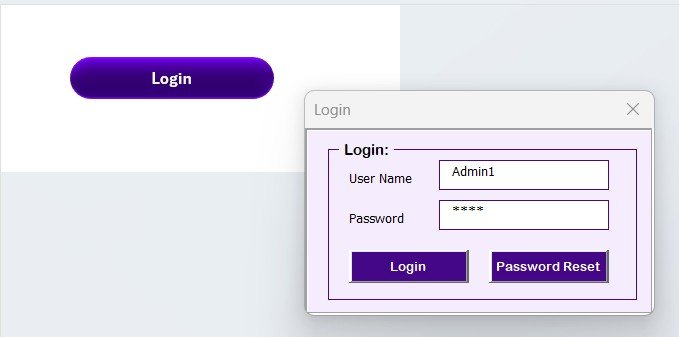
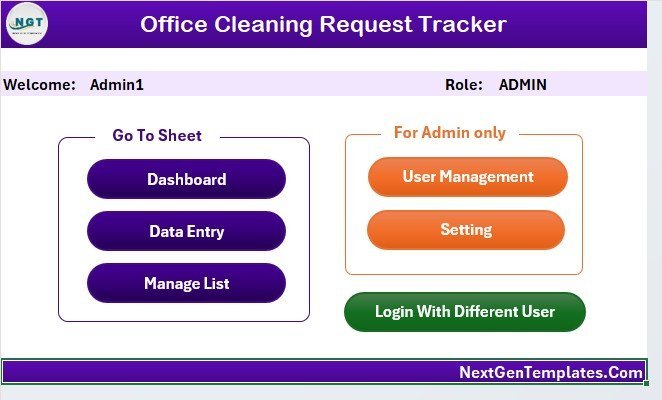
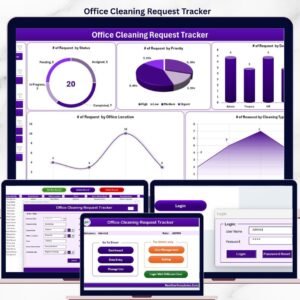
Office Cleaning Request Tracker in Excel – Home Page Overview
🔑 Key Features of the Office Cleaning Request Tracker in Excel
🔹 VBA-Powered Data Entry Form — Submit cleaning requests through a structured UserForm that auto-saves data to the Data Sheet and refreshes the dashboard on submit. No manual row editing required.
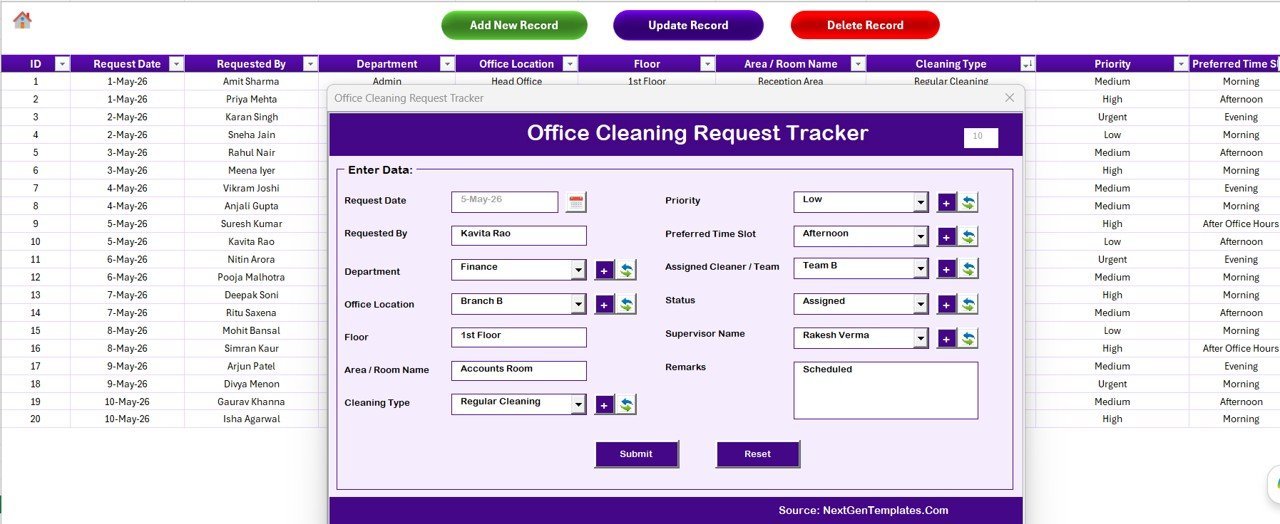
🔹 Full CRUD Operations — Three VBA buttons on the Data Sheet handle all record management: Add New Record (opens blank form), Update Record (opens pre-filled form for the selected ID), and Delete Record (with confirmation prompt).
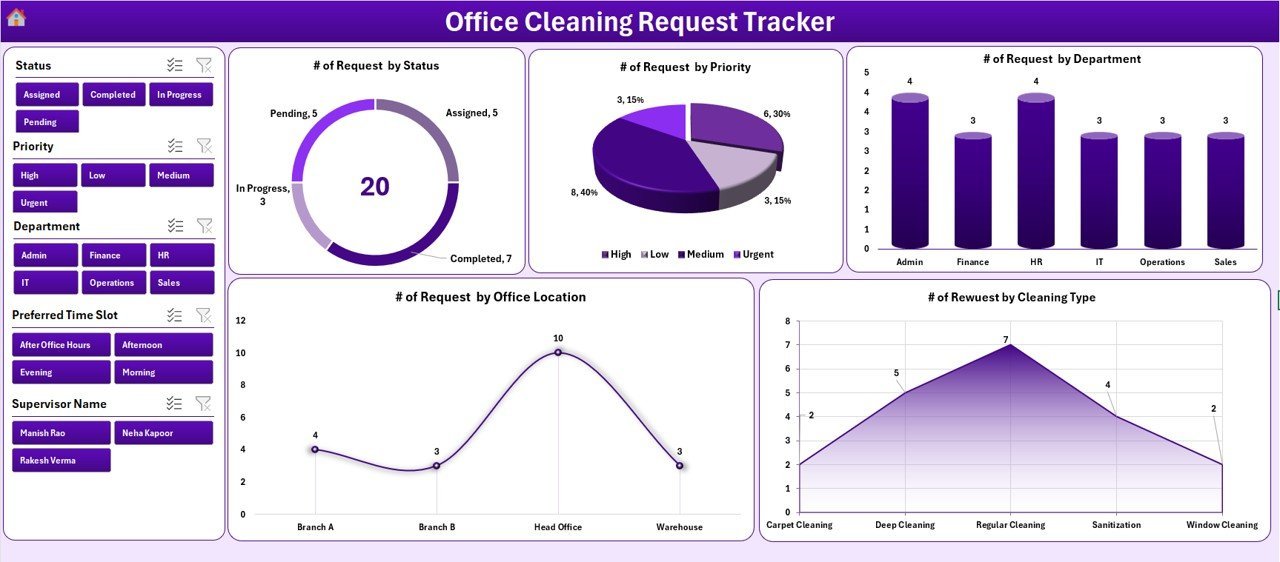
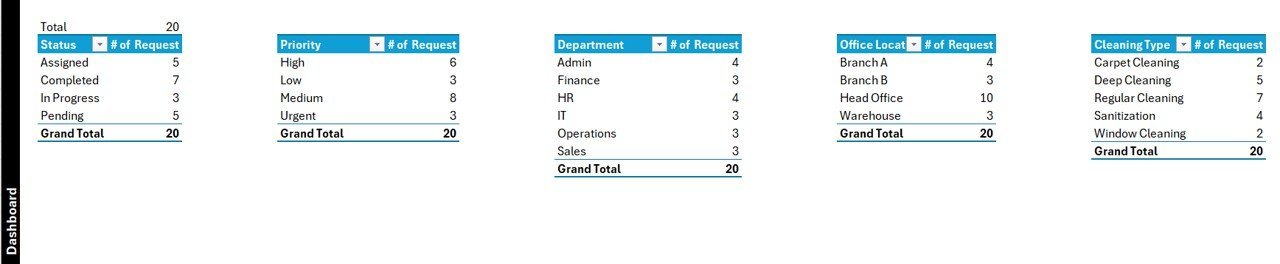
🔹 Interactive Dashboard with 5 Charts and 4 Slicers — The dashboard displays 5 pre-built charts covering request status breakdown, priority distribution, cleaning area trends, staff workload, and monthly request volume — all filterable by 4 slicers for instant data cuts.
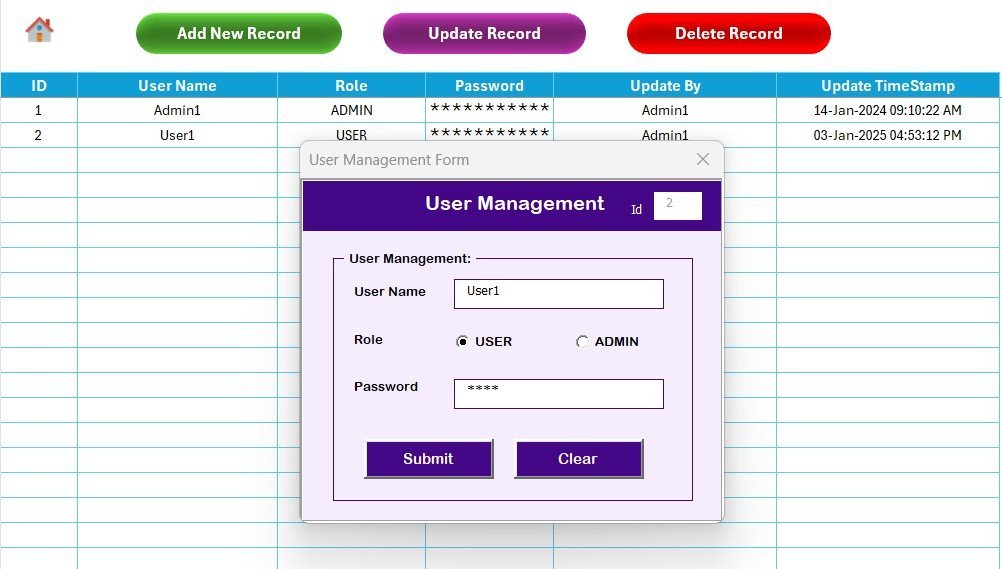
🔹 Login Form and User Management — A built-in authentication system with a Login Form sheet and dedicated User Management Sheet lets administrators control who can access and modify tracker records.
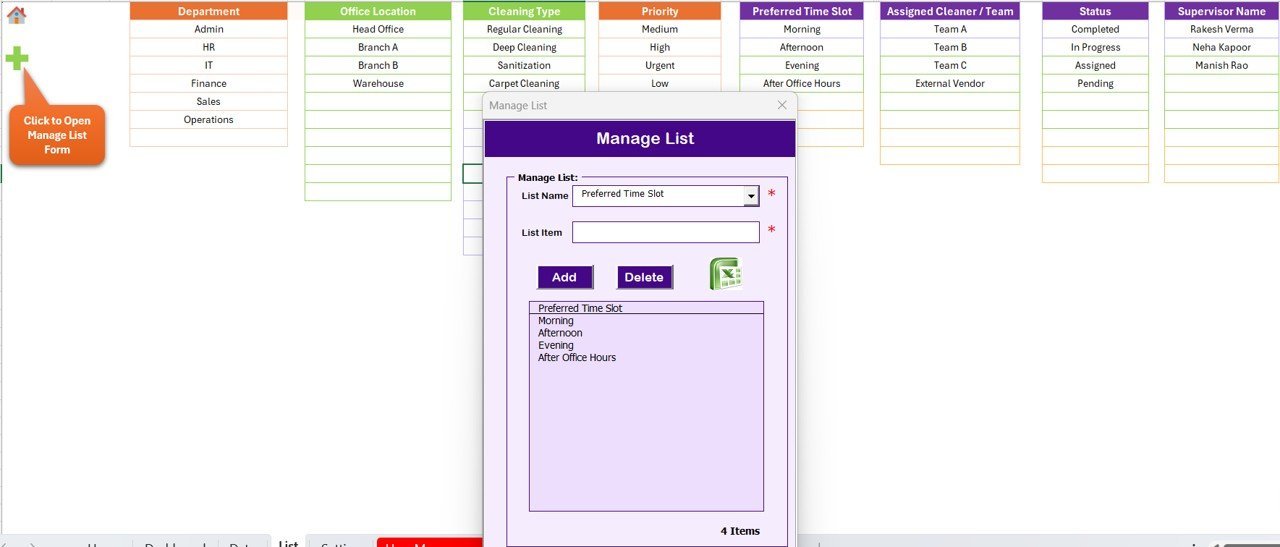
🔹 Customizable List Sheet — All dropdown values in the UserForm — office areas, staff names, priority levels, and request types — are driven by the List Sheet. Changes take effect immediately across the form with no VBA editing required.
🔹 Auto-Refresh After Every Submission — Every time a record is added or updated through the form, the dashboard auto-refreshes. Charts and KPIs stay current without manual pivot table updates.
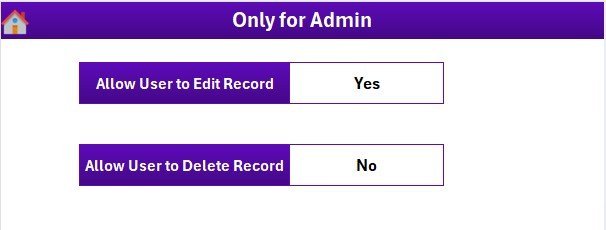
🔹 Settings Sheet — Configure system-level preferences such as company name, date formats, and display options without opening the VBA editor.
📦 What’s Inside the Office Cleaning Request Tracker in Excel
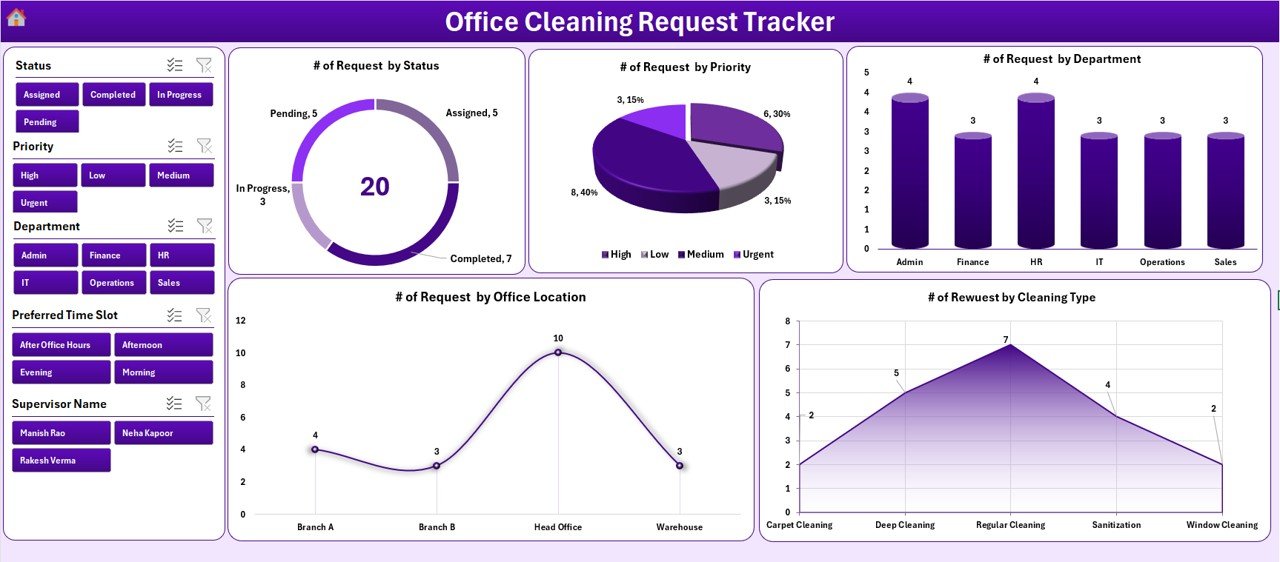
Dashboard — 5 interactive charts with 4 slicers for instant cleaning request analysis
The Office Cleaning Request Tracker in Excel includes 8 purpose-built worksheets:
🔹 Login Form — Secure authentication screen before accessing the tracker.
🔹 Home Page — Navigation hub for quick access to all sheets.
🔹 Dashboard — 5 interactive charts (Status Breakdown, Priority Distribution, Area Trend, Staff Workload, Monthly Volume) controlled by 4 slicers (Area, Status, Priority, Staff).
🔹 Data Sheet — Central records repository with Add New Record, Update Record, and Delete Record VBA buttons.
🔹 List Sheet — Configure all dropdown options for the data entry form (areas, staff, priority levels, request types).
🔹 Support Sheet — Pivot tables powering the dashboard charts. No action needed; hide this tab after setup.
🔹 Settings Sheet — System-level configuration for company name, preferences, and date settings.
🔹 User Management Sheet — Add or remove authorized users and manage their login credentials.
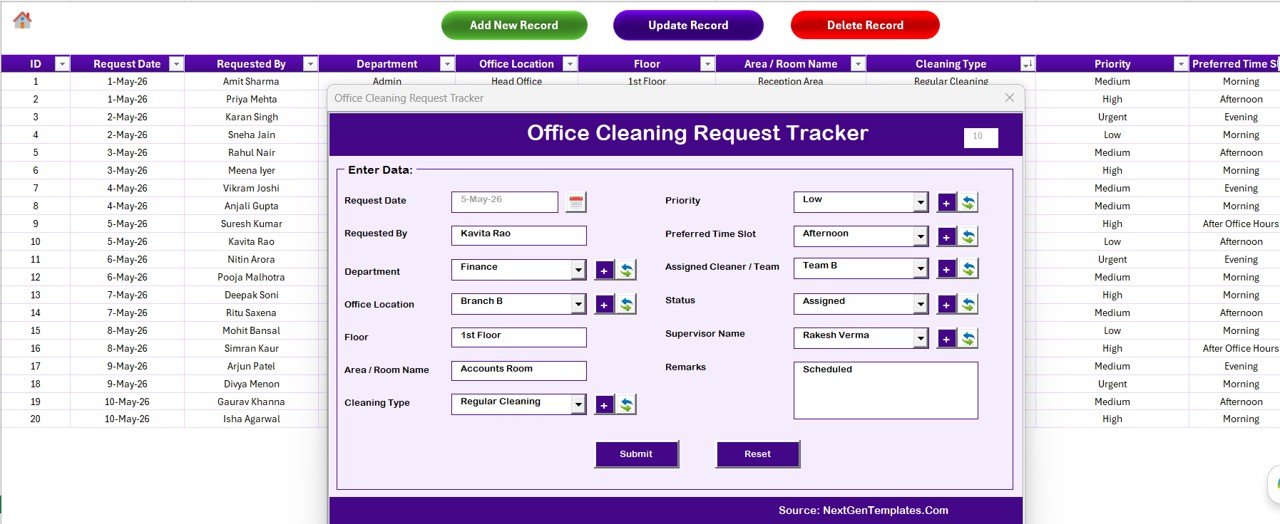
Data Sheet — Add New Record, Update Record, and Delete Record VBA buttons
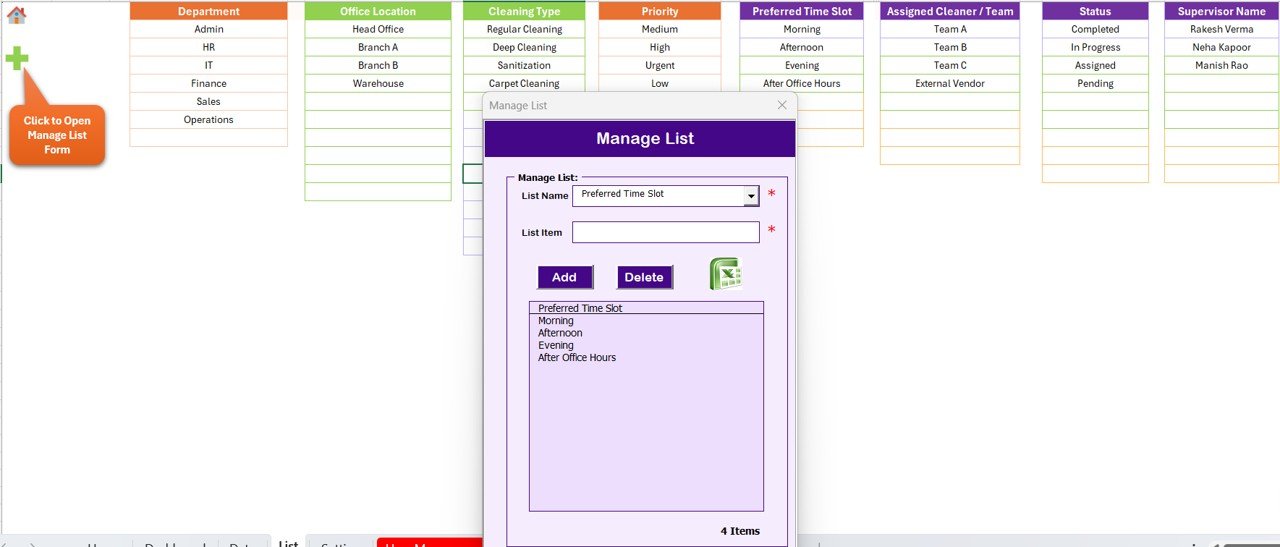
VBA Data Entry Form — structured input with dropdown controls from the List Sheet
📊 Office Cleaning Request Tracker in Excel vs. Google Sheets vs. UpKeep CMMS — Where This Fits
| Feature | Office Cleaning Request Tracker in Excel | Google Sheets Cleaning Tracker | UpKeep / Freshservice (CMMS) |
|---|---|---|---|
| Cost | $6.99 one-time | $0–$9.99 one-time | $20–$45 / user / month |
| Platform | Microsoft Excel — offline + online | Browser only, requires Google account | Cloud only, browser / mobile |
| Setup time | Under 10 minutes | 5–10 minutes | 1–3 days (onboarding + config) |
| Login & User Control | ✅ Built-in login + user management | ❌ Google sharing permissions only | ✅ Enterprise SSO + role-based access |
| Data Entry Form | ✅ VBA UserForm with validation | ❌ Manual row entry or Google Forms | ✅ Web form (subscription required) |
| Offline access | ✅ Full offline functionality | ❌ Requires internet | ❌ Cloud-dependent |
| Customizable fields | ✅ Edit List Sheet, no coding needed | ✅ Easy column editing | Limited by plan tier |
| Real-time multi-user edit | Limited (Excel Online only) | ✅ Live collaboration | ✅ Full real-time |
| Year-1 cost at 5 users | $6.99 total | ~$0–$50 total | $1,200–$2,700 total |
For facility managers and office admins who need structured cleaning request tracking without paying $20+ per user per month, the Office Cleaning Request Tracker in Excel sits in the sweet spot.
👥 Who This Template Is For — and Who It’s Not For
✅ This template is built for:
- Office managers and facility coordinators who receive multiple cleaning requests daily and need one place to log and track them
- Cleaning supervisors managing a 1–50 person team who want to see workload distribution by staff and area
- Property managers in coworking spaces, corporate offices, schools, and hospitals tracking sanitization and maintenance requests
- Small business owners already using Excel daily who want to avoid recurring SaaS facility management fees
❌ This template is NOT for:
- Enterprise facilities teams needing IoT sensor integration, mobile field apps, or audit-grade compliance reporting
- Organizations requiring simultaneous editing by 10+ users in real time — consider a cloud CMMS instead
- Google Workspace-exclusive teams — see the Office Cleaning Request Tracker in Google Sheets instead
⚙️ How to Use the Office Cleaning Request Tracker in Excel
- Download & Open — Unzip the file, open it in Microsoft Excel 2016+, and click “Enable Content” to activate the VBA macros.
- Set Up Users — Go to the User Management Sheet and add your team members’ names and credentials. Use the Settings Sheet to enter your company name and preferences.
- Configure Lists — Open the List Sheet and enter your office areas, staff names, priority levels, and request types. These populate all dropdown menus in the form.
- Log a Request — Go to the Data Sheet and click “Add New Record.” Fill in the form and click Submit — the record saves and the dashboard refreshes automatically.
- Update or Delete — Click the ID of any record and hit “Update Record” to edit, or “Delete Record” to remove it (confirmation prompt prevents accidental deletion).
- Monitor the Dashboard — Switch to the Dashboard sheet and use the 4 slicers to filter all 5 charts by area, status, priority, or staff member.
💼 Real-World Use Cases
Rachel manages facilities at a 200-desk corporate office. She receives 10–20 cleaning requests daily via email — spilled coffee in Meeting Room B, restroom restocking needed, carpet stain on Floor 3. With the Office Cleaning Request Tracker in Excel, requests are logged through the VBA form in under 30 seconds, assigned to a cleaner, and her weekly management review draws on the dashboard’s staff workload chart to show response time performance.
Dinesh runs maintenance at a private school with 4 buildings. His 3-person cleaning team handles 40+ weekly requests during peak periods. The Login Form means only authorized staff can update records, and the monthly volume chart helps him plan staff rotas for exam weeks when requests double.
A coworking space manager switched from a paper-based request logbook to this tracker after spending 45 minutes weekly reconciling handwritten notes. The Delete Record confirmation replaced accidental overwrites, and the priority distribution chart now shows that High Priority spills are resolved within 2 hours consistently.
❓ Frequently Asked Questions
What does the Office Cleaning Request Tracker in Excel contain?
The Office Cleaning Request Tracker in Excel contains 8 worksheets: Login Form, Home Page, Dashboard (5 charts, 4 slicers), Data Sheet (VBA Add/Update/Delete buttons), List Sheet, Support Sheet, Settings Sheet, and User Management Sheet. All VBA macros are included in the download.
Do I need VBA knowledge to use this tracker?
No. The Office Cleaning Request Tracker in Excel is fully pre-built and ready to use. Open it in Microsoft Excel, enable macros, and start logging requests immediately. The only setup needed is entering your office areas and staff names in the List Sheet — no coding required.
What version of Microsoft Excel is required?
The Office Cleaning Request Tracker in Excel requires Microsoft Excel 2016 or later on Windows. Excel for Mac has limited VBA UserForm support. Microsoft Excel 365 on Windows is fully supported and recommended.
How does this compare to UpKeep or Freshservice CMMS?
UpKeep and Freshservice cost $20–$45 per user per month and require internet connectivity. The Office Cleaning Request Tracker in Excel is a one-time $6.99 purchase, works completely offline, and covers all core request logging and tracking needs for most small-to-medium office environments — without any recurring fees.
Can I add more office areas or cleaning staff to the form?
Yes. Open the List Sheet and add or remove entries in the relevant columns. The dropdown menus in the VBA data entry form update automatically — no VBA editing needed. You can add an unlimited number of areas, staff members, priority levels, and request types.
Is the macro-enabled Excel file safe to use?
Yes. The file is an Excel workbook (.xlsm) with VBA macros built and tested by NextGenTemplates. The Enable Content prompt is standard for any macro-enabled workbook. The macros are used exclusively for form submission, record updates, dashboard refresh, and user management.
Can multiple people use this tracker simultaneously?
The Office Cleaning Request Tracker in Excel is designed for single-user or sequential use. For real-time multi-user collaboration, save it to a shared network drive or switch to the Google Sheets version. Simultaneous editing in standard Excel can cause data conflicts.
👤 About the Author
Built by PK — Microsoft Certified Professional with 15+ years of Excel, Google Sheets, and Power BI experience. Founder of NextGenTemplates, reaching 300K+ subscribers across YouTube channels (@PK-AnExcelExpert, @NextGenTemplates, @NeoTechNavigators). Every template is hand-built and tested before release.
🔗 Explore Related Templates
Also available in Google Sheets: Office Cleaning Request Tracker in Google Sheets — same core functionality built for Google Workspace teams.
More cleaning templates: Office Cleaning Feedback Tracker in Google Sheets | Seasonal Cleaning Checklist in Excel | Office Cleaning Checklist in Google Sheets
Browse all Excel Tracker Templates or explore the full Excel VBA Tools collection.
📖 Click here to read the Detailed Blog Post
🎥 Visit our YouTube channel for step-by-step video tutorials
👉 YouTube.com/@NextGenTemplates








Reviews
There are no reviews yet.