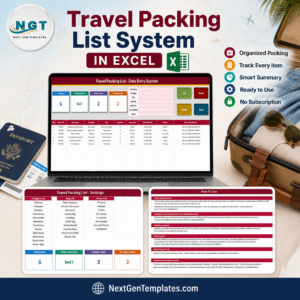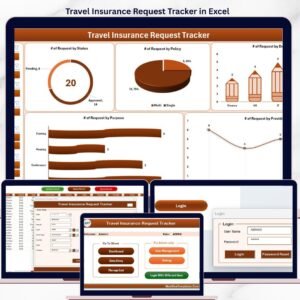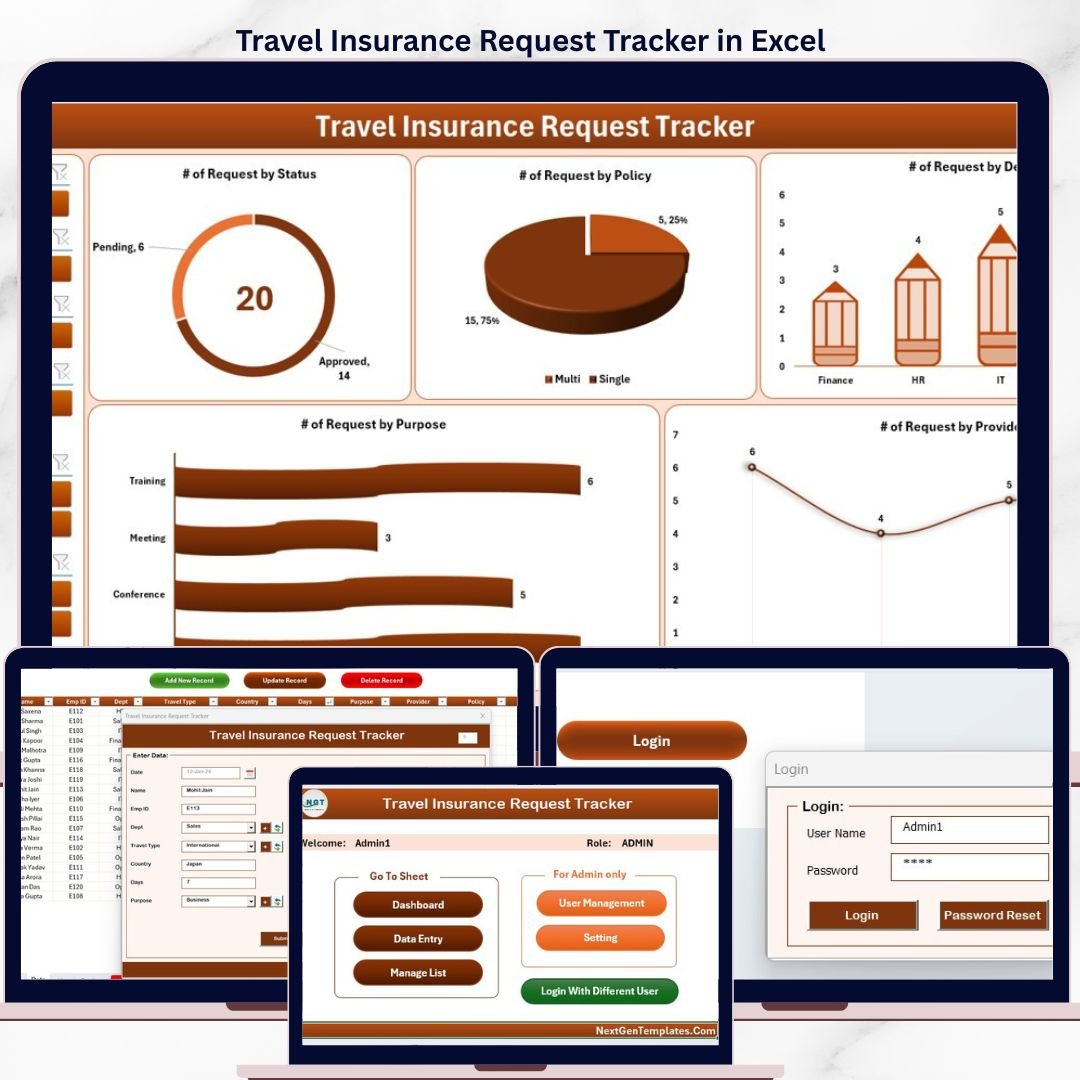
The Travel Insurance Request Tracker in Excel manages employee travel insurance requests across 8 integrated worksheets, with a dashboard featuring 4 slicers and 5 charts that auto-refresh from your data. Setup takes under 10 minutes — secure login, role-based access, and a built-in data entry form replace messy spreadsheets and email trails for under $7.
🌍 Join 8,400+ teams in 40+ countries using NextGenTemplates to replace paid SaaS tools with one-time-purchase Excel, Google Sheets, Power BI, and HTML templates.
✅ Instant download · One-time payment · No subscription · No per-user fees · Lifetime access
🔑 Key Features of Travel Insurance Request Tracker in Excel
🛡️ Secure Login System – Role-based authentication protects sensitive employee travel insurance data. Admin and User credentials are managed inside the workbook.
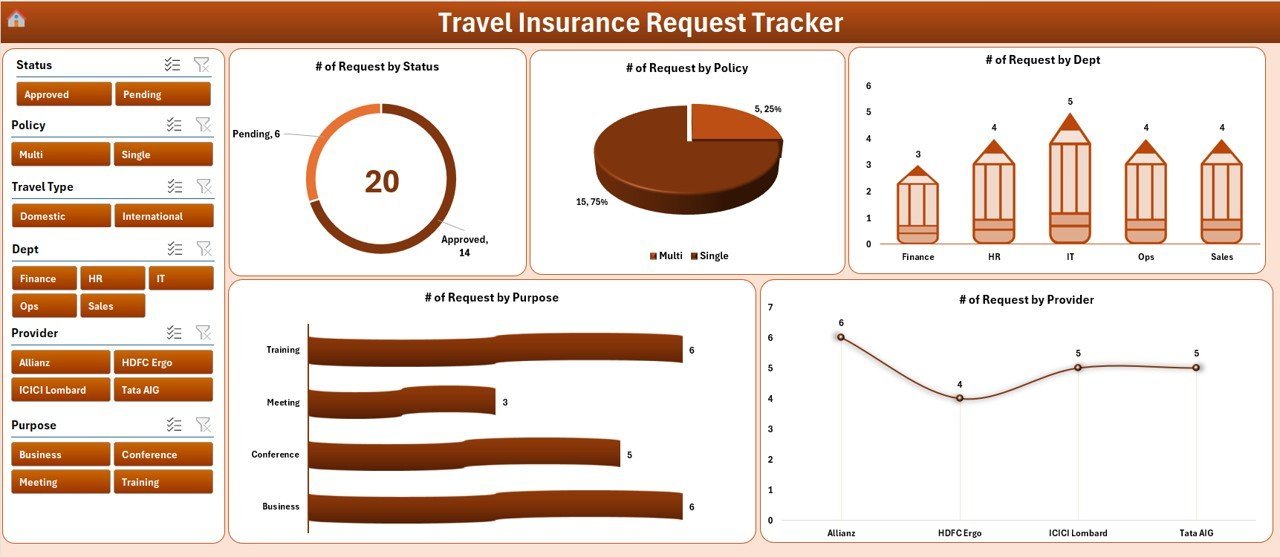
📊 Interactive Dashboard with 4 Slicers and 5 Charts – The dashboard sheet includes 4 slicers for filtering by date, department, status, and policy type, plus 5 charts that auto-update when you add or edit records.
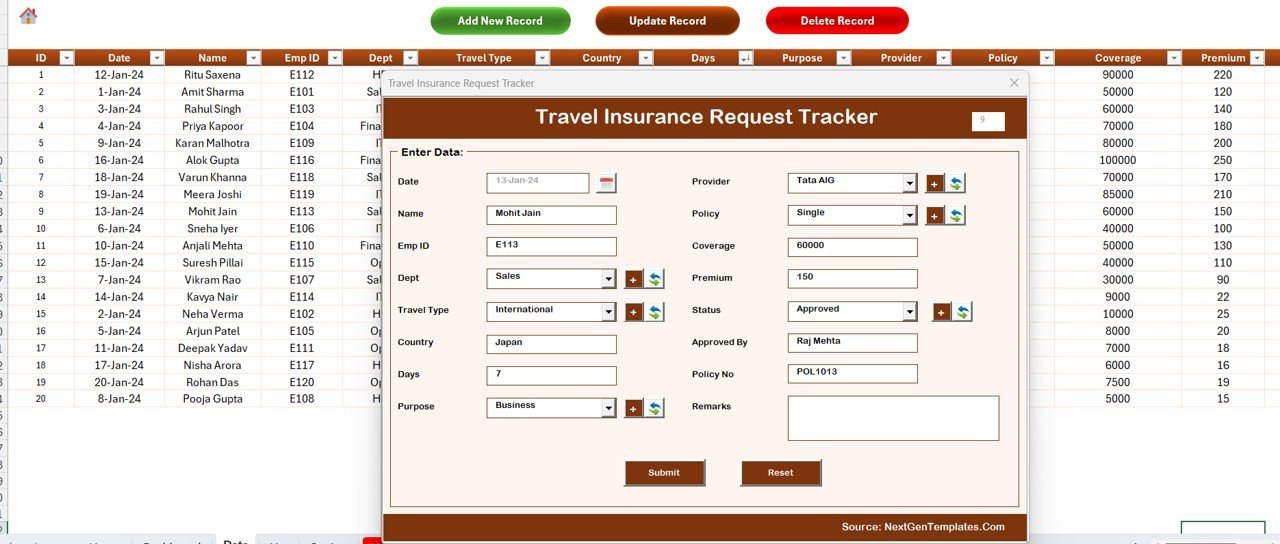
📝 Data Entry Form for Add, Update, Delete – Three control buttons (Add New Record, Update Record, Delete Record) drive a single VBA UserForm. Submitting the form refreshes the dashboard automatically.
📋 Centralized Data Sheet – Every travel insurance request is stored in a structured Data tab with a unique ID per record. Combo-box dropdowns are populated from the List Sheet for clean, validated data entry.
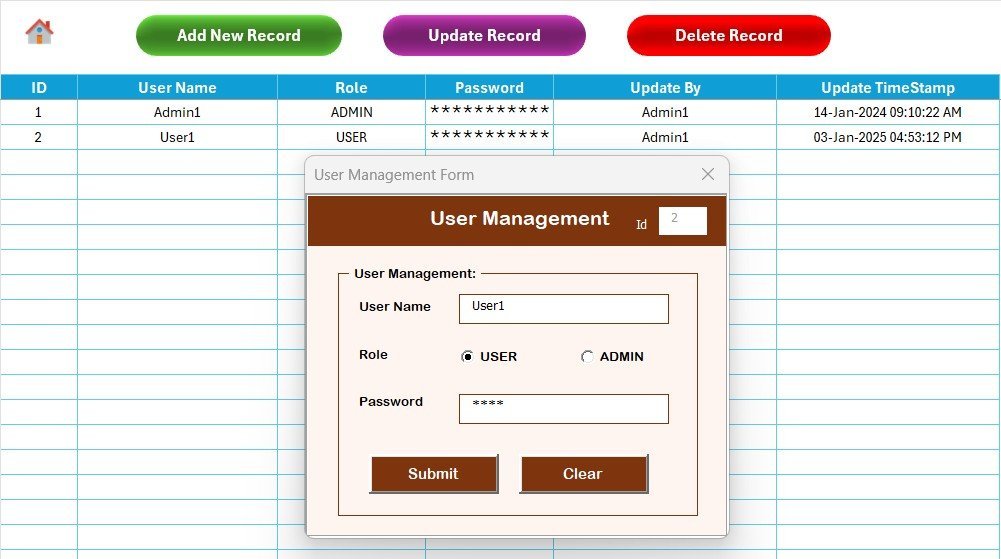
👥 User Management Sheet – Admins can add new users, set roles, and reset passwords inside the workbook — no IT ticket required.
🔧 Settings Sheet for Custom Configuration – Configure company name, currency, default lists, and other preferences from a single Settings tab without editing VBA code.
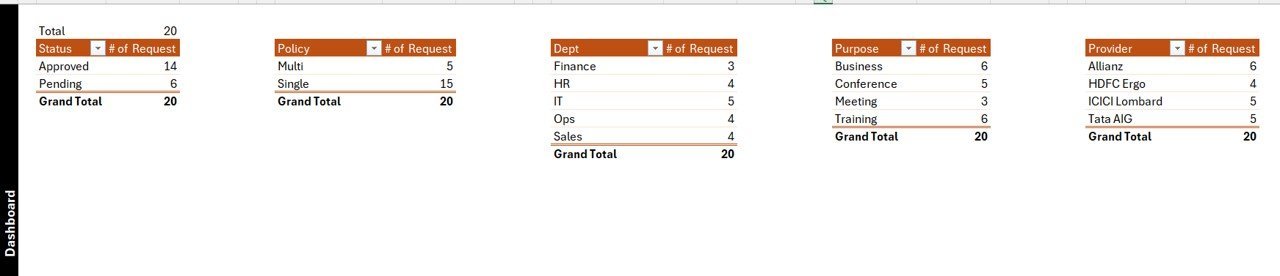
🧾 Pivot-driven Support Sheet – Hidden support sheet runs the pivot tables that power the dashboard charts. You don’t need to touch it — just hide the tab.
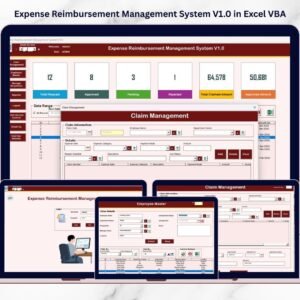
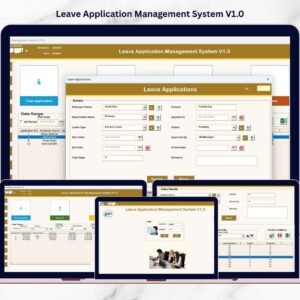
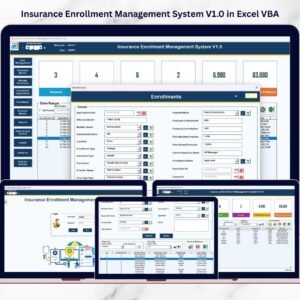
📦 Build alongside our other automation systems like the Insurance Enrollment Management System V1.0 in Excel VBA for full benefits coverage, or pair it with the Leave Application Management System for end-to-end HR automation.
📦 What’s Inside the Travel Insurance Request Tracker in Excel
The workbook contains 8 worksheets, each engineered for a specific role in the travel insurance request workflow.
1️⃣ Login Form
The starting screen. Enter Admin or User credentials to unlock the workbook. Role-based access controls what the logged-in user can see and edit.
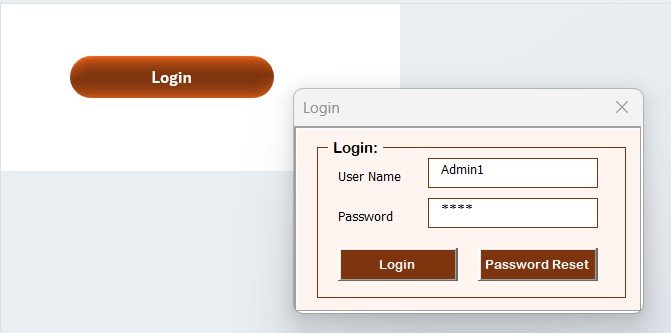
Travel Insurance Request Tracker in Excel — Login Form
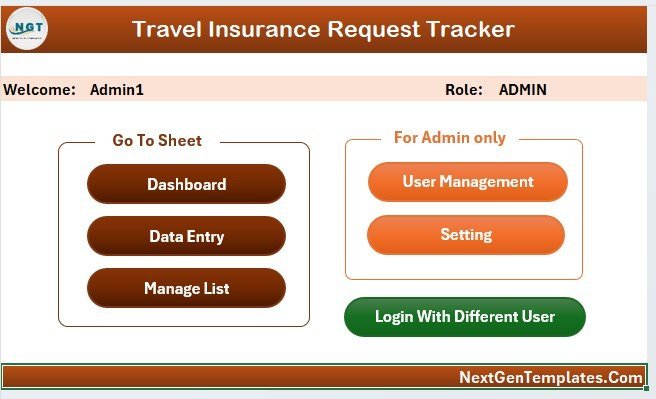
2️⃣ Home Page
The navigation hub after login. Single-click buttons take you to the Dashboard, Data Sheet, List, Settings, or User Management.
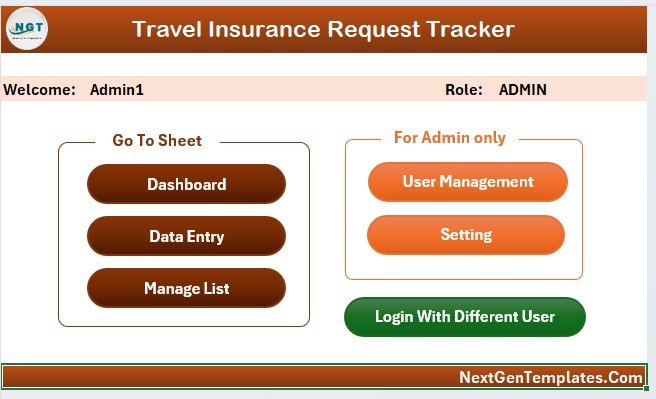
Home Page navigation menu
3️⃣ Dashboard
4 slicers + 5 charts powered by pivot tables in the Support sheet. Slicers let you filter requests by month, department, status, or insurance plan, and every chart and KPI updates instantly.
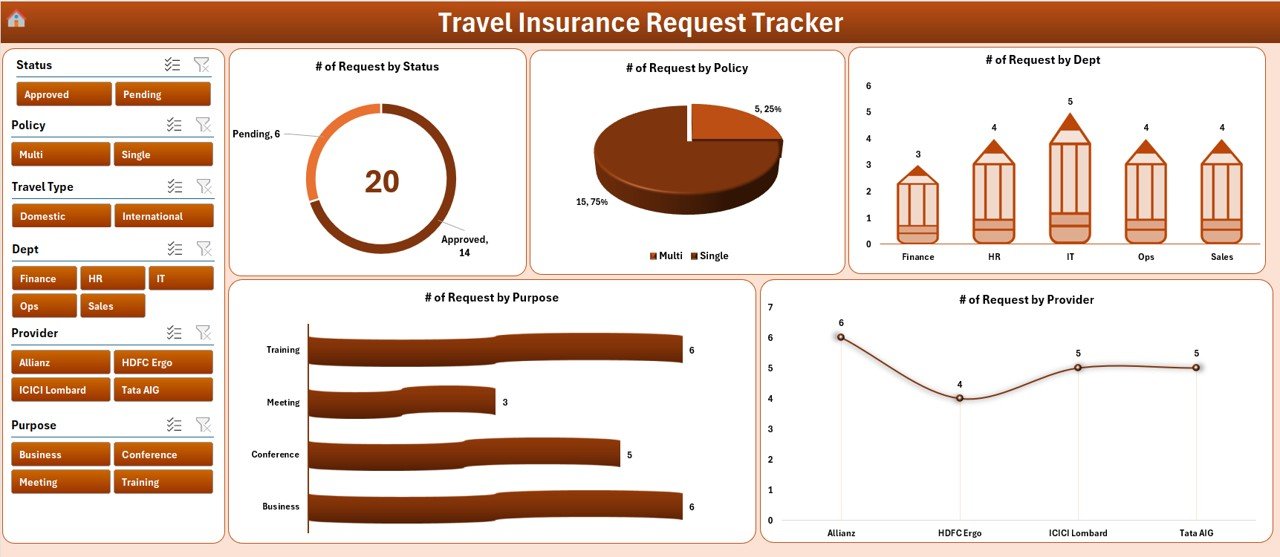
Interactive Dashboard with 4 Slicers and 5 Charts
4️⃣ Data Sheet
The master record list. Three buttons sit at the top:
➕ Add New Record – Opens a blank data entry form. Fill it in and submit; the new row is appended and the dashboard refreshes.
✏️ Update Record – Click any record ID, then this button. The same form opens pre-filled with that record’s data for editing.
🗑️ Delete Record – Removes the selected record after a confirmation prompt.
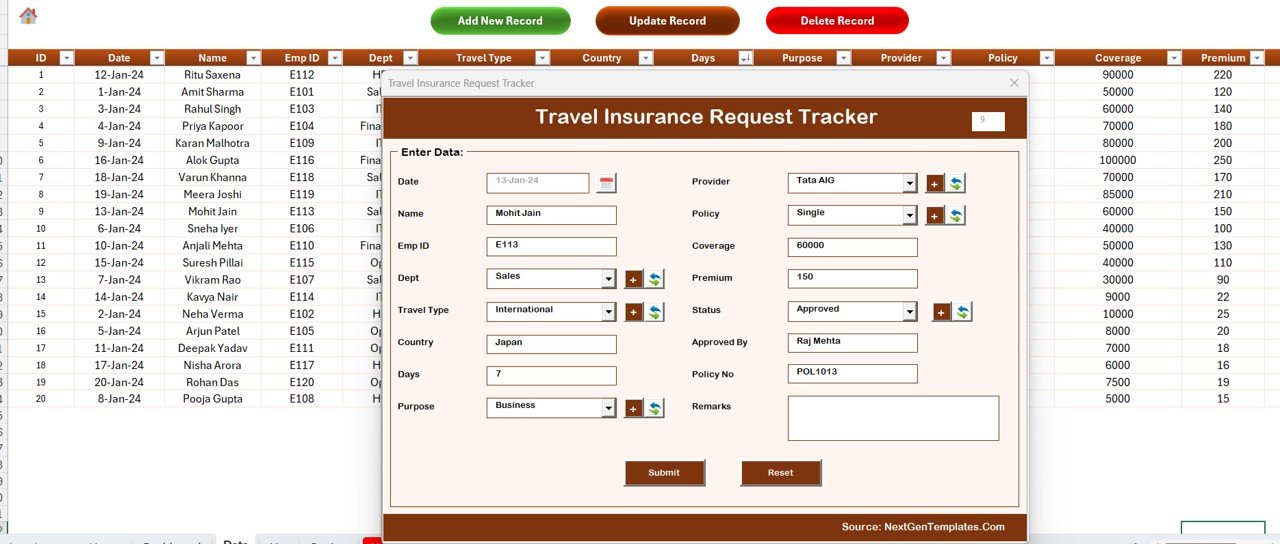
Data Sheet with Add / Update / Delete Record buttons
5️⃣ List Sheet
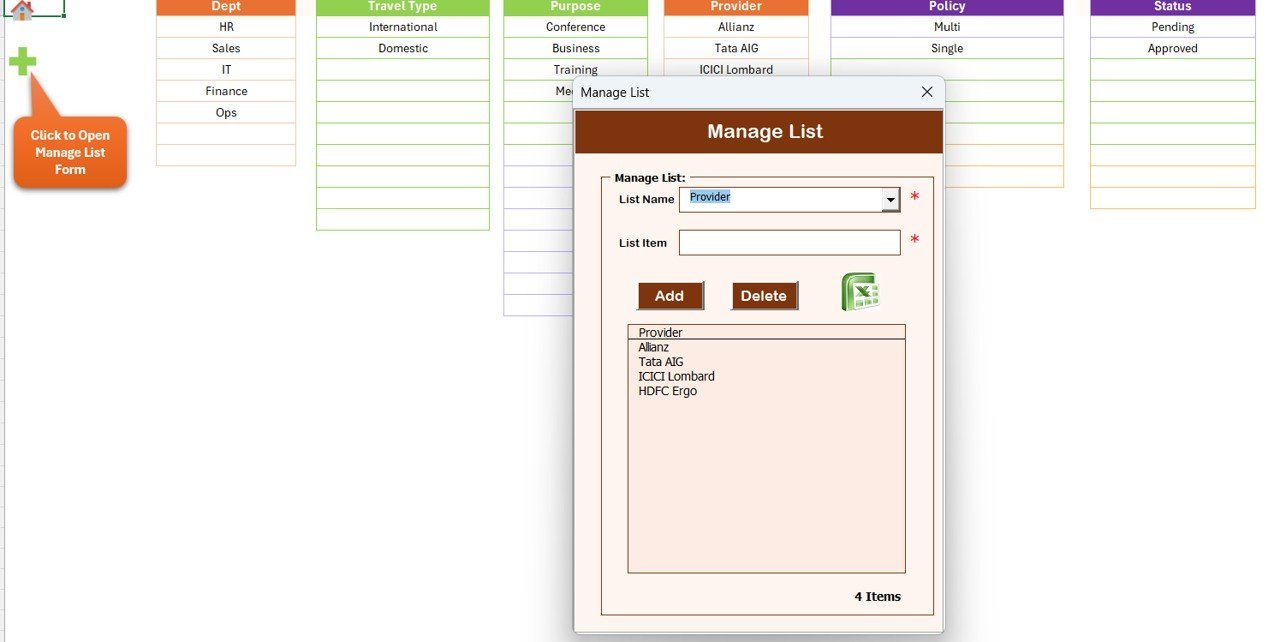
Holds the dropdown values used by the data entry form (departments, request statuses, policy types, destinations, etc.). Edit values here and they appear in the form combo boxes immediately.
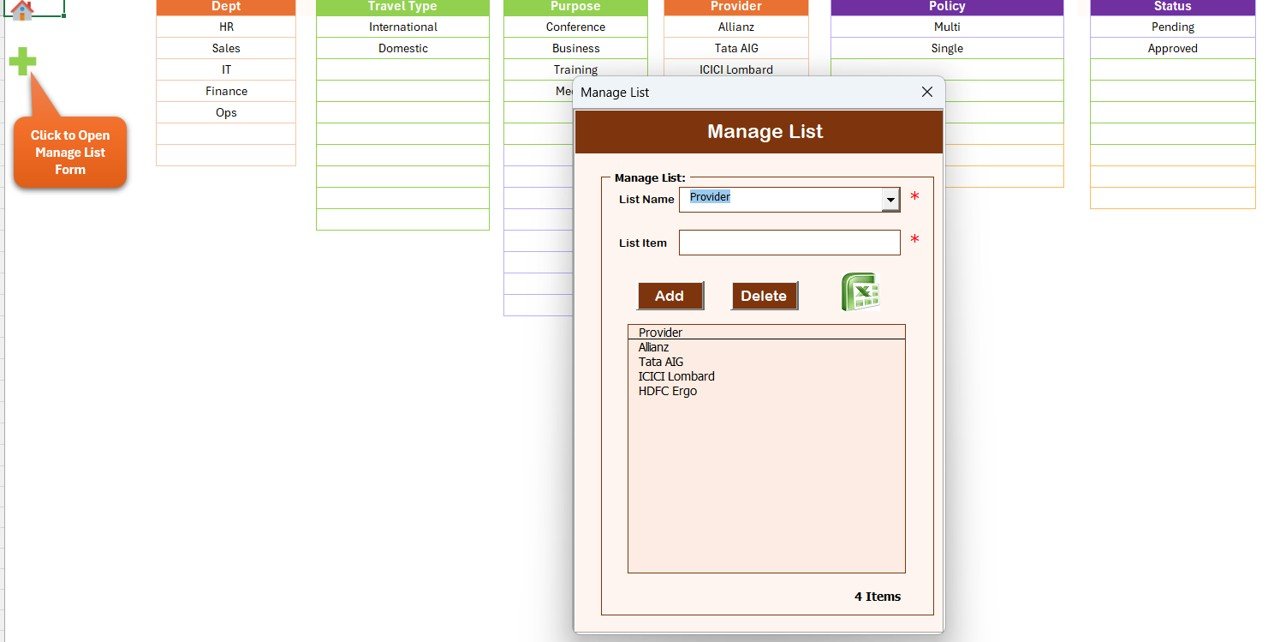
List Sheet — combo box source values
6️⃣ Support Sheet
Hidden by default. Contains the pivot tables that feed the dashboard charts. You don’t need to touch this tab — it auto-refreshes when records change.
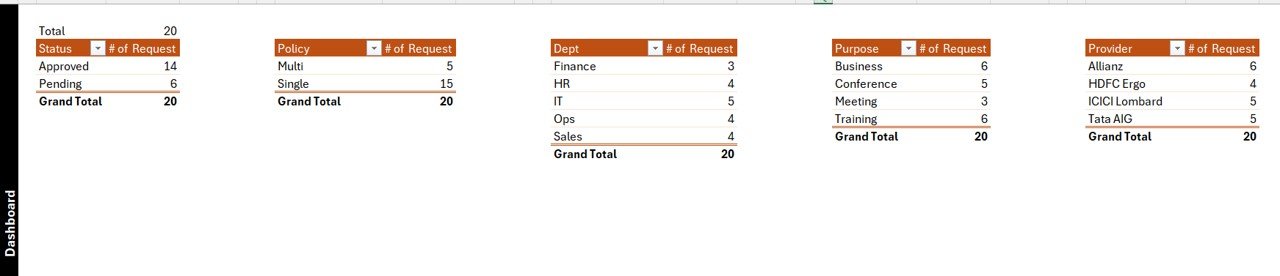
Support Sheet with pivot tables
7️⃣ Settings Sheet
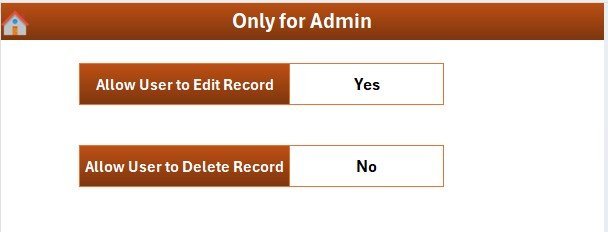
Configure company name, default currency, fiscal year start, and other preferences without editing VBA code.
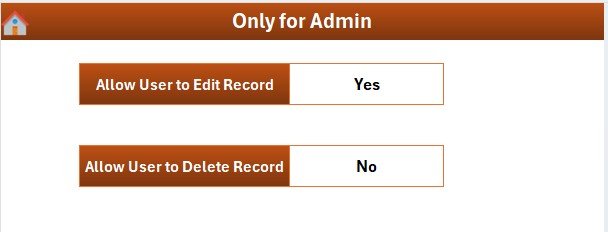
Settings Sheet
8️⃣ User Management Sheet
Admin-only. Add new users, change roles, or reset passwords — all from inside Excel.
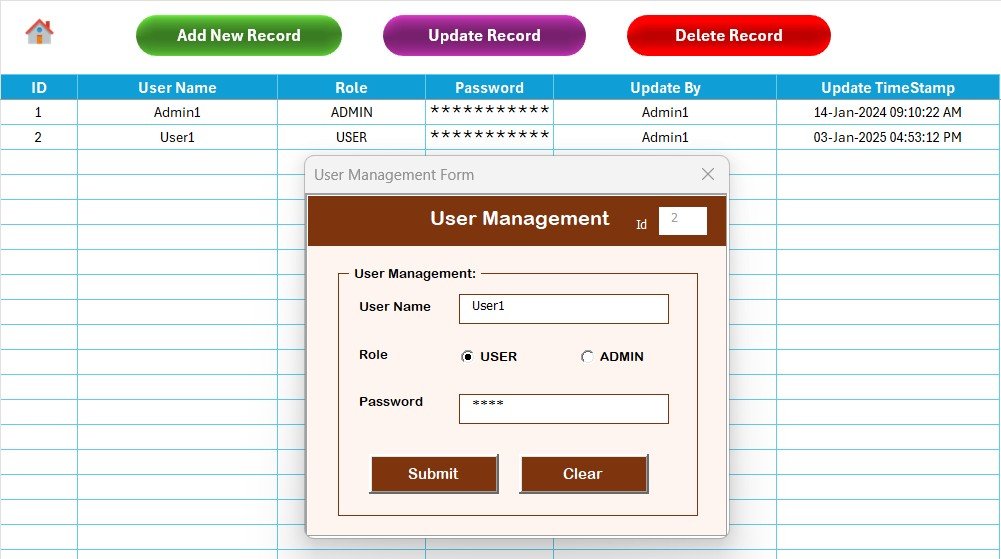
User Management Sheet
📊 Travel Insurance Request Tracker in Excel vs. Google Sheets vs. Paid HR/Insurance SaaS — Where This Fits
| Feature | Travel Insurance Request Tracker (Excel) | Google Sheets equivalent | BambooHR / Workday / Zoho People |
|---|---|---|---|
| Cost | $6.99 one-time ✅ | $0 build-it-yourself (40+ hours) | $6–$12 / user / month |
| Platform | Microsoft Excel (offline) ✅ | Google Sheets (cloud) | Web SaaS |
| Setup time | Under 10 minutes ✅ | Days of formula building | 2–6 weeks of vendor onboarding |
| Login + role-based access | ✅ Built-in (Admin / User) | ❌ Not native | ✅ |
| Data entry form | ✅ VBA UserForm | ❌ Google Forms only (separate) | ✅ |
| Slicer-driven dashboard | ✅ 4 slicers, 5 charts | Manual filter views | ✅ |
| Works offline | ✅ | ❌ Requires internet | ❌ |
| Year-1 cost (5 users) | $6.99 total ✅ | ~$0 + 40 hours of work | $360–$720 |
| Customizable fields | ✅ Edit lists & VBA | ✅ | Limited — vendor controlled |
For HR teams that want a private, offline travel insurance request system without paying $360+ per year for cloud SaaS, the Travel Insurance Request Tracker in Excel sits in the sweet spot.
👥 Who This Template Is For — and Who It’s Not For
✅ This template is built for:
- HR and admin teams at 10–500 person companies that handle frequent business travel
- Travel desks and corporate travel coordinators who track insurance per trip
- Finance/accounts teams reconciling travel insurance premiums against requests
- Small businesses that want a one-time-purchase tool instead of monthly SaaS fees
- Insurance brokers and TPAs handling employer-sponsored travel cover
❌ This template is NOT for:
- Enterprise HR teams that need SOC 2, SSO, and audit logs
- Mac users — VBA UserForms have limited compatibility on Excel for Mac
- Teams needing real-time multi-user editing across the cloud
- Organizations that need direct integration with claim-processing systems
⚙️ How to Use the Travel Insurance Request Tracker in Excel
1. Download and unzip the template, then open the .xlsm file in Microsoft Excel Desktop and enable macros when prompted.
2. Log in with the default Admin credentials provided in the file. Change the password from the User Management sheet.
3. Open the List sheet and update dropdown values (departments, statuses, policy types, destinations) to match your organization.
4. Configure your company name, currency, and fiscal year on the Settings sheet.
5. From the Data sheet, click Add New Record and submit your first travel insurance request through the form.
6. Open the Dashboard. Use the 4 slicers to filter by date, department, status, or policy type — all 5 charts update instantly.
7. To edit a record, select its ID on the Data sheet and click Update Record. To remove one, select the ID and click Delete Record.
💼 Real-World Use Cases
Priya runs HR at a 60-person consulting firm in Bengaluru where 30+ consultants travel internationally each quarter. She uses the Travel Insurance Request Tracker in Excel to log every request, the policy chosen, and the premium paid, then filters the dashboard by destination and month to negotiate better rates with insurers. Total tool cost for the year: $6.99.
Marco manages corporate travel at a 200-person manufacturing company in Milan. He logs each employee’s travel insurance request through the data entry form, tracks status from “requested” to “policy issued,” and exports filtered reports for the finance team. Setup took him 12 minutes — replacing a shared Google Sheet that nobody could agree on.
Aisha is the operations lead at a small insurance brokerage. She uses the tracker to manage employer-sponsored travel cover requests across her client portfolio. The role-based login keeps each client’s data separate, and the User Management sheet lets her give junior staff read-only access without exposing the master file.
👤 About the Author
Built by PK — Microsoft Certified Professional with 15+ years of Excel, Google Sheets, and Power BI experience. Founder of NextGenTemplates, reaching 300K+ subscribers across YouTube channels (@PK-AnExcelExpert, @NextGenTemplates, @NeoTechNavigators). Every template is hand-built and tested before release.
❓ Frequently Asked Questions
What does the Travel Insurance Request Tracker in Excel do?
The Travel Insurance Request Tracker in Excel logs every employee travel insurance request across 8 integrated worksheets. Admins enter requests via a VBA data entry form, and the dashboard’s 4 slicers and 5 charts refresh automatically to show status, department, and policy breakdowns.
Do I need VBA or programming experience to use it?
No. The Travel Insurance Request Tracker in Excel is fully pre-built. You only need to enable macros, log in, and use the Add / Update / Delete buttons. All VBA code is included and documented, but you never have to edit it.
How does this compare to BambooHR or Zoho People for tracking travel insurance?
BambooHR and Zoho People charge $6–$12 per user per month — about $360–$720 a year for a 5-person team. The Travel Insurance Request Tracker in Excel is $6.99 one-time with no per-user fees, runs offline, and gives you full control over the data file.
Will it work on Excel for Mac?
The Travel Insurance Request Tracker in Excel is built for Microsoft Excel for Windows. UserForm-based VBA tools have limited support on Excel for Mac, so a Windows desktop is recommended for the best experience.
How long does setup take?
Under 10 minutes. Open the file, log in, edit the List sheet dropdowns to match your organization, configure the Settings sheet, and start adding records. The dashboard begins working as soon as the first record is submitted.
Can I add my own custom fields to the request form?
Yes. The List sheet drives all combo boxes, and the VBA form is documented so technical users can extend fields. Most teams customize departments, destinations, and policy types in the List sheet without touching code.
Is the data secure?
The Travel Insurance Request Tracker in Excel uses a built-in login system with role-based Admin/User access. The file is stored locally on your computer, so there’s no cloud upload of sensitive employee data unless you choose to share the file.
🔗 Explore Related Templates
- 🛡️ Insurance Enrollment Management System V1.0 in Excel VBA — Full enrollment, plan, and dependent management for HR teams.
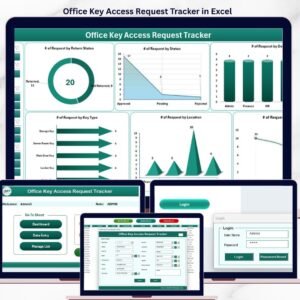
- 🔑 Office Key Access Request Tracker in Excel — Same form-driven UI for tracking key/asset requests.
- 🚗 Vehicle Reservation Tracker in Excel — Pair with travel insurance for full corporate travel coverage.
- 📅 Leave Application Management System V1.0 — Same VBA architecture for leave workflows.
- 💸 Expense Reimbursement Management System V1.0 — End-to-end travel + expense automation.
Browse more Excel VBA Tools and HR & Payroll Templates on NextGenTemplates.
📖 Click here to read the Detailed Blog Post
🎥 Visit our YouTube channel for step-by-step video tutorials
👉 YouTube.com/@NextGenTemplates