


Struggling with scattered emails and missed maintenance requests? The Work Order Request Tracker in Excel is your all-in-one solution to manage service, maintenance, or task requests in a centralized, automated, and easy-to-use format. Built with powerful Excel features and seamless VBA automation, this tool gives you full control over request tracking, assignment, status monitoring, and real-time reporting—all without needing expensive software.
Perfect for facility managers, IT departments, schools, or office admins, this template saves time, boosts team accountability, and provides quick visual insights with its built-in dashboard. Whether you’re handling 10 or 1000 work orders, this tool adapts to your workflow.
✨ Key Features of Work Order Request Tracker
🔐 Secure Login System
Protect your data with a built-in login screen. Only authorized users can access or modify records.
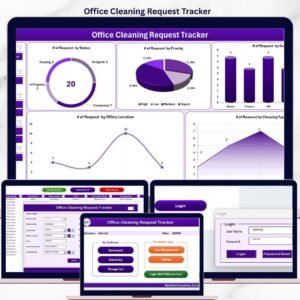
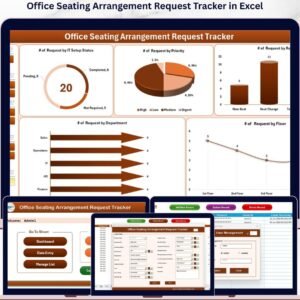
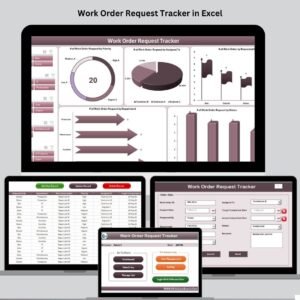
📊 Interactive Dashboard
Visualize critical KPIs through charts:
Work Orders by Priority
Assigned To
Requested By
Department
Status
📝 Smart Data Entry Form
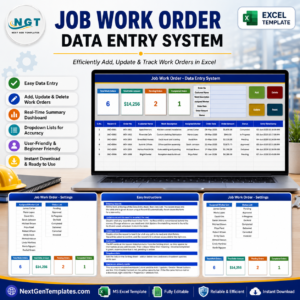
No more manual typing in rows! Easily add, update, or delete work orders via buttons on the Data Entry sheet.
👥 User Management Panel
Create, edit, or delete users. Assign roles and reset passwords as needed.
🔄 Automated Actions with VBA
Submit data, update records, and refresh dashboards—just with a click!
📋 Manage List Sheet
Edit dropdown lists like Department, Priority, or Assigned To without touching any formulas or code.
📂 What’s Inside the Work Order Request Tracker
🟢 Main Dashboard Sheet

Get instant updates with colorful charts showing open tasks, assignments, and progress. Ideal for performance reviews or daily monitoring.
🟢 Data Entry Sheet
View all records at once. Use built-in buttons to:
➕ Add New Record
✏️ Update Record
🗑️ Delete Record
🟢 Login and Settings Panel
Built-in login screen plus settings to manage user roles and preferences.
🟢 User Management Sheet
Maintain full control over who has access, and easily manage user credentials.
🟢 Support Sheet
Behind-the-scenes sheet with pivot tables for chart generation—completely automated.
🧑💻 How to Use the Work Order Tracker
👉 Step 1: Login
Use the default credentials (Admin1 / abcd) or update via User Management.
👉 Step 2: Navigate to Main Form
Quick access to Dashboard, Data Entry, and User Management.
👉 Step 3: Add a New Record
Click the Add New Record button, fill in the form, and hit submit.
👉 Step 4: Update or Delete
Click on an entry to modify or remove it securely.
👉 Step 5: View Dashboard Insights
Use the dashboard charts to identify pending tasks, high-priority items, and workload distribution.
🧠 Who Can Benefit from This Tracker?
💼 Facility Managers – Handle maintenance requests and track completion status
🖥️ IT Departments – Log tech support tickets and service turnaround times
🏢 Office Admins – Manage day-to-day task requests from various departments
🏫 Schools & Colleges – Track infrastructure or equipment issues
🛠️ Housekeeping & Maintenance Teams – Organize recurring service work
📈 Managers & Supervisors – Analyze performance trends for teams and departments
This Excel tracker works best for any organization that needs streamlined task tracking and clear accountability.
🛠️ Customize the Tracker to Suit Your Needs
🔧 Add fields like File Attachment, Supervisor Notes, or Approval Status
🎨 Modify chart styles or themes for better presentation
📅 Integrate reminders with Outlook using VBA
📬 Add email notifications for urgent requests
💡 Use conditional formatting to highlight overdue work
You can tailor every element to match your business workflow—no advanced Excel skills required.
✅ Click here to read the Detailed blog post
🔗 Visit our YouTube channel to learn step-by-step video tutorials
Watch the step-by-step video tutorial:
Compatibility and Requirements
- Built with VBA forms and a login screen, so it needs Excel desktop on Windows with macros enabled.
- It does not run in Excel for the web, Google Sheets or the Excel mobile apps.
- Microsoft explains how to turn macros on in Enable or disable macros in Microsoft 365 files.
Frequently Asked Questions
Which charts are on the work order dashboard?
Charts show work orders by priority, assigned to, requested by, department and status.
How do I add or change a work order?
Use the Add New Record, Update Record and Delete Record buttons on the Data Entry sheet.
Can I edit the dropdown lists?
Yes. Change Department, Priority, Assigned To and other lists on the Manage List sheet without touching formulas or code.
Can I control who has access?
Yes. The User Management sheet lets you create, edit or delete users, assign roles and reset passwords.
Related Work Order and Maintenance Templates
- Work Order Request Tracker in Google Sheets: the same work order tracker in Google Sheets
- Work Order Dashboard in Excel: an Excel dashboard for work order analysis
- Work Order Dashboard in Power BI: a work order dashboard in Power BI
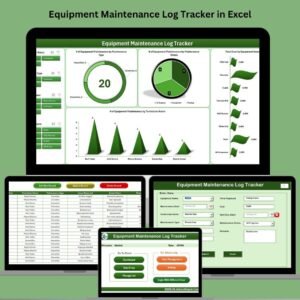
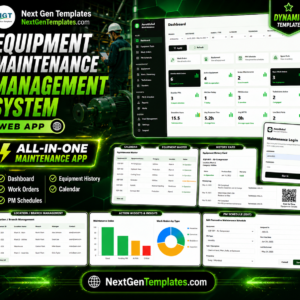
- Equipment Maintenance Log Tracker in Excel: logs equipment maintenance with a login and forms
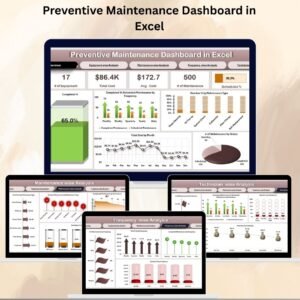
- Preventive Maintenance Dashboard in Excel: an Excel dashboard for preventive maintenance
Browse all Excel trackers or the Excel VBA tools.



Reviews
There are no reviews yet.