


In a world where document management plays a critical role in operations, compliance, and accountability, manually tracking incoming files can quickly become chaotic. The Document Receiving Log Tracker in Excel solves this challenge with an automated, VBA-powered solution that helps teams log, track, and analyze every document received — all in one secure Excel file.
This ready-to-use tracker empowers organizations to maintain transparency, prevent document loss, and monitor processing status efficiently. With role-based access, real-time dashboards, and automated forms, it turns Excel into a full-fledged document control system — no external software required.

🔑 Key Features of the Document Receiving Log Tracker in Excel
🔐 Login Form – Secure Access for Every User
The tracker begins with a Login Form to ensure authorized access only.
Supports Admin/User roles for tiered permissions.
Tracks user activity for full accountability.
Prevents unauthorized modifications and maintains data integrity.
This layer of security gives organizations confidence that sensitive information remains protected.
🏠 Main Form – Centralized Control Panel
Once logged in, users are welcomed by a Main Form that serves as the operational hub.
Add, update, or delete records with the click of a button.
Filter documents instantly by department, date, or status.
View a live record list without switching tabs.
All operations are powered by VBA automation, enabling smooth and error-free document management.
📊 Dashboard Sheet Tab – Real-Time Document Insights
The Dashboard Sheet converts raw data into interactive analytics using dynamic charts and slicers.
Slicers Included:
Department
Document Type
Status
Month Received
Receiver Name
Charts Displayed:
Documents Received by Department
Status Overview
Monthly Document Trends
Document Type Summary
Receiver Performance
Every visualization refreshes automatically with each new entry, giving users immediate performance insights.
📄 Data Entry Sheet Tab – Automated Record Logging
The Data Entry Sheet stores all received document details in a structured table.
Use the Add New Record form to log document information quickly.
Update or delete records with one click — all VBA-enabled.
Automatic Document ID generation ensures no duplicates.
This system replaces manual registers with a faster, smarter digital process.
⚙️ Manage List Sheet Tab – Custom Dropdowns for Flexibility
Easily tailor the tracker to your organization’s needs by updating dropdown lists for:
Departments
Document Types
Status Options
Receiver Names
No coding knowledge required — simply edit the lists directly, and the changes reflect across the system.
📂 Support & Settings Sheets – The Engine Behind the Scenes
Support Sheet: Handles all formulas, pivot tables, and chart data sources.
Settings Sheet: Allows Admins to customize user roles, naming formats, and auto-numbering rules.
Both sheets are automated and typically hidden to prevent accidental edits.
👥 User Management Form – Multi-User Ready
Admins can manage access directly from the built-in form:
Add, edit, or delete users.
Reset passwords securely.
Assign Admin or Standard User roles.
This ensures transparency in document control and simplifies team coordination.
📦 What’s Inside the Tracker
✅ Secure login system with role-based control
✅ Dynamic dashboard with real-time charts
✅ Automated data entry and document logging form
✅ Customizable dropdowns and configuration settings
✅ User management and password control
✅ Fully VBA-driven automation — no coding needed
🧑💼 Who Can Benefit from This Tracker
🏢 Administrative Teams – Manage incoming mail, letters, and correspondence.
💼 Finance & Accounts – Track invoices, purchase orders, and receipts.
⚖️ Legal Departments – Log contracts, agreements, and compliance documents.
🧾 Procurement & HR – Monitor document flow and pending reviews.
This tool is ideal for any department that requires transparency and structure in document management.
⚙️ Opportunities for Improvement
Enhance your tracker by adding:
📧 Email notifications for new document entries.
🗃️ Auto-archiving for completed or closed records.
📎 Hyperlinks to scanned PDFs or cloud documents.
✅ Approval workflows with status updates.
📱 Mobile-friendly version via Excel Online.
🧠 Best Practices
✅ Keep department and status lists updated regularly.
✅ Enable macros to use all automated features.
✅ Back up data weekly to prevent loss.
✅ Protect Support and Settings sheets from general users.
✅ Train users briefly before rollout to ensure smooth adoption.
🌟 Why Choose the Document Receiving Log Tracker in Excel
🔒 Secure: Password-protected, role-based login system.
📈 Automated: Data updates, charts, and forms powered by VBA.
💡 Visual: Real-time dashboard insights at a glance.
🧩 Customizable: Adaptable for HR, Admin, or Legal workflows.
💰 Cost-Effective: Eliminates the need for expensive DMS software.
The Document Receiving Log Tracker in Excel transforms ordinary spreadsheets into an advanced document control system — improving accountability, accuracy, and efficiency across your organization.
🔗 Read the detailed blog post
Watch the step-by-step video Demo:
🔗 Visit our YouTube channel for tutorials
Compatibility and Requirements
- Built with Excel and VBA, so it needs Excel desktop on Windows with macros enabled.
- The login, forms and user management do not run in Excel for the web, Google Sheets or the Excel mobile apps.
- Not sure how to turn macros on? See Microsoft’s guide: Enable or disable macros in Microsoft 365 files.
Frequently Asked Questions
Do I need to enable macros?
Yes. The login form, main form, record forms and user management all run on VBA, so macros must be enabled.
What can I filter the dashboard by?
Department, document type, status, month received and receiver name. The charts show documents by department, status, monthly trends, document type and receiver performance.
Are document IDs created for me?
Yes. Each new record gets a Document ID automatically, so there are no duplicates.
Can I change the departments and status options?
Yes. Edit the lists on the Manage List sheet for departments, document types, status options and receiver names.
Can several people use it?
Yes. Admins can add, edit or delete users, reset passwords and assign Admin or Standard User roles.
Related Document Management Templates
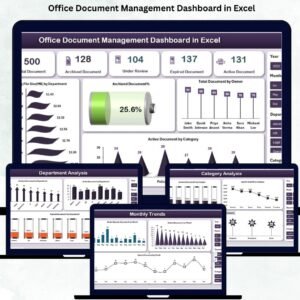
- Office Document Management Dashboard in Excel: charts for document volumes and status
- Document Management KPI Dashboard in Excel: document KPIs against targets
- Document Retention Checklist Template in Excel: decide what to keep and for how long
- Document Retention Checklist in Google Sheets: the retention checklist online
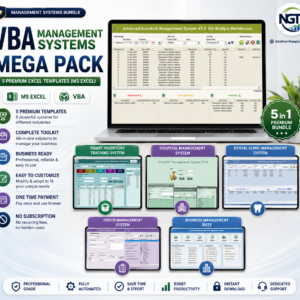
- VBA Management Systems Mega Pack: 5 VBA systems in one download
Browse all Excel trackers or the Excel VBA tools.







Reviews
There are no reviews yet.