

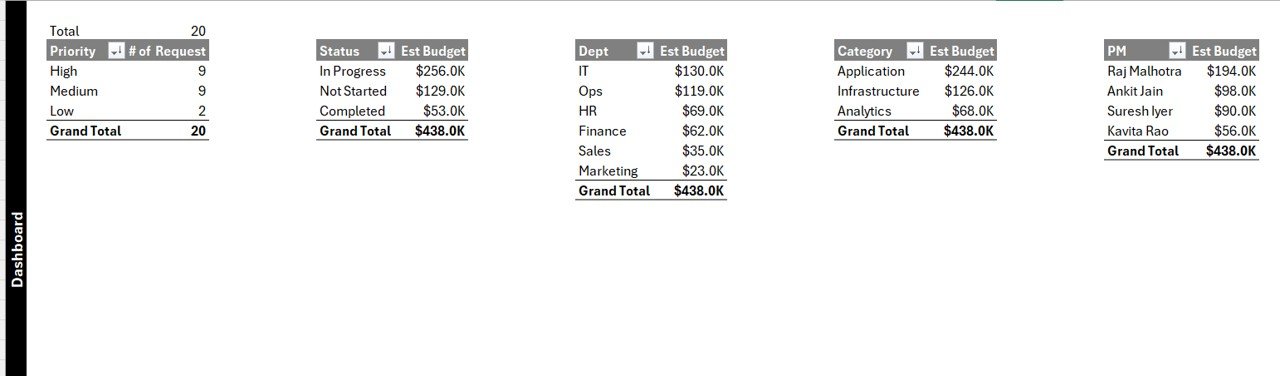
Managing IT Project Request Tracker has become increasingly complex in modern organizations. Every day, IT teams receive multiple requests related to software upgrades, infrastructure changes, cybersecurity improvements, automation initiatives, and system integrations. However, when these requests arrive through emails, chats, or unstructured spreadsheets, confusion rises quickly. Approvals slow down, priorities clash, budgets become unclear, and leadership loses visibility.
That is exactly where the IT Project Request Tracker in Excel becomes an essential and powerful solution.
This ready-to-use Excel tracker provides a centralized, secure, and automated system to capture, track, manage, and analyze all IT project requests from one professional workbook. Instead of juggling multiple files, IT managers can monitor request status, priorities, budgets, and ownership in real time—without expensive project management software.
Because the tracker uses Excel with VBA automation, it combines familiarity with advanced functionality such as login security, forms, dashboards, and user management.
🚀 Key Features of IT Project Request Tracker in Excel
This tracker is designed with practical IT governance and daily usability in mind.
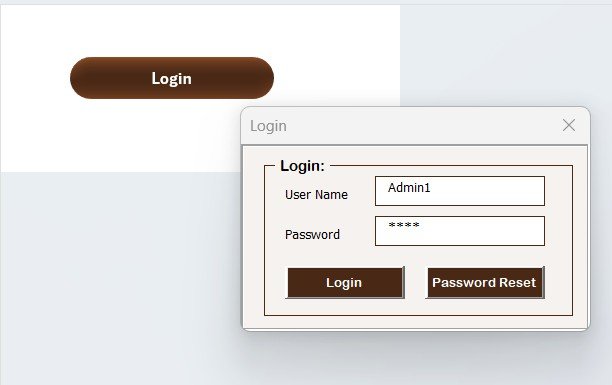
🔐 Secure Login System
User ID and Password-based login
Prevents unauthorized access
Role-based accountability
Example login:
User ID: Admin1
Password: abcd
This ensures project data remains protected and auditable.
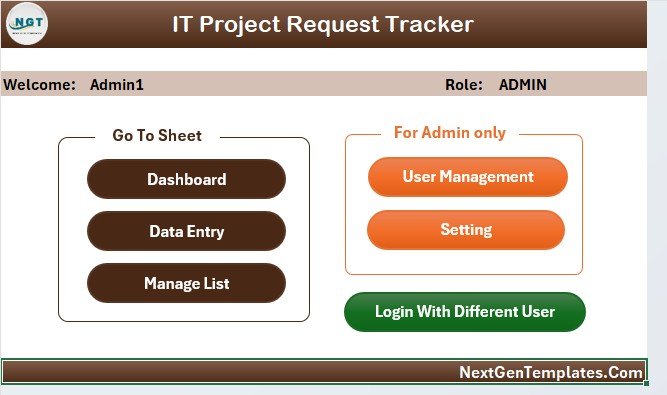
🧭 Main Form – Central Control Panel
Once logged in, users access the Main Form, which acts as the navigation hub.
From here, users can:
Open data entry forms
Access dashboards
Manage users
Navigate between sheets
Update settings
Everything stays organized and easy to access.
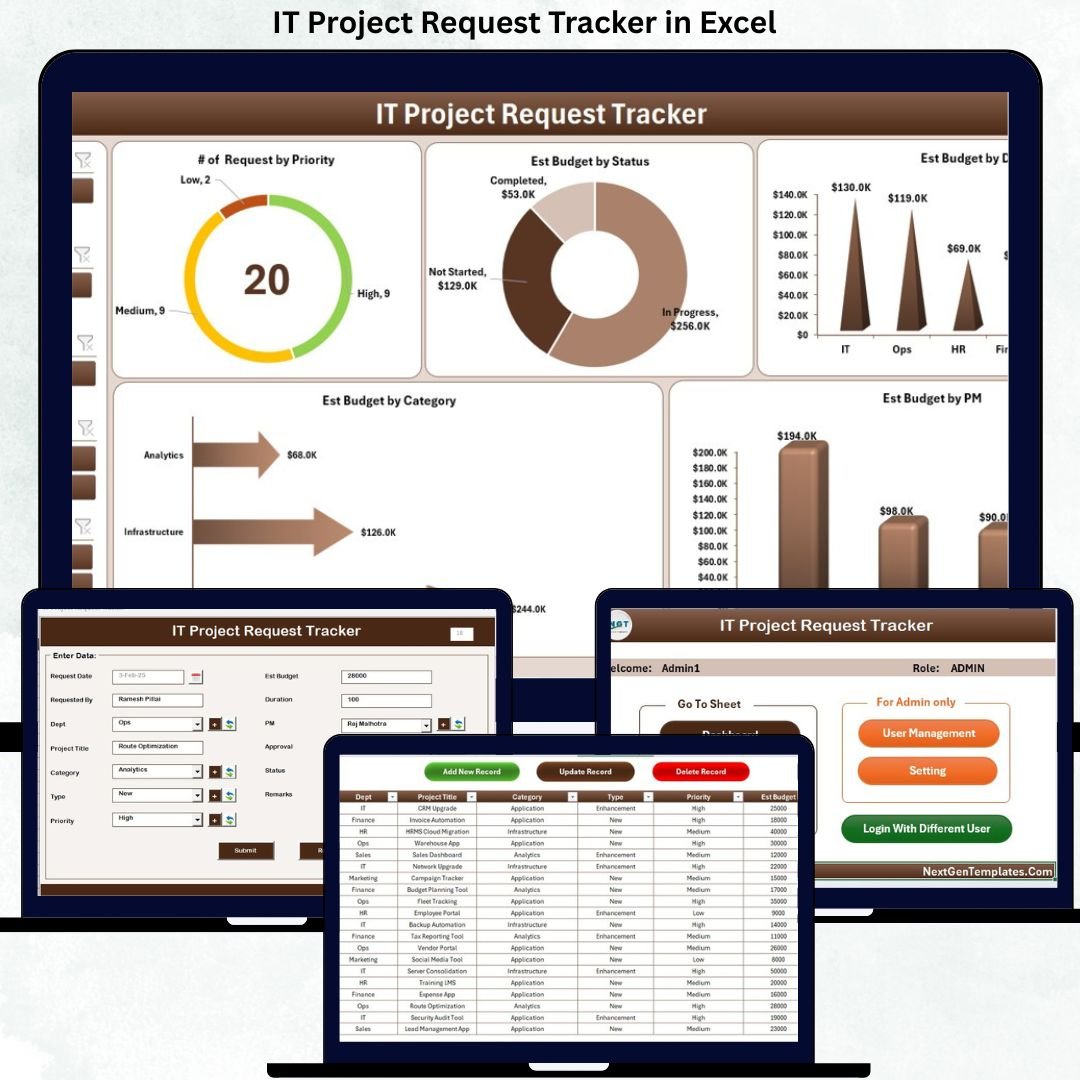
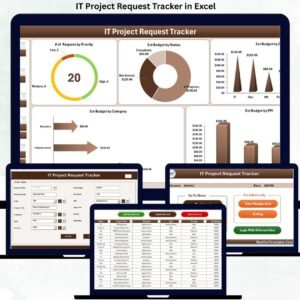
📊 Dashboard Sheet – Visual Insights at a Glance
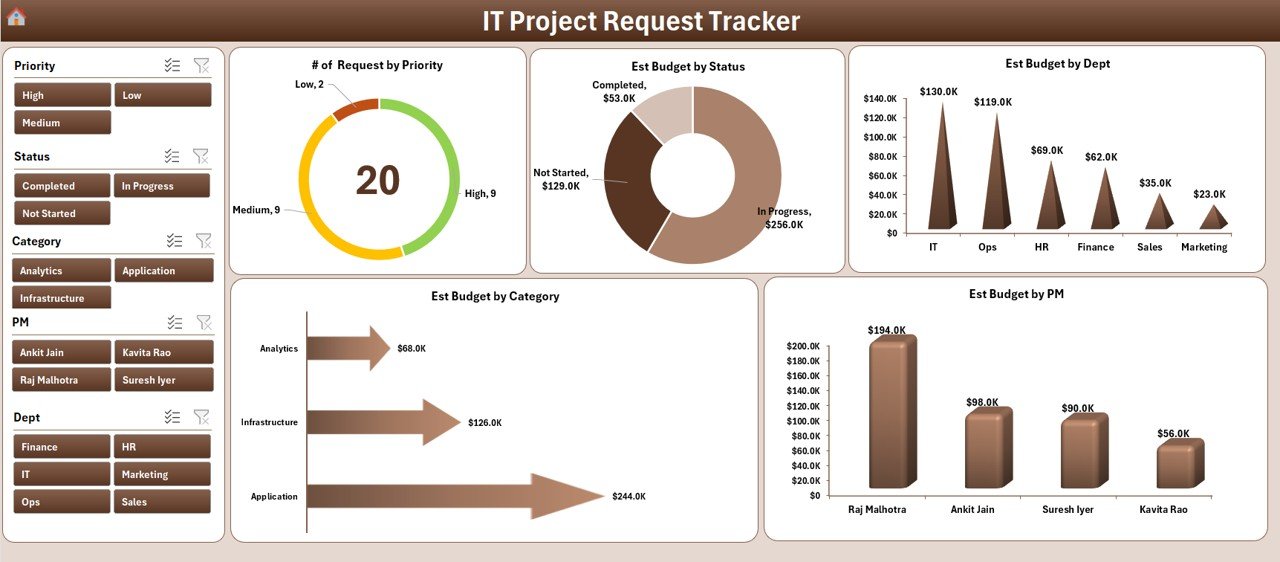
The Dashboard Sheet converts raw data into clear, interactive visuals that support fast decision-making.
🎛 Interactive Slicers
Filter project requests by:
Department
Status
Category
Project Manager
Priority
📈 Dashboard Charts
📊 Number of Requests by Priority
💰 Estimated Budget by Status
🏢 Estimated Budget by Department
🗂 Estimated Budget by Category
👤 Estimated Budget by Project Manager
With these visuals, IT leaders instantly identify workload distribution, budget concentration, and priority bottlenecks.
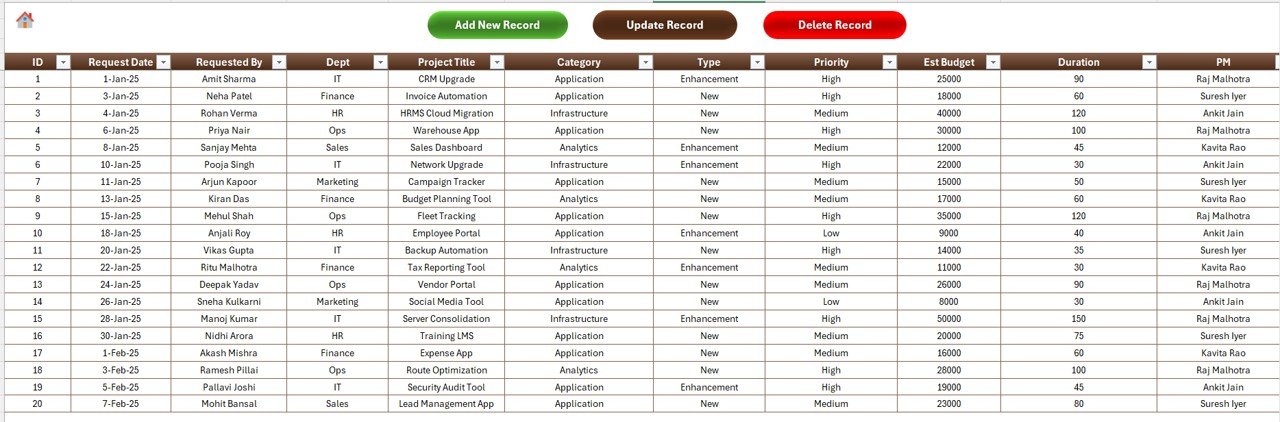
📝 Data Entry Sheet – Easy Record Management
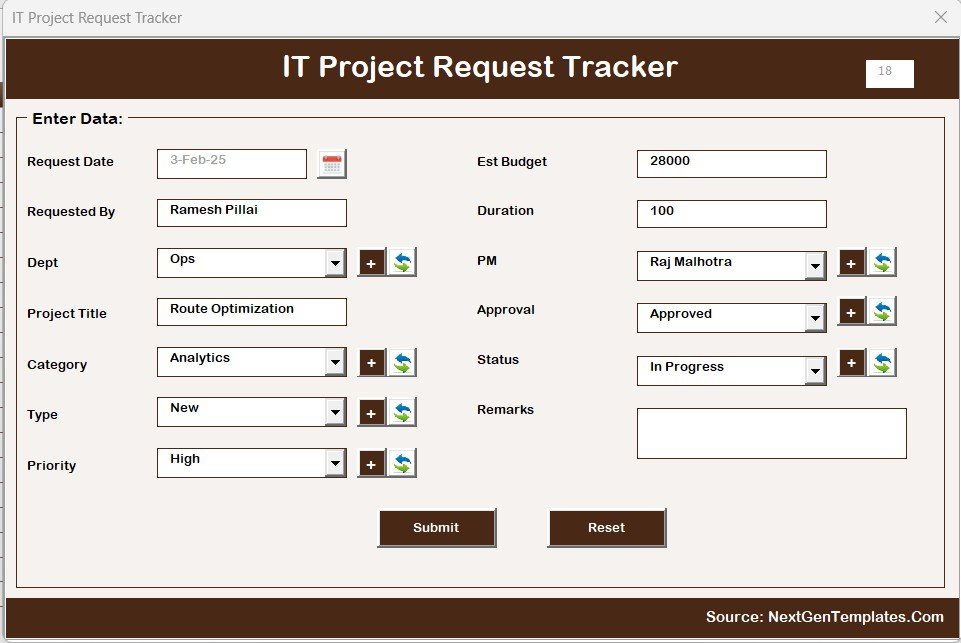
The Data Entry Sheet provides button-based project handling, eliminating manual errors.
Available Buttons:
➕ Add New Record – Opens a user-friendly form for new requests
✏ Update Record – Edit existing project details using Project ID
🗑 Delete Record – Secure deletion with confirmation message
Once submitted, the dashboard updates automatically.
📋 Manage List Sheet – Dropdown Control
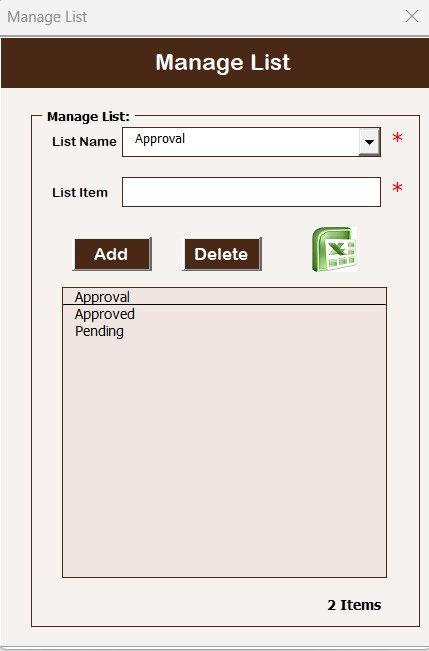
This sheet controls all dropdown values used in the tracker.
Why This Matters:
Prevents spelling mistakes
Maintains standardized data
Improves reporting accuracy
You can manage:
Departments
Status values
Categories
Priorities
Project Managers
⚙️ Support Sheet – Backend Processing
The Support Sheet works silently in the background.
It:
Stores pivot tables
Supports dashboard calculations
Feeds charts automatically
Users never need to interact with it, and it can remain hidden.
👥 User Management – Full Administrative Control
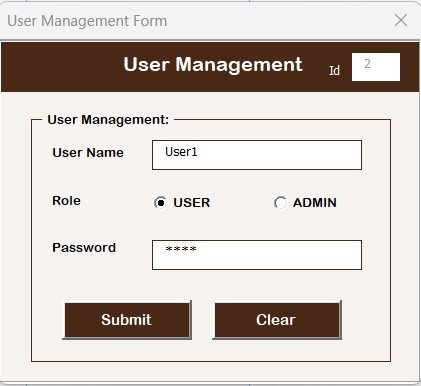
Admins can:
Add new users
Update user details
Change passwords
Remove users
This ensures controlled access and accountability across IT teams.
🔧 Settings Sheet – Customizable Behavior
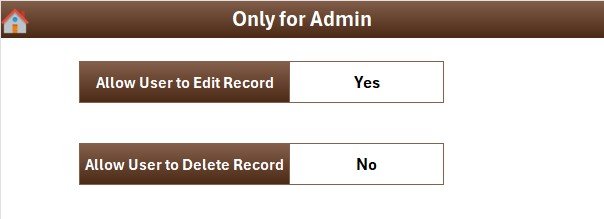
The Settings Sheet allows organizations to adapt the tracker to internal processes, ensuring flexibility without complexity.
📦 What’s Inside the IT Project Request Tracker in Excel
✅ Secure login-based Excel file
✅ IT project request entry form
✅ Automated dashboards & charts
✅ Budget and priority tracking
✅ Multi-user access control
✅ Manageable dropdown lists
✅ VBA automation (no coding required)
✅ Professional, clean UI
⚙️ How to Use the IT Project Request Tracker in Excel
Login using User ID and Password
Add new project requests via the form
Assign priority, owner, and budget
Update project status regularly
Use slicers to analyze data
Review dashboards weekly
Manage users and lists as needed
👥 Who Can Benefit from This Tracker
IT Managers & CIOs
Project & Program Managers
PMO Teams
Internal IT Departments
Corporate Enterprises
Audit & Compliance Teams
### Click here to read the Detailed blog post
📺 Visit our YouTube channel to learn step-by-step video tutorials
👉 https://youtube.com/@PKAnExcelExpert



Reviews
There are no reviews yet.