

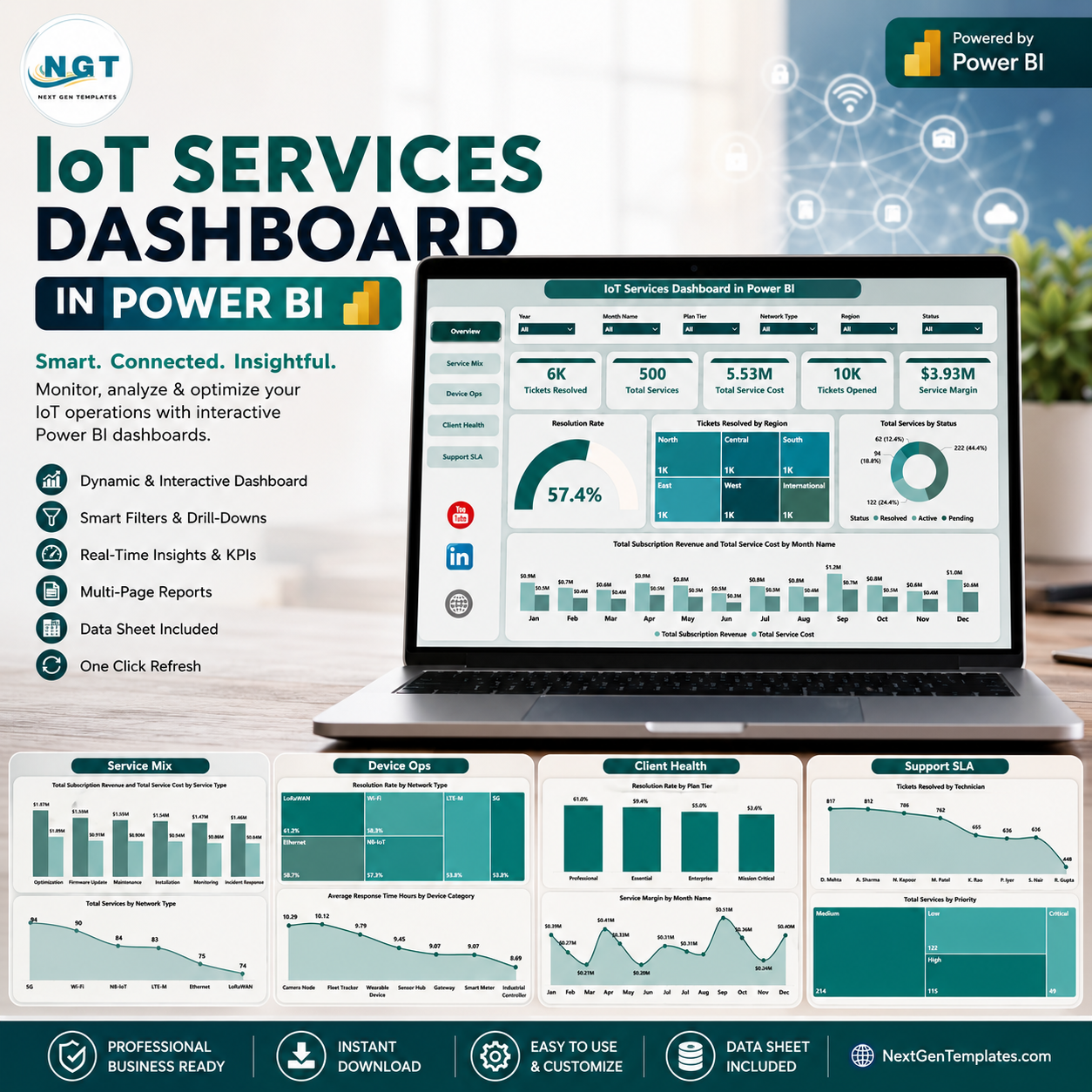
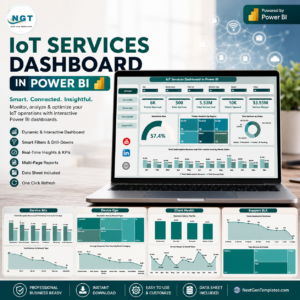
IoT Services Dashboard in Power BI gives IoT service providers, telecom support teams, managed device operators, and client success managers a ready-to-use reporting file for tickets, service cost, service margin, subscription revenue, uptime, response time, resolution rate, regions, plans, technicians, priorities, network types, and service types. The report includes 5 Power BI pages, 5 headline cards, multiple slicers, and focused chart views. Instead of rebuilding service reports every month, open the PBIX file in Power BI Desktop, connect or replace the sample data, and review the full IoT service picture in minutes.
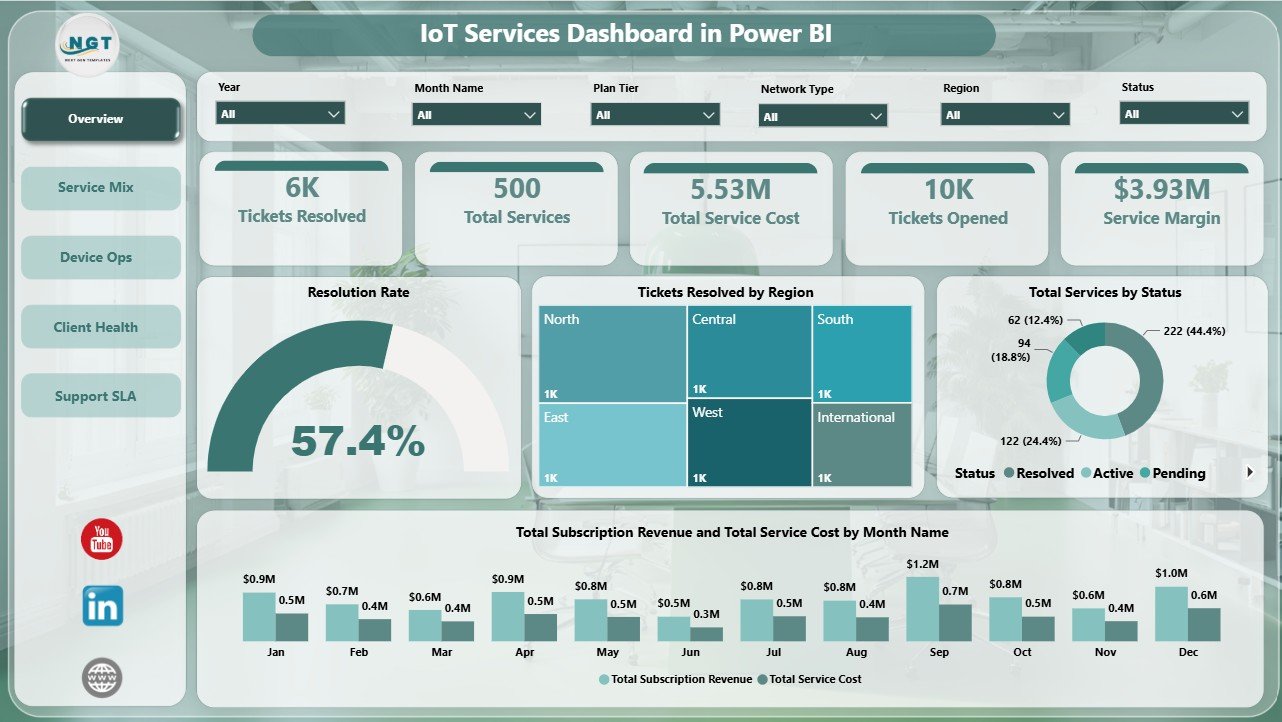
IoT Services Dashboard in Power BI
Key Features of IoT Services Dashboard in Power BI
- 5 report pages: Overview, Service Mix, Device Ops, Client Health, and Support SLA.
- Executive KPI cards: Tickets Resolved, Total Services, Total Service Cost, Tickets Opened, and Service Margin.
- Interactive slicers: Filter the dashboard by available business fields and review focused views quickly.
- Revenue and cost tracking: Compare subscription revenue, service cost, and margin trends.
- Operations analysis: Review resolution rate, uptime rate, response time, tickets opened, and tickets resolved.
- Client and SLA views: Track plan tier performance, regional uptime, technician output, priority mix, and service type demand.
- Editable PBIX file: Customize visuals, fields, measures, colors, labels, filters, and data connections in Power BI Desktop.
What’s Inside the IoT Services Dashboard in Power BI
1. Overview Page
The Overview Page gives a high-level service management view. The top cards show Tickets Resolved, Total Services, Total Service Cost, Tickets Opened, and Service Margin so managers can read support volume, service scale, cost, and profitability at a glance.
Resolution Rate by Overall Tickets: This chart shows how effectively opened tickets are being resolved. It helps support leaders see whether ticket closure is keeping pace with demand.
Tickets Resolved by Region: This visual compares resolved ticket volume across regions. It helps identify where support activity is concentrated and where regional capacity may need review.
Total Services by Status: This chart shows how services are distributed by status. It helps teams understand active, pending, closed, paused, or at-risk service volume.
Total Subscription Revenue and Total Service Cost by Month Name: This monthly chart compares recurring revenue with service delivery cost. It helps managers spot margin pressure and seasonal cost movement.
2. Service Mix
The Service Mix page explains the composition of IoT services by service type, network type, and month. It helps commercial and operations teams understand which service categories create the most revenue, cost, and ticket demand.
Total Subscription Revenue and Total Service Cost by Service Type: This chart compares income and cost by service line. It helps identify profitable services and services that need pricing or delivery review.
Tickets Opened by Month Name: This visual tracks support demand over time. It helps teams see ticket seasonality, spikes, and months requiring extra staffing.
Total Services by Network Type: This chart shows how services are distributed across network types. It helps technical teams understand the network mix behind monitoring and support workload.
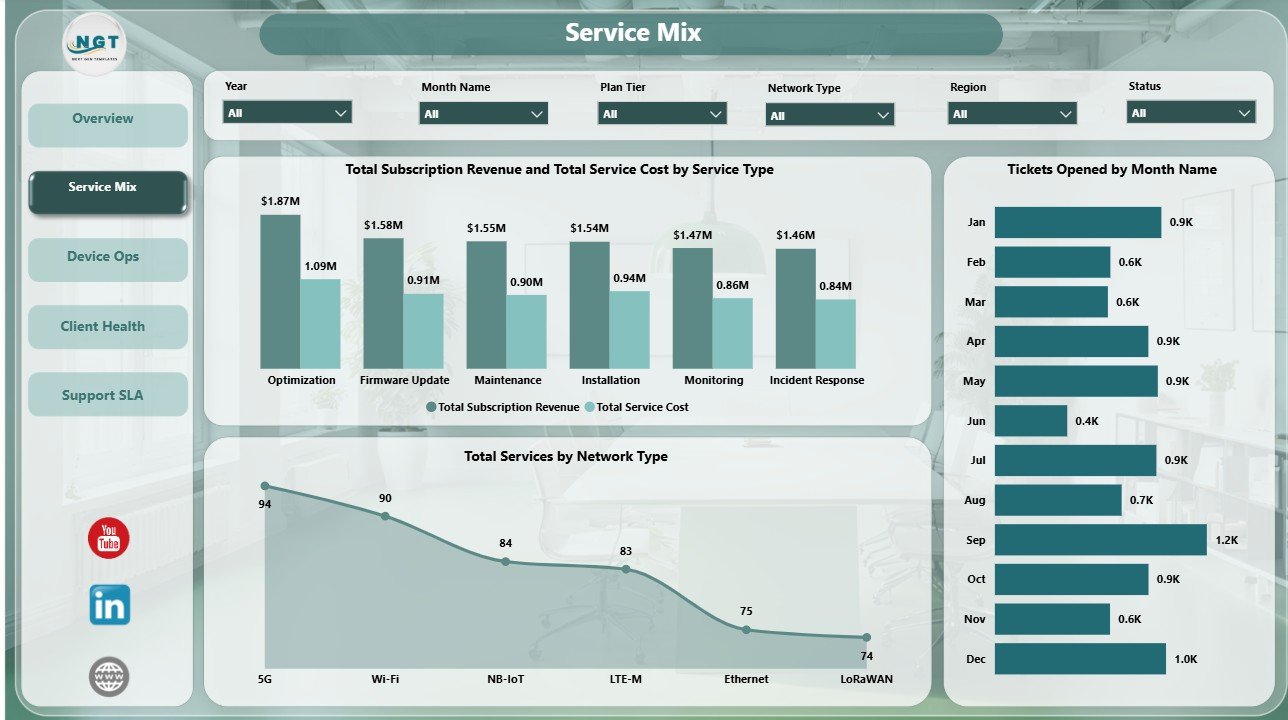
Service Mix
3. Device Ops
The Device Ops page focuses on operational reliability. It is useful for teams reviewing uptime, network performance, device category behavior, and response speed.
Resolution Rate by Network Type: This chart compares ticket resolution performance across network types. It helps identify network environments where cases may be harder to close.
Uptime Rate by Device Category: This view compares reliability by device group. It helps teams identify device categories that are stable and categories that need deeper investigation.
Average Response Time Hours by Device Category: This visual shows how quickly support responds by device category. It helps managers find device groups that create slower support cycles.
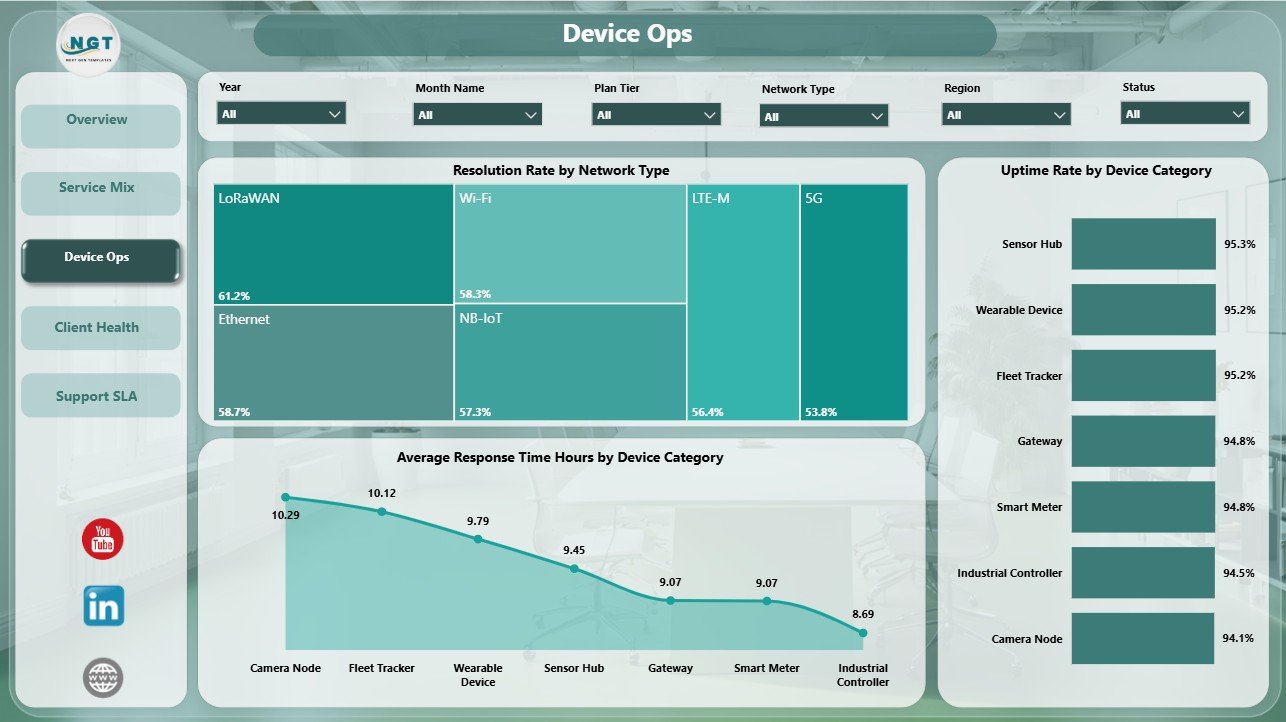
Device Ops
4. Client Health
The Client Health page connects service quality with plan, region, and monthly margin performance. It helps account managers prepare renewal reviews and spot where client experience may need attention.
Resolution Rate by Plan Tier: This chart compares resolution performance across plan tiers. It helps teams check whether premium plans receive stronger service outcomes.
Uptime Rate by Region: This visual compares service reliability by geography. It helps operations teams see where uptime is strong or where regional reliability needs review.
Service Margin by Month Name: This monthly margin view shows whether profitability is improving or declining. It helps managers connect revenue, service cost, and delivery efficiency.
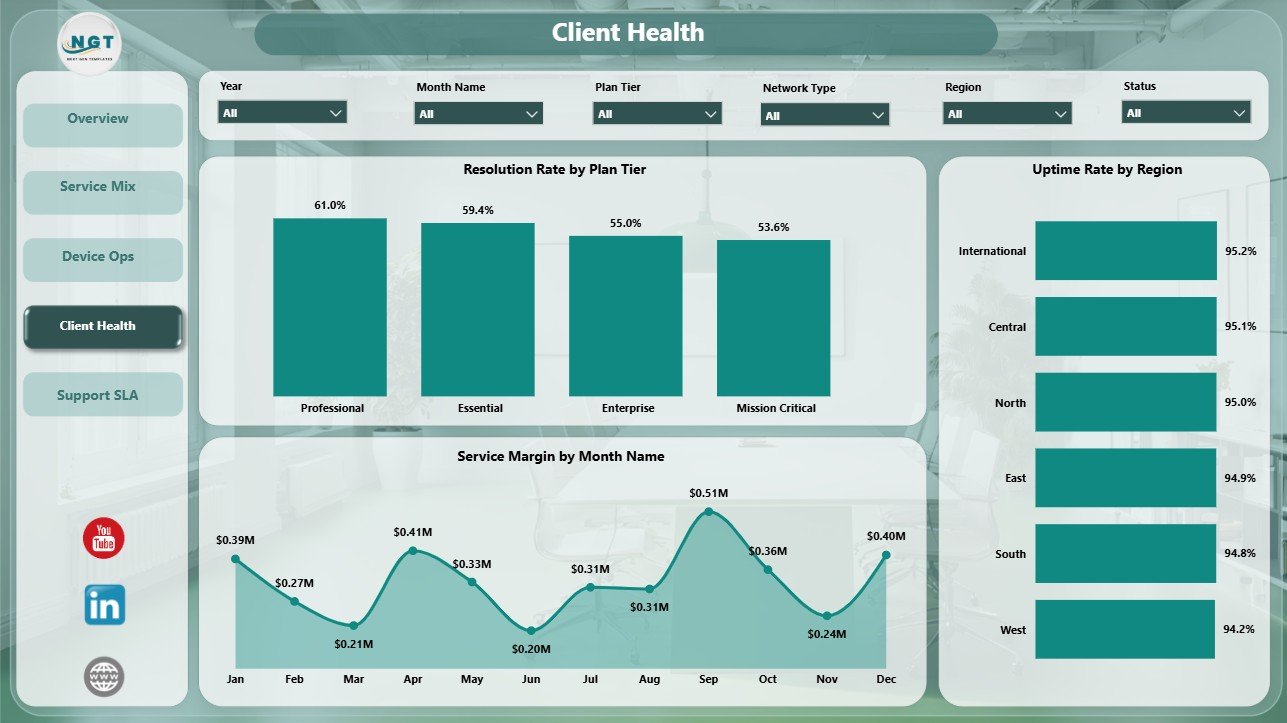
Client Health
5. Support SLA
The Support SLA page is designed for support leads who need to review technician output, service type ticket demand, and priority mix. It gives a practical view of where the support team is spending time.
Tickets Resolved by Technician: This chart compares closure volume by technician. It supports workload balancing, coaching, and performance review.
Tickets Opened by Service Type: This visual shows which service types generate the most ticket demand. It helps teams target process improvement and support documentation.
Total Services by Priority: This chart groups service records by priority. It helps managers understand whether the portfolio is dominated by urgent work or routine service activity.
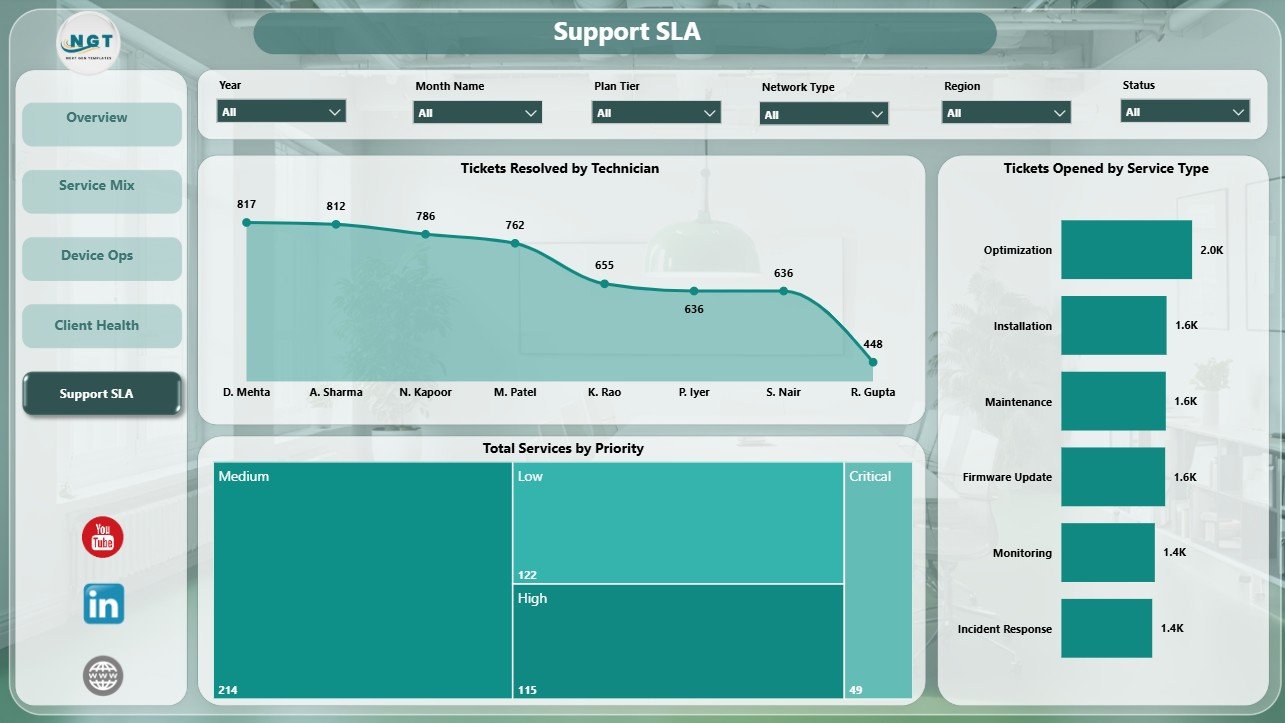
Support SLA
IoT Services Dashboard in Power BI vs. Tableau vs. Paid IoT Service SaaS – Where This Fits
| Feature | This Power BI dashboard | Tableau alternative | Paid IoT service SaaS |
|---|---|---|---|
| Cost | $17.99 one-time | License plus dashboard build time | Monthly or annual subscription |
| Platform | Power BI Desktop | Tableau Desktop or Cloud | Vendor-hosted platform |
| Setup time | Open PBIX and replace or connect data | Build data model and visuals | Implementation and configuration project |
| Customizable fields | Editable report, model, visuals, and measures | Editable with Tableau skills | Limited by vendor reporting options |
| IoT service analytics | Built in across service, device, client, and SLA pages | Must be designed | Depends on vendor module and plan |
| Year-1 cost at 5 users | $17.99 plus any Microsoft licensing | Often higher licensing or development cost | Often hundreds or thousands |
Who This Template Is For – and Who It’s Not For
This template is for IoT service providers, managed service providers, telecom support teams, connected device operations teams, service analysts, SLA managers, and client success leaders who need an editable Power BI reporting layer. It is not a live device-monitoring platform, ticketing system, sensor gateway, billing engine, CRM, or automated SLA workflow system.
How to Use the IoT Services Dashboard in Power BI
- Download and unzip the product file.
- Open the PBIX file in Power BI Desktop.
- Review the sample pages, fields, visuals, and slicers.
- Replace or connect your own IoT service data using the same field structure.
- Refresh the report and validate cards, slicers, and charts.
- Publish to Power BI Service only after checking your organization’s access and privacy rules.
Real-World Use Cases
Arjun, IoT operations manager: reviews service margin, cost, open tickets, resolved tickets, and regional support activity before weekly service meetings.
Maya, support lead: uses Device Ops and Support SLA pages to compare resolution rate, response time, priority mix, and technician closures.
Daniel, client success manager: uses Client Health to review uptime, plan tier performance, and monthly service margin before renewal calls.
Frequently Asked Questions
What does this Power BI dashboard track?
It tracks tickets opened, tickets resolved, total services, service cost, service margin, subscription revenue, resolution rate, uptime rate, response time, regions, service status, service types, network types, device categories, plan tiers, technicians, and priority.
Do I need Power BI Desktop?
Yes. Open and edit the PBIX file in Power BI Desktop, which is available from Microsoft.
Can I replace the sample data?
Yes. Replace or connect your own structured IoT service data, then refresh the report and verify the visuals.
Can I customize the report?
Yes. You can edit visuals, fields, measures, relationships, colors, labels, filters, and report pages.
Is this a live IoT monitoring tool?
No. This is a reporting dashboard template, not a live device monitoring or sensor ingestion platform.
Is this a subscription?
No. This is a one-time downloadable Power BI template from NextGenTemplates.
About the Author
Built by PK – Microsoft Certified Professional with 15+ years of Excel, Google Sheets, and Power BI experience. Founder of NextGenTemplates, reaching 300K+ subscribers across YouTube channels. Every template is hand-built and tested before release.
Explore Related Templates
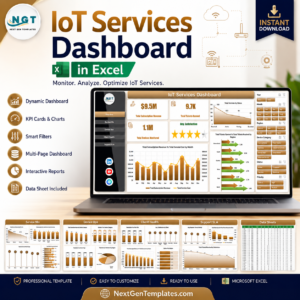
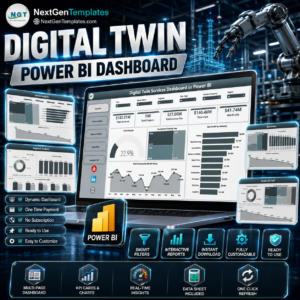
You may also like IoT Services Dashboard in Excel, Digital Twin Services Dashboard in Power BI, and IT Asset Management Dashboard in Power BI. Browse more Power BI templates and Power BI dashboard templates.
Download the IoT Services Dashboard in Power BI today and turn service, support, device, client, and SLA data into clear interactive reporting.
Last updated: June 27, 2026.























Reviews
There are no reviews yet.