

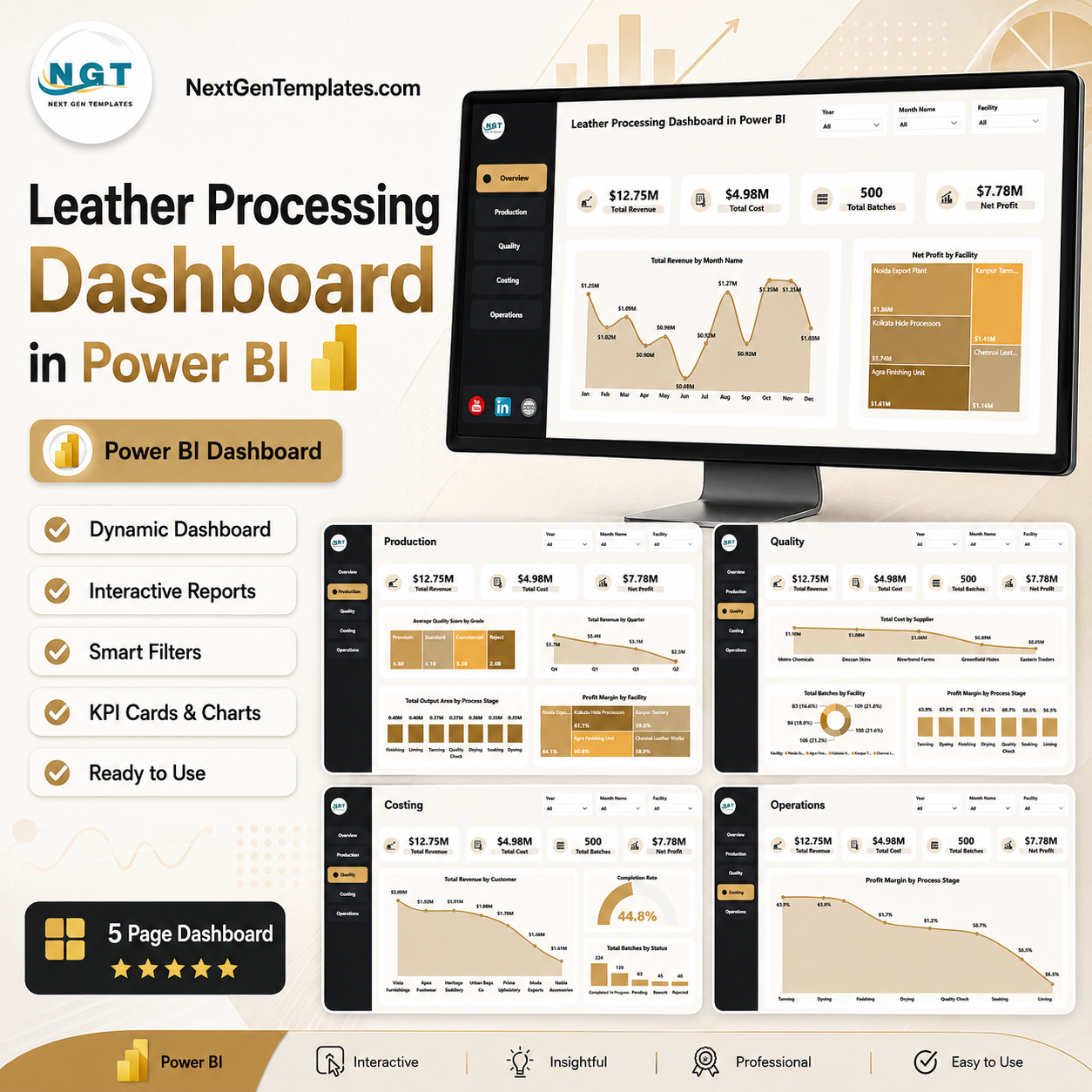
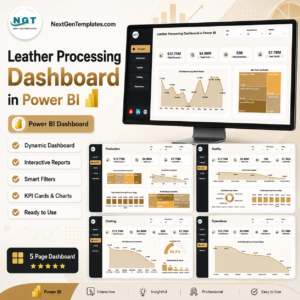
Leather Processing Dashboard in Power BI gives tannery, leather finishing, costing, quality, and operations teams a ready Power BI report with 5 report pages, 4 high-level KPI cards, 13 analysis visuals, and slicers for quick filtered review. Built by PK, a Microsoft Certified Professional with 15+ years of Excel, Power BI, and dashboard experience and 300K+ YouTube subscribers, this one-time download helps you review revenue, cost, batches, net profit, quality, output area, process stages, facilities, suppliers, customers, and processing status without building the report from scratch. Open the PBIX file in Power BI Desktop, connect or replace your data, and start analyzing.
Key Features of Leather Processing Dashboard in Power BI
- 5 Power BI pages: Overview, Production, Quality, Costing, and Operations.
- 4 executive KPI cards: Total Revenue, Total Cost, Total Batches, and Net Profit.
- 13 analysis visuals: Review monthly revenue, facility profit, quality score, output area, process stages, suppliers, customers, completion rate, and status.
- Interactive slicers: Filter the dashboard quickly and review selected facilities, time periods, suppliers, customers, grades, and process stages.
- Power BI Desktop ready: Use Microsoft’s free Power BI Desktop application to open and customize the PBIX report.
- Built for leather processing: Focused on tannery, leather finishing, production, quality, costing, and operations reporting.
What’s Inside the Leather Processing Dashboard in Power BI
1 – Overview Page
The Overview Page gives leadership a fast summary of leather processing performance. The top KPI cards show Total Revenue, Total Cost, Total Batches, and Net Profit so users can check the most important numbers before drilling into the detailed pages.
Total Revenue by Month Name: This chart shows how revenue changes month by month. It helps managers identify strong demand periods, low-performing months, and seasonality in leather processing revenue.
Net Profit by Facility: This chart compares net profit across facilities. It helps leadership identify which locations are contributing the strongest profit and which facilities may need cost or production review.
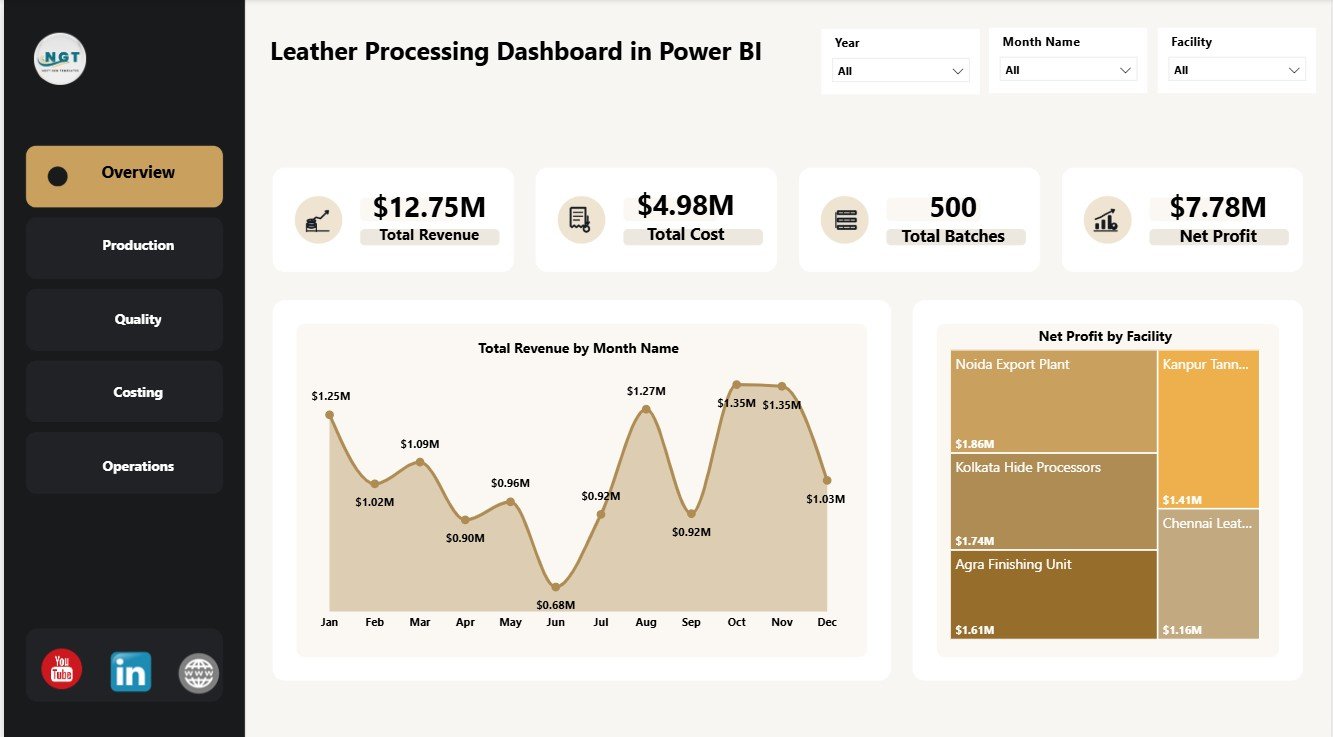
Leather Processing Dashboard in Power BI
2 – Production
The Production page focuses on output, revenue, grade quality, and facility margin. It is useful for production heads who need to understand where volume, revenue, and margin are being created.
Average Quality Score by Grade: This chart compares average quality scores across leather grades. It helps quality and production teams see which grades are consistently meeting expected standards.
Total Revenue by Quarter: This chart groups revenue by quarter. It helps managers compare quarterly performance and plan capacity, staffing, and material requirements.
Total Output Area by Process Stage: This chart shows output area across processing stages. It helps teams find high-output stages and spot possible production bottlenecks.
Profit Margin by Facility: This chart compares margin across facilities. It helps operations teams review which facilities convert processing activity into profit most efficiently.
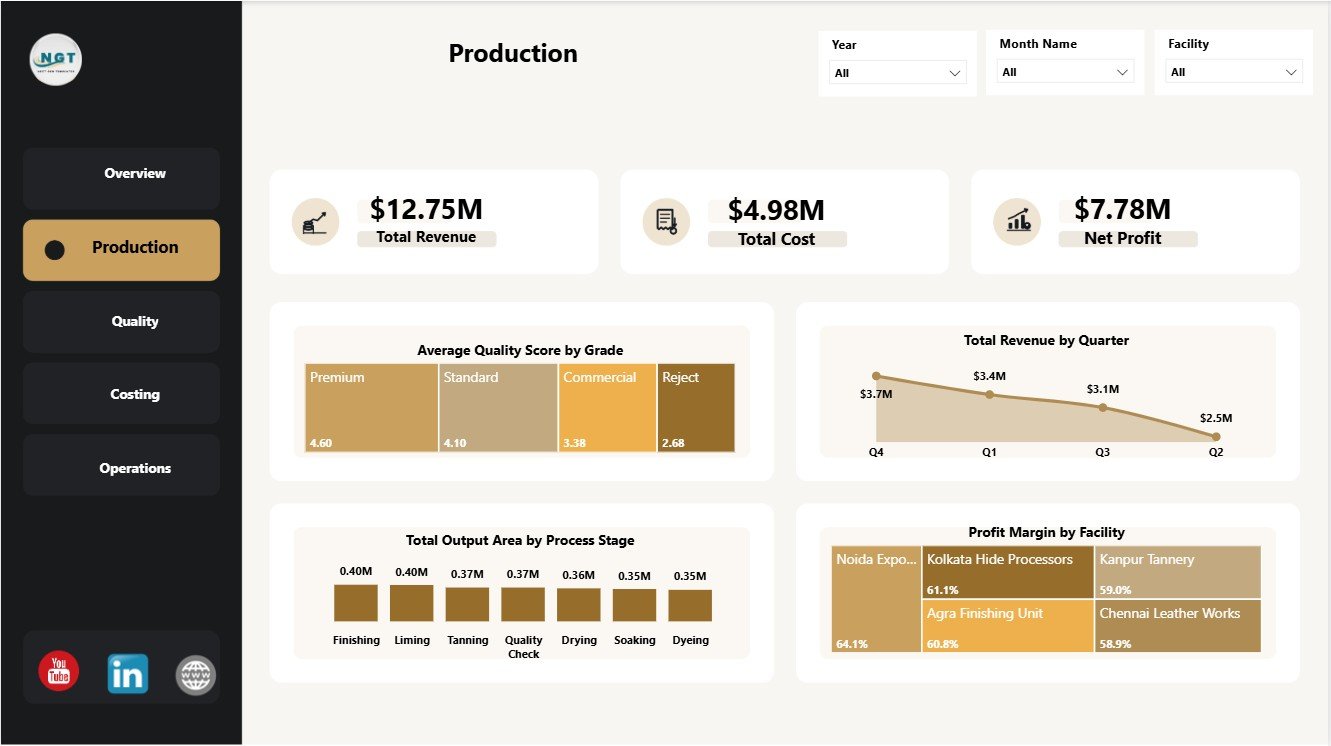
Production
3 – Quality
The Quality page connects supplier cost, batch volume, process stages, and margin. It helps quality and procurement teams review the operating areas that influence finished leather quality and profitability.
Total Cost by Supplier: This chart compares total cost contribution by supplier. It helps procurement teams understand which suppliers have the highest cost impact.
Total Batches by Facility: This chart shows batch count by facility. It helps managers compare workload and processing volume across locations.
Profit Margin by Process Stage: This chart compares margin across process stages. It helps teams identify stages that support or reduce overall profitability.
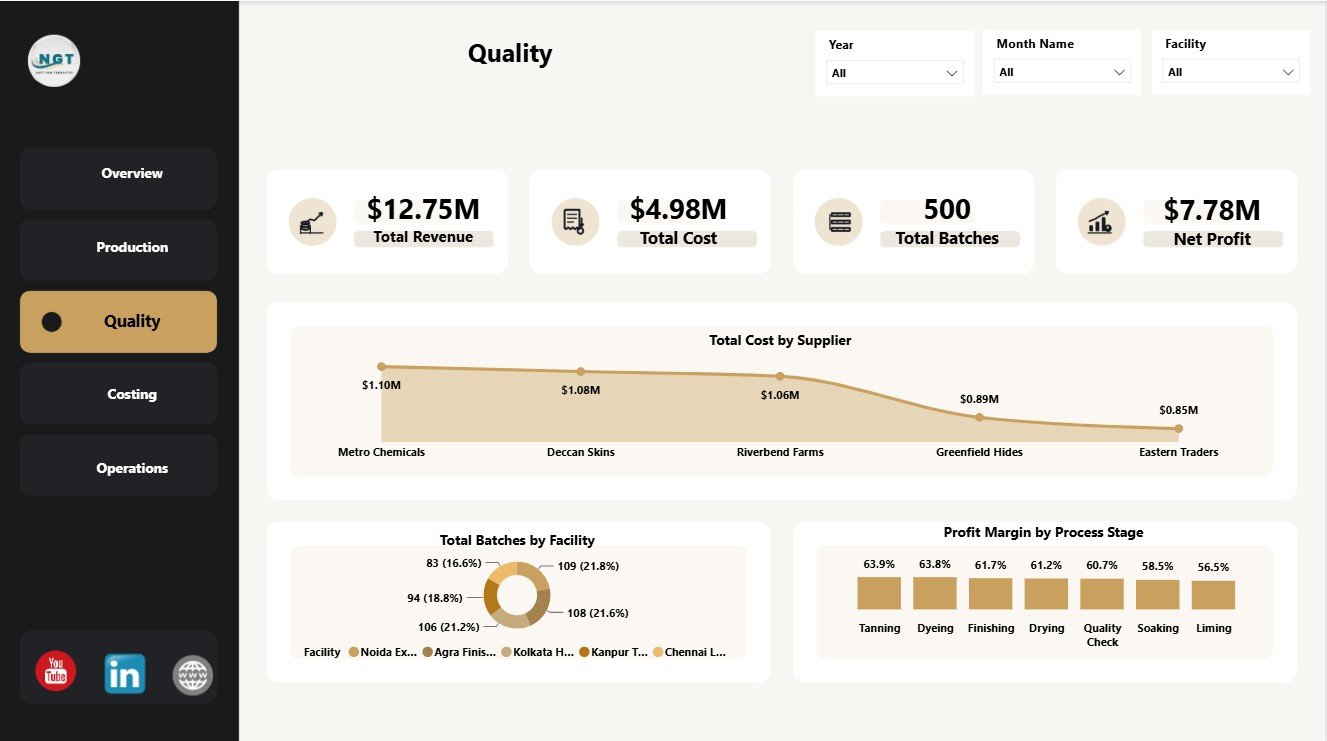
Quality
4 – Costing
The Costing page supports finance, sales operations, and production review. It highlights customer revenue, completion performance, and batch status so teams can connect commercial performance with operational progress.
Total Revenue by Customer: This chart compares revenue contribution by customer. It helps sales and finance teams identify important accounts and customer concentration.
Completion Rate by Overall Processing Status: This chart shows completion rate by processing status. It helps operations teams understand where work is complete, delayed, or still moving through the process.
Total Batches by Status: This chart summarizes batch counts by status. It helps teams monitor completed, pending, and in-progress batch volumes.
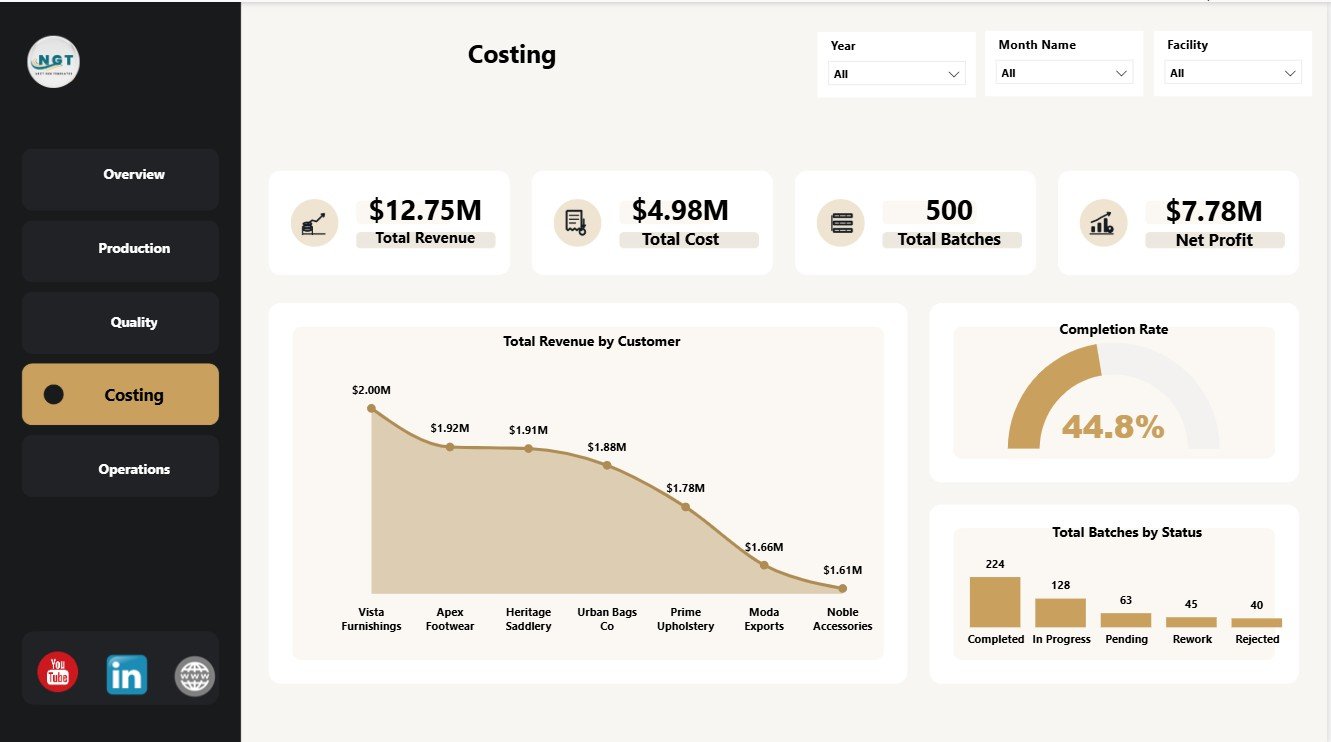
Costing
5 – Operations
The Operations page gives a focused view of process-stage profitability. It is useful for weekly operations review when the team wants a simple view of where margin is strongest or weakest.
Profit Margin by Process Stage: This chart compares profit margin across leather processing stages. It helps managers identify stages that need pricing, cost control, or process improvement attention.
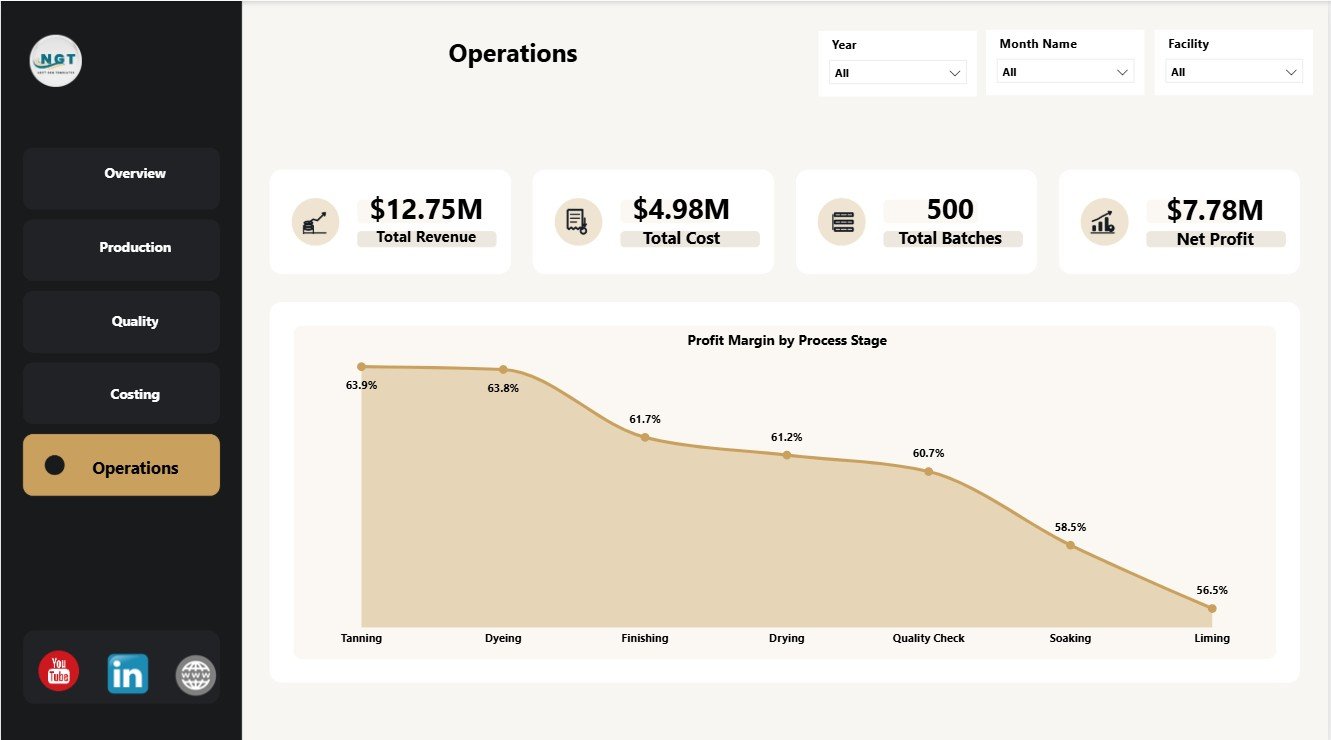
Operations
Leather Processing Dashboard in Power BI vs. Tableau vs. Paid ERP Analytics – Where This Fits
| Feature | This Power BI dashboard | Tableau alternative | Paid ERP analytics |
|---|---|---|---|
| Cost | $17.99 one-time download | Requires Tableau licensing | Usually subscription plus implementation |
| Platform | Power BI Desktop | Tableau Desktop or Server | Vendor-hosted ERP module |
| Setup time | Open PBIX and replace/connect data | Build or adapt workbook | Configuration project |
| Real-time team collaboration | Possible with Power BI Service | Possible with Tableau Server/Cloud | Usually included |
| Mobile access | Available through Power BI Service | Available through Tableau mobile | Usually included |
| Customizable fields | Editable Power BI report | Editable if you build it | Depends on vendor setup |
| Share with link | Available after publishing to Power BI Service | Available with Tableau publishing | Login controlled |
| Year-1 cost at 5 users | $17.99 plus any Microsoft licensing needs | Often higher due to licenses | Often much higher |
| Leather processing pages | 5 ready Power BI pages | Must be built or customized | Depends on module |
Who This Template Is For – and Who It’s Not For
This dashboard is for tannery owners, leather processing managers, production heads, quality teams, costing analysts, plant heads, procurement teams, and consultants who need a Power BI reporting layer for leather processing performance. It is not a complete ERP, batch execution system, inventory transaction system, approval workflow, or live machine integration.
How to Use the Leather Processing Dashboard in Power BI
- Download and unzip the product file.
- Open the PBIX file in Power BI Desktop.
- Review the sample model, measures, pages, slicers, and visuals.
- Replace the sample data or connect your own data source.
- Refresh the report and validate the KPI cards.
- Use slicers to review facility, customer, supplier, grade, status, and process-stage performance.
Real-World Use Cases
Ramesh, tannery operations manager: Ramesh reviews Total Batches, Total Cost, and Profit Margin by Facility before the weekly operations meeting.
Anita, quality head: Anita checks Average Quality Score by Grade and supplier cost patterns to identify areas for quality improvement.
Marco, finance analyst: Marco reviews revenue by customer, net profit by facility, and margin by process stage before month-end reporting.
Frequently Asked Questions
What software do I need?
You need Power BI Desktop to open and edit the PBIX file. Power BI Desktop is available from Microsoft.
How many pages are included?
The report includes 5 pages: Overview, Production, Quality, Costing, and Operations.
Can I connect my own data?
Yes. You can replace the sample data or connect the PBIX file to your own source, then refresh the report.
Is this a full leather ERP system?
No. It is a Power BI dashboard template for reporting and analysis, not a full ERP or production execution system.
Can I customize the visuals?
Yes. Since it is a Power BI file, you can edit visuals, measures, relationships, slicers, colors, and page layout.
Does it work with Power BI Service?
You can publish the report to Power BI Service if your Microsoft account and licensing allow publishing and sharing.
About the Author
Built by PK – Microsoft Certified Professional with 15+ years of Excel, Google Sheets, and Power BI experience. Founder of NextGenTemplates, reaching 300K+ subscribers across YouTube channels. Every template is hand-built and tested before release.
Explore Related Templates
Explore more Power BI dashboard templates. You may also like the Leather Processing Dashboard in Excel, Leather Processing KPI Dashboard in Excel, and Leather Processing KPI Dashboard in Power BI.
Download the Leather Processing Dashboard in Power BI, open it in Power BI Desktop, replace the sample data, and start reviewing production, quality, costing, and operations performance today.
Last updated: July 2, 2026











Reviews
There are no reviews yet.