

In the insurance business, timing is everything. ⏰📋
A missed renewal.
A forgotten client review.
A delayed compliance deadline.
Any of these can cost you revenue and client trust.
That is why insurance professionals need more than a basic calendar.
They need a structured planning system that keeps every important date visible and actionable.
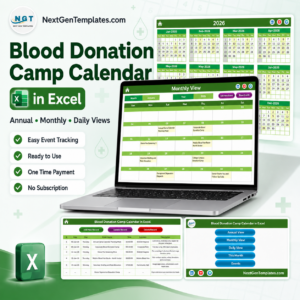
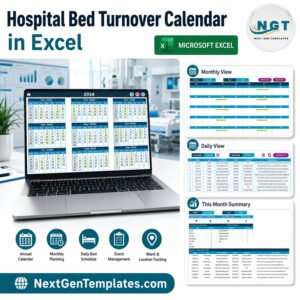
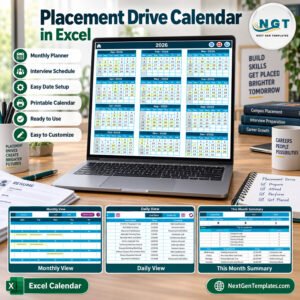
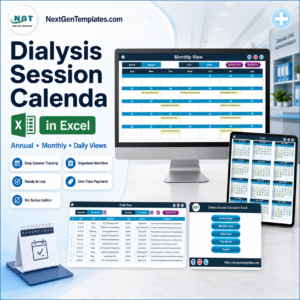
The Insurance Planning Calendar in Excel is a ready-to-use, fully automated scheduling solution designed specifically for insurance agents, brokers, financial advisors, and policy administrators. Instead of juggling reminders across emails and notebooks, you manage your entire yearly planning inside one powerful Excel workbook.
Stay organized. Stay proactive. Stay professional.
Key Feature of Insurance Planning Calendar in Excel 📅✨
This smart Excel calendar is built to simplify insurance planning and event management.
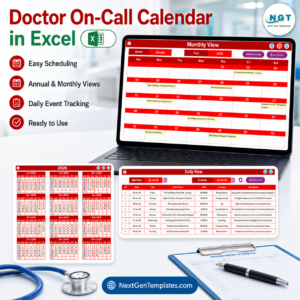
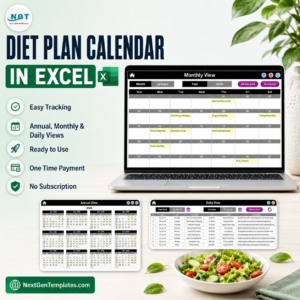
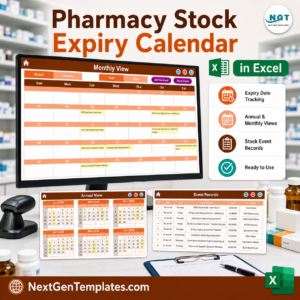
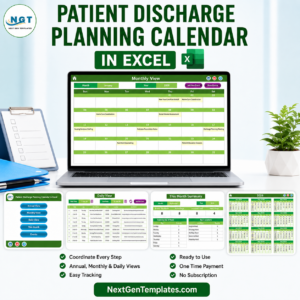
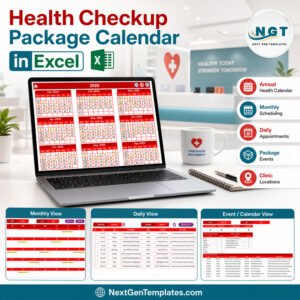
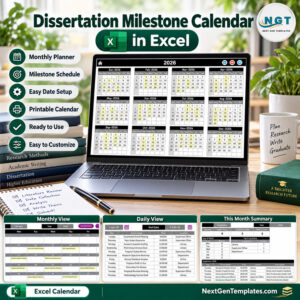
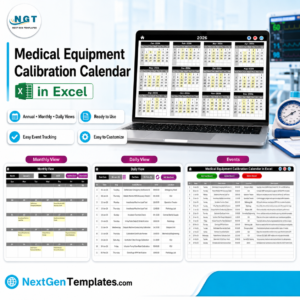
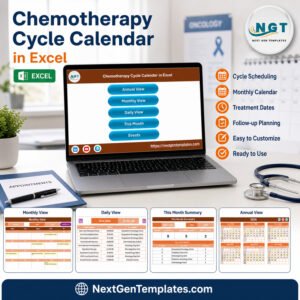
🚀 Annual, Monthly & Daily Calendar Views
📊 Automated Event Entry Form
🎨 5 Built-in Color Themes
🔍 Highlight Weekends & Important Days
📅 Policy Renewal & Meeting Tracking
⚙ Add, Update & Delete Event Buttons
📂 Centralized Events Database
🧭 Easy Navigation Home Page
Because it runs in Excel, you can customize the calendar easily without any complex software.
What’s Inside the Insurance Planning Calendar in Excel 📁
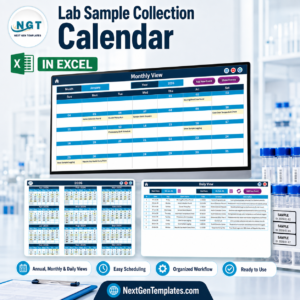
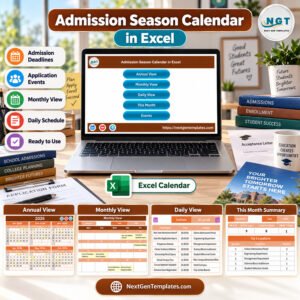
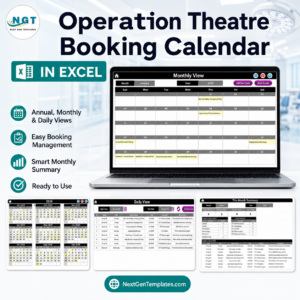
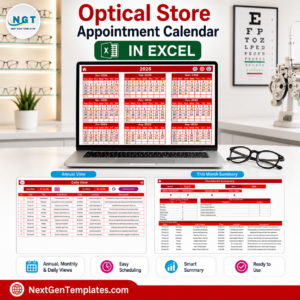
You receive a professionally designed workbook with 5 structured worksheets, each serving a specific purpose.
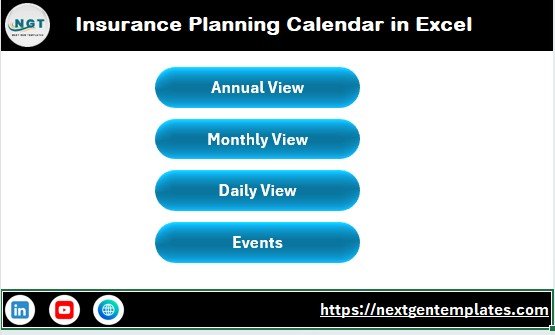
🏠 1️⃣ Home Sheet – Navigation Hub
The Home sheet acts as your control center.
It includes four interactive buttons:
Annual View
Monthly View
Daily View
Events
With one click, you jump to any section instantly.
This keeps your workflow fast and user-friendly.
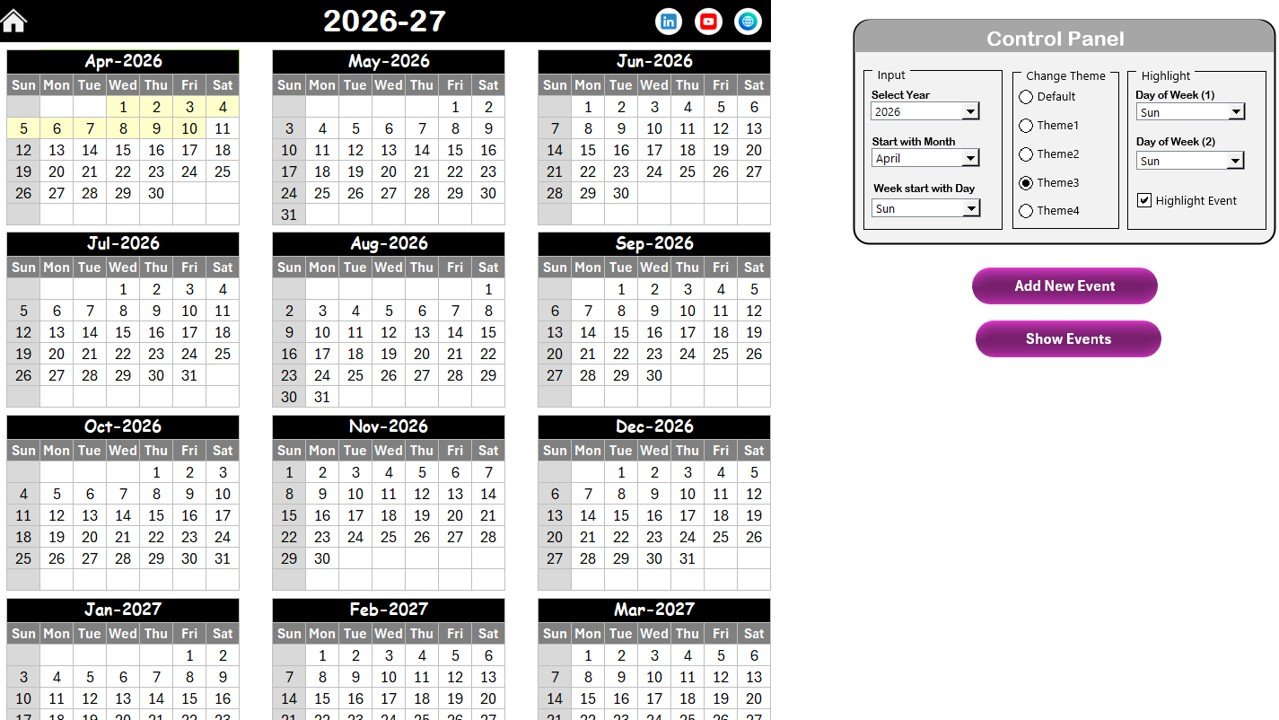
📆 2️⃣ Annual View Sheet – Year at a Glance
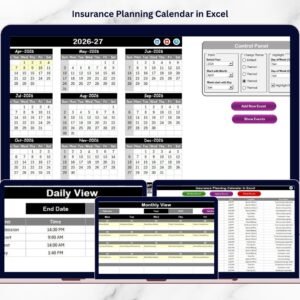
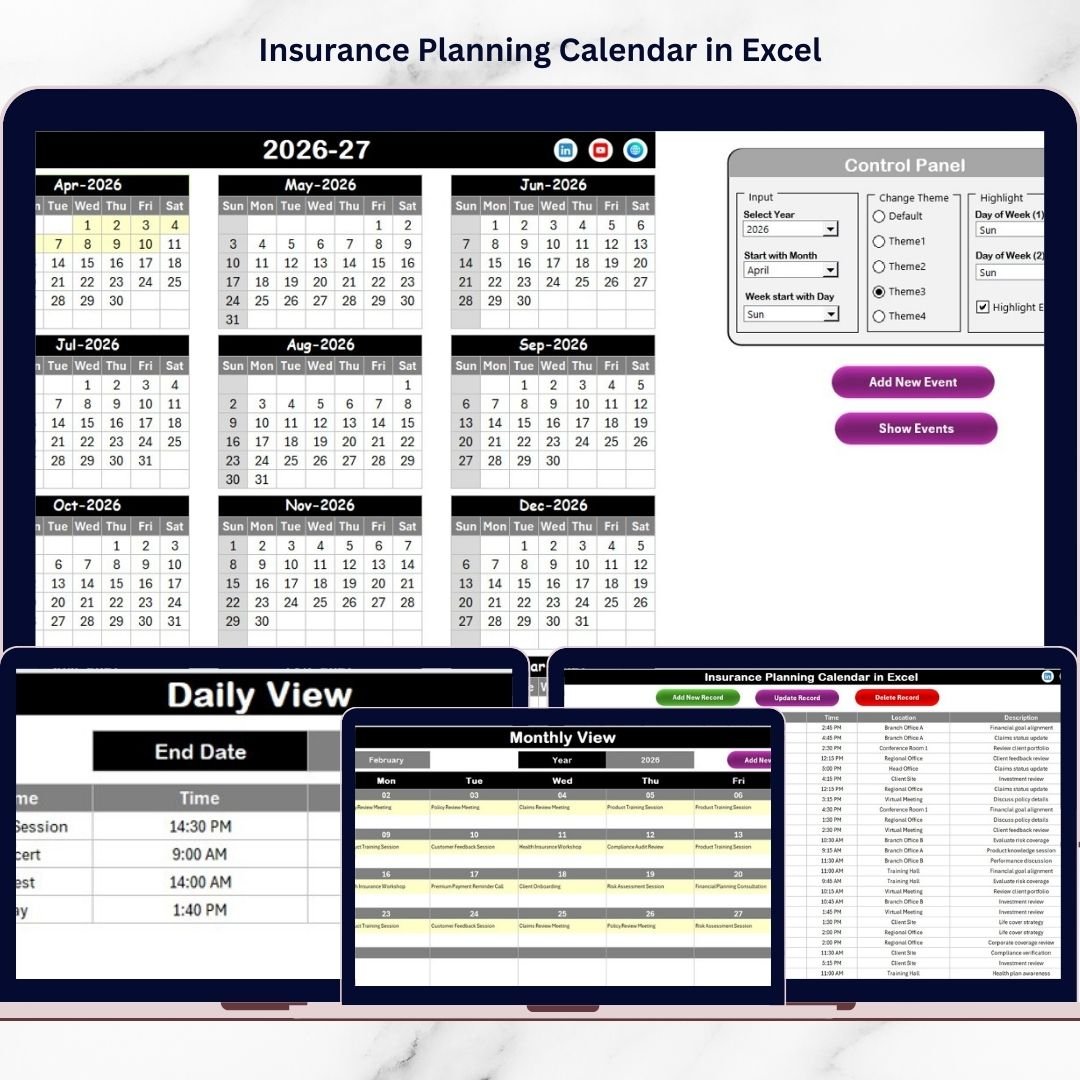
This sheet displays all 12 months in one clean layout, helping you plan long-term insurance activities.
🔹 Powerful Control Panel
Input Group
You can:
Select the Year
Change Starting Month
Change Starting Day of Week
The calendar updates automatically based on your selections.
Change Theme Group
Choose from 5 professional color themes to match your brand or preference.
Highlight Group
You can:
Highlight Day of Week (1)
Highlight Day of Week (2)
Highlight Event Dates
For example, highlight weekends in grey and important events in yellow for better visibility.
🔹 Smart Event Buttons
✅ Add New Event – Opens entry form
✅ Show Event – Displays events for selected date
Planning becomes quick and structured.
🗓️ 3️⃣ Monthly View Sheet – Focused Planning
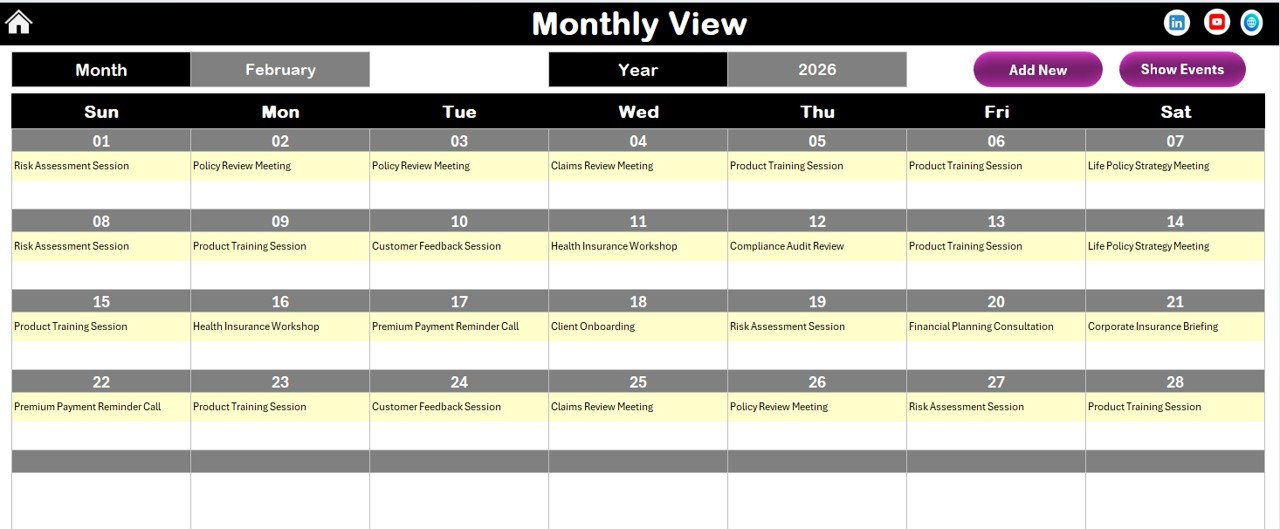
This sheet shows one month at a time for detailed scheduling.
At the top, select:
Month
Year
The calendar refreshes instantly.
Smart Event Display
Single event → shown directly
Multiple events → shows “more than 1…”
This keeps the calendar clean and readable.
Quick Action Buttons
✔ Add New Event
✔ Show Event
You can manage monthly activities in seconds.
📋 4️⃣ Daily View Sheet – Detailed Monitoring
The Daily View provides a filtered list of events within your selected date range.
Enter:
Start Date
End Date
Click Refresh, and the sheet displays all events in that period.
This is perfect for:
Weekly reviews
Compliance tracking
Follow-up monitoring
Workload planning
You can also add events directly from this sheet.
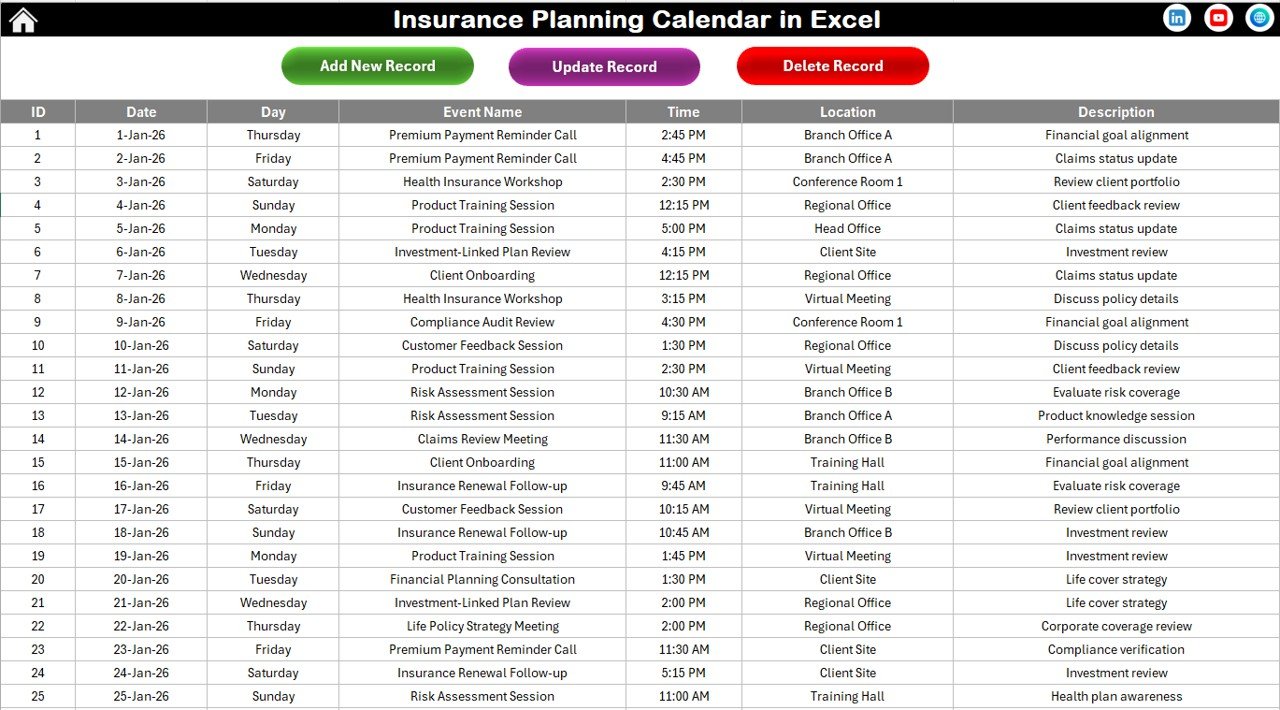
🧠 5️⃣ Events Sheet – Central Database
This is the engine of the entire calendar.
All calendar views pull data from this structured table.
Captured Fields
ID (Auto-generated)
Date
Day
Event Name
Time
Location
Description
🔹 Event Management Buttons
➕ Add New Record
✏ Update Existing Record
🗑 Delete Record
Because IDs generate automatically, your data remains clean and organized.
Who Can Benefit from This Insurance Planning Calendar 👥
This template is perfect for:
✔ Insurance Agents
✔ Insurance Brokers
✔ Financial Advisors
✔ Policy Administrators
✔ Sales Teams
✔ Compliance Officers
Whether you manage a small client portfolio or a large insurance operation, this calendar keeps you in control.
How This Calendar Improves Insurance Operations 💼
When you use structured scheduling:
📅 You never miss policy renewals
👥 Client follow-ups become consistent
📊 Compliance deadlines stay visible
⏱ Administrative workload reduces
⭐ Customer service improves
Instead of reacting late, you operate proactively.
Why Choose Excel for Insurance Planning? 📊
Excel gives you:
✔ Familiar interface
✔ No subscription cost
✔ Easy customization
✔ Offline access
✔ Simple sharing
You get enterprise-level organization without expensive software.
Plan Smarter. Serve Better. Grow Faster. 🚀
Insurance success depends on discipline and timing.
The Insurance Planning Calendar in Excel gives you:
📆 Structured yearly planning
📊 Multi-level calendar views
⚙ Automated event management
🎨 Customizable themes
🔍 Visual highlighting
When you organize your schedule professionally, you protect revenue and strengthen client relationships.
Stop relying on memory.
Start managing with clarity.
Click here to read the Detailed blog post
Visit our YouTube channel to learn step-by-step video tutorials
👉 https://youtube.com/@PKAnExcelExpert
Watch the step-by-step video tutorial:
Compatibility and Requirements
- Works in Microsoft Excel desktop (Excel 2016 or later, or Microsoft 365).
- The Add, Update, Delete, Refresh and navigation buttons are macro buttons, so use Excel desktop on Windows with macros enabled. The template does not run in Excel for the web, Google Sheets or mobile. Microsoft explains the setting in Enable or disable macros in Microsoft 365 files.
Frequently Asked Questions
Which sheets are included?
The workbook has 5 sheets: Home, Annual View, Monthly View, Daily View and Events.
Where do I enter insurance events such as renewals and meetings?
Click Add New Event on the Annual View, Monthly View or Daily View sheet, or add a record directly on the Events sheet. Each record stores an auto-generated ID, date, day, event name, time, location and description.
Can I change the year, starting month or colors?
Yes. On the Annual View sheet you select the year, the starting month and the starting day of the week. You can also pick one of 5 color themes and highlight two days of the week and event dates.
How do I see all events for a date range?
Open the Daily View sheet, enter a start date and an end date, then click Refresh. The sheet lists every event in that period.
Is there an Insurance Dashboard for this?
Yes. See the Insurance Dashboard in Excel and the Insurance Dashboard in Power BI.
Related Insurance and Calendar Templates
- Insurance Dashboard in Excel: an analysis view for insurance data
- Insurance Dashboard in Power BI: the Power BI edition
- Insurance Coverage Checklist Template in Excel: a checklist for reviewing coverage
- Legal Compliance Calendar in Excel: tracks compliance deadlines
- Financial Planning Calendar in Excel: a planning calendar for finance dates
Browse all Excel calendar templates.