

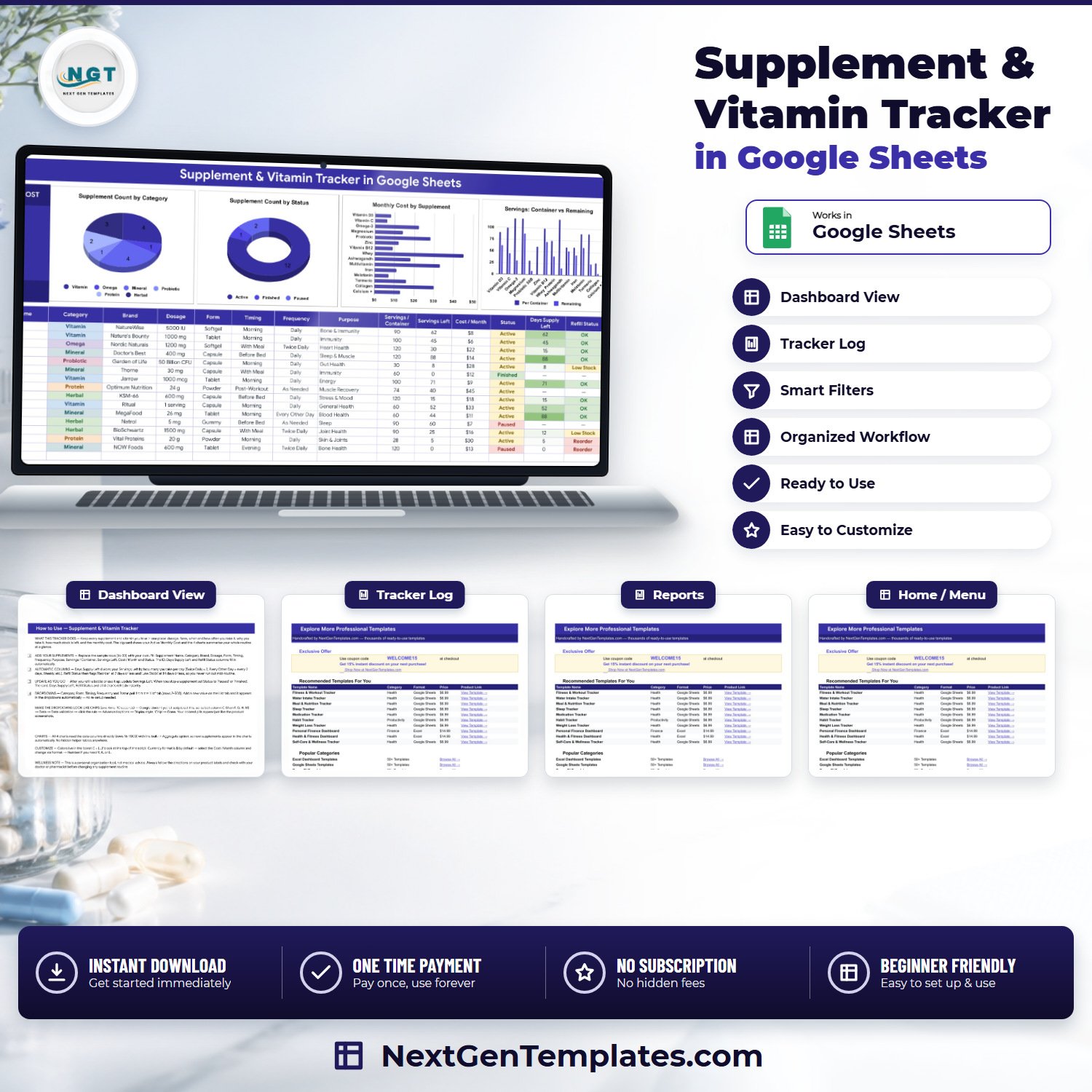

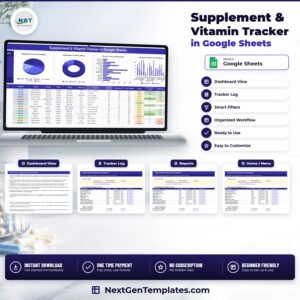
The Supplement & Vitamin Tracker in Google Sheets logs every supplement you take across a 16-column table, calculates one live KPI card (Active Monthly Cost), and drives 4 charts plus 2 automatic reorder alerts. The sample file ships with 15 supplements pre-filled and formulas that run to row 1000, so you can add roughly 985 more entries without touching a formula. Setup takes under 10 minutes: replace the sample rows and every number on the page recalculates.
🌍 Join 8,400+ teams and individuals in 40+ countries using NextGenTemplates to replace paid subscription tools with one-time-purchase Excel, Google Sheets, Power BI, and HTML templates.
✅ Instant download · One-time payment · No subscription · No per-user fees · Lifetime access
🔑 Key Features of the Supplement & Vitamin Tracker in Google Sheets
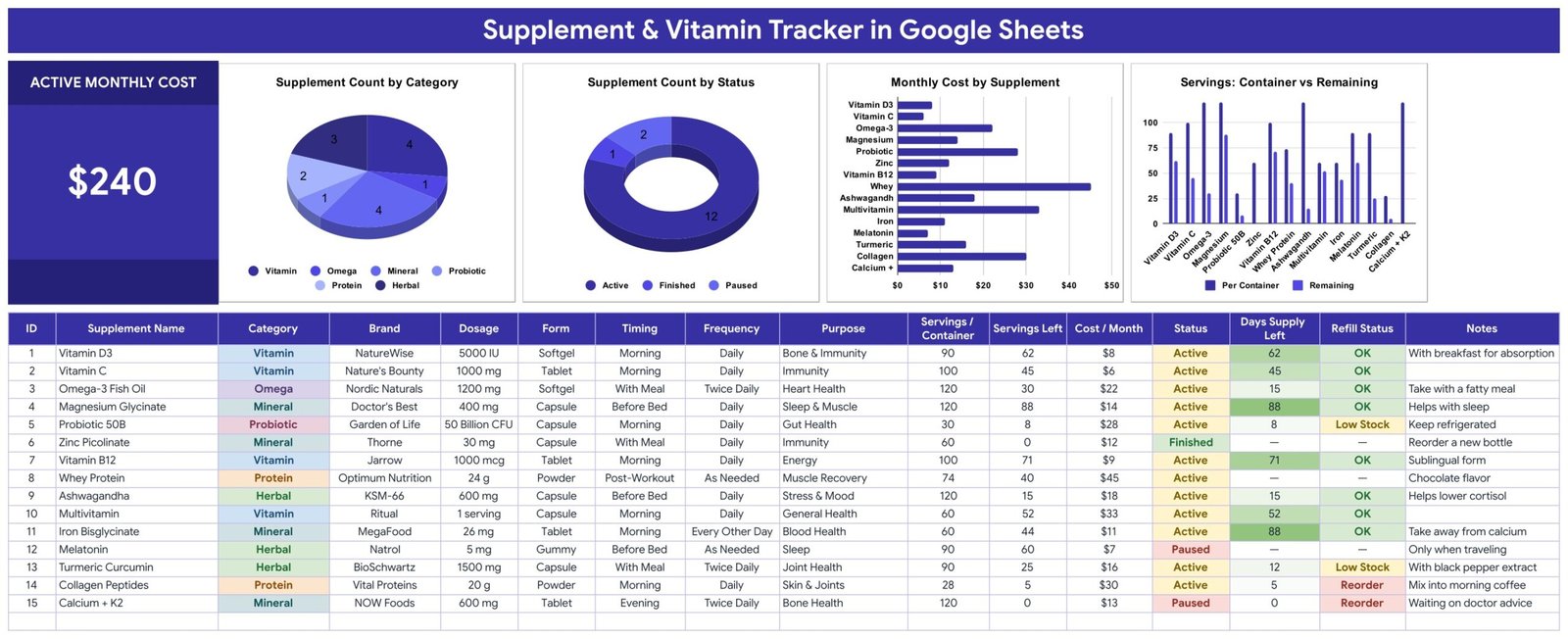
💊 One tracker tab, sixteen columns. The Supplement Tracker sheet records ID, Supplement Name, Category, Brand, Dosage, Form, Timing, Frequency, Purpose, Servings / Container, Servings Left, Cost / Month, Status, Days Supply Left, Refill Status and Notes. That is a complete record of what you take, why you take it, how much is left and what it costs.
💰 Active Monthly Cost card. A single large KPI card at the top left adds up the Cost / Month column for every supplement whose Status is Active. In the sample data it reads $240. Pause a supplement and the card drops immediately — no filter, no refresh, no rebuilding a formula.
🔢 Three columns fill themselves in. ID, Days Supply Left and Refill Status are formula columns. Days Supply Left divides Servings Left by how many servings your Frequency implies per day (Twice Daily = 2, Every Other Day = every 2 days, Weekly, and so on). Refill Status then reads that number and flags it.
🚨 Two reorder thresholds, applied automatically. Refill Status shows Reorder at 7 days of supply or less and Low Stock at 14 days or less, otherwise OK. In the sample file that flags Collagen Peptides and Calcium + K2 as Reorder and Probiotic 50B and Turmeric Curcumin as Low Stock, so you see the bottles about to run out before they do.
📋 Five dropdown columns fed by a List tab. Category, Form, Timing, Frequency and Status are data-validation dropdowns that read rows 2 to 500 of the List sheet. The lists ship with 10 categories (Vitamin, Mineral, Herbal, Protein, Omega, Probiotic, Amino Acid, Fiber, Enzyme, Other), 7 forms, 7 timings, 5 frequencies and 3 statuses. Type a new value into the List tab and it appears in the dropdown — there is no re-setup step.
📈 Four charts wired straight to the data. Every chart reads the tracker columns directly across rows 16 to 1000 using the built-in Aggregate option. There are no hidden helper tables anywhere in the file, which is why a supplement you add on row 47 shows up in all four charts the moment you type it.
🎨 Colours live in one place. The palette sits in a single const C = {...} block at the top of the sheet’s script, so re-theming the whole tracker is one edit rather than a hunt through formatting. Currency is $ by default and switches to ₹, € or £ from Format → Number on the Cost / Month column.
📦 What’s Inside the Supplement & Vitamin Tracker in Google Sheets
The file has four tabs: Supplement Tracker, List, Instructions and Explore More Templates. Here is what each screen actually shows.
Page 1: Supplement Tracker
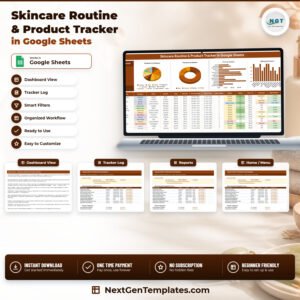
The working page. It opens with the Active Monthly Cost card ($240 on the sample data) and four charts: Supplement Count by Category, Supplement Count by Status, Monthly Cost by Supplement, and Servings: Container vs Remaining. Below them sits the 16-column log with 15 sample supplements — Vitamin D3, Vitamin C, Omega-3 Fish Oil, Magnesium Glycinate, Probiotic 50B, Zinc Picolinate, Vitamin B12, Whey Protein, Ashwagandha, Multivitamin, Iron Bisglycinate, Melatonin, Turmeric Curcumin, Collagen Peptides and Calcium + K2 — with colour-coded Category, Status and Refill Status cells and a green intensity scale on Days Supply Left.
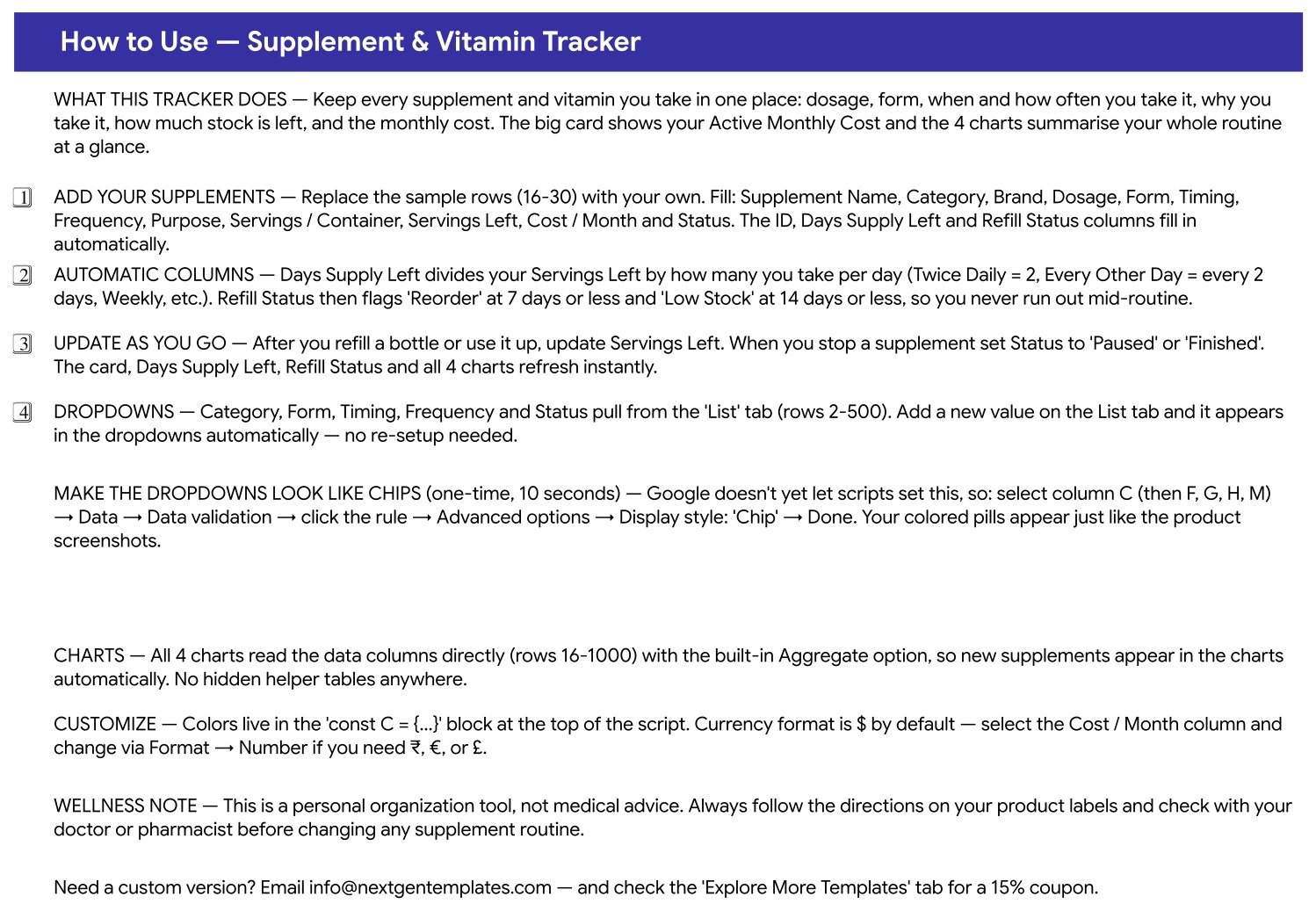
Page 2: Instructions
A written walkthrough covering what the tracker does, how to replace the sample rows (16-30) with your own, how the automatic Days Supply Left and Refill Status columns are calculated, how to extend the dropdown lists, how to switch the dropdowns to Google’s coloured “Chip” display style, how the charts read the data, where to change the colours and currency, and a wellness note stating that this is a personal organisation tool rather than medical advice.
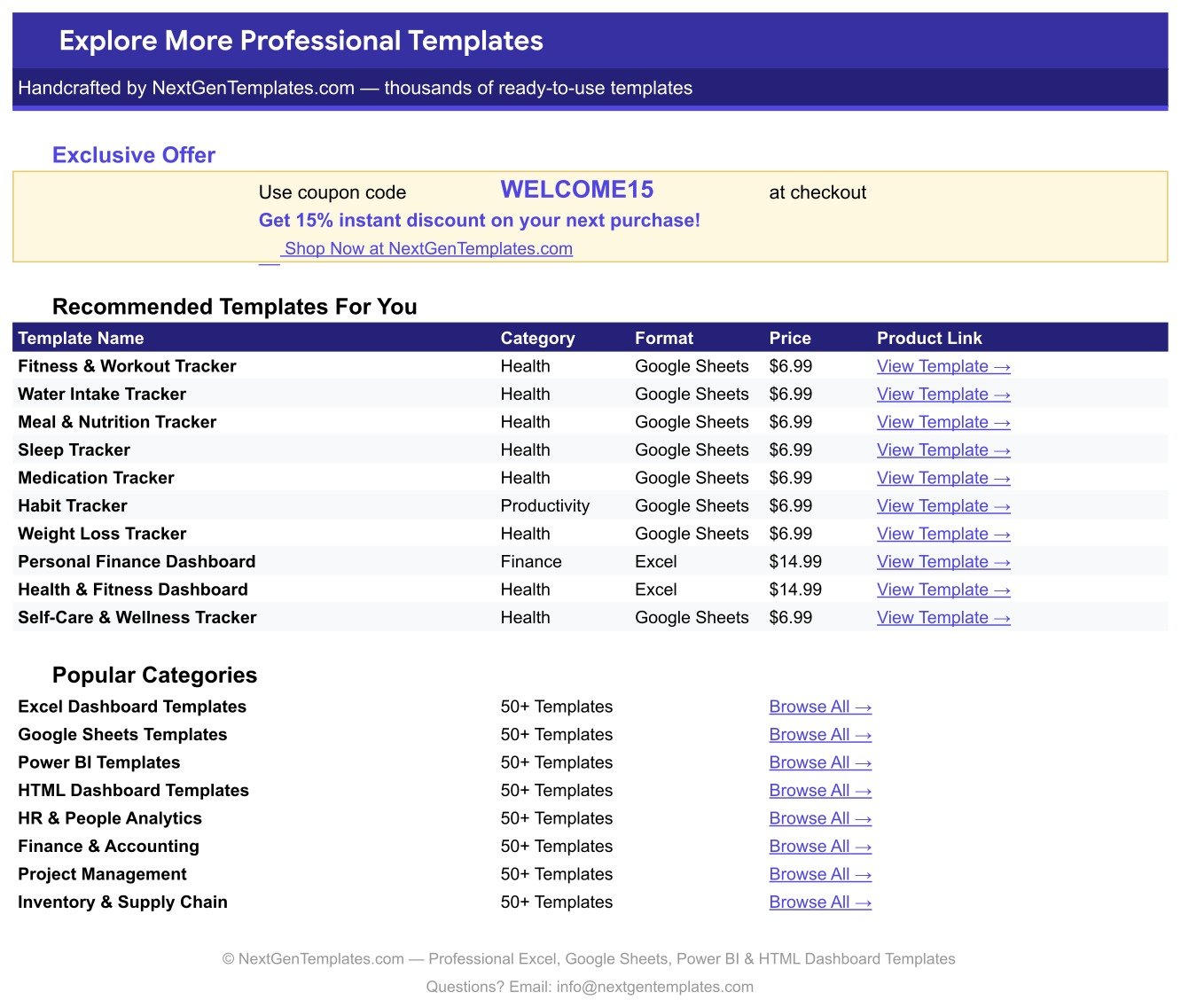
Page 3: Explore More Templates
A bonus tab holding a WELCOME15 coupon code for 15% off your next purchase, a table of ten recommended companion templates with prices and links, and shortcuts into the main NextGenTemplates category pages.
The fourth tab, List, holds the five dropdown source columns. You will only open it when you want to add a supplement category, form, timing, frequency or status the file does not already have.
📊 Supplement & Vitamin Tracker in Google Sheets vs. a Microsoft Excel Tracker vs. a Paid Supplement App
| Feature | Supplement & Vitamin Tracker in Google Sheets | Microsoft Excel supplement tracker | Paid supplement / wellness app (Cronometer Gold, MyTherapy Premium, Care / pill apps) |
|---|---|---|---|
| Cost | ✅ $6.99 one-time | Free file, but needs an Office licence | $3-15 per month, per person |
| Platform | ✅ Google Sheets — any browser, no install | Desktop Excel; mobile editing is limited | Phone app only |
| Setup time | ✅ Under 10 minutes — replace rows 16-30 | Under 10 minutes if the file already has charts | 15-30 minutes of guided onboarding |
| Real-time sharing with a partner or carer | ✅ Yes — share the sheet link | Only via OneDrive co-authoring | Usually a paid “family” tier |
| Mobile access | ✅ Google Sheets app, read and edit | Excel mobile, read-mostly | ✅ Native app |
| Add your own supplement categories | ✅ Type into the List tab, rows 2-500 | Edit the validation range by hand | Restricted to the app’s catalogue |
| Cost-per-month tracking | ✅ Cost / Month column + Active Monthly Cost card | Possible, but you build the formula | Rarely included |
| Reorder alerts | ✅ Reorder at ≤7 days, Low Stock at ≤14 days | Only if you write the rule yourself | ✅ Push notifications |
| Year-1 cost for 2 people | ✅ $6.99 total | $0 plus the Office licence | $72-360 |
| Your data leaves your account | ✅ No — it stays in your own Google Drive | No | Stored on the vendor’s servers |
For someone who wants a shareable, editable record of what they take and what it costs — without a monthly fee and without handing a health log to a third-party app — the Supplement & Vitamin Tracker in Google Sheets sits in the sweet spot.
👥 Who This Template Is For — and Who It’s Not For
✅ This template is built for:
- Anyone taking 5-30 supplements who has lost track of what is in the cupboard and what it adds up to each month
- People managing a partner’s or parent’s supplement routine and wanting one shared sheet both can see
- Athletes and gym-goers tracking protein, creatine, omega-3 and vitamin stacks alongside cost per month
- Anyone who prefers their own spreadsheet in their own Google Drive over another health app account
- Spreadsheet beginners — every calculated column is already written; you only type text and numbers
❌ This template is NOT for:
- Anyone who needs dose reminders or push notifications — this file sends nothing; it is a log you open and update
- Anyone who needs interaction, allergy or contraindication checking — the tracker does not check any of that, and never claims to
- Clinical or regulated use — it is a personal organisation tool, not a medical device or medical advice
- Barcode scanning or automatic supplement-label lookup — entries are typed in by hand
- Teams needing SSO, audit trails or HIPAA-grade controls
⚙️ How to Use the Supplement & Vitamin Tracker in Google Sheets
- Open the PDF in your download and click the Google Sheets link inside it, then choose “Make a copy” to put your own editable copy in your Google Drive.
- Go to the Supplement Tracker tab and replace the 15 sample rows (rows 16-30) with your own supplements.
- For each row fill Supplement Name, Category, Brand, Dosage, Form, Timing, Frequency, Purpose, Servings / Container, Servings Left, Cost / Month and Status. Leave ID, Days Supply Left and Refill Status alone — they calculate.
- If a Category, Form, Timing, Frequency or Status you need is missing, add it to the matching column on the List tab and it joins the dropdown automatically.
- Optional, ten seconds: select column C, then Data → Data validation → click the rule → Advanced options → Display style: Chip, to get the coloured pills you see in the screenshots. Repeat for columns F, G, H and M.
- Update Servings Left whenever you open a new bottle or finish one, and set Status to Paused or Finished when you stop a supplement.
- Watch the Refill Status column: Low Stock means about two weeks left, Reorder means about one week. Reorder before it turns red.
- Read the Active Monthly Cost card whenever you want to know what your current active routine actually costs.
💼 Real-World Use Cases
Priya takes eleven supplements and had no idea what they cost. She entered each bottle’s price and servings into the tracker and the Active Monthly Cost card came back at over $200. The Monthly Cost by Supplement chart showed two products accounting for a third of it. She paused both, watched the card fall, and now reviews it at the start of every month.
Marcus manages his father’s routine from another city. He shares one Google Sheets link with his father and his sister. When his father opens a new bottle he updates Servings Left; the Refill Status column turns Low Stock about two weeks out, and whoever is doing the shopping that week sees it without a phone call.
Dana is a powerlifter cycling creatine, whey and a joint stack. She uses Status to mark what is Active versus Paused between blocks, and Supplement Count by Status tells her at a glance how much of the stack is actually running. When a block ends she flips three rows to Paused and the monthly cost updates itself.
❓ Frequently Asked Questions
What does the Supplement & Vitamin Tracker in Google Sheets actually track?
The Supplement & Vitamin Tracker in Google Sheets tracks 16 fields per supplement: ID, Supplement Name, Category, Brand, Dosage, Form, Timing, Frequency, Purpose, Servings / Container, Servings Left, Cost / Month, Status, Days Supply Left, Refill Status and Notes. It also shows one Active Monthly Cost card and four charts.
How many supplements can I add?
The formulas and charts in the Supplement & Vitamin Tracker in Google Sheets cover rows 16 to 1000, so you can log roughly 985 supplements. The 15 sample rows are meant to be typed over. Nothing needs to be dragged down or re-entered as you add more.
Does it remind me to take my supplements?
No. The Supplement & Vitamin Tracker in Google Sheets sends no reminders, alerts or notifications. It is a log you open and update. What it does do automatically is calculate how many days of supply are left and flag Low Stock or Reorder so you refill before running out.
How long does setup take?
Under 10 minutes. Open the PDF, click the sheet link, make your copy, then type your supplements over rows 16 to 30. The Active Monthly Cost card, the Days Supply Left column, the Refill Status flags and all four charts update as you type — there is nothing to configure.
How does this compare to a paid supplement app like Cronometer Gold or MyTherapy Premium?
A paid app costs $3-15 per month and sends push reminders the Supplement & Vitamin Tracker in Google Sheets does not. The tracker costs $6.99 once, keeps your data in your own Google Drive, tracks monthly cost per supplement, and lets you add any category you like instead of the app’s fixed catalogue.
Can I share it with my partner or carer?
Yes. Because the Supplement & Vitamin Tracker in Google Sheets is an ordinary Google Sheets file in your Drive, you share it the way you share any sheet — send the link with view or edit rights. There are no per-user fees and no seat limits.
Is this medical advice?
No. The Supplement & Vitamin Tracker in Google Sheets is a personal organisation tool, not medical advice and not a medical device. It does not check doses, interactions or allergies. Follow the directions on your product labels and speak to your doctor or pharmacist before changing any supplement routine.
👤 About the Author
Built by PK — Microsoft Certified Professional with 15+ years of Excel, Google Sheets, and Power BI experience. Founder of NextGenTemplates, reaching 300K+ subscribers across YouTube channels (@PK-AnExcelExpert, @NextGenTemplates, @NeoTechNavigators). Every template is hand-built and tested before release.
🔗 Explore Related Templates
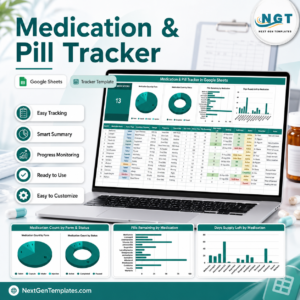
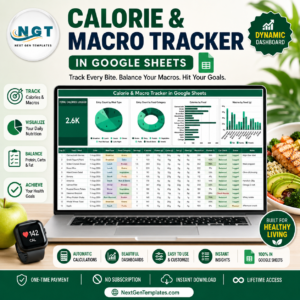
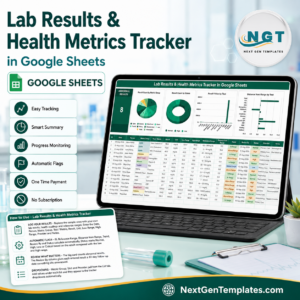
If you are building a personal health record, the closest companion is the Medication & Pill Tracker in Google Sheets, which does for prescriptions what this file does for supplements. Pair it with the Lab Results & Health Metrics Tracker in Google Sheets to see whether your stack is moving the numbers, and the Calorie & Macro Tracker in Google Sheets if you want food and supplements in the same picture.
For training and recovery, the Workout Log Tracker in Google Sheets and the Sleep Tracker in Google Sheets sit alongside this one nicely. Browse the full range in Google Sheets Trackers or across all Google Sheets Templates.
📖 Click here to read the Detailed Blog Post
🎥 Visit our YouTube channel for step-by-step video tutorials
👉 YouTube.com/@NextGenTemplates
Watch the step-by-step video Demo:
📅 Last updated: September 2026
Compatibility and Requirements
- Works in Google Sheets. You need a free Google account and a web browser.
- Category, Form, Timing, Frequency and Status use in-cell dropdowns fed by the List tab. Google explains dropdowns in Create an in-cell dropdown list.

















Reviews
There are no reviews yet.