

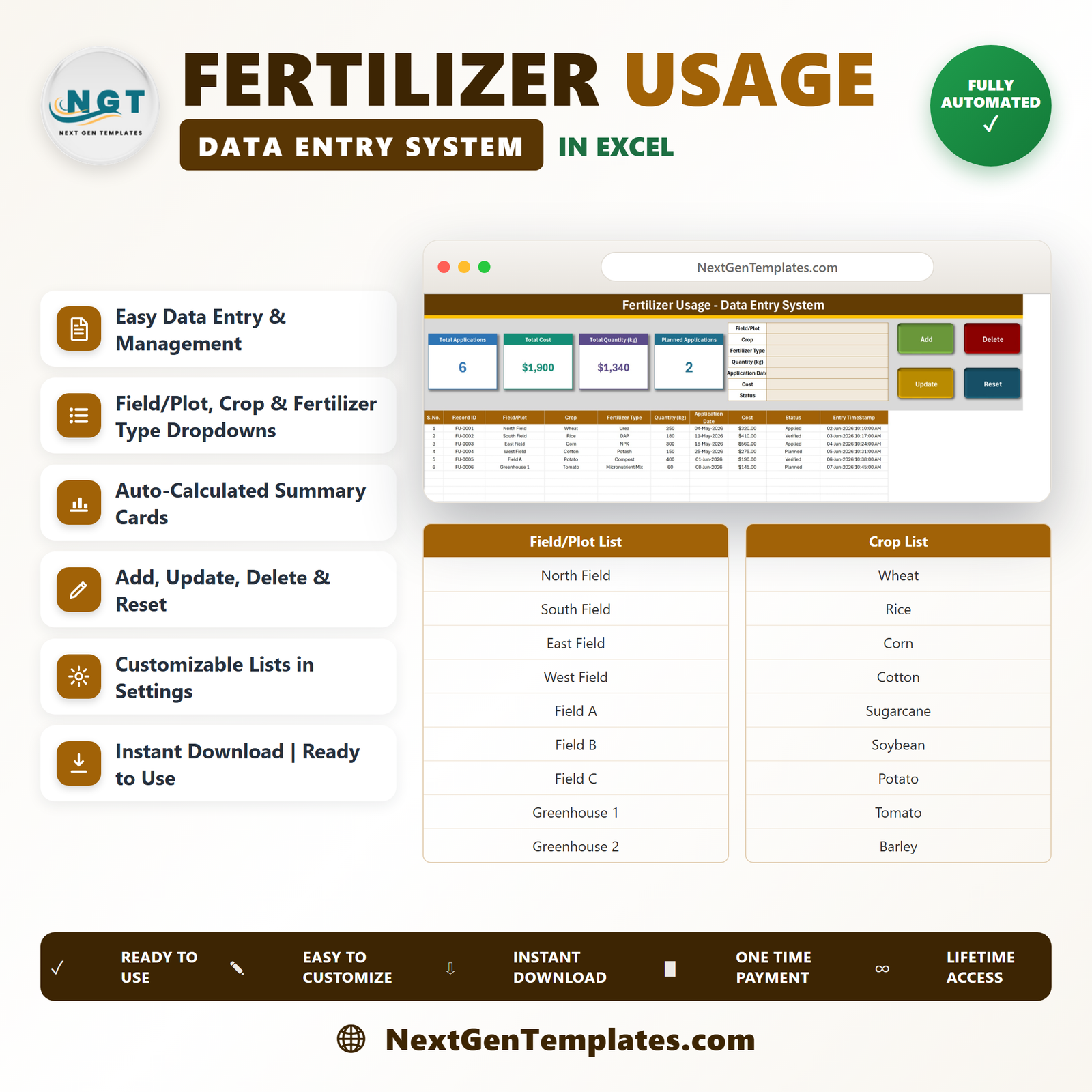
The Fertilizer Usage Data Entry System in Excel logs each application on a 7-field form, rolls the entries into 4 stat cards, and files them in a 10-column table where every record carries its own ID. The Setting sheet ships with 34 ready-made dropdown options across 4 lists, so logging one application takes about 20 seconds. The workbook has 4 sheets and arrives with 6 demo rows you delete before you start.
🌍 Join 8,400+ teams in 40+ countries using NextGenTemplates to replace paid SaaS tools with one-time-purchase Excel, Google Sheets, Power BI, and HTML templates.
✅ Instant download · One-time payment · No subscription · No per-user fees · Lifetime access
📋 What this workbook is: a record of what you applied, entered by you. It stores the field, crop, product name, quantity, date, cost and status you type, and adds them up. It does not recommend products, work out application rates, or assess soil, crop, water or environmental outcomes. Every figure on screen is a figure you entered.
🔑 Key Features of the Fertilizer Usage Data Entry System
🧾 A 7-field form that covers one application. Field/Plot, Crop, Fertilizer Type, Quantity (kg), Application Date, Cost and Status sit in a single block at the top of the Data Entry sheet. Five of the seven are dropdowns, so most of an entry is chosen rather than typed.
🖱️ Four VBA buttons do the work. Add writes a new record. Update saves changes back to the same record. Delete removes one after a confirmation that names the Record ID. Reset clears the form for the next entry. The macros ship inside the file and are ready on first open.
🆔 Every record gets its own ID. New entries are stamped FU-0001, FU-0002 and upward. Double-click any row to load it into the form; the system remembers that ID behind the scenes and writes the update back to the right record wherever it has moved to in the table. You never have to reselect the row first.
📊 Four stat cards that keep themselves current. Total Applications, Total Cost, Total Quantity (kg) and Planned Applications sit above the table. They are linked pictures of live cards on the Setting sheet, so they recalculate as records are added and can be restyled from one place.
🔽 34 dropdown options, all editable. The Setting sheet holds 10 fields and plots, 10 crops, 10 product types and 4 status values. Add or delete a row in any list and the matching dropdown updates on its own — no named ranges to re-point.
⏱️ Two dates per record, on purpose. Application Date is what you type; Entry TimeStamp is written automatically when the record is saved. That separation is what makes the log usable later — you can see when something was applied and when it was written down.
📦 What’s Inside the Fertilizer Usage Data Entry System
The workbook contains 4 sheets. Three are shown below; the fourth is described in text.
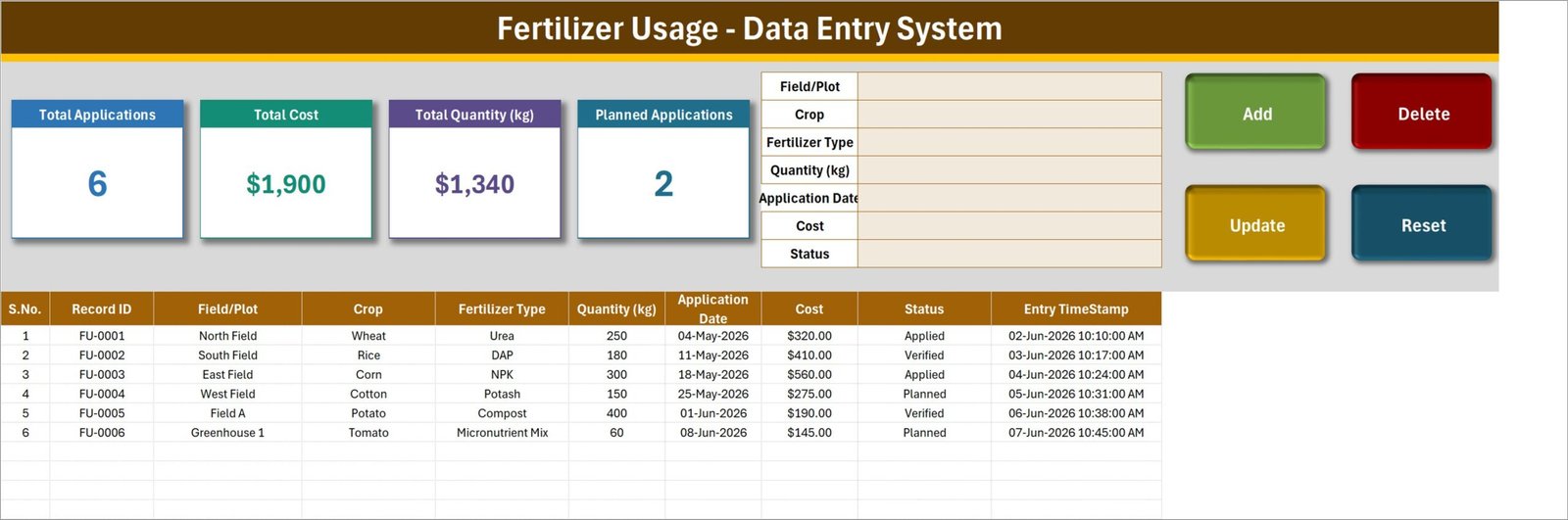
Sheet 1: Data Entry
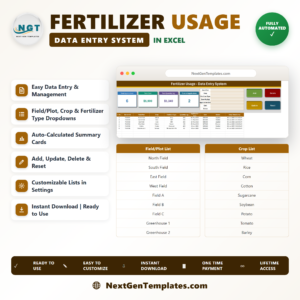
The working screen. Four stat cards — Total Applications, Total Cost, Total Quantity (kg) and Planned Applications — run across the top next to the 7-field form and the Add, Update, Delete and Reset buttons. Below them the record table holds 10 columns: S.No., Record ID, Field/Plot, Crop, Fertilizer Type, Quantity (kg), Application Date, Cost, Status and Entry TimeStamp. The six rows shipped in the file (FU-0001 to FU-0006) are demonstration data only.
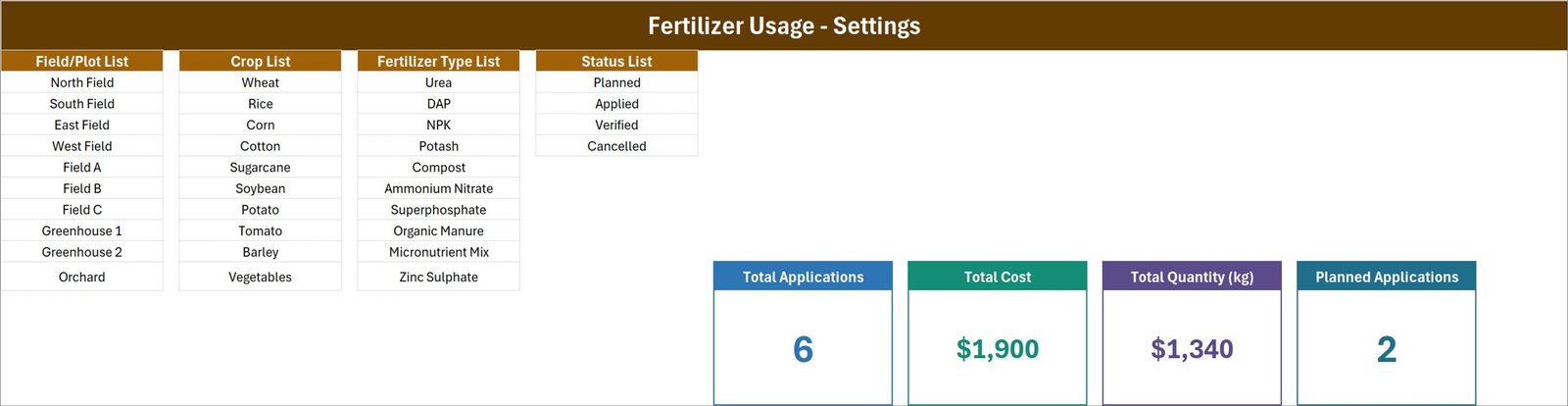
Sheet 2: Setting
Four dropdown lists and the source stat cards. Field/Plot List and Crop List each hold 10 entries, Fertilizer Type List holds 10 product names, and Status List holds Planned, Applied, Verified and Cancelled. The stat cards on the right are the originals that the Data Entry sheet mirrors — change a colour or a label here and the working screen follows.
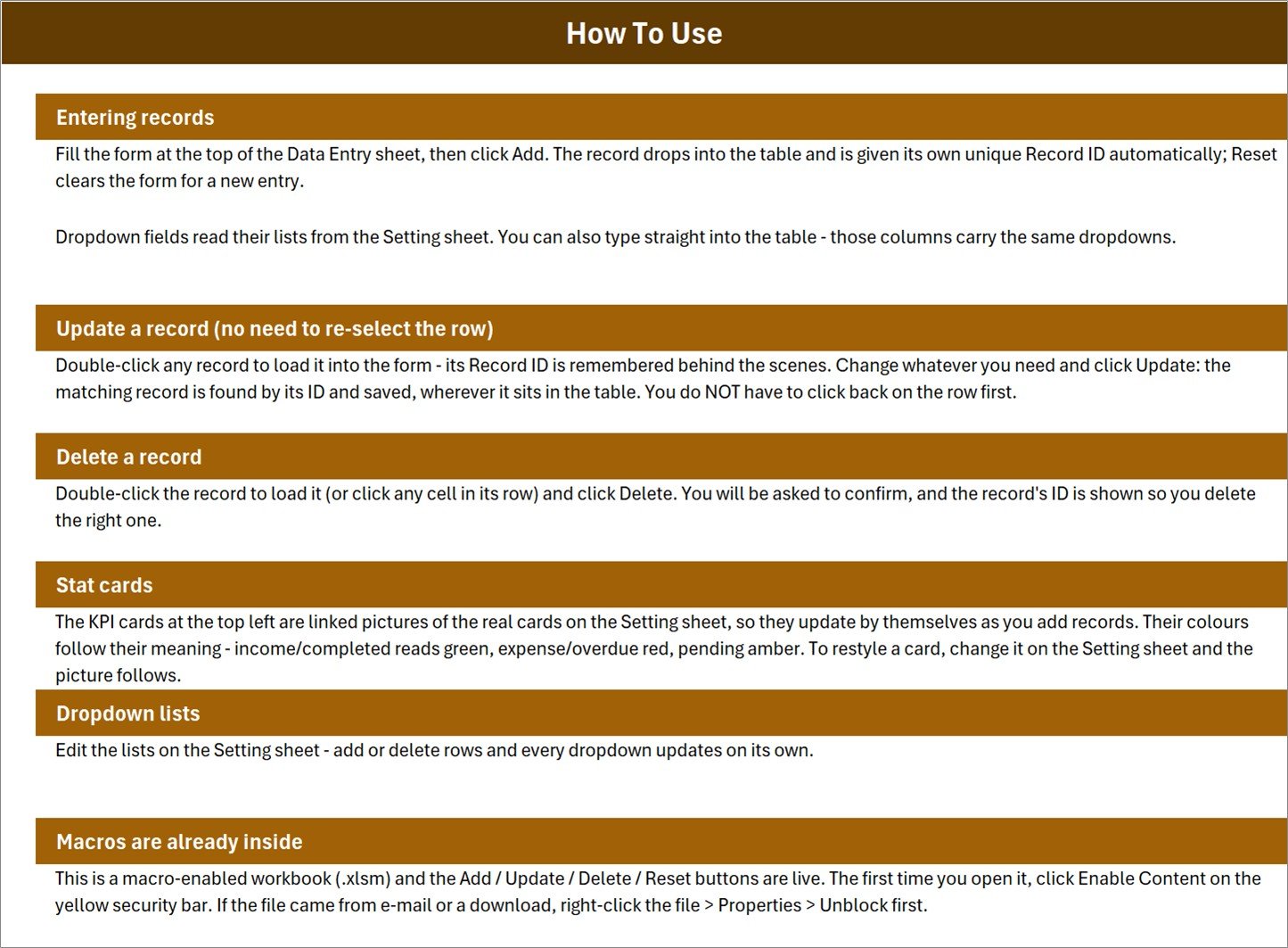
Sheet 3: Instructions
A one-page How To Use reference covering six topics: entering records, updating a record without reselecting the row, deleting a record, how the stat cards stay live, editing the dropdown lists, and enabling macros on first open. It also explains the Unblock step for a file that arrived by download or e-mail.
Sheet 4: Get More Templates
A short in-workbook links page pointing back to the wider NextGenTemplates catalogue. It carries no data and can be deleted without affecting the form, the macros or the stat cards.
📊 Fertilizer Usage Data Entry System in Excel vs. a Google Sheets Equivalent vs. Paid Farm SaaS — Where This Fits
| Feature | Fertilizer Usage Data Entry System in Excel | Google Sheets equivalent | FarmBrite / Agrivi |
|---|---|---|---|
| Cost | $6.99 one-time | Free to build, hours to make | $25-150 / user / month |
| Platform | Microsoft Excel, desktop | Browser, Google account | Web plus vendor mobile app |
| Setup time | Under 10 minutes ✅ | 2-6 hours to build the form | Days, plus onboarding |
| Works with no internet | Yes ✅ | Offline mode only, limited | No |
| Real-time team collaboration | No — single file | Yes ✅ | Yes ✅ |
| Mobile entry in the field | No | Yes, via the Sheets app | Yes ✅ |
| Editable dropdown lists | Yes — 34 options, 4 lists ✅ | Yes, if you build them | Vendor-defined lists |
| Your data stays on your machine | Yes ✅ | No — Google servers | No — vendor servers |
| Year-1 cost at 5 users | $6.99 total | $0 plus your build time | $1,500-9,000 |
For a grower who needs a tidy, searchable record of what went on which field without paying a monthly per-seat fee, the Fertilizer Usage Data Entry System in Excel sits in the sweet spot.
👥 Who This Template Is For — and Who It’s Not For
✅ This template is built for:
- Smallholders and family farms keeping their own written record of applications by field and crop
- Farm managers who currently log applications in a paper notebook and want them searchable and totalled
- Greenhouse, orchard and nursery operators tracking cost per plot across a season
- Agronomy assistants and farm office staff entering records on behalf of field teams
- Anyone who wants a one-file Excel log rather than a subscription farm platform
❌ This template is NOT for:
- Anyone wanting advice on what to apply or how much — the workbook makes no recommendations of any kind
- Rate calculation, nutrient planning, soil test interpretation or crop safety assessment — none of that is here
- Regulatory record-keeping, environmental reporting, or evidence of organic or any other certification — this is an internal log, and nothing in it is designed to satisfy a registration, labelling or reporting requirement
- Teams who need several people entering records at the same time — it is a single desktop file
- Phone-first entry standing in the field — this is a desktop Excel workbook
- Mac users on Excel builds where VBA buttons are unavailable
⚙️ How to Use the Fertilizer Usage Data Entry System
- Unzip the download and open Fertilizer_Usage_System.xlsm in Microsoft Excel. Click Enable Content on the yellow bar so the buttons work.
- If the file came from a download or e-mail, right-click it first, choose Properties and tick Unblock.
- Open the Setting sheet and replace the four lists with your own fields and plots, crops, product names and status values.
- Return to Data Entry and delete the six demo rows (FU-0001 to FU-0006) so you start from an empty table.
- Fill the seven form fields for one application and click Add. The record is written with a new ID and a timestamp.
- To change a record, double-click its row, edit the form and click Update. To remove one, load it and click Delete, then confirm.
- Watch the four stat cards. They recalculate on their own — there is nothing to refresh.
💼 Real-World Use Cases
Ravi manages 40 hectares split across seven plots. He used to write applications in a diary and lose track of what each plot had received by the end of the season. Now every application goes in against a named field with a cost, and at year-end he can see what each plot cost him without adding up a notebook by hand.
Elena runs a two-greenhouse nursery. Her seasonal staff log applications as Planned when they are scheduled and switch them to Applied once done, so she can glance at the Planned Applications card and see what is still outstanding for the week.
Tom keeps the office records for a mixed arable farm. The field team calls in what they did; Tom types it into the form and the entry timestamp records when it reached the books. When the farm’s own agronomist visits, Tom filters the table by field and hands over an accurate history of what was applied and when.
❓ Frequently Asked Questions
Does the Fertilizer Usage Data Entry System tell me what fertilizer to use or how much?
No. The Fertilizer Usage Data Entry System in Excel makes no recommendations at all. It is a record of applications you have already decided on and carried out. Product names, quantities and dates are values you type; the workbook only stores and totals them.
What does the workbook actually track?
The Fertilizer Usage Data Entry System tracks seven fields per record — Field/Plot, Crop, Fertilizer Type, Quantity (kg), Application Date, Cost and Status — plus an automatic Record ID and entry timestamp, and summarises them in four stat cards.
Can I change the crops, fields and product names in the dropdowns?
Yes. All four lists live on the Setting sheet and ship with 34 options in total. Add or delete rows there and every dropdown on the Data Entry sheet updates automatically. Nothing else needs re-pointing.
Are the six rows in the file real farm data?
No. The six rows FU-0001 to FU-0006 in the Fertilizer Usage Data Entry System are demonstration data, included only so the table and the stat cards have something to display. Delete them before you enter your own records.
Will this satisfy an inspector or a certification scheme?
No. The Fertilizer Usage Data Entry System is an internal record-keeping workbook. It is not designed to meet any regulatory, environmental or certification requirement, and it makes no compliance claims. Check what your own scheme requires before relying on any spreadsheet.
How long does setup take?
Under 10 minutes for most buyers. Enabling macros takes a click, replacing the four Setting-sheet lists takes a few minutes, and deleting the six demo rows takes seconds. After that the Fertilizer Usage Data Entry System is ready for live entries.
How does this compare to FarmBrite or Agrivi?
Those are subscription farm-management platforms with mobile apps, multi-user access and far broader scope. The Fertilizer Usage Data Entry System in Excel does one job — a clean application log — for a single one-time payment, offline, with your data on your own machine.
👤 About the Author
Built by PK — Microsoft Certified Professional with 15+ years of Excel, Google Sheets, and Power BI experience. Founder of NextGenTemplates, reaching 300K+ subscribers across YouTube channels (@PK-AnExcelExpert, @NextGenTemplates, @NeoTechNavigators). Every template is hand-built and tested before release.
🔗 Explore Related Templates
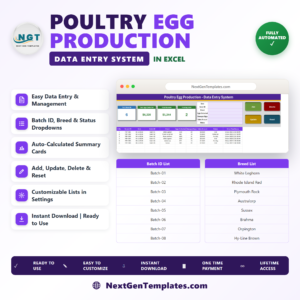
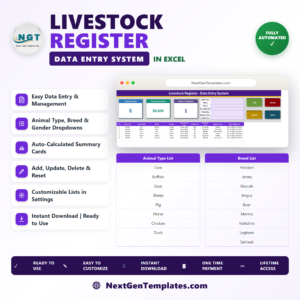
The closest companion is the Livestock Register Data Entry System in Excel, which uses the same form-and-stat-cards layout for animal records. From the same agriculture batch, the Harvest Record Data Entry System in Excel logs what came off each field and the Poultry Egg Production Data Entry System in Excel covers daily collection.
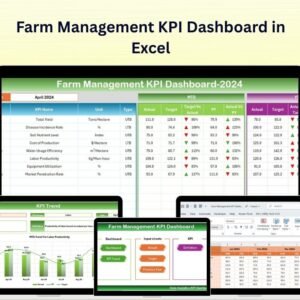
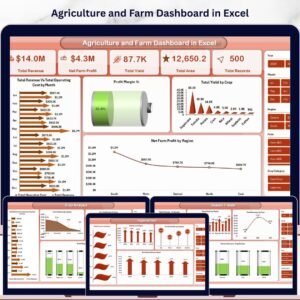
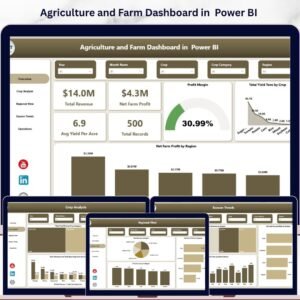
If you would rather analyse a season than log it, the Agriculture and Farm Dashboard in Excel and the Farm Management KPI Dashboard in Excel chart the results, and the same agriculture view is available as the Agriculture and Farm Dashboard in Power BI. Browse the wider MS Excel template range or the VBA Tool collection for more form-driven workbooks.
📖 Click here to read the Detailed Blog Post
🎥 Visit our YouTube channel for step-by-step video tutorials
👉 YouTube.com/@NextGenTemplates
📅 Last updated: August 2026




Reviews
There are no reviews yet.