

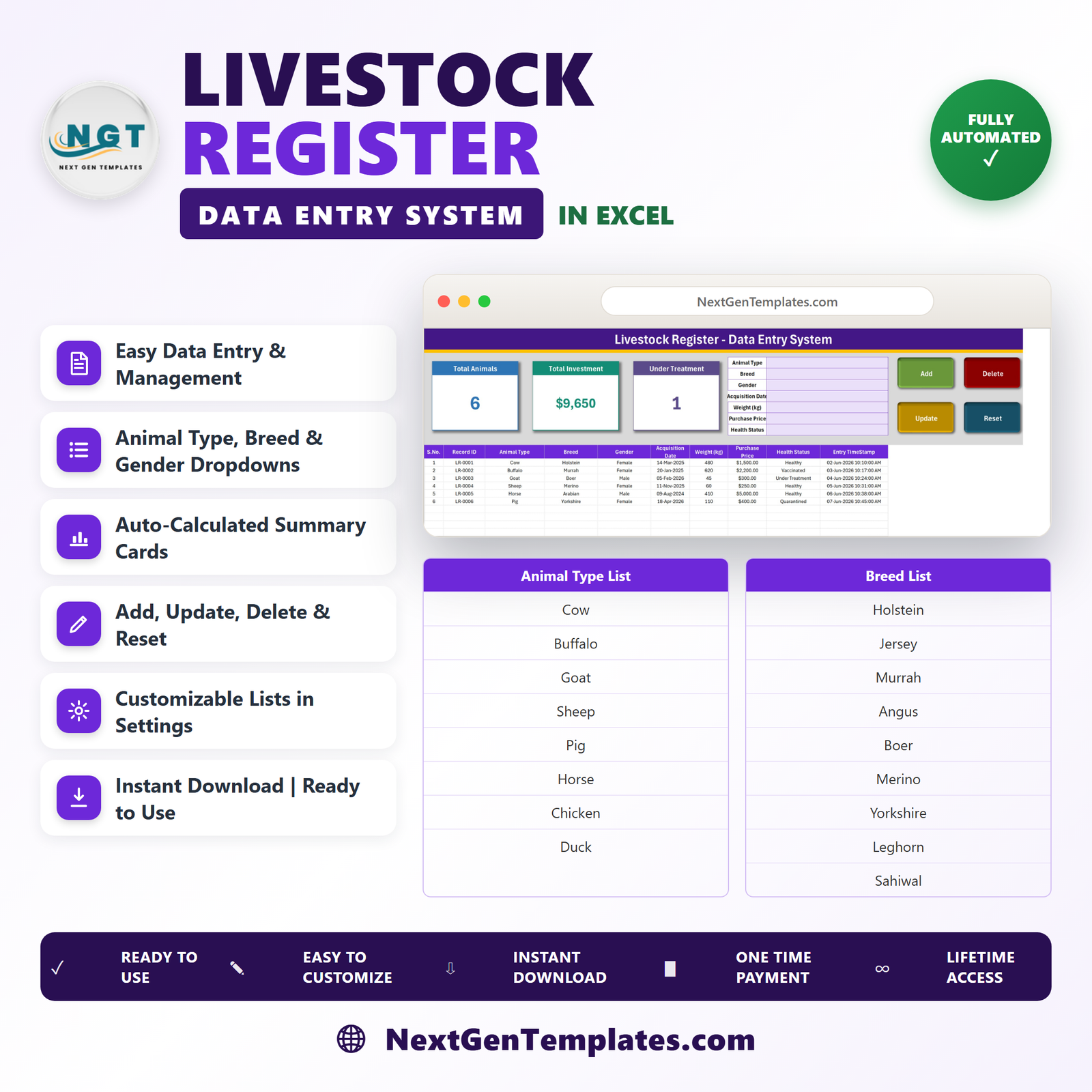
The Livestock Register Data Entry System in Excel turns the paper farm notebook into one macro-enabled workbook: a 7-field entry form, four working buttons, three summary cards that recalculate themselves, and a 10-column register that stamps every animal with its own Record ID and entry time. It arrives with 8 animal types, 10 breeds, 2 gender values and 5 health-status labels already loaded, so the first record takes about half a minute. One-time payment of $6.99 (regular $11.99) – no subscription, no per-user seat fee, no cap on how many animals you record. Instant download, lifetime access, and a How To Use sheet built into the file so you never hunt for a manual.
This is a desktop Microsoft Excel product. The Add, Update, Delete and Reset buttons are real VBA macros, so you must click Enable Content the first time you open it. Excel for the web and Google Sheets do not run VBA – they will display the sheets, but the buttons will not work. Every figure in the screenshots is sample data shipped with the file.
Key Features of the Livestock Register Data Entry System in Excel
- One-screen entry form. Animal Type, Breed, Gender, Acquisition Date, Weight (kg), Purchase Price and Health Status sit in a single seven-row panel next to the buttons – no scrolling, no separate userform to open.
- Four VBA buttons that actually do the work. Add writes the record, Update saves an edit, Delete removes a record after a confirmation that shows its ID, and Reset clears the form for the next animal.
- Record IDs and timestamps generated for you. Each row receives an LR-0001 style ID and an Entry TimeStamp, so two animals of the same breed and weight never get confused.
- Three summary cards. Total Animals counts the register, Total Investment adds up the Purchase Price column, and Under Treatment counts the records whose Health Status label reads Under Treatment.
- Update without re-selecting the row. Double-click any record to load it into the form. The workbook remembers its ID behind the scenes and saves the change back to the right row, wherever it has moved to.
- Dropdowns you control. All four lists live on the Setting sheet. Add a breed, drop an animal type, rename a status label – the form and the table columns pick it up straight away.
- Type into the table too. The register columns carry the same dropdowns as the form, so bulk edits do not force you through the buttons.
- No add-ins, no internet, no account. A single .xlsm file that opens on any Windows PC with desktop Excel.
What’s Inside the Livestock Register Data Entry System in Excel
Four sheets, each with one job.
1. Data Entry – the register and the form
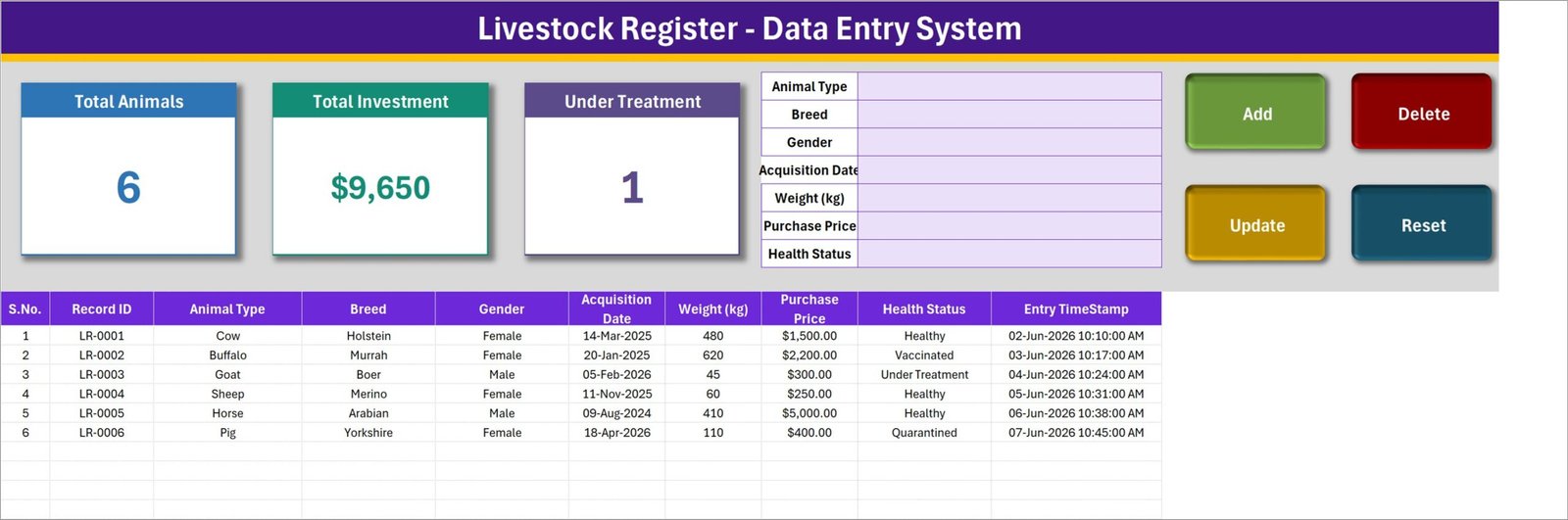
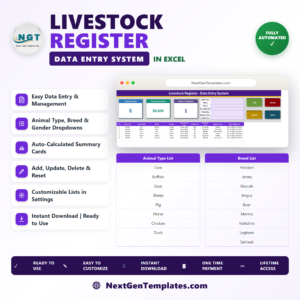
The working screen. The three summary cards sit top-left, the seven-field form sits centre, the four buttons sit right, and the register runs underneath with ten columns: S.No., Record ID, Animal Type, Breed, Gender, Acquisition Date, Weight (kg), Purchase Price, Health Status and Entry TimeStamp. The six rows shown are sample records – LR-0001 to LR-0006 – and are there only so you can see the layout populated.
2. Setting – the four dropdown lists
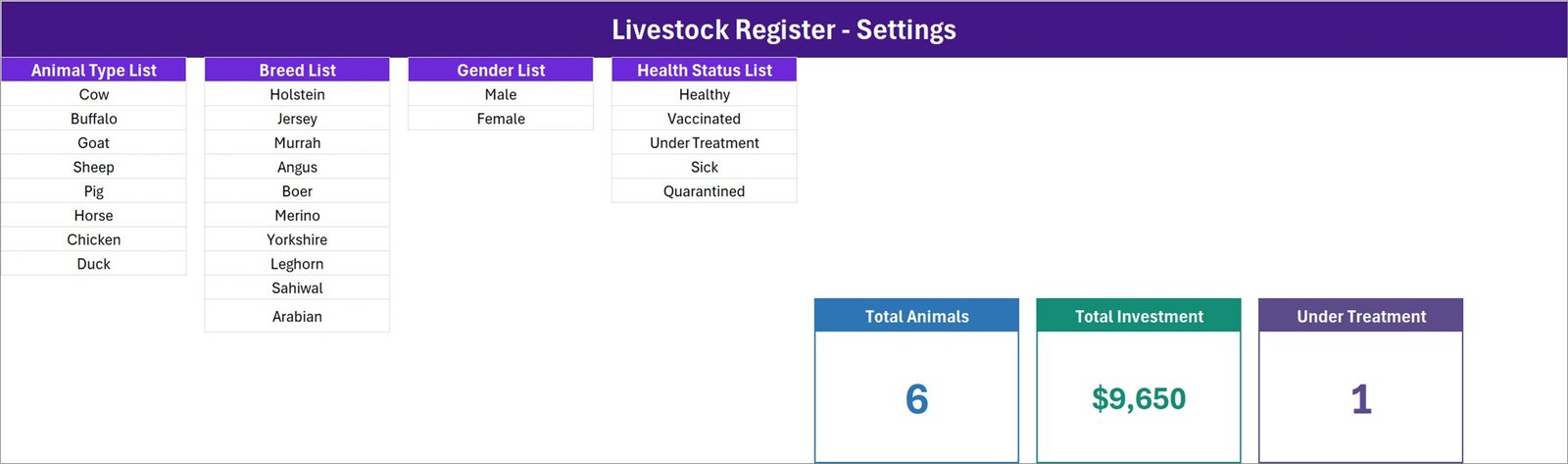
Animal Type List (Cow, Buffalo, Goat, Sheep, Pig, Horse, Chicken, Duck), Breed List (Holstein, Jersey, Murrah, Angus, Boer, Merino, Yorkshire, Leghorn, Sahiwal, Arabian), Gender List (Male, Female) and Health Status List (Healthy, Vaccinated, Under Treatment, Sick, Quarantined). The master versions of the three summary cards also live here – the cards on the Data Entry sheet are linked pictures of them, which is why restyling a card here restyles it there.
3. How To Use – the manual, inside the file
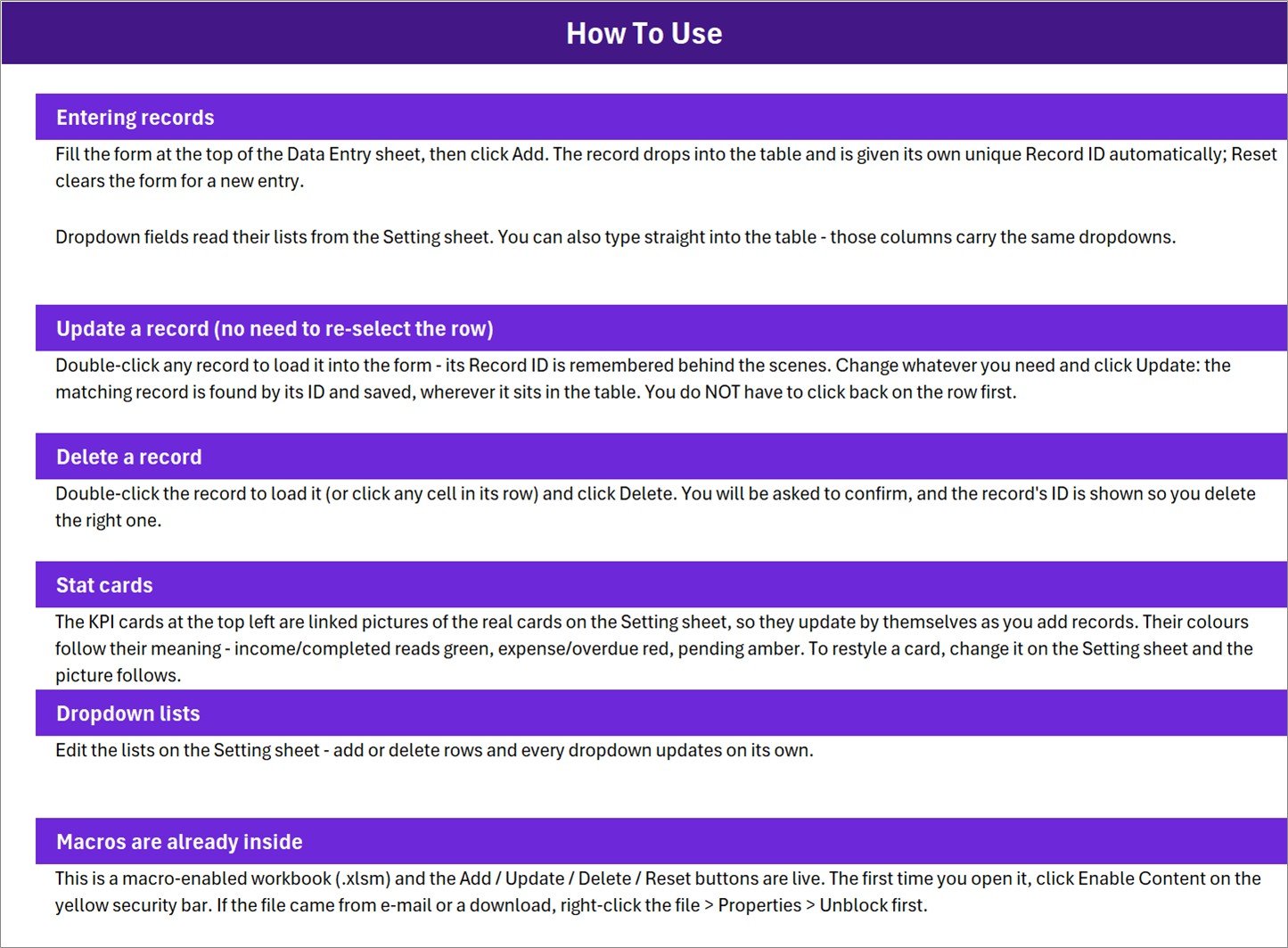
Six short blocks cover entering records, updating a record without re-selecting the row, deleting safely, how the stat cards refresh themselves, editing the dropdown lists, and the macro-security step. That last block matters: the file is an .xlsm, so click Enable Content on the yellow bar, and if the file came by e-mail, right-click it, choose Properties and tick Unblock first.
4. Get More Templates
A short closing sheet with links back to the NextGenTemplates catalogue and the YouTube channel. Nothing to configure – it is there so the next template is one click away.
Livestock Register in Excel vs. Google Sheets vs. Paid Farm-Management SaaS – Where This Fits
| This template (Excel + VBA) | Google Sheets equivalent | Paid farm-management SaaS | |
|---|---|---|---|
| Cost | $6.99 one-time | Free, but you build it | $25-$80 per user per month |
| Platform | Desktop Excel (Windows) | Browser | Browser and mobile app |
| Setup time | Under 5 minutes | 2-6 hours to build the form | Days, plus onboarding |
| Real-time team collaboration | No – single-file | Yes | Yes |
| Mobile access | View only | Yes | Yes |
| Customizable fields | Yes – edit the Setting sheet | Yes, if you rebuild it | Only within the vendor’s model |
| Share with link | No – send the file | Yes | Yes |
| Year-1 cost at 5 users | $6.99 | $0 plus your build time | $1,500-$4,800 |
| Works offline | Yes | Limited | Usually not |
| Owns your data file | Yes – it is on your disk | Google account | Vendor’s servers |
Who This Template Is For – and Who It’s Not For
A good fit if you keep a herd or flock register on paper or in a loose spreadsheet, you want one tidy list of what each animal is, when it arrived, what it weighed and what it cost, and you would rather own a file than rent a platform. Smallholders, family farms, hobby breeders, agri-college teaching labs, farm bookkeepers and anyone reconciling animal purchases at year end will get value on day one.
Not a good fit if several people must edit the same register at the same time (Excel files do not merge), if you need it on a phone in the field, if you are on Mac Excel with macros disabled by policy, or if you are looking for a herd-health, breeding or scheme-reporting system. This workbook stores the values you type and counts them; it does not advise, alert, or submit anything anywhere.
How to Use the Livestock Register Data Entry System in Excel
- Unzip and unblock. Extract Livestock_Register_System.xlsm, right-click it, choose Properties, tick Unblock, then open it in desktop Excel and click Enable Content.
- Set up your lists. On the Setting sheet, replace the sample animal types, breeds and status labels with the ones your farm actually uses.
- Clear the samples. Delete the six LR-0001 to LR-0006 demo rows on the Data Entry sheet so you start from an empty register.
- Enter your first animal. Fill the seven fields, click Add. The record drops into the table with its own ID and timestamp, and the three cards move.
- Edit as things change. Double-click a record to pull it into the form, change the weight or the status label, click Update. Click Delete for an animal that has left the herd.
- Save and back up. Keep the .xlsm on a synced folder. One file is the whole system – copy it and you have copied everything.
Real-World Use Cases
Ravi runs a 40-head mixed smallholding. He used to keep purchase slips in a folder and guess at his total outlay. He now enters each animal once – type, breed, acquisition date, weight and price – and the Total Investment card gives him the number his accountant asks for every March in about two seconds.
Maria teaches farm record-keeping at an agricultural college. Each student gets a copy of the workbook, edits the Setting sheet to match the college’s own stock, and enters twenty records. The exercise takes one class period, and the VBA form gives her a clean way to show why a Record ID beats a row number.
Tom manages a small poultry and goat unit and does the books himself. He filters the register by Animal Type at month end, checks the Under Treatment count against his own notes, and copies the table straight into the report he sends the owner. No exports, no logins, no monthly bill.
Frequently Asked Questions
Do I have to enable macros?
Yes. The Add, Update, Delete and Reset buttons are VBA procedures. Click Enable Content on the yellow security bar the first time you open the file. If Excel does not offer that bar, close the file, right-click it, choose Properties and tick Unblock at the bottom.
Will this work in Google Sheets or Excel for the web?
No. Neither runs VBA. You can open the workbook in both and see the sheets, but the four buttons will do nothing. Use desktop Microsoft Excel on Windows.
Can I add my own animal types and breeds?
Yes, and that is the intended workflow. Every dropdown reads its list from the Setting sheet. Add rows, delete rows, rename entries – the form and the table columns update on their own.
How many animals can I record?
There is no built-in limit. The register is an ordinary Excel table, so it will comfortably hold thousands of rows long before the workbook feels slow.
Are the numbers in the screenshots real?
No. The six records, the $9,650 total and the weights are sample data supplied so the layout is not shown empty. Delete them before you start.
Can I change a record after saving it?
Yes. Double-click the row to load it into the form, change what you need and click Update. The workbook matches on the Record ID, so it saves to the right row even if you have sorted the table since.
Does it tell me when an animal needs attention?
No. Health Status is simply a label you choose from your own list, and the Under Treatment card counts how many rows currently carry that label. The workbook offers no veterinary, breeding or animal-health guidance, and it does not report to any scheme or registry – it is a record-keeping and reporting file.
About the Author
Built by PK – Microsoft Certified Professional with 15+ years of Excel, Google Sheets, and Power BI experience. Founder of NextGenTemplates, reaching 300K+ subscribers across YouTube channels. Every template is hand-built and tested before release.
Explore Related Templates
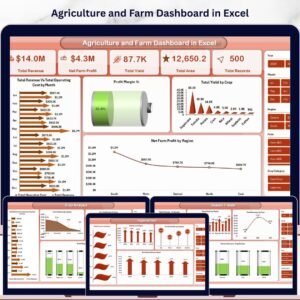
- Agriculture and Farm Dashboard in Excel – when the register has grown and you want charts, slicers and trends over it.
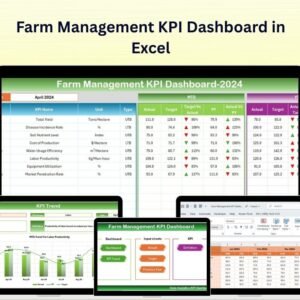
- Farm Management KPI Dashboard in Excel – a KPI view across yields, costs and margins.
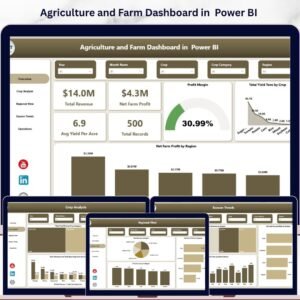
- Agriculture and Farm Dashboard in Power BI – the same story in Power BI Desktop.
- Agriculture Farm Dashboard in Google Sheets – if the rest of your farm records live in a browser.
- Bar Stock Register Data Entry System in Excel and Gift Register Data Entry System in Excel – the same form-and-register engine on other topics.
- Employee Document Data Entry System in Excel and Class Schedule Data Entry System in Excel – two more from the same line.
- Browse the full Excel VBA Tools and Excel Trackers categories.
Get the Livestock Register Data Entry System in Excel for $6.99 (regular $11.99) – instant download, lifetime access, one file, no subscription. Add it to your cart and your register is running before the kettle boils.
Last updated: 14 August 2026.




Reviews
There are no reviews yet.