




Workplace security isn’t optional—it’s essential. But without a proper system to record, track, and analyze incidents, organizations risk disorganization, non-compliance, and poor response times.
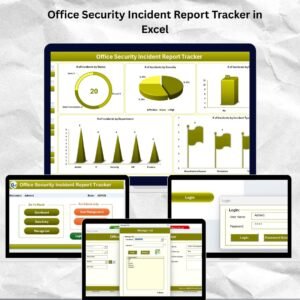
📊 Introducing the Office Security Incident Report Tracker in Excel – a VBA-powered, ready-to-use tool that transforms how you handle workplace security. Built in Excel with automation, dashboards, forms, and user access controls, this tracker helps you log incidents, assign follow-ups, analyze risks, and protect your workplace—efficiently and professionally.
Whether you’re in HR, IT, Admin, or Security—this tracker helps bring transparency, speed, and accountability to your incident management process.
✅ Key Features of the Office Security Incident Report Tracker
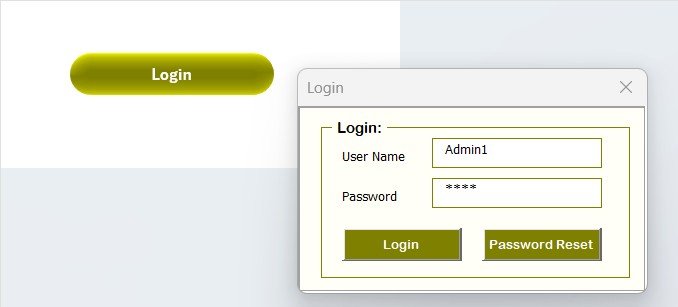
🔐 Secure Login Form
Role-based access control
Built-in User ID & Password system (e.g., Admin1 / abcd)
Prevents unauthorized access to sensitive incident data
🏠 Main Form – Your Incident Control Hub
Add new incidents
Update or delete existing records
Quick access to the Dashboard, Settings, User Management & Data Sheets
No coding needed—just click and manage
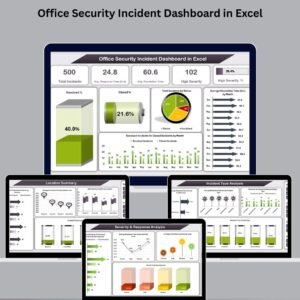
📊 Dashboard – Visual Incident Analytics at a Glance

Dynamic, real-time charts updated with every record entry:
🎯 Incidents by Status (Doughnut)
⚠️ Incidents by Severity (Pie)
📋 Follow-up Status (Column)
🏢 Incidents by Department (Column)
📍 Incident Types (Flag Chart)
🔍 5 Filter Slicers to narrow insights by type, department, status & more
Perfect for presenting trends and spotting high-risk areas quickly.
📝 Data Entry Sheet – Automate Your Reporting
➕ Add New Record: Opens a form for entering incident details
🔁 Update Record: Edit entries through a pre-filled form
❌ Delete Record: Remove inaccurate data with confirmation
✅ Dashboard auto-updates with every change.
📋 Manage List Sheet – Customize Dropdowns
Control the form inputs with editable dropdown lists:
Departments
Incident Types
Severity Levels
Follow-up Statuses
Just add/delete list items—changes reflect in the data form instantly.
🔧 Support Sheet – Pivot-Driven Backend
You don’t need to touch this—but it powers:
Charts
Dashboard metrics
Calculations
It runs in the background to ensure smooth visual analytics.
👥 User Management – Add, Update, or Remove Users
Admins can:
Add new team members
Reset passwords
Restrict access by role
Keeps your tool secure and compliant.
⚙️ Settings Sheet – Customize Your System
Adjust how the tool behaves:
Default values
Validation rules
Password policies
Adapt the tracker to your organizational needs easily.
📦 What’s Inside the Incident Tracker?
✅ Sheet Tabs:
Login
Main Form
Dashboard
Data Entry
Manage List
Support
User Management
Settings
🛠️ Built in Excel + VBA, no external software needed. Fully automated and editable.
🛠️ How to Use the Office Security Incident Report Tracker
🔓 Login with credentials
📝 Enter a new incident using the form
📊 Review analytics on the Dashboard
🛠️ Update dropdowns in Manage List
👤 Manage user access through the User Management screen
🔄 Customize behavior in Settings
💡 Tip: Take a weekly backup for added safety!
👥 Who Can Benefit from This Tracker?
🛡️ Security Teams
🧑💼 HR Managers
💻 IT Departments
🏢 Admin & Facilities
🔍 Audit & Compliance Teams
🧑🏫 Educational Institutions
🧳 SMEs & Enterprises
If you’re responsible for office safety—this tracker is your best friend.
📚 Click here to read the Detailed blog post
📺 Visit our YouTube channel to learn step-by-step video tutorials
Watch the step-by-step video tutorial:
Compatibility and Requirements
- Made for Microsoft Excel desktop on Windows (Excel 2016 or later, or Microsoft 365).
- Macros must be enabled, because the login, forms and buttons run on VBA. Microsoft explains how in Enable or disable macros in Microsoft 365 files.
- Excel for the web, Google Sheets and the Excel mobile apps can’t run VBA, so use the Excel desktop app.
Frequently Asked Questions
What is the default login?
The file comes with a built-in user ID and password (for example Admin1 / abcd). Change the password and add your own users in User Management before you log real incidents.
What does the dashboard show?
Incidents by status, severity, follow-up status, department and incident type, with 5 slicers to filter by type, department, status and more.
Can I change the departments and incident types?
Yes. The Manage List sheet holds the dropdowns for departments, incident types, severity levels and follow-up statuses. Changes show in the form straight away.
Who can change records?
Only users with a login. Admins add or remove users, reset passwords and restrict access by role.
Is there a dashboard version?
Yes. The Office Security Incident Dashboard in Excel analyzes security incidents in a full dashboard.
Related Security and Incident Templates
- Office Security Incident Dashboard in Excel: deeper analysis of security incidents.
- Office Security Incident Dashboard in Power BI: the same analysis in Power BI.
- Incident Report Tracker in Excel: a general workplace incident tracker.
- Confidential Incident Report Tracker in Excel: for sensitive incident reports.
- IT and Cybersecurity Operations Bundle: 8 Excel and Power BI IT and security templates.
Browse all Excel tracker templates or the Excel VBA tools.






Reviews
There are no reviews yet.