

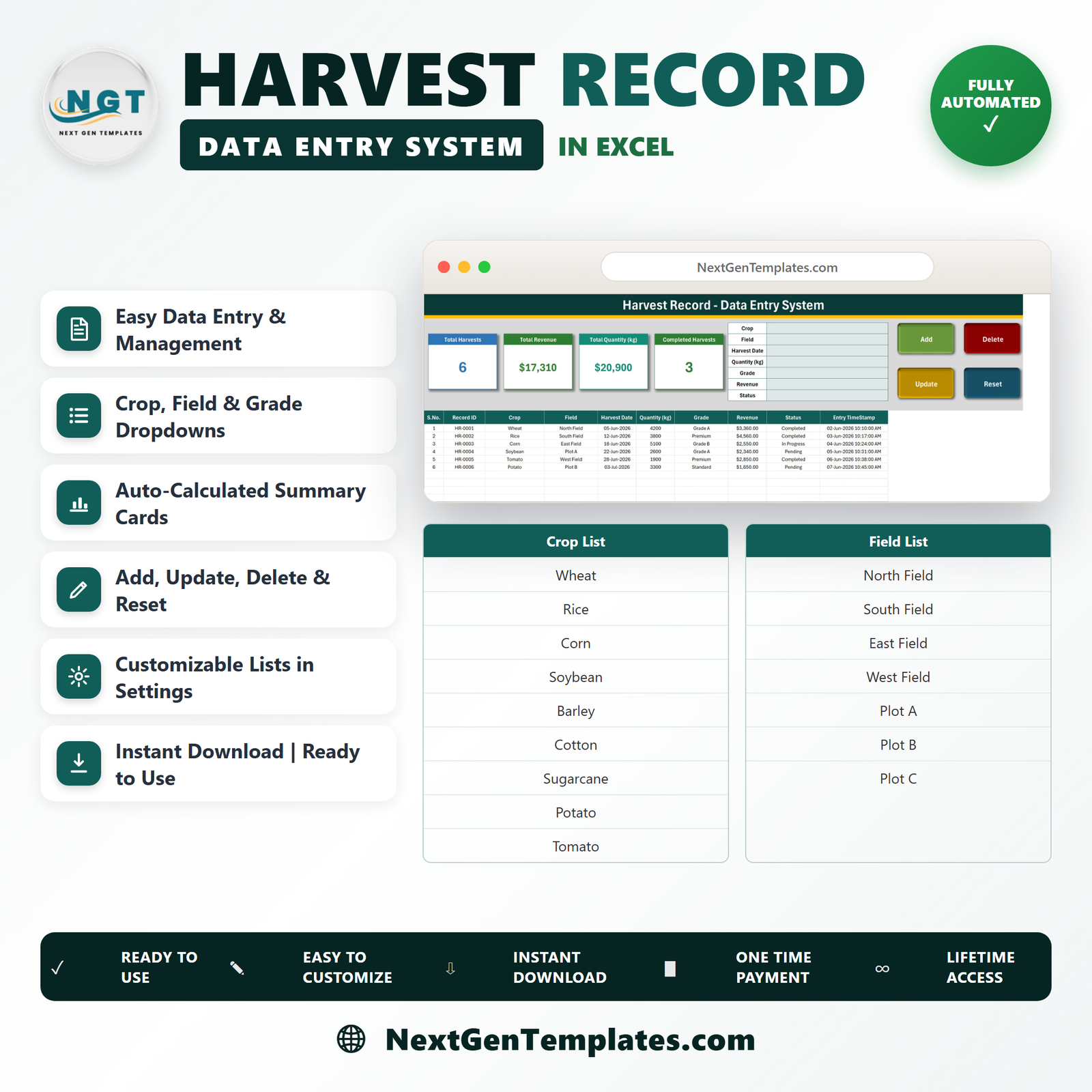
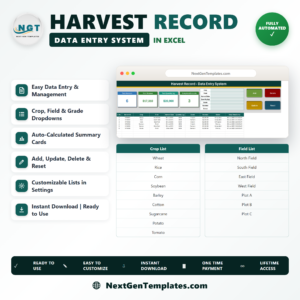
The Harvest Record Data Entry System in Excel is a macro-enabled workbook (.xlsm) that turns harvest logging into a 7-field form and a single click. It carries 4 live summary cards, a 10-column record table, four working VBA buttons (Add, Update, Delete, Reset), 10 crops, 7 fields and plots, 5 grade labels and 4 status labels already loaded, and 6 clearly-marked demo rows so you can watch the cards move before you clear them out. One payment of $6.99 (regular $11.99) – no subscription, no per-seat licence, no cap on how many harvests you record. Download is instant after checkout, and the workbook is yours to edit, rename and reuse on every farm you run.
Key Features of the Harvest Record Data Entry System in Excel
- A 7-field harvest form – Crop, Field, Harvest Date, Quantity (kg), Grade, Revenue and Status sit in one block at the top of the Data Entry sheet. No scrolling, no hidden second page.
- Four real VBA buttons – Add writes the record, Update saves your edits, Delete removes a record after a confirmation that shows you its ID, and Reset clears the form for the next entry.
- Automatic Record IDs – every harvest is stamped HR-0001, HR-0002 and onward, plus a dated Entry TimeStamp, so two loads of the same crop off the same field never blur together.
- Update without re-selecting the row – double-click any record, change what you need, click Update. The macro finds the row by its Record ID wherever it has moved to.
- 4 summary cards that recalculate as you type – Total Harvests, Total Revenue, Total Quantity (kg) and Completed Harvests. In the shipped demo data they read 6, $17,310, 20,900 and 3.
- A 10-column register – S.No., Record ID, Crop, Field, Harvest Date, Quantity (kg), Grade, Revenue, Status and Entry TimeStamp.
- Every dropdown is editable – the four lists live on the Setting sheet. Add a crop or delete a plot and the form and the table columns follow immediately.
- Type into the table too – the table columns carry the same validation as the form, so a quick correction does not need the form at all.
- A built-in How To Use sheet – six short sections inside the file. There is no separate PDF to lose.
- Desktop Excel, offline – your harvest data stays in one file on your own machine.
What’s Inside the Harvest Record Data Entry System in Excel
The workbook holds four sheets. Three are shown below; the fourth is described underneath.
Data Entry – the form, the cards and the register
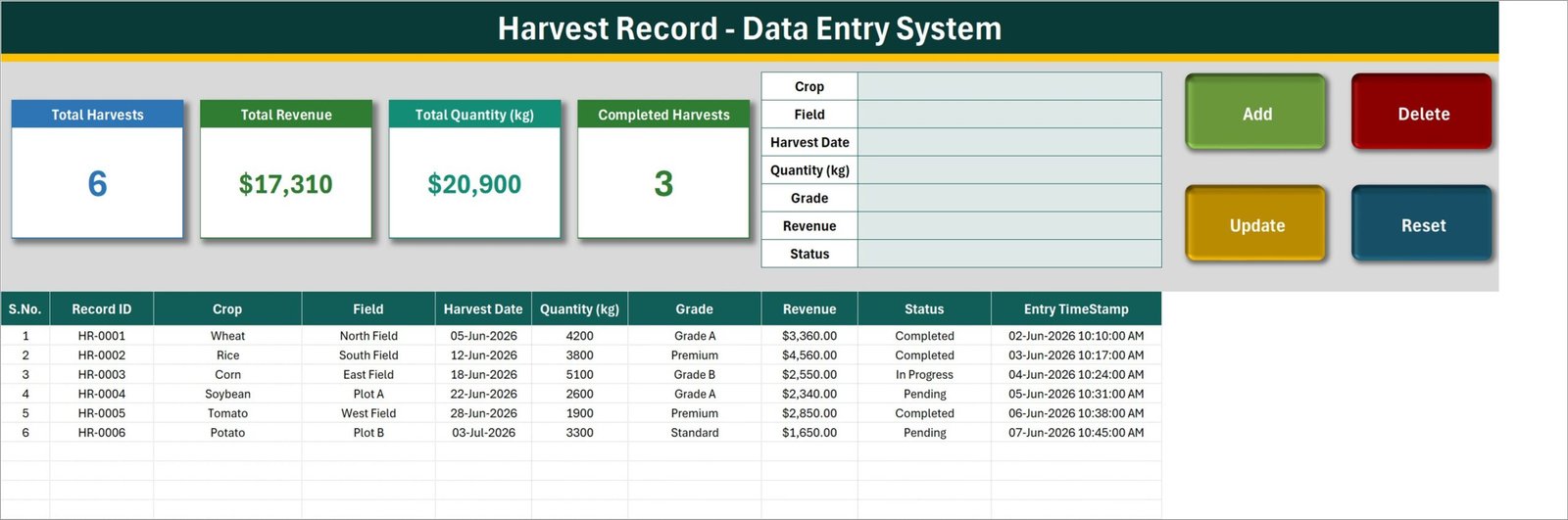
The working sheet. Four colour-coded cards run across the top left – Total Harvests, Total Revenue, Total Quantity (kg) and Completed Harvests – with the 7-field entry form beside them and the Add, Delete, Update and Reset buttons on the right. Underneath sits the register itself. The six rows visible in the screenshot (HR-0001 Wheat off North Field through HR-0006 Potato off Plot B) are demo data supplied with the template, not real farm figures; delete them before you start.
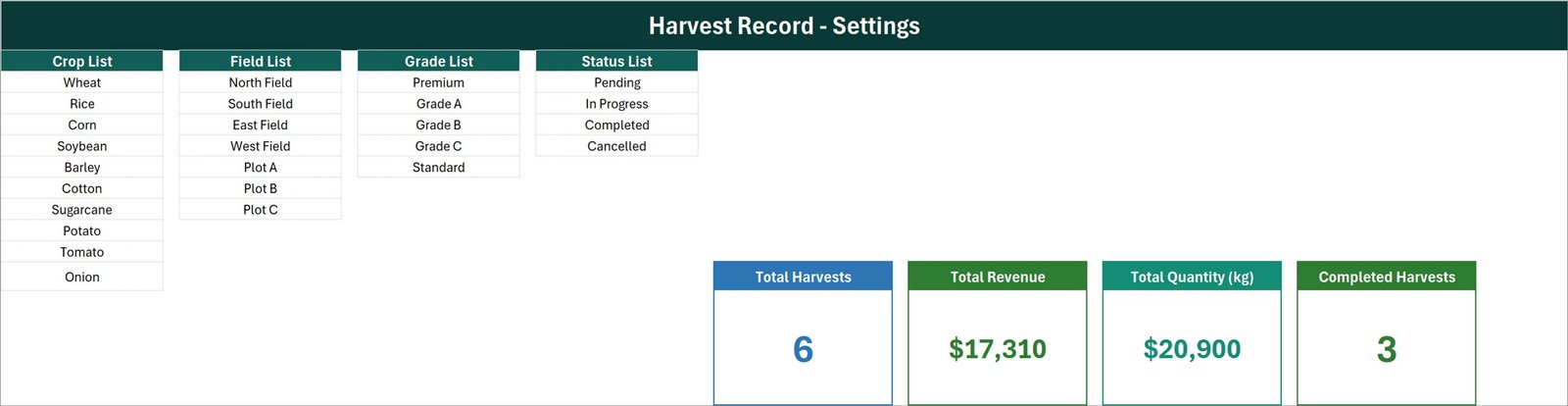
Setting – the four dropdown lists and the master cards
Everything the form offers you comes from here. Crop List ships with Wheat, Rice, Corn, Soybean, Barley, Cotton, Sugarcane, Potato, Tomato and Onion. Field List holds North Field, South Field, East Field, West Field, Plot A, Plot B and Plot C. Grade List holds Premium, Grade A, Grade B, Grade C and Standard. Status List holds Pending, In Progress, Completed and Cancelled. The four master summary cards also live on this sheet – the cards on the Data Entry sheet are linked pictures of them, which is why restyling a card here restyles it there.
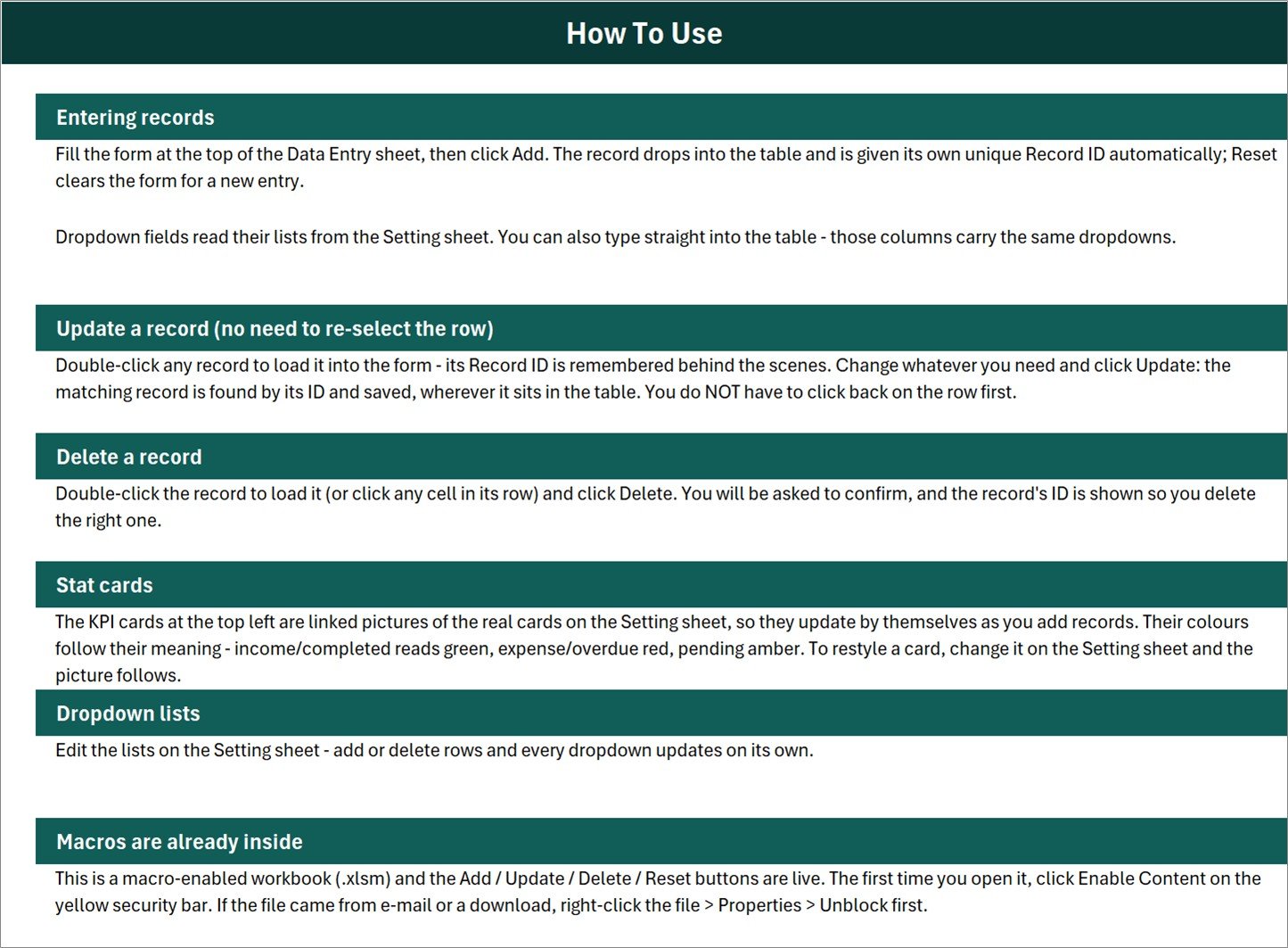
Instructions – the How To Use sheet
Six sections written for someone who has never opened a VBA workbook: Entering records, Update a record, Delete a record, Stat cards, Dropdown lists, and Macros are already inside – including the right-click, Properties, Unblock step that Windows needs when a macro file arrives by e-mail.
Get More Templates
A short closing sheet with links back to the NextGenTemplates catalogue and the YouTube tutorials. No screenshot – there is nothing to configure on it.
Harvest Record System vs. a Google Sheets Log vs. Paid Farm-Management SaaS – Where This Fits
| Harvest Record Data Entry System in Excel | A Google Sheets harvest log | Paid farm-management SaaS | |
|---|---|---|---|
| Cost | $6.99 once | Free, but you build it | Typically a monthly per-user subscription |
| Platform | Desktop Microsoft Excel (.xlsm) | Browser | Browser and mobile app |
| Setup time | Minutes – edit four lists, delete the demo rows | Hours of formula and validation work | Onboarding, often with an implementation call |
| Real-time team collaboration | No – one file, one editor at a time | Yes | Yes |
| Mobile access | No – VBA does not run on mobile or Excel for the web | Yes | Yes |
| Customizable fields | Yes – all four dropdown lists are yours | Yes | Usually on higher tiers only |
| Share with a link | No – you send the file | Yes | Yes |
| Year-1 cost at 5 users | $6.99 total | $0 plus your build time | Five subscriptions |
| One-click Add / Update / Delete | Yes – VBA buttons | Only if you write Apps Script | Yes |
| Works with no internet | Yes | No | No |
Who This Template Is For – and Who It’s Not For
It is for a smallholder or family farm recording each load off each field; a market gardener logging crates by crop and grade; a farm manager who wants one clean register of what came in, when, at what grade and for how much, without paying for software; and anyone whose harvest records currently live in a notebook or a spreadsheet nobody trusts.
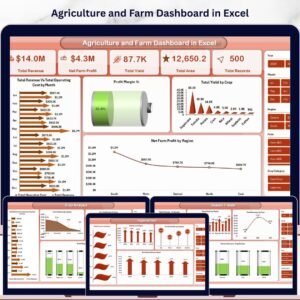
It is not for teams who need several people editing at once – that is a Google Sheets or SaaS job. It is not a food-safety, traceability, organic or GAP certification system, and it produces nothing that satisfies a certification scheme, a subsidy or grant application, or any pesticide or chemical-residue requirement. It does not forecast, model or improve yield – it records what you type. It does not run on Excel for the web, Excel mobile or Google Sheets, because those do not execute VBA. If you want charts and trend analysis rather than a register, start with the Agriculture and Farm Dashboard in Excel.
How to Use the Harvest Record Data Entry System in Excel
- Unzip and open in desktop Excel. Click Enable Content on the yellow bar. If the file came by e-mail, right-click it first – Properties – Unblock.
- Edit the four lists on the Setting sheet. Put your own crops, fields and plots, grade labels and status labels in. Add or delete rows freely; the dropdowns resize themselves.
- Delete the six demo records. They exist to show the cards working and are not real data.
- Log a harvest. Fill Crop, Field, Harvest Date, Quantity (kg), Grade, Revenue and Status, then click Add. The record lands in the table with its own HR-0000 style ID and a timestamp.
- Correct one later. Double-click its row, change what is wrong, click Update. Reset clears the form; Delete removes a record after showing you its ID.
- Read the cards. Total Harvests, Total Revenue, Total Quantity (kg) and Completed Harvests move on their own as the table grows.
Real-World Use Cases
Meera, 12-acre vegetable grower. Every crate that leaves the packhouse is logged by crop, plot and grade. At the end of the week she filters the register by Grade to see how much went out as Premium versus Standard and prices her next delivery from her own record rather than memory.
Daniel, farm manager on a mixed arable holding. Three fields and four plots, six crops. He keeps every load in one register with the Status column set to Pending while the crop is still coming in and Completed once the field is cleared, so nothing is counted twice.
The Okafor family, second-generation smallholders. Two people share one laptop. The workbook lives in a synced folder; whoever finishes a harvest opens it, clicks Add, and closes it. The Entry TimeStamp column settles any argument about who logged what.
Frequently Asked Questions
Will this work in Excel for the web or Google Sheets?
No. The Add, Update, Delete and Reset buttons are VBA macros and VBA only runs in desktop Microsoft Excel on Windows or Mac. Open the .xlsm file there.
Do I have to enable macros?
Yes, once. Excel shows a yellow security bar the first time you open the file – click Enable Content. If the file arrived as an e-mail attachment or download, right-click it, choose Properties and tick Unblock first.
Can I change the crops, fields and grades?
Yes, and that is the intended first step. All four lists sit on the Setting sheet as plain cells. Type over them, add rows, delete rows – the form and the table columns pick the change up straight away.
Is there a limit on how many harvests I can record?
No. The register grows down the sheet like any Excel table, and the summary cards recalculate over whatever is in it.
Are the six records in the file real farm data?
No. They are demo rows shipped with the template so the cards and the buttons have something to act on. Delete them before you enter your own.
Does this help me get organic certification or a farm subsidy?
No. It is a private record-keeping workbook. It makes no claim about food safety, traceability schemes, organic or GAP certification, subsidy or grant eligibility, or pesticide and residue requirements, and nothing it produces is an audit or certification document.
What exactly do I download?
One ZIP containing Harvest_Record_System.xlsm. That is the whole product – there is nothing to install and no account to create.
About the Author
Built by PK – Microsoft Certified Professional with 15+ years of Excel, Google Sheets, and Power BI experience. Founder of NextGenTemplates, reaching 300K+ subscribers across YouTube channels. Every template is hand-built and tested before release.
Explore Related Templates
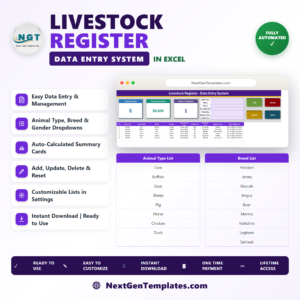
- Livestock Register Data Entry System in Excel – the same form-and-register build for animals.
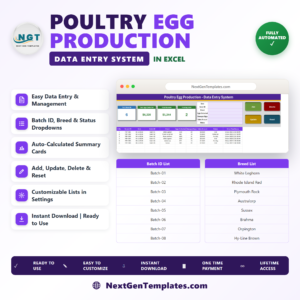
- Poultry Egg Production Data Entry System in Excel – daily egg collection logged the same way.
- Agriculture and Farm Dashboard in Excel – charts and KPIs once you have data worth charting.
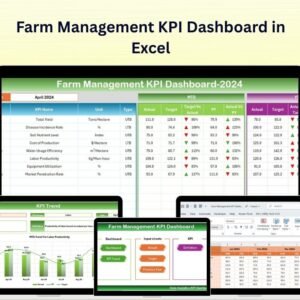
- Farm Management KPI Dashboard in Excel – a wider farm scorecard.
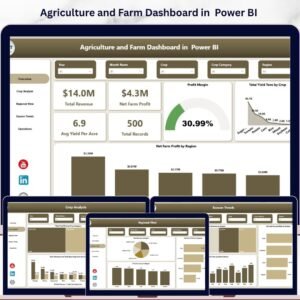
- Agriculture and Farm Dashboard in Power BI – the same analysis in Power BI Desktop.
Browse more in Excel VBA Tools and Excel Trackers.
Log your next harvest properly. Add the Harvest Record Data Entry System in Excel to your cart for $6.99, download it straight away, spend five minutes on the Setting sheet and start recording. Full walkthroughs are on youtube.com/@PKAnExcelExpert.
Last updated: 15 August 2026.


Reviews
There are no reviews yet.