

Finance Procurement Customer Experience Calendar in Excel In today’s fast-moving business world,Finance Procurement Customer Experience Calendar in Excel managing meetings, audits, and customer reviews can be overwhelming — especially for finance and procurement teams. A single missed vendor review or delayed invoice can affect budgets, relationships, and credibility. That’s why the Finance Procurement Customer Experience Calendar in Excel is a must-have productivity tool for every organization.
This interactive Excel-based calendar helps you plan, track, and manage finance, procurement, and customer-experience events effortlessly — all from one place. Whether it’s budget deadlines, supplier meetings, or customer feedback sessions, everything is neatly organized with automation, color-coding, and built-in forms.
Built with Excel VBA, this ready-to-use calendar turns complex scheduling into a simple, visual experience — no coding or technical skills required.
⚙️ Key Features of the Finance Procurement Customer Experience Calendar in Excel
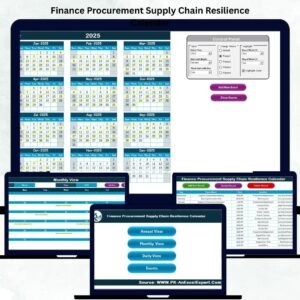
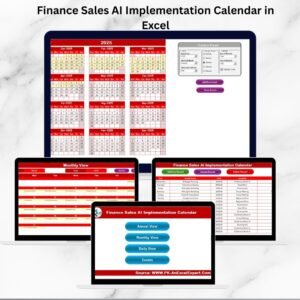
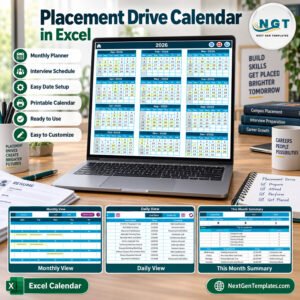
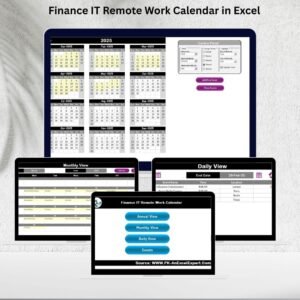
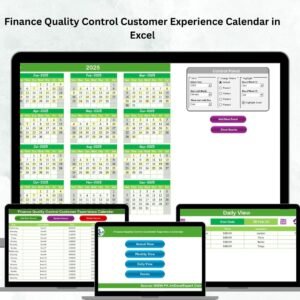
📅 Annual, Monthly & Daily Views – Switch between yearly planning, monthly summaries, or detailed daily tracking instantly.
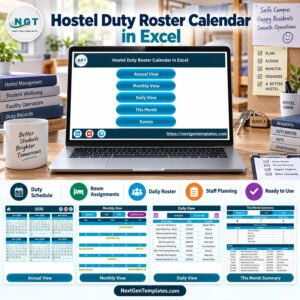
💻 Interactive Navigation Dashboard – Four clickable buttons (Annual, Monthly, Daily, Events) for easy navigation.
🧾 Smart Event Forms – Add, view, or edit events using built-in VBA forms — no need to touch the data sheet manually.
🎨 Customizable Themes – Choose from five color themes to match your style or company branding.
🗓️ Highlight Controls – Automatically mark weekends and event days for better visibility.
📊 Centralized Event Database – Every event (meeting, payment, audit) is saved in one master sheet.
🔒 Protected & Reliable – All formulas are secured to prevent accidental changes.
🚀 No Extra Software – 100% Excel-based — runs smoothly on any system.
🔁 Auto-Updating Views – Refresh calendars to display the latest entries across all pages.
📂 What’s Inside the Finance Procurement Calendar
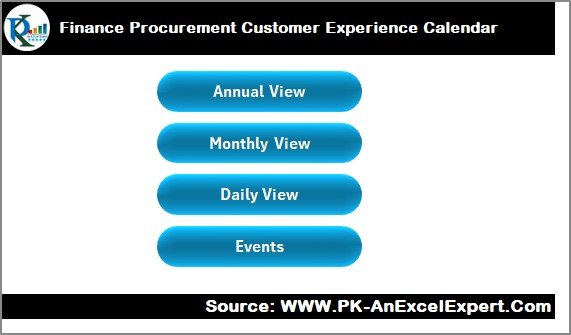
🏠 1. Home Sheet – The Command Center
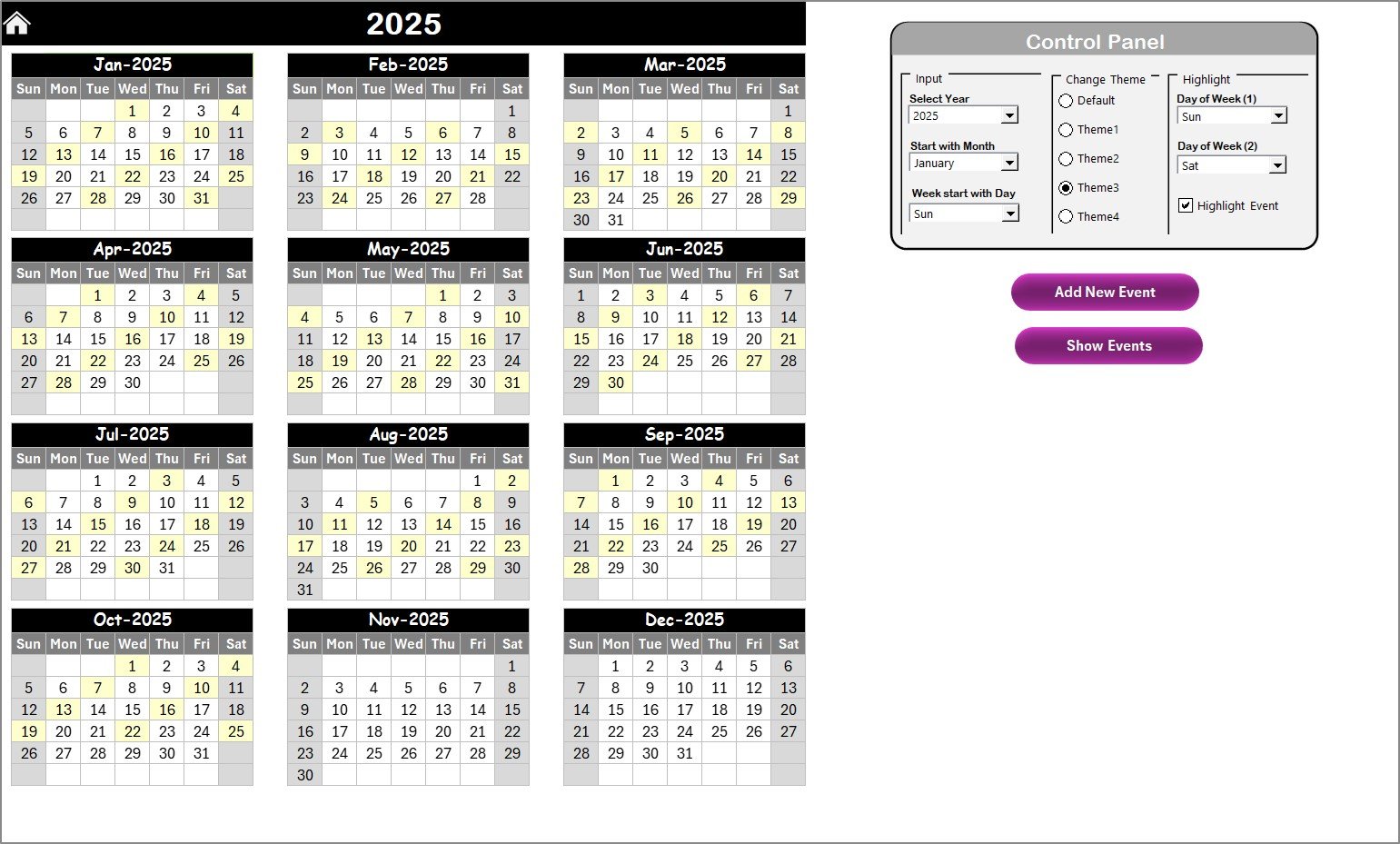
A simple interface with four navigation buttons — Annual, Monthly, Daily, and Events — for instant access. Perfect for new users and teams that need quick control.
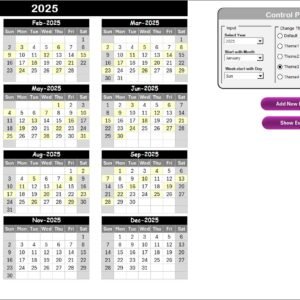
📆 2. Annual View Sheet – Your Year at a Glance
See the entire year in one grid.
✅ Change year and start month dynamically (ideal for fiscal calendars).
✅ Highlight weekends and events automatically.
✅ Add or view events directly via buttons.
Great for planning budget reviews, procurement schedules, and audit timelines.
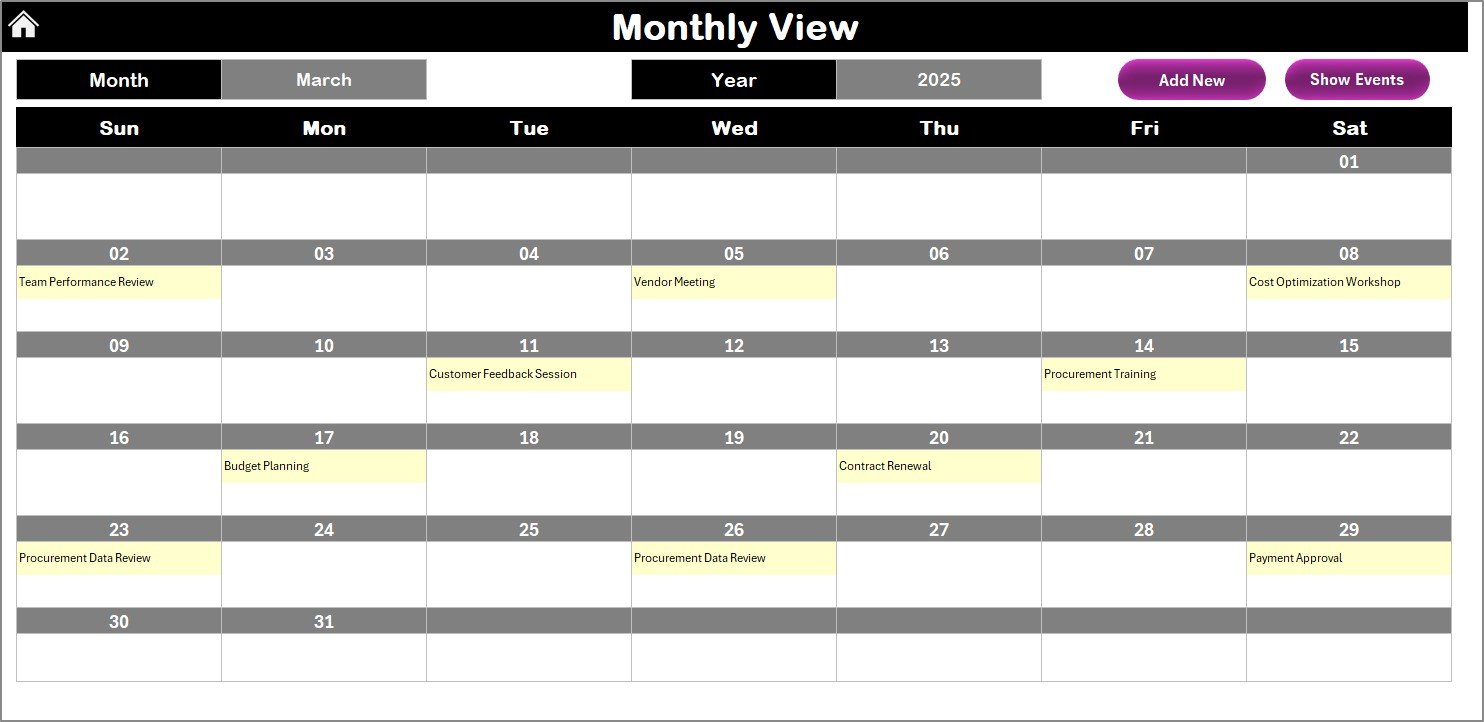
📈 3. Monthly View Sheet – One Month, All Insights
Get a focused view of the current month’s activities.
✅ Dynamic month/year dropdowns.
✅ “More than 1…” indicator for multiple events.
✅ Add and view events instantly.
Perfect for managing vendor payments, team reviews, and monthly closings.
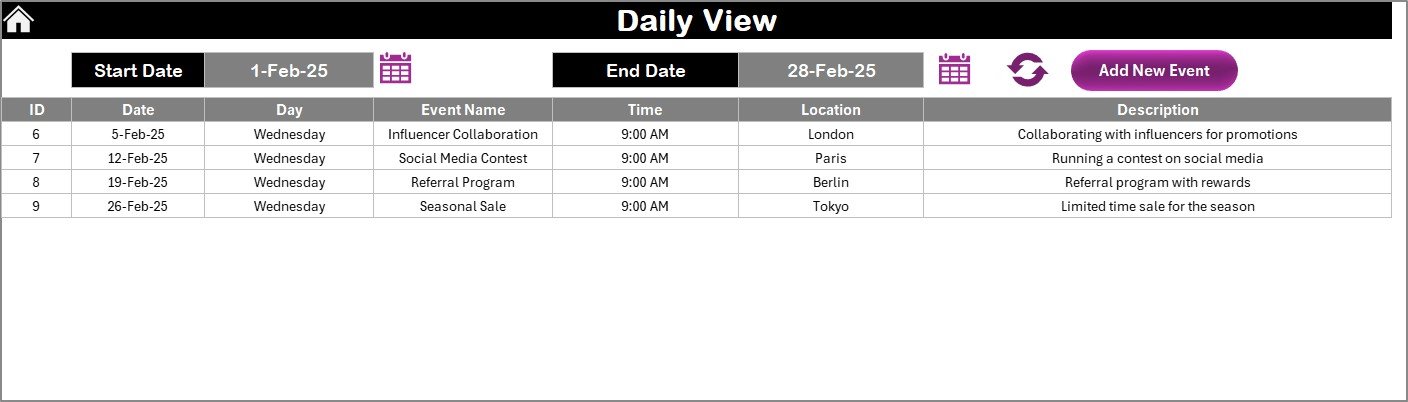
📅 4. Daily View Sheet – Drill-Down to Details
Track activities within a specific date range.
✅ Select Start and End Dates.
✅ Auto-refresh to display events in real time.
✅ Add new events without switching sheets.
Ideal for daily meetings, payment follow-ups, and supplier calls.
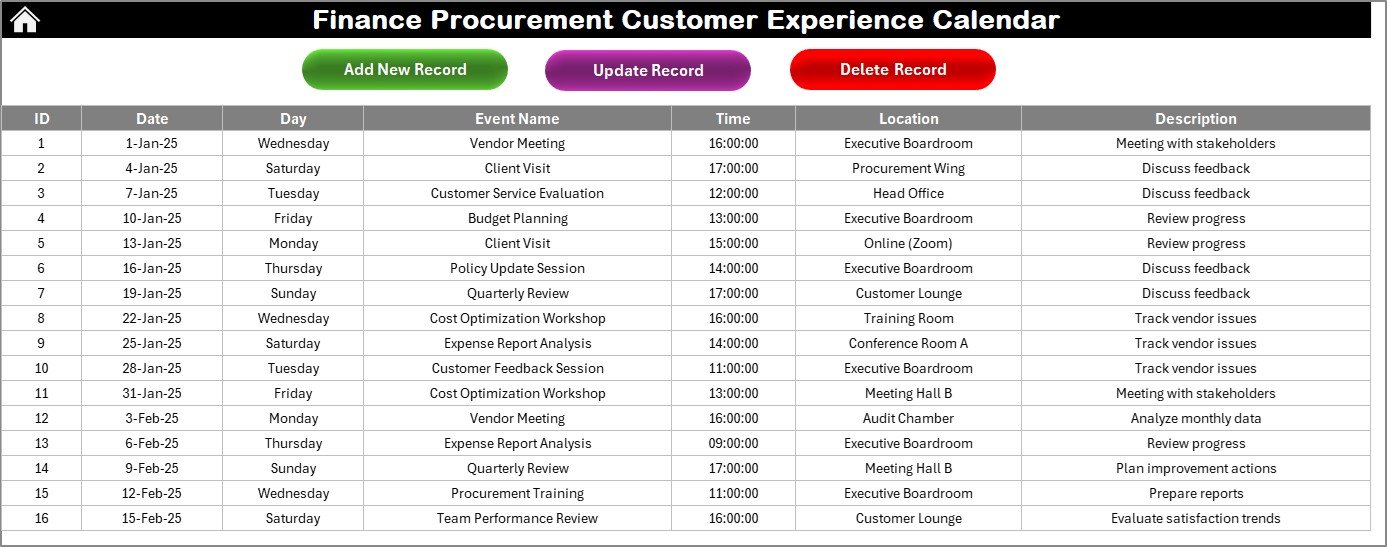
📊 5. Events Sheet – The Database Behind It All
Every action flows here automatically.
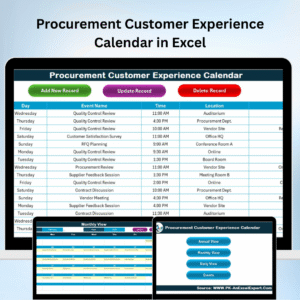
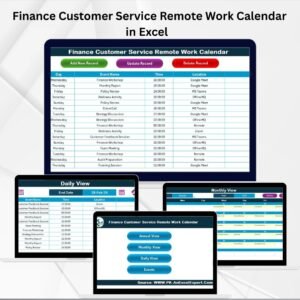
Includes columns for ID, Date, Event Name, Time, Location, and Description.
Buttons available: Add, Update, and Delete Records — ensuring a clean and organized event log.
🎯 Key Benefits
✅ Simplifies Scheduling – Centralized control of finance, procurement, and CX events.
✅ Boosts Coordination – Keeps every team aligned with deadlines and reviews.
✅ Automates Data Entry – Event forms ensure accuracy and save time.
✅ Personalized Look – Custom themes let you brand the workbook.
✅ Prevents Overlaps – Highlighted weekends and events reduce conflicts.
✅ Enhances Accountability – All updates stored in a transparent log.
✅ Perfect for Reporting – Export event lists for audits or management reviews easily.
🧭 How to Use the Calendar
1️⃣ Open the workbook and go to the Home Sheet.
2️⃣ Choose Annual, Monthly, or Daily View.
3️⃣ Use Add New Event to log an activity.
4️⃣ Click Show Event to view all activities on a date.
5️⃣ Refresh views to update calendars instantly.
6️⃣ Use Update or Delete Record for quick edits.
7️⃣ Customize the color theme and highlight options.
💡 Pro Tip: Keep a monthly backup and standardize event titles (e.g., “Supplier Review – Q2”) for better clarity.
👥 Who Can Benefit
💼 Finance Teams: Manage audits, payment schedules, and investor calls.
📦 Procurement Officers: Track tenders, purchase orders, and supplier evaluations.
🤝 Customer-Experience Managers: Schedule feedback sessions and client reviews.
📋 Project Coordinators: Oversee cross-departmental meetings and tasks.
🏢 SMEs & Startups: Use it as an affordable, Excel-based event planner.
🔗 Click here to read the Detailed Blog Post
📺 Visit our YouTube Channel for step-by-step video tutorials
Watch the step-by-step video tutorial:
Compatibility and Requirements
- Runs in Excel desktop on Windows with macros enabled. It uses VBA forms and buttons, so it does not run in Excel for the web, Google Sheets or mobile apps. Microsoft explains how to enable or disable macros.
- No extra software is needed.
Frequently Asked Questions
Which sheets are included?
Five sheets: Home, Annual View, Monthly View, Daily View and Events. The Home sheet has four buttons (Annual, Monthly, Daily, Events) for navigation.
How do I add an event?
Click Add New Event from the Home, Annual, Monthly or Daily view and fill in the form. The event is saved on the Events sheet.
Can I edit or delete an event?
Yes. The Events sheet has Add, Update and Delete Record buttons, so you can change the event log without editing cells by hand.
Can I change the colors?
Yes. You can choose from five color themes and turn on highlights for weekends and event days.
Is there a version for Procurement only?
Yes. See the Procurement Customer Experience Calendar in Excel.
Related Customer Experience Templates
- Procurement Customer Experience Calendar in Excel: the same calendar for procurement teams
- Finance Operations Customer Experience Calendar in Excel: for finance and operations events
- Finance Procurement Remote Work Calendar in Excel: another calendar for finance and procurement teams
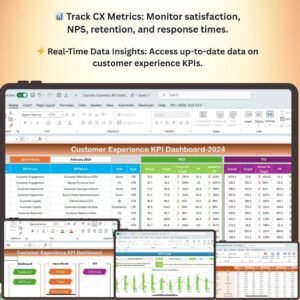
- Customer Experience KPI Dashboard in Excel: track customer experience metrics
Browse all Excel calendar templates.




Reviews
There are no reviews yet.