

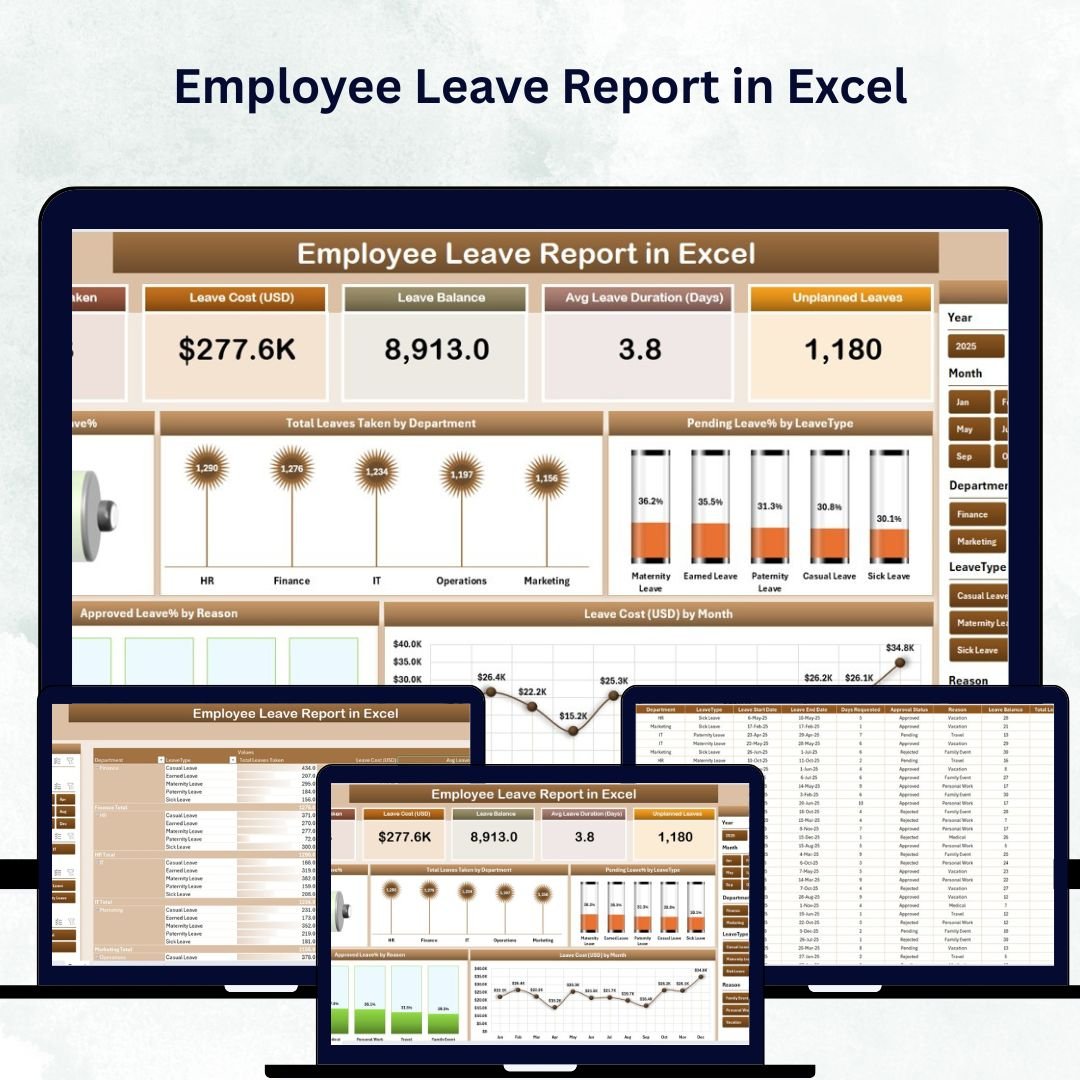

Managing employee attendance doesn’t have to be complicated. The Employee Leave Report in Excel is a ready-to-use, professional HR analytics tool that helps organizations track leaves, analyze trends, manage costs, and ensure compliance — all in one smart, automated Excel file.
Designed for HR teams, managers, and business owners, this template simplifies leave tracking with dashboards, slicers, and charts that deliver instant visibility into leave usage and departmental performance. It’s the perfect solution for teams looking to improve efficiency without investing in expensive HR software.
Whether you’re managing a small team or a large workforce, this Excel-based leave report lets you record, filter, and visualize leave data with ease — helping you make informed staffing and payroll decisions.
⚙️ Key Features of the Employee Leave Report in Excel
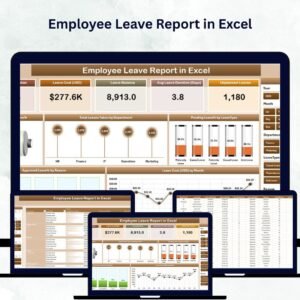
📊 Comprehensive Dashboard (Summary Page)
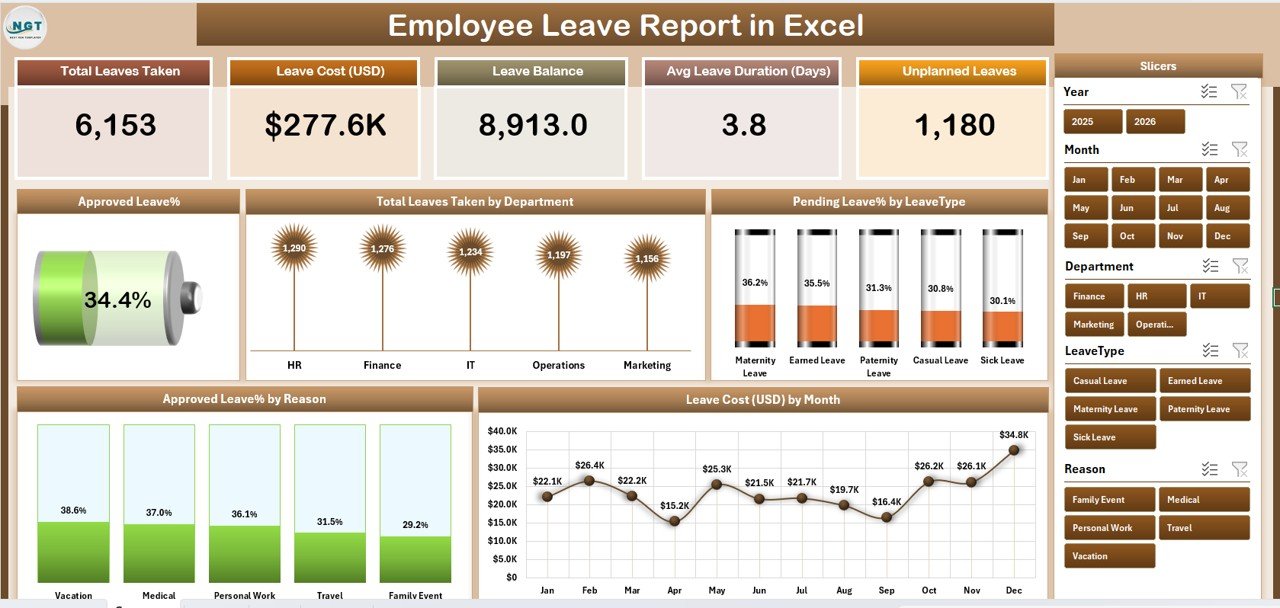
Get a bird’s-eye view of your organization’s leave status with real-time KPIs and visuals.
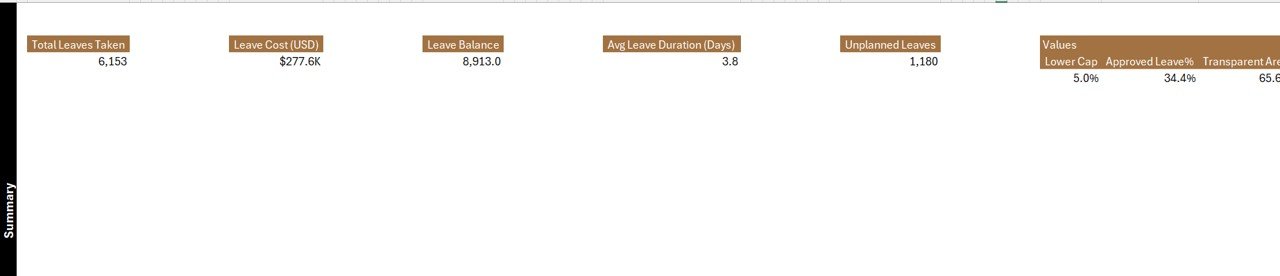
KPI Cards: Track Total Employees, Total Leaves Taken, Approved Leave %, Pending Leave %, and Leave Cost (USD).
Slicers for Dynamic Filtering: Instantly filter data by Month, Department, or Leave Type.
Interactive Charts:
Approved Leave %
Total Leaves Taken by Department
Pending Leave % by Leave Type
Approved Leave % by Reason
Leave Cost (USD) by Month
This page helps HR managers identify absenteeism trends, cost-heavy months, and high leave usage across teams.
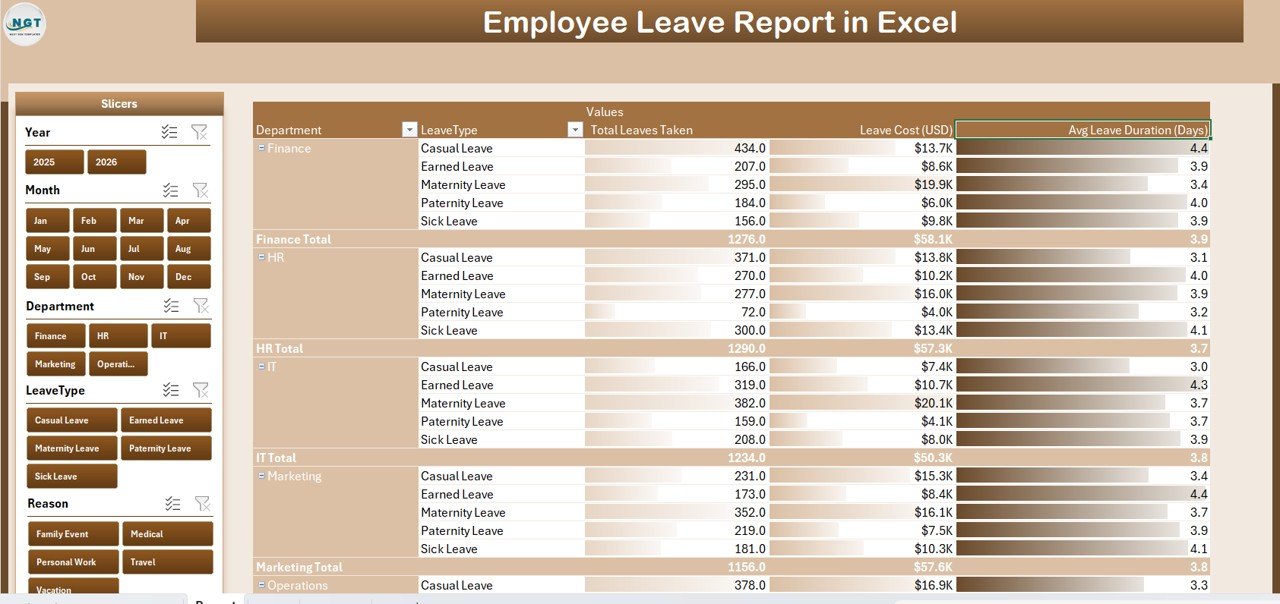
📋 Detailed Reporting Page (Report Tab)
Dive into granular leave data with filterable tables.
Left-Side Slicers: Filter by Employee, Department, Leave Type, or Status.
Comprehensive Table: Displays Employee Name, Department, Leave Type, Duration, Status, Reason, and Leave Cost.
This sheet makes it easy to analyze individual leave records and approval patterns.
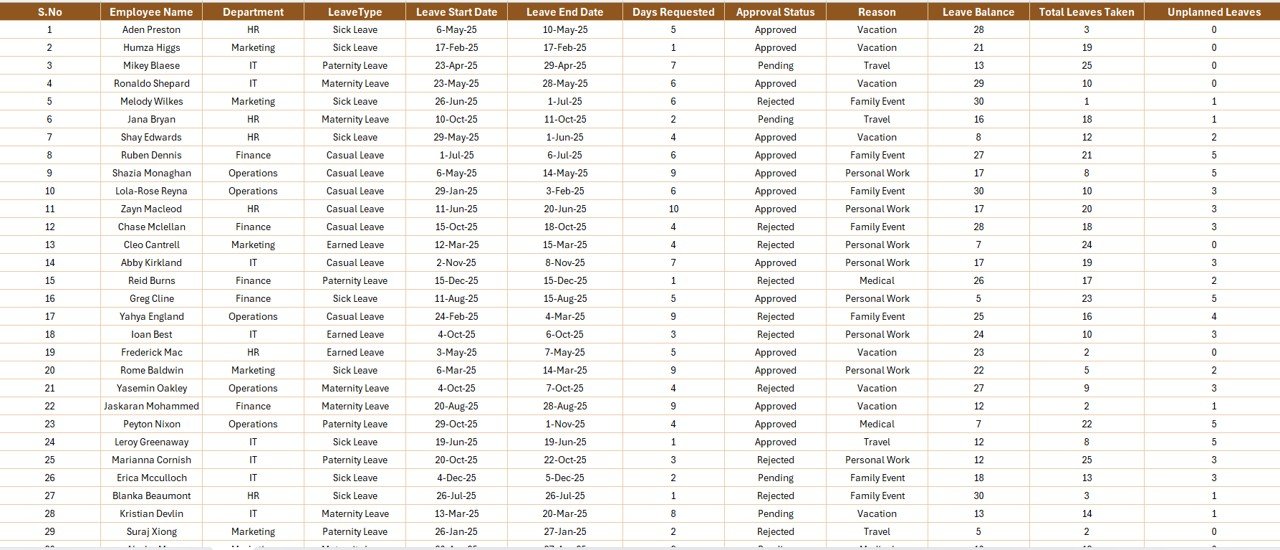
📈 Data Sheet (Data Entry Hub)
The foundation of the dashboard — this is where you record all leave transactions.
Columns include Employee ID, Name, Department, Leave Type, Dates, Duration, Status, Reason, and Cost.
Supports both manual entry and integration with attendance or payroll systems.
Maintaining this sheet ensures the visuals and KPIs remain accurate and up to date.
🧾 Support Sheet (Automation Made Simple)
Contains predefined dropdown lists for Departments, Leave Types, and Statuses, ensuring consistency in data entry.
Examples:
Departments: HR, Finance, Marketing, IT, Sales
Leave Types: Sick, Annual, Casual, Maternity, Paternity
Statuses: Approved, Pending, Rejected
This structured system eliminates data errors and maintains reporting accuracy.
📊 What’s Inside the Employee Leave Report Template
1️⃣ Summary Page: Real-time dashboard with KPIs and charts.
2️⃣ Report Page: Filtered table with employee-level details.
3️⃣ Data Sheet: Centralized data entry system.
4️⃣ Support Sheet: Dropdowns and backend configuration.
Each sheet is fully linked, so updates on the Data Sheet automatically reflect in charts and KPIs.
🧭 How to Use the Employee Leave Report in Excel
✅ Step 1: Open the template and enter data in the Data Sheet.
✅ Step 2: Use dropdowns to select departments, leave types, and statuses.
✅ Step 3: Navigate to the Report Page to filter and analyze data by various parameters.
✅ Step 4: View the Summary Dashboard for instant insights into company-wide leave patterns.
✅ Step 5: Refresh or update data regularly to keep analytics accurate.
In just a few minutes, you’ll have a live, automated leave tracking system ready to use.
👥 Who Can Benefit from This Template
👩💼 HR Managers: Monitor leave trends and maintain compliance records.
🏢 Business Owners: Analyze team productivity and payroll impact.
📈 Finance Teams: Calculate accurate leave costs for payroll.
👨💻 Department Heads: Plan resources and manage team availability.
👥 Employees: Gain transparency in leave tracking and approvals.
🌟 Advantages of the Employee Leave Report in Excel
✅ Centralized Leave Management: Keep all records in one place.
✅ Visual Analytics: Charts make patterns and trends easy to interpret.
✅ Cost Transparency: Track and control leave-related expenses.
✅ Efficiency: Replace manual tracking with automated formulas and slicers.
✅ Customizable Design: Add KPIs, color themes, or additional departments.
✅ Error-Free Reporting: Predefined dropdowns prevent inconsistent data entry.
✅ Share Easily: Export as PDF or share via cloud or Teams.
✅ Scalable: Ideal for small and medium-sized organizations alike.
🔗 Click here to read the Detailed Blog Post
🎥 Visit our YouTube channel for step-by-step tutorials
🔗 YouTube.com/@PKAnExcelExpert
Watch the step-by-step video tutorial:
Compatibility and Requirements
- Works in Microsoft Excel desktop (Excel 2016 or later, or Microsoft 365).
- The Summary page uses slicers to filter by Month, Department and Leave Type. Microsoft explains them in Use slicers to filter data.
Frequently Asked Questions
Which sheets are included?
Four sheets: Summary, Report, Data Sheet and Support Sheet.
Where do I enter leave records?
On the Data Sheet. Each row holds Employee ID, Name, Department, Leave Type, dates, duration, status, reason and cost.
What KPIs does the Summary page show?
Total Employees, Total Leaves Taken, Approved Leave %, Pending Leave % and Leave Cost (USD). Charts show leaves by department, pending leave by leave type, approved leave by reason and leave cost by month.
Can I filter by employee or status?
Yes. The Report page has slicers for Employee, Department, Leave Type and Status, and a table with the matching records.
Is there a Power BI version?
Yes. See the Employee Leave Dashboard in Power BI.
Related HR Templates
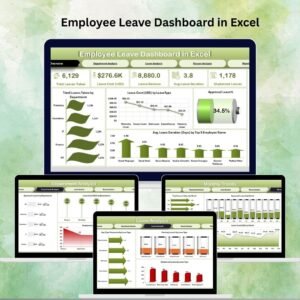
- Employee Leave Dashboard in Excel: a dashboard view of leave data
- Employee Leave Dashboard in Power BI: the Power BI edition
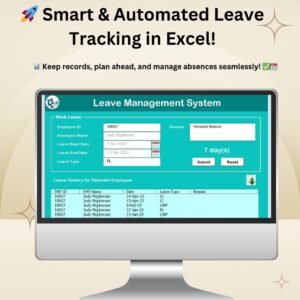
- Leave Management System: record and manage leave requests
- Annual Leave Tracker with Daily Monthly View in Excel: day and month views of leave
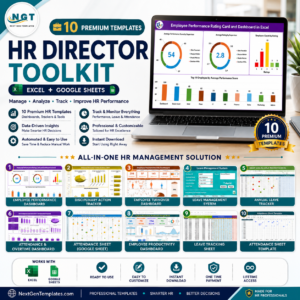
- HR Director Toolkit: 10 HR templates in one download
Browse all Excel report templates.


Reviews
There are no reviews yet.