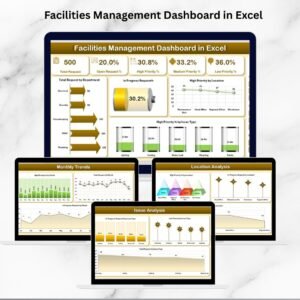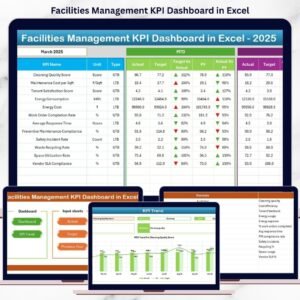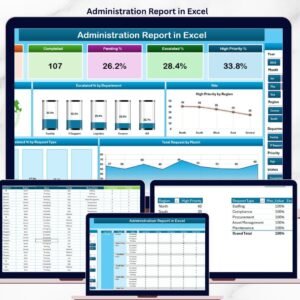
The Facilities Management Report in Excel tracks 5 KPI cards, 5 interactive charts, and a line-level information table across 4 sheets — giving facilities teams a single view of every request by location, department, priority, and issue type. Setup takes under 10 minutes: replace the sample data in the Data sheet and every slicer, chart, and card updates automatically.
🌍 Join 8,400+ teams in 40+ countries using NextGenTemplates to replace paid SaaS tools with one-time-purchase Excel, Google Sheets, Power BI, and HTML templates.
✅ Instant download · One-time payment · No subscription · No per-user fees · Lifetime access
🔑 Key Features of the Facilities Management Report in Excel
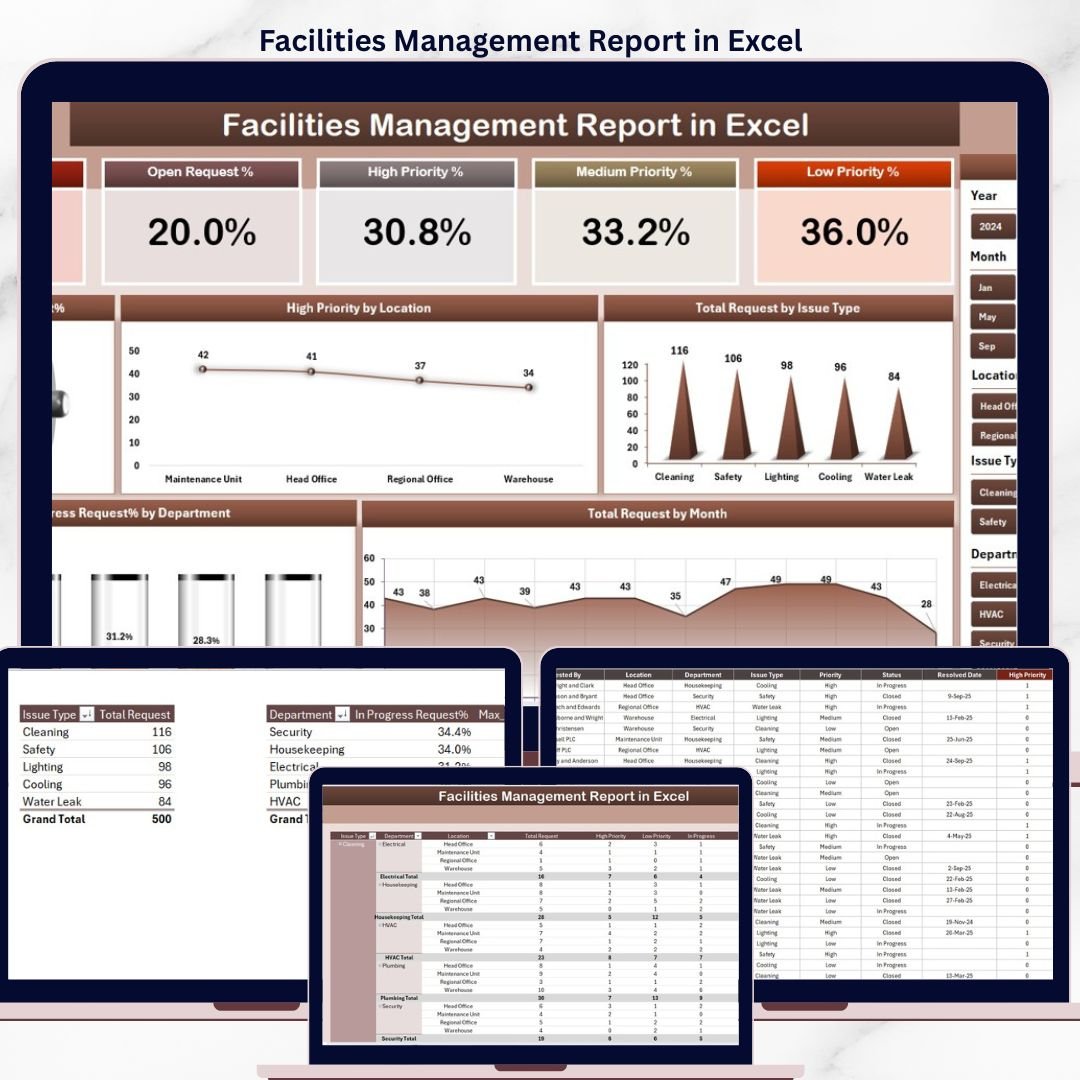
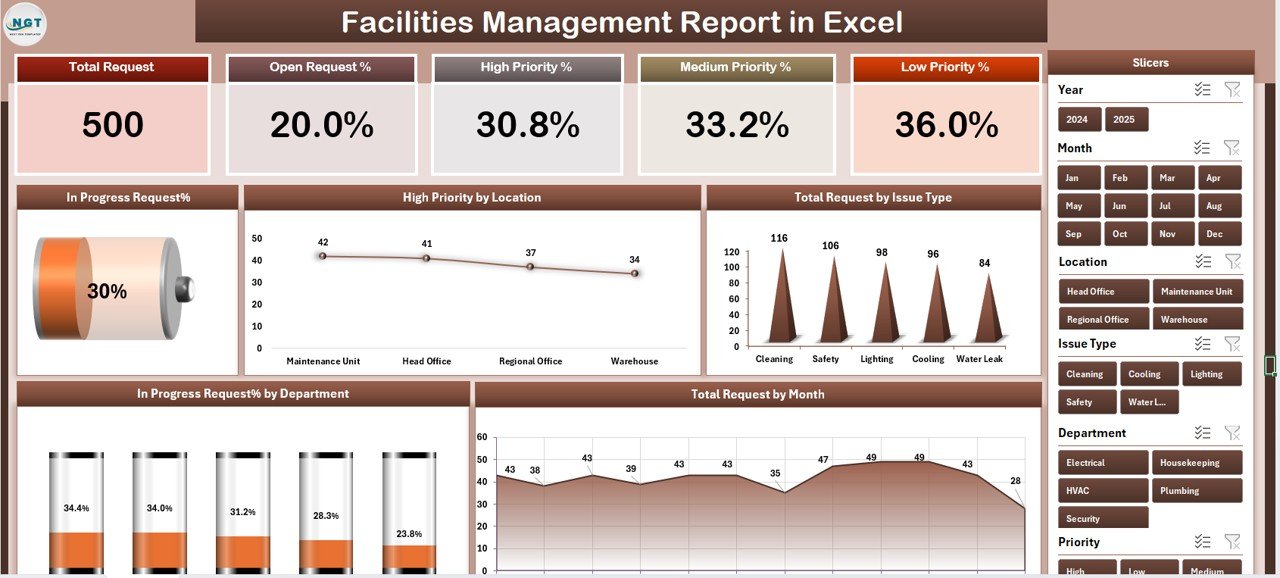
🔹 5 KPI cards at the top of the Summary page — surface the headline numbers your facility manager reviews first: total requests, in-progress count, high-priority open items, requests by department, and requests by month.
🔹 Right-side slicer on the Summary page — filter the whole dashboard by location, department, or issue type with a single click. No pivot-table skills required, no VBA, no macros.
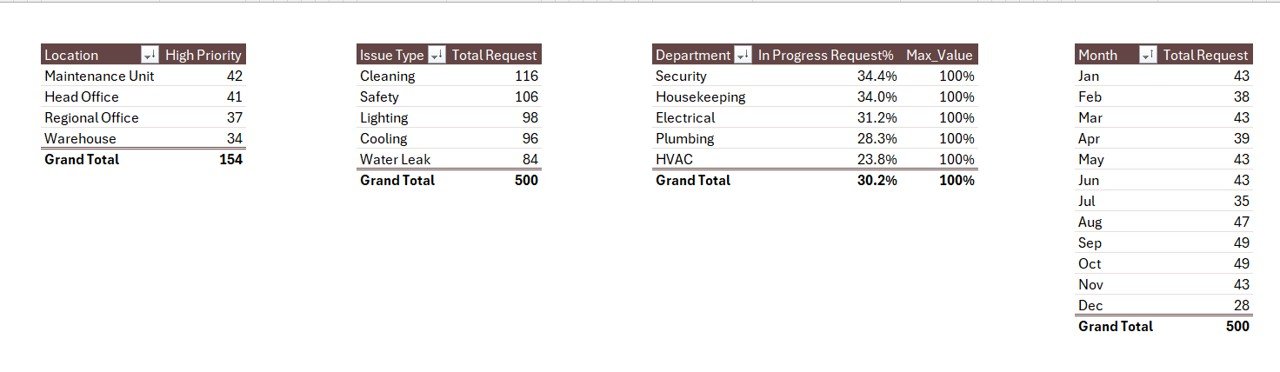
🔹 5 built-in analytical charts covering In Progress Request %, High Priority by Location, Total Request by Issue Type, In Progress % by Department, and Total Request by Month — the exact views facility coordinators need for weekly and monthly review meetings.
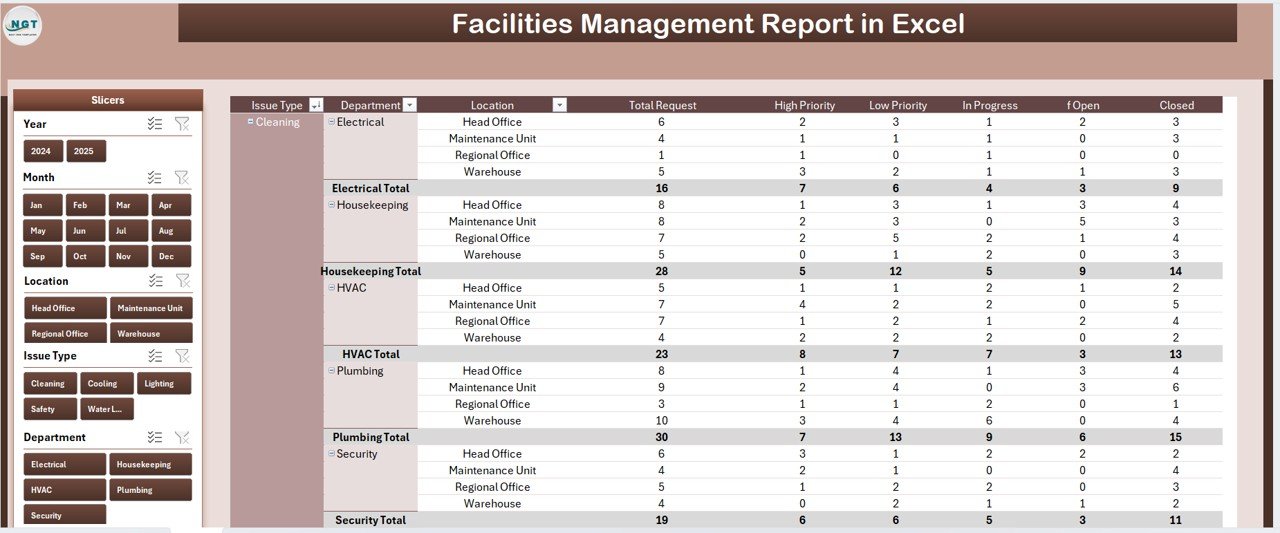
🔹 Dedicated Report page with a left-side slicer and a detailed line-level information table — ideal for exporting to PDF or sharing with department heads who want the full request log, not just the summary.
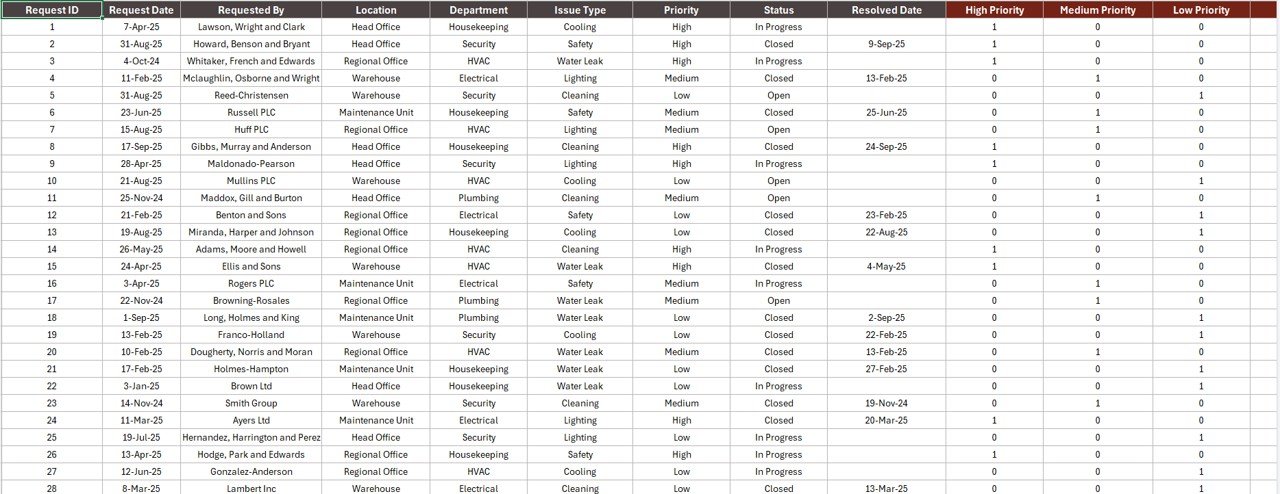
🔹 Clean Data sheet — paste or type your raw facility requests (date, request ID, location, department, issue type, priority, status, assigned technician) and every downstream chart refreshes automatically.
🔹 Support sheet with lookup lists — edit your locations, departments, and issue categories in one place and the slicers and data-entry dropdowns stay consistent across the workbook.
🔹 Built in native Microsoft Excel — works in Excel 2016, 2019, 2021, Microsoft 365, and Excel for Mac. No add-ins, no Power Query, no Power Pivot required.
🔹 Fully unlocked and customizable — rename KPIs, change the color palette, add new chart types, or extend the Data sheet to 10,000+ rows. Lifetime edits allowed.
📦 What’s Inside the Facilities Management Report in Excel
The workbook ships with 4 sheets:
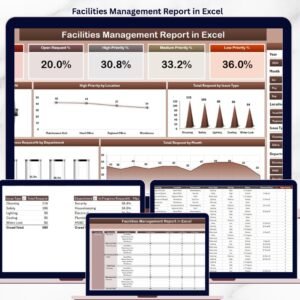
📊 Summary Page — 5 KPI cards across the top, a right-side slicer pane, and 5 pre-built charts. This is the page your leadership will see first.
📋 Report Page — left-side slicer plus a detailed Information Table showing every individual request. Use this view when department heads ask for the full log.
🗂️ Data Sheet — your raw facility request log. Paste your data here and everything else updates.
🔧 Support Sheet — lookup lists for locations, departments, issue types, and priorities. Update them here once and the slicers follow.
📊 Facilities Management Report in Excel vs. Google Sheets vs. Paid CMMS Software — Where This Fits
| Feature | Facilities Management Report in Excel | Google Sheets equivalent | Paid CMMS (UpKeep / Fiix / Limble) |
|---|---|---|---|
| Cost | $7.99 one-time | Build yourself (free, 8–12 hours) | $20–$100 / user / month |
| Platform | Microsoft Excel (desktop + Mac) | Google Sheets (browser) | Web + mobile SaaS |
| Setup time | Under 10 minutes | 8–12 hours from scratch | 2–6 weeks (onboarding + data import) |
| Works offline | ✅ Yes | ❌ Needs internet | ❌ Needs internet (mostly) |
| Slicer-based filtering | ✅ Two slicers built-in | Dropdowns / filter views | ✅ Yes |
| KPI cards + 5 charts pre-built | ✅ Yes, ready to use | Build yourself | ✅ Yes (but locked behind plans) |
| Customizable fields / colors | ✅ Fully unlocked | ✅ Yes | Limited to vendor templates |
| Year-1 cost at 5 users | $7.99 total | $0 (your time) | $1,200–$6,000 / year |
| Work-order automation + mobile app | ❌ No (this is a reporting tool, not a CMMS) | ❌ No | ✅ Yes |
For facilities teams that want a clean reporting view of open requests, priorities, and monthly volumes — without paying $1,200+ a year for a full CMMS — the Facilities Management Report in Excel sits in the sweet spot.
👥 Who This Template Is For — and Who It’s Not For
✅ This template is built for:
- Facility managers at small and mid-size companies (10–500 employees) who receive 50–2,000 requests a month
- Office admins running in-house maintenance, repairs, and service-desk tickets out of Excel
- School, clinic, warehouse, and property operations teams that need a monthly request summary for leadership
- Consultants who want a ready-made facilities-reporting deliverable for multiple clients
❌ This template is NOT for:
- Enterprise facility teams that need full CMMS features: technician mobile apps, IoT sensor integration, or preventive-maintenance scheduling
- Teams that must capture photos, signatures, or barcode scans on the request form itself
- Organizations that require SOC 2 / HIPAA audit trails on every request edit
⚙️ How to Use the Facilities Management Report in Excel
- Download the Excel file and open it in Microsoft Excel (desktop, Mac, or Microsoft 365).
- Go to the Support sheet and update the lookup lists: your locations, departments, issue categories, and priority labels.
- Open the Data sheet and replace the sample rows with your own facility-request log. Keep the column headers intact.
- Return to the Summary page — all 5 KPI cards and 5 charts will refresh with your numbers instantly.
- Use the right-side slicer on the Summary page to filter by location, department, or issue type for any stakeholder review.
- Switch to the Report page when a department head asks for the full line-level log. Use the left-side slicer to narrow the view, then export to PDF.
💼 Real-World Use Cases
Priya runs facility operations for a 220-person tech company in Bangalore. Before this template she sent a 15-tab Excel file to her director every Monday. Now she keeps one clean Summary page, filters by building with the right-side slicer during the weekly review, and exports the Report page as a PDF when finance asks which locations are driving the most high-priority tickets.
Marcus is a facilities consultant who services 6 small-business clients. He uses the Facilities Management Report in Excel as a standardized deliverable — he drops each client’s request log into the Data sheet, renames the workbook, and sends it back in under 30 minutes. No per-client CMMS licenses needed.
Nina manages maintenance at a 14-campus K–12 school district. She tracks 800+ service requests a month in the Data sheet and uses the Total Request by Month chart to justify a second maintenance hire to her board using three years of trend data.
❓ Frequently Asked Questions
What does the Facilities Management Report in Excel track?
The Facilities Management Report in Excel tracks 5 KPI cards and 5 analytical charts covering total requests, in-progress percentage, high-priority items by location, total requests by issue type, in-progress percentage by department, and total requests by month. Every metric updates automatically when you replace the sample data.
Do I need macros or Power BI to use this report?
No. The Facilities Management Report in Excel uses only native Excel features — formulas, slicers, and charts. There are no macros, no VBA, no Power Query, and no Power BI required. It works in Excel 2016, 2019, 2021, Microsoft 365, and Excel for Mac.
How long does setup take?
Under 10 minutes for a typical user. Update the lookup lists in the Support sheet, paste your request log into the Data sheet, and return to the Summary page — every chart, card, and slicer refreshes automatically. There is no onboarding process or vendor training.
How does this compare to UpKeep, Fiix, or Limble?
Those are full CMMS platforms at $20–$100 per user per month with mobile apps and preventive-maintenance scheduling. The Facilities Management Report in Excel is a one-time $7.99 reporting layer for teams that already log requests somewhere but need a clean summary view for leadership without a subscription.
Can I add more locations, departments, or issue types?
Yes. Open the Support sheet, add your new entries to the lookup lists, and the slicers and data-entry dropdowns pick them up automatically across the Summary and Report pages. The template is fully unlocked for lifetime edits.
Can I share this workbook with my team on OneDrive or SharePoint?
Yes. The Facilities Management Report in Excel is a standard .xlsx file — it works with OneDrive, SharePoint, Google Drive, Dropbox, and any corporate file-share. For real-time co-editing you’ll need Microsoft 365 co-authoring enabled on your tenant.
Is there a refund policy?
Because the Facilities Management Report in Excel is a digital download delivered instantly, we don’t offer refunds after download. You can preview the Summary, Report, Data, and Support sheets in the product screenshots before purchasing.
👤 About the Author
Built by PK — Microsoft Certified Professional with 15+ years of Excel, Google Sheets, and Power BI experience. Founder of NextGenTemplates, reaching 300K+ subscribers across YouTube channels (@PK-AnExcelExpert, @NextGenTemplates, @NeoTechNavigators). Every template is hand-built and tested before release.
🔗 Explore Related Templates
- 📘 Work Order Request Tracker in Excel — the ticket-level companion to this report.
- 📘 Property Management Dashboard in Excel — if you manage buildings rather than requests.
- 📘 HVAC Service Dashboard in Power BI — for teams that want the same data in Power BI.
- 📘 Equipment Borrowing Request Tracker in Excel — for tools, laptops, and shared assets.
Browse the full collection of Excel Dashboard Templates or explore our Excel Reports Library.
📖 Click here to read the Detailed Blog Post
🎥 Visit our YouTube channel for step-by-step video tutorials
👉 YouTube.com/@NextGenTemplates
📅 Last updated: April 2026
Watch the step-by-step video tutorial:
More Questions About This Template
How do the slicers filter the report?
The Summary page has a slicer pane on the right for location, department or issue type, and the Report page has its own slicer on the left. Microsoft’s guide to using slicers to filter data explains how they work.
What columns does the Data sheet use?
Date, request ID, location, department, issue type, priority, status and assigned technician. Keep the headers in place when you paste your own log.
Can I send the full request log to a department head?
Yes. Open the Report page, narrow it with the left-side slicer and export it to PDF.
Is there a dashboard version?
Yes. See the Facilities Management Dashboard in Excel or the Facilities Management Dashboard in Power BI.