

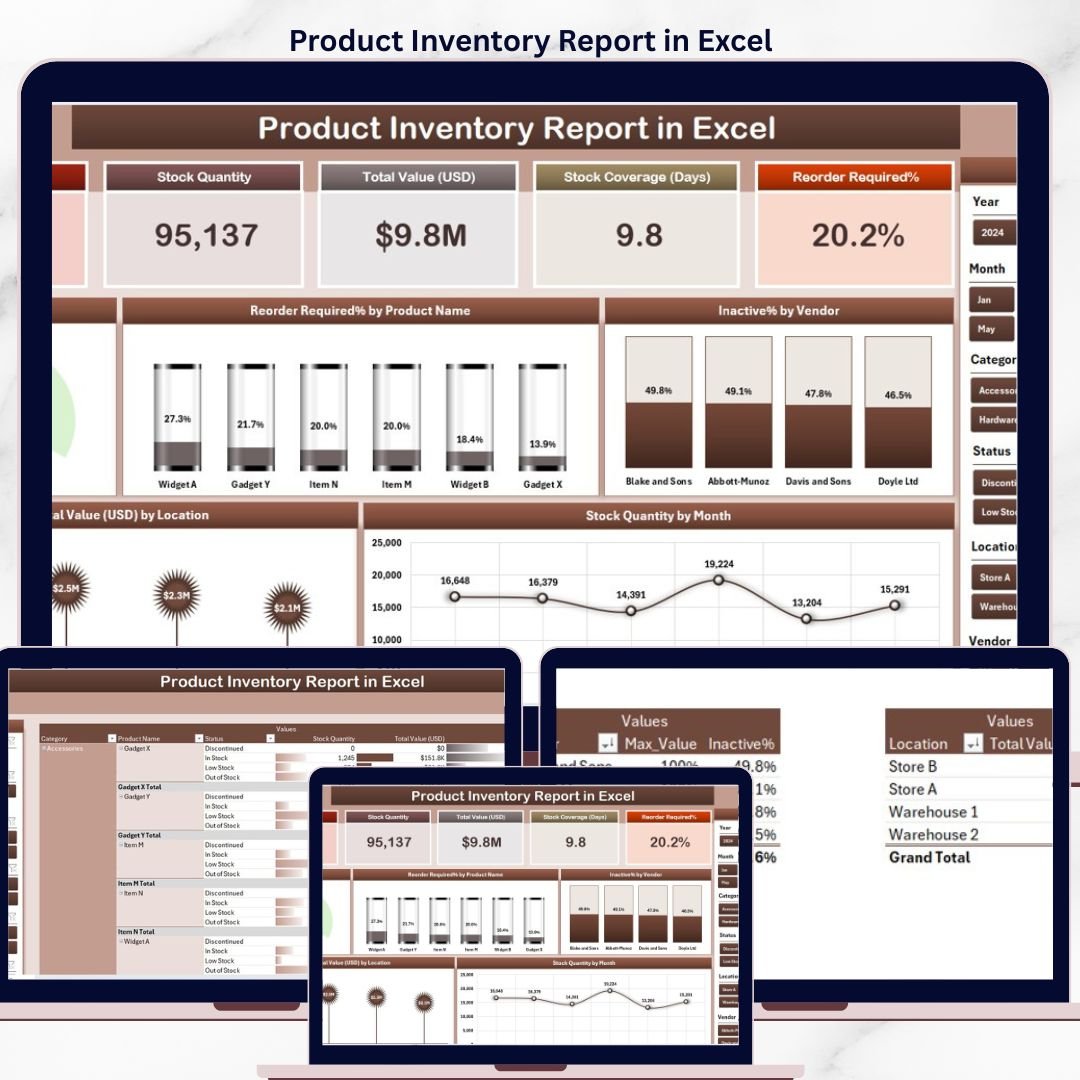
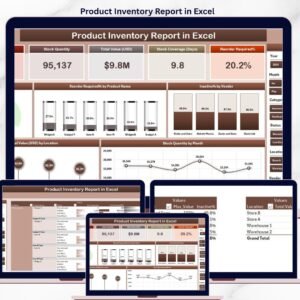
The Product Inventory Report in Excel tracks 5 core KPIs across 4 structured sheets, with 5 interactive charts covering Active %, Reorder Required %, Inactive %, Total Value by Location, and Stock Quality by Month. Setup takes under 10 minutes — paste your SKU-level data into the Data sheet, click Refresh All, and every card, chart, and slicer on the Summary Page rebuilds automatically through pivot tables.
🌍 Join 8,400+ teams in 40+ countries using NextGenTemplates to replace paid SaaS tools with one-time-purchase Excel, Google Sheets, Power BI, and HTML templates.
✅ Instant download · One-time payment · No subscription · No per-user fees · Lifetime access
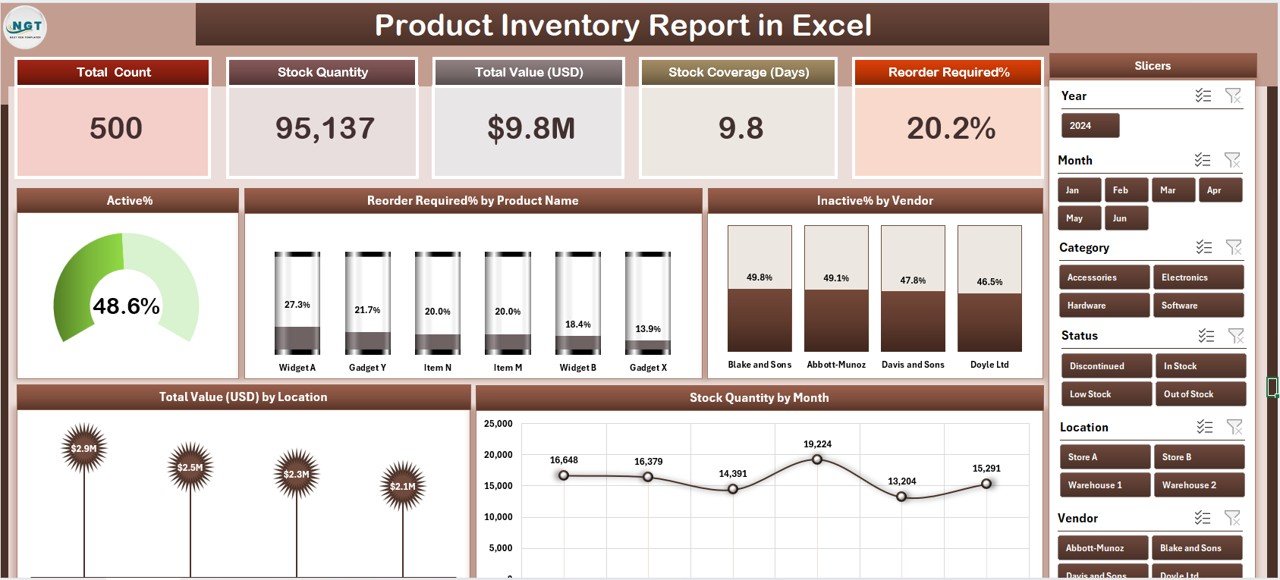
Product Inventory Report in Excel – Summary Page
🔑 Key Features of the Product Inventory Report
🔹 Five-KPI Summary Page – The top of the Summary Page displays 5 card-style KPIs giving inventory managers an instant snapshot of stock health, while a right-side slicer panel lets you filter the entire report by vendor, location, product category, or month in one click.
🔹 Active % Chart – Shows what percentage of your SKUs are currently classified as Active versus Inactive, so warehouse managers can spot dead stock before it eats shelf space. A rising Inactive % is the earliest warning of a product line losing demand.
🔹 Reorder Required % by Product Name – Ranks every product by the share of units currently below reorder point. Procurement teams use this to prioritise this week’s PO list, ensuring fast-movers never hit zero while slow-movers don’t get over-ordered.
🔹 Inactive % by Vendor – Exposes which suppliers are quietly filling your warehouse with dead stock. If 40% of a vendor’s SKUs sit inactive, that’s a negotiation conversation — not a line-item on next month’s PO.
🔹 Total Value by Location – Sums current inventory value across every warehouse, store, or bin location. Multi-location operators use this to balance stock, redirect deliveries, and justify capacity decisions with hard numbers.
🔹 Stock Quality by Month – A 12-month trend view of inventory quality grades, useful for spotting seasonal decay, QA process drift, or supplier-side quality slippage before it reaches customers.
🔹 Detailed Report Page with Information Table – A separate worksheet with a left-side slicer and a line-item inventory table — ideal for physical stock audits, cycle-count reconciliations, or vendor review packets.
🔹 100% Pivot-Table Driven – The Support sheet holds every pivot table that feeds the dashboard. Update one cell in the Data sheet, hit Refresh All, and every card, chart, and slicer updates automatically — no formula edits required.
🔹 Works offline on Windows and Mac Excel – No internet, no cloud, no subscription. Inventory data never leaves your machine, which matters when SKU-level pricing and vendor terms are commercially sensitive.
📦 What’s Inside the Product Inventory Report
The file includes 4 Excel sheets, each with a specific purpose in the inventory reporting workflow.
1. Summary Page — The main dashboard view. At the top, 5 KPI cards display headline metrics at a glance. The right-side slicer panel filters the entire page by vendor, location, product category, or month. Five charts cover the core analytical questions: Active %, Reorder Required % by Product Name, Inactive % by Vendor, Total Value by Location, and Stock Quality by Month.
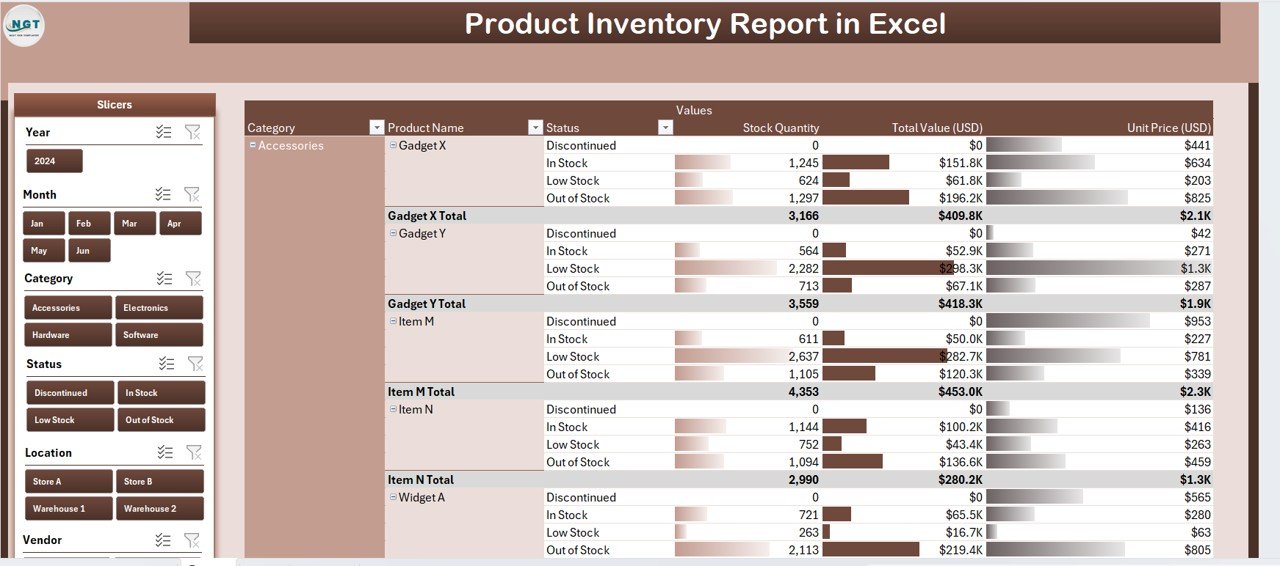
Report Page with slicer and information table
2. Report Page — A left-side slicer drives a detailed information table with SKU-level records. Use this page to pull filtered stock lists for physical audits, cycle counts, vendor reviews, or month-end reconciliation against your accounting system.
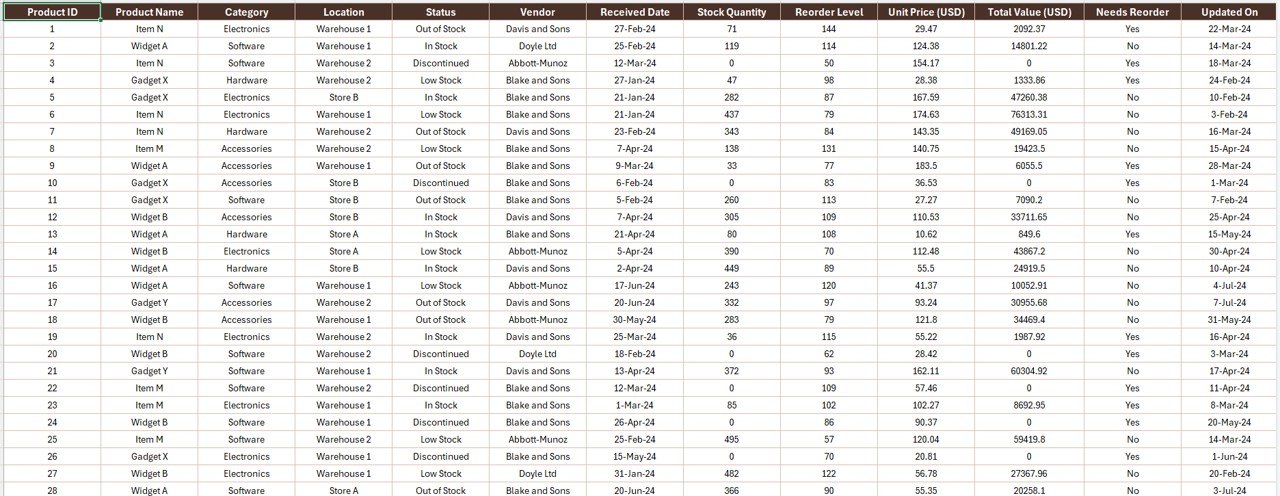
Data Sheet – replace sample data here
3. Data Sheet — The raw input sheet. Paste your SKU-level data into the same column structure (Product Name, Vendor, Location, Category, Active/Inactive Status, Reorder Point, Current Stock, Unit Value, Total Value, Stock Quality, Date). Keep the headers identical — the pivot tables depend on them.
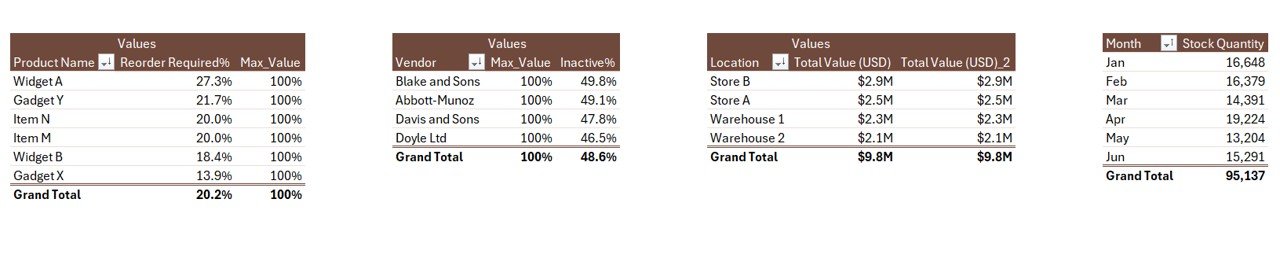
Support Sheet with pivot tables driving every chart
4. Support Sheet — Holds every pivot table that feeds the Summary Page charts and cards. After updating the Data sheet, click Data → Refresh All in the Excel ribbon and every pivot recalculates. Keep this sheet hidden in production — your team only needs to see the Summary Page and Report Page.
📊 Product Inventory Report in Excel vs. Google Sheets Equivalent vs. Zoho Inventory / NetSuite ERP — Where This Fits
| Feature | Product Inventory Report in Excel | Google Sheets equivalent | Zoho Inventory / NetSuite ERP |
|---|---|---|---|
| Cost | $7.99 one-time | ~$10 one-time template | $59–$999 / user / month |
| Platform | Microsoft Excel (desktop) | Google Sheets (browser) | Web + mobile SaaS |
| Works offline | ✅ Yes | ❌ Requires internet | ❌ Requires internet |
| Setup time | Under 10 minutes | ~15 minutes | 2–6 weeks onboarding |
| Customizable KPIs & charts | ✅ Fully editable | ✅ Editable | ❌ Fixed reports |
| Per-user licence fees | None — share freely | None | $59+ per user / month |
| Data stays on your device | ✅ Yes | ❌ Cloud (Google servers) | ❌ Vendor cloud |
| Year-1 cost at 5 users | $7.99 | ~$10 | $3,540 – $59,940 |
| Reorder + dead-stock visibility | ✅ Pre-built | Needs rebuild | ✅ Pre-built |
For warehouse and retail teams that want reorder, vendor, and location-level inventory visibility without paying $3,000+ per year in ERP fees, the Product Inventory Report in Excel sits in the sweet spot.
👥 Who This Template Is For — and Who It’s Not For
✅ This template is built for:
- Small and mid-size warehouse operators (1–20 locations) who need a monthly inventory health report
- Retail owners tracking stock across 2–50 SKUs per product line and 1–15 store locations
- Procurement and sourcing managers reviewing vendor performance against reorder and dead-stock metrics
- Operations leaders preparing month-end inventory reports for owners, investors, or bank facility reviews
- E-commerce sellers who haven’t yet committed to a $100/month inventory SaaS platform
❌ This template is NOT for:
- Enterprise operations running 50,000+ SKUs across 100+ locations needing SOC 2 + SSO ERP (use NetSuite or SAP)
- Teams needing real-time barcode scanning, automated PO creation, or integrated 3PL shipping (use Zoho Inventory or Cin7)
- Google Sheets-only teams — browse our Google Sheets Dashboards collection instead
⚙️ How to Use the Product Inventory Report
- Download and open the .xlsx file in Microsoft Excel 2016 or later, on Windows or Mac.
- Go to the Data sheet and replace the sample rows with your inventory’s SKU-level data. Keep all column headers identical.
- Click Data → Refresh All in the Excel ribbon. Every pivot table in the Support sheet recalculates.
- Open the Summary Page. All 5 KPI cards and 5 charts now reflect your data. Use the right-side slicer to filter by vendor, location, or product category.
- Switch to the Report Page to pull filtered SKU lists for physical audits, cycle counts, or vendor reviews.
- Hide the Support sheet before sharing the file with warehouse staff — they only need to see the Summary and Report pages.
💼 Real-World Use Cases
Rahul runs a mid-size electronics distributor in Delhi with 12,000 SKUs across 3 warehouses. He uses the Product Inventory Report in Excel each Monday to review the Reorder Required % by Product Name chart and cut his weekly PO list to the 40 fastest-moving SKUs that actually need restocking. The Inactive % by Vendor chart helped him renegotiate terms with two suppliers whose combined dead stock was tying up roughly ₹18–22 lakh in working capital.
Sarah manages inventory at a 5-store retail chain in Austin, Texas. She uses the Total Value by Location chart to balance stock across her downtown, suburban, and warehouse locations. After spotting her suburban store carrying 40% more inventory value than its sales justified, she redirected two months of incoming POs to clear it — freeing up around $28,000 in working capital without paying NetSuite’s $999/month plan.
Marco is an operations analyst at a D2C home-goods brand with 800 SKUs. He needs month-end inventory reports for his CFO but can’t justify $59/user/month for Zoho Inventory with 6 seats. The Product Inventory Report gives him the Stock Quality by Month and Active % trend views he needs, runs entirely offline on his MacBook, and cost the business $7.99 once.
❓ Frequently Asked Questions
What KPIs does the Product Inventory Report in Excel track?
The Product Inventory Report tracks 5 headline KPIs on the Summary Page shown as card visuals, plus 5 interactive charts covering Active %, Reorder Required % by Product Name, Inactive % by Vendor, Total Value by Location, and Stock Quality by Month. All metrics auto-update when you refresh the pivot tables.
How does this compare to Zoho Inventory or NetSuite ERP?
Zoho Inventory charges $59–$249 per user per month, and NetSuite ERP starts at roughly $999 per month — quickly reaching $36,000+ per year at 3 seats. The Product Inventory Report in Excel is a $7.99 one-time purchase with no per-user fees, works offline, and keeps SKU-level pricing data on your device rather than in a vendor cloud.
How long does setup take?
Setup takes under 10 minutes. Open the .xlsx file, paste your SKU-level data into the Data sheet (keep the column headers identical), then click Data → Refresh All. Every card, chart, and slicer on the Summary Page updates automatically. No formulas to edit.
Does this template work on Mac Excel?
Yes. The Product Inventory Report in Excel is built entirely with pivot tables and slicers — no VBA, no macros — so it runs identically on Windows Excel and Mac Excel 2016 or later. No internet connection is required.
Can I add my own vendors, locations, or product categories?
Yes. Add new vendors, locations, product categories, or SKUs directly to the Data sheet. After adding rows, click Data → Refresh All in the ribbon and every pivot table on the Support sheet will pick up the new values and populate the Summary Page charts automatically.
Is my inventory pricing data safe with this template?
Data stays on your device. The Product Inventory Report in Excel doesn’t connect to any cloud service, API, or external database. SKU-level cost, vendor terms, and markup data never leave your machine — a critical advantage over cloud-based ERPs where third parties can access your commercial data.
Can multiple team members use the same file?
Yes. Email the .xlsx file or share it via OneDrive, Dropbox, or SharePoint. There’s no per-user licence — procurement, warehouse, and finance staff can all open and filter the report freely with any Microsoft Excel installation.
👤 About the Author
Built by PK — Microsoft Certified Professional with 15+ years of Excel, Google Sheets, and Power BI experience. Founder of NextGenTemplates, reaching 300K+ subscribers across YouTube channels (@PK-AnExcelExpert, @NextGenTemplates, @NeoTechNavigators). Every template is hand-built and tested before release.
🔗 Explore Related Templates
🔹 Warehouse Efficiency Dashboard in Excel — Tracks fulfillment rate, pick time, and shipping cost across warehouses and shifts.
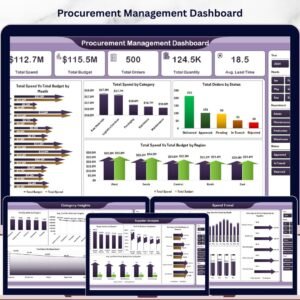
🔹 Procurement Management Dashboard in Excel — Deeper view into vendor spend, purchase order aging, and category-level procurement KPIs.
🔹 Vendor Performance Dashboard in HTML — Browser-based vendor scorecard for teams that don’t want to install Excel.
🔹 Trucking and Logistics Dashboard in Google Sheets — If your inventory moves through your own fleet, this is the logistics-side counterpart.
💎 Save 36% — Get the Inventory & Warehouse Master Kit → 8 premium Excel + Google Sheets + VBA inventory templates for one bundle price.
Also browse all our Excel Dashboard Templates for more industry-specific reports.
📖 Click here to read the Detailed Blog Post
🎥 Visit our YouTube channel for step-by-step video tutorials
👉 YouTube.com/@NextGenTemplates
📅 Last updated: April 2026
Watch the step-by-step video tutorial:
Compatibility and Requirements
- Works in Microsoft Excel desktop (Excel 2016 or later, or Microsoft 365) on Windows and Mac. It uses pivot tables and slicers, with no VBA or macros.
- Slicers filter the Summary Page and Report Page. Microsoft explains them in Use slicers to filter data.






Reviews
There are no reviews yet.