

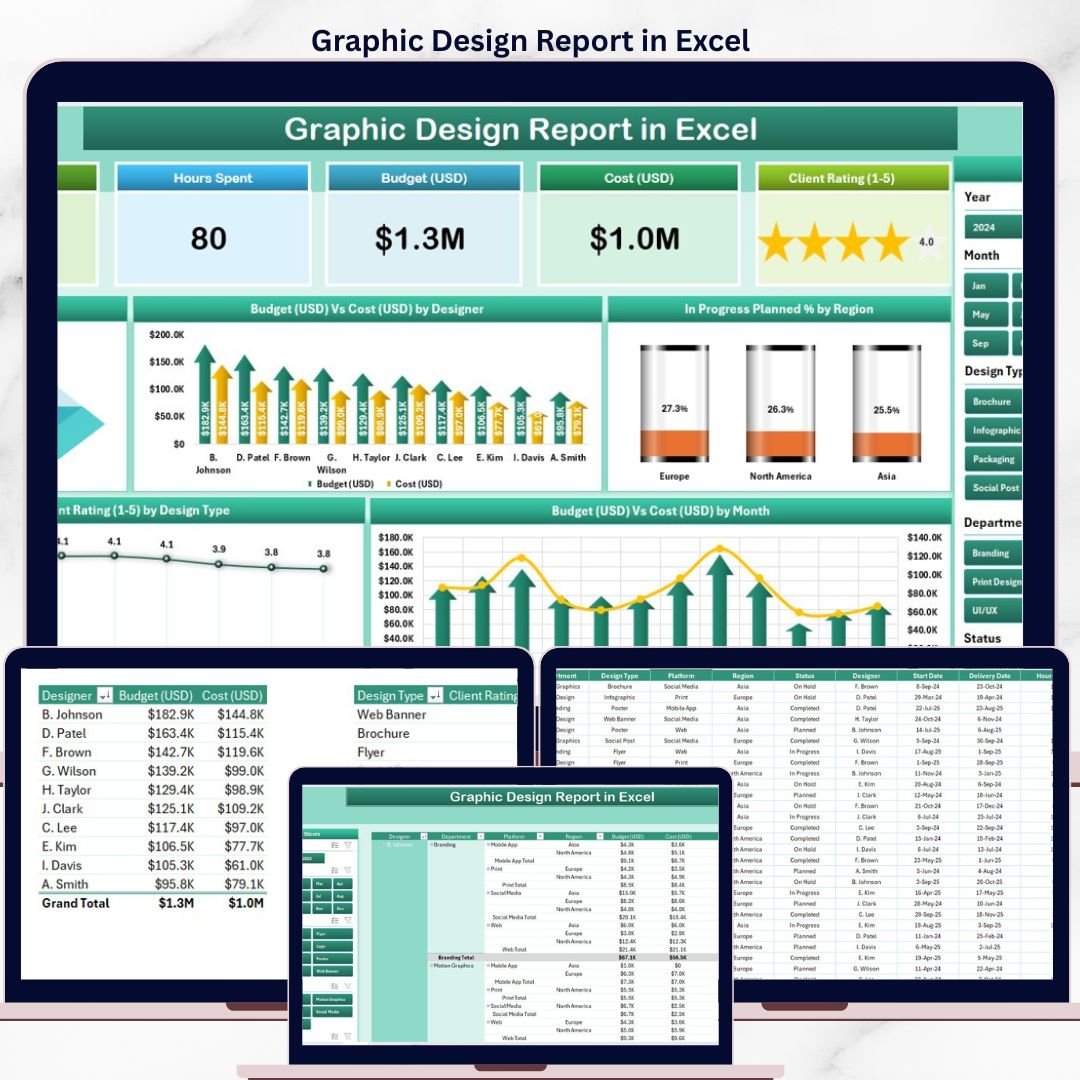
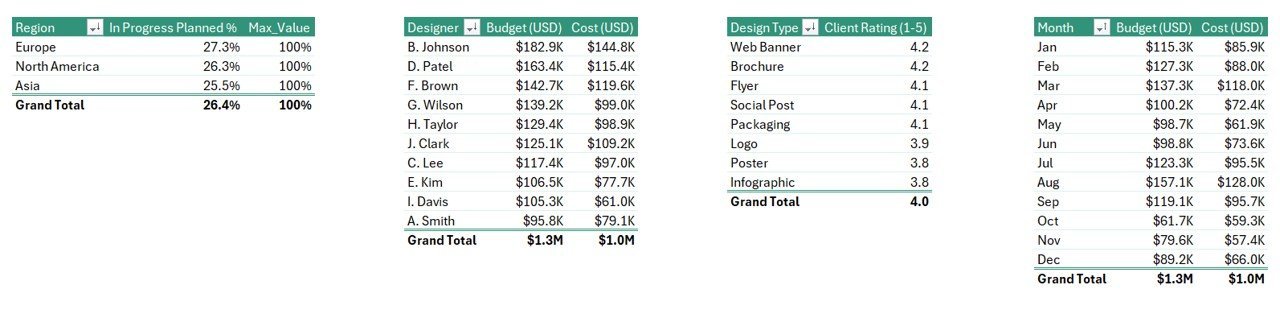
The Graphic Design Report in Excel monitors 5 project KPIs across 2 dedicated report pages, with 5 pre-built charts covering completion rates, budget versus cost variances, regional in-progress rates, client ratings by design type, and monthly cost trends. Setup takes under 10 minutes — replace the sample data and every chart and KPI card updates automatically.
🌍 Join 8,400+ teams in 40+ countries using NextGenTemplates to replace paid SaaS tools with one-time-purchase Excel, Google Sheets, Power BI, and HTML templates.
✅ Instant download · One-time payment · No subscription · No per-user fees · Lifetime access
🔑 Key Features of Graphic Design Report in Excel
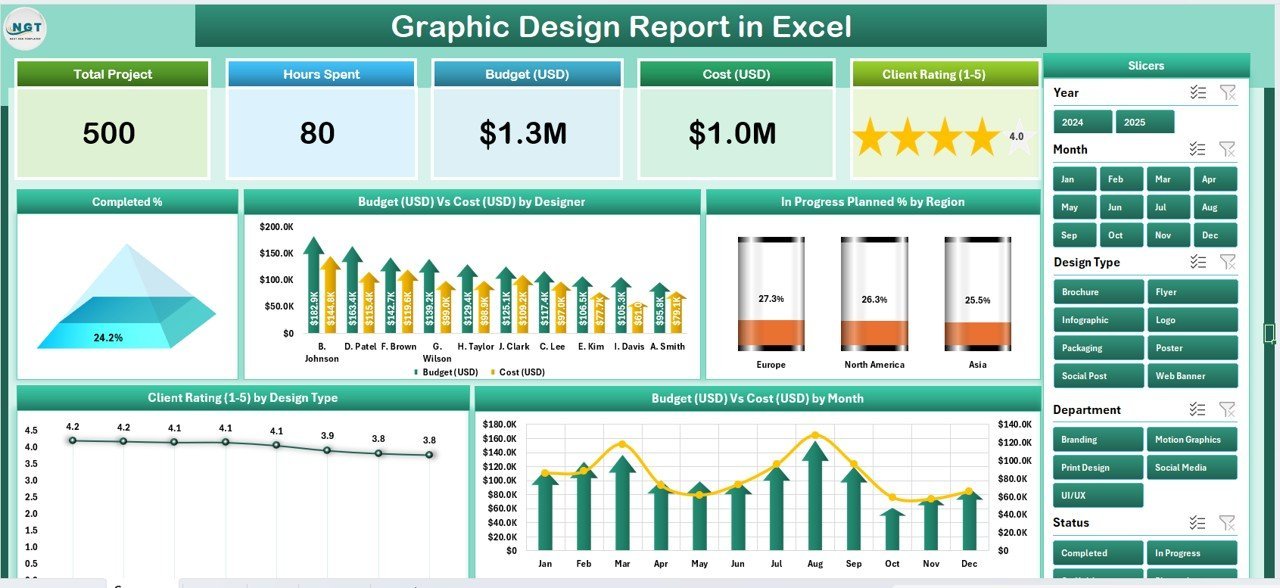
🔹 5 KPI Summary Cards — at-a-glance metrics covering total projects, completed count, in-progress count, budget totals, and client satisfaction scores on the Summary page.
🔹 5 Interactive Charts — Completed %, Budget Vs Cost by Designer, In Progress % by Region, Client Rating by Design Type, and Budget Vs Cost by Month give management a 360° view of design operations. This report tracks 5 key performance indicators that update automatically when new data is entered in the Data Sheet.
🔹 Dynamic Slicers — a right-side slicer on the Summary page and a left-side slicer on the Report page let you filter all charts and tables by designer, region, design type, or time period with a single click — no formulas required.
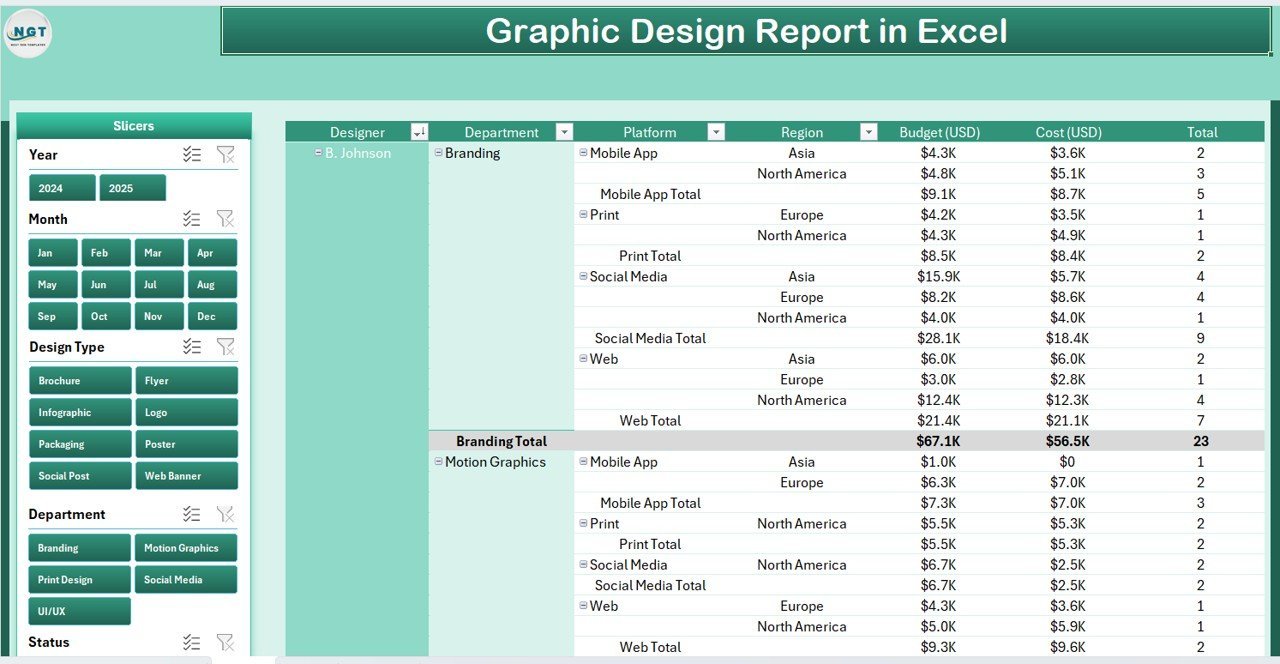
🔹 Information Table on Report Page — a filterable project-level table showing individual job statuses, designer assignments, budgets, actual costs, client ratings, and region for detailed drill-down analysis and client billing review.
🔹 Data Sheet + Support Sheet — clean data entry sheet for logging design projects, plus a reference support sheet for lookup values (designers, regions, design types, statuses) that drives dropdown consistency across the file.
📦 What’s Inside the Graphic Design Report in Excel
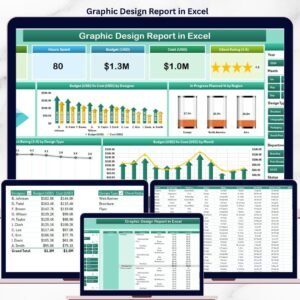
Page 1 — Summary Page: The main reporting view features five KPI cards along the top showing headline metrics at a glance. A right-side slicer panel filters all charts simultaneously. Five charts form the analytical core: Completed % (overall completion rate), Budget Vs Cost by Designer (individual financial performance), In Progress % by Region (geographic workload distribution), Client Rating by Design Type (satisfaction by project category), and Budget Vs Cost by Month (monthly cost trend).
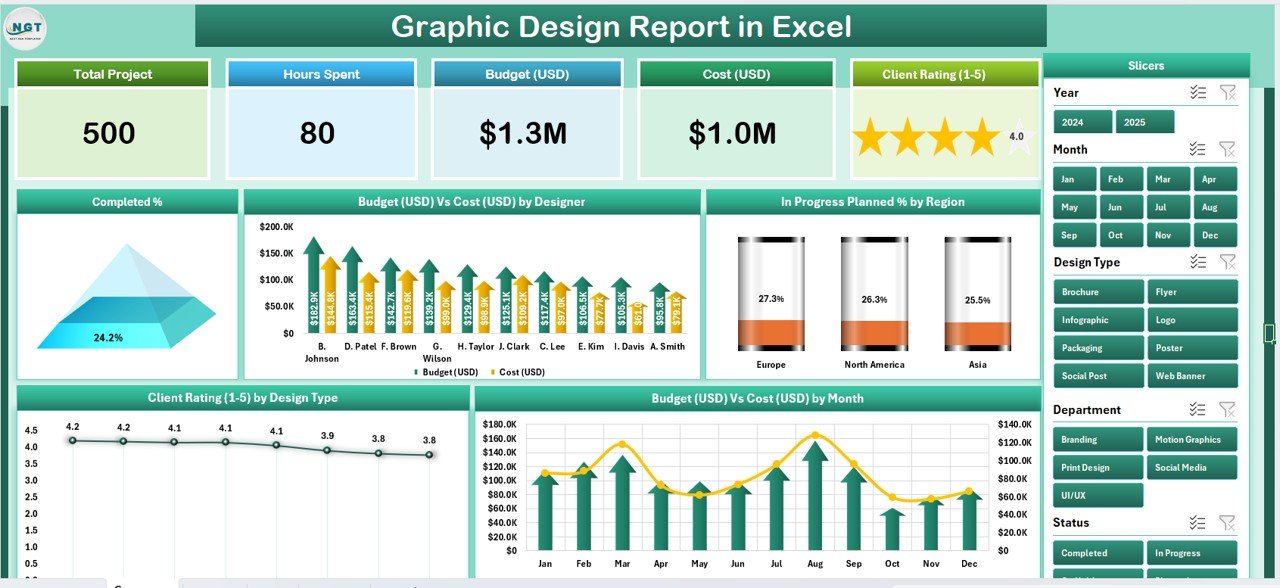
Summary Page — 5 KPI Cards, Right-Side Slicer, and 5 Charts
Page 2 — Report Page: A filterable information table with a left-side slicer. Drill into individual design jobs — designer assignments, budgets, actual costs, completion status, client ratings, and region. Ideal for weekly team reviews and client billing.
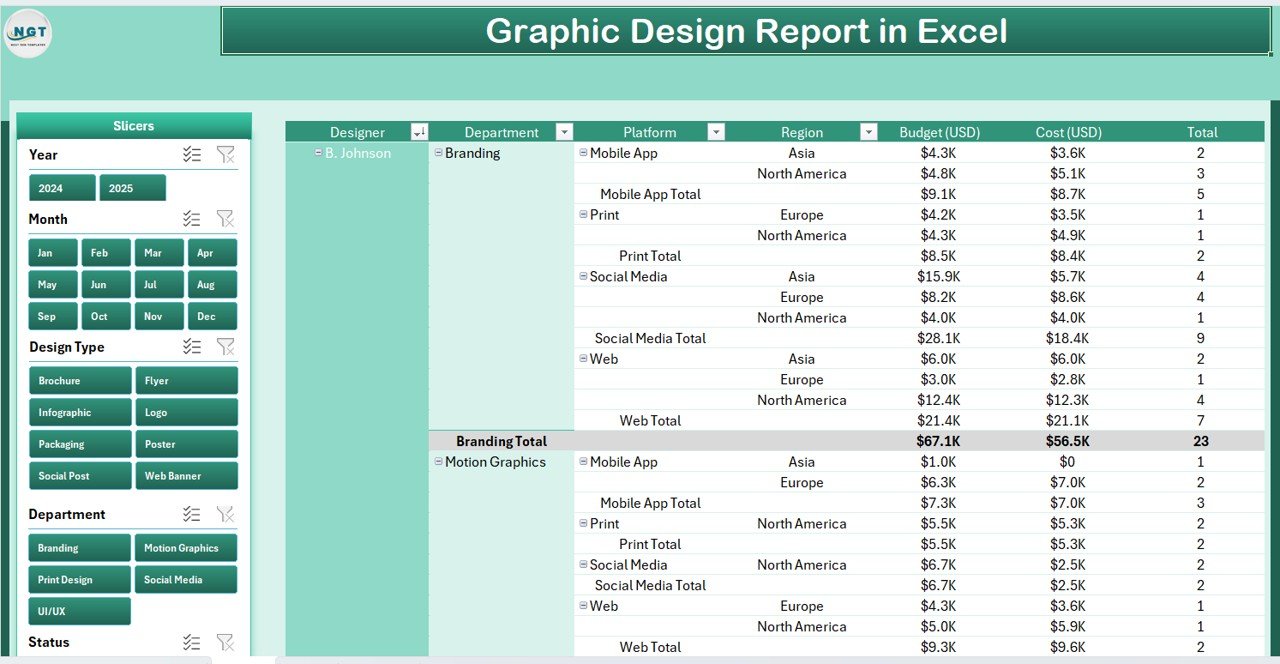
Report Page — Left-Side Slicer and Information Table
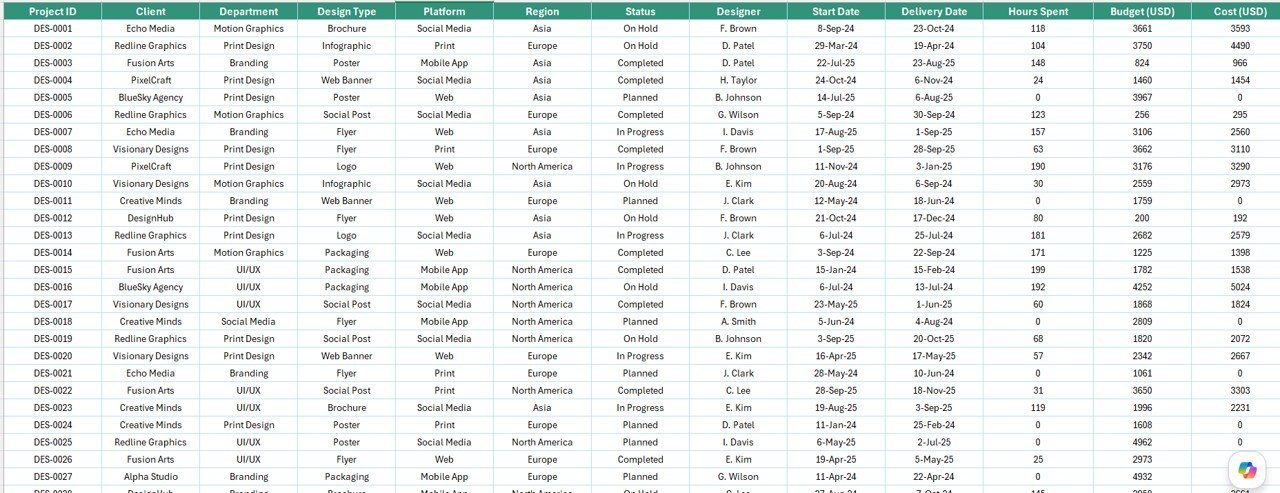
Data Sheet: All raw project data lives here. Add new design projects, update statuses, enter actual costs, and log client ratings. Every other page references this sheet dynamically — no copy-paste needed.
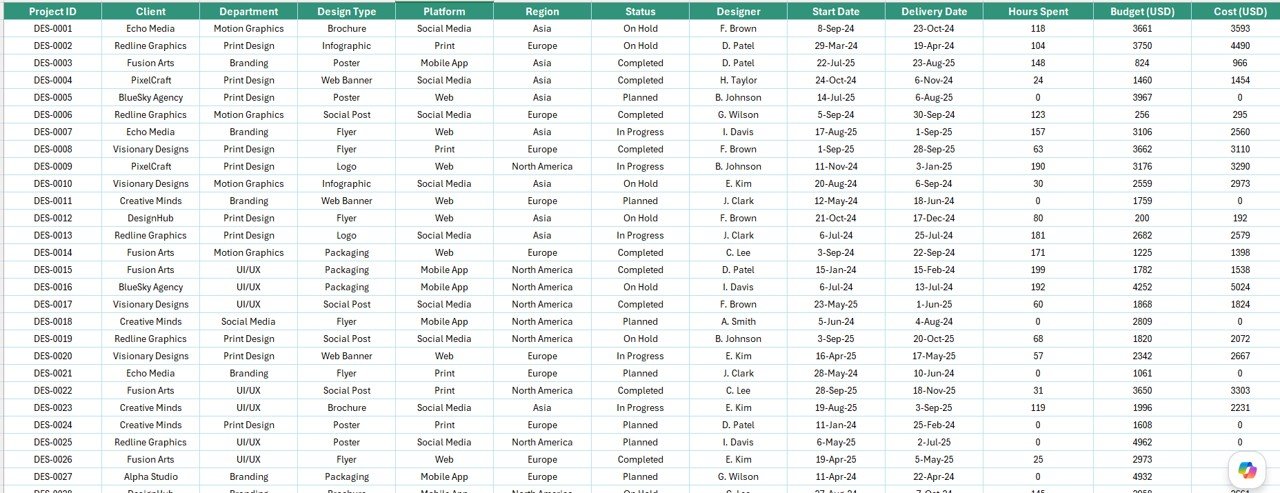
Data Sheet — Clean Data Entry for All Design Projects
Support Sheet: Contains lookup reference tables for designers, regions, design types, and status values. Update the support sheet to customize dropdown options throughout the file without touching any formulas.
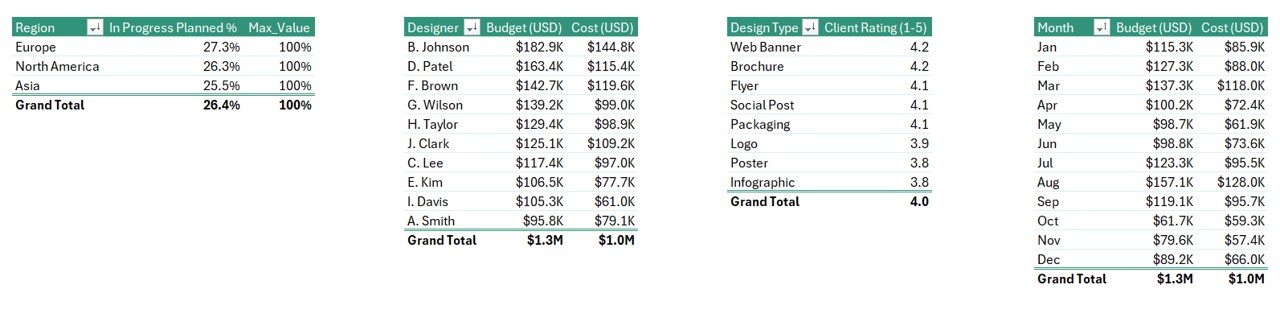
Support Sheet — Reference Tables for Dropdown Values
📊 Graphic Design Report in Excel vs. Google Sheets Version vs. Paid SaaS — Where This Fits
| Feature | Graphic Design Report in Excel | Google Sheets Equivalent | Monday.com / Teamwork |
|---|---|---|---|
| Cost | $7.99 one-time | Free (manual build) | $10–$25/user/month |
| Platform | Microsoft Excel (offline + online) | Cloud only | SaaS (cloud only) |
| Setup time | Under 10 minutes | 10–15 min | Hours + onboarding |
| Slicer-based filtering | ✅ Pre-built | Limited | ✅ Yes (paid tier) |
| Budget vs. Cost Charts | ✅ 5 pre-built charts | Manual build required | ✅ Paid tier |
| Client Rating by Design Type | ✅ Yes | Manual build required | Add-on required |
| Offline access | ✅ Full offline use | Limited | ❌ No |
| Year-1 cost (5 users) | $7.99 total | $0 but no pre-built charts | $600–$1,500/year |
For design studios and agencies that need professional reporting without monthly SaaS fees, the Graphic Design Report in Excel sits in the sweet spot.
👥 Who This Template Is For — and Who It’s Not For
✅ This template is built for:
- Graphic design studio owners tracking project budgets and designer performance
- Creative directors who need weekly reporting across multiple design types and regions
- Freelance designers managing multiple client projects against quoted budgets
- Marketing teams overseeing in-house design operations who report to leadership monthly
❌ This template is NOT for:
- Enterprise agencies with 50+ designers needing real-time multi-user collaboration (use Monday.com or Teamwork)
- Teams requiring automated time-tracking integrations with billing or invoicing software
⚙️ How to Use the Graphic Design Report in Excel
- Download and open the file in Microsoft Excel 2016 or later.
- Go to the Support Sheet and customize designer names, regions, design types, and status values to match your team.
- Enter your project data in the Data Sheet — one row per project with budget, actual cost, designer, region, design type, status, and client rating.
- Use the slicers on the Summary and Report pages to filter all charts and the information table instantly.
- Export the Summary Page as PDF using File → Export for professional client or leadership reporting.
💼 Real-World Use Cases
Priya runs a 5-designer graphic design studio in Mumbai. Every Monday morning she opens the Graphic Design Report in Excel, enters last week’s completed projects, and uses the Budget Vs Cost by Designer chart to identify which team members are going over budget before client invoicing — no SaaS subscription needed.
Marcus leads an in-house creative team at a regional retail chain. His team handles 30–50 design jobs per month across 4 regional offices. He uses the In Progress % by Region chart to flag behind-schedule regions, and the Client Rating by Design Type chart to identify project categories that consistently underperform in satisfaction scores.
❓ Frequently Asked Questions
What KPIs does the Graphic Design Report in Excel track?
The Graphic Design Report in Excel tracks 5 KPIs: Completed %, Budget Vs Cost by Designer, In Progress % by Region, Client Rating by Design Type, and Budget Vs Cost by Month. All metrics update automatically when you add or edit data in the Data Sheet.
Do I need macros or add-ins to use this template?
No. The Graphic Design Report in Excel uses only native Excel features — pivot charts, slicers, and standard formulas. No macros, VBA, or add-ins are required. It works in Excel 2016, 2019, 2021, and Microsoft 365.
Can I add more designers or regions to the report?
Yes. Add new entries to the Support Sheet dropdown lists, then enter corresponding project data in the Data Sheet. The charts and slicers automatically pick up the new values — no formula edits needed.
How does this compare to Monday.com or Teamwork for design reporting?
The Graphic Design Report in Excel costs $7.99 once versus $10–$25 per user per month for SaaS tools. It covers the core reporting needs — budget vs. cost, completion rates, client ratings — without subscriptions, per-seat fees, or mandatory onboarding.
Can I export the report as a PDF to share with clients?
Yes. Use Excel’s built-in File → Export → Create PDF/XPS to export the Summary or Report page as a polished PDF. The layout is designed to print cleanly on A4 or Letter paper.
Is this template compatible with Microsoft 365 online?
The template is optimized for Excel desktop (2016+). Microsoft 365 online supports most features, but slicer interaction and some chart formatting may differ slightly from the desktop version.
👤 About the Author
Built by PK — Microsoft Certified Professional with 15+ years of Excel, Google Sheets, and Power BI experience. Founder of NextGenTemplates, reaching 300K+ subscribers across YouTube channels (@PK-AnExcelExpert, @NextGenTemplates, @NeoTechNavigators). Every template is hand-built and tested before release.
🔗 Explore Related Templates
Looking for more Excel Report Templates? Here are popular picks from the creative and marketing department:
- Graphic Design KPI Dashboard in Excel — full KPI dashboard with slicers and multiple analysis pages for design agency management
- Photography Dashboard in Excel — project tracking and financial reporting for photography studios
- Media & Entertainment KPI Scorecard in Excel — KPI scorecard for media production and entertainment teams
Explore our full range of Excel Dashboard Templates for project management, marketing, and creative operations.
📖 Click here to read the Detailed Blog Post
🎥 Visit our YouTube channel for step-by-step video tutorials
👉 YouTube.com/@NextGenTemplates
📅 Last updated: May 2026







Reviews
There are no reviews yet.