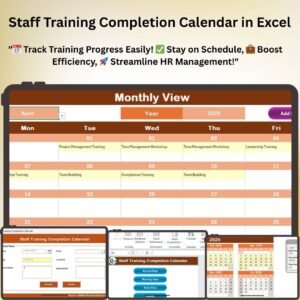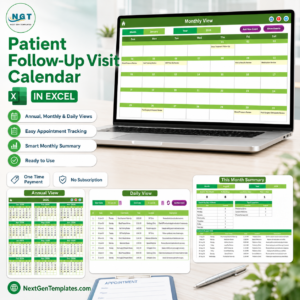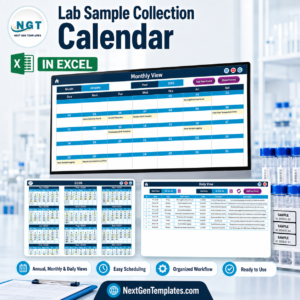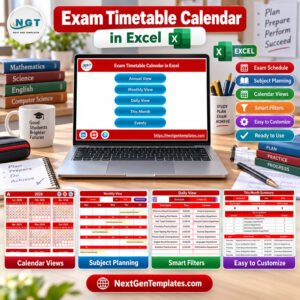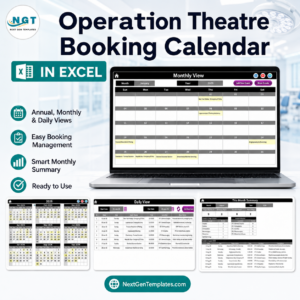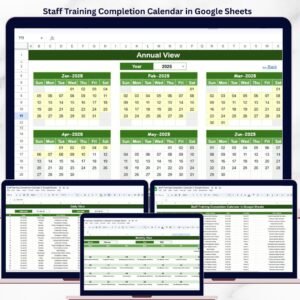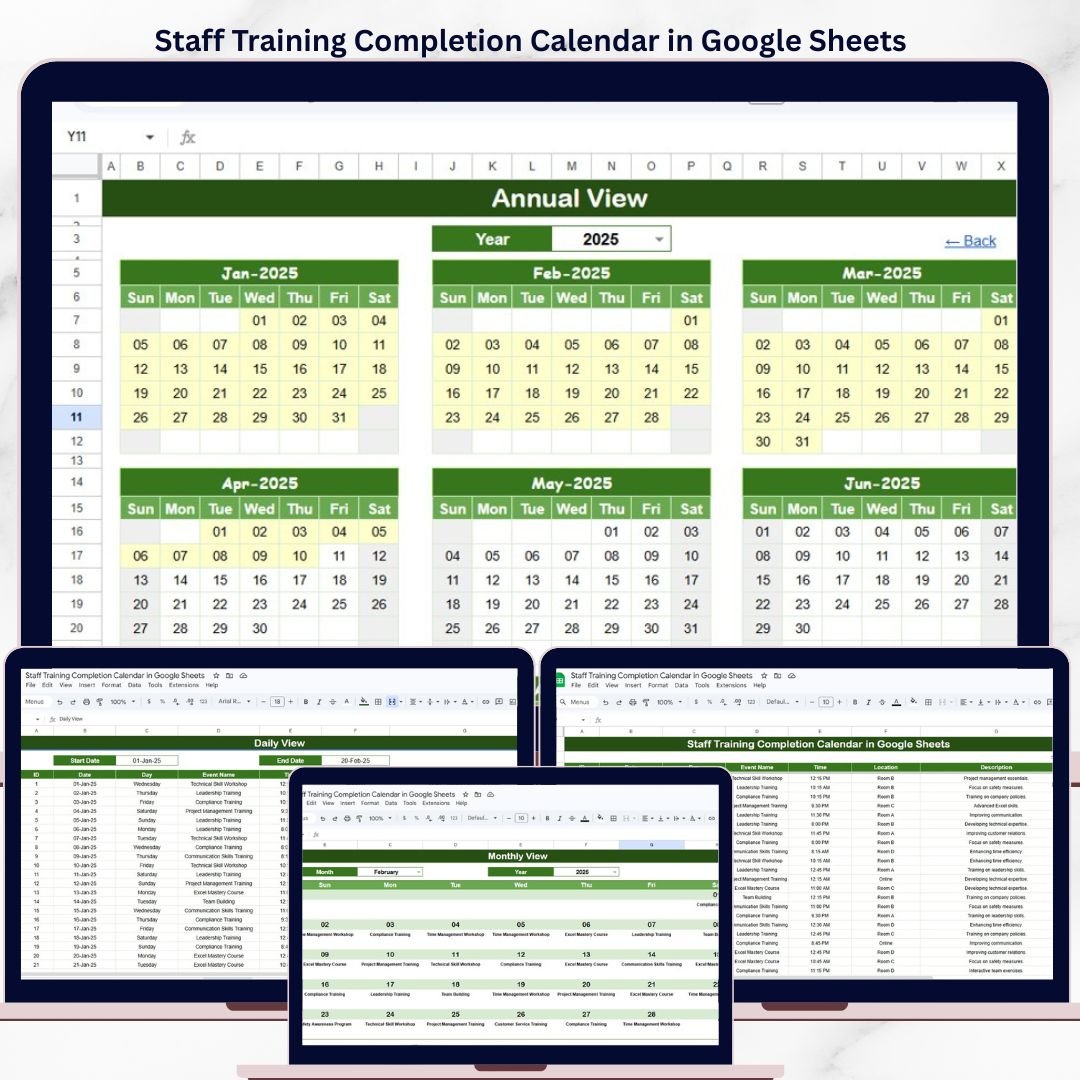
The Staff Training Completion Calendar in Google Sheets tracks training events across 4 interactive views — Annual, Monthly, Daily, and Events database — with 7 data fields per entry including Date, Day, Event Name, Time, Location, and Description. Setup takes under 5 minutes — just paste your training schedule and every view updates automatically.Staff Training Completion Calendar in Google Sheets
🌍 Join 8,400+ teams in 40+ countries using NextGenTemplates to replace paid SaaS tools with one-time-purchase Excel, Google Sheets, Power BI, and HTML templates.Staff Training Completion Calendar in Google Sheets
✅ Instant download · One-time payment · No subscription · No per-user fees · Lifetime access
🔑 Key Features of Staff Training Completion Calendar in Google Sheets
This calendar template gives HR managers and team leads a single place to log, view, and filter staff training events in Google Sheets. It includes 4 dedicated sheet tabs — Home, Annual View, Monthly View, Daily View, and Events — each built for a different way of reviewing training data.Staff Training Completion Calendar in Google Sheets
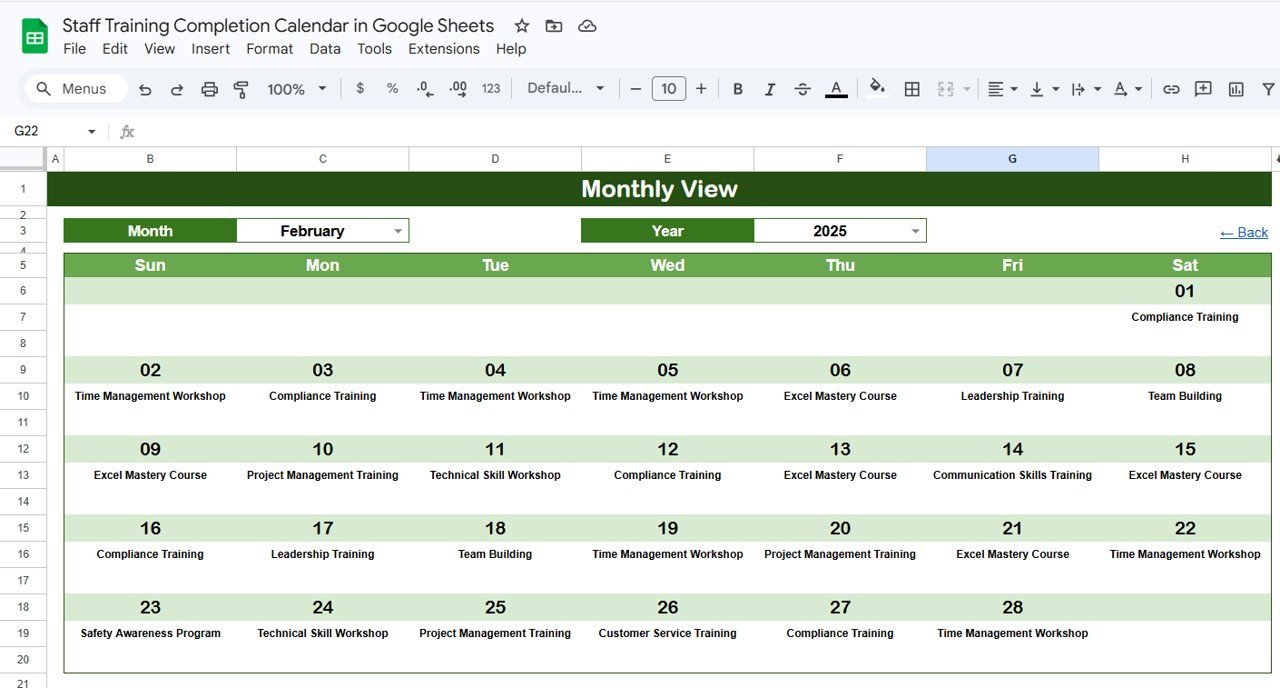
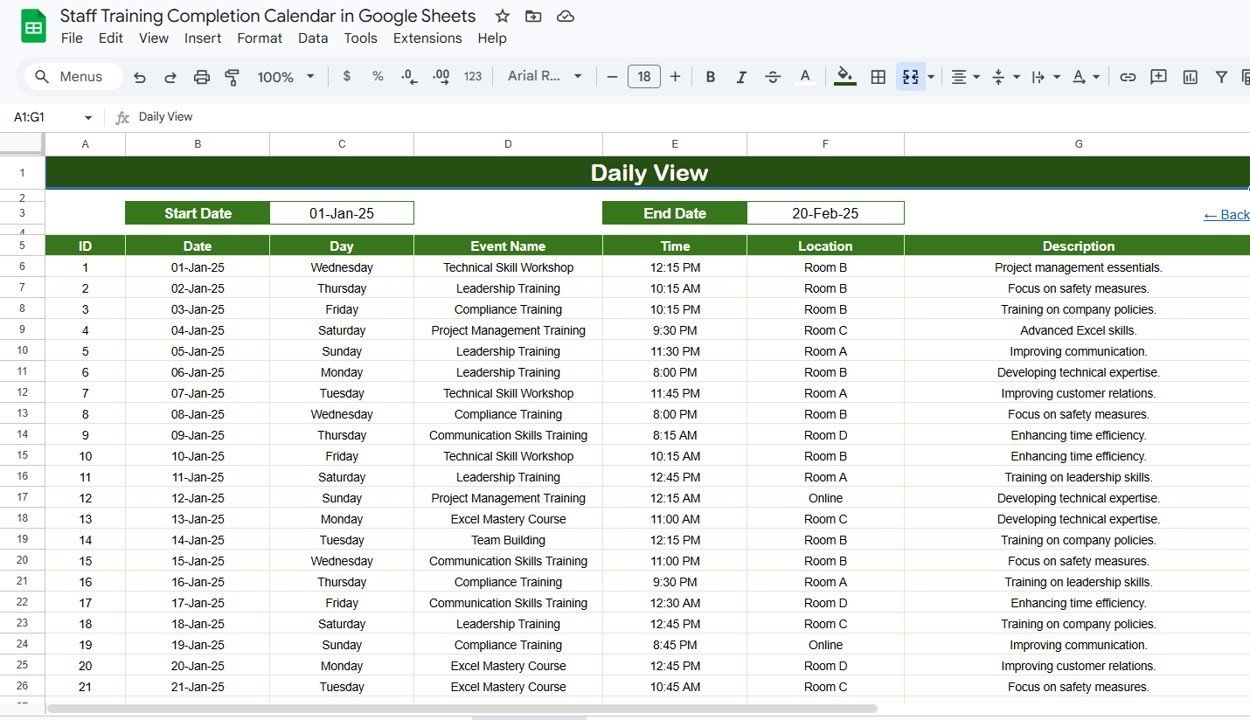
📌 The Home sheet acts as a navigation hub with 4 quick-jump buttons: Annual View, Monthly View, Daily View, and Events. Click any button to move to the corresponding sheet instantly. 📌 Auto-generated Event IDs ensure each training record is uniquely numbered in the Events sheet. 📌 The Monthly View responds to Month and Year dropdown selections, displaying events on the correct calendar dates with a “more than 1…” indicator when multiple events fall on the same date. 📌 The Daily View filters events by a custom Start Date and End Date range — double-click the cell to open a date picker. 📌 All data entry happens in one sheet (Events), so there is no duplicate data and every view stays synchronized.Staff Training Completion Calendar in Google Sheets
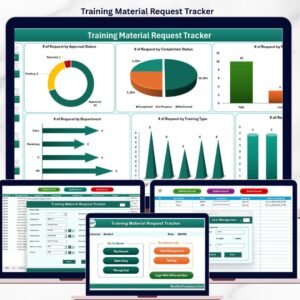
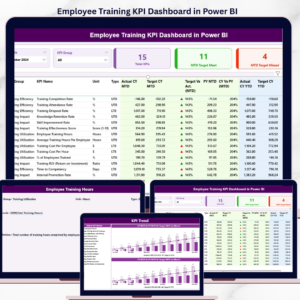
If you manage training programs across departments, this template replaces scattered spreadsheets and expensive learning management systems. Related templates include the Employee Training KPI Dashboard in Power BI for analytics-heavy tracking, and the Training Material Request Tracker in Excel for managing training resource requests.
📦 What’s Inside the Staff Training Completion Calendar
The template contains 5 worksheets designed for different training management needs:
📋 Home Sheet — An index page with 4 navigation buttons: Annual View, Monthly View, Daily View, and Events. Click any button to jump directly to that sheet tab.
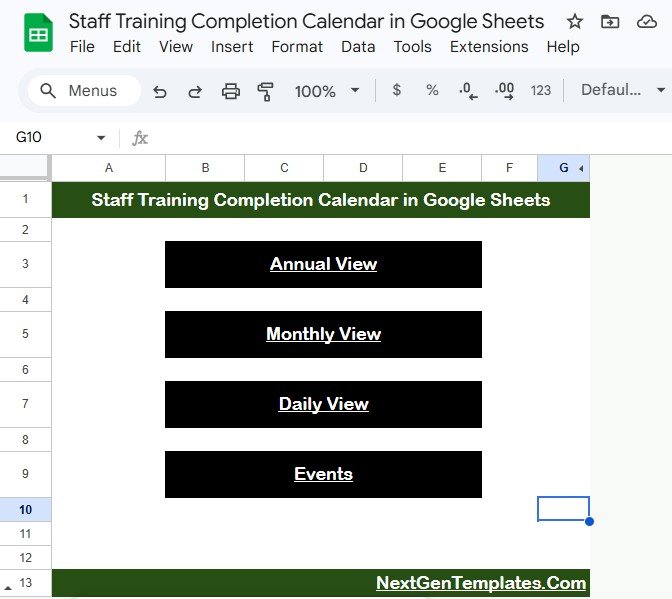 Staff Training Completion Calendar in Google Sheets
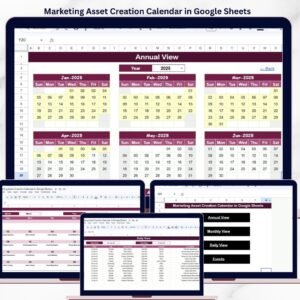
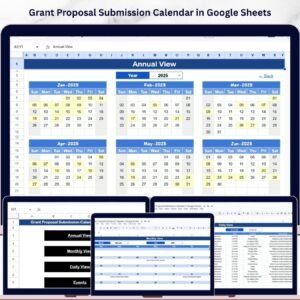
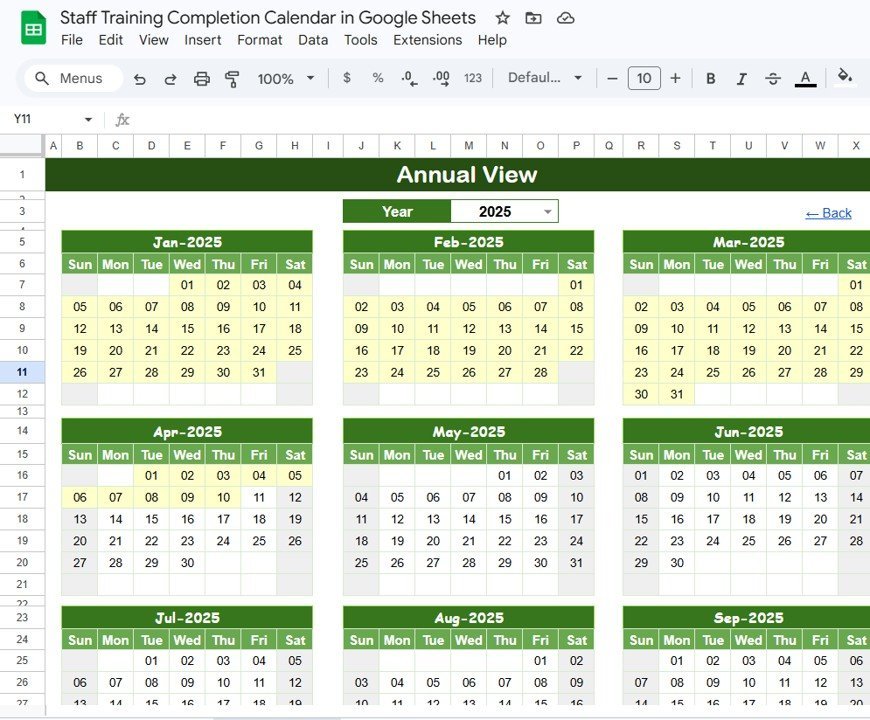
📋 Annual View Sheet — Displays all 12 months of the year in a grid calendar layout. Training events appear on their scheduled dates so you can see the full year at a glance.
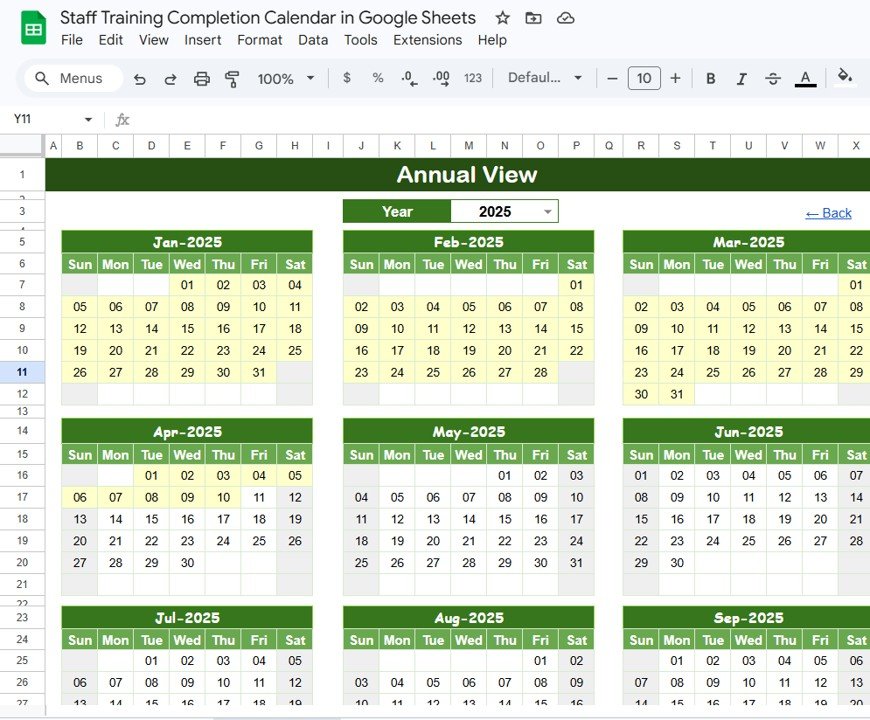 Annual View Sheet tab
📋 Monthly View Sheet — A single-month calendar controlled by Month and Year dropdown selectors at the top. Shows 1 event per date on the calendar cell. When multiple events fall on the same date, a “more than 1…” indicator appears so you know to check the Events sheet for full details.
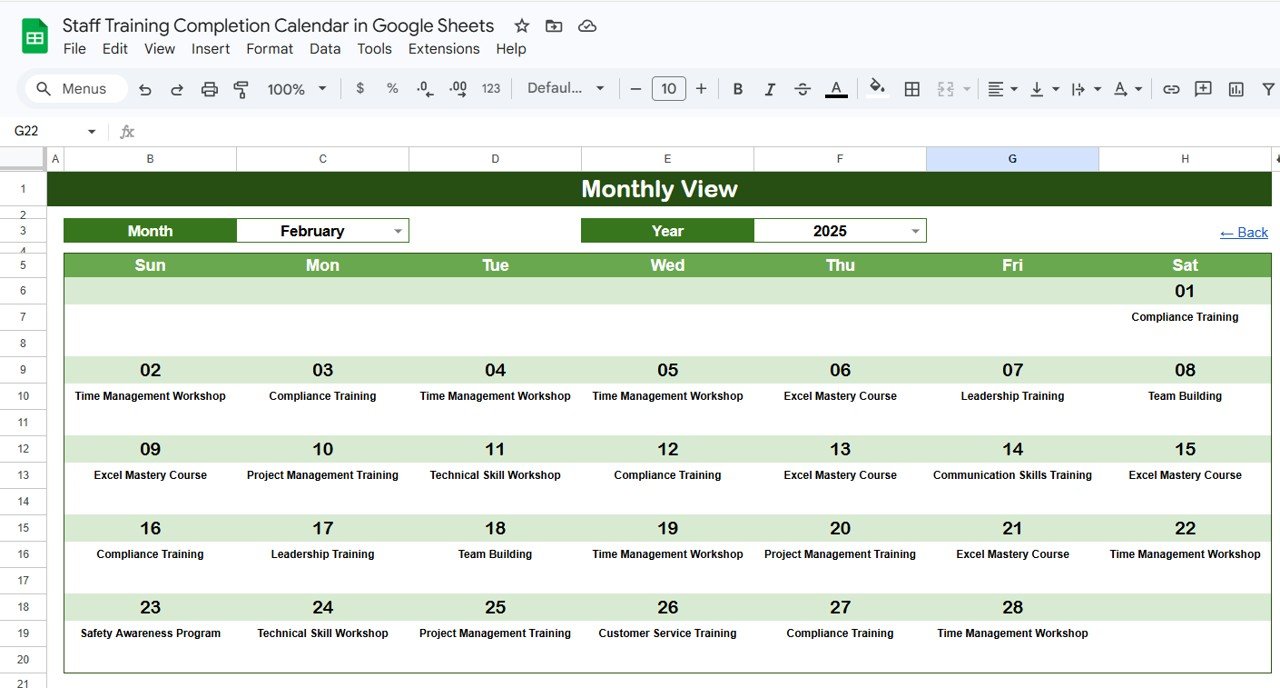 Monthly View Sheet tab
📋 Daily View Sheet — Lists all training events within a selected date range. Enter a Start Date and End Date at the top of the sheet (double-click the cell to open the date picker) and the view filters events accordingly, showing full details including Event Name, Time, Location, and Description.
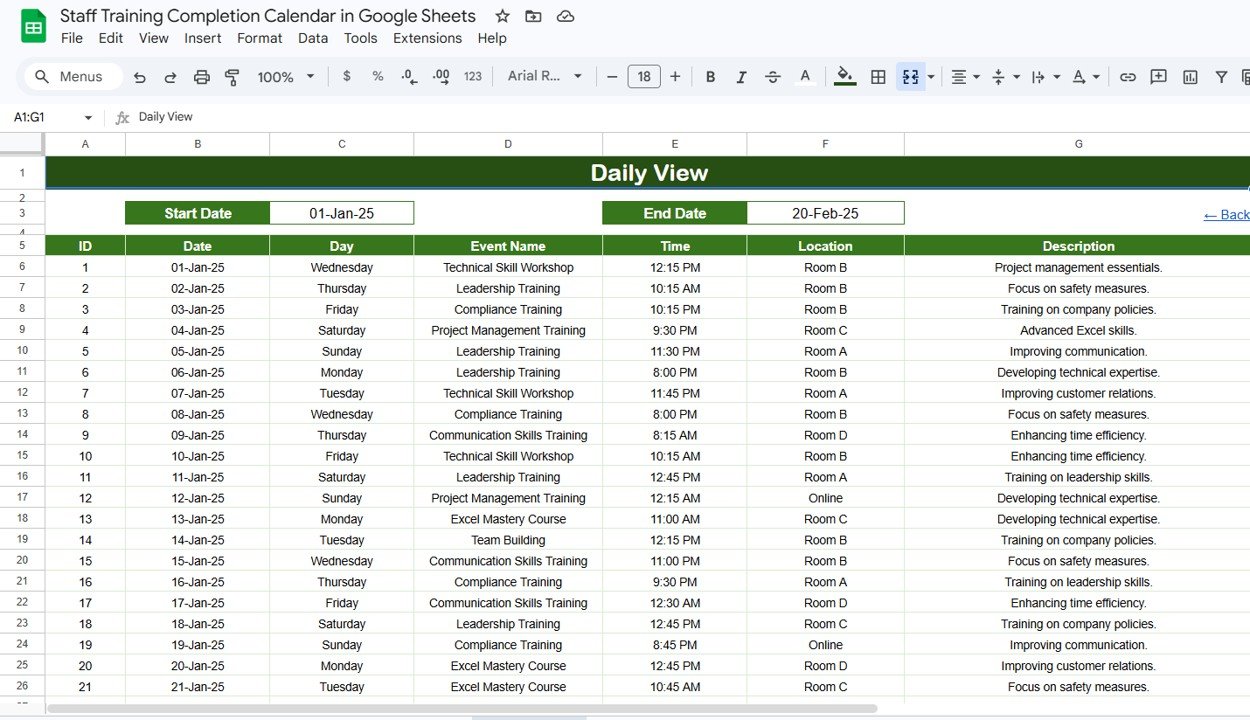 Daily View Sheet tab
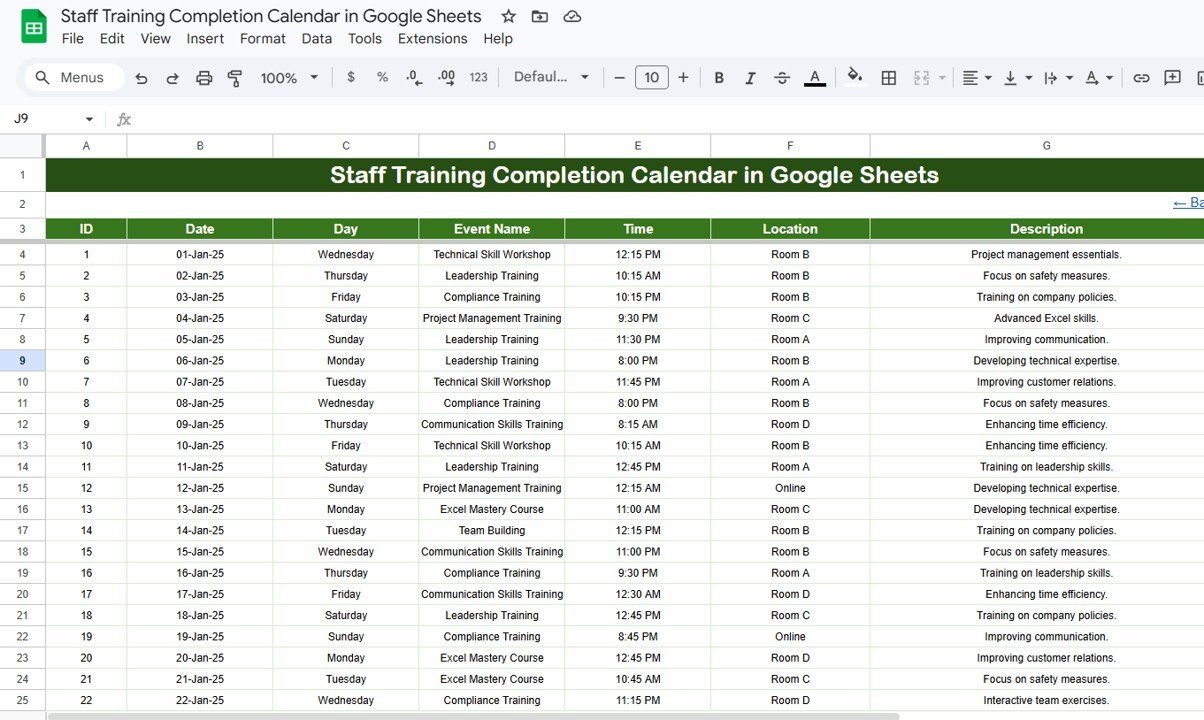
📋 Events Sheet — The central database where you enter all training event details. Each row captures: Auto-generated ID, Date, Day (auto-calculated), Event Name, Time, Location, and Description. All other views pull from this single sheet. Browse our Calendar Templates collection for similar event-tracking solutions.
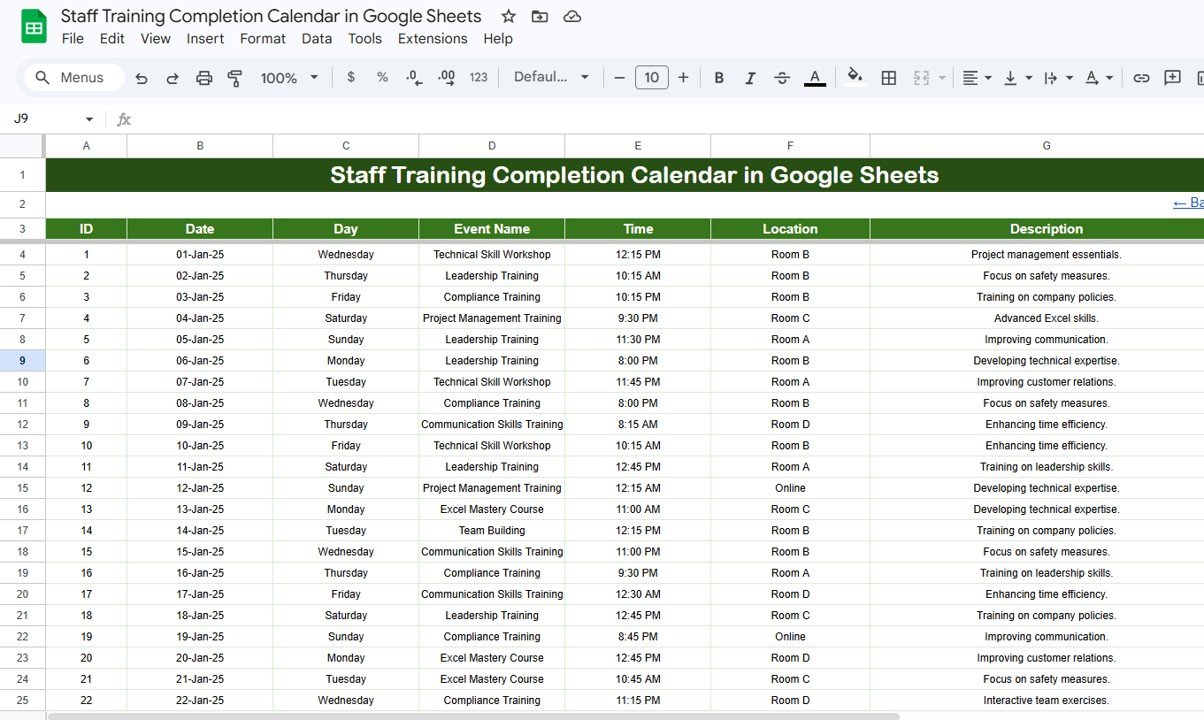 Events Sheet tab
📊 Staff Training Completion Calendar vs. Microsoft Excel Calendar vs. Paid LMS — Where This Fits
| Feature | Staff Training Completion Calendar (Google Sheets) | Microsoft Excel Calendar | Paid LMS (TalentLMS / Litmos) |
|---|---|---|---|
| Cost | $4.99 one-time | $4.99–$8.99 one-time | $59–$149 / user / month |
| Platform | Google Sheets (browser-based) | Microsoft Excel (desktop) | Web-based SaaS |
| Setup time | Under 5 minutes | Under 5 minutes | 2–4 weeks implementation |
| Real-time team collaboration | ✅ Built-in (Google Sheets) | Limited (OneDrive/SharePoint) | ✅ Yes |
| Mobile access | ✅ Google Sheets app | Limited on mobile | ✅ Yes |
| Customizable fields | ✅ Fully editable | ✅ Fully editable | Depends on plan |
| Share with link | ✅ One-click sharing | Requires OneDrive | ✅ Admin controls |
| Year-1 cost at 5 users | $4.99 total | $4.99–$8.99 total | $3,540–$8,940 |
| Annual + Monthly + Daily views | ✅ All 3 included | ✅ Varies by template | Custom reports needed |
For teams that want centralized training event tracking without paying $59+ per user per month for an LMS, the Staff Training Completion Calendar in Google Sheets sits in the sweet spot.
👥 Who This Template Is For — and Who It’s Not For
✅ This template is built for:
- HR managers at 10–500 person companies tracking recurring training sessions, certifications, and onboarding events
- Training coordinators who need a shared calendar visible to department heads without buying LMS licenses
- Small business owners scheduling safety training, compliance workshops, and team skill-building sessions
❌ This template is NOT for:
- Enterprise L&D teams needing course authoring, quiz grading, and SCORM/xAPI compliance tracking
- Organizations requiring automated certificate generation and renewal workflow automation
⚙️ How to Use the Staff Training Completion Calendar
1. Open the PDF guide included in your download and click the Google Sheets copy link to create your own editable copy in Google Drive.
2. Navigate to the Events sheet tab and replace the sample data with your own training events — enter the Date, Event Name, Time, Location, and Description for each session.
3. Use the Home sheet buttons to jump between the Annual View (full-year overview), Monthly View (single-month calendar with dropdown selectors), and Daily View (date-range filter).
4. On the Monthly View sheet, select your target Month and Year from the dropdowns at the top to see events for that specific month.
5. On the Daily View sheet, double-click the Start Date and End Date cells to open the date picker and filter events within your chosen range.
6. Share the Google Sheet with your team using the standard Google Sheets sharing options — everyone sees real-time updates.
💼 Real-World Use Cases
Priya manages HR at a 60-person manufacturing firm. She uses the Staff Training Completion Calendar to schedule monthly safety training, forklift certification renewals, and new-hire onboarding sessions. The Annual View gives her a full-year snapshot for planning, while the Daily View helps her pull up next week’s sessions before sending reminder emails — without paying $149/month for a TalentLMS subscription.
David coordinates IT training at a regional bank with 4 branches. He enters all cybersecurity awareness sessions, software upgrade workshops, and compliance refreshers into the Events sheet. Branch managers access the shared Google Sheet to check their team’s upcoming training dates on the Monthly View — no software installs, no login credentials to manage.
Maria runs a 15-person digital marketing agency. She tracks tool-specific training (Google Analytics, SEMrush, HubSpot) and client onboarding sessions using this calendar. The Daily View filtered by date range lets her generate a quick report of last quarter’s training hours for her team performance reviews.
❓ Frequently Asked Questions
How many training events can the Staff Training Completion Calendar hold?
The Staff Training Completion Calendar in Google Sheets handles thousands of event rows in the Events sheet. Google Sheets supports up to 10 million cells, so storage is not a practical limitation for training event data.
Can I customize the fields in the Events sheet?
Yes. The Events sheet captures ID, Date, Day, Event Name, Time, Location, and Description by default. You can add extra columns (e.g., Trainer Name, Department, Status) without breaking the calendar views.
Does this calendar work on mobile devices?
The Staff Training Completion Calendar works on any device with the Google Sheets app or a mobile browser. All 4 views — Annual, Monthly, Daily, and Events — are accessible from your phone or tablet.
How does the Monthly View handle multiple events on the same date?
When more than one training event falls on the same calendar date, the Monthly View displays the first event and shows a “more than 1…” indicator. Check the Events sheet or Daily View for full details on all events for that date.
How does this compare to a paid Learning Management System like TalentLMS?
The Staff Training Completion Calendar costs $4.99 one-time versus $59–$149 per user per month for TalentLMS. It covers scheduling and event visibility but does not include course authoring, quizzes, or SCORM content hosting — ideal for teams that need event tracking without full LMS features.
Can multiple team members edit the calendar at the same time?
Yes. Google Sheets supports real-time collaboration. Share the file with your team and multiple users can add or edit training events simultaneously with changes visible instantly.
Is this template compatible with Google Workspace for business?
The Staff Training Completion Calendar works with any Google account — free Gmail, Google Workspace Business, or Google Workspace Enterprise. No special add-ons or permissions are needed.
👤 About the Author
Built by PK — Microsoft Certified Professional with 15+ years of Excel, Google Sheets, and Power BI experience. Founder of NextGenTemplates, reaching 300K+ subscribers across YouTube channels (@PK-AnExcelExpert, @NextGenTemplates, @NeoTechNavigators). Every template is hand-built and tested before release.
🔗 Explore Related Templates
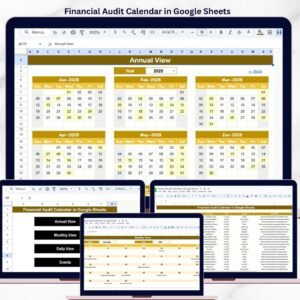
📌 Financial Audit Calendar in Google Sheets — Track audit milestones and deadlines across the year with the same 4-view layout.
📌 Maintenance Tasks Calendar in Google Sheets — Schedule equipment maintenance, inspections, and service tasks on a visual calendar.
📌 Product Expiration Date Calendar in Google Sheets — Monitor product shelf life and expiry dates with annual and monthly views.
📌 Employee Training KPI Dashboard in Power BI — Advanced training analytics with KPI cards, charts, and drill-through pages.
📌 Browse all Google Sheets Dashboard Templates for more ready-to-use solutions.
📖 Click here to read the Detailed Blog Post
🎥 Visit our YouTube channel for step-by-step video tutorials
👉 YouTube.com/@NextGenTemplates