

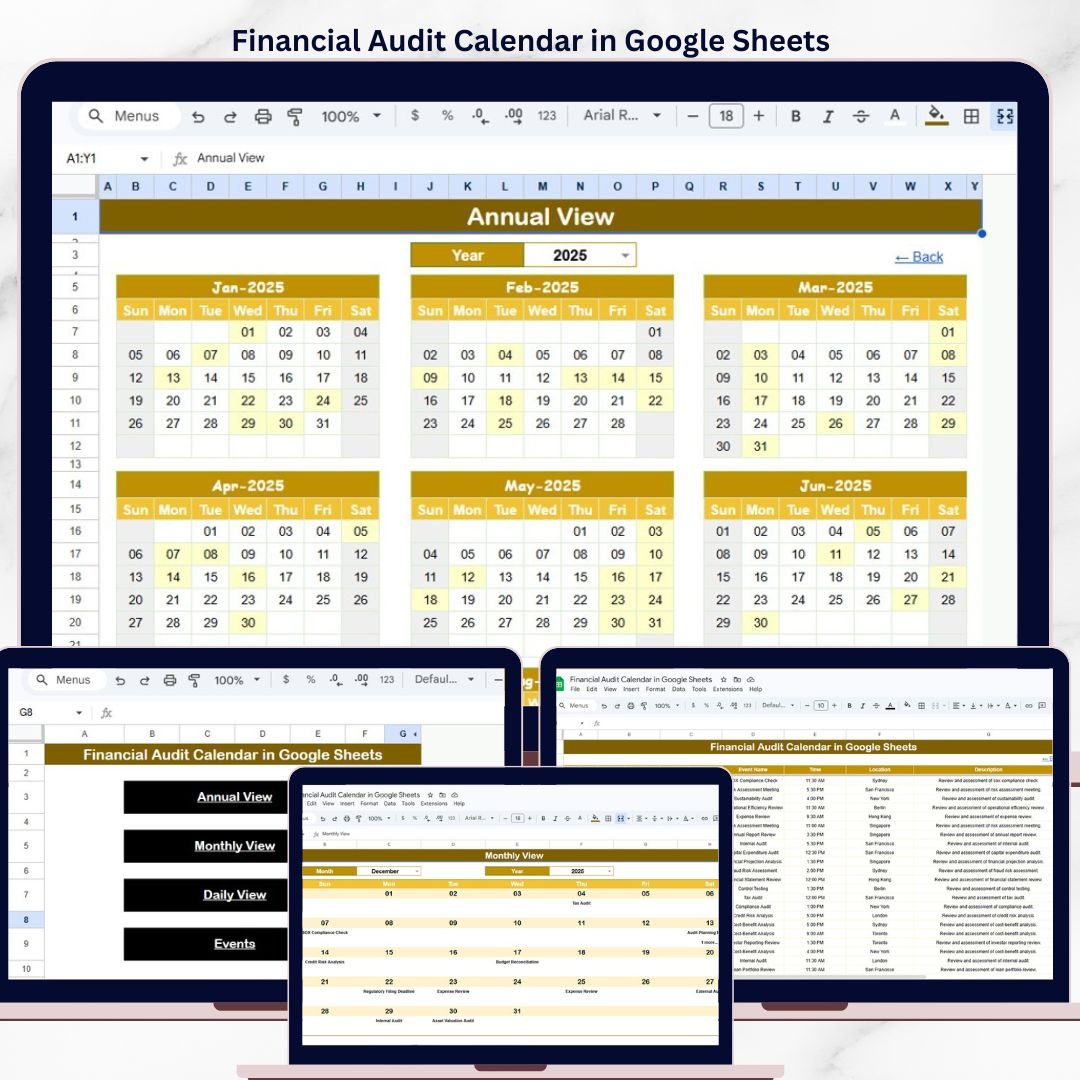
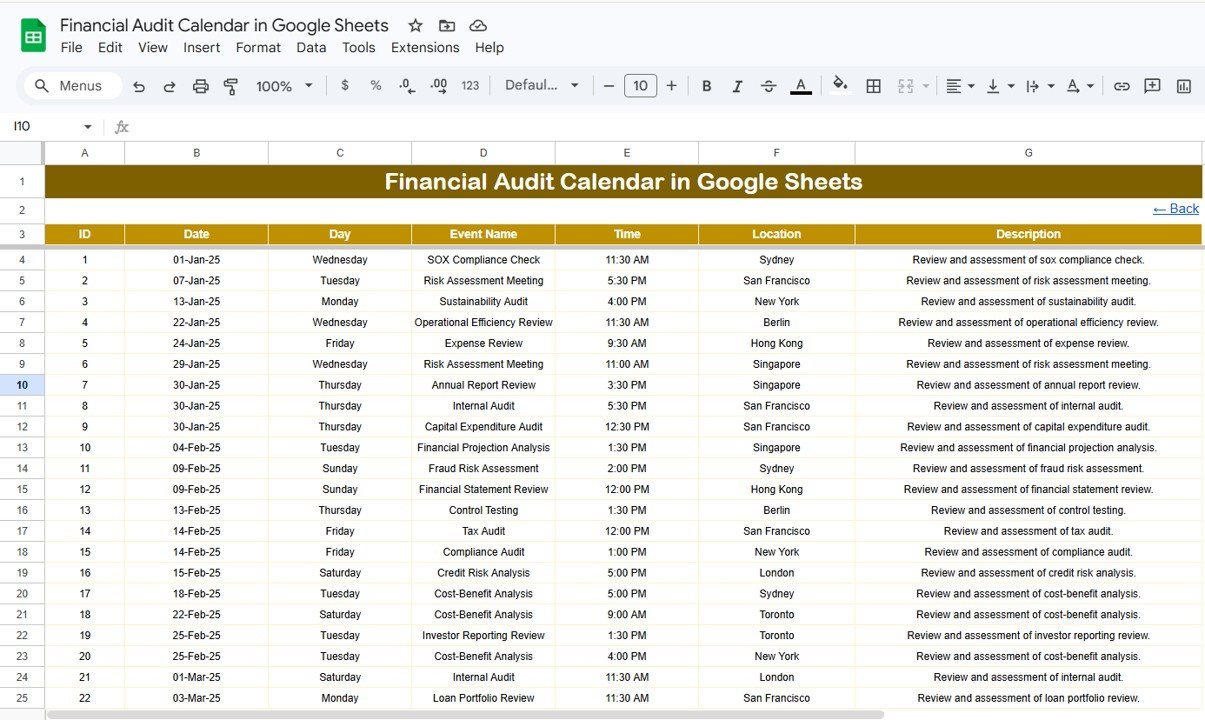
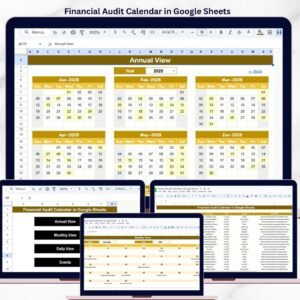
The Financial Audit Calendar in Google Sheets organizes your audit schedule across 5 interactive sheets with 4 distinct views — Annual, Monthly, Daily, and a centralized Events database. It tracks audit dates, locations, and descriptions in one place. Setup takes under 5 minutes — copy the template to your Google Drive, replace the sample data, and your entire audit calendar is ready.
🌍 Join 8,400+ teams in 40+ countries using NextGenTemplates to replace paid SaaS tools with one-time-purchase Excel, Google Sheets, Power BI, and HTML templates.
✅ Instant download · One-time payment · No subscription · No per-user fees · Lifetime access
🔑 Key Features of the Financial Audit Calendar in Google Sheets
📊 5 Purpose-Built Sheets: The Financial Audit Calendar in Google Sheets includes a Home navigation sheet, Annual View with all 12 months displayed, Monthly View with event overlays, Daily View with date-range filtering, and an Events database sheet — covering every angle of audit schedule management.
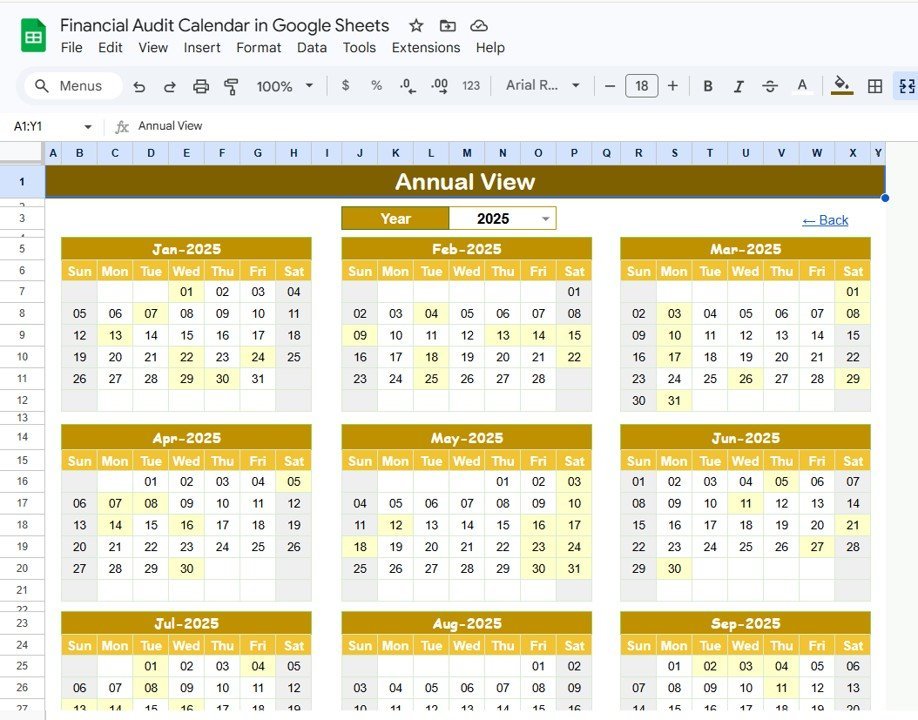
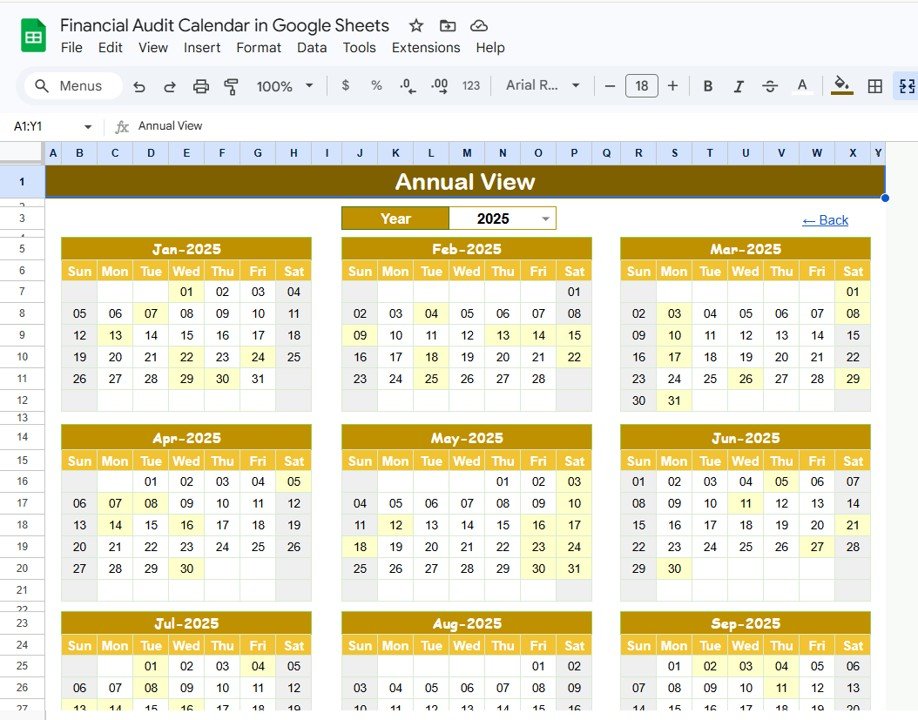
📅 Annual View — Full Year at a Glance: The Annual View sheet displays all 12 months of the calendar year in a single view. Financial controllers and audit managers can spot scheduling gaps, identify busy audit periods, and plan quarterly reviews without switching between tabs.
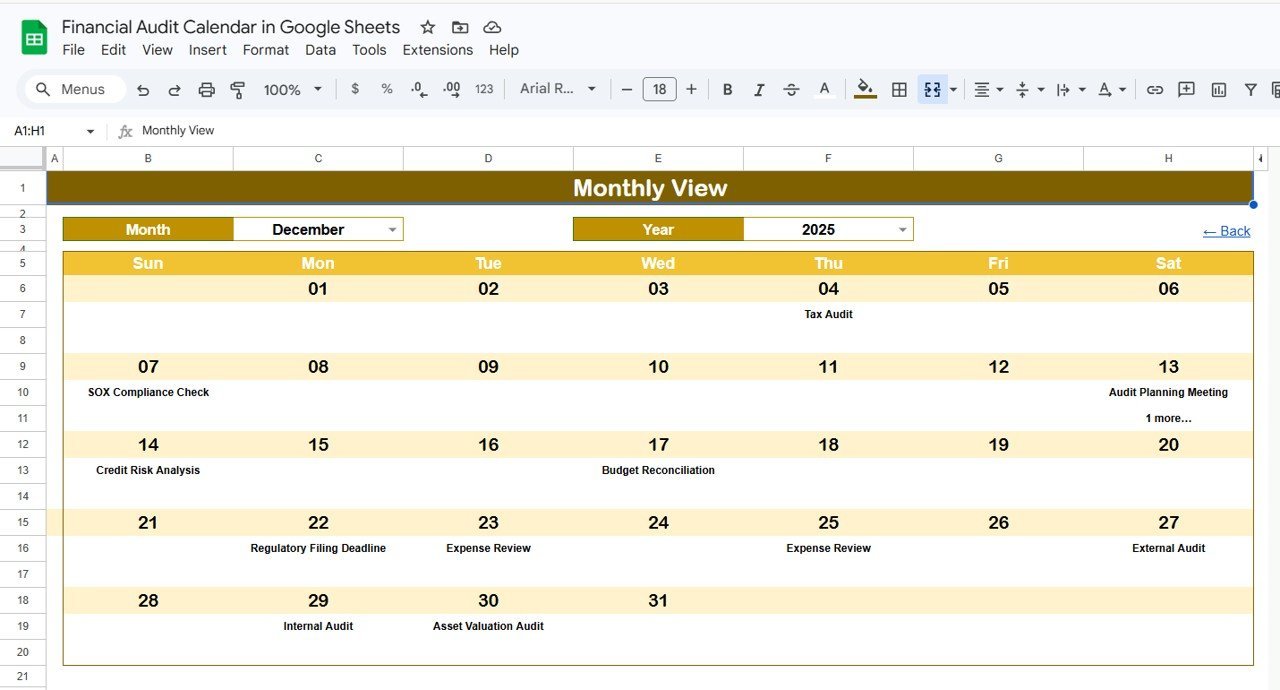
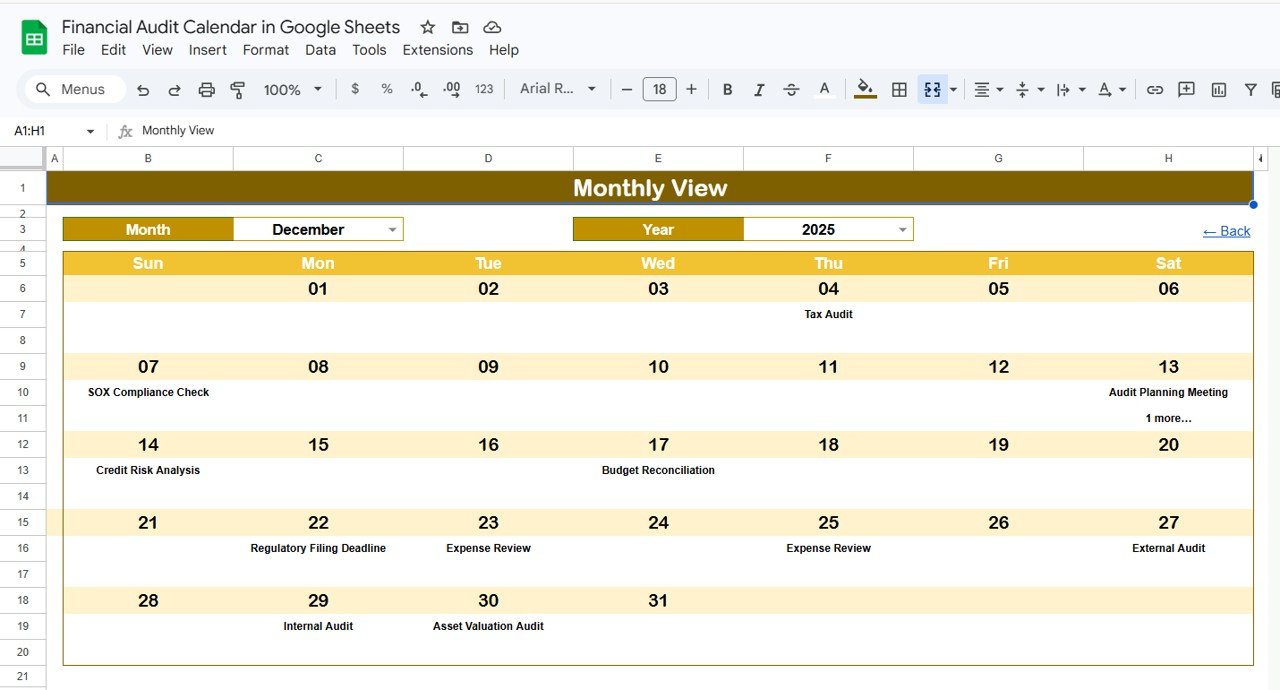
📆 Monthly View with Dynamic Month/Year Selector: Select any month and year from the dropdown at the top. The calendar grid refreshes to show that month’s layout with audit events displayed directly on the relevant dates. If a date has more than one event, it displays a “more than 1…” indicator so nothing gets missed.
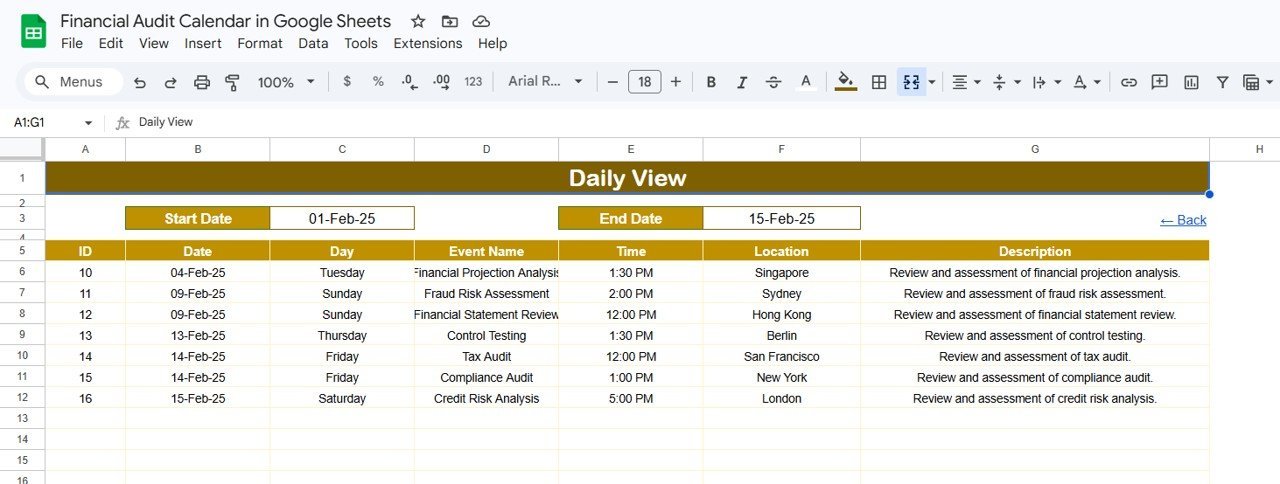
📋 Daily View with Custom Date Range: The Daily View sheet lists all audit events within a selected date range. Set the start and end dates at the top — double-click any date cell to open the calendar date picker — and instantly see every scheduled audit with full details including event name, time, location, and description.
🗄️ Centralized Events Database: The Events sheet stores every audit event with 7 fields: auto-generated ID, Date, Day of the week, Event Name, Time, Location, and Description. Add new entries manually — each row becomes a new audit event that feeds into all calendar views automatically.
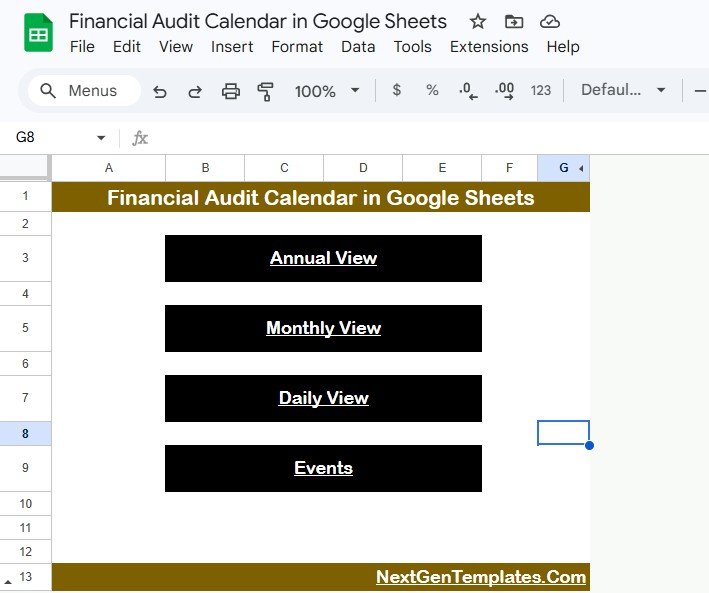
🏠 Home Navigation Sheet: The index page features 4 clearly labeled buttons — Annual View, Monthly View, Daily View, and Events — for instant one-click navigation between sheets. No scrolling, no searching.
This Google Sheets Calendar template is built for finance teams, internal auditors, and compliance officers who need a structured, shareable audit schedule without paying for dedicated audit management software.
📦 What’s Inside the Financial Audit Calendar
📌 Home Sheet: Navigation index with 4 buttons — Annual View, Monthly View, Daily View, and Events — for quick access to each section of the calendar.
Financial Audit Calendar in Google Sheets
📌 Annual View Sheet: Displays all 12 months of the year in a compact calendar layout. Ideal for identifying audit concentration periods and planning year-round coverage.
Annual View Sheet
📌 Monthly View Sheet: A single-month calendar for any selected month and year. Events appear directly on the date cells. When a date has more than one event, a “more than 1…” label ensures visibility. Select the month and year from the dropdowns at the top to refresh the view.
Monthly View Sheet
📌 Daily View Sheet: Lists audit events within a custom date range. Enter the start date and end date at the top — double-click to open the date picker — and see a filtered list of all scheduled audits with their full details.
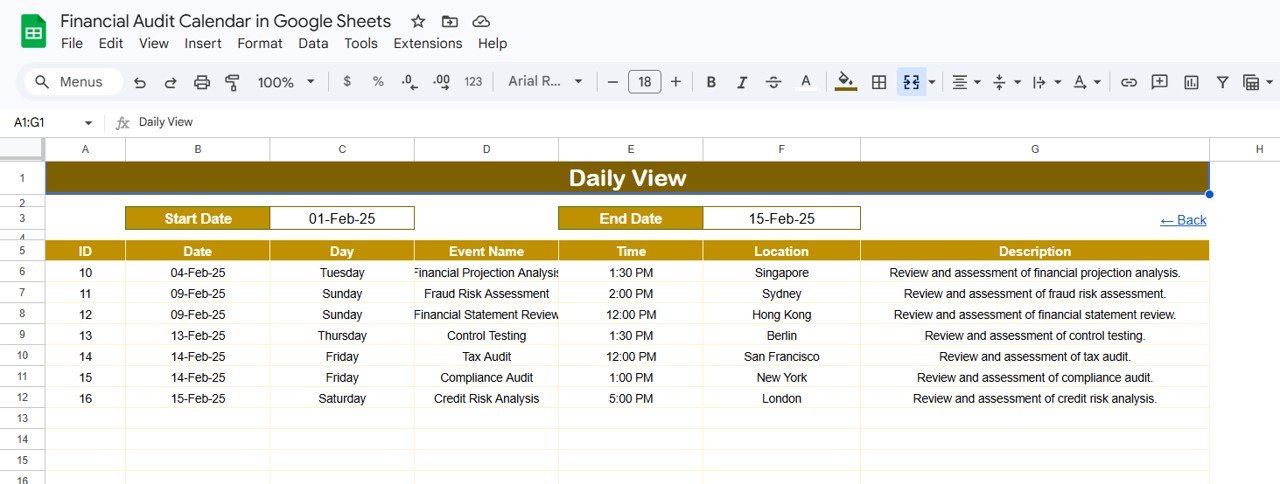
Daily View Sheet
📌 Events Sheet: The central database for all financial audit events. Each entry captures: auto-generated ID, Date, Day (Sunday, Monday, etc.), Event Name, Time, Location, and Description. Add data manually to schedule new audit events.
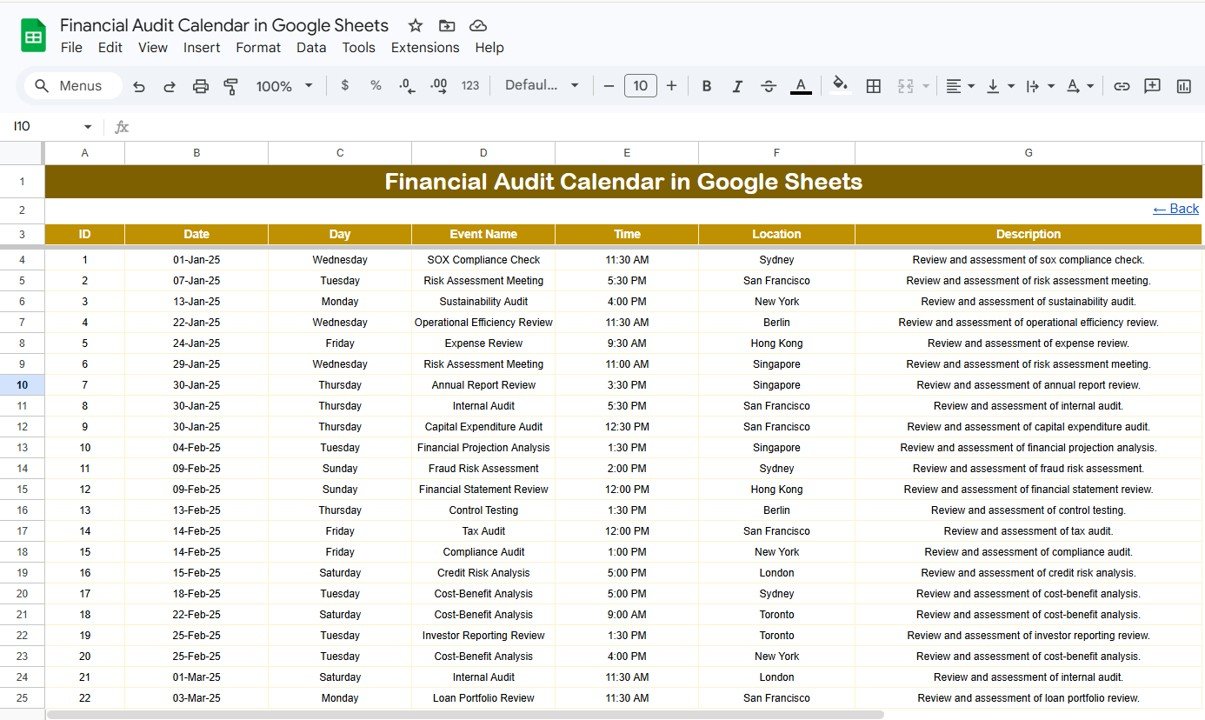
Events Sheet
📊 Financial Audit Calendar in Google Sheets vs. Microsoft Excel Calendar vs. AuditBoard — Where This Fits
| Feature | Financial Audit Calendar in Google Sheets | Microsoft Excel Calendar | AuditBoard / TeamMate+ |
|---|---|---|---|
| Cost | $4.99 one-time | $8-15 one-time (templates) | $2,000-10,000+ / year |
| Platform | Google Sheets (browser-based) | Desktop Excel required | Cloud SaaS |
| Setup Time | Under 5 minutes | 10-15 minutes | 2-4 weeks implementation |
| Real-time Team Collaboration | ✅ Built-in (Google Sheets) | ❌ Requires OneDrive/SharePoint | ✅ Yes |
| Mobile Access | ✅ Any browser or Google Sheets app | ❌ Limited on mobile | ✅ Yes |
| Customizable Fields | ✅ Fully editable | ✅ Fully editable | ⚠️ Admin configuration needed |
| Share with Link | ✅ One click | ❌ Email attachment | ✅ Via portal login |
| Year-1 Cost at 5 Users | $4.99 total | $8-15 total | $10,000-50,000+ |
| 4 Calendar Views (Annual/Monthly/Daily/Events) | ✅ All included | ⚠️ Usually 1-2 views | ✅ Yes with modules |
For finance teams that want a structured audit calendar with multiple views without paying thousands for enterprise audit software, the Financial Audit Calendar in Google Sheets sits in the sweet spot.
👥 Who This Template Is For — and Who It’s Not For
✅ This template is built for:
- Internal audit teams at small-to-midsize companies (10-500 employees) scheduling quarterly and annual audits
- Finance managers who need a shared, real-time audit calendar accessible by the entire team
- Compliance officers tracking regulatory audit deadlines across multiple departments
- Accounting firms managing audit schedules for multiple clients in one calendar
❌ This template is NOT for:
- Enterprise audit teams needing SOC 2 compliance, automated evidence collection, and role-based access controls — consider AuditBoard or TeamMate+
- Teams requiring automated audit workflow routing with approval chains and digital sign-offs
⚙️ How to Use the Financial Audit Calendar in Google Sheets
- Copy to Google Drive: Open the shared link and click “Make a copy” to save it to your own Google Drive.
- Open the Events Sheet: Navigate to the Events tab and enter your audit events — Date, Event Name, Time, Location, and Description. The ID and Day columns auto-populate.
- Check the Annual View: Click the Annual View button on the Home sheet to see all 12 months with your events mapped.
- Use the Monthly View: Select a specific month and year from the dropdowns to see a focused single-month calendar with events overlaid.
- Filter by Date Range: Go to the Daily View sheet, enter start and end dates, and instantly see all audits scheduled within that window.
- Share with Your Team: Click Share in Google Sheets to give view or edit access to team members — no additional licenses needed.
💼 Real-World Use Cases
Priya manages internal audits at a 120-person manufacturing company. She uses the Financial Audit Calendar in Google Sheets to schedule 28 annual audits across 4 departments — quality, safety, financial, and compliance. Her team checks the Monthly View every Monday to see what’s coming up that week, and the Daily View filters help her generate weekly audit briefings for senior management.
James runs a 6-person accounting firm in Austin. He tracks audit schedules for 14 clients using the Events sheet, tagging each event with the client name in the Description field. The Annual View gives him a bird’s-eye look at busy seasons (Q1 and Q4), helping him allocate staff and avoid double-bookings — all without paying $500/month for practice management software.
Fatima is a compliance officer at a fintech startup. She uses the calendar to track SOX readiness audits, regulatory filing deadlines, and third-party vendor reviews. Because it’s in Google Sheets, her CFO and legal counsel can view the calendar in real time without needing a separate login or software license.
❓ Frequently Asked Questions
How many audit events can I track in the Financial Audit Calendar in Google Sheets?
The Financial Audit Calendar in Google Sheets supports hundreds of events in the Events sheet. Google Sheets handles up to 10 million cells, so storage is not a practical limitation for audit scheduling. Each event auto-generates a unique ID for easy tracking.
Can I customize the fields in the Events sheet?
Yes. The Events sheet includes 7 default columns — ID, Date, Day, Event Name, Time, Location, and Description. You can add custom columns like Auditor Name, Status, or Priority without breaking any formulas or views.
Does the Monthly View update automatically when I add new events?
Yes. When you add a new event in the Events sheet, the Monthly View calendar reflects it immediately. Select the relevant month and year from the dropdown to see updated audit entries on the calendar grid.
Can multiple team members edit the calendar at the same time?
Yes. Google Sheets supports real-time multi-user editing. Share the calendar with your team via Google Drive, and everyone can add, edit, or view audit events simultaneously — no version conflicts.
How does this compare to using AuditBoard or TeamMate+ for audit scheduling?
AuditBoard and TeamMate+ cost $2,000-10,000+ per year and require weeks of implementation. The Financial Audit Calendar in Google Sheets costs $4.99 once, sets up in 5 minutes, and covers scheduling needs for teams that don’t require enterprise workflow automation.
Can I use this calendar for non-financial audits?
Yes. While designed for financial audits, the template works for any audit type — IT audits, quality audits, safety inspections, compliance reviews. Just replace the sample data with your own events.
Is there a date picker in the Daily View sheet?
Yes. Double-click the Start Date or End Date cell in the Daily View sheet to open the built-in Google Sheets calendar date picker. Select your date range and the event list filters instantly.
👤 About the Author
Built by PK — Microsoft Certified Professional with 15+ years of Excel, Google Sheets, and Power BI experience. Founder of NextGenTemplates, reaching 300K+ subscribers across YouTube channels (@PK-AnExcelExpert, @NextGenTemplates, @NeoTechNavigators). Every template is hand-built and tested before release.
🔗 Explore Related Templates
📌 Retail Sales and Promotion Calendar in Excel — Track sales events and promotions with a similar multi-view calendar layout in Excel.
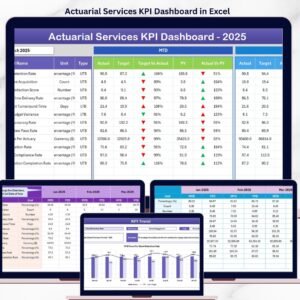
📌 Actuarial Services KPI Dashboard in Excel — Monitor financial risk and actuarial KPIs with an interactive Excel dashboard.
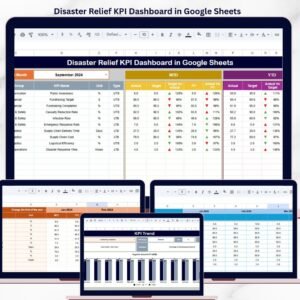
📌 Disaster Relief KPI Dashboard in Google Sheets — Track operational KPIs in Google Sheets with trend charts and conditional formatting.
📌 Browse all Google Sheets Dashboard Templates
📖 Click here to read the Detailed Blog Post
🎥 Visit our YouTube channel for step-by-step video tutorials
👉 YouTube.com/@NextGenTemplates


















Reviews
There are no reviews yet.